Tech is Easy
Google Docs Keyboard Shortcuts: 10 You Must Know
The Google Docs keyboard shortcuts worth learning first are Ctrl + C / X / V to copy, cut and paste, Ctrl + Z to undo, Ctrl + A to select all, Ctrl + B / I / U for bold, italics and underline, Ctrl + Shift + C for word count, Ctrl + F to find text, and Ctrl + Shift + > or < to change the font size. These best Google Docs shortcuts save time for anyone who writes essays, notes or reports, and they take a few minutes to learn.
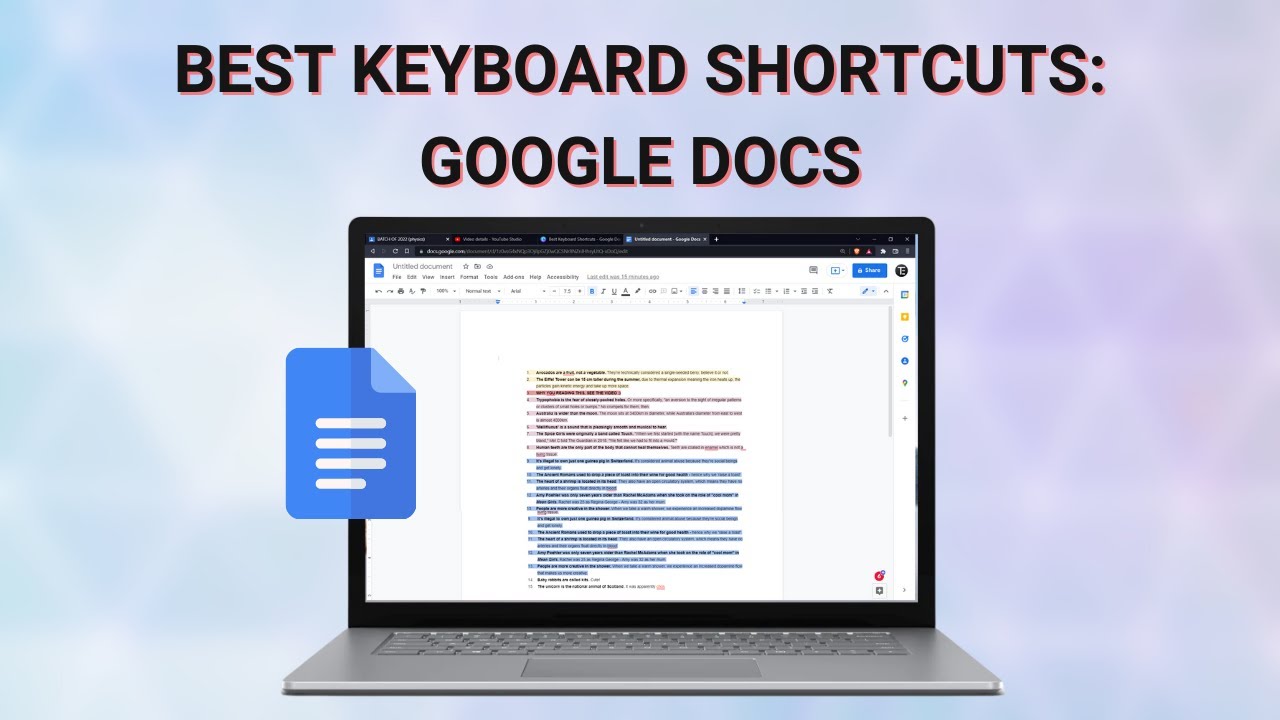
On a Mac, use Command (⌘) wherever this guide says Ctrl. For example, ⌘ + B makes text bold and ⌘ + Shift + C shows the word count. The video was recorded in 2022, so the Docs toolbar may look slightly different now, but the shortcuts are the same.
Quick reference table
| What it does | Windows / Chromebook | Mac |
|---|---|---|
| Copy | Ctrl + C | ⌘ + C |
| Cut | Ctrl + X | ⌘ + X |
| Paste | Ctrl + V | ⌘ + V |
| Undo | Ctrl + Z | ⌘ + Z |
| Redo | Ctrl + Shift + Z | ⌘ + Shift + Z |
| Select all | Ctrl + A | ⌘ + A |
| Bold / Italic / Underline | Ctrl + B / I / U | ⌘ + B / I / U |
| Word count | Ctrl + Shift + C | ⌘ + Shift + C |
| Find text | Ctrl + F | ⌘ + F |
| Bigger / smaller font | Ctrl + Shift + > / < | ⌘ + Shift + > / < |
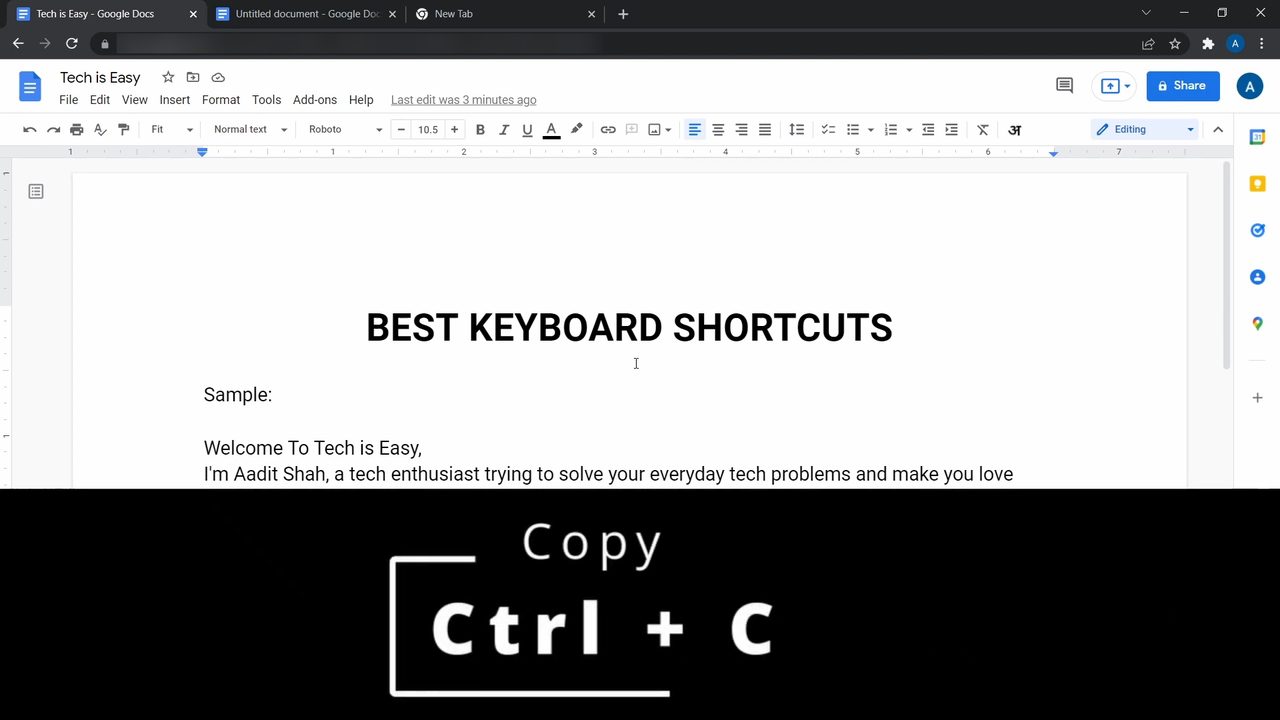
1Copy, cut and paste (Ctrl + C, Ctrl + X, Ctrl + V)
Select the text you want, press Ctrl + C to copy it, place the cursor where it should go, and press Ctrl + V to paste. Ctrl + X (cut) works like copy, but removes the original text, so you use it to move a line from one place to another. These three work in almost every app, not just Google Docs.
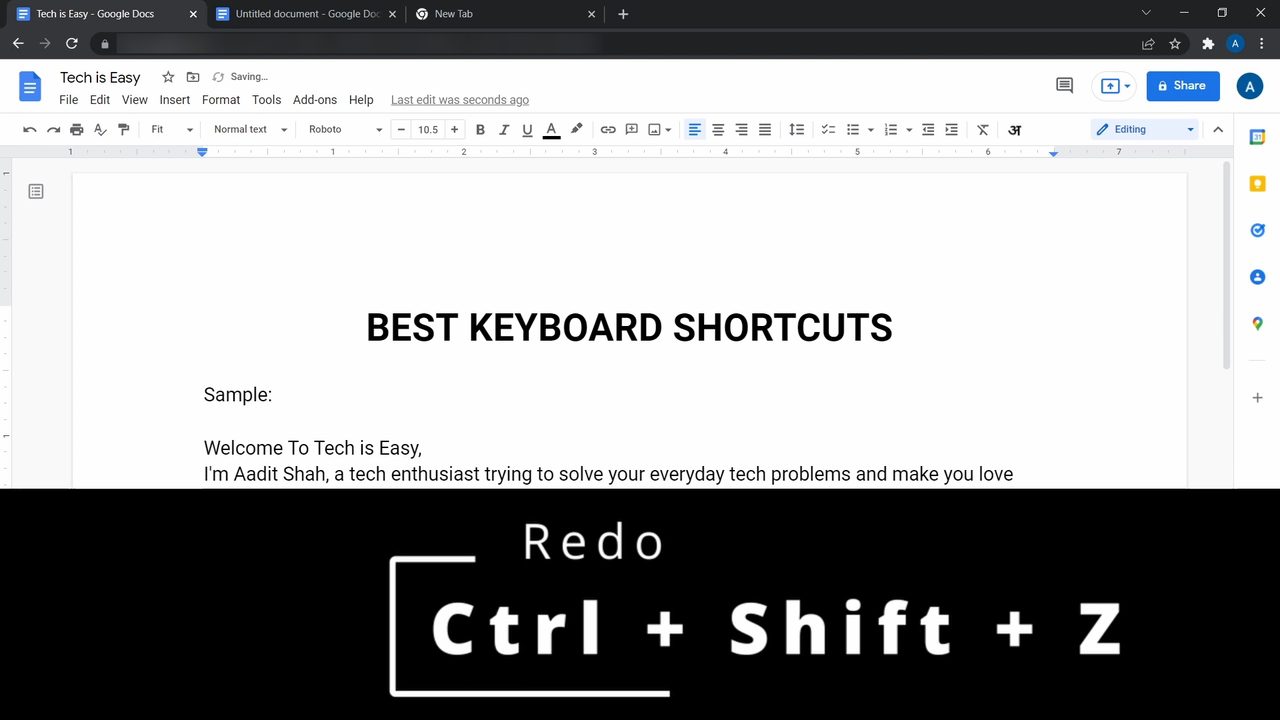
2Undo and redo (Ctrl + Z, Ctrl + Shift + Z)
Made a mistake? Press Ctrl + Z to undo the last change. Press it again to go back further. If you undo too much, press Ctrl + Shift + Z to redo.
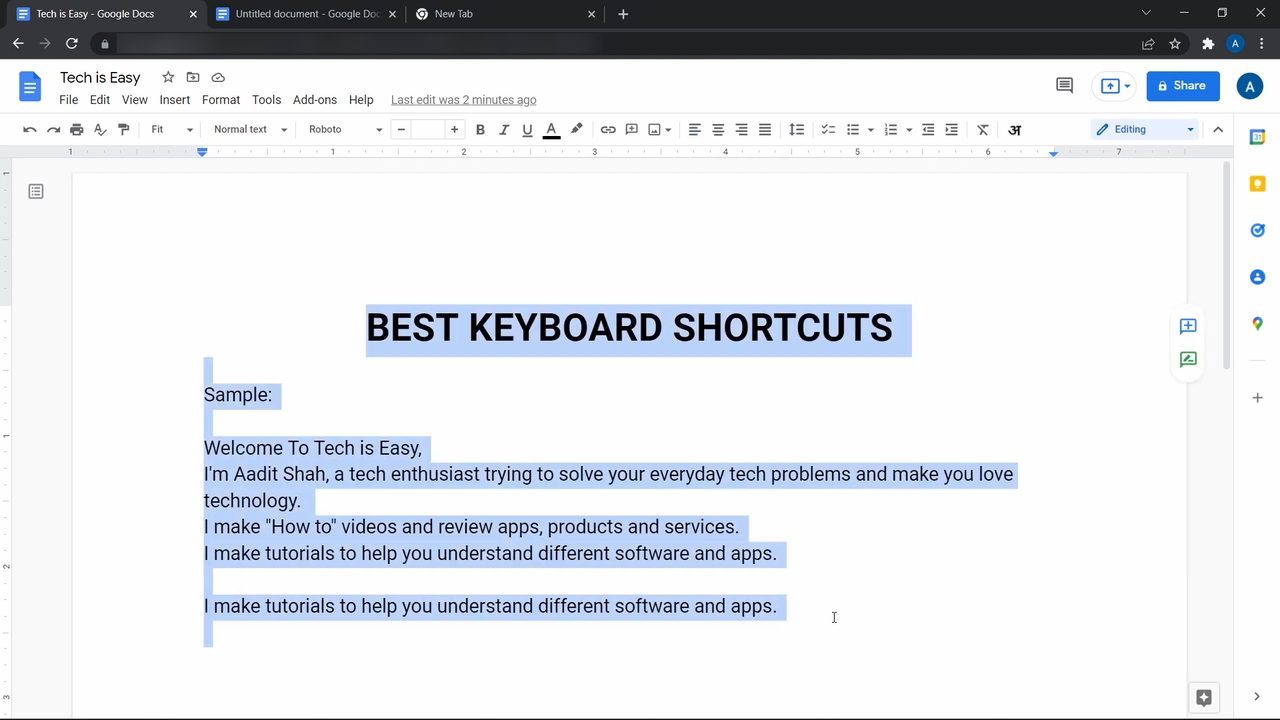
3Select all text (Ctrl + A)
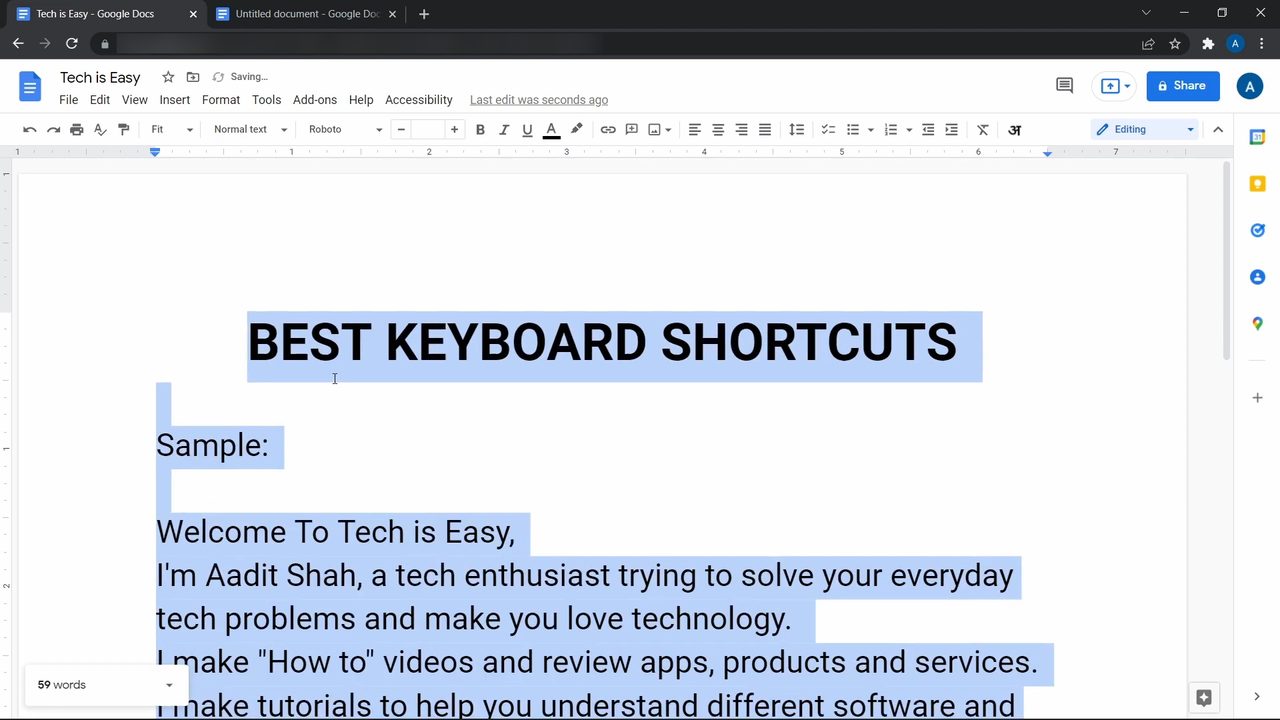
Ctrl + A highlights everything in the document at once. From there you can copy it, cut it, delete it, or change the font for the whole document in one go.
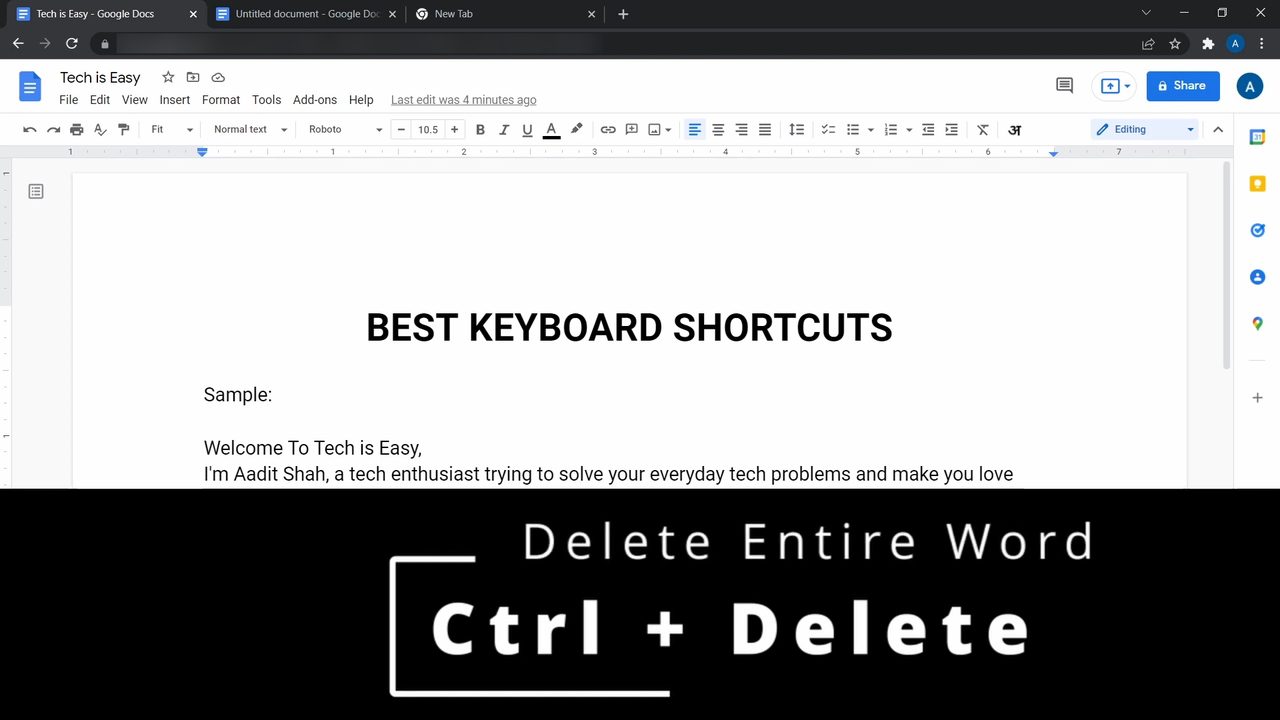
4Delete a whole word at a time
Instead of pressing Backspace once for every letter, hold Ctrl while you delete and the whole word goes in one press. In the video this removed the word "apps" in one go. In standard Windows text editing, Ctrl + Backspace removes the word before the cursor and Ctrl + Delete removes the word after it. On a Mac, Option + Delete does the same job.
5Bold, italics and underline (Ctrl + B, Ctrl + I, Ctrl + U)
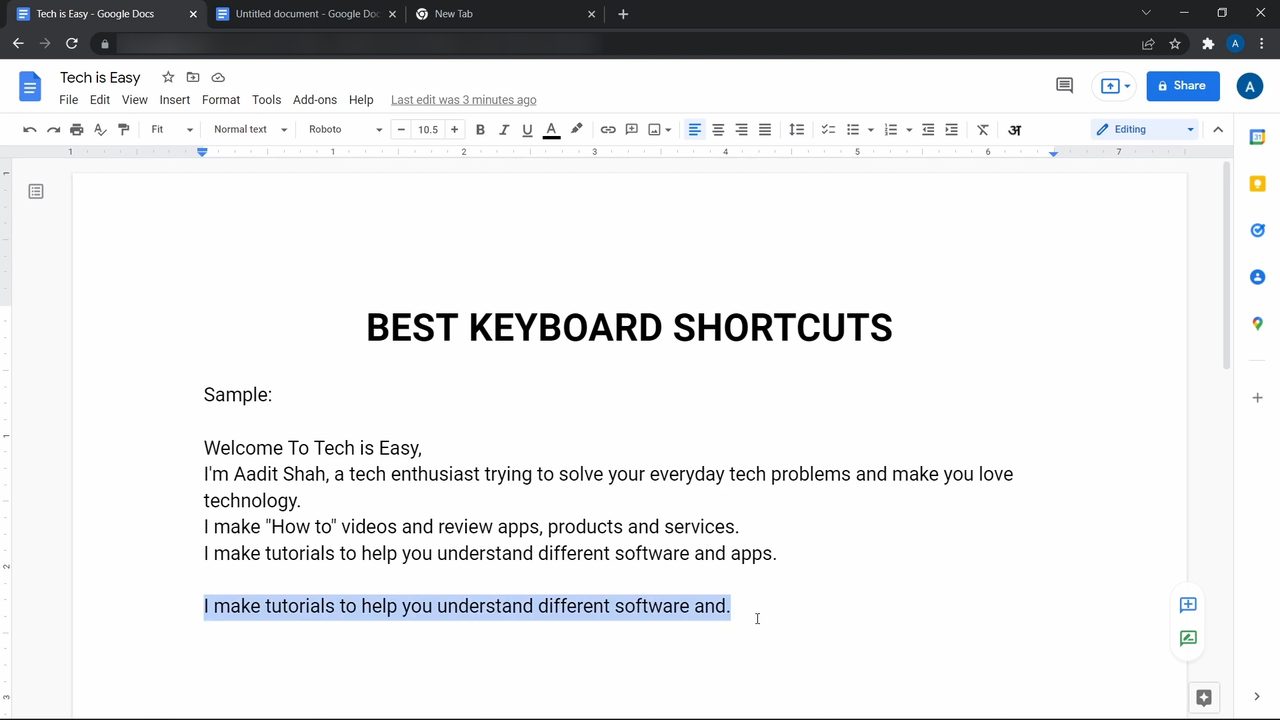
Select a line and press Ctrl + B to make it bold. Press Ctrl + B again to remove the bold. Ctrl + I turns text italic and Ctrl + U underlines it. You can stack all three on the same text.
6Check the word count (Ctrl + Shift + C)
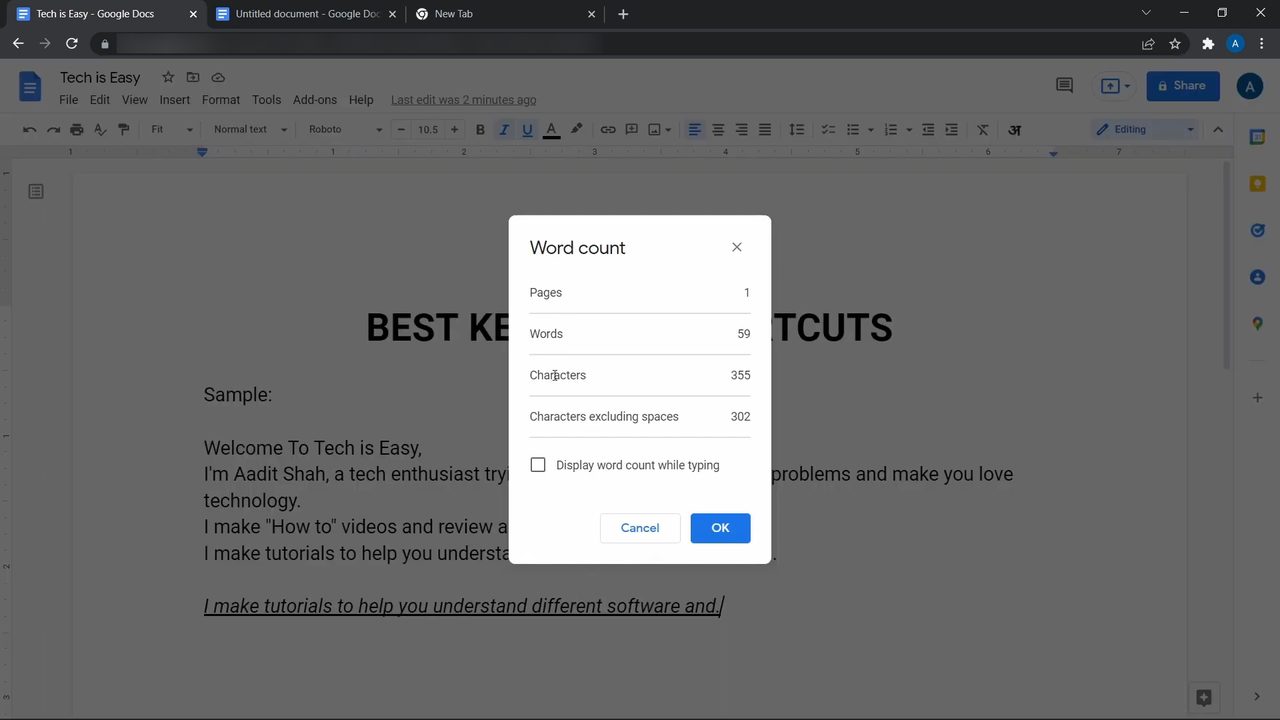
Press Ctrl + Shift + C to open the Word count box. It shows the number of pages, words, characters and characters excluding spaces. Tick Display word count while typing and click OK to keep a live word counter at the bottom left of the page. This is the one to remember for essays and assignments with a word limit.
7Find a word in the document (Ctrl + F)
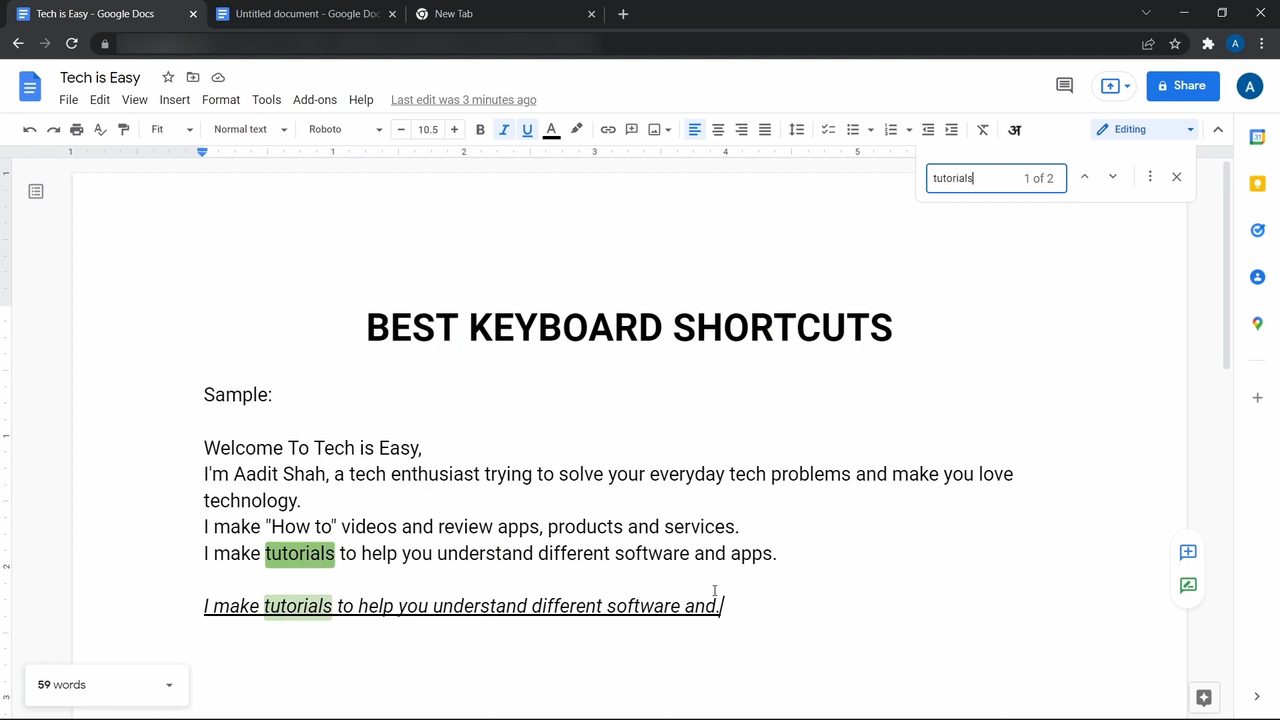
In a long document, press Ctrl + F, type the word you're looking for, and Docs highlights every match in green. The box shows how many matches there are, such as 1 of 2, and the arrows jump between them. To find a word and replace it with another, press Ctrl + H instead.
8Increase or decrease font size (Ctrl + Shift + > or <)
Select the text, then press Ctrl + Shift + > to make it bigger, one size at a time. Press Ctrl + Shift + < to make it smaller. On most keyboards these are the full stop and comma keys, so you're really pressing Ctrl + Shift + . and Ctrl + Shift + ,. This is quicker than picking a size from the toolbar box.
More shortcuts worth knowing
These aren't in the video, but they're listed on Google's official Keyboard shortcuts for Google Docs page: - Ctrl + / opens a list of all keyboard shortcuts inside Docs. This is the easiest way to look one up. - Ctrl + Shift + V pastes without formatting, so copied text takes on your document's font instead of the website's. - Ctrl + K inserts a link on the selected text. - Ctrl + \ clears formatting from the selected text.
Troubleshooting
- A shortcut opens something in the browser instead. Some shortcuts are also used by your browser or by an extension. Click inside the document first so Docs, not the browser, receives the key press.
- Font size shortcut does nothing. Make sure text is selected first. On some keyboard layouts the > and < symbols sit on different keys, so try the full stop and comma keys with Ctrl + Shift.
- Formatting shortcuts do nothing. Bold, cut, font size and other editing shortcuts only work if you have edit access to the document. Check for Editing at the top right.
Related guide: for other Google tools, see How to Create a Google Form.
FAQ
What is the shortcut for word count in Google Docs?
Press Ctrl + Shift + C on Windows or Chromebook, or ⌘ + Shift + C on a Mac. The box shows pages, words and characters, and you can tick Display word count while typing to keep a counter on screen.
Do Google Docs shortcuts work on a Mac?
Yes. Use the Command (⌘) key wherever the Windows shortcut uses Ctrl. For example, ⌘ + B for bold and ⌘ + F to find.
How do I see all Google Docs keyboard shortcuts?
Press Ctrl + / (or ⌘ + / on a Mac) inside any document. Google Docs opens a searchable list of every shortcut.
What is the redo shortcut in Google Docs?
Ctrl + Shift + Z on Windows and ⌘ + Shift + Z on a Mac. Google lists Ctrl + Y separately as "repeat last action", so stick with Ctrl + Shift + Z to redo.
Related guides