Tech is Easy
How to Create a Google Form (Step-by-Step for Beginners)
Google Forms is a free way to make a survey, sign-up sheet or quiz and collect the answers in one place. This guide shows how to create a Google Form from scratch on a laptop, from adding your first question to sending it out and reading the responses in Google Sheets.
What you need
- A Google account
- A web browser on your computer (on a phone, see how to create a Google Form on mobile)
1Open Google Forms and start a blank form
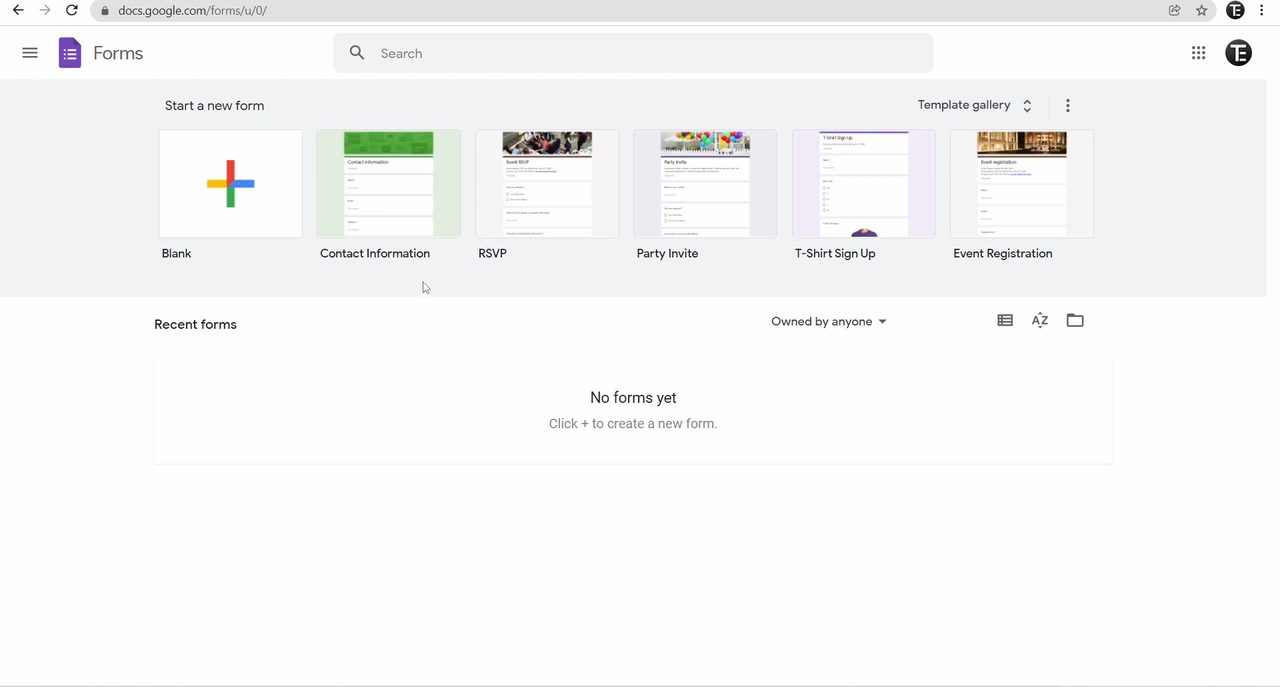
Go to forms.google.com in your browser. At the top you will see ready-made templates like Contact Information and Party Invite, and Template gallery shows more. To build your own form, click Blank.
2Add a title and description
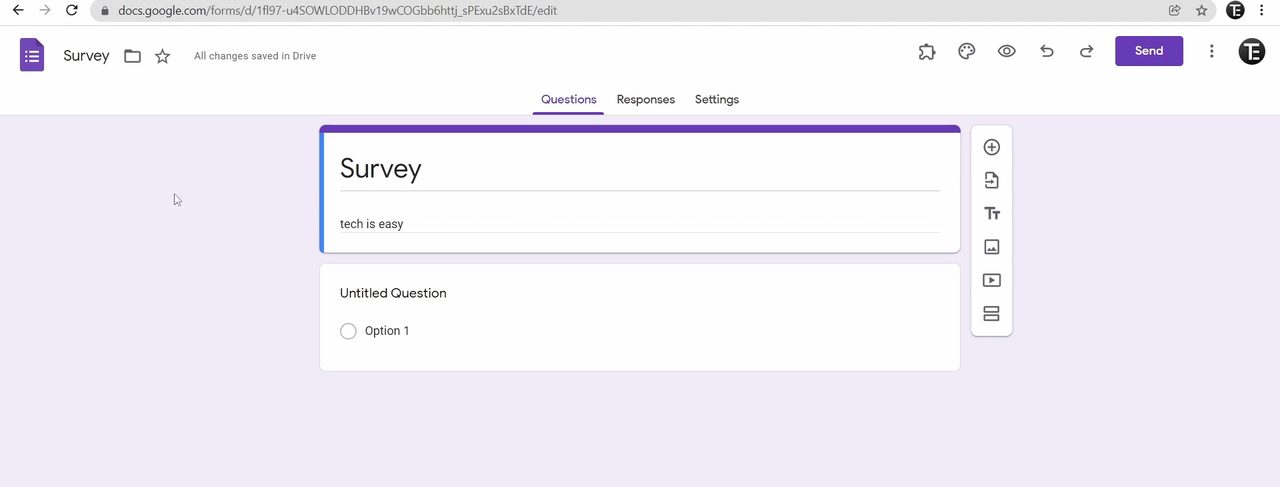
Click Untitled form and type a name for your form, for example "Survey". Click the line below it if you want to add a short description too.
3Type your first question and pick the answer type
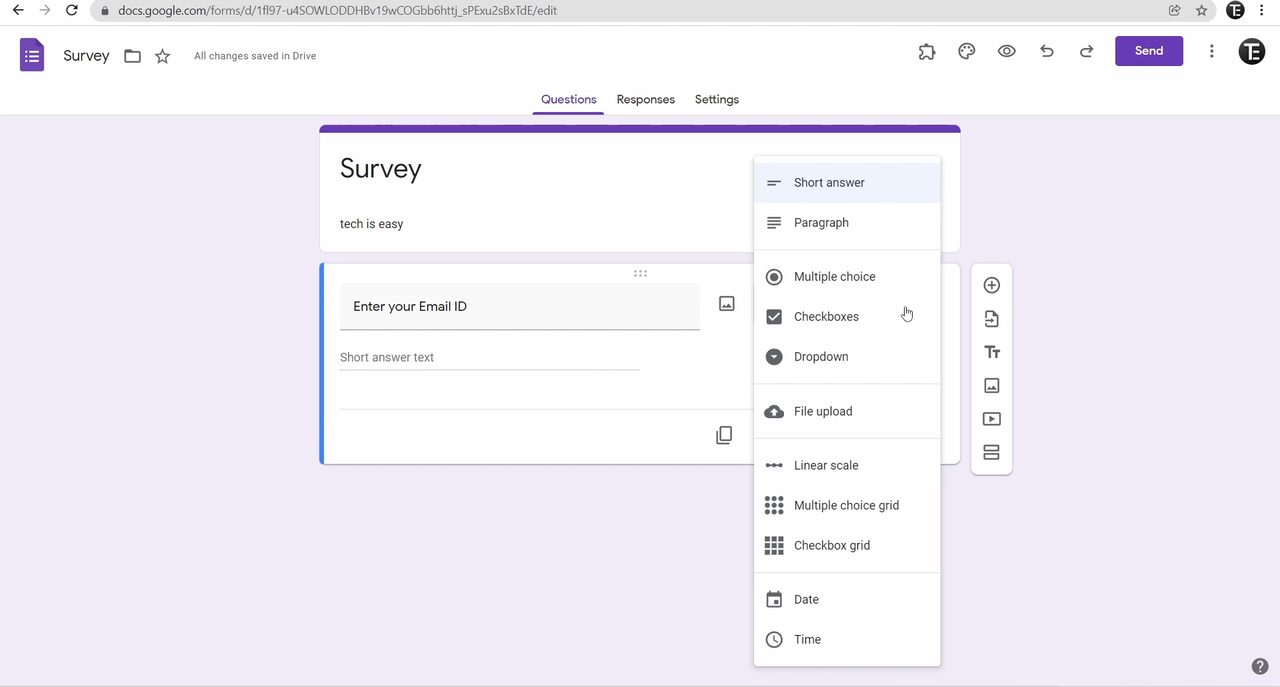
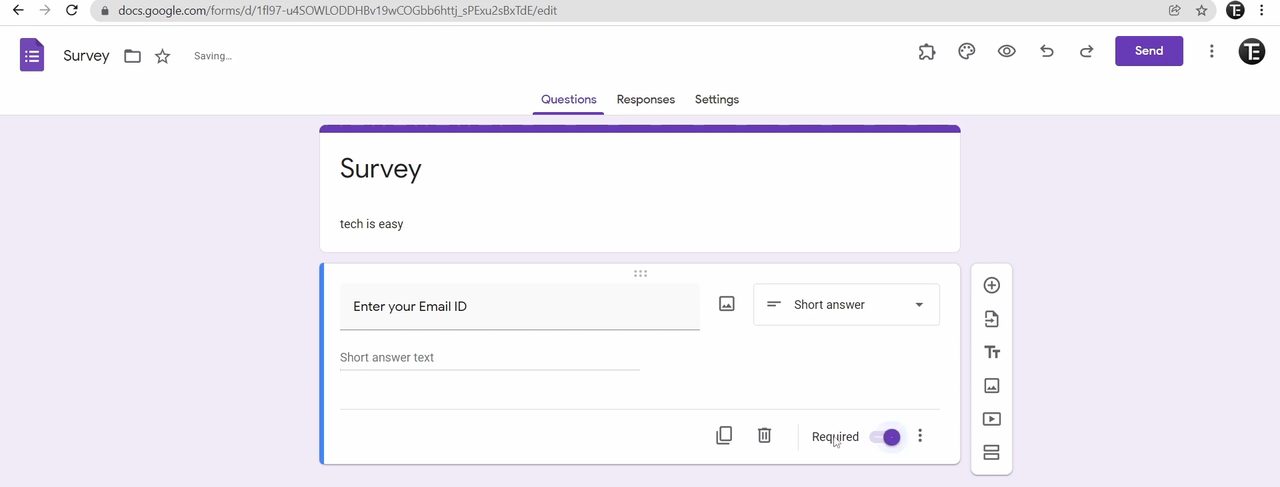
Click the Untitled Question box and type your question, such as "Enter your Email ID". Then open the drop-down on the right to choose how people answer: Short answer, Paragraph, Multiple choice, Checkboxes, Dropdown and more. For an email address, Short answer fits best.
4Make the question required
Turn on the Required switch at the bottom of the question. People will not be able to submit the form until they answer it.
5Add more questions and options
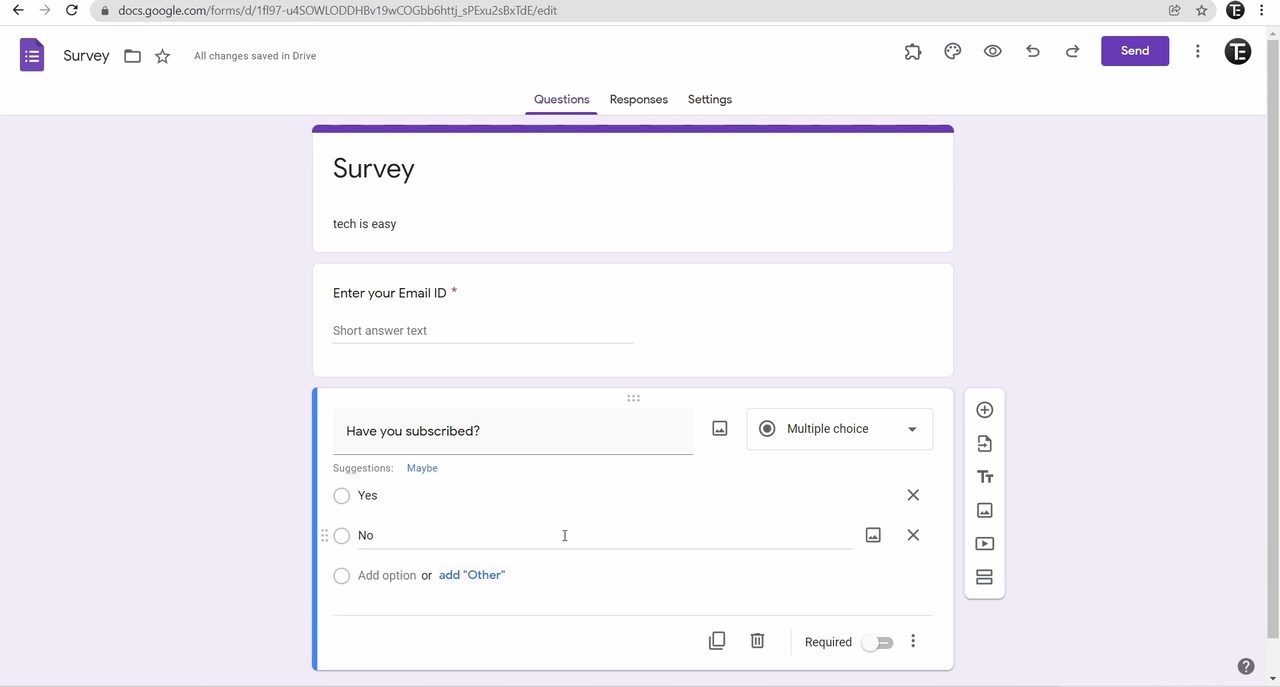
Click the plus (Add question) button on the right-side toolbar to add a new question. For a yes or no question like "Have you subscribed?", choose Multiple choice, click Option 1 to type the first answer, then click Add option for each extra answer. To remove a question, click the bin icon. If you delete one by mistake, click Undo at the top right.
For open feedback, such as "Do you have any suggestions?", pick Paragraph so people have room to write.
6Preview the form
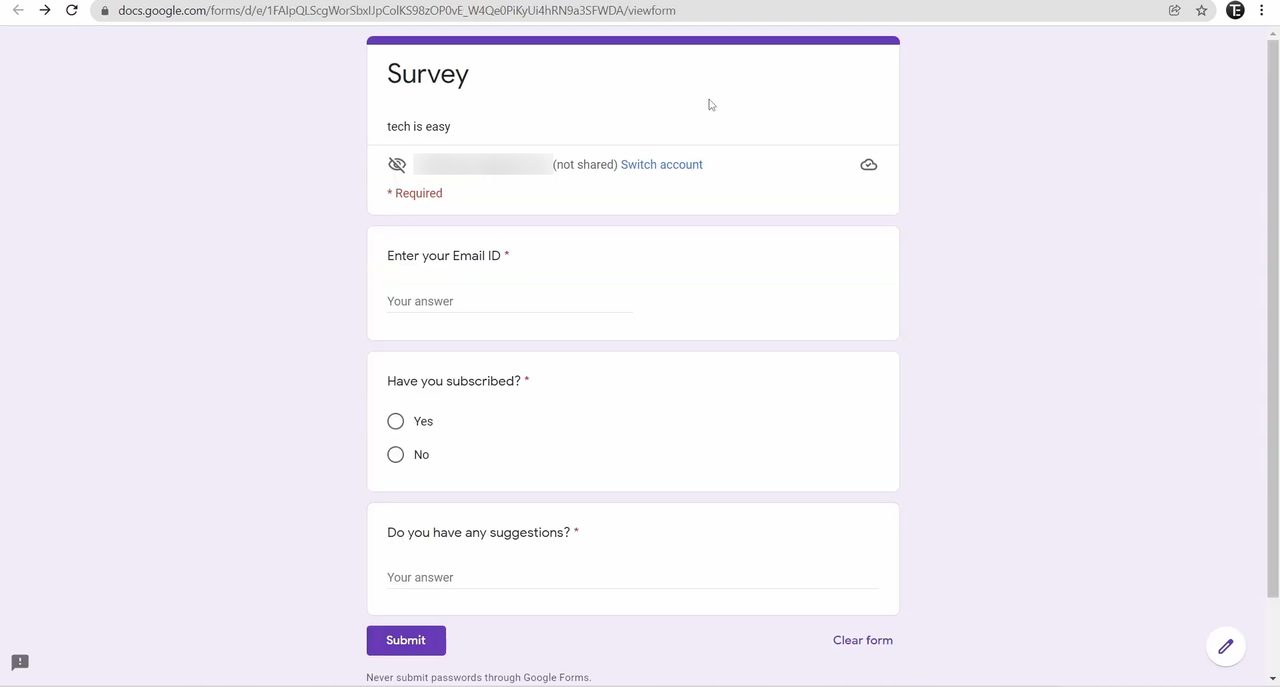
Click the eye (Preview) icon at the top to see the form the way people filling it in will see it. Required questions are marked with a red star.
7Rearrange questions
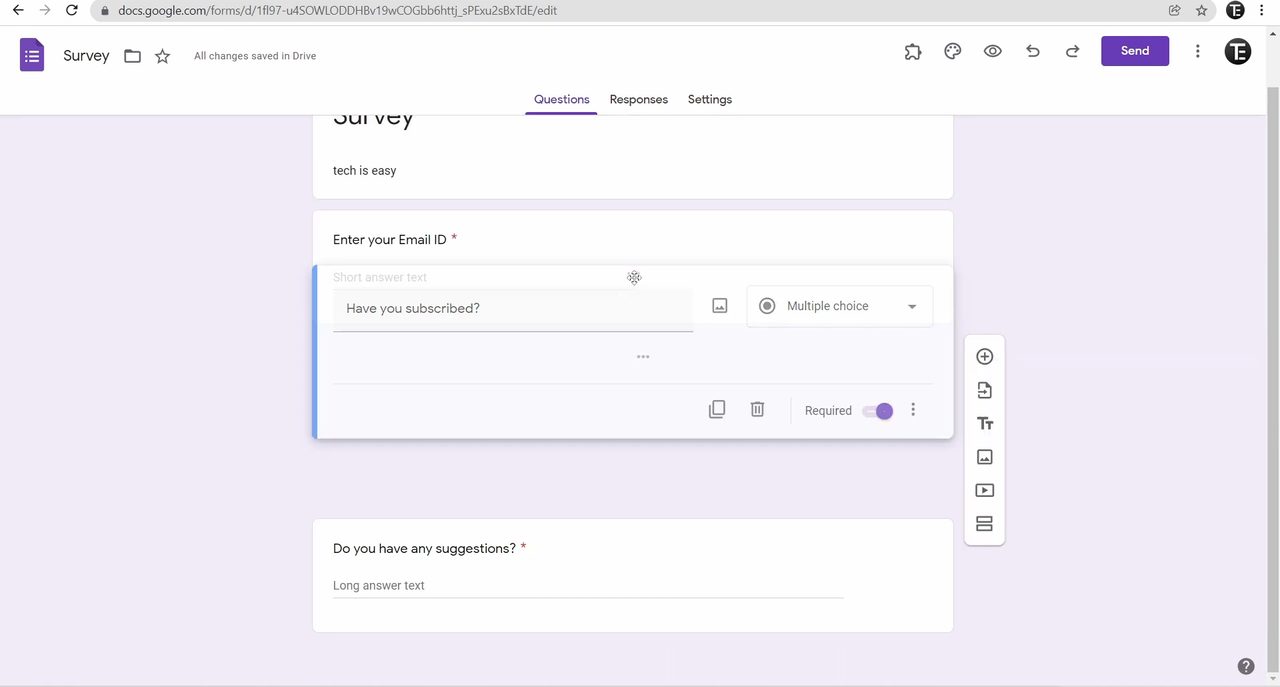
Back in the editor, hover over a question and drag it by the six dots at the top of its box. Drop it higher or lower to change the order.
8Change the theme
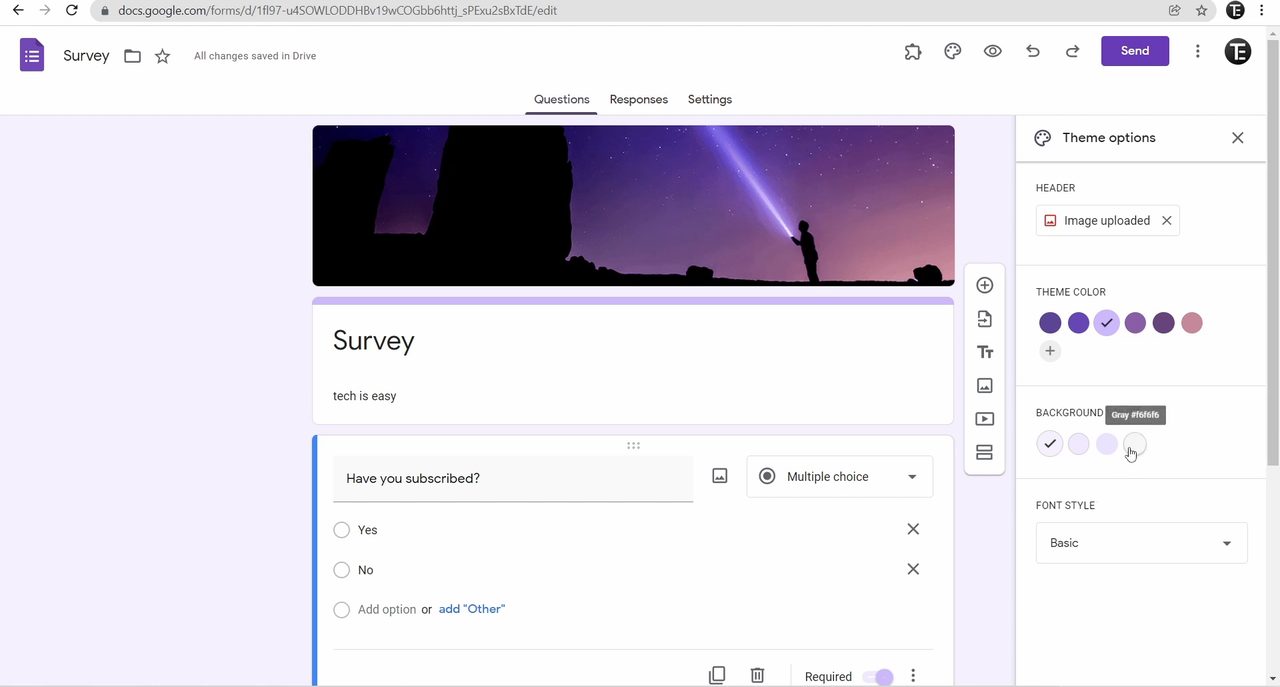
Click the palette (Customize theme) icon at the top. Under Header, click Choose image to pick a built-in header or Upload your own, then click Insert. Below that you can change the Theme color, Background color and Font style. Preview again to check how it looks.
9Send the form
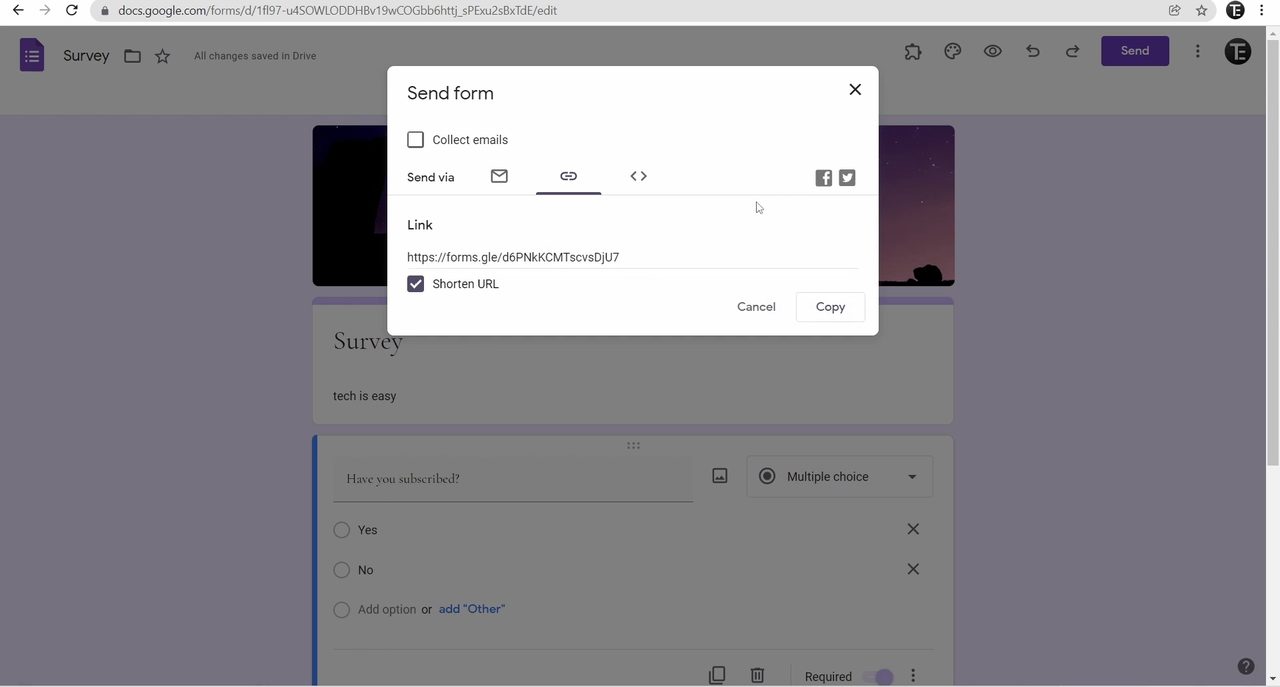
Click Send at the top right. You can: - Send it by email: type the addresses, a subject and a message. - Share a link: click the link icon, tick Shorten URL if you want a shorter link, then click Copy. - Share it on Facebook or Twitter with the icons on the right.
Tick Collect emails at the top of this box if you want the form to record each person's email address.
10Check the responses
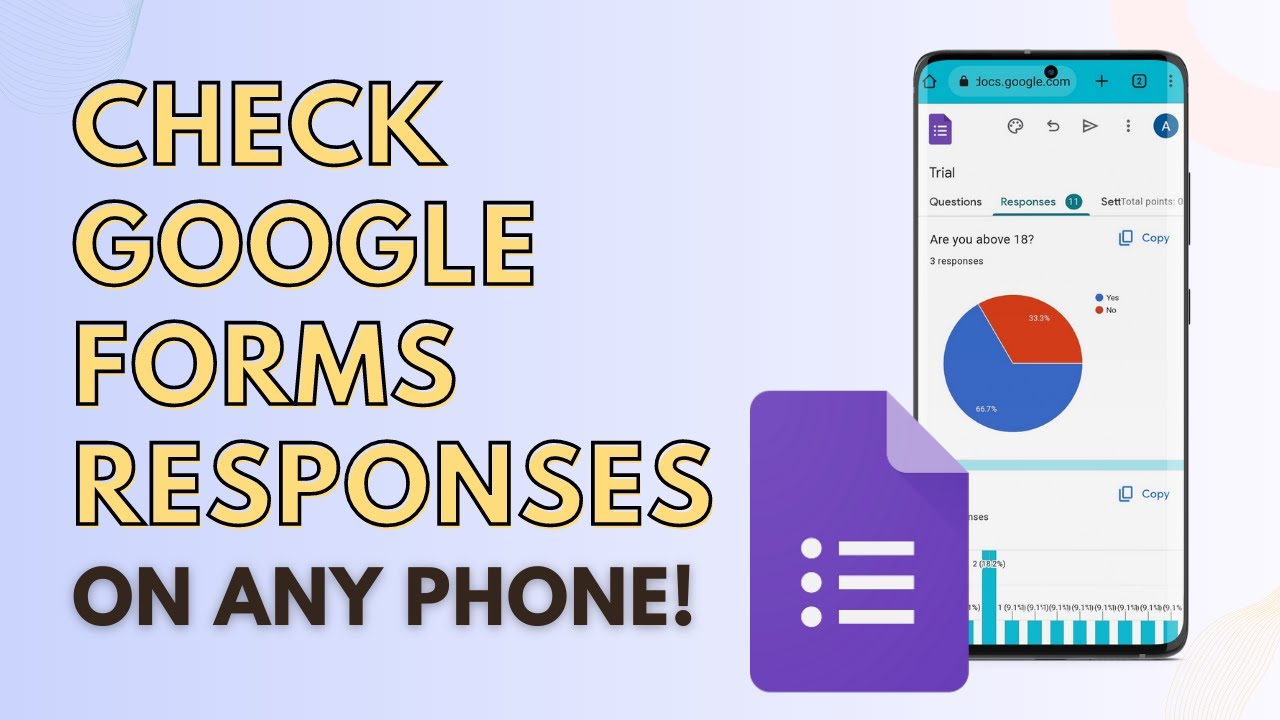
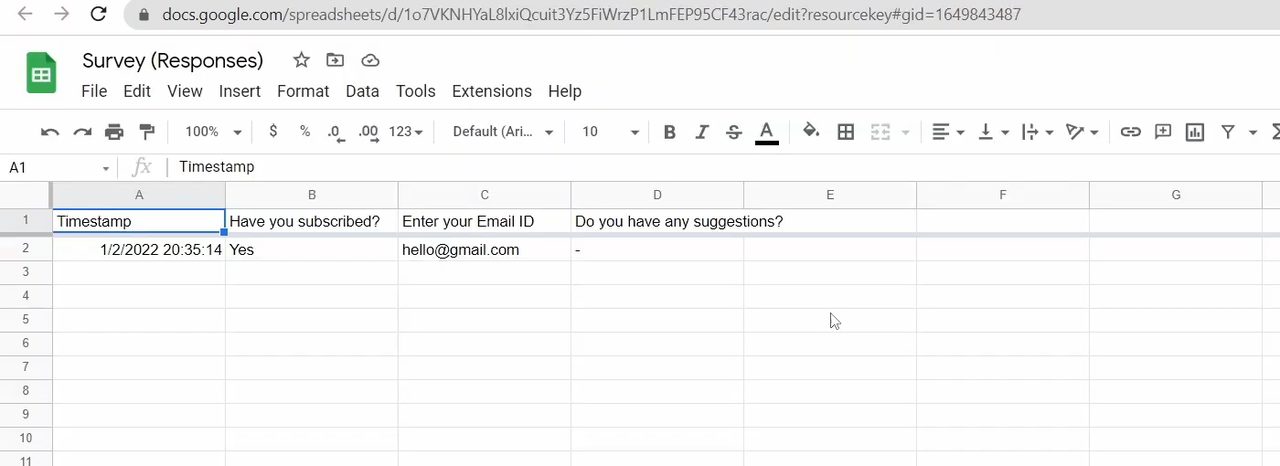
Click the Responses tab. Summary shows charts and all answers together, Question shows the answers to one question at a time, and Individual shows each person's full submission. To get everything in a spreadsheet, click the green Sheets icon, choose Create a new spreadsheet, give it a name and click Create. The sheet keeps updating on its own as new responses arrive.
The video was recorded in 2022, so a few icons may look slightly different now, but the same options are still in Google Forms.
FAQ
Is Google Forms free?
Yes. Anyone with a Google account can create and share Google Forms for free from forms.google.com.
How do I make a question mandatory in Google Forms?
Click the question and turn on the Required switch at the bottom of its box. A red star appears next to it, and the form cannot be submitted until it is answered.
How do I share a Google Form as a link?
Click Send, then the link icon. Tick Shorten URL if you want a shorter link, click Copy, and paste it anywhere, such as WhatsApp or email.
Can I see Google Form responses in Google Sheets?
Yes. In the Responses tab click the green Sheets icon and choose Create a new spreadsheet. Every response is added as a new row, and the sheet updates automatically.
Related guides