Tech is Easy
Best Google Forms Add-Ons: 5 Useful Add-Ons and How to Use Them
The best Google Forms add-ons for most people are formLimiter, Booking Calendar, Form Notifications, Certify'em and Timer for Google Forms. To use any of them, open your form, click the three dots at the top right, choose Add-ons, search for the add-on and click Install. This guide shows how to set up each one, which is especially handy for teachers, event organisers and small businesses.
These steps were recorded in 2022, so the Forms and add-on menus may look slightly different now.
What you need
- A Google Form you can edit, open in a browser on a computer
- A Google account that can give the add-ons permission when asked
1Open the Add-ons menu
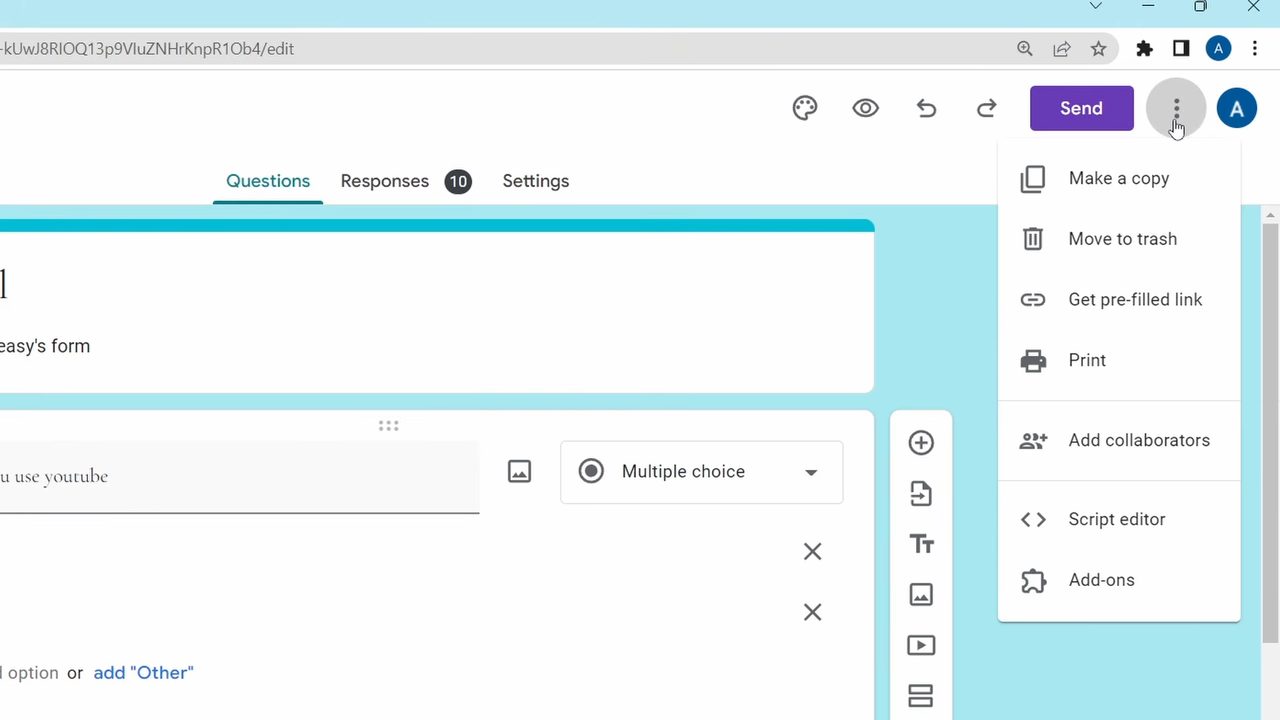
Go to forms.google.com and open your form. Click the three dots at the top right and select Add-ons. The Google Workspace Marketplace opens, and you can search for any add-on at the top.
Method 1: formLimiter (stop responses at a limit)
2Install formLimiter
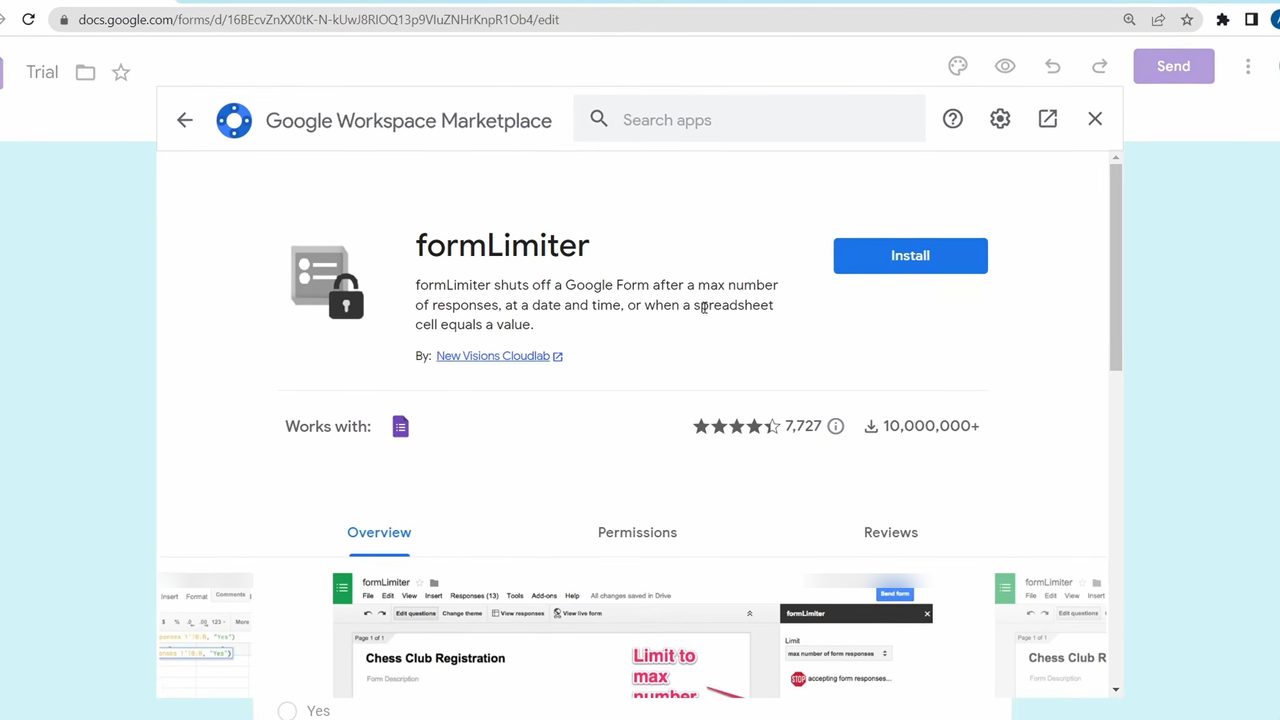
Search for formLimiter and click Install, then click Allow when it asks for permissions. formLimiter shuts off a form after a set number of responses, at a date and time, or when a spreadsheet cell reaches a value.
3Set the response limit
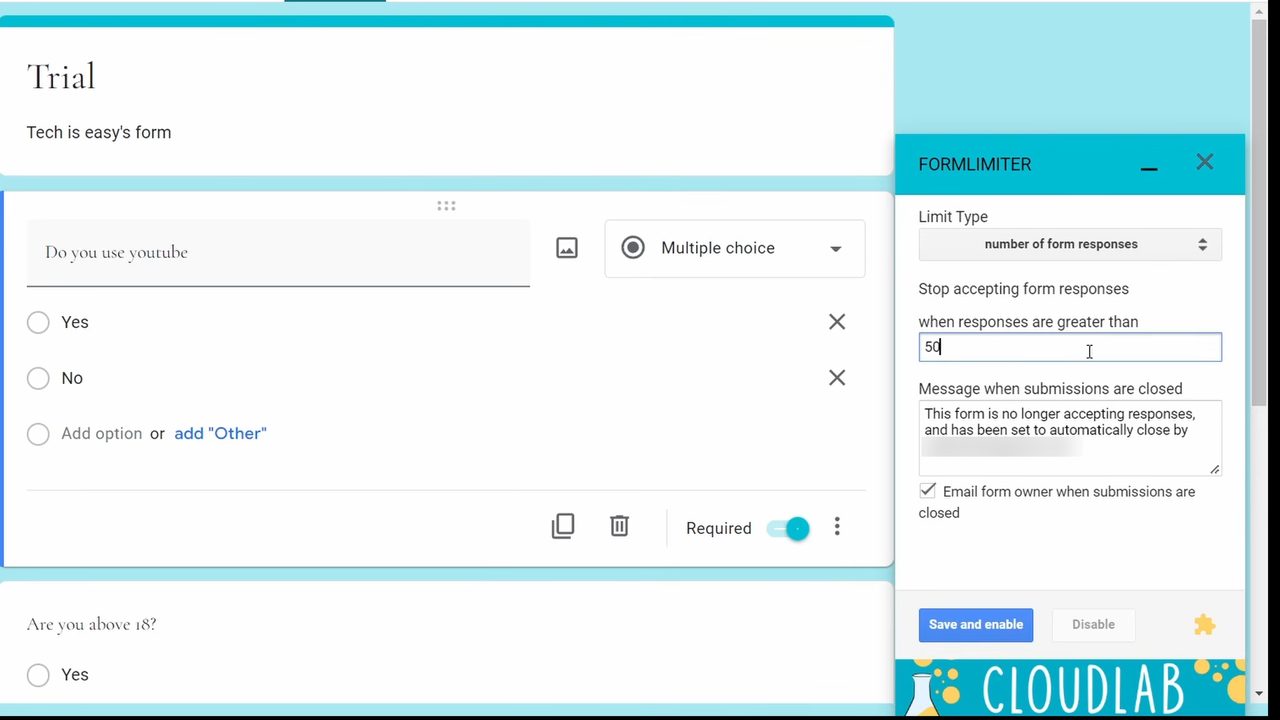
Refresh the form page. A new add-ons icon (a puzzle piece) appears at the top. Click it, choose formLimiter, then Set limit. Pick a Limit Type (date and time, number of form responses, or spreadsheet cell value). We chose number of form responses and entered 50. Edit the closing message if you like, then click Save and enable.
Method 2: Booking Calendar (let people book a slot)
4Connect your calendar
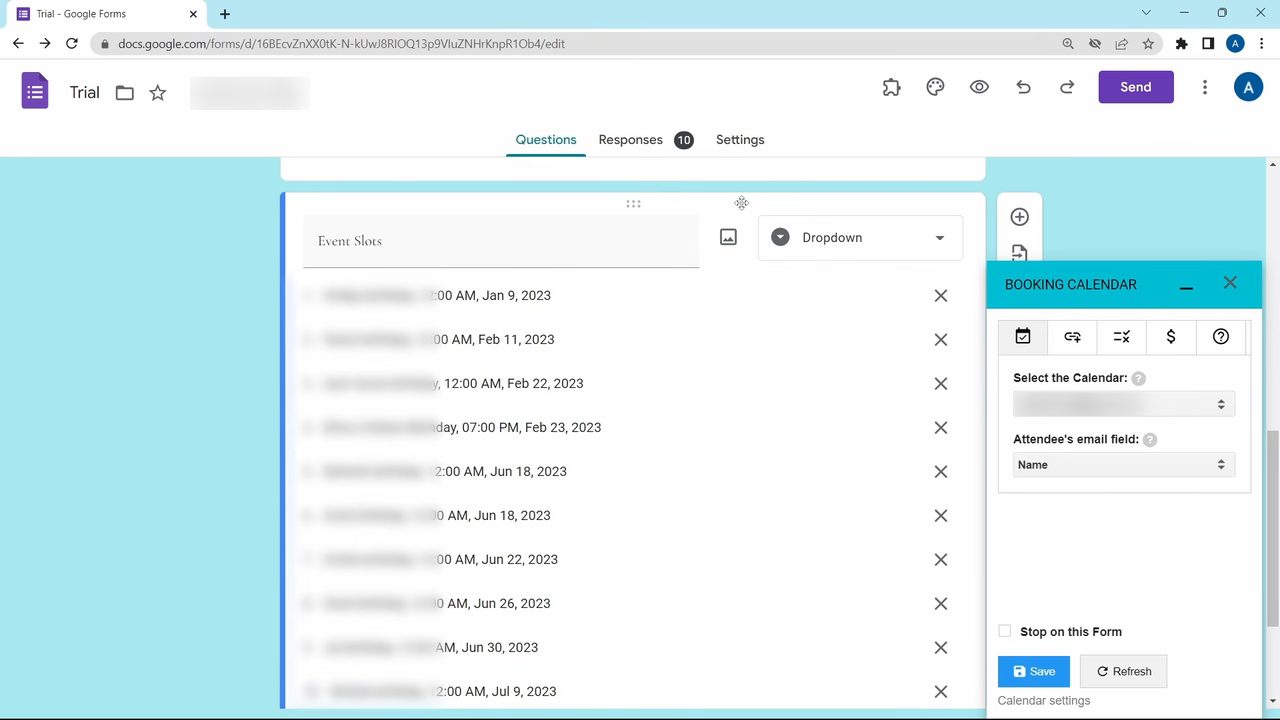
Install Booking Calendar from the marketplace. Open the add-ons icon, select Booking Calendar, then Configure Booking Calendar. Pick the Free plan, choose the calendar people should book from, and click Save. The add-on pulls your available slots into a dropdown question, so respondents can pick one.
Method 3: Form Notifications (email alerts)
5Get an email when people respond
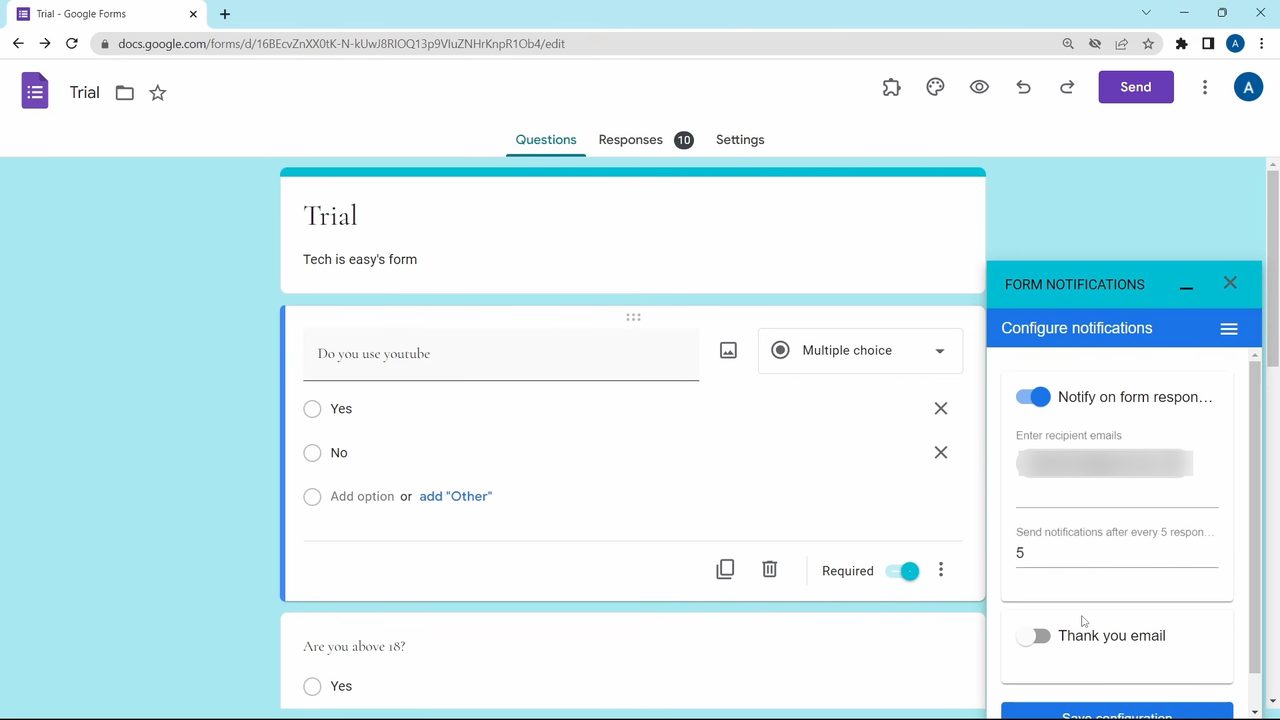
Install Form Notifications, then open it from the add-ons icon and click Open. Turn on Notify on form responses, enter the email address that should get the alerts, and choose after how many responses you want an email (we set 5).
6Send a thank-you email to respondents
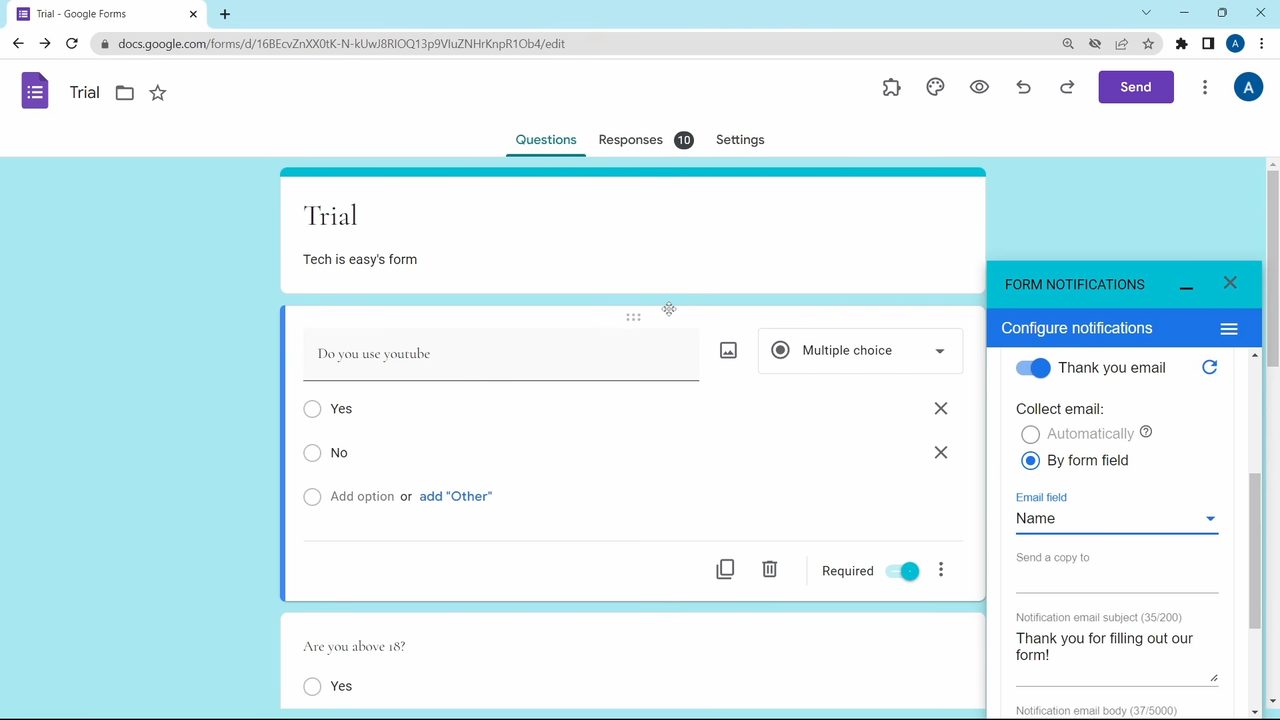
In the same panel, turn on Thank you email. Your form needs a question that asks for an email address, and you select that question under Email field. Scroll down to edit the subject and body, then click Save configuration. Now each person gets an email after submitting.
Method 4: Certify'em (send certificates)
7Turn on certificates
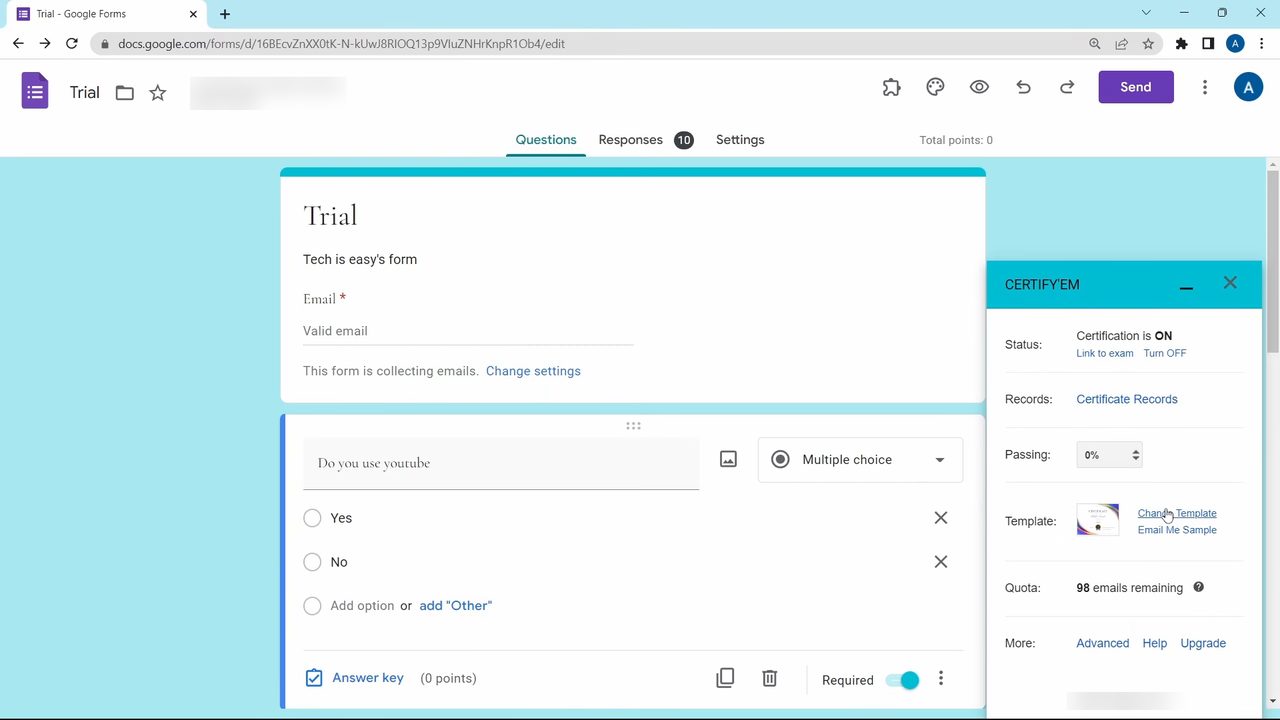
Install Certify'em, open it from the add-ons icon and click Show controls. Click Next, then Turn on so the status says Certification is ON. Set the Passing percentage (use 0% to give everyone a certificate), click Change Template to pick a design or Design My Own, and click Save. When someone submits the form, their certificate arrives by email.
Method 5: Timer for Google Forms (add a time limit)
8Set up the timer in Quilgo
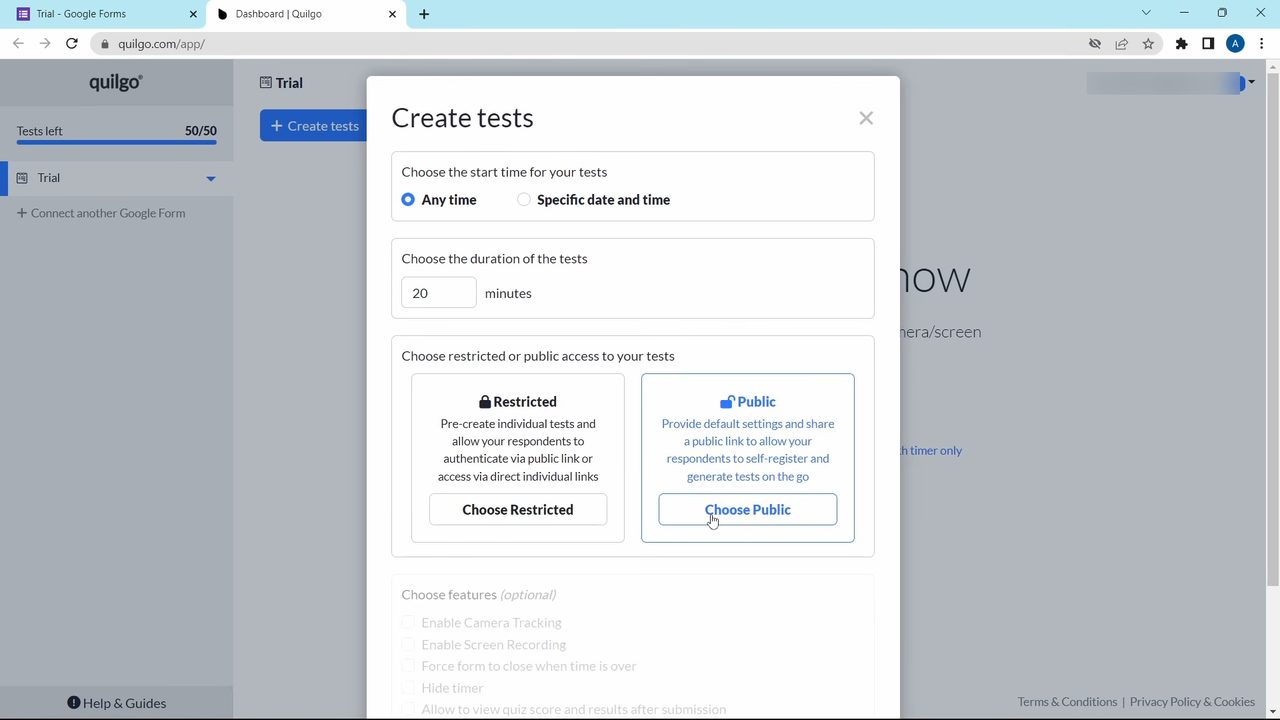
Install Timer for Google Forms, open it from the add-ons icon and click Configure. Click Enable Quilgo, then Go to Quilgo, which opens in a new tab. Agree to the terms, click Create tests, and choose the start time, the duration in minutes, and Restricted or Public access. Click Save settings.
9Share the timed link
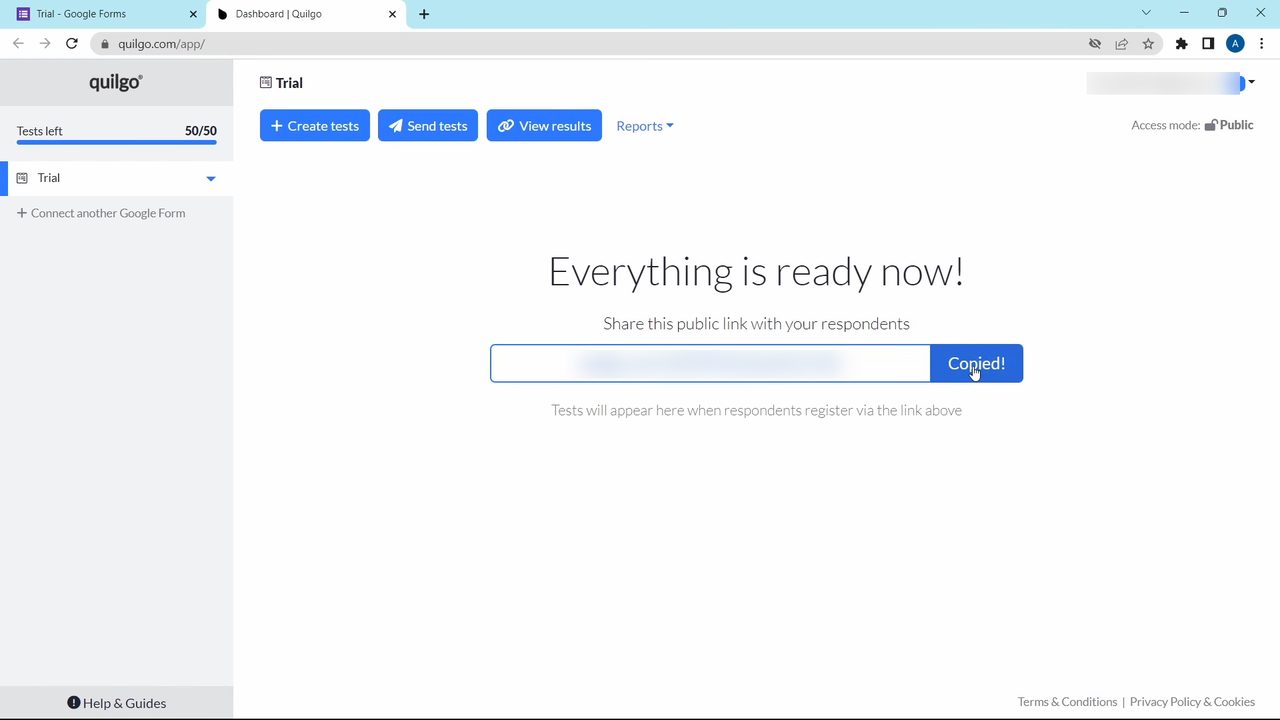
Click Copy to copy the public link and share it instead of the normal form link. People who open it sign in, see how long they have, and fill in the same form with a countdown timer at the top.
Tips / troubleshooting
- If the add-ons icon does not show up after installing, refresh the form page once.
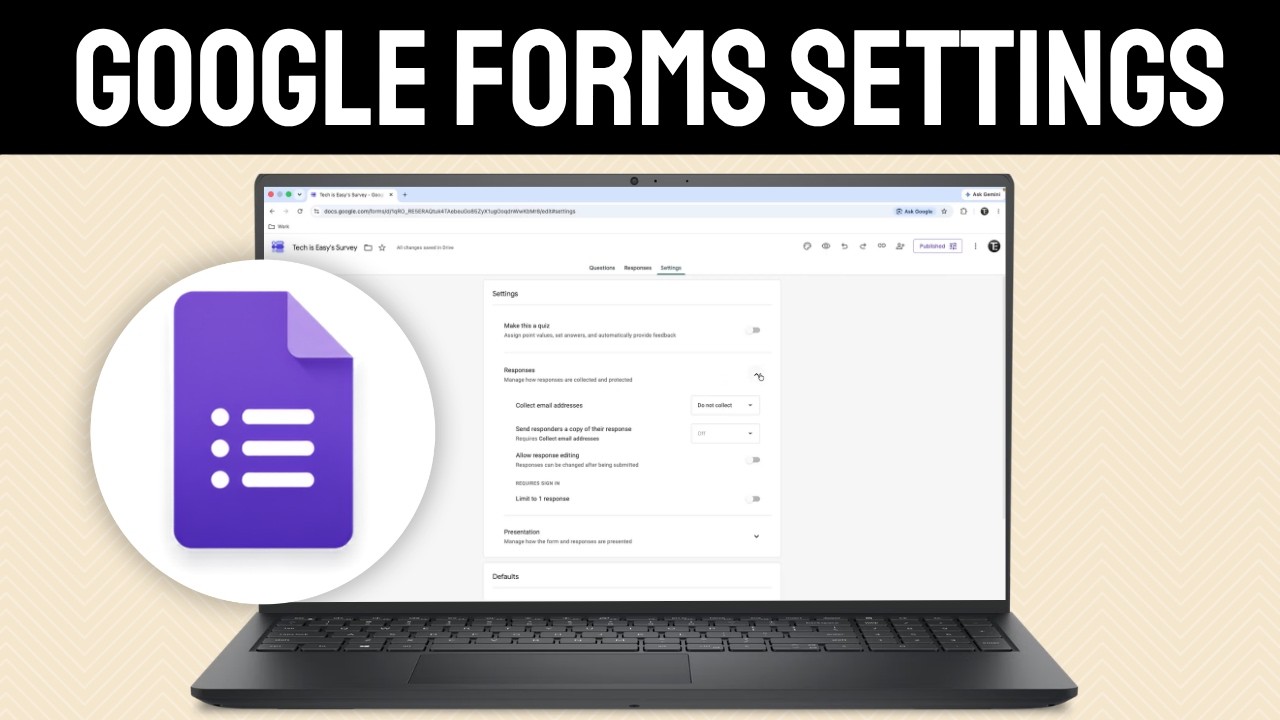
- For more built-in options that need no add-on, such as limiting people to one response or closing a form by hand, see our guide to Google Forms settings.
FAQ
How do I add add-ons to Google Forms?
Open the form, click the three dots at the top right and choose Add-ons. Search for the add-on in the Google Workspace Marketplace, click Install and allow the permissions.
Which Google Forms add-on sends email notifications?
Form Notifications can email you after a set number of responses and can also send a thank-you email to each person who fills in the form. The thank-you email needs an email question in your form.
What are the best Google Forms add-ons for teachers?
Certify'em sends certificates based on a passing score, Timer for Google Forms adds a time limit to tests, and formLimiter closes a quiz after a date or number of responses. Together they cover most classroom quiz needs.
Are Google Forms add-ons free?
The add-ons shown here were used on their free options, for example the Free plan in Booking Calendar and Certify'em's limited email quota. Some offer paid upgrades with more features, which are not covered here.
Related guides