Tech is Easy
How to Connect Google Sites to a GoDaddy Domain (Step-by-Step)
To connect Google Sites to a GoDaddy domain, open your site's Settings > Custom domains > Start setup, choose Use a domain from a third party, verify that you own the domain with a DNS record in GoDaddy, then add a CNAME record with name www pointing to ghs.googlehosted.com. This guide is for anyone who built a site in Google Sites and wants it to load on their own custom domain instead of a sites.google.com address.
These steps were recorded in 2022, so the Google Sites and GoDaddy screens may look slightly different now.

What you need
- A Google Site you can edit
- A domain in your GoDaddy account, and access to its DNS settings
1Open Custom domains in Google Sites
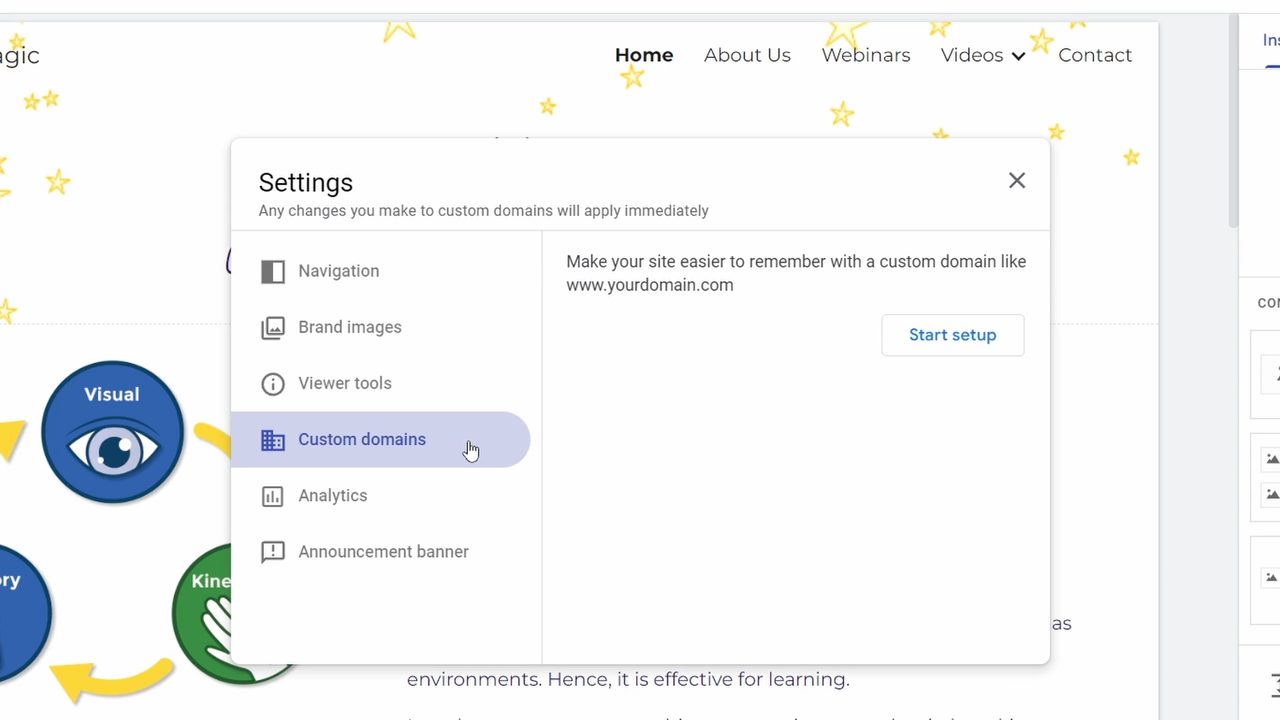
Open your site in Google Sites and click the Settings (gear) icon at the top right. Choose Custom domains on the left, then click Start setup.
2Enter your GoDaddy domain
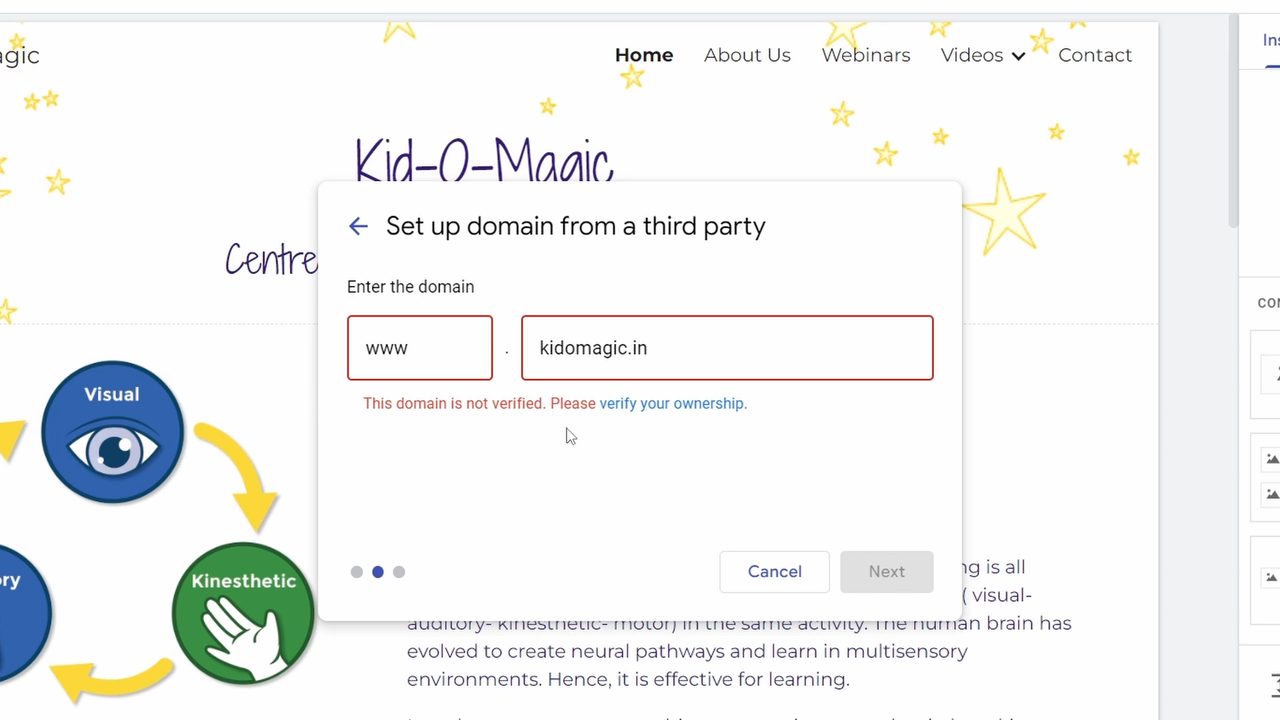
Select Use a domain from a third party, since your domain is already with GoDaddy, and click Next. Type your domain name in the box next to www. If you see "This domain is not verified", click verify your ownership in blue.
3Get the CNAME verification record
A Google Webmaster Central page opens with your domain provider set to GoDaddy. It offers two ways to prove you own the domain: a TXT record or a CNAME record. The CNAME method tends to verify quickly, so click Add a CNAME record. You will see a CNAME Label / Host and a CNAME Destination / Target to copy into GoDaddy.
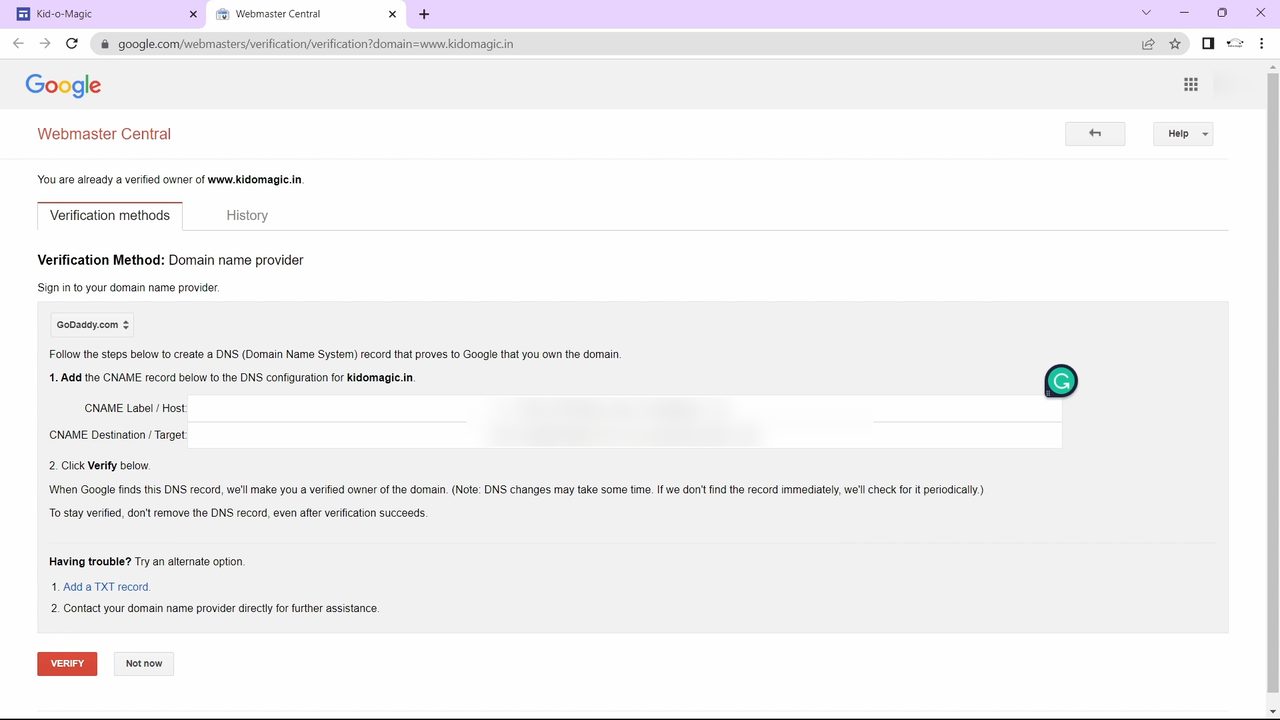
4Open Manage DNS in GoDaddy
In a new tab, sign in to GoDaddy and open your domain from Domain Portfolio. On the Domain Settings page, click Manage DNS.
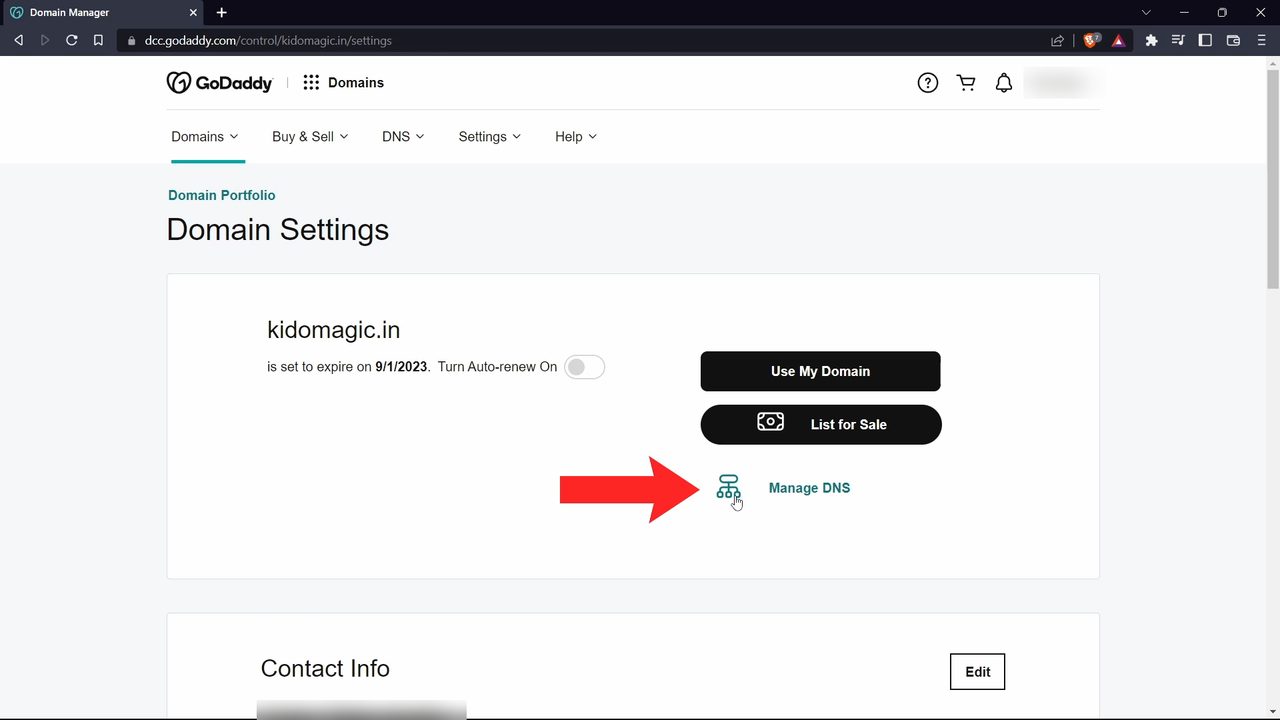
5Add the CNAME verification record
Under DNS Records, click Add. Set Type to CNAME. Copy the first value from Google (the label/host) into Name and the second value (the destination/target) into Value. Click Add record. GoDaddy shows a success message once it is saved.
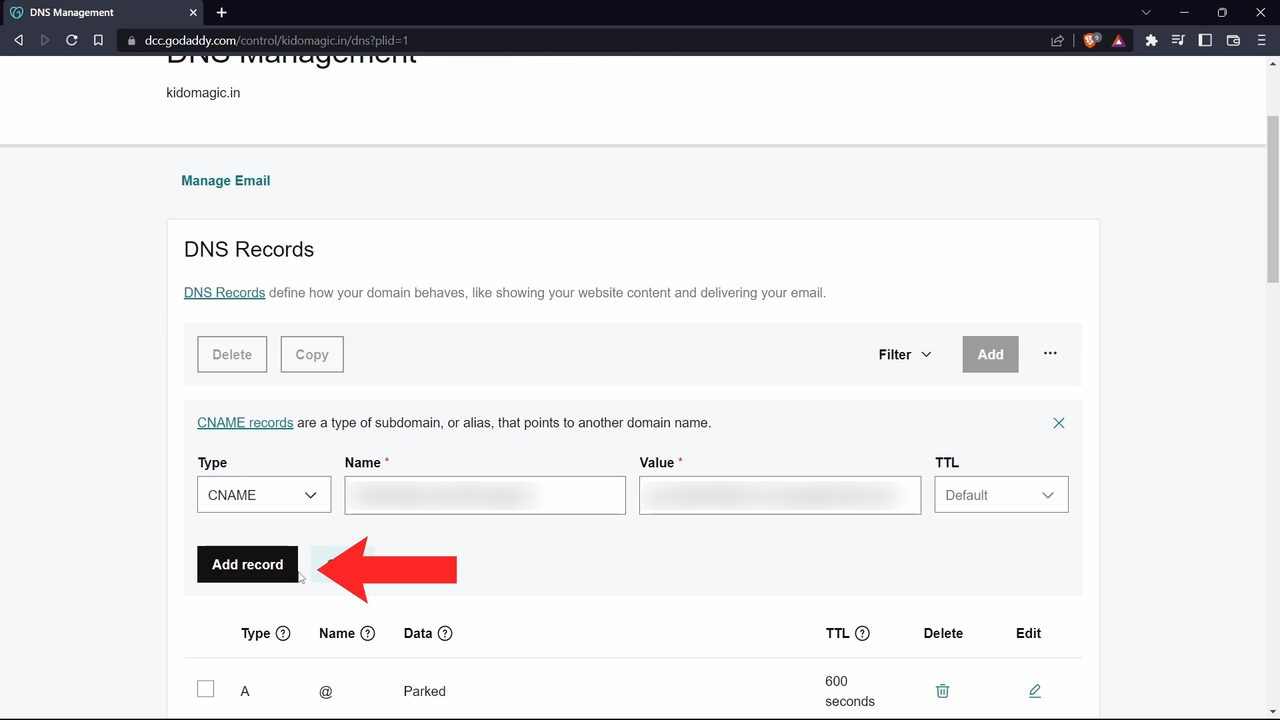
6Click Verify
Go back to the Webmaster Central tab and click Verify. When it works you will see a message that your domain is now verified.
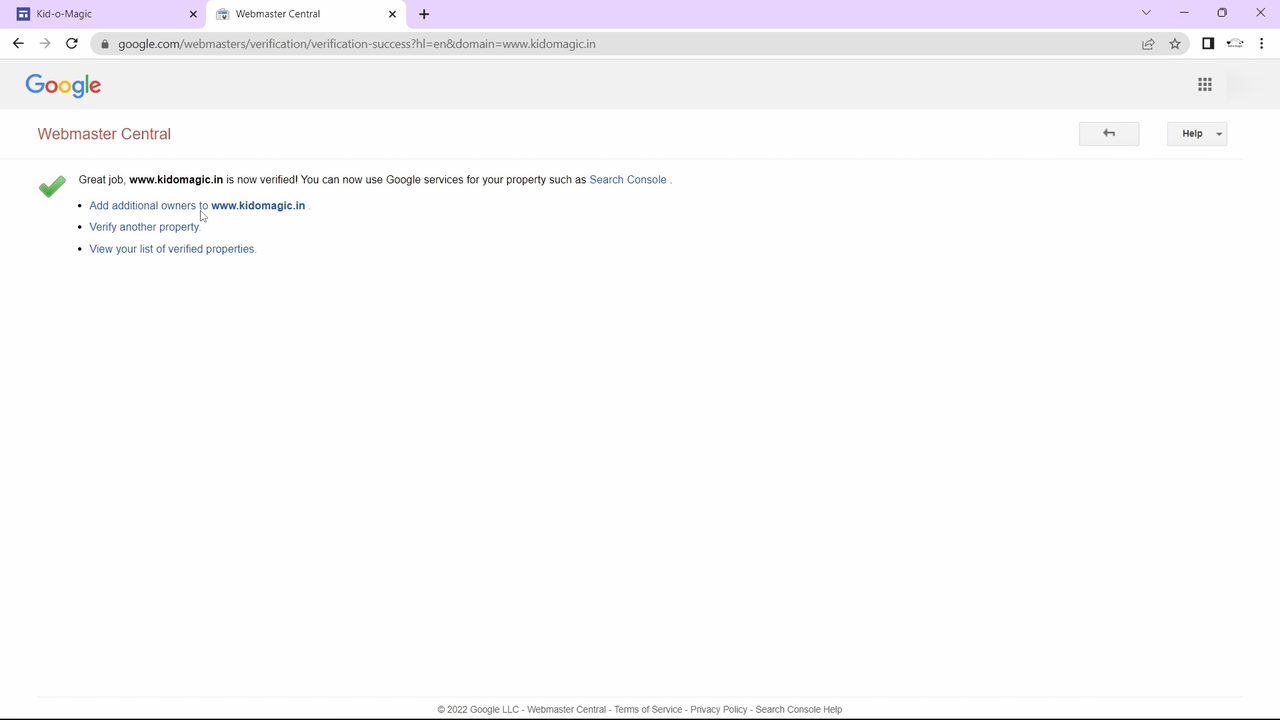
7Use the TXT method if CNAME does not verify
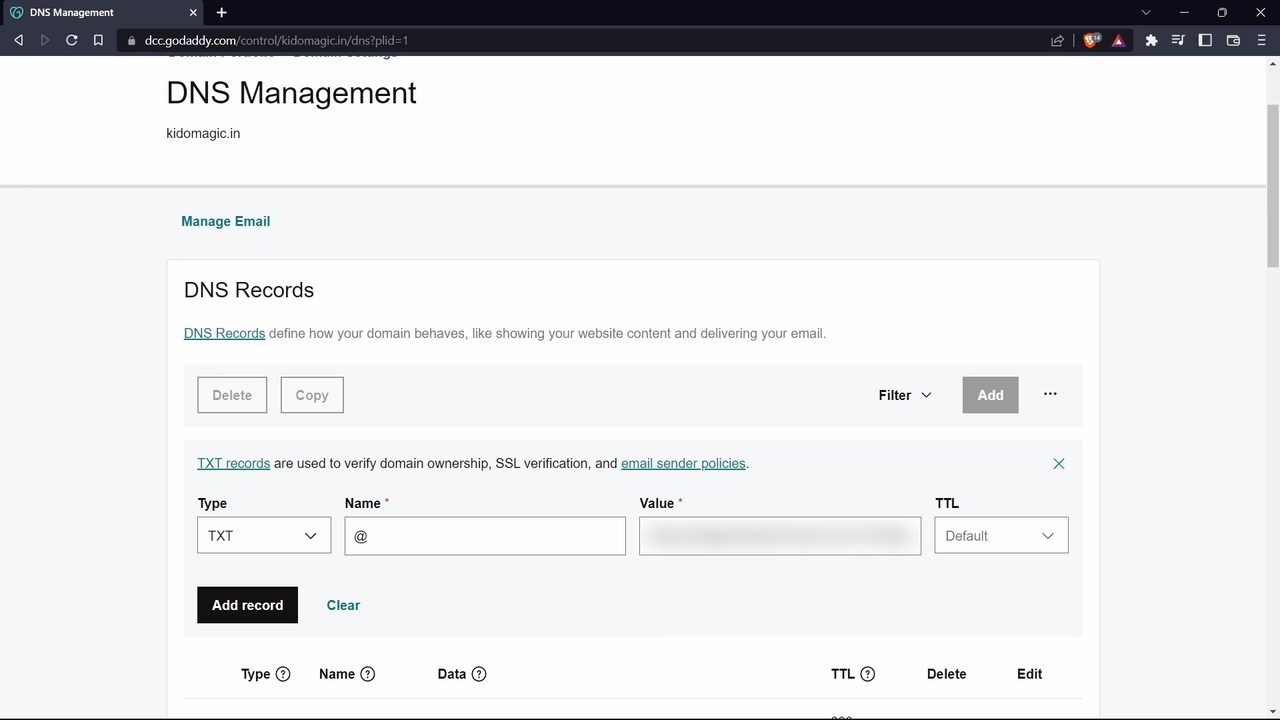
If verification fails, go back to the verification page and choose the TXT record option instead. Copy the text that starts with google-site-verification. In GoDaddy, click Add under DNS Records, set Type to TXT, put @ in Name, paste the text into Value and click Add record. Then click Verify again.
8Copy the Google Sites address
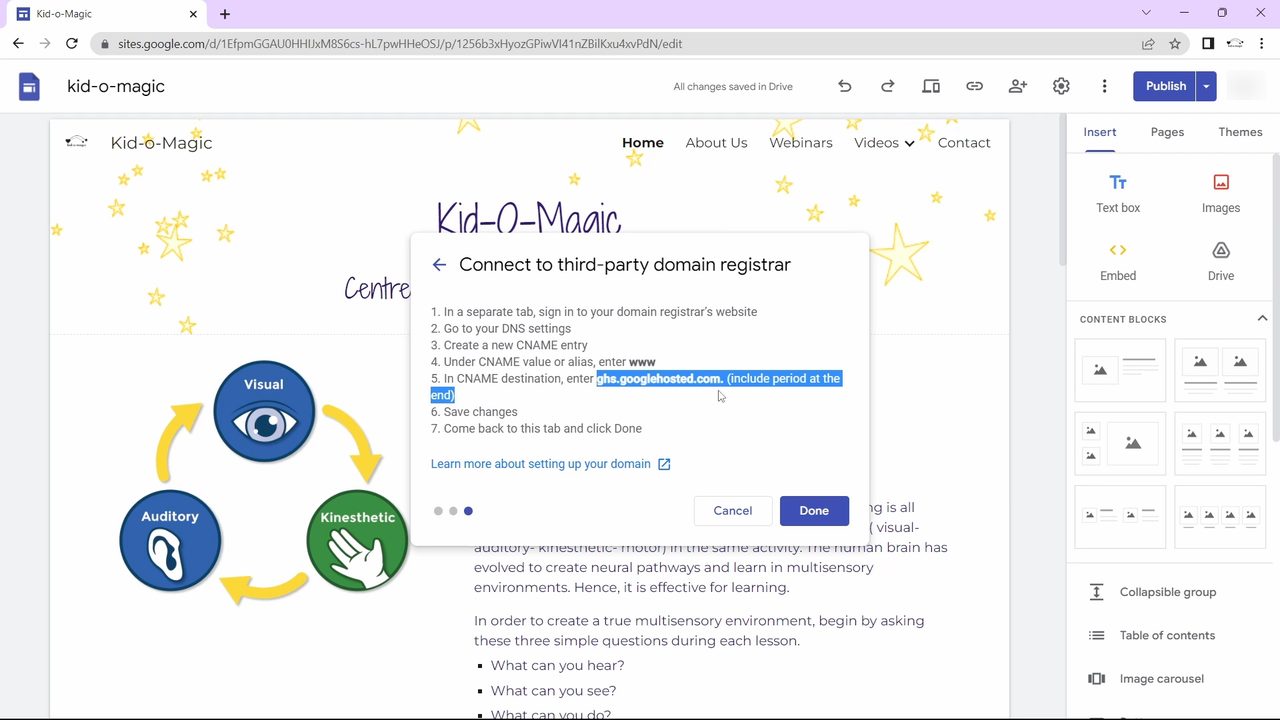
Back in Google Sites, the domain now shows as verified. Click Next. The Connect to third-party domain registrar screen lists the remaining steps. In point 5, copy ghs.googlehosted.com. and make sure you include the full stop at the end.
9Add the www CNAME record in GoDaddy
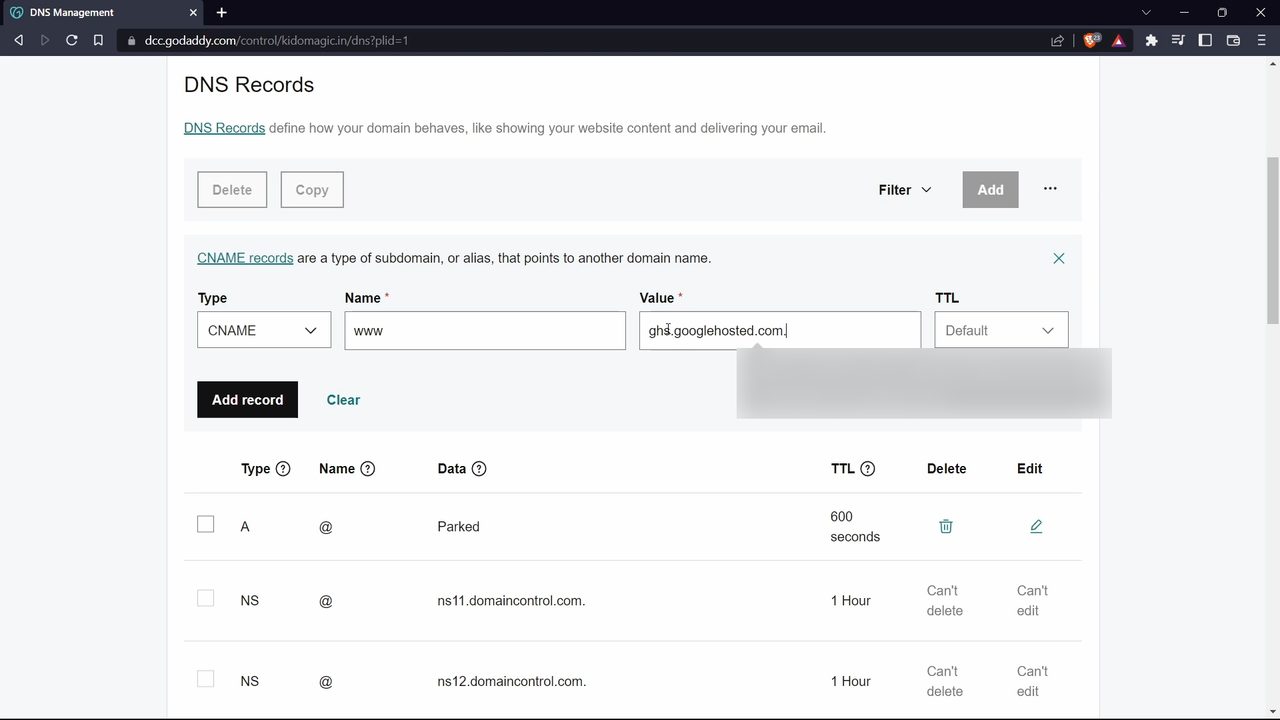
In GoDaddy's DNS Records, click Add again. Set Type to CNAME, type www in Name, paste ghs.googlehosted.com. into Value and click Add record.
10Click Done in Google Sites
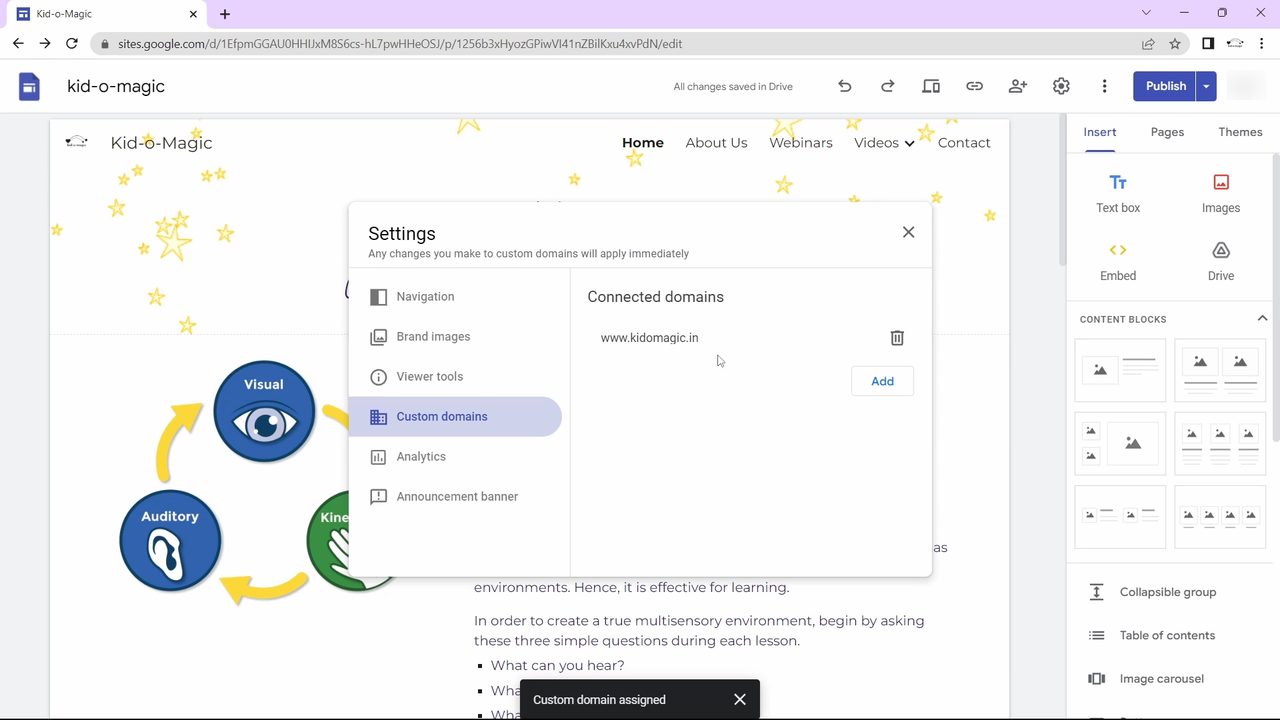
Return to Google Sites and click Done. Your domain now appears under Connected domains with a "Custom domain assigned" message.
Tips / troubleshooting
- DNS changes can take time to spread. GoDaddy's success message says most updates work within an hour but can take up to 48 hours. If Verify fails right away, wait and try again.
- Keep the verification record in GoDaddy after you are verified. Google says removing it can make you lose verified ownership.
- New to Google Sites? Start with how to create a website in Google Sites.
FAQ
How do I connect my GoDaddy domain to Google Sites?
In Google Sites, open Settings > Custom domains > Start setup, pick Use a domain from a third party and enter your domain. Verify ownership with a CNAME or TXT record in GoDaddy's Manage DNS, then add a CNAME record with name www and value ghs.googlehosted.com. and click Done.
Why does Google Sites say my domain is not verified?
Google needs proof that you own the domain before it can connect. Click verify your ownership, add the CNAME or TXT record it gives you in GoDaddy, and click Verify. If it still fails, the DNS change may not have spread yet, so wait a while and try again.
Should I use the CNAME or TXT method to verify?
Either works. The CNAME method usually verifies quickly, so try it first. If it does not work, add a TXT record with @ as the name and the google-site-verification text as the value.
Do I need the full stop at the end of ghs.googlehosted.com?
Google's setup steps say to include the period at the end, so enter it exactly as ghs.googlehosted.com. when you create the www CNAME record.
Related guides