Tech is Easy
How to Check Google Form Responses on Phone (Step-by-Step)
There is no Google Forms app, so checking the answers to your form on a phone takes a small trick. This guide shows how to check Google Form responses on your phone with Chrome: open Google Forms in desktop view, then look at the responses as a summary, question by question, person by person, or in a Google Sheet. It is for anyone who has already made a form and wants to see who replied.
What you need
- The Chrome browser on your phone
- The Google account you used to create the form
1Open Chrome and check your account
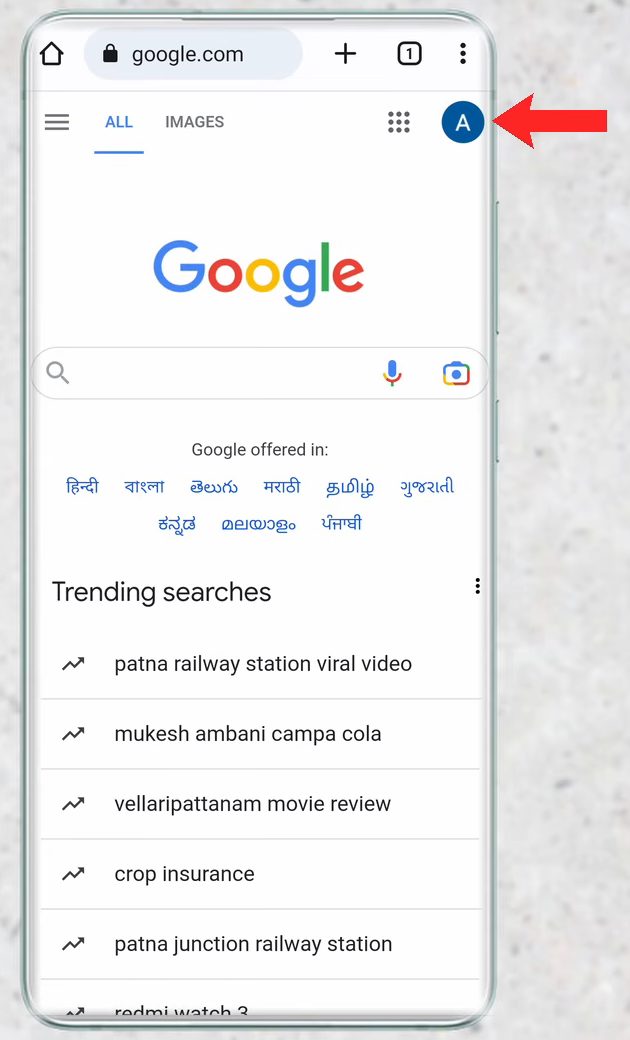
Open Chrome on your phone. Chrome is used here because it has a desktop site option we need later. Tap the profile icon at the top right and make sure you are signed in with the same account you used to make the form.
2Go to forms.google.com
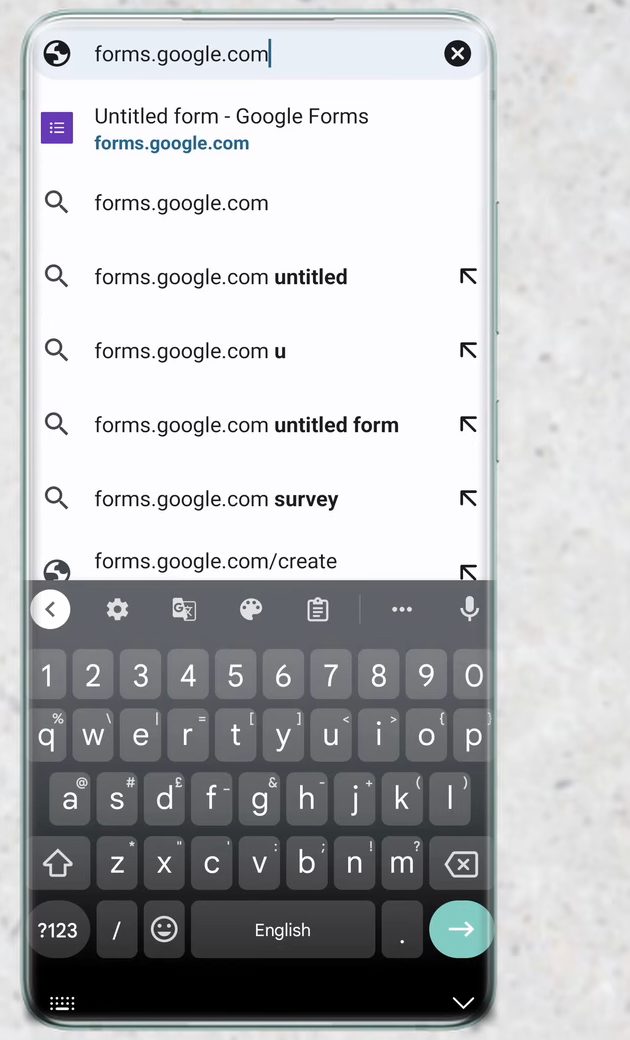
Type forms.google.com in the address bar and open it. On a phone this usually lands on a page for creating a new blank form, which is not what we want.
3Switch to the desktop site
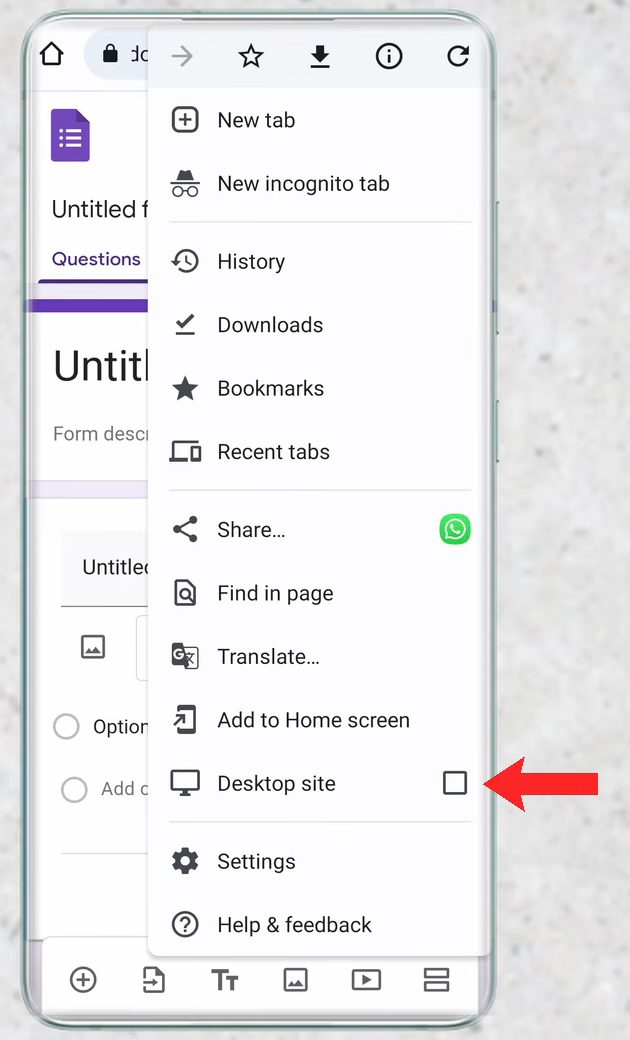
Tap the three dots at the top right of Chrome and tick Desktop site. The page reloads as the full Google Forms website.
4Open your form
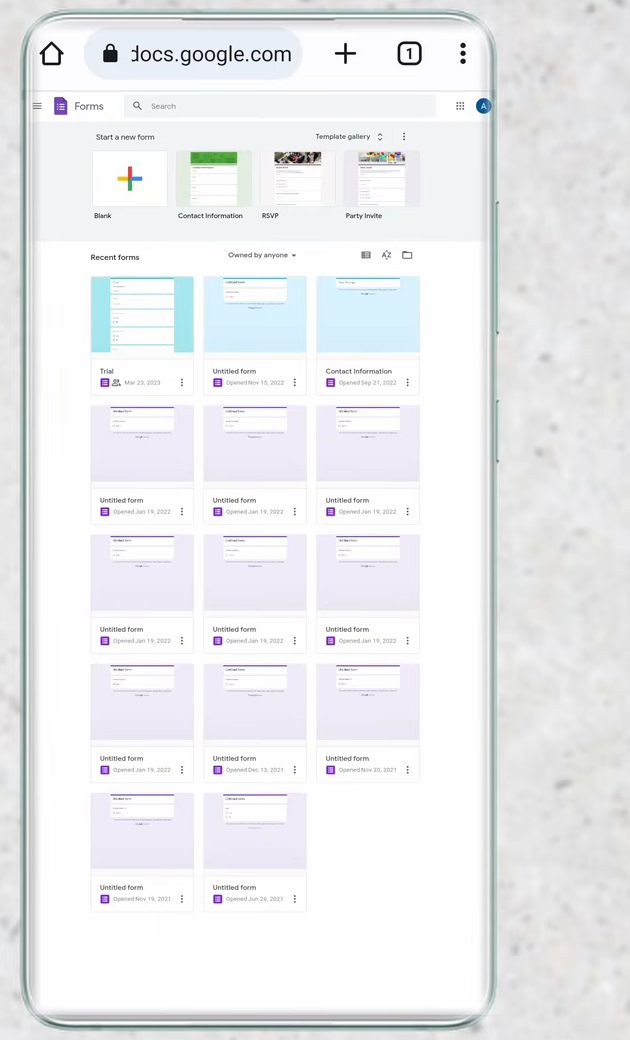
You now see the Google Forms home page with every form you have created. Tap the form whose responses you want to check.
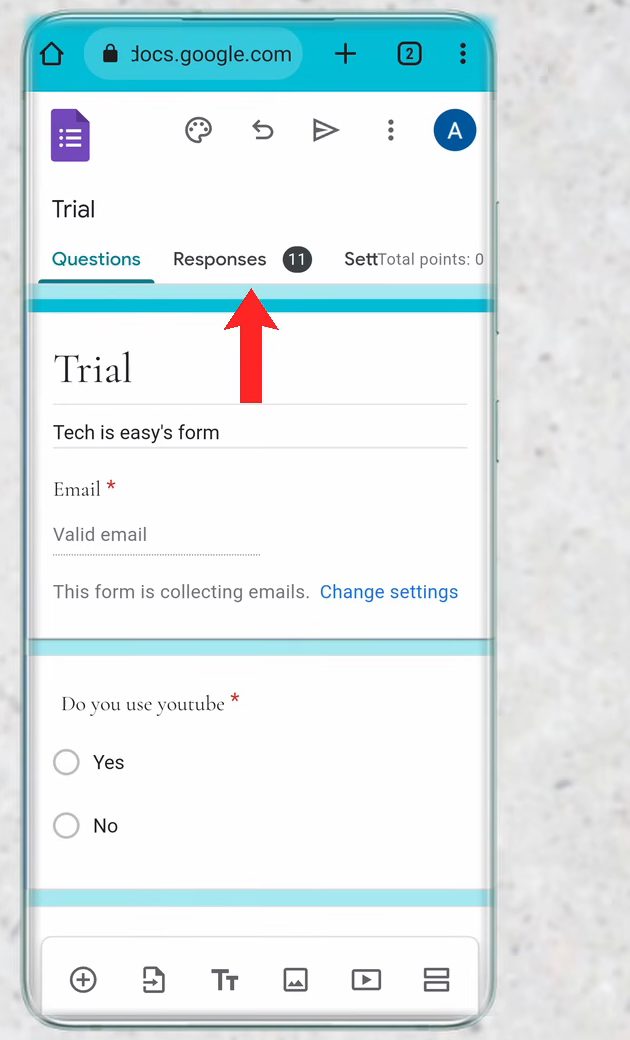
5Tap the Responses tab
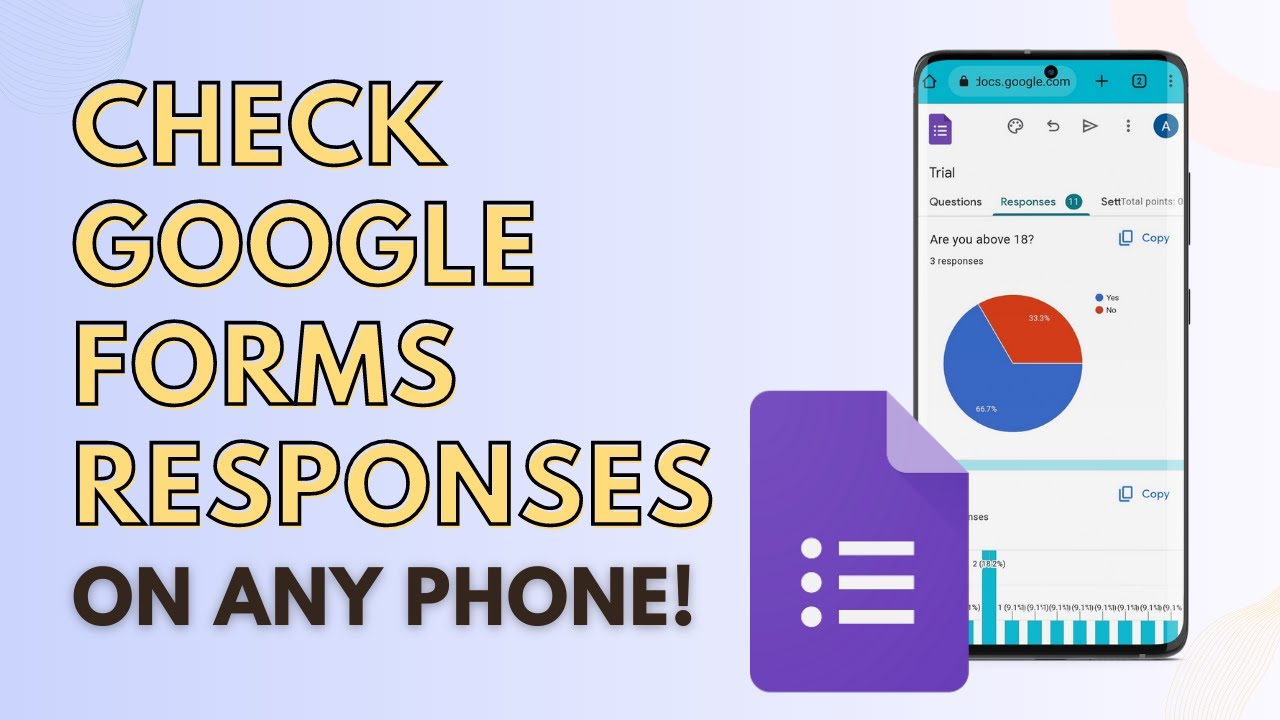
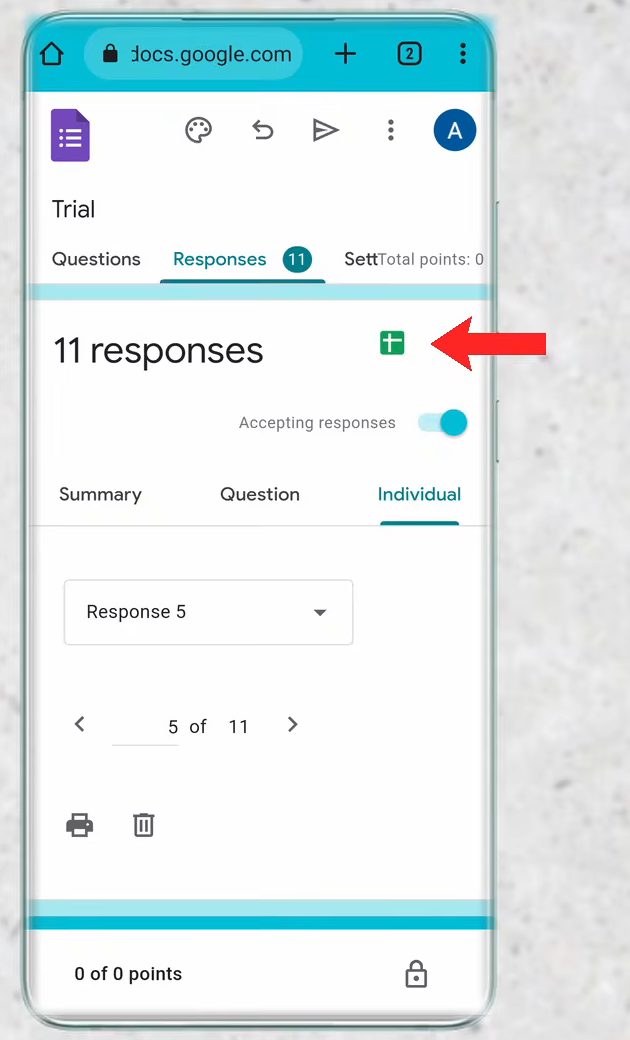
At the top of the form, tap Responses. The number next to it shows how many people have filled in the form (11 in our example).
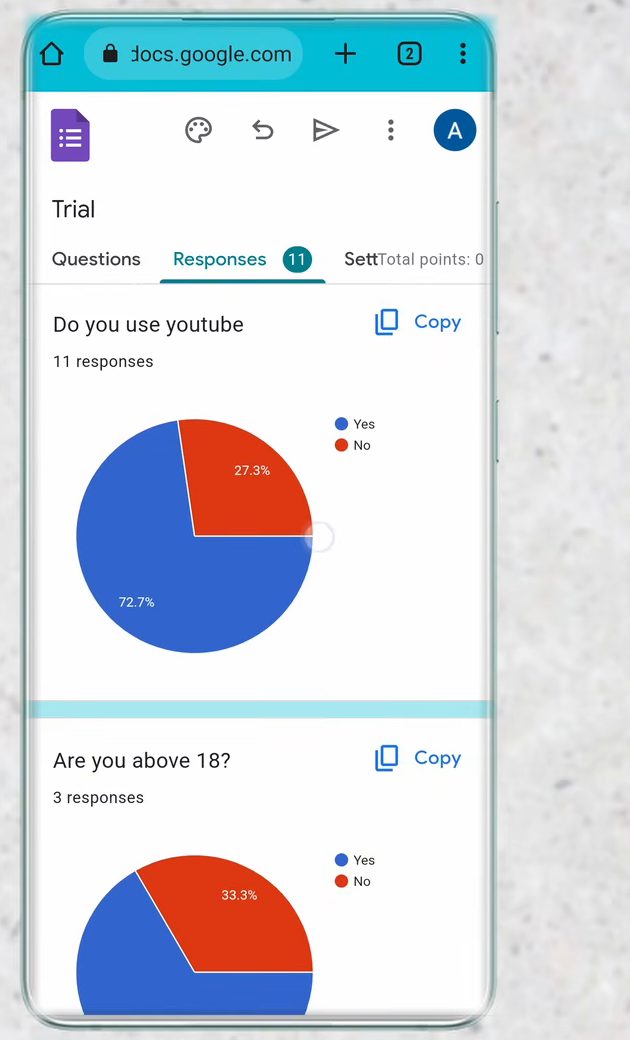
6Read the Summary
The Summary view opens first. It turns all the answers into charts, so you can see at a glance how people answered each question, for example what share said Yes or No.
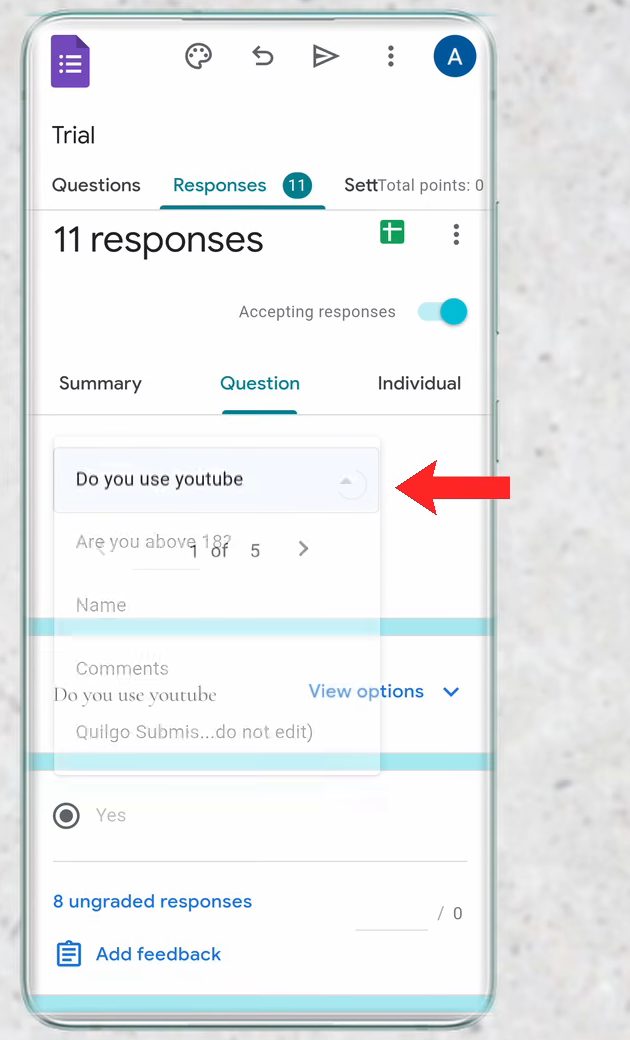
7See answers question by question
Tap Question to see every answer to one question. To switch to another question, tap the box with the question name and pick a different one, such as Name.
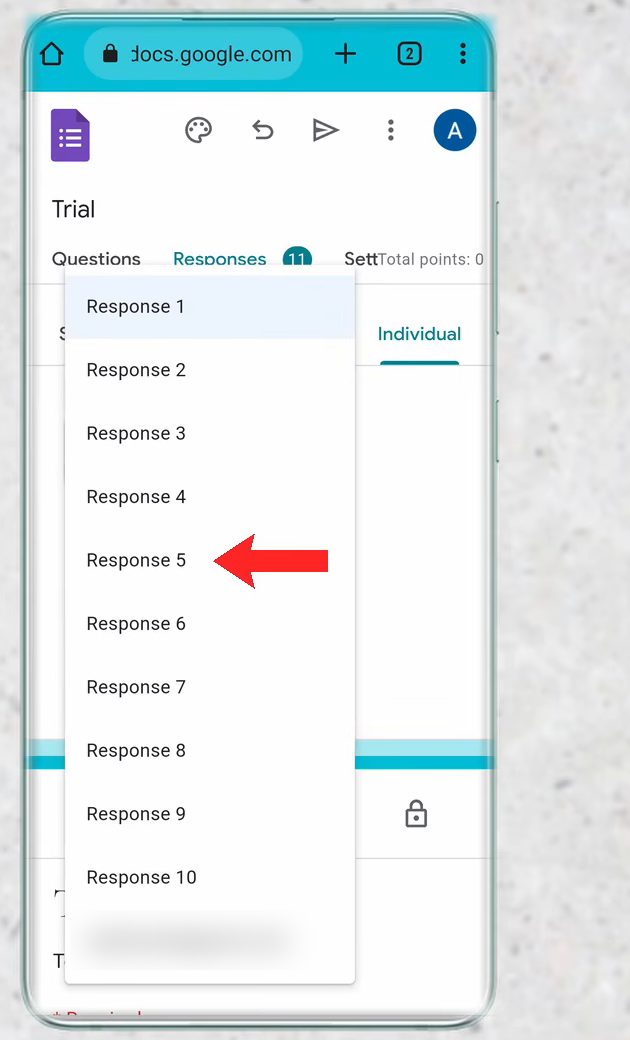
8See each person's response
Tap Individual to see how one person filled in the whole form. Each response gets its own page, so 11 responses means 11 pages. Tap the box that says Response 1 and choose another one, such as Response 5, or use the arrows to move between them.
9Link the responses to Google Sheets
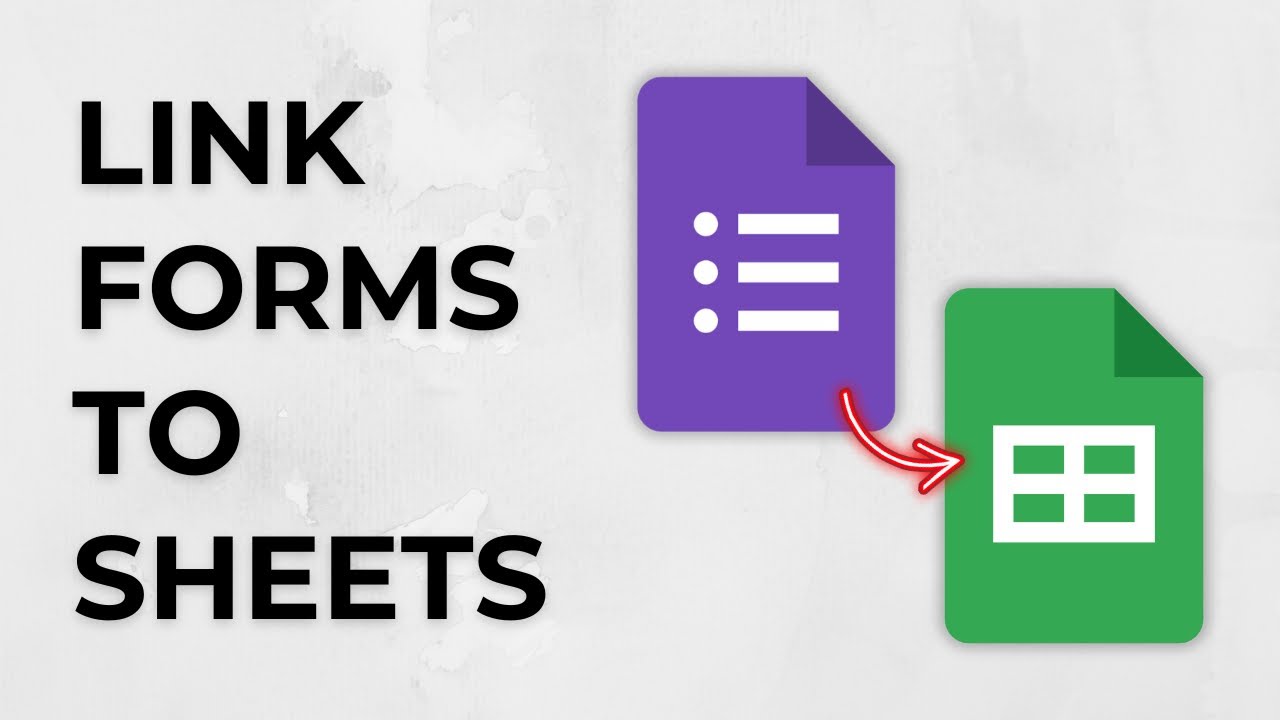
For the clearest overview, tap the green Google Sheets icon next to the response count. Choose the account you want to link the responses to when asked.
10View all responses in the sheet
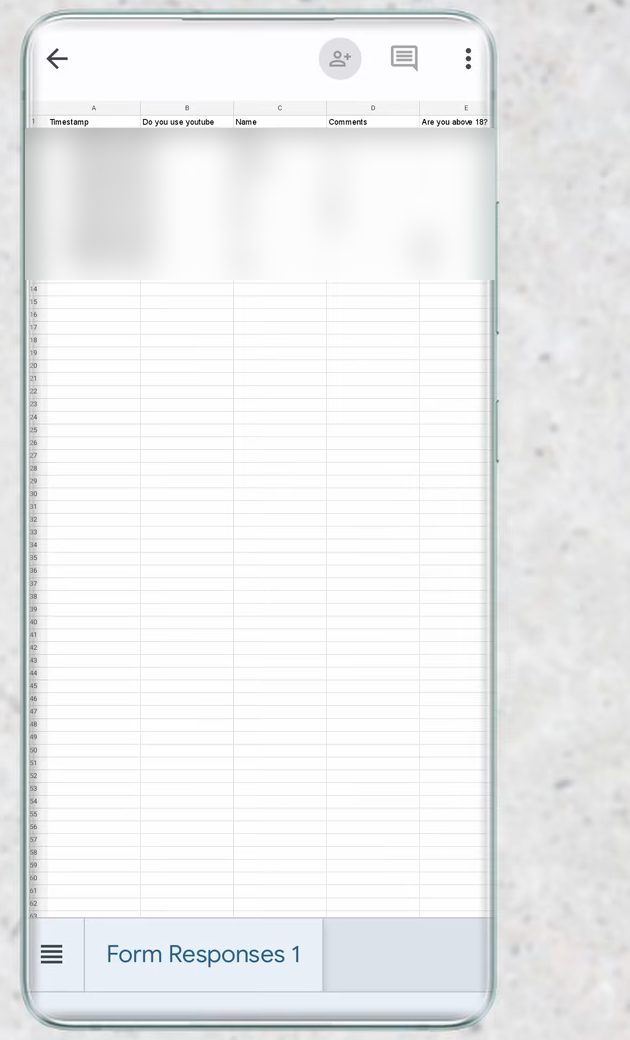
A Google Sheet opens with one row per response, including a timestamp and every answer. New responses are added to this sheet automatically, so you can come back to it any time.
Tips / troubleshooting
- If forms.google.com keeps showing a new blank form, check that Desktop site is ticked in the Chrome menu.
- If your form is missing from the list, you are probably signed in with a different Google account. Switch accounts from the profile icon.
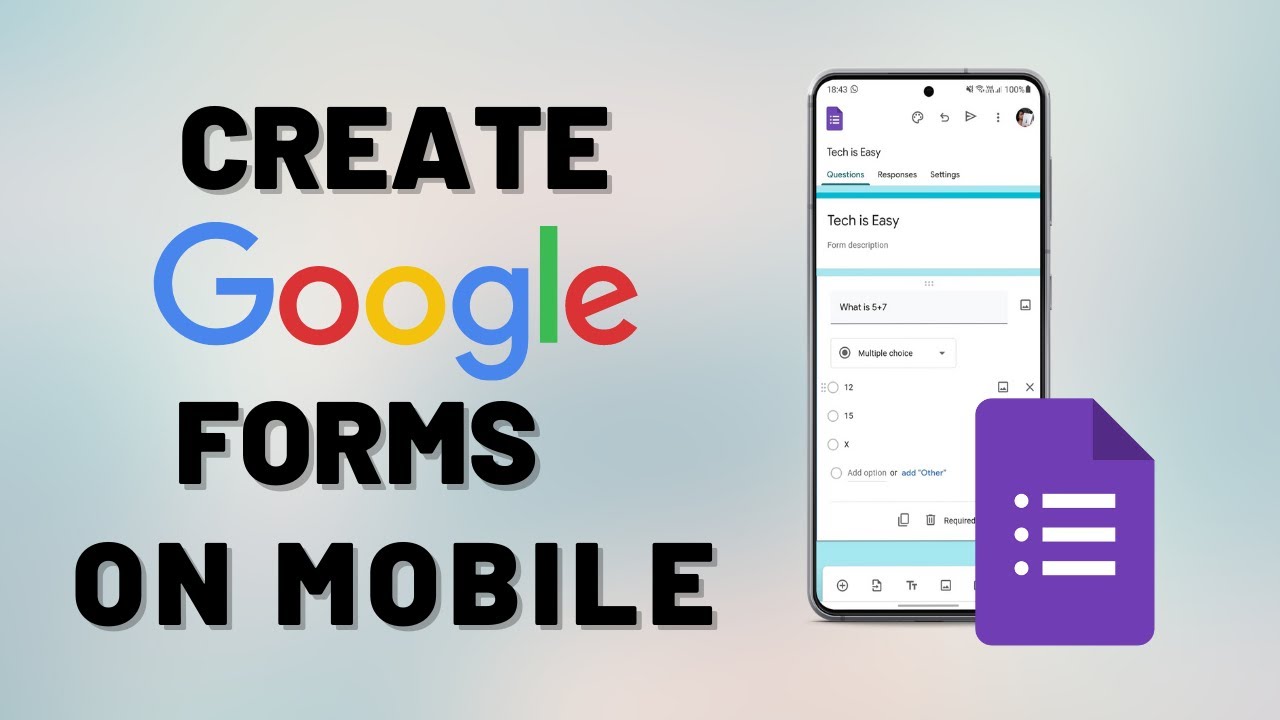
Related guides: How to Create a Google Form on Mobile (Android or iPhone) and How to Link Google Forms to Google Sheets (Live Responses).
FAQ
Is there a Google Forms app for checking responses?
No, Google does not have a separate Forms app for Android or iPhone. Open forms.google.com in Chrome, switch on Desktop site, and you get the full Forms website with the Responses tab.
How do I see who filled out my Google Form on my phone?
Open the form, tap Responses, then tap Individual. Each response has its own page, and you can pick any of them from the dropdown to see exactly what that person answered.
Do new responses show up in the linked Google Sheet automatically?
Yes. Once the form is linked to a sheet with the green Sheets icon, every new response is added as a new row on its own.
Can I see Google Form responses as charts?
Yes. The Summary view under Responses shows charts for each question, such as pie charts for multiple choice answers.
Related guides