Tech is Easy
How to Create a Website in Google Sites for Free (Beginners)
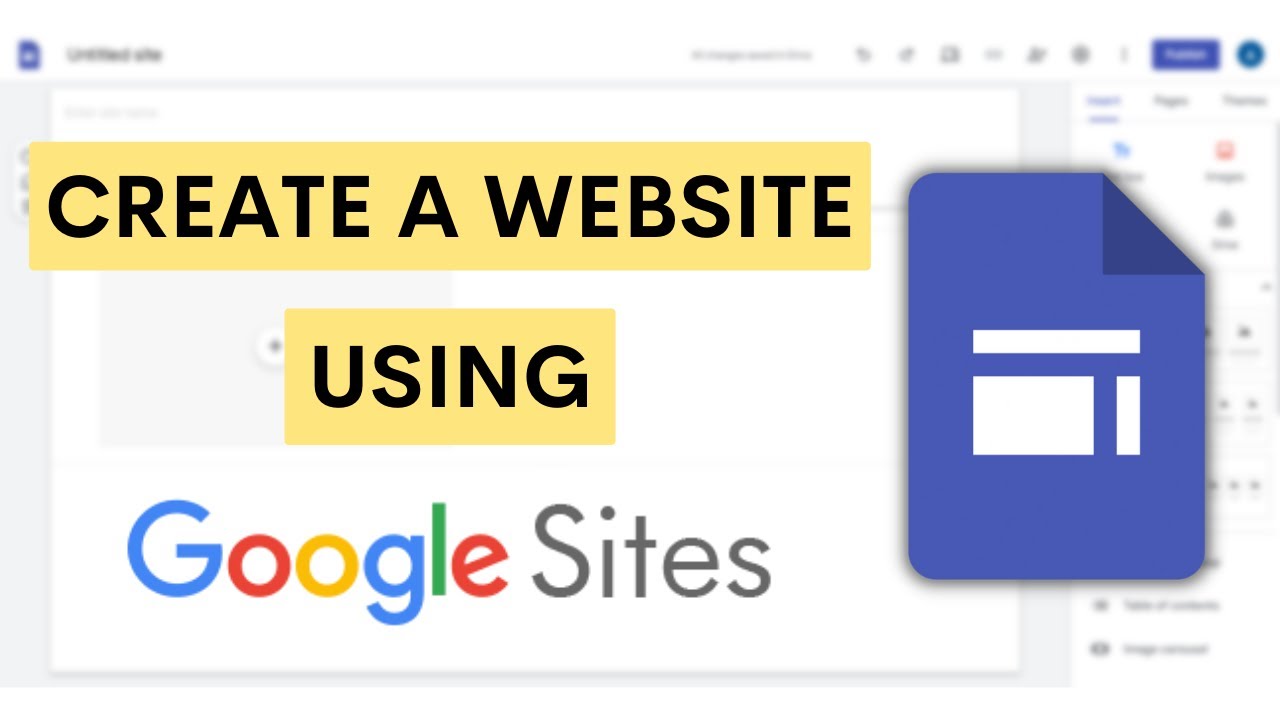
Google Sites is a free, simple way to build a website without any coding. This guide shows how to create a website in Google Sites from a blank page, using a site for our YouTube channel as the example.
What you need
- A Google account and a computer with a web browser
1Open Google Sites
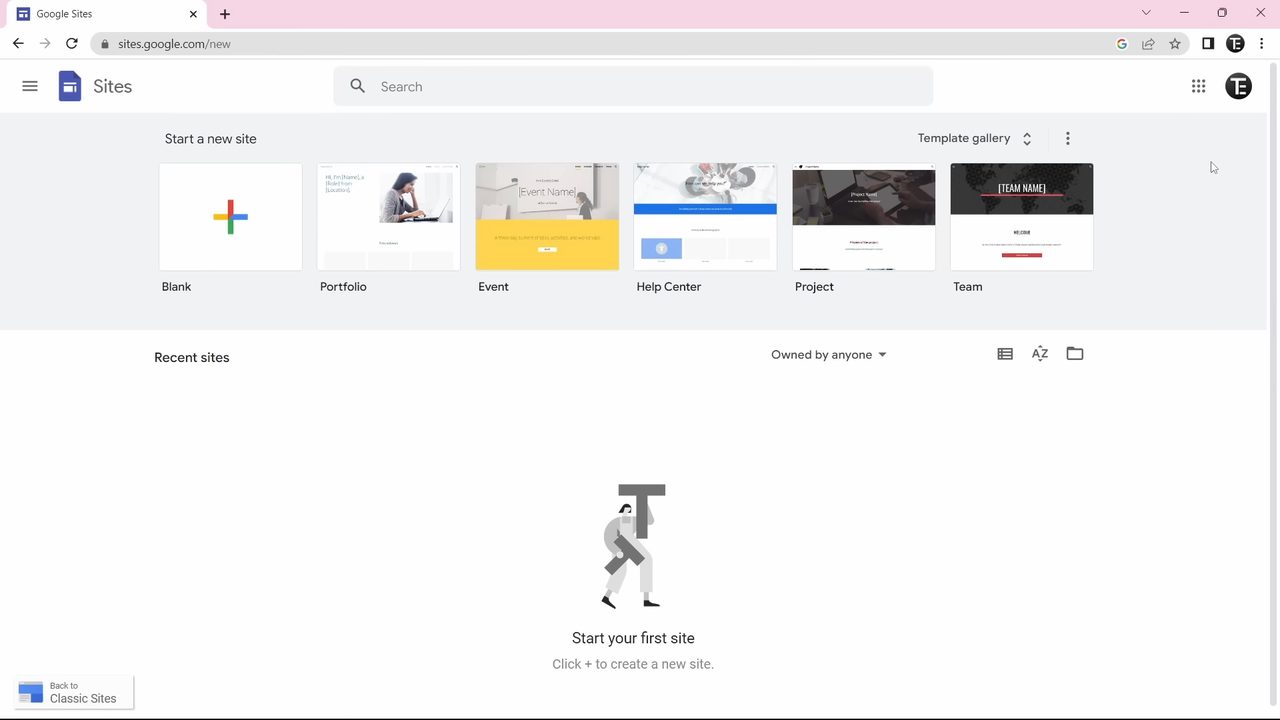
Sign in to your Google account in your browser and go to sites.google.com.
2Start from Blank or a template
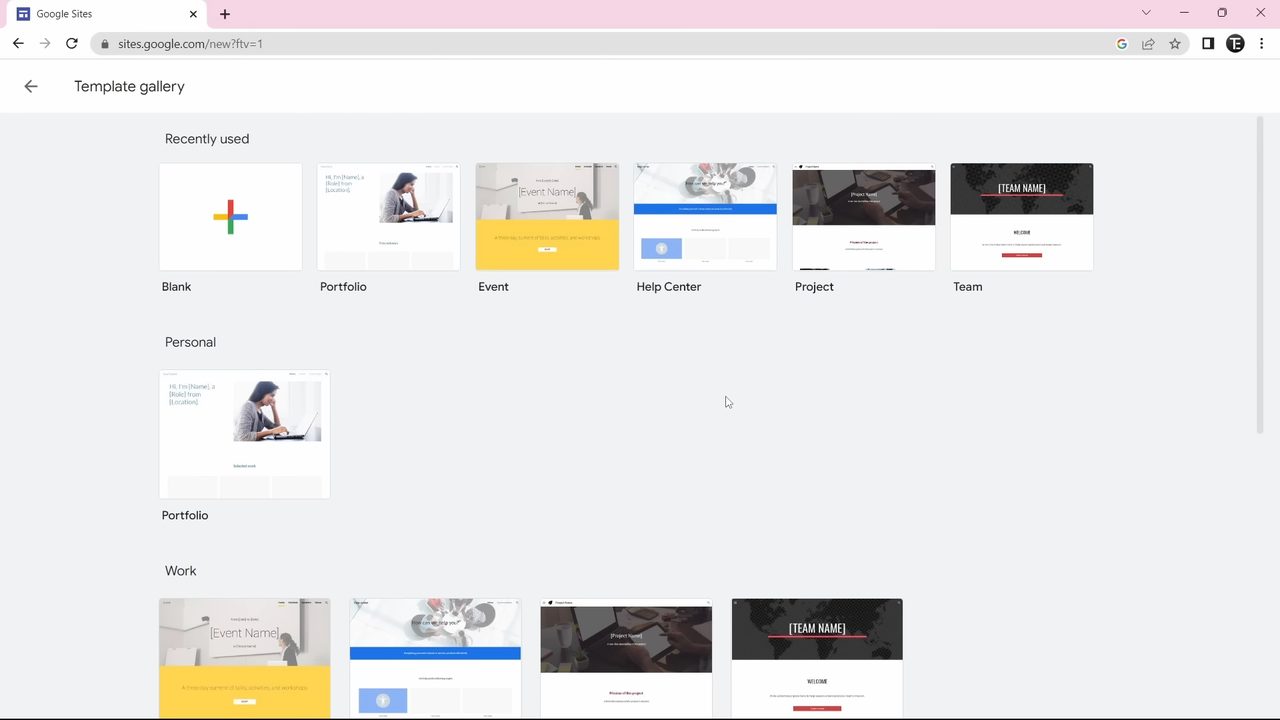
Under Start a new site, click Blank to build from scratch. If you would rather start from a ready-made design, click Template gallery and click one to edit it.
3Add your site name and logo
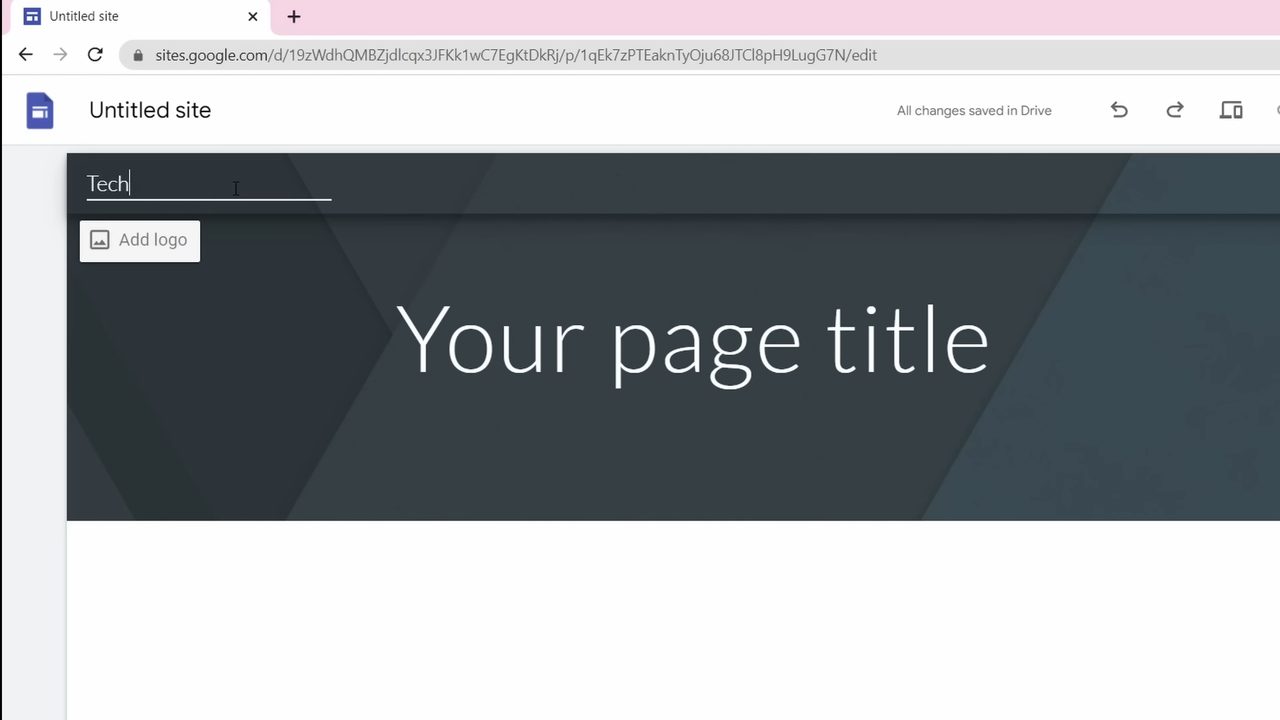
In the site builder, click Enter site name at the top left and type your site's name. To add a logo, click Add logo, then Upload and pick your image. Then click Your page title and give the first page a title, such as Home or your site's name.
4Add pages
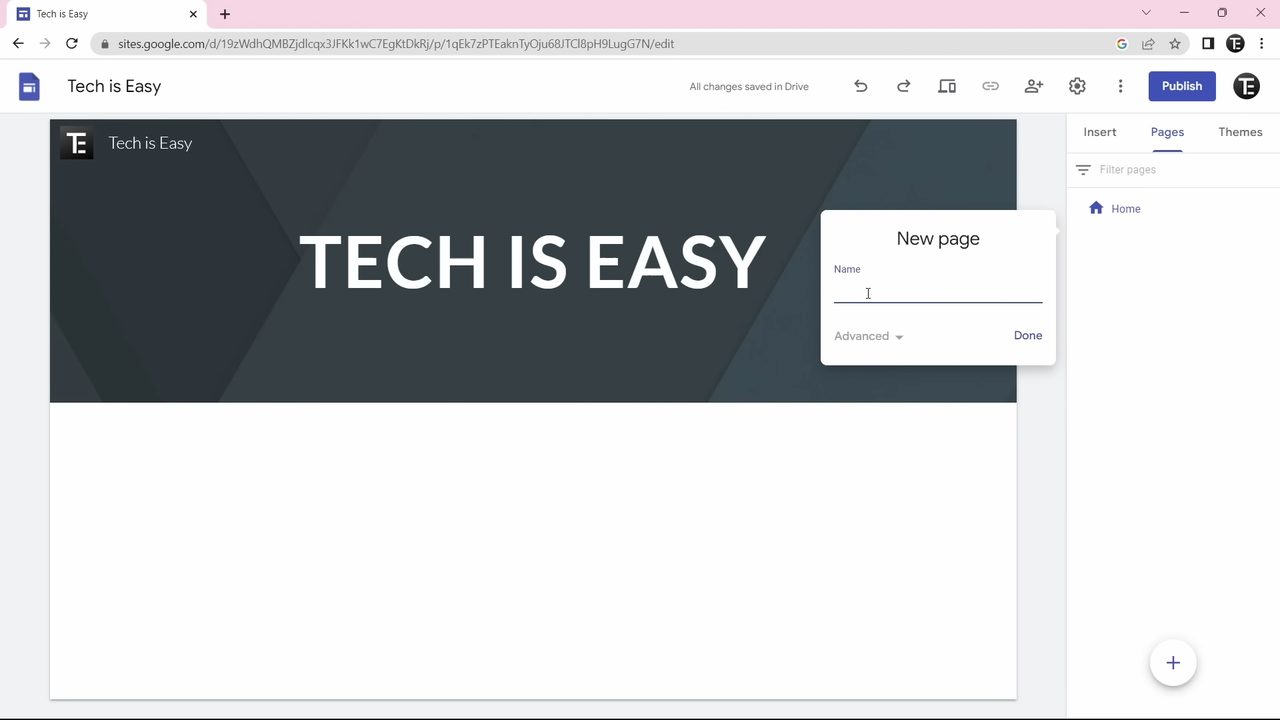
Click Pages in the right-hand panel, click the + button at the bottom, choose New page, type a name and click Done. Pages you add show up in the site's top menu.
5Add subpages and reorder pages
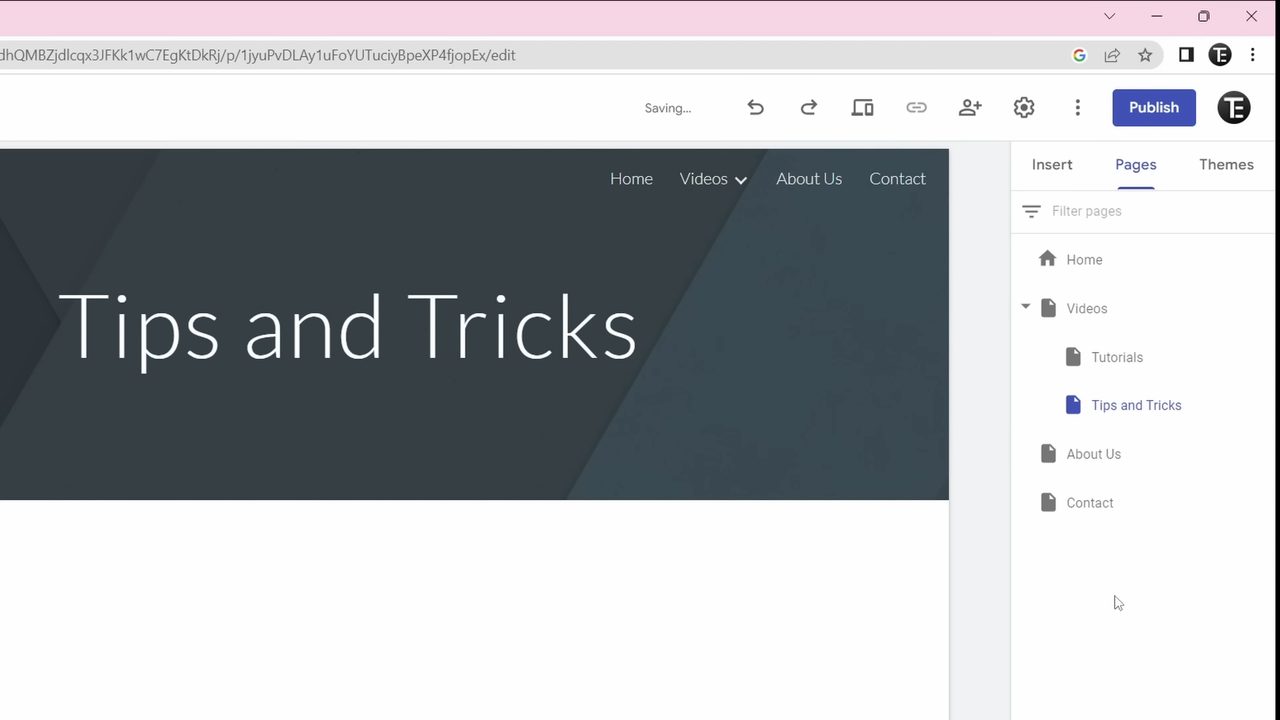
Click the three dots next to a page and choose Add subpage. Subpages appear in a dropdown when visitors hover over the main page. To change the order of pages, drag a page up or down in the list.
6Choose a theme
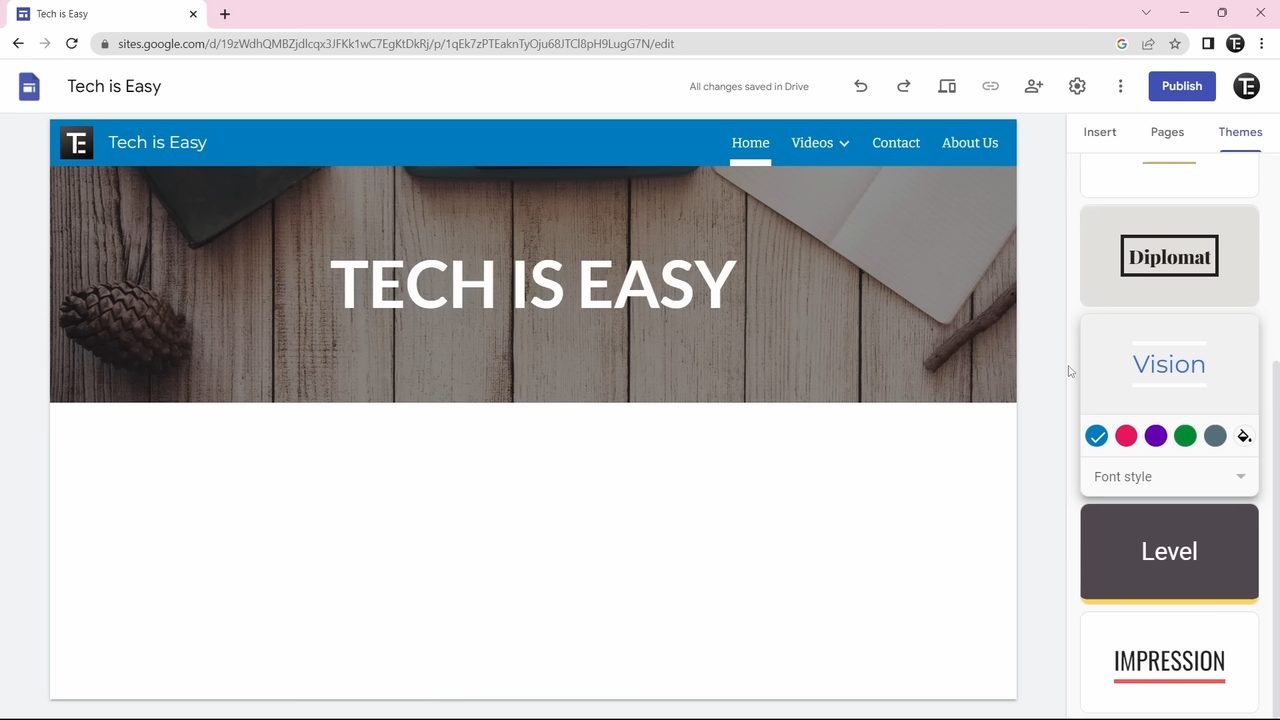
Click Themes in the right-hand panel and pick a theme. We chose Vision. The colour circles under a theme change its colour; the last one sets a custom colour. To swap the header picture, click Change image on the header.
7Build your pages with sections
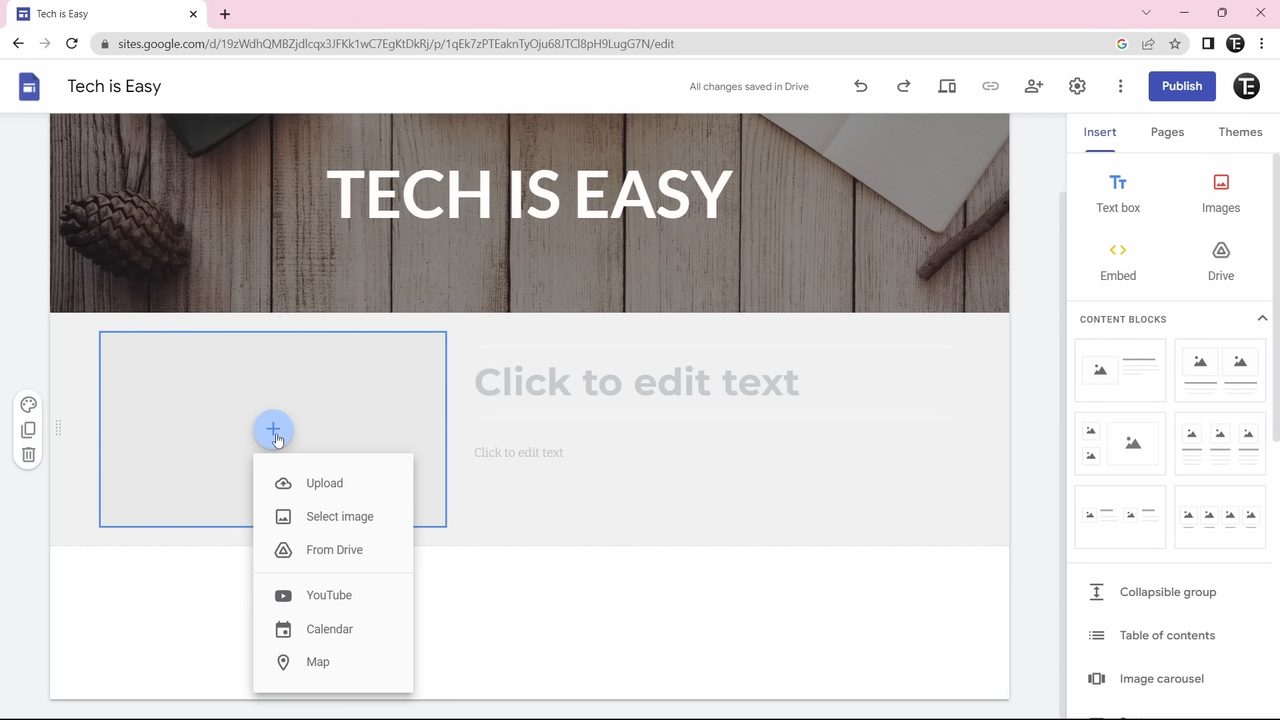
Each page is made of sections. Go to the Insert panel and drag an element or content block onto the page to create a new section. In a picture-and-text block, click + to upload an image or add a YouTube video, then click the text area to type. Move a section by dragging the dots on its left.
8Add buttons, social links and a footer
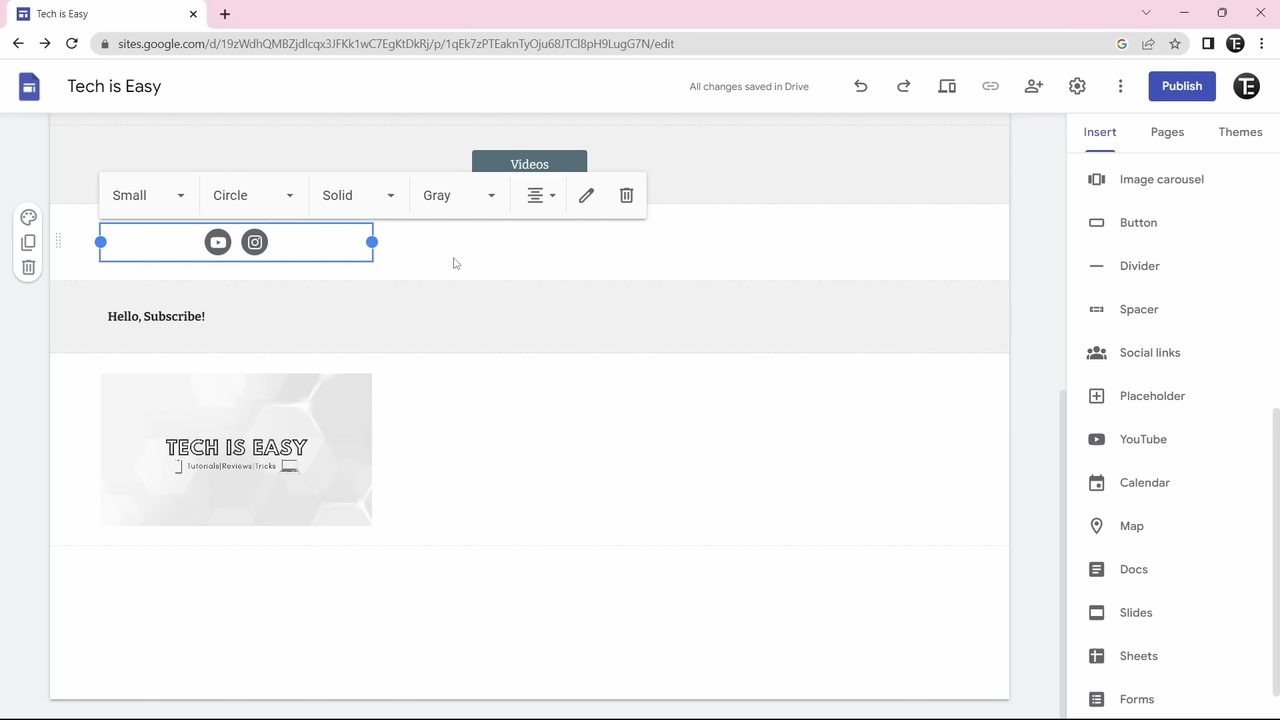
Button links to another page, such as your Videos page. Social links adds icons for your profiles: type the URLs and click Insert. To add a footer, scroll to the bottom and click Add footer. It shows on every page, so it suits your social links.
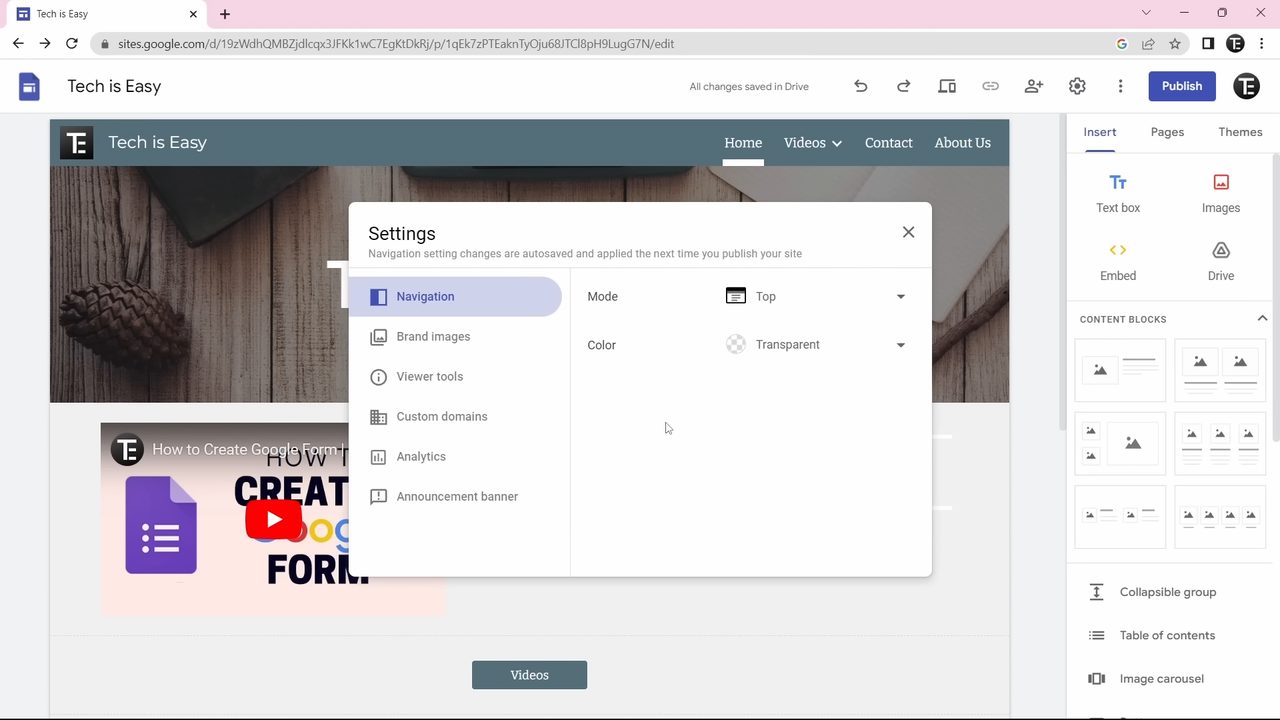
9Change the site settings
Click the Settings gear at the top. Under Navigation, Mode lets you keep the menu at the Top or move it to the side. Under Brand images you can upload a favicon, the small icon shown next to your site's name in the browser tab.
10Preview and publish
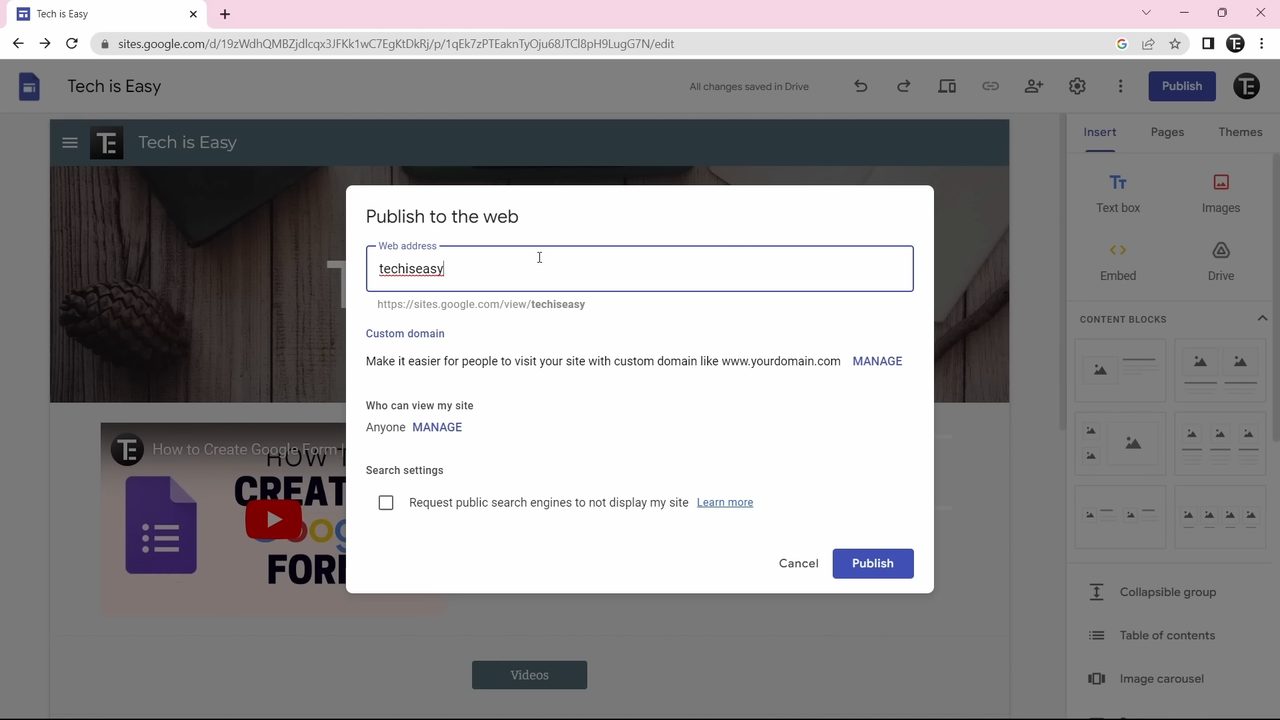
Click the Preview icon to see the site as a visitor would, and switch between the laptop, tablet and phone views. When you are happy, click Publish at the top right, enter a web address for your site and click Publish. To share it, click the Copy published site link icon and send the link to others.
Tips / troubleshooting
- Google Sites saves your changes automatically ("All changes saved in Drive"), but visitors only see them after you click Publish again.
Related guides: How to Connect Google Sites to a GoDaddy Domain (Step-by-Step) and How to Create a Google Form (Step-by-Step for Beginners).
FAQ
Is Google Sites really free?
Yes. You can build and publish a site with just a Google account. Your site gets a free address that starts with sites.google.com/view/. A custom domain is optional and is bought separately.
Can I use my own domain name with Google Sites?
Yes. Go to Settings > Custom domains and click Start setup to connect a domain you already own.
How do I add more pages to a Google Site?
Open the Pages panel, click the + button and choose New page. To put a page under another one, click the three dots next to the parent page and choose Add subpage.
How do I share my Google Site with others?
After publishing, click the Copy published site link icon at the top of the editor and send that link to anyone you want to visit the site.
Related guides