Tech is Easy
How to Connect Android Phone to TV (Cast Phone Screen)
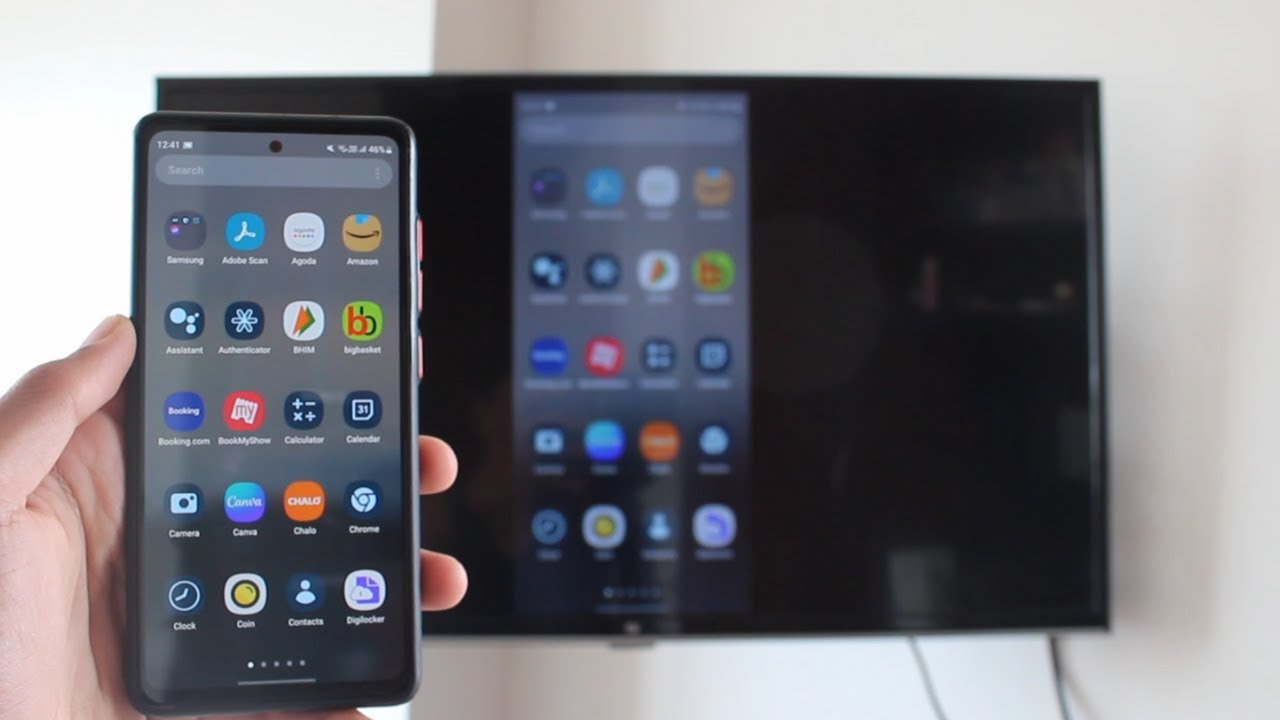
If you want to watch photos, videos or apps from your phone on a bigger screen, you can cast your Android phone to your TV without any cables. This guide shows how to connect an Android phone to a TV using the free Google Home app. It works on any Android TV that has Chromecast built in, which most Android TVs do now. We used a Mi TV.
What you need
- An Android TV with Chromecast built in
- An Android phone
- One Wi-Fi network for both. If you don't have Wi-Fi at home, turn on your phone's mobile hotspot and connect the TV to that.
- Android 8.0 or newer on the phone. Google's help page on casting your Android screen from the Google Home app says screen casting is only available on devices running Android 8.0 or later.
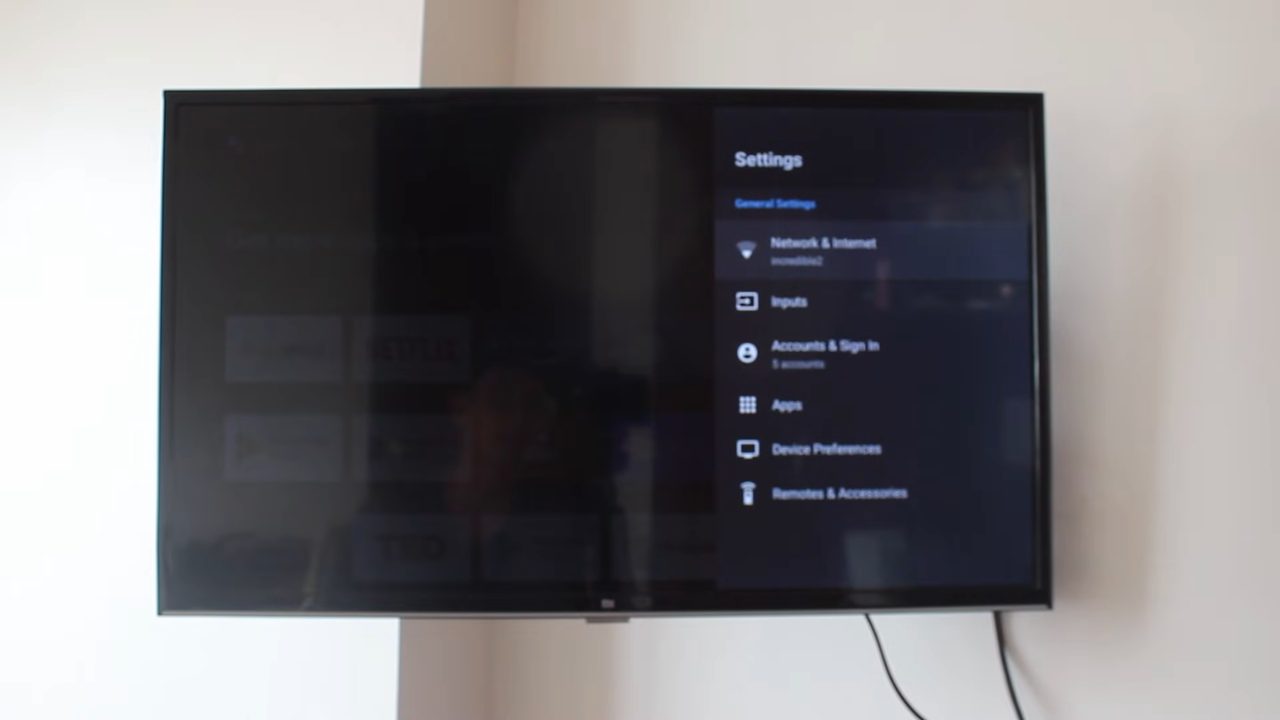
1Open Network & Internet on the TV
On your TV, open Settings and select Network & Internet.
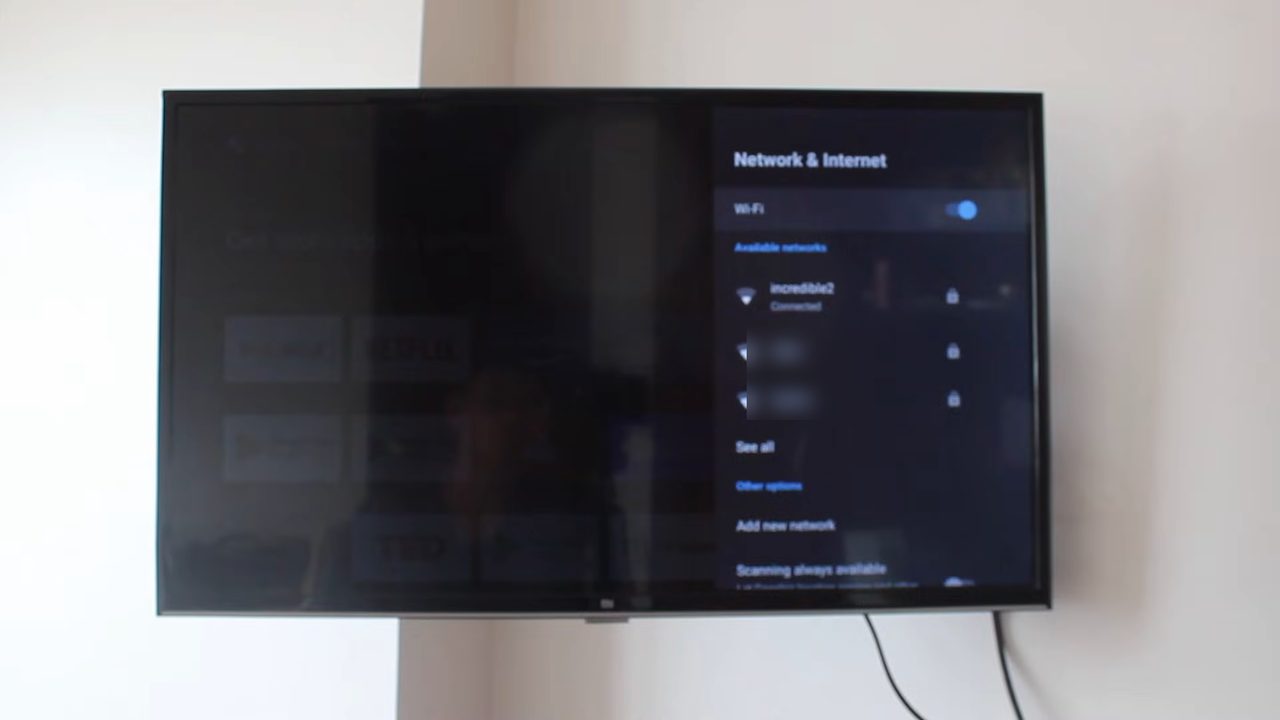
2Connect the TV to your Wi-Fi
You will see the list of available Wi-Fi networks. Connect the TV to your home Wi-Fi or your phone's hotspot. Our TV is connected to the network called incredible2.
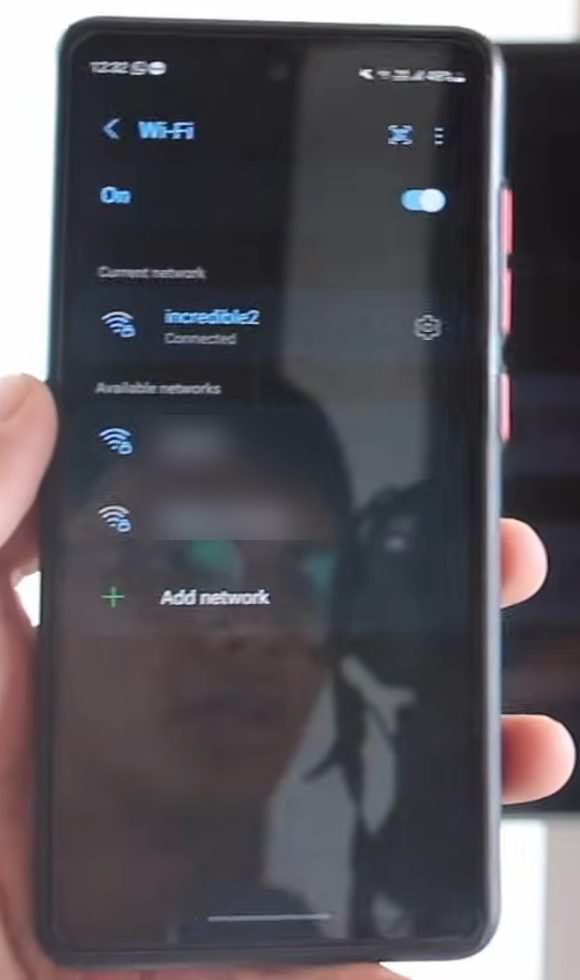
3Connect your phone to the same Wi-Fi
On your phone, open the Wi-Fi settings and make sure it is connected to the exact same network as the TV. Casting will not find the TV if they are on different networks.
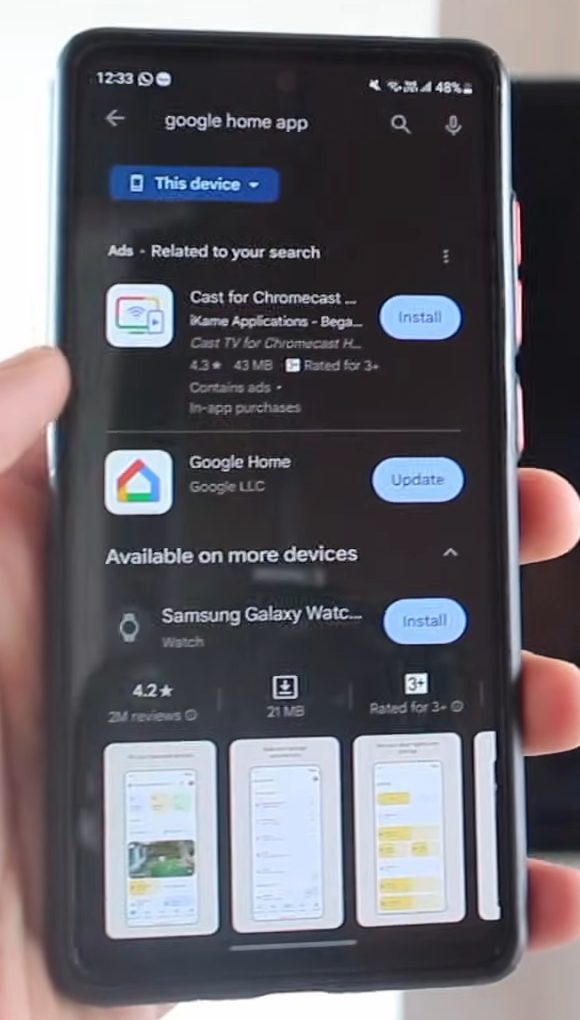
4Install the Google Home app
Open the Play Store, search for Google Home and install it. If you already have it, just open it. You may need to sign in with your Google account the first time.
5Open Devices and pick your TV
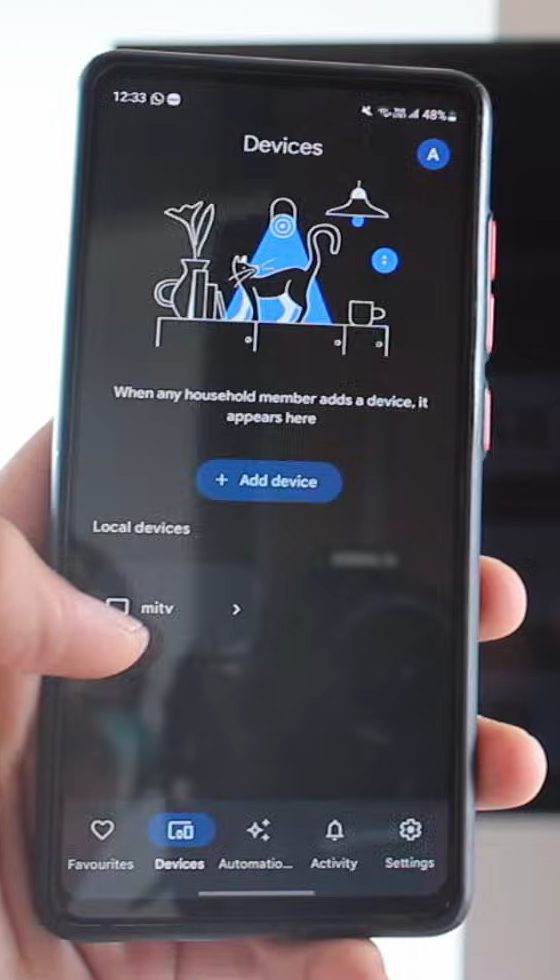
At the bottom of the Google Home app, tap Devices, the second tab. Your TV shows up under Local devices because it is on the same Wi-Fi. Tap it (ours is called mitv).
6Tap Cast my screen
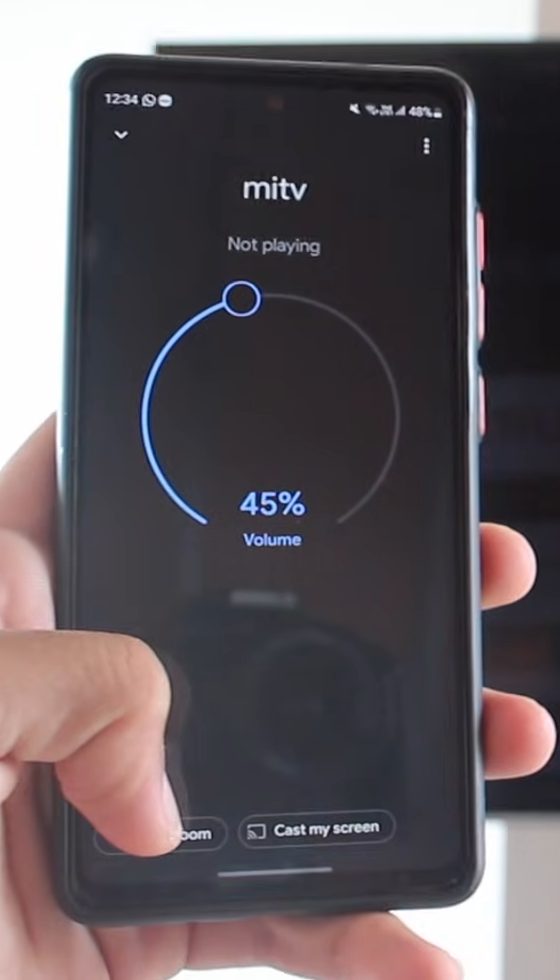
The TV's page opens. Tap Cast my screen at the bottom. If you want to keep the TV in the app for next time, you can tap Add to a room instead.
7Confirm with Cast screen
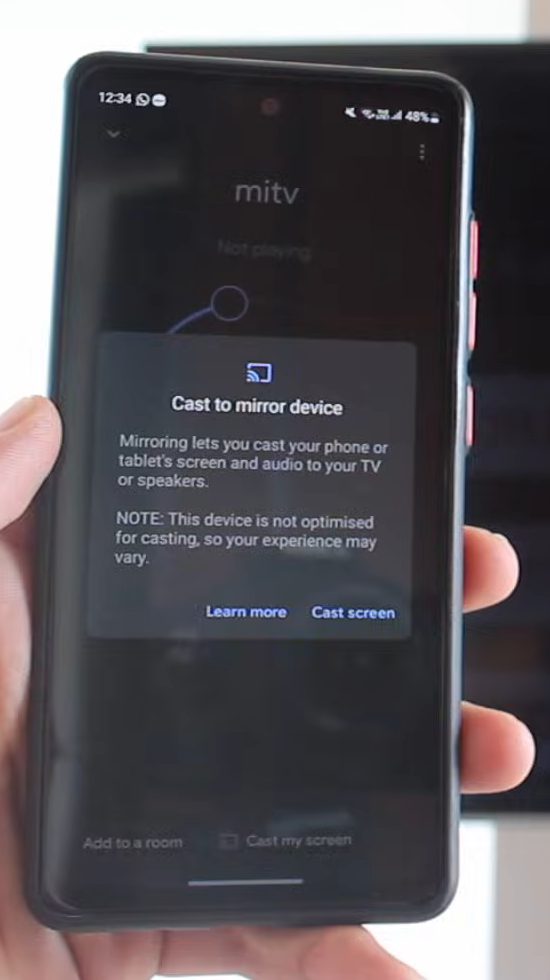
A Cast to mirror device box appears. Tap Cast screen.
8Allow casting with Start now
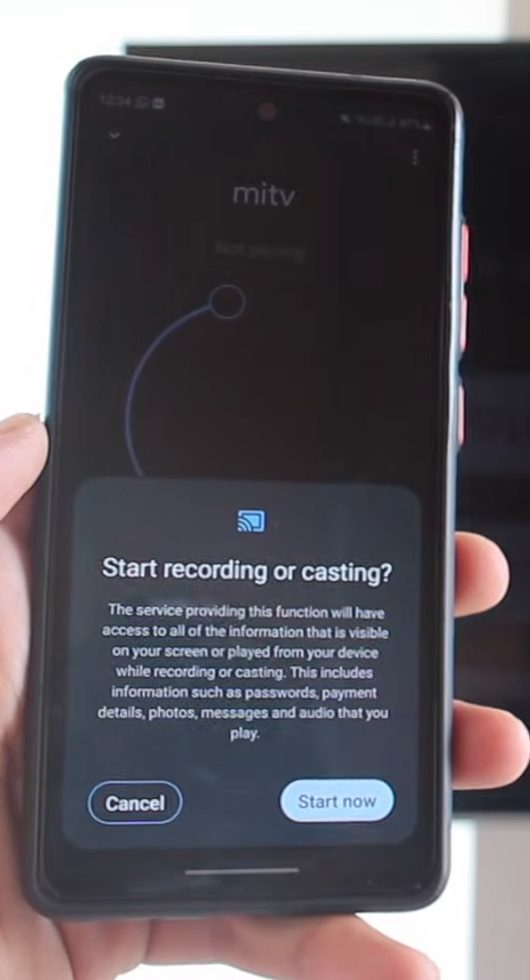
Android asks for permission to record or cast your screen. Tap Start now.
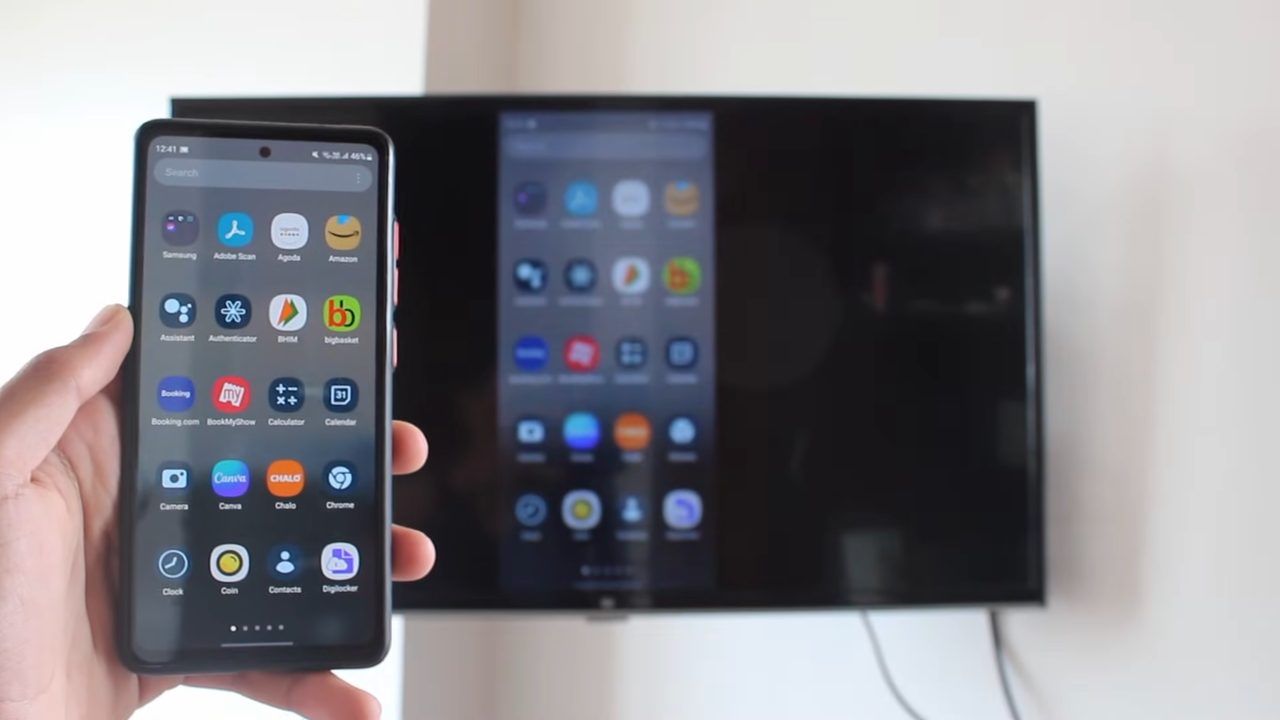
9Use your phone on the TV
Your phone's screen now shows on the TV. Whatever you open on the phone, such as Photos, Chrome or any other app, appears on the TV too.
10Stop mirroring when you are done
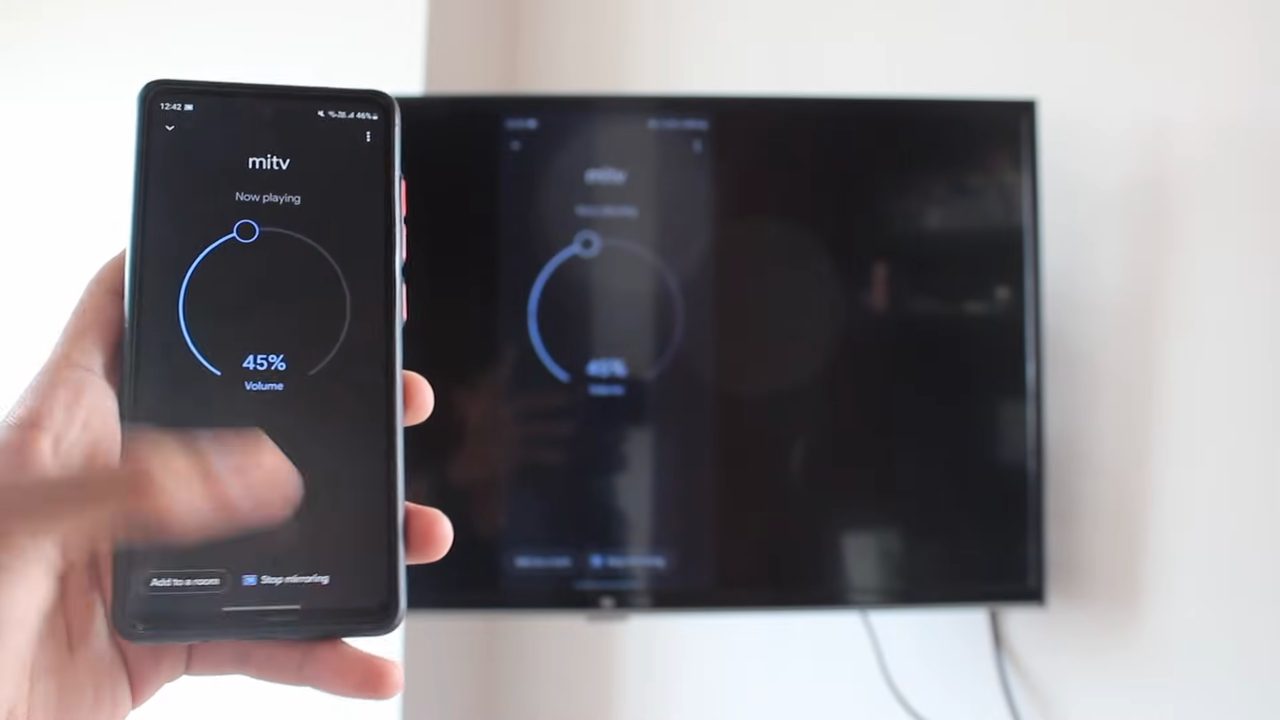
To disconnect, go back to the Google Home app, open your TV and tap Stop mirroring. The TV goes back to its normal screen.
Mirror the whole screen or just one app
On newer versions of Android and the Google Home app, the cast options include Cast one app as well as casting the whole screen. Google's help page lists Cast my screen, Cast screen and Cast one app as the choices. Casting one app keeps everything else private: your notifications, messages and other apps stay on the phone while only the app you pick shows on the TV. If your phone only shows Cast screen, everything on it, including pop-up notifications, appears on the TV, so turn on Do Not Disturb before showing photos to a room full of people.
Other ways to cast from your phone
- Cast button inside apps: apps like YouTube and many streaming apps have their own cast icon (a small screen with Wi-Fi waves). Tapping it sends only the video to the TV. The TV plays it directly from the internet, so the quality is better than mirroring and you can use your phone or lock it while it plays.
- Quick Settings tile: many phones also have a casting tile in the Quick Settings panel. Pixel phones call it Screen cast, and Samsung phones call it Smart View. It does the same job as the Google Home app without opening it.
Using a laptop instead? See how to connect a laptop to a smart TV wirelessly.
Tips / troubleshooting
- If your TV does not appear under Local devices, check the Wi-Fi on both again. They must be on the same network.
- No home Wi-Fi? Turn on your phone's hotspot and connect the TV to it. Both methods work.
- Cast my screen button missing or doesn't work? Update the Google Home app and Google Play services from the Play Store, and check your phone's Android version. Google's help page also lists turning on the microphone permission for Google Play services as part of the setup.
- TV found but casting fails? Restart the TV and the phone, then try again. A TV that has been on standby for days sometimes stops answering cast requests until it restarts.
- Video stutters? Mirroring sends everything over Wi-Fi in real time. Move closer to the router, or use the cast button inside the video app instead, which streams straight to the TV.
FAQ
How do I know if my TV has Chromecast built in?
Most Android TVs and Google TVs have Chromecast built in. If your TV shows up under Local devices in the Google Home app when both are on the same Wi-Fi, it supports casting.
Can I cast my phone to TV without Wi-Fi?
You need a shared network, but it does not have to be home Wi-Fi. Turn on your phone's mobile hotspot and connect the TV to it, then cast as usual.
Why is my TV not showing in the Google Home app?
Usually the phone and TV are on different Wi-Fi networks. Connect both to the same one and open the Devices tab again.
Does casting use mobile data?
Mirroring your screen over home Wi-Fi does not use mobile data. If the TV is connected to your phone's hotspot, though, anything the TV or phone streams from the internet comes out of your mobile data, so keep an eye on it when watching long videos.
Can I cast to a smart TV without Chromecast built in?
Not with the Google Home app, since it only finds TVs and devices that support Chromecast. Some other smart TVs accept screen mirroring through the phone's own casting feature, such as Smart View on Samsung phones, or through the TV maker's app.
How do I stop casting my phone to the TV?
Open the Google Home app, tap your TV and tap Stop mirroring. The connection ends straight away.
Related guides