Tech is Easy
How to Add Your Business to ChatGPT (Business Hub Guide)
OpenAI has launched Businesses in ChatGPT, a free way to claim your business and control how it shows up when people ask ChatGPT about you. Think of it as Google Business Profile, but for ChatGPT. Until now, anything ChatGPT said about your business came from wherever it found it online and nothing was verified. Once you claim your listing, you can add your own website, products, delivery and return policy, so people get accurate answers.
Setup happens in the new Business Hub inside ChatGPT. It takes about 10 minutes, then OpenAI reviews your application.
What you need
- A ChatGPT account (the free plan works)
- Your business website, and login access to wherever you bought the domain (GoDaddy, Hostinger, Namecheap and so on)
- A government-issued ID for the identity check
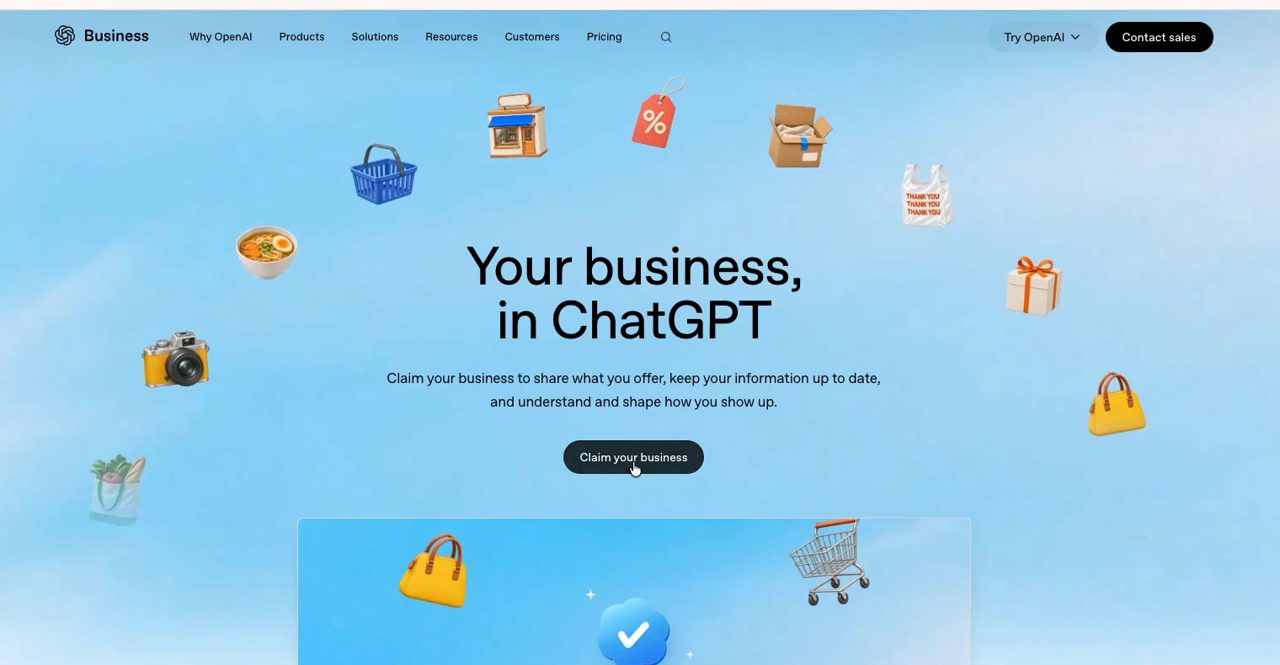
1Open the official page and click Claim your business
Go to openai.com/business/businesses-in-chatgpt and click Claim your business. Sign in to ChatGPT if it asks. You can also go straight to chatgpt.com/business-hub.
2Search for your business name
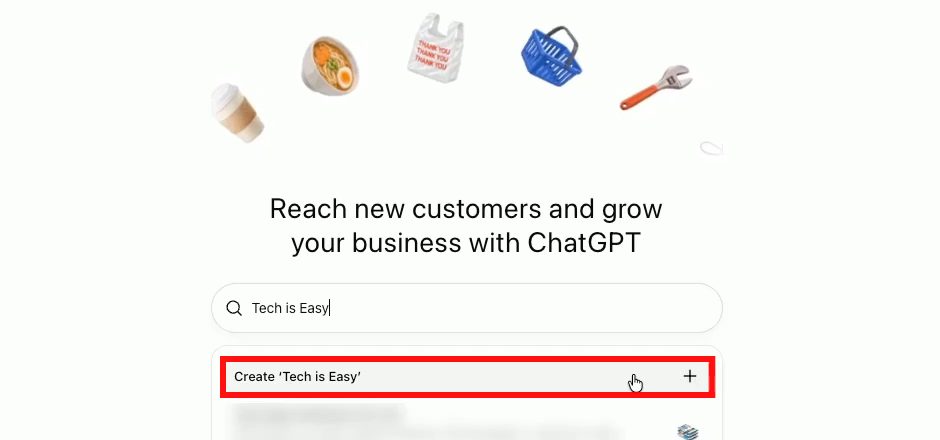
ChatGPT opens the Business Hub. Type your business name in the search box. If it is already listed, pick it. If not, click the Create "your business name" option with the + button.
3Click Get started
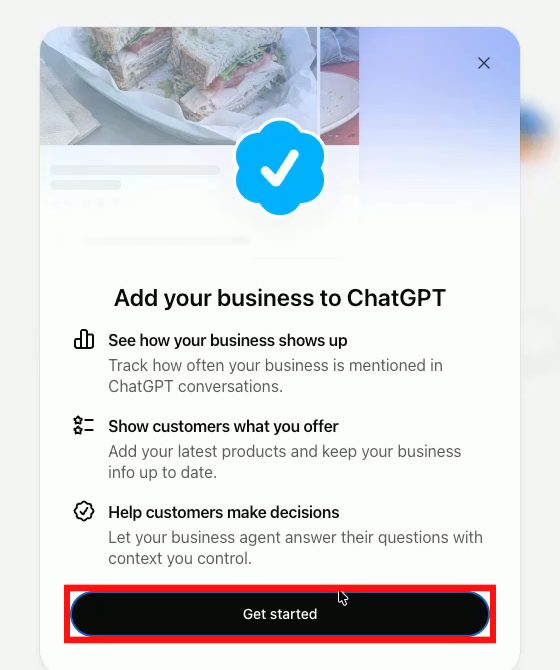
A window explains what you get: see how often your business is mentioned in ChatGPT, show customers what you offer, and let a business agent answer their questions. Click Get started.
4Add your business website
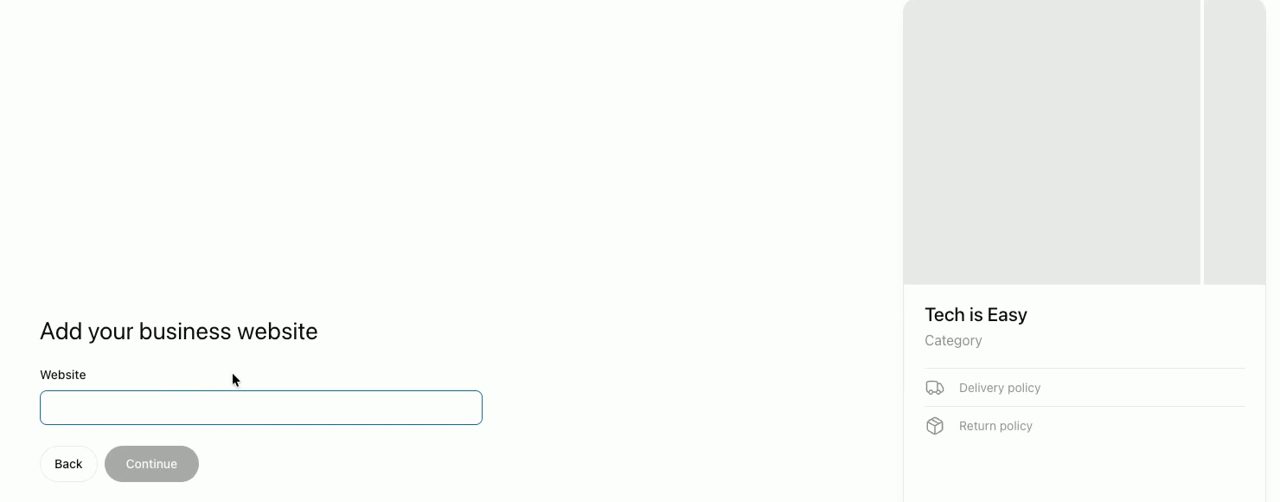
Enter your website address and click Continue. Then pick how customers usually reach you, At a physical location or Through a website. The questions after this depend on what you choose.
5Verify your domain with a TXT record
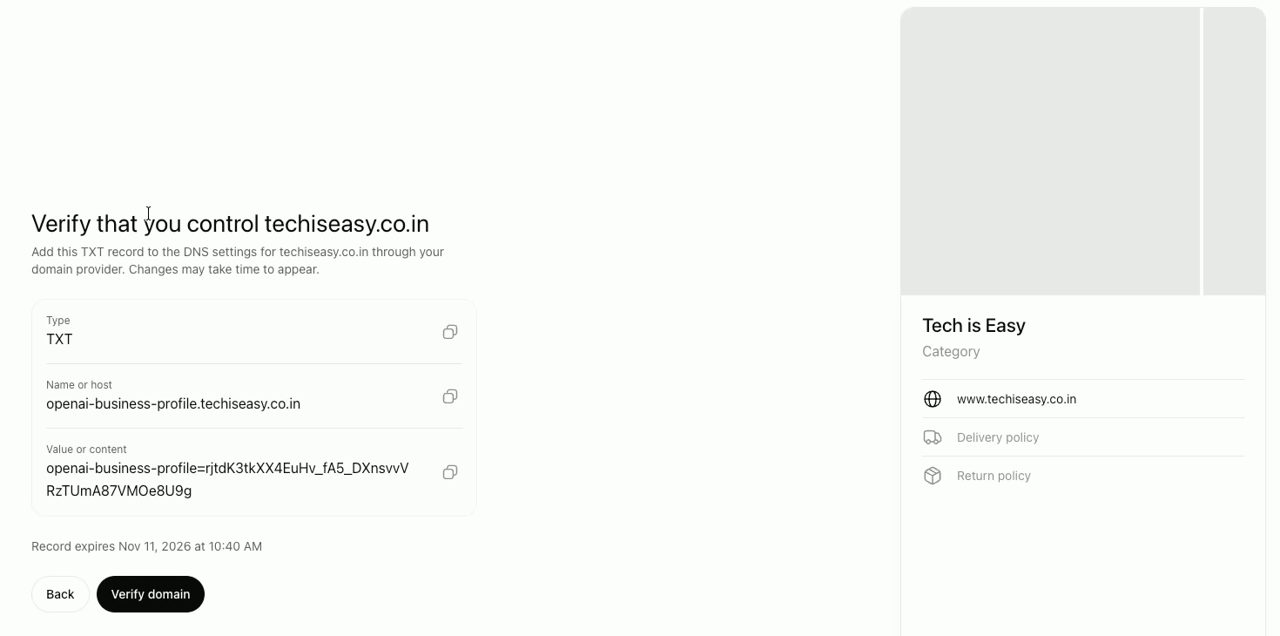
ChatGPT now asks you to prove you own the website. It shows a TXT record with a Name and a Value. Keep this tab open.
In a new tab, open your domain provider and go to the DNS settings for your domain. On GoDaddy that is Domain, then the DNS tab, then Add New Record. The menu names are a little different on other providers, but every one of them has a DNS section.
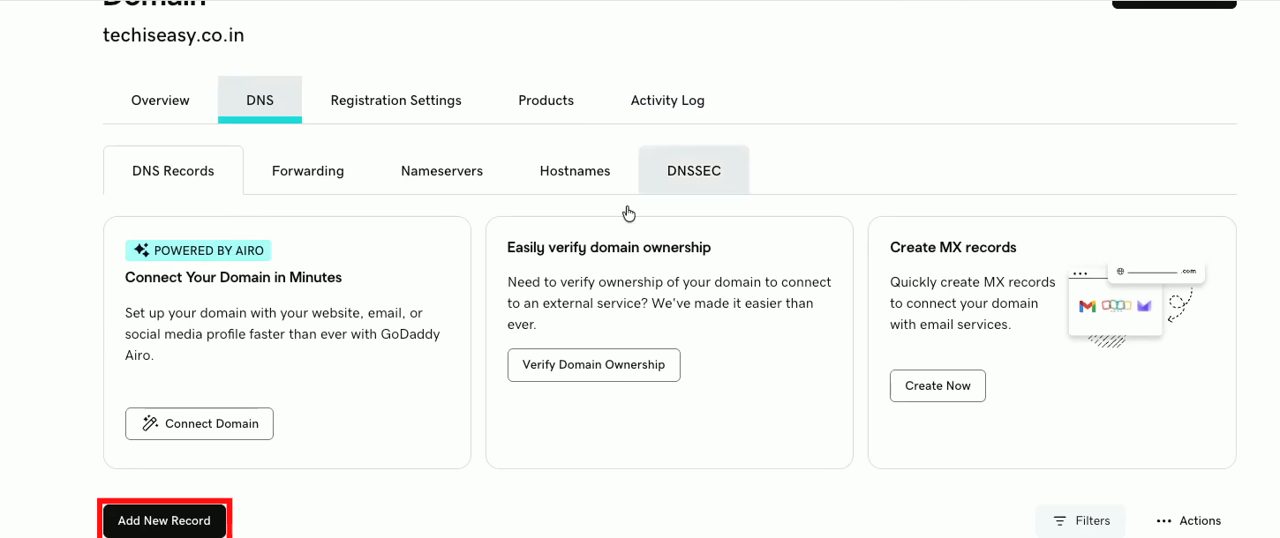
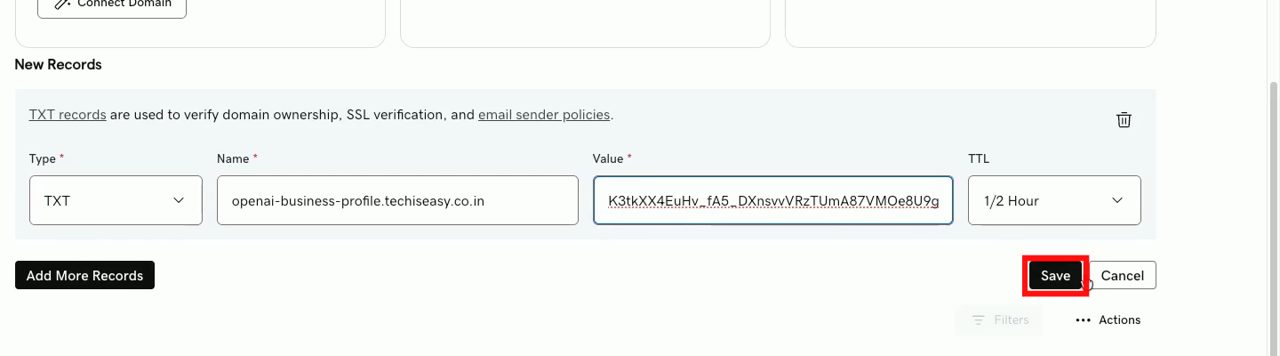
Set Type to TXT, copy the Name from ChatGPT into the Name box and the Value into the Value box, then click Save.
Go back to ChatGPT and click Verify domain. Mine went through in a few seconds. If it fails, wait a few minutes for the record to update and try again.
6Fill in your business details
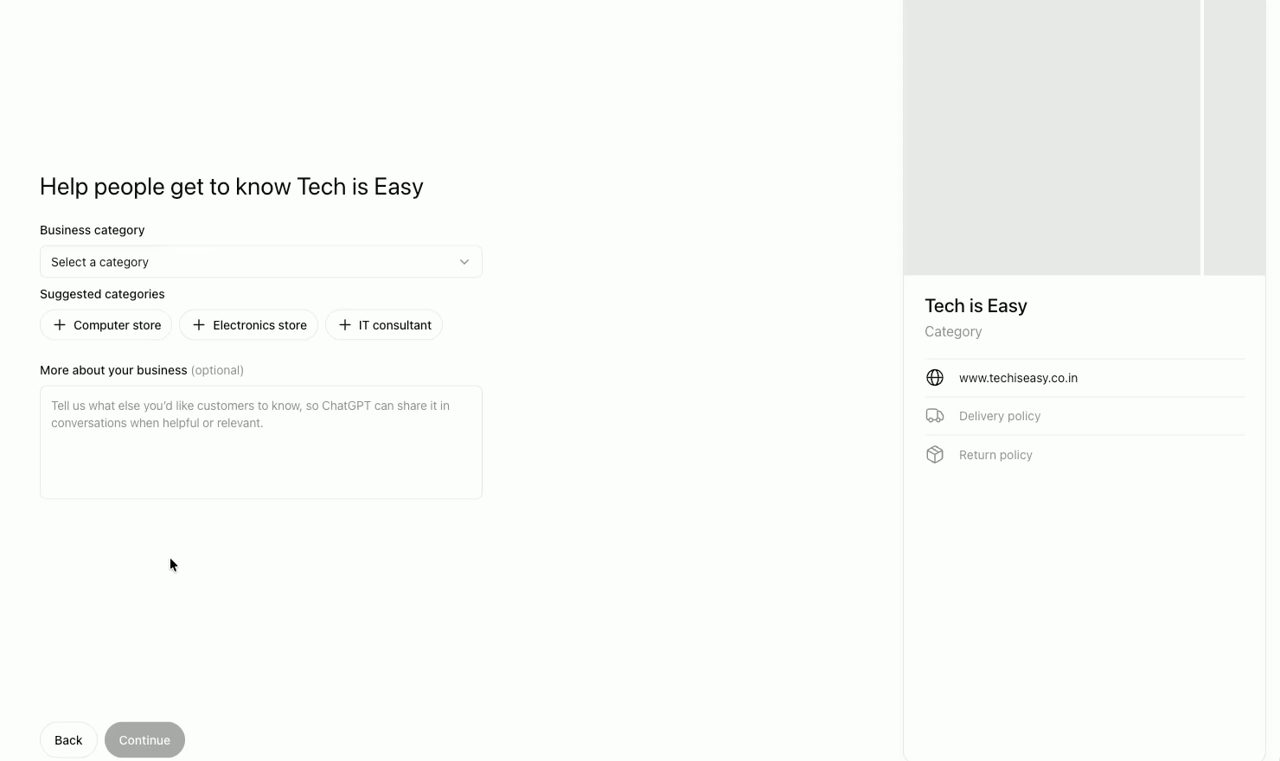
Choose your Business category and write a short description under More about your business. Then answer the questions about delivery (no delivery, paid delivery or free delivery) and your return policy, and click Continue. Whatever you write here is what ChatGPT can tell customers.
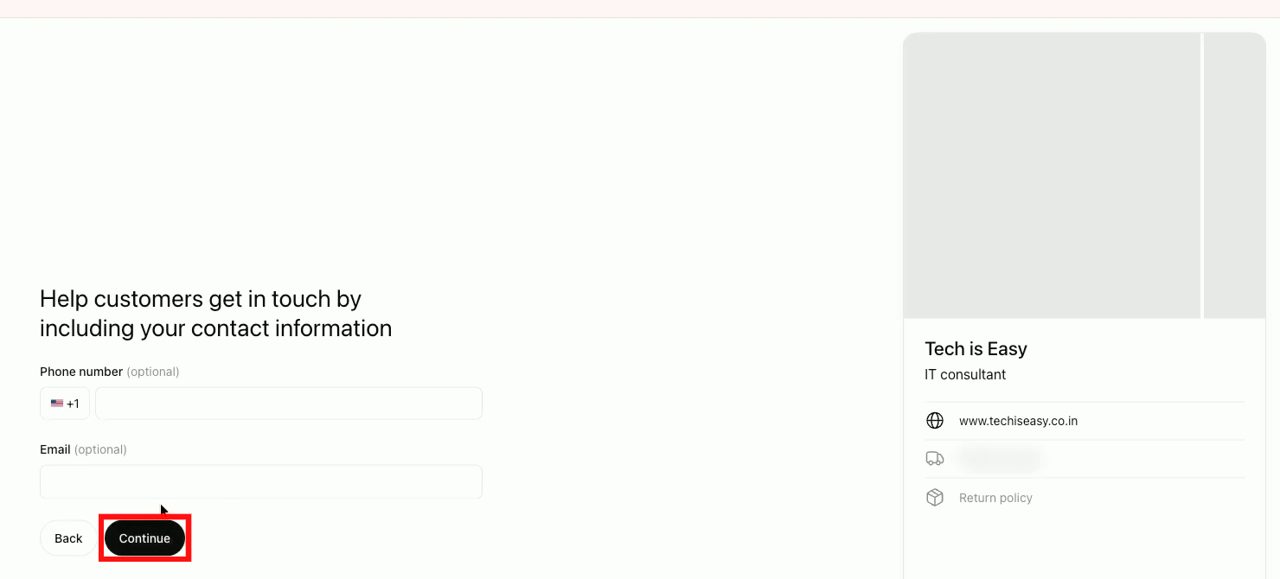
7Add contact details (optional)
You can add a phone number and email so customers can reach you. Both are optional, so click Continue to skip if you prefer.
8Open your business overview
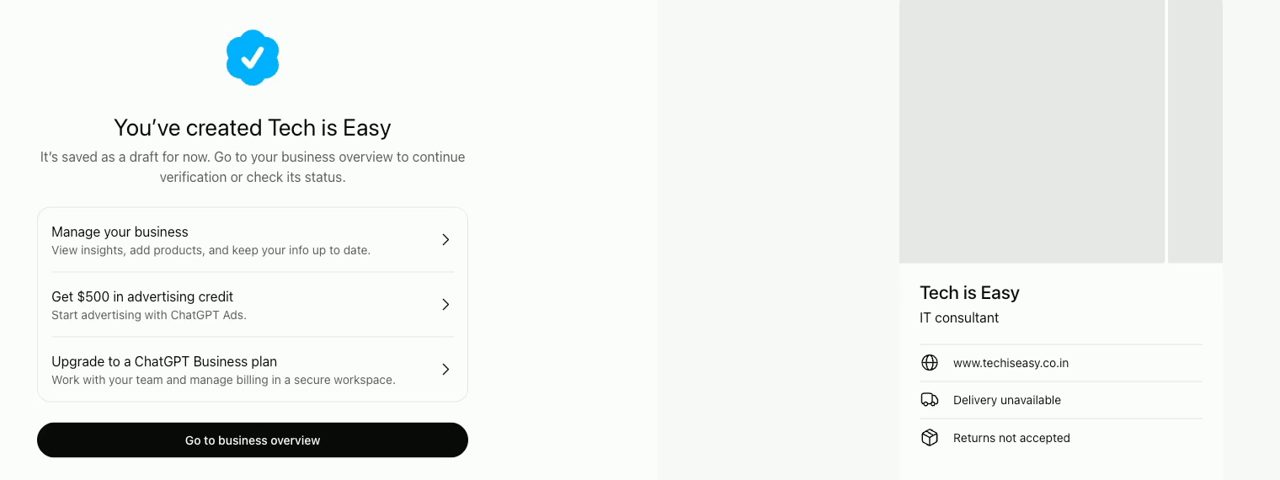
You will see You've created followed by your business name. It is saved as a draft for now. This screen also offers $500 in advertising credit for ChatGPT Ads and an upgrade to a ChatGPT Business plan, both optional. Click Go to business overview.
9Verify your identity
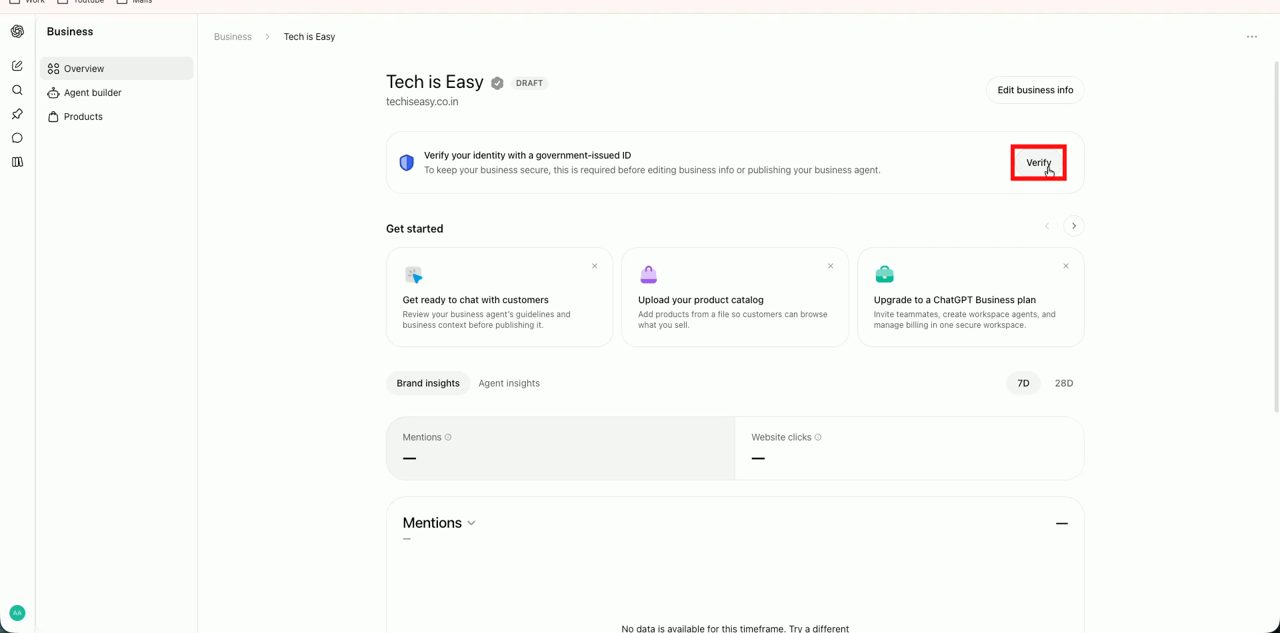
Your page shows Draft until you verify your identity. Click Verify next to Verify your identity with a government-issued ID, then Start verification, and follow the steps to upload your ID.
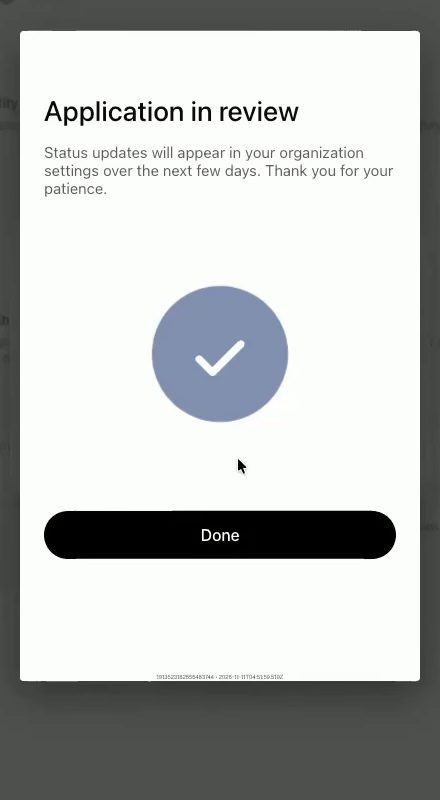
When you finish you will see Application in review. OpenAI says status updates come over the next few days.
What you can do after you are verified
Once approved, your business is live in ChatGPT and the dashboard opens up: - Overview: brand insights such as how many times your business was mentioned in ChatGPT and how many website clicks came from it. - Products: upload your product catalog so ChatGPT can show what you sell. - Agent builder: create an AI agent that answers customer questions about your business inside ChatGPT. At launch this is available in the US. - Edit business info: update your hours, policies and details whenever they change.
Tips / troubleshooting
- Domain will not verify? DNS changes can take anywhere from a few minutes to a few hours. Check that the type is TXT and that you pasted the full value with no extra spaces, then click Verify domain again.
- Can't find the DNS section? Search "how to add a TXT record on" plus your provider's name. If your site is on Google Sites with a GoDaddy domain, our guide on connecting Google Sites to a GoDaddy domain shows the same DNS screen.
- Write the description for customers. Mention what you sell, where you deliver and anything people often ask. That is the text ChatGPT draws on.
FAQ
Is adding your business to ChatGPT free?
Yes. Claiming and verifying your business in the Business Hub is free. The $500 advertising credit and the ChatGPT Business plan are optional extras.
How long does verification take?
Domain verification can be instant once your TXT record updates. After you submit your ID, OpenAI reviews the application and says updates come within a few days.
Do I need a website to add my business to ChatGPT?
At launch the setup asks for your website and verifies you through its domain, so you need a site you control. OpenAI may add other options later.
Is this the same as Google Business Profile?
It works in a similar way, but for ChatGPT instead of Google Search and Maps. You claim your listing, verify you own it and control the information people see. It is worth having both.
Related guides