Tech is Easy
How to Cast Samsung Phone to Laptop Using Smart View
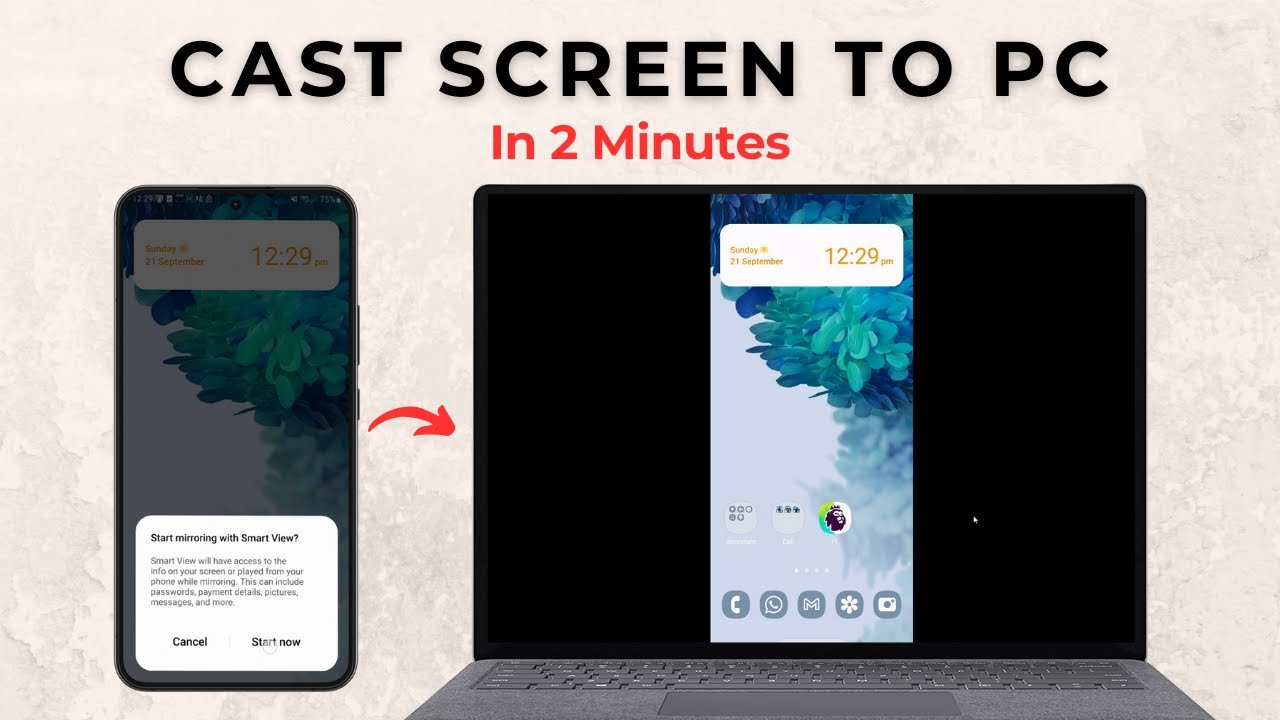
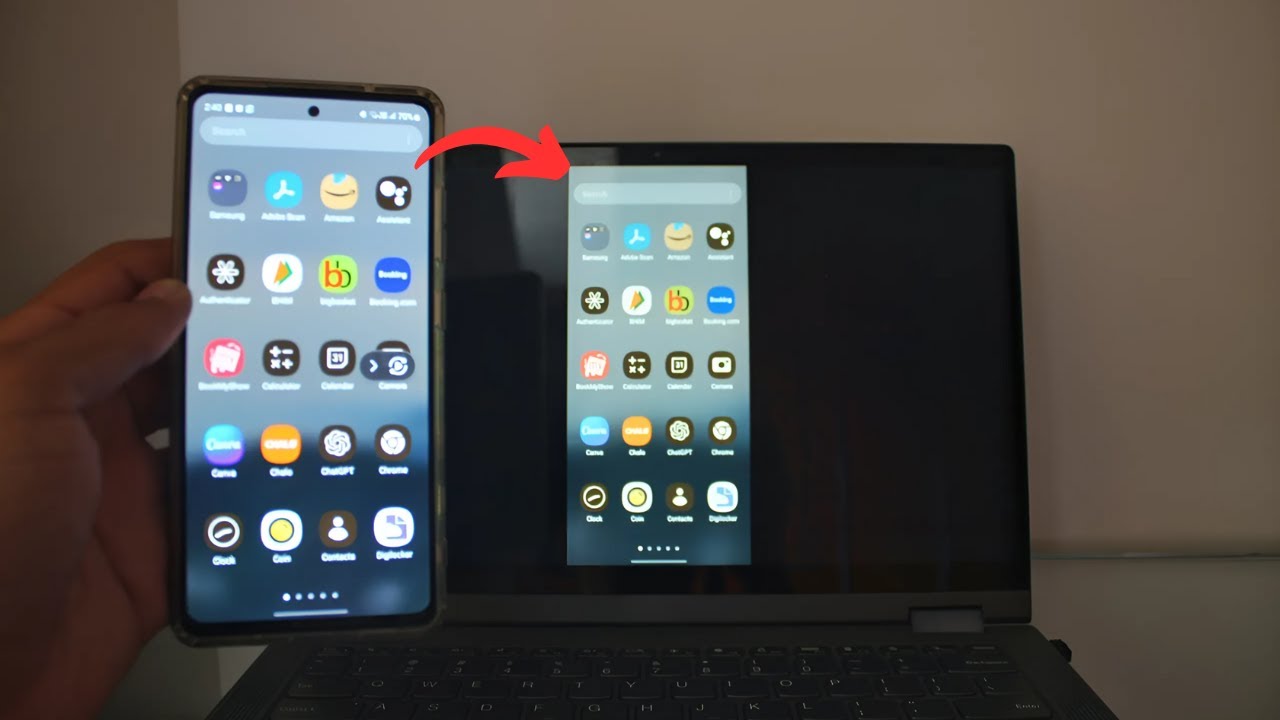
To cast your Samsung phone to a laptop, install the Wireless Display optional feature in Windows, click Launch the Wireless Display app in Projection settings, then tap Smart View on your phone, pick your laptop and enter the PIN it shows. Your phone screen then mirrors to the laptop, and everything you do on the phone shows up there. This screen mirroring method is built into Windows 11, so you do not need any extra app on either device.
What you need
- A Samsung Galaxy phone with Smart View
- A Windows laptop or PC (shown on Windows 11)
- Wi-Fi turned on on both devices. Smart View uses Miracast, a wireless display standard, so a desktop PC with only a wired internet cable and no Wi-Fi adapter can't receive it.
- An internet connection on the laptop for the one-time Wireless Display download
1Open Projection settings
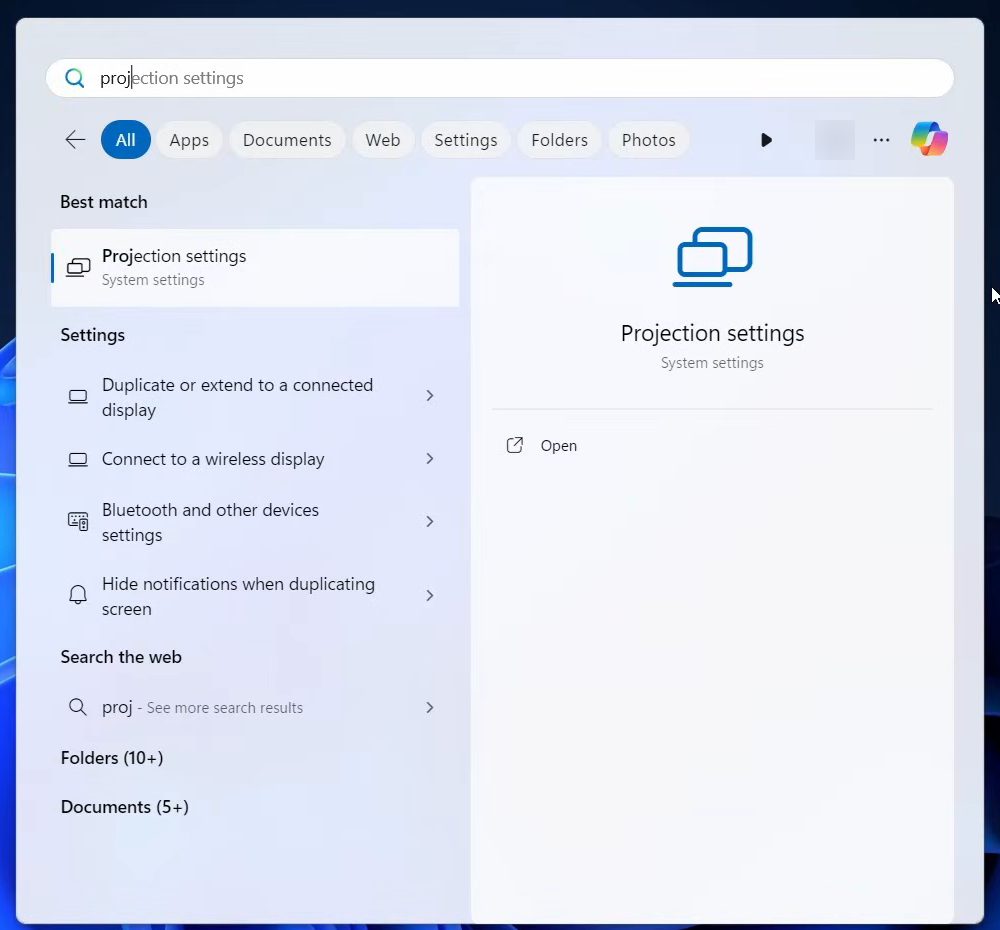
On your laptop, open the Start menu, search for Projection settings and open it. This takes you to System > Projecting to this PC.
2Open Optional features
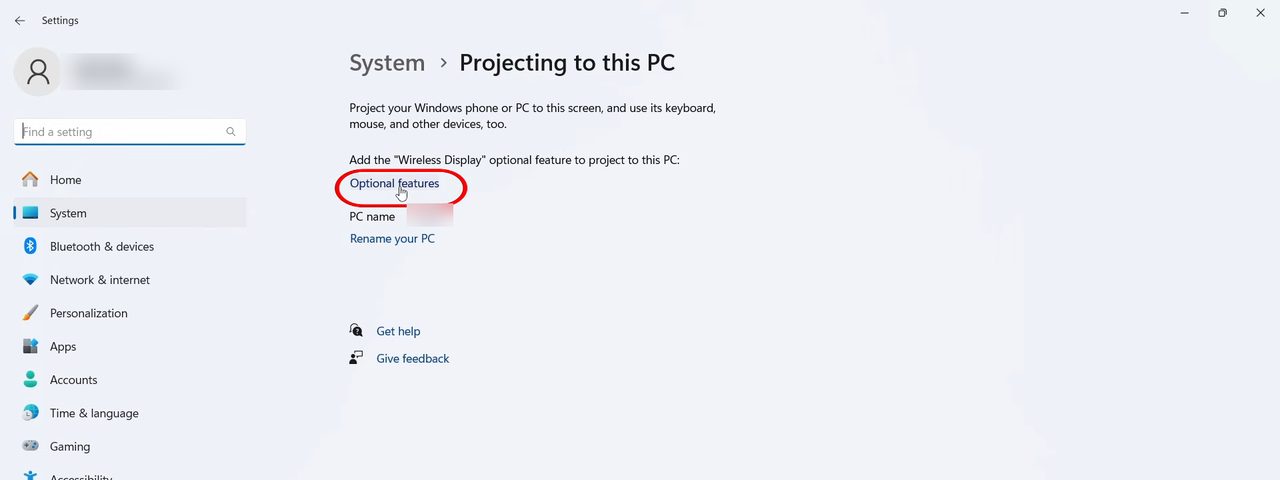
If the page says you need to add the Wireless Display optional feature, click Optional features. If you already have more options on this page, skip to Step 6.
3Click View features
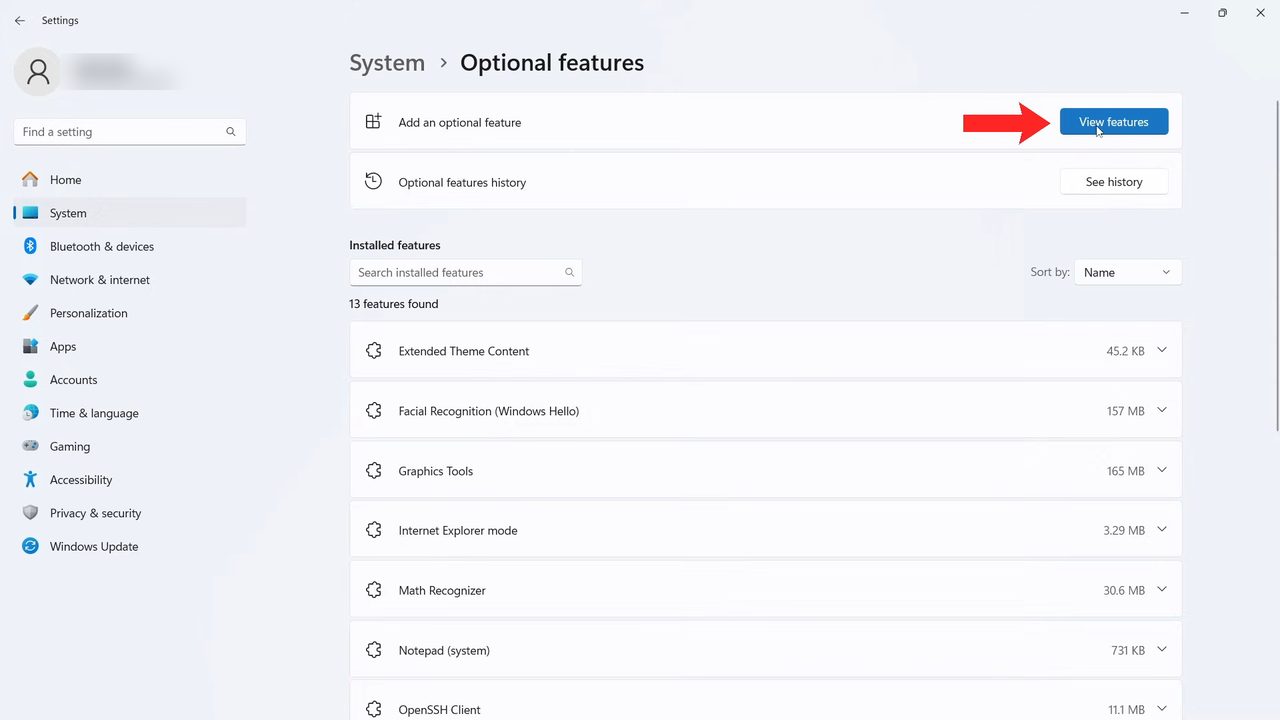
Next to Add an optional feature, click View features at the top right.
4Select Wireless Display
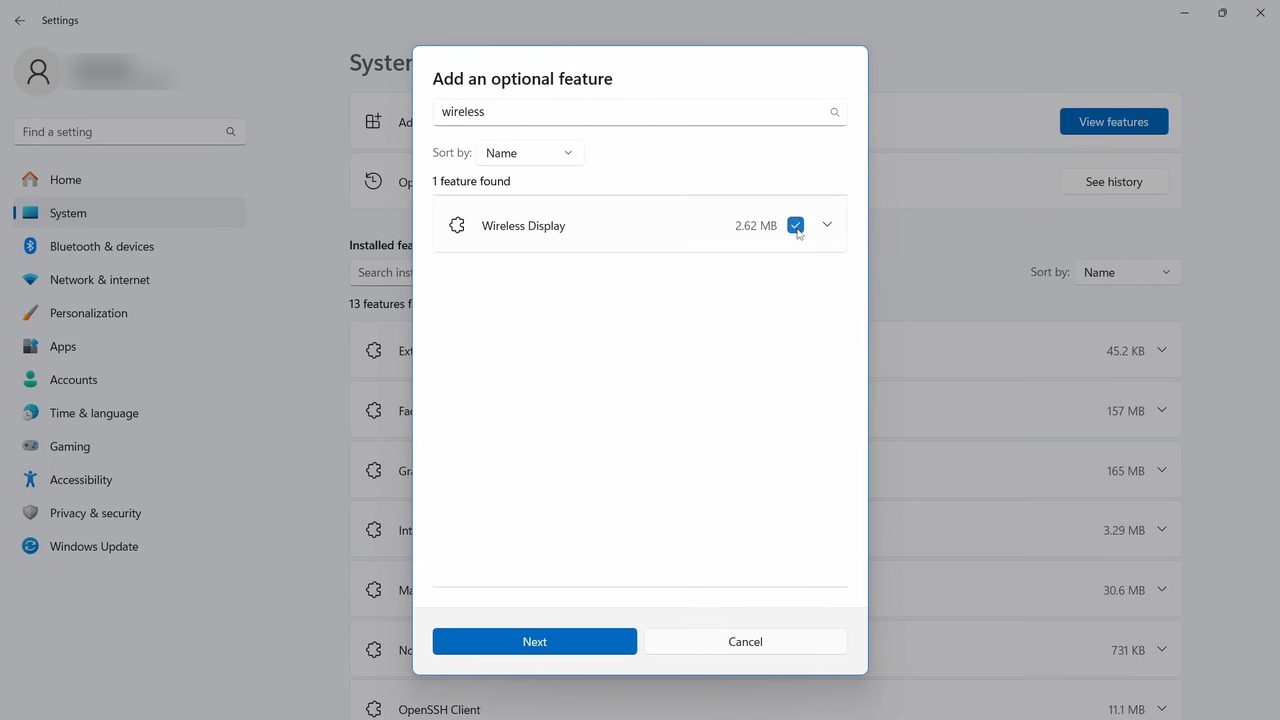
In the Add an optional feature box, type wireless in the search field. Tick the box next to Wireless Display, then click Next.
5Install it
Click Install. Windows downloads and adds Wireless Display, which is a small download (about 2.6 MB in our case).
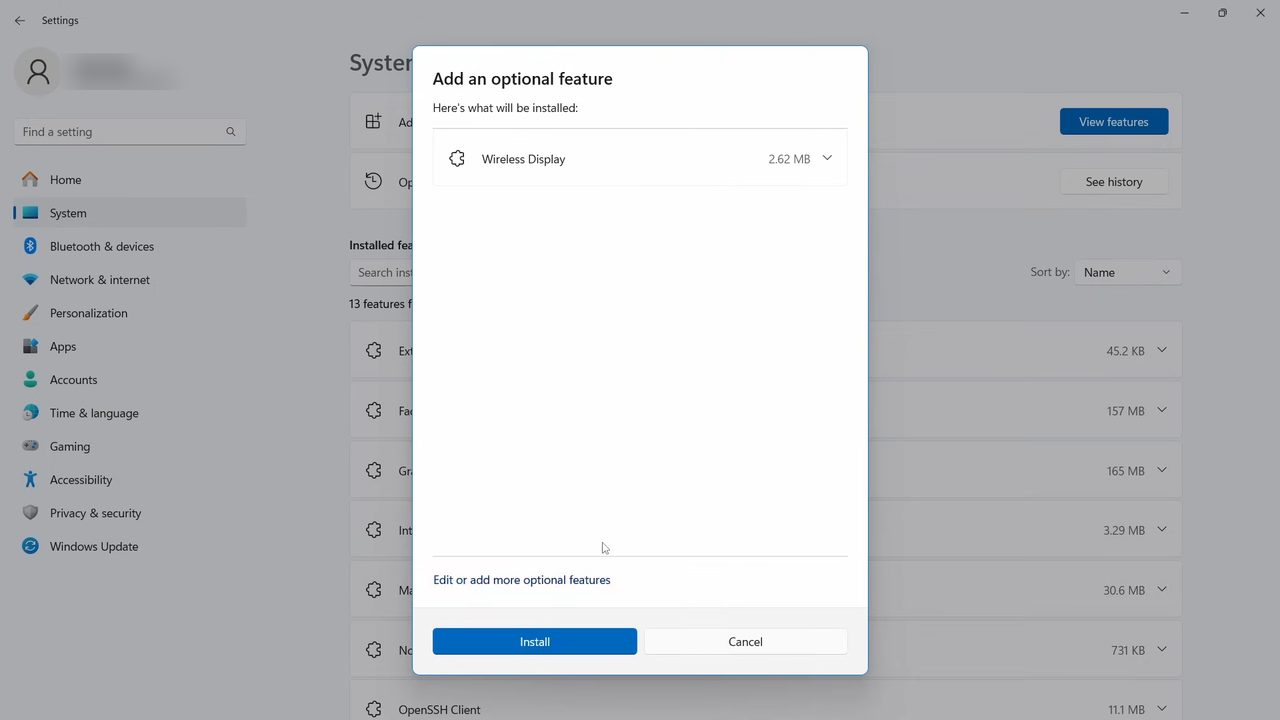
6Launch the Wireless Display app
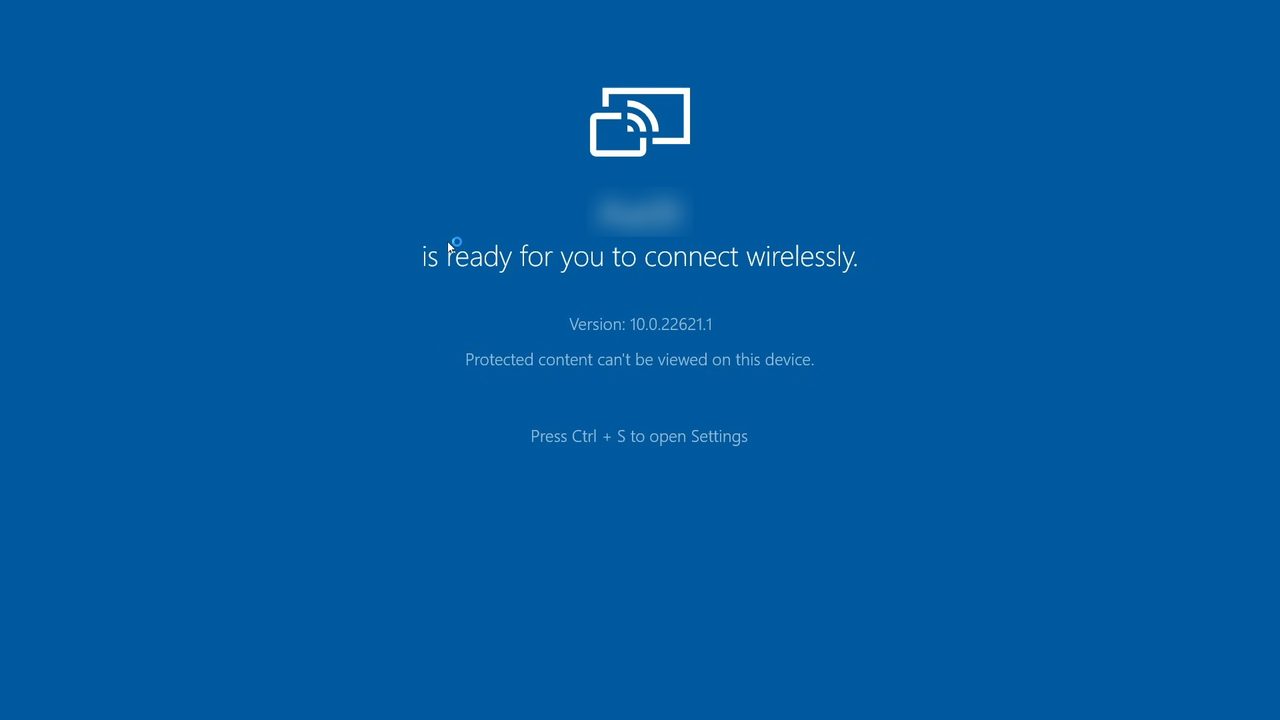
Go back to Projection settings. You now see more options. Click Launch the Wireless Display app to project to this PC. A blue screen opens saying your PC is ready for you to connect wirelessly.
7Tap Smart View on your Samsung phone
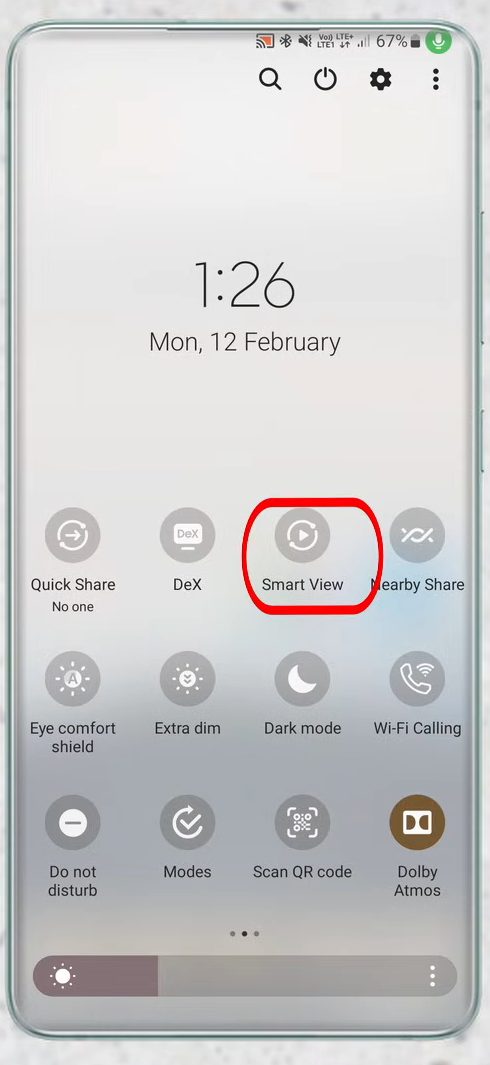
Swipe down to open the quick settings panel and tap Smart View. If you cannot find it there, search for Smart View in your phone's Settings.
8Pick your laptop and tap Start now
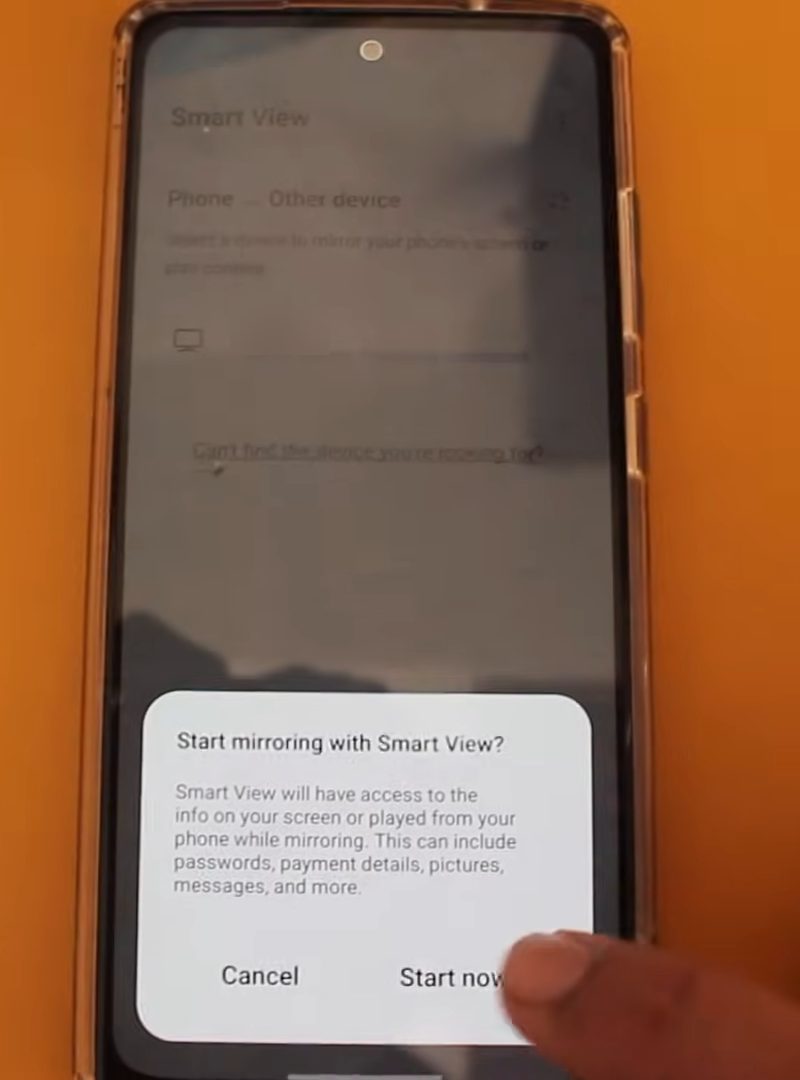
Smart View searches for nearby devices. When your laptop's name appears in the list, tap it. Then tap Start now on the Start mirroring with Smart View? prompt.
9Enter the PIN
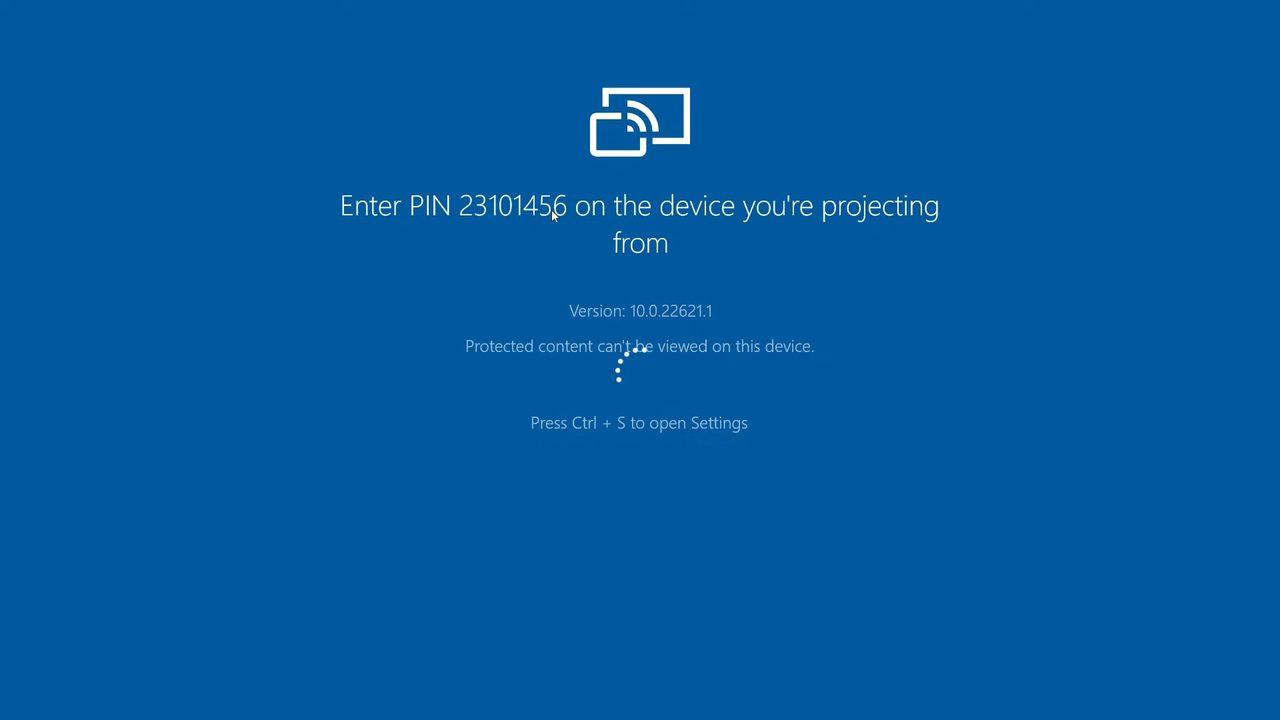
Your laptop shows a message like Enter PIN 12345678 on the device you're projecting from. Type that PIN on your phone and confirm.
10Use your phone on the big screen
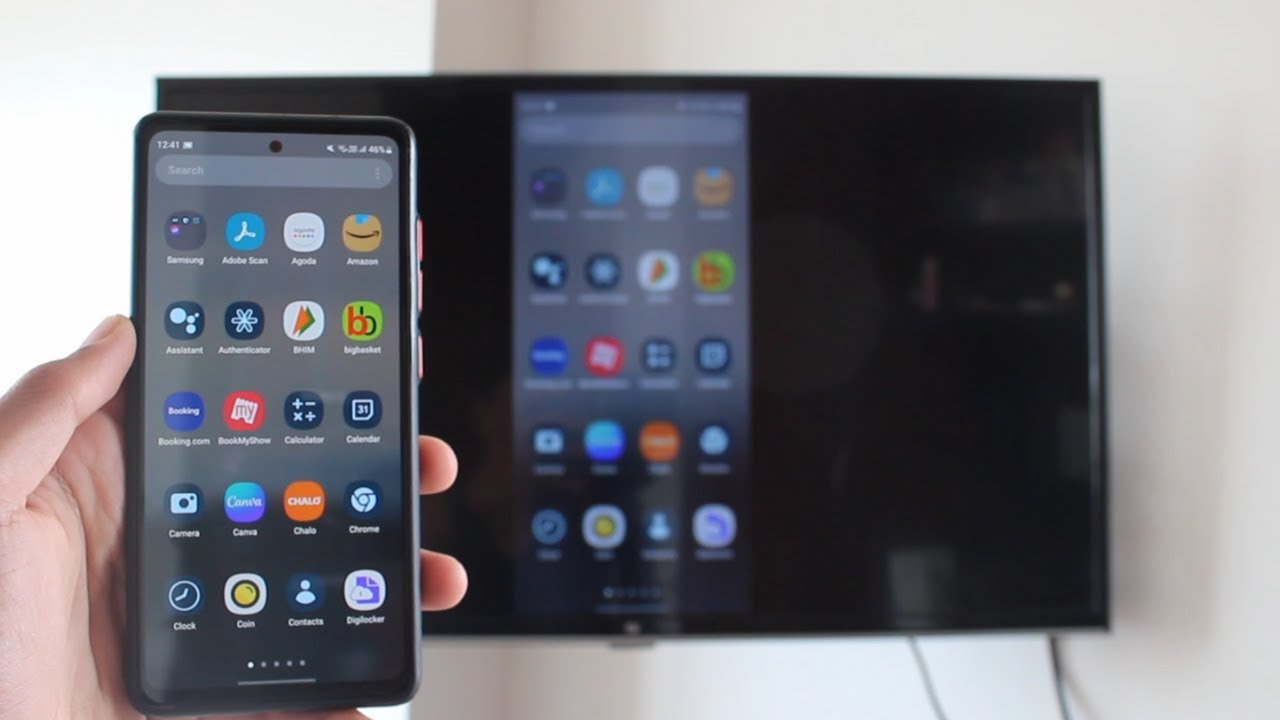
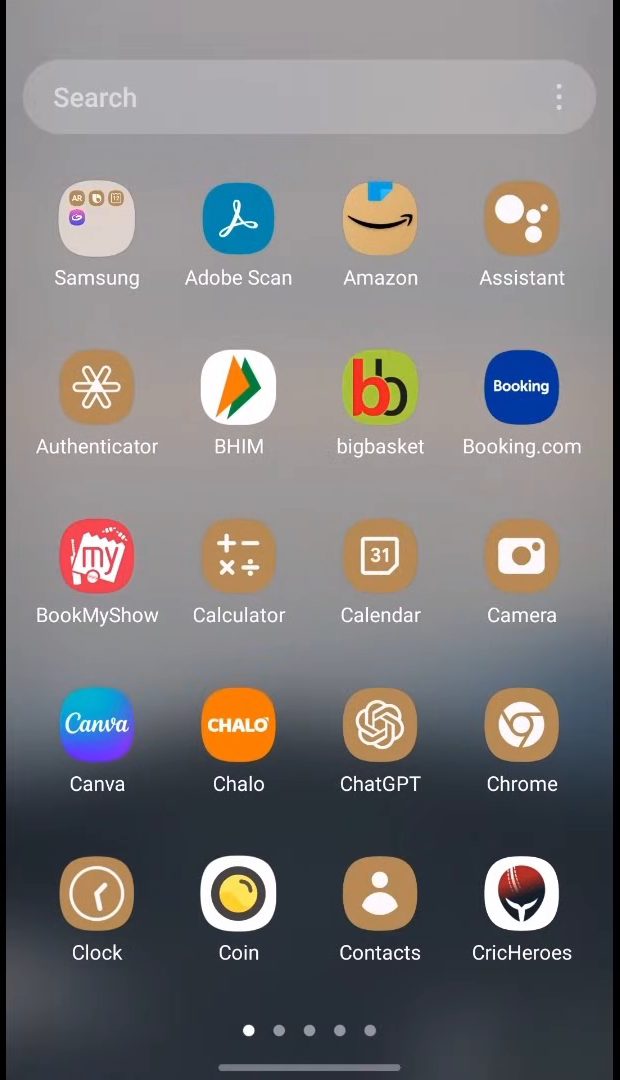
Your phone screen now appears on the laptop. You control everything from the phone: open any app and it shows on the laptop as well.
Tips / troubleshooting
- Laptop not in the Smart View list? Microsoft's guide to screen mirroring and projecting to your PC says the PC you project to must have Wi-Fi turned on and the Wireless Display app installed and open. Check both, then refresh the search on your phone.
- Can't find the Wireless Display app? Microsoft notes the app is on Windows 11 version 22H2 and later. On older versions the same job is done by the Connect app, which you open by typing "connect" in the taskbar search.
- Projection options greyed out. Some laptops report that they don't support projecting to them, usually because the Wi-Fi card or its driver doesn't support Miracast. Updating the Wi-Fi driver from the laptop maker's site can help; if not, that laptop can't receive Smart View.
- Wrong PIN or the connection drops. Close the Wireless Display app, open it again and start Smart View from the phone again. A new PIN appears each time.
- Laggy video. Wireless mirroring has a slight delay, which is fine for photos, apps and presentations but noticeable in fast games. Keep the phone close to the laptop and away from other busy Wi-Fi devices.
- In Projection settings you can also choose whether a PIN is required for pairing and when Windows should ask before someone projects to your PC. Go through these once so casting behaves the way you want.
- Other Android phones can use the same Windows feature through their own cast option. See how to cast an Android screen to PC.
How to stop casting
On your phone, open the quick settings panel or the Smart View notification and tap to disconnect, or simply close the Wireless Display app on the laptop. Your phone goes back to normal right away. Nothing is installed on the phone, and the Wireless Display feature stays on the laptop for next time, so you can start again from Step 6.
FAQ
How do I use Smart View to connect my Samsung phone to a laptop?
Add the Wireless Display optional feature in Windows, open Projection settings and click Launch the Wireless Display app. Then tap Smart View on your phone, select your laptop, tap Start now and enter the PIN shown on the laptop.
Why doesn't my laptop show up in Smart View?
Make sure the Wireless Display app is open on the laptop and showing the "ready for you to connect wirelessly" screen. Smart View only finds the laptop while that app is running.
Can I control the phone from the laptop?
No, this method only mirrors the screen. You keep using the phone itself, and the laptop shows what is happening. For full control with your mouse, see how to control your Android phone from a PC.
Does this work on Windows 10?
The tutorial is shown on Windows 11. Microsoft's support page covers both versions: Windows 10 also has Projecting to this PC settings, and on Windows versions before 11 22H2 you open the Connect app instead of the Wireless Display app. Those menus are not shown in our video.
Does sound play on the laptop too?
Usually yes. When Smart View mirrors your screen to the laptop, audio from videos and games normally plays through the laptop's speakers as well. If you hear nothing, check the laptop's volume and the volume on your phone.
Related guides