Tech is Easy
How to Cast Android Screen to PC Wirelessly (Windows 11)
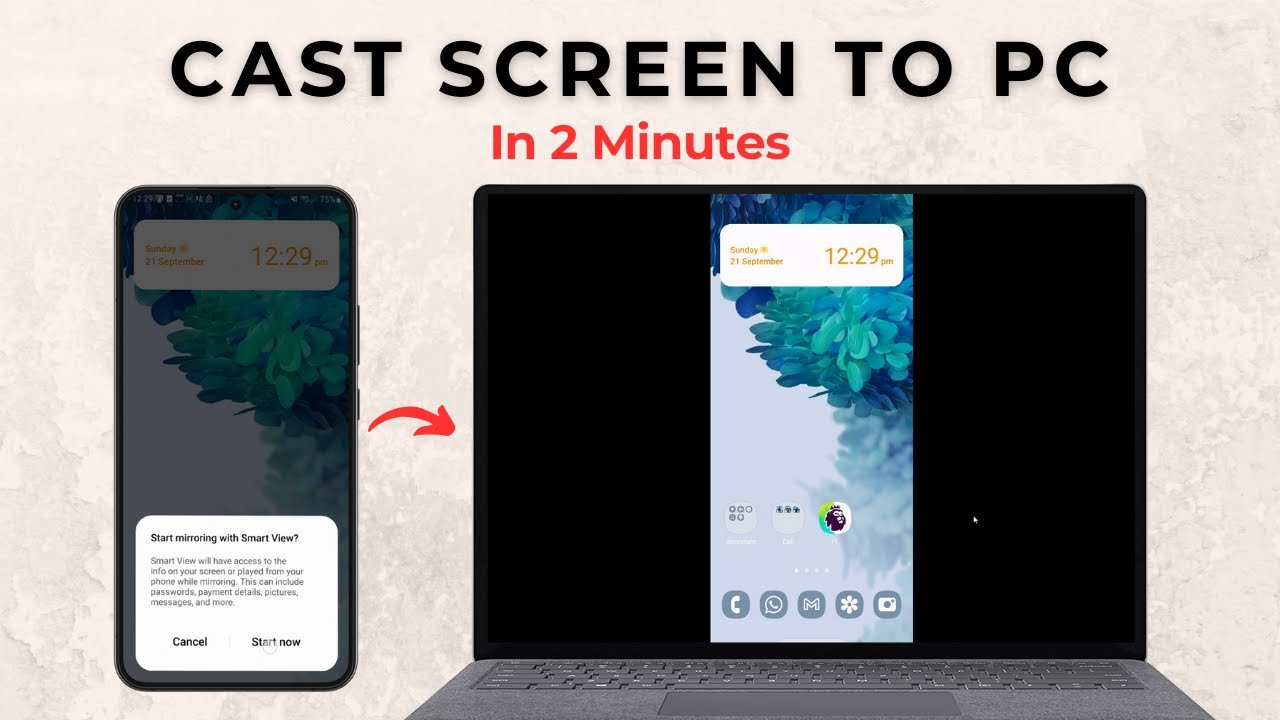
You can show your Android phone's screen on a Windows 11 PC without installing any third-party app. Windows has a built-in feature called Projecting to this PC, and most Android phones have a cast option in Quick Settings.
What you need
- A Windows 11 PC or laptop
- An Android phone with a cast or screen mirroring option (Smart View on Samsung)
- Both devices connected to the same Wi-Fi network
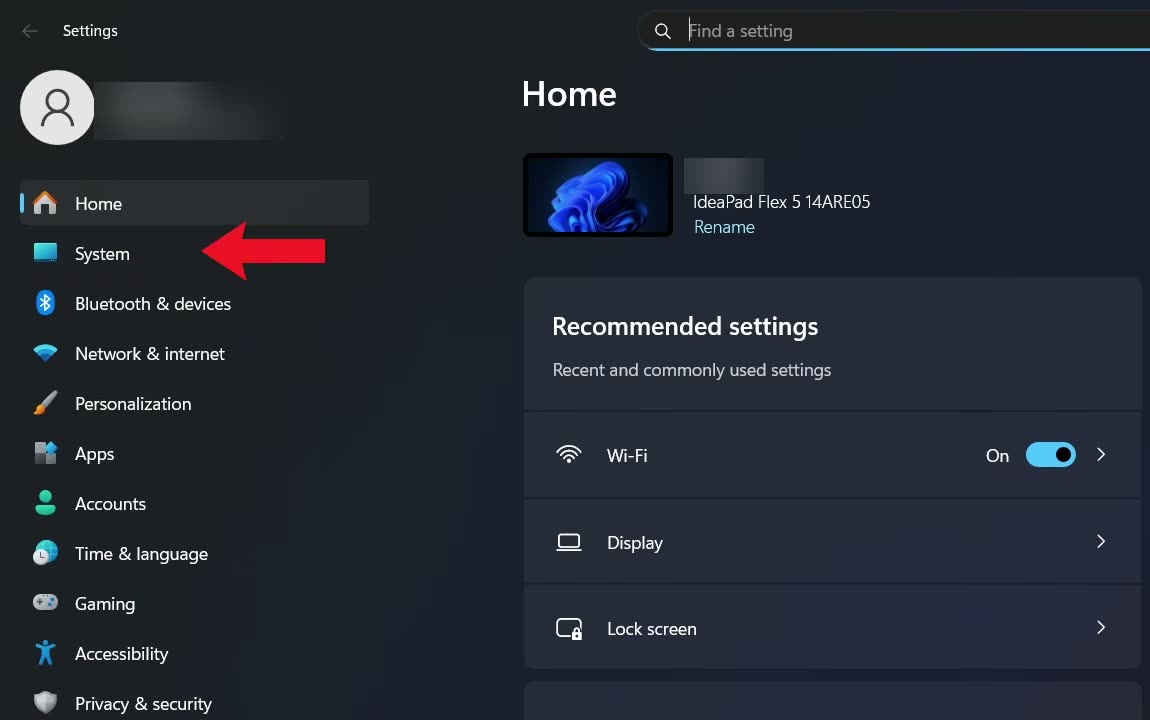
1Open Settings and go to System
On your PC, open Settings (you can search for it from the Start menu). In the left sidebar, click System.
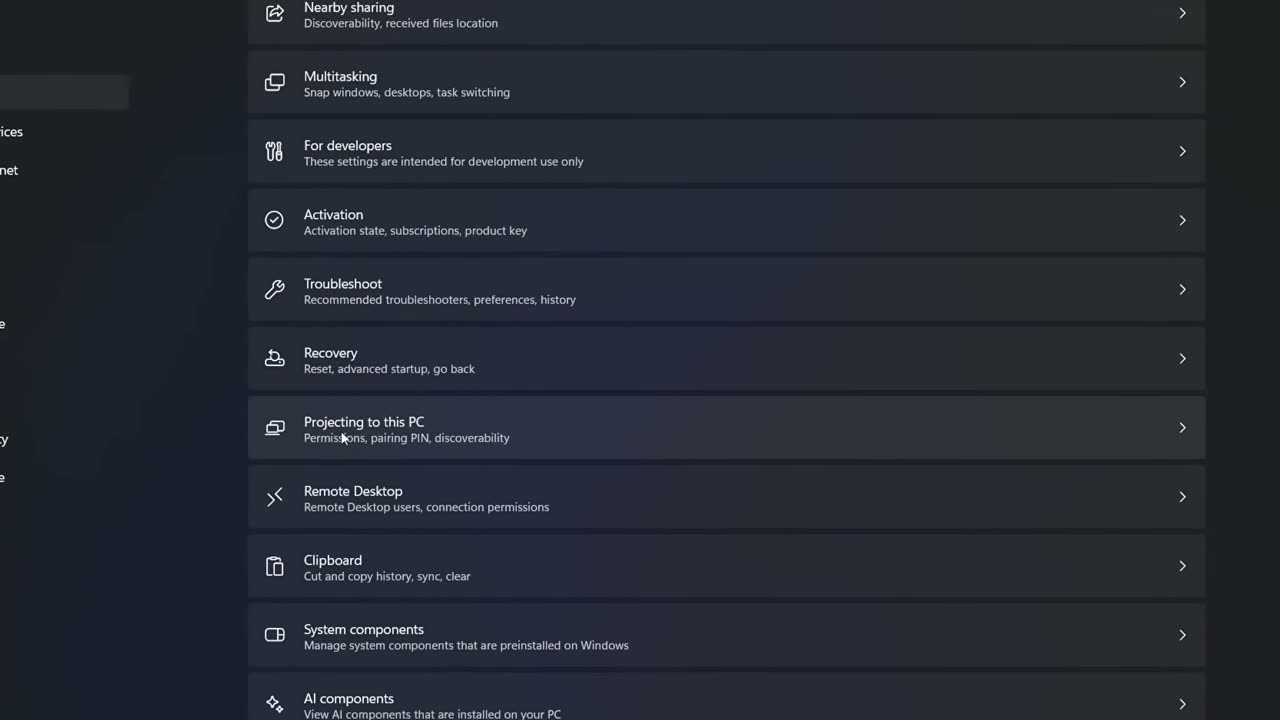
2Open Projecting to this PC
Scroll down the System page until you see Projecting to this PC and click it.
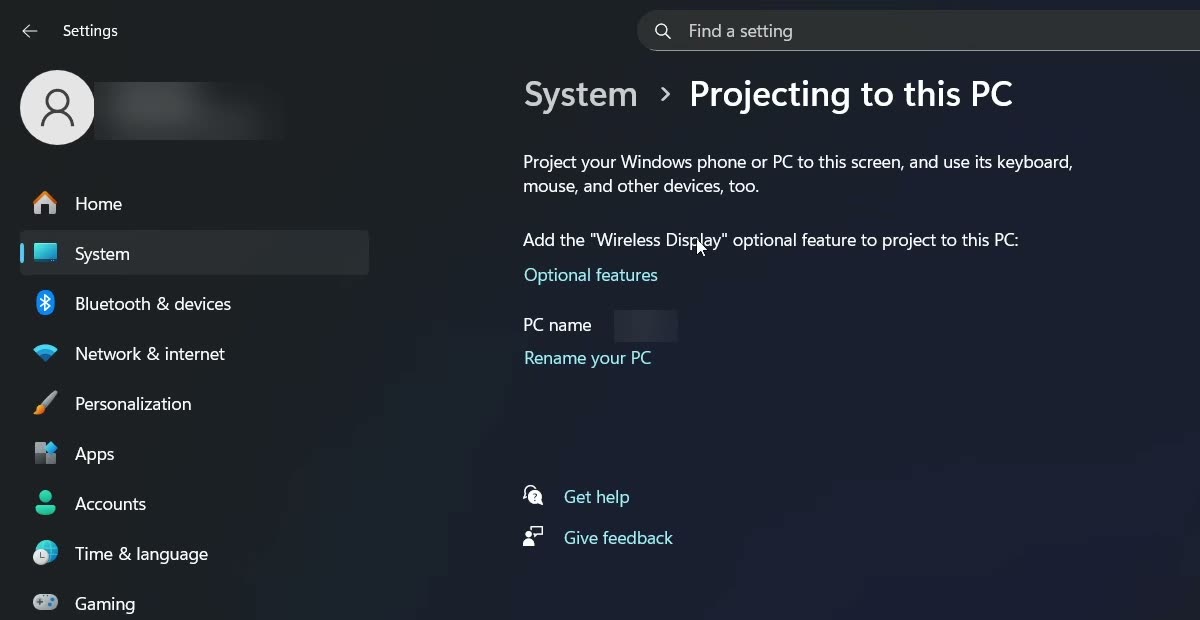
3Click Optional features
If you have never used this feature, Windows will tell you to add the "Wireless Display" optional feature first. Click the Optional features link on this page.
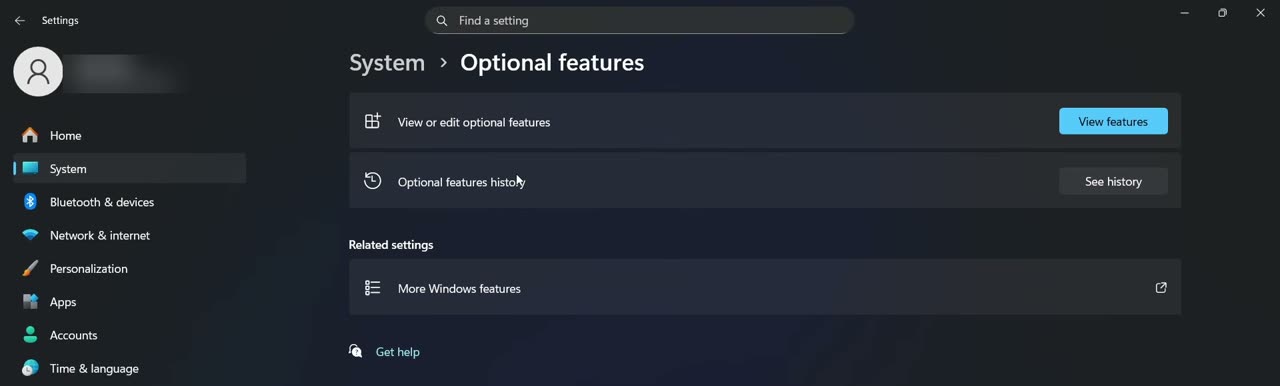
4Click View features
On the Optional features page, click the View features button next to "View or edit optional features".
5Switch to available features
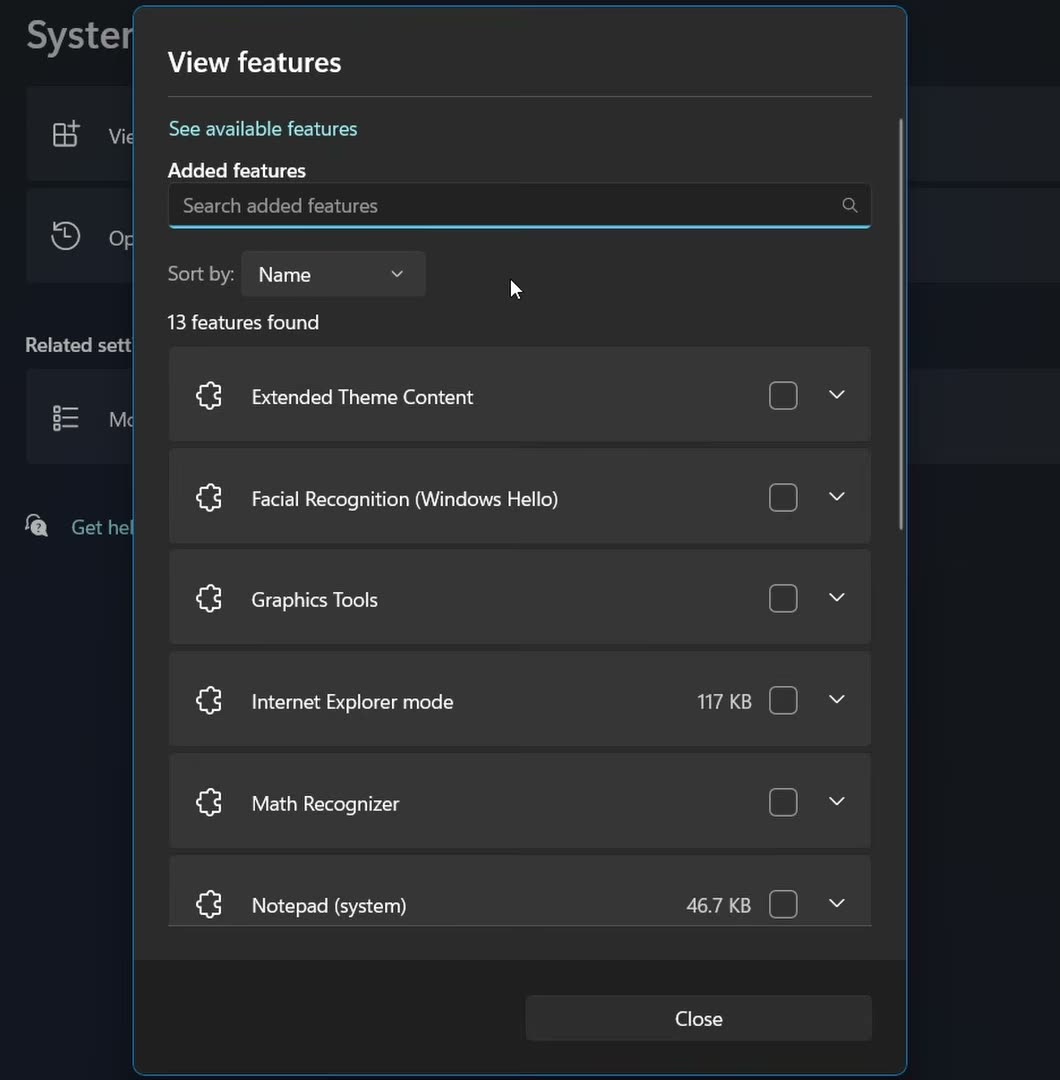
A View features window opens showing the features you already have. Click See available features at the top to see the ones you can add.
6Search for Wireless Display and add it
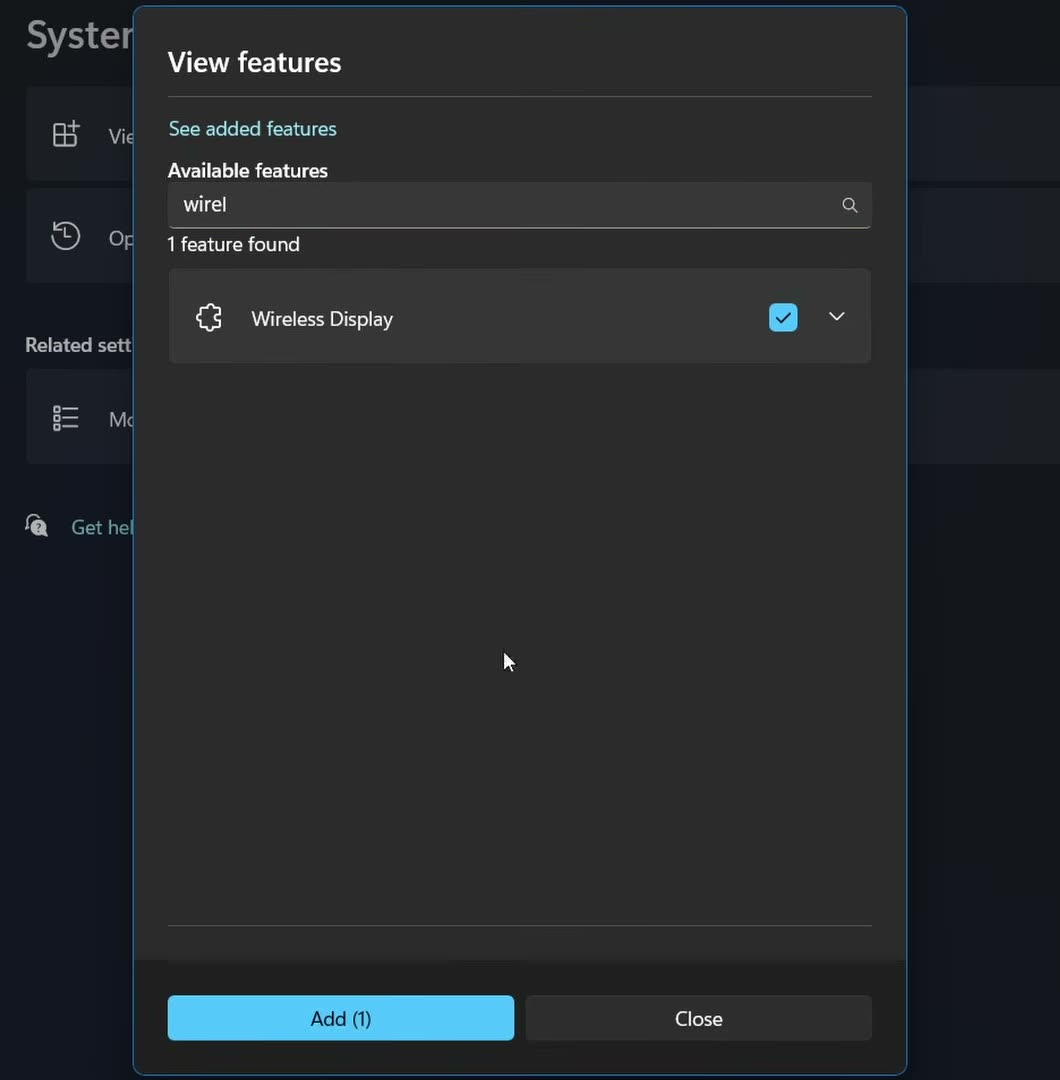
Type wireless display in the search box, tick the box next to Wireless Display, and click Add. Windows downloads and installs it, which can take a minute or two. Wait until it shows as added before moving on.
7Set the PC to Available everywhere
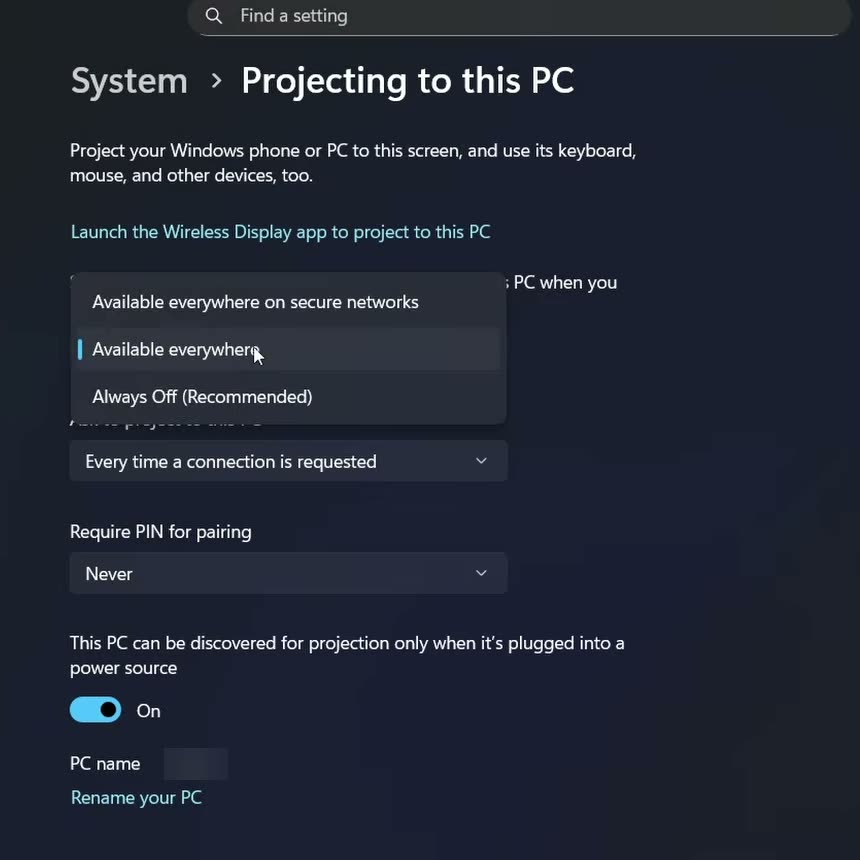
Go back to System > Projecting to this PC. The page now shows the full projection settings. In the first dropdown, choose Available everywhere. The other two settings (asking to project and requiring a PIN) are optional, so you can leave them as they are. The PC side is now ready.
8Open Smart View on your phone
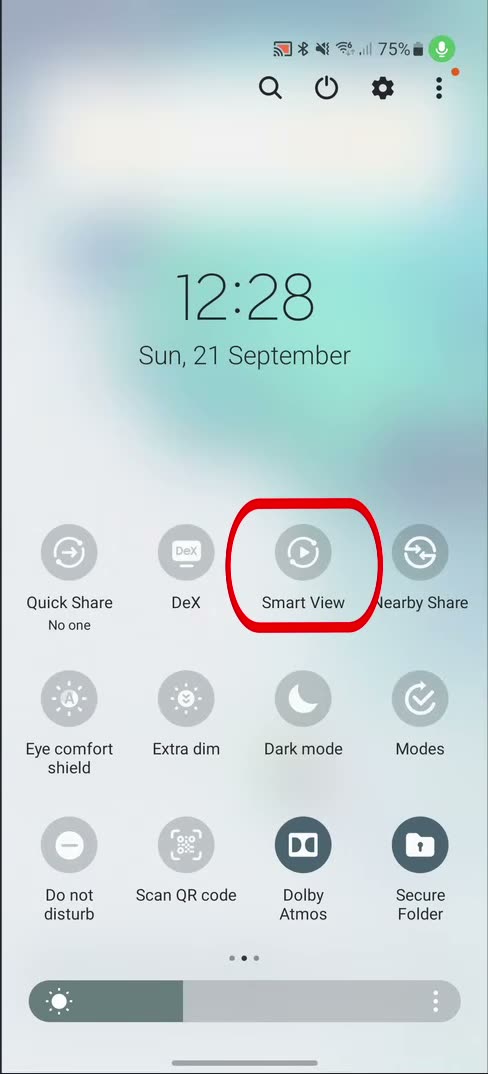
On your phone, swipe down to open Quick Settings and tap Smart View. That's the name on Samsung phones. Other brands call it something different but it works the same way:
- Samsung: Smart View
- OnePlus / OxygenOS: Cast or Screen Cast
- Xiaomi / MIUI: Wireless Display, Cast or Miracast
- Google Pixel / stock Android: Cast or Screen Cast
9Pick your PC and tap Start now
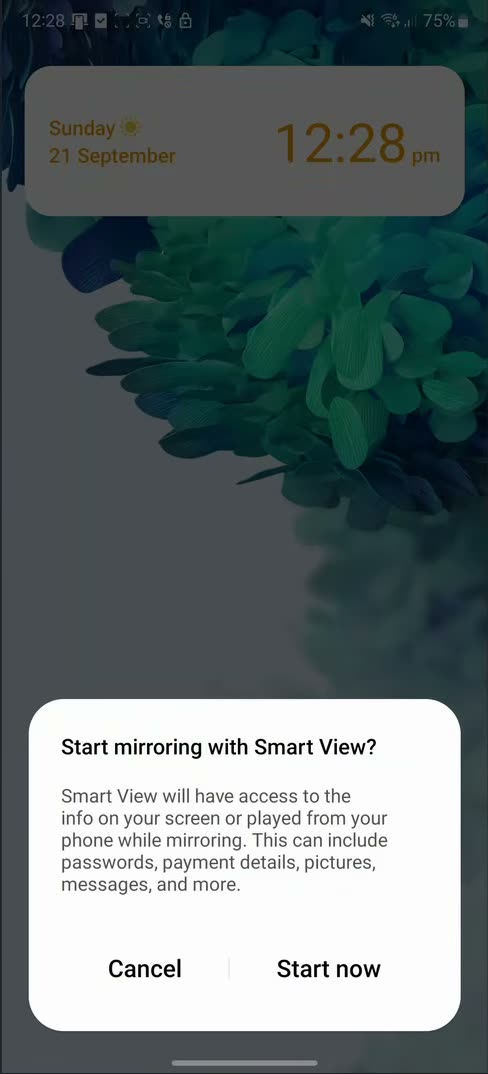
Your phone scans for nearby screens. When your laptop's name appears in the list, tap it. A prompt asks if you want to start mirroring with Smart View, so tap Start now.
10Allow the connection on your PC
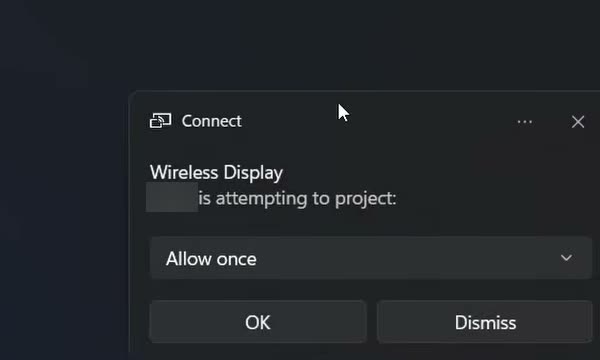
A Connect notification pops up on the PC saying your phone is attempting to project. Leave it on Allow once and click OK.
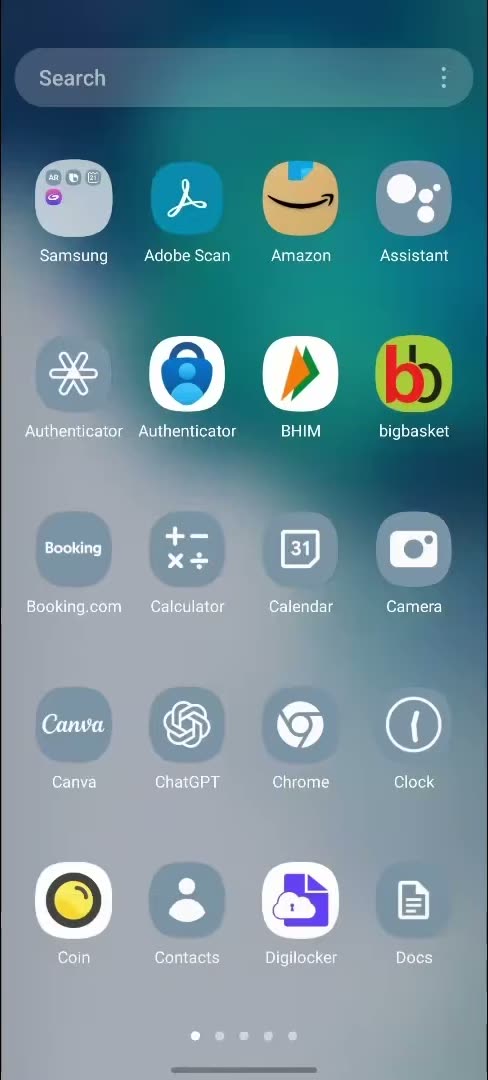
Your phone screen now appears on your PC, and anything you do on the phone shows up there.
Tips / troubleshooting
- If your PC doesn't show up in the phone's list, check that both devices are on the same Wi-Fi network.
- If Projecting to this PC still says to add Wireless Display, the feature may not have finished installing. Wait for it to show as added in Optional features, then go back.
- You only need to do the PC setup (Steps 1 to 7) once.
Related guides: How to Connect Android Phone to TV (Cast Phone Screen) and How to Transfer Files From Android to PC (3 Easy Ways).
FAQ
Can I mirror my Android phone to a PC without an app?
Yes. Windows 11 can receive a phone's screen through its built-in Wireless Display feature. You add it once from Optional features, and your phone casts to it using its own Quick Settings option.
Why doesn't my laptop show up in Smart View?
The most common reason is that the phone and the PC are on different Wi-Fi networks. Also make sure Wireless Display is installed and that Projecting to this PC is set to Available everywhere.
What is Smart View called on non-Samsung phones?
It's usually called Cast or Screen Cast on OnePlus and Pixel phones, and Wireless Display, Cast or Miracast on Xiaomi phones. The name changes, but the steps are the same.
Do I have to approve the connection every time?
With "Ask to project to this PC" set to "Every time a connection is requested", Windows shows a Connect prompt each time and you click OK. You can change that dropdown on the Projecting to this PC page if you'd rather not be asked.
Related guides