Tech is Easy
How to Transfer Files From Android to PC (3 Easy Ways)
There are a few good ways to transfer files from Android to PC, and the right one depends on what you are sending. Nearby Share is wireless and quick, a USB cable is still the fastest for big transfers like a whole photo library, and WhatsApp or Google Drive work well for a single small file.
What you need
- An Android phone and a Windows 10 or 11 PC (64-bit) with Bluetooth and Wi-Fi for Nearby Share
- Your phone's charging cable for the USB method
Method 1: Nearby Share (wireless)
Google has since renamed Nearby Share to Quick Share, so the app and button names may say Quick Share on your devices. The steps are the same.
1Download Nearby Share on your PC
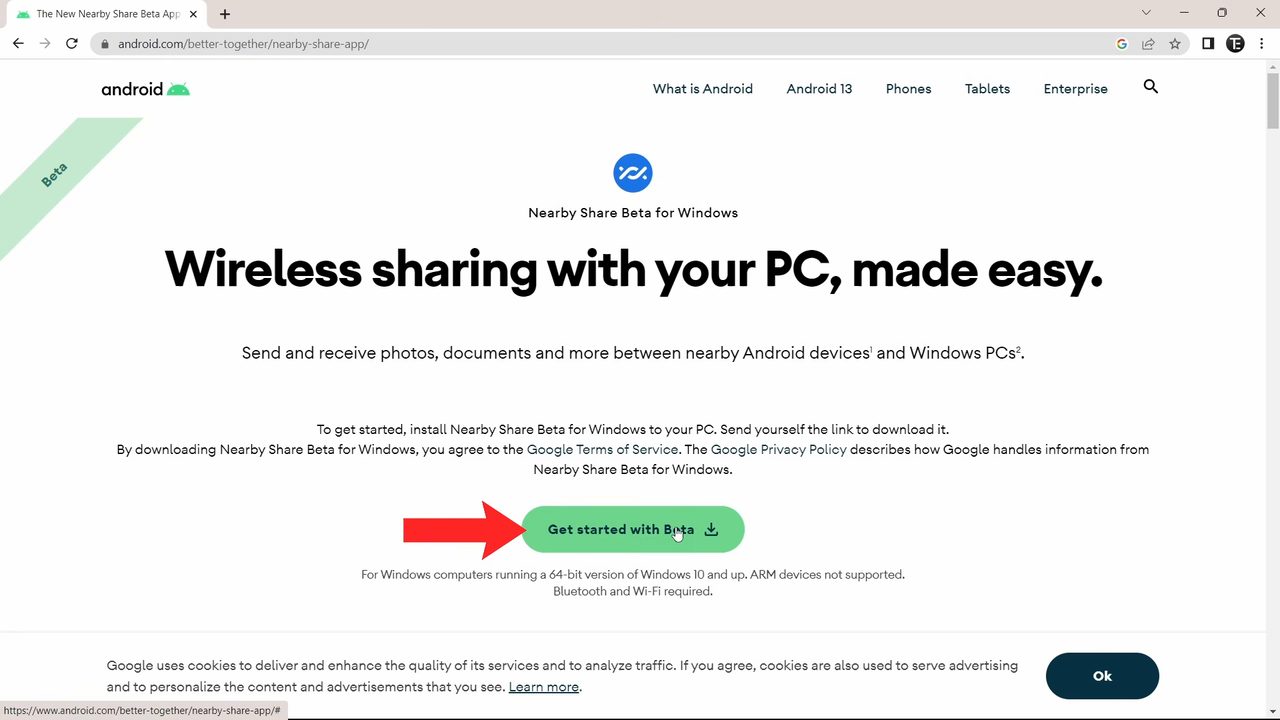
Search Google for nearby share windows and open the result from android.com. Click Get started with Beta to download the setup file, then run it.
2Finish the setup on the PC
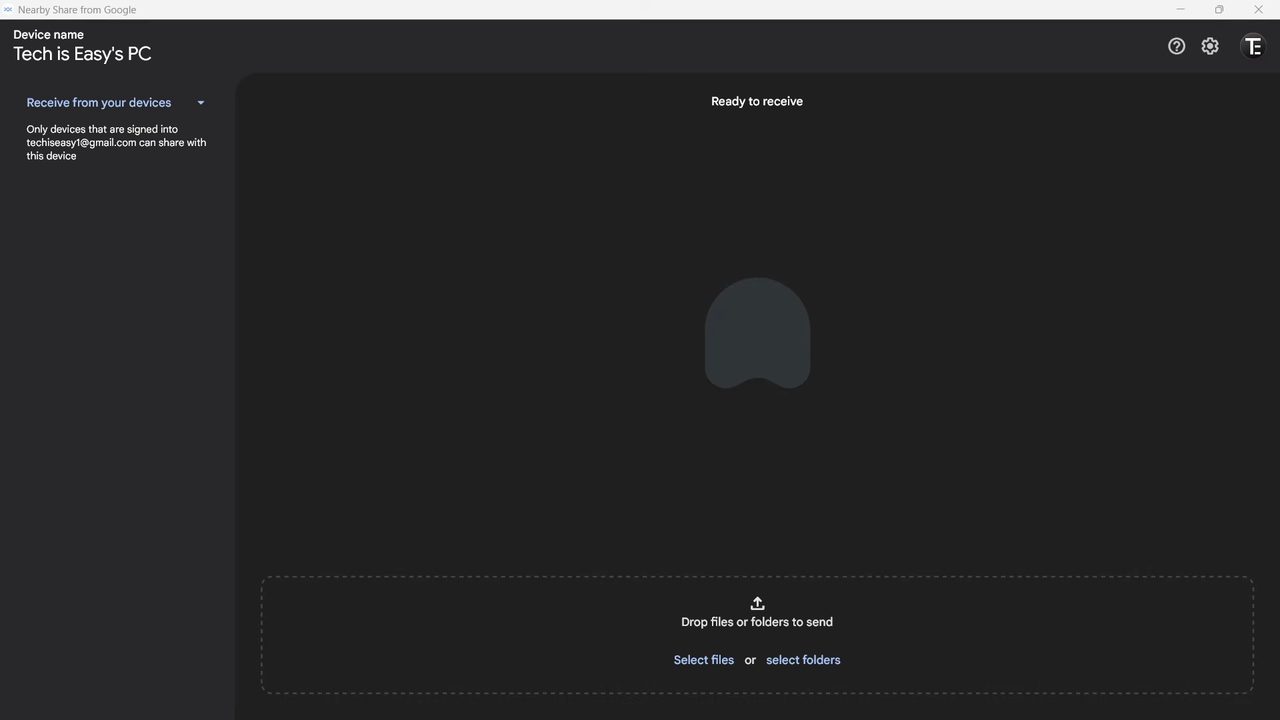
Once installed, the app shows your device name and Ready to receive. From here you can receive files, or send files from the PC with Select files at the bottom.
3Open Nearby Share on your phone
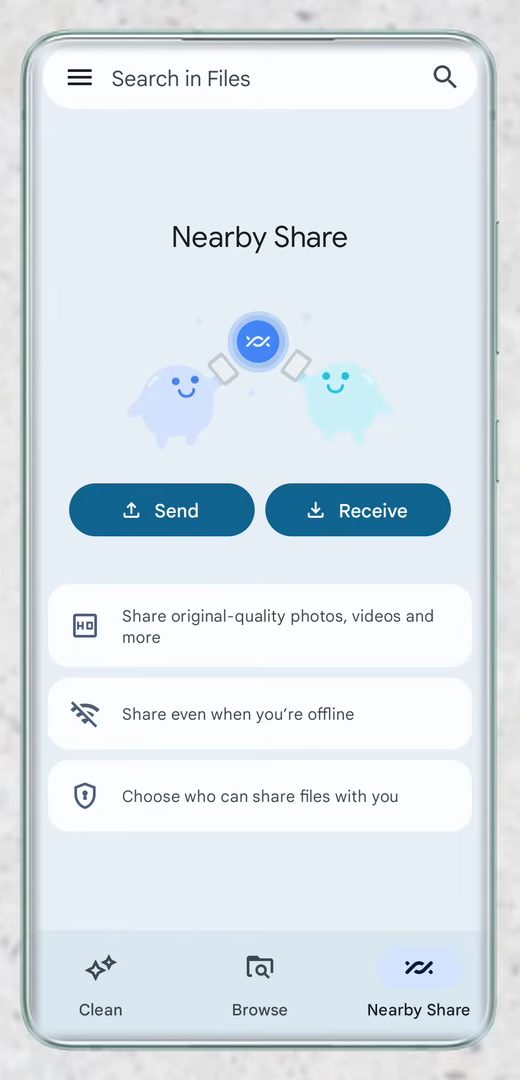
Install the Files by Google app from the Play Store if it is not already on your phone. Open it, tap Nearby Share at the bottom right, then tap Send.
4Choose the files
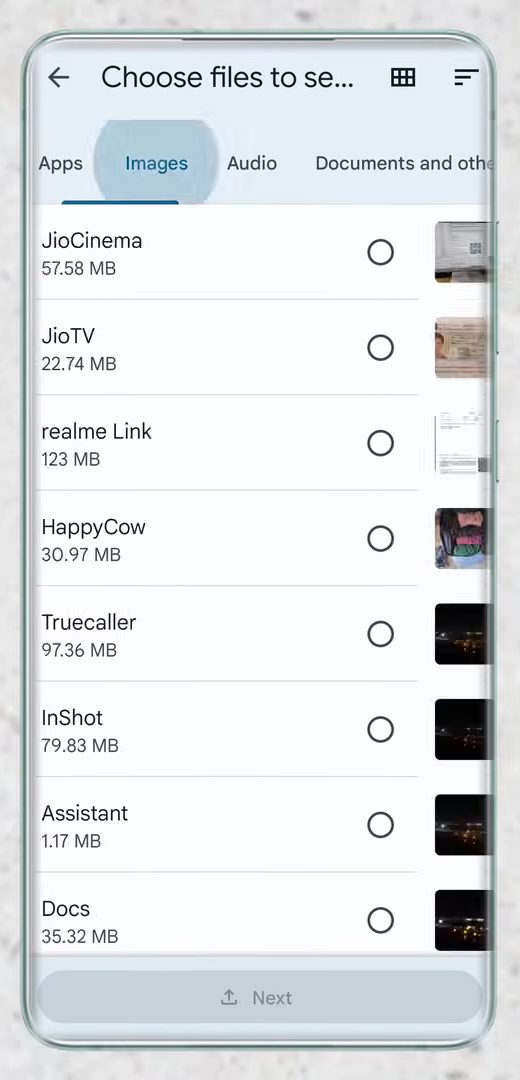
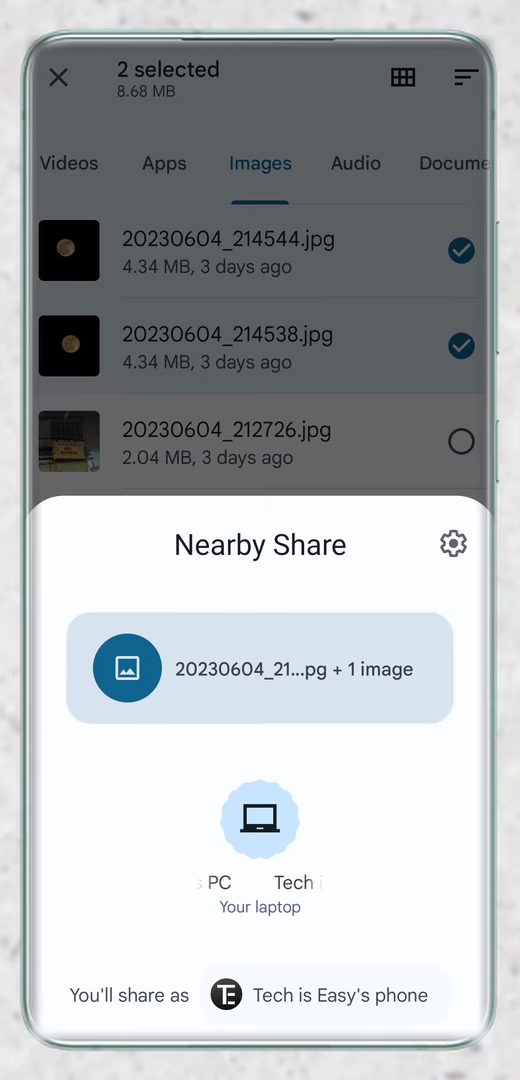
Pick a category at the top, for example Images, tick the files you want to send, and tap Next at the bottom.
5Send to your PC
Your phone looks for nearby devices and lists your laptop. Tap the laptop's name, then click Accept on the PC to receive the files.
Method 2: USB cable (best for large files)
For something like 10 to 20 GB of photos, a cable is far faster than any wireless option.
1Connect the phone and open This PC
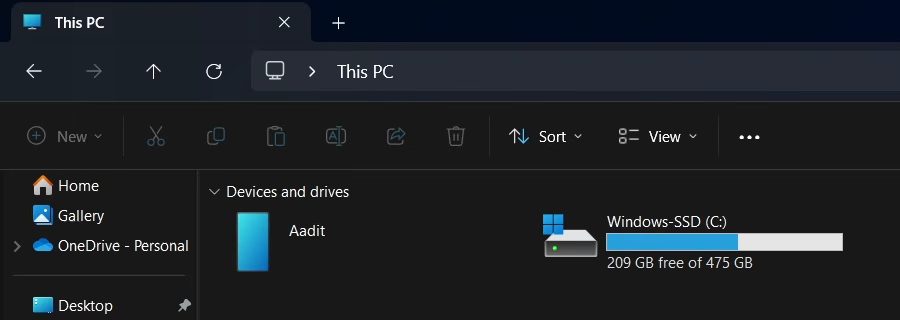
Connect your phone to the laptop with the charging cable, unlock the phone and pick File transfer in the notification panel. On the laptop, search for File Explorer in the Start menu, open it and click This PC on the left. Your phone appears there, so click it and open Internal storage.
2Find the files
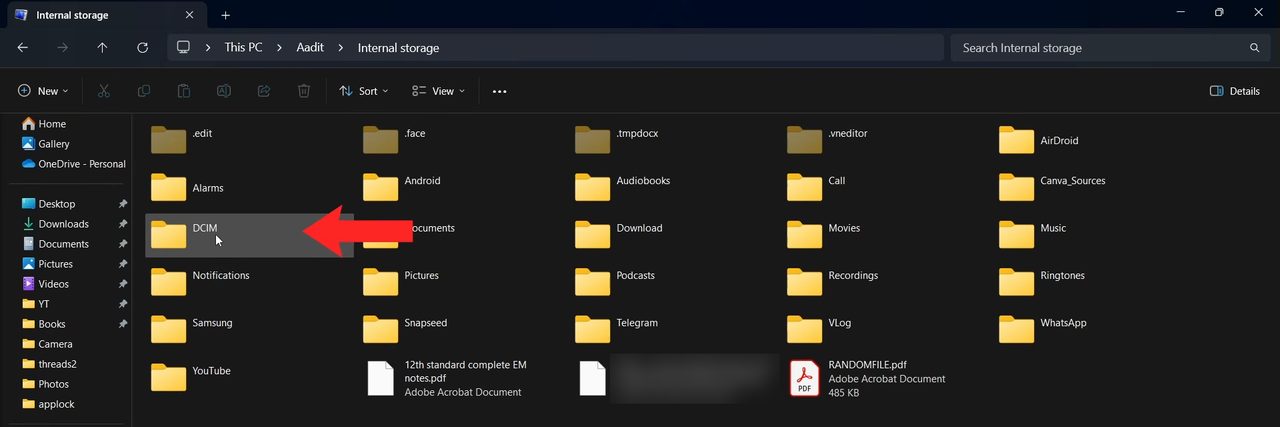
All your phone's folders are now visible. Photos are in DCIM. Open the folder that holds the files you want and select them.
3Copy and paste them
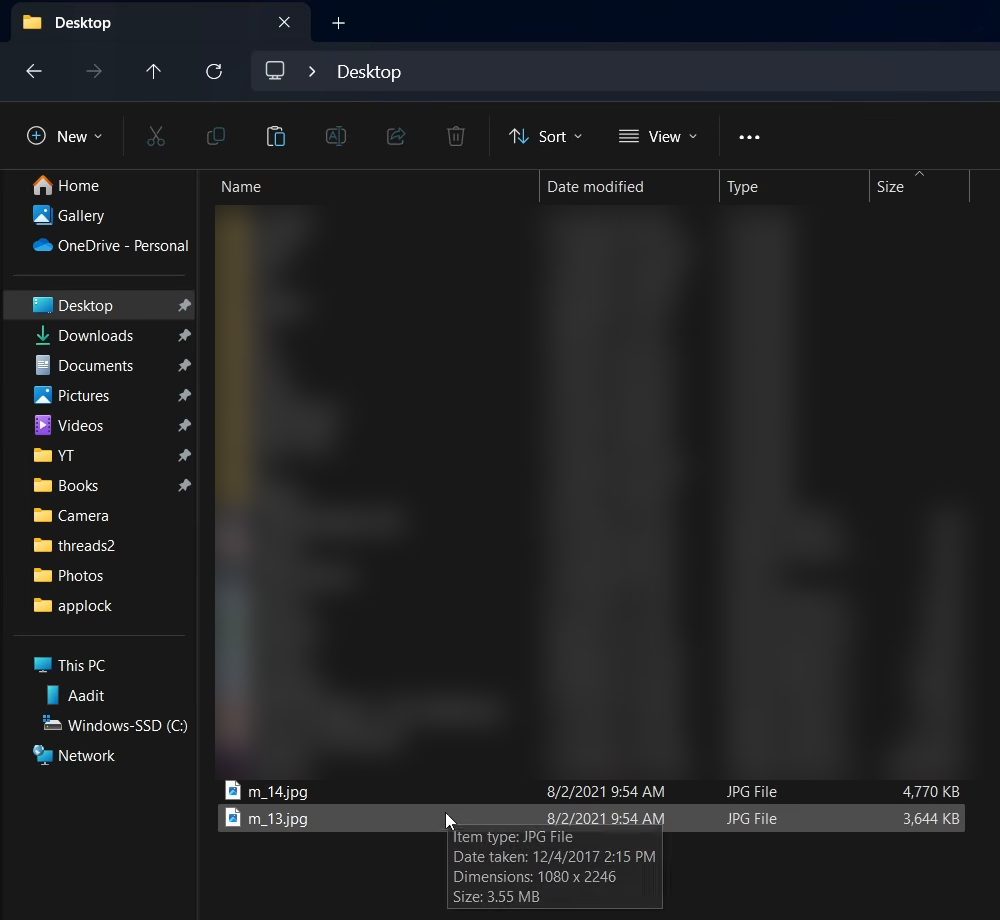
Press Ctrl + C to copy, go to a folder on your laptop such as Desktop, and press Ctrl + V to paste. To move files the other way, copy them from the laptop and paste them into the phone's internal storage.
Method 3: WhatsApp or Google Drive (small files)
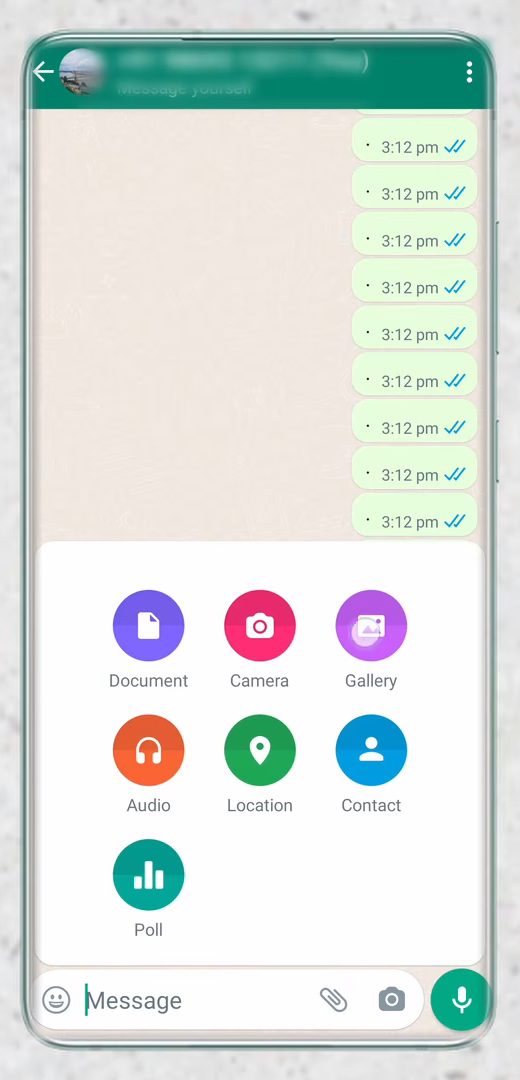
1Send the file to yourself on WhatsApp
Open WhatsApp, search for You at the top and open the chat with yourself. Tap the attach button, choose Gallery (or Document for other files) and send it.
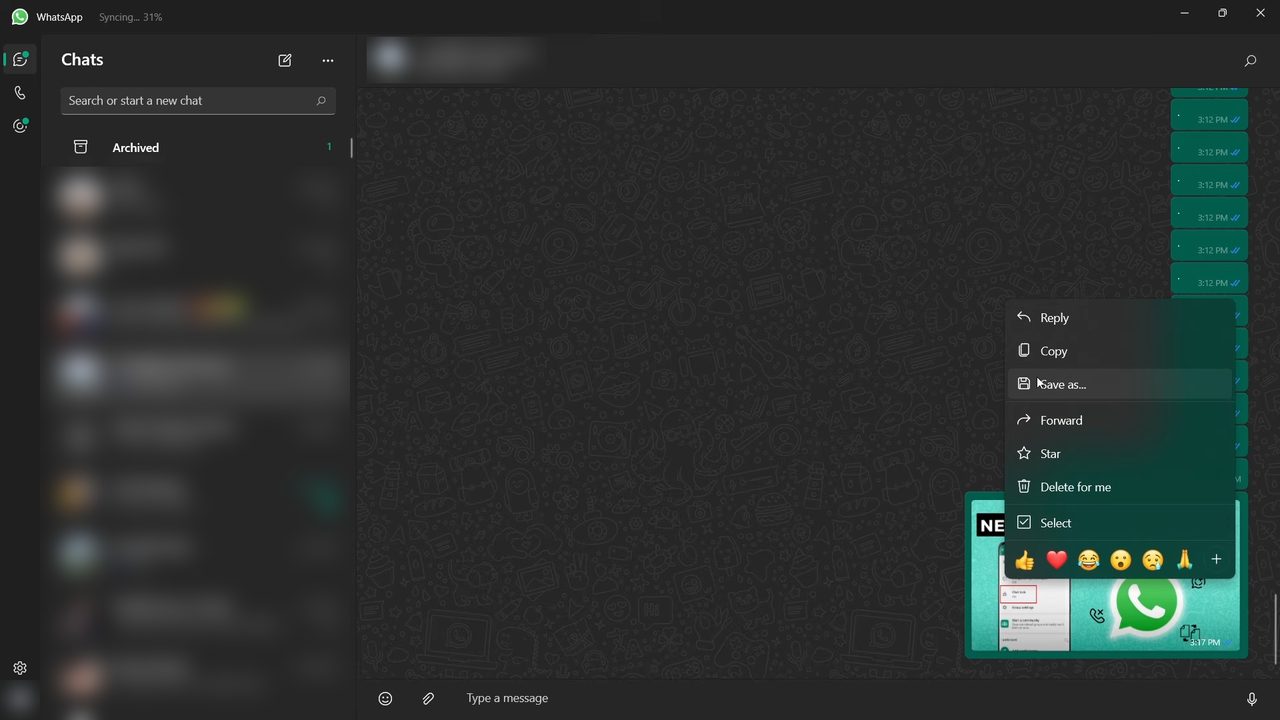
2Save it from WhatsApp on the PC
Open WhatsApp on your laptop. The chat with yourself is at the top with the file you just sent. Right-click it and choose Save as.
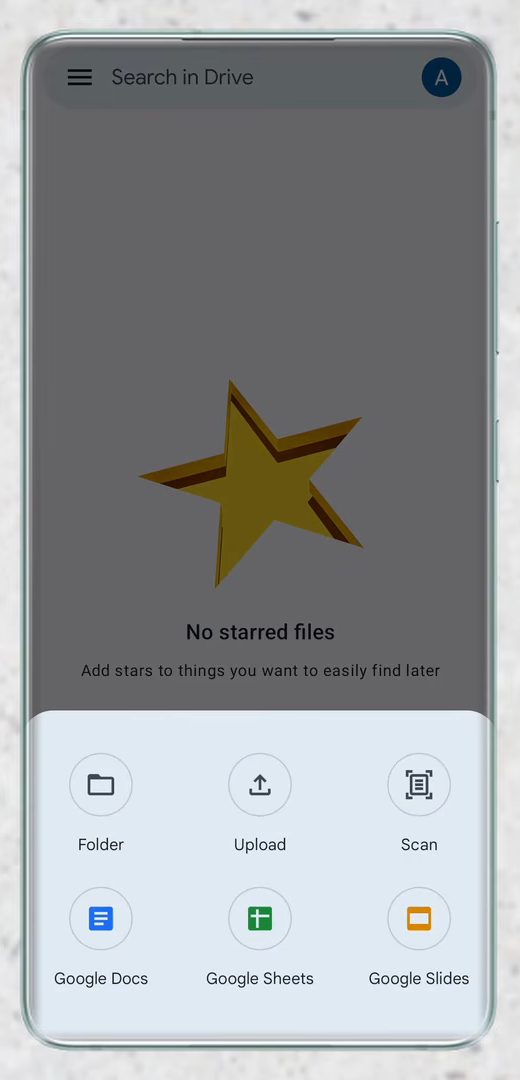
3Or upload it to Google Drive
In the Google Drive app, tap the + button at the bottom right, tap Upload and choose the file.
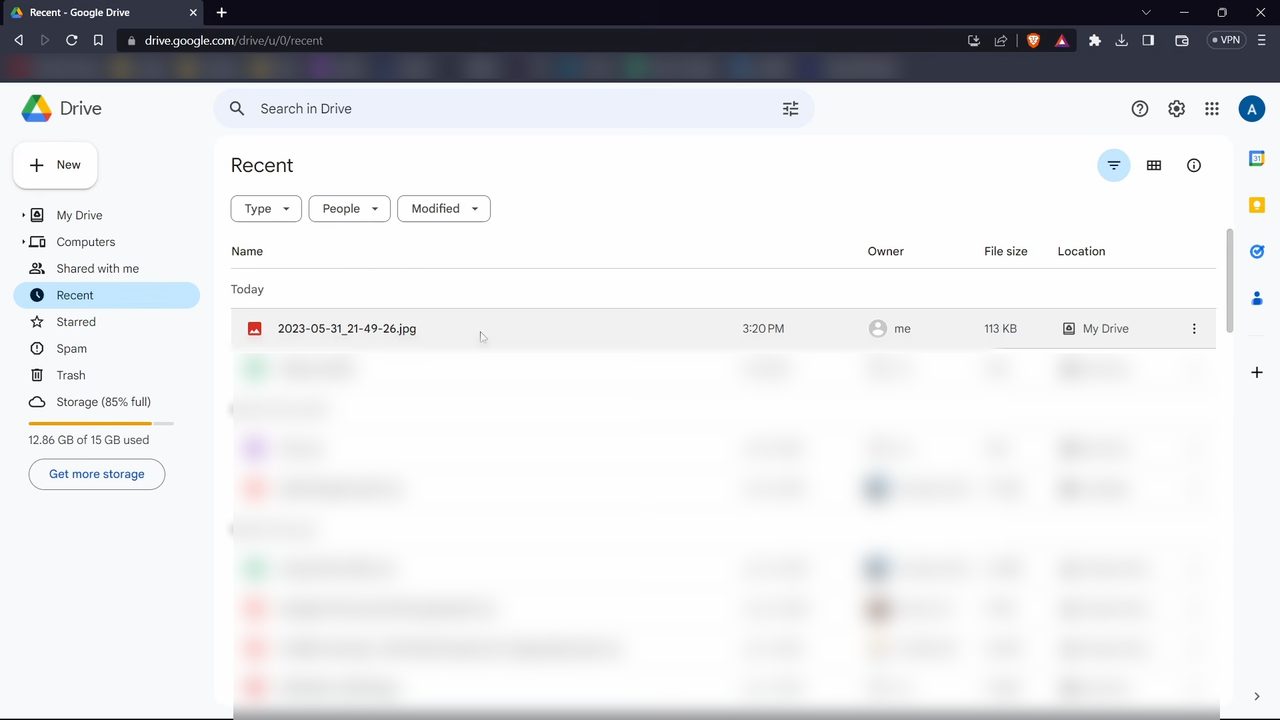
4Download it from Drive on the PC
Open Google Drive on your laptop with the same Google account. The file you uploaded is at the top of Recent. Open it and click the Download button to save it.
Looking only for photos? Our guide on how to transfer photos from Android to PC also covers the email and Phone Link methods.
FAQ
What is the fastest way to transfer files from Android to PC?
A USB cable. Large transfers like a full photo library finish much faster over a cable than over any wireless method.
Can I transfer files from Android to PC without a cable?
Yes. Use Nearby Share (now Quick Share) for files of any size, or send small files to yourself on WhatsApp or through Google Drive.
Does Nearby Share work on every Windows PC?
It needs a 64-bit version of Windows 10 or later with Bluetooth and Wi-Fi. ARM-based Windows devices were not supported when the beta launched.
Can I copy files from my PC back to my phone?
Yes. With the USB method, copy files on the laptop and paste them into the phone's internal storage in File Explorer. Nearby Share also lets you send files from the PC with Select files.
Related guides