Tech is Easy
How to Copy Paste Text Between Android and Windows PC
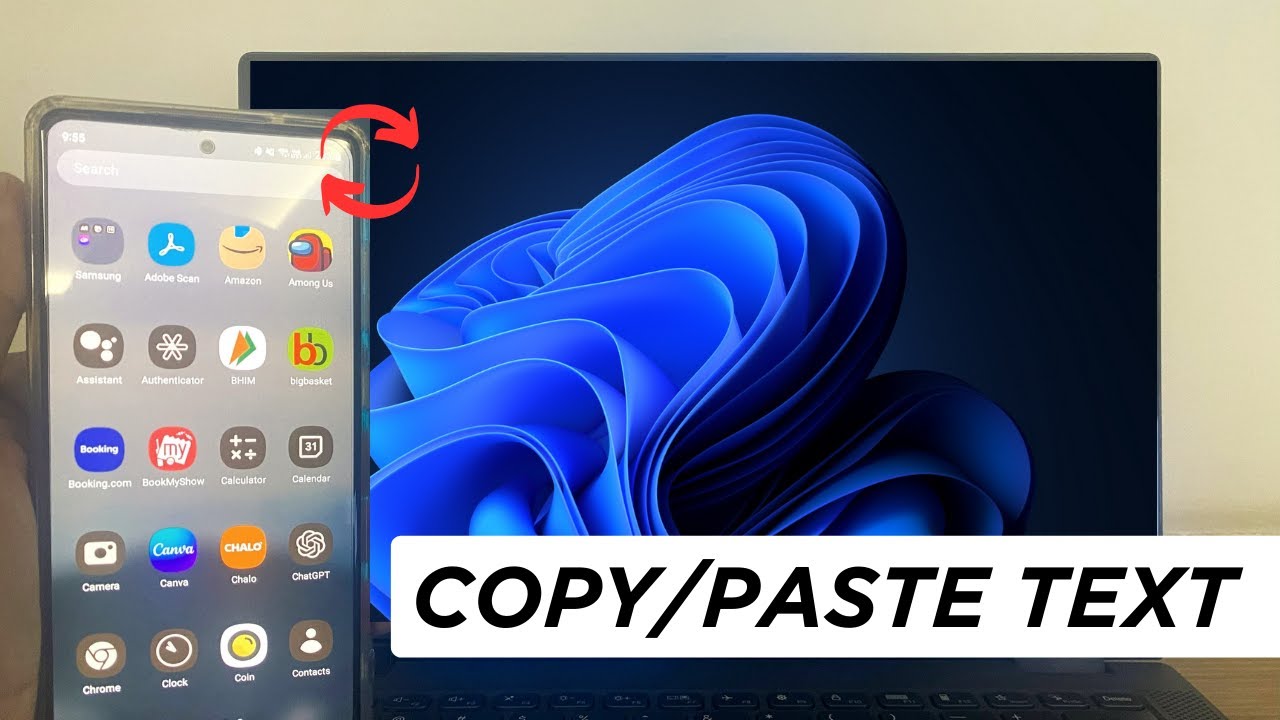
To copy paste text between Android and a Windows PC, make Microsoft SwiftKey your phone's keyboard, sign in to it with the same Microsoft account as your PC, turn on Sync clipboard history in SwiftKey, then turn on Clipboard history across your devices in Windows Settings > System > Clipboard. After that, text you copy on one device shows up on the other. It is a handy way to move links, notes or codes from your phone to your laptop without emailing them to yourself.
What you need
- An Android phone and a Windows PC
- A Microsoft account, signed in on the PC
- The free Microsoft SwiftKey keyboard (installed below)
Before you start: what this works with
Microsoft's help page on copying and pasting text between SwiftKey and Windows lists a few limits worth checking first: - Personal Microsoft account only. It works with a Microsoft account such as an Outlook.com or Hotmail.com address. A work Microsoft account, a Google account or other email addresses can't be used. - Windows PCs only. You need Windows 10 with the October 2018 update or later (Windows 11 works too, as in this guide). Mac and Linux are not supported. - Android only. The cloud clipboard is only in SwiftKey for Android. It can't sync clips to an iPhone. - Only the last clip. The cloud clipboard keeps just your most recent copied text, and it stays available for one hour. It is for quick copy and paste, not a long-term clipboard history.
Microsoft also says clip data is sent with standard encryption and is not stored permanently on its servers.
1Install Microsoft SwiftKey
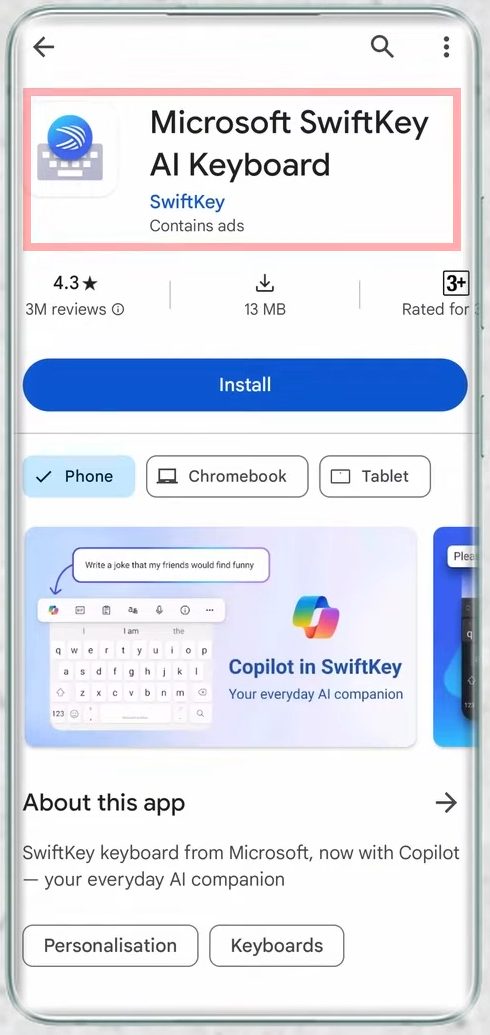
Open the Play Store, search for Microsoft SwiftKey AI Keyboard and tap Install. When it finishes, tap Open.
2Enable SwiftKey
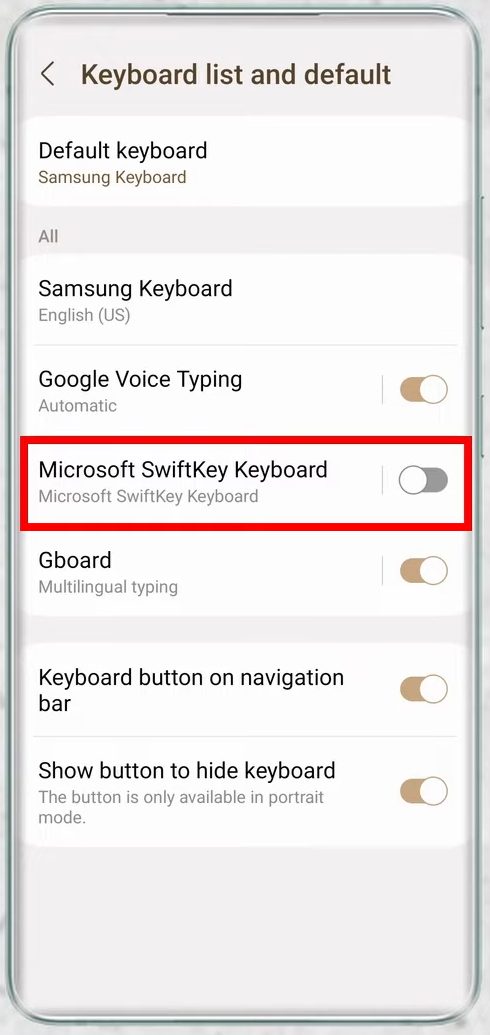
SwiftKey shows a short setup with two tasks. Tap Enable SwiftKey. It opens your keyboard list in Settings, where you switch on Microsoft SwiftKey Keyboard and tap OK on the warning that appears.
3Make SwiftKey your default keyboard
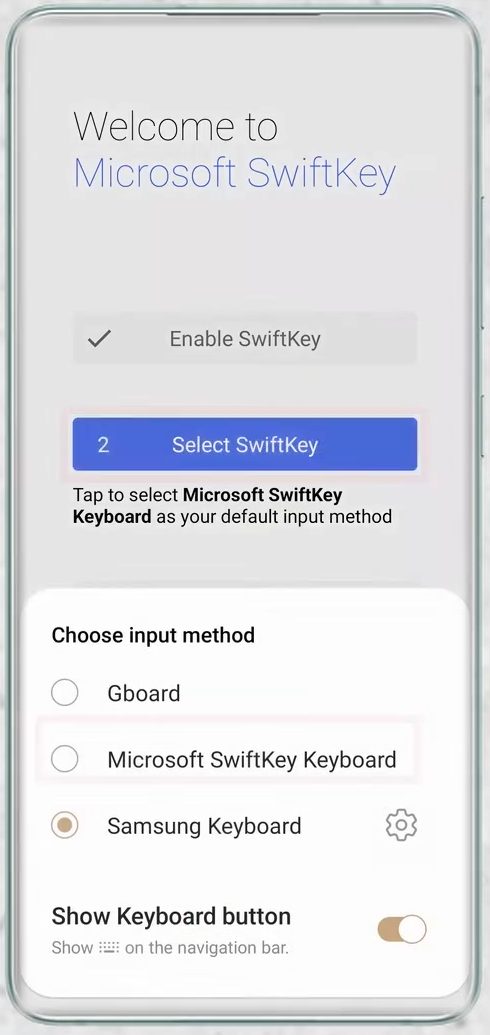
Back in the setup, tap Select SwiftKey and choose Microsoft SwiftKey Keyboard from the input method list. Then tap Try your keyboard to check that the new keyboard appears.
4Open Account in SwiftKey settings
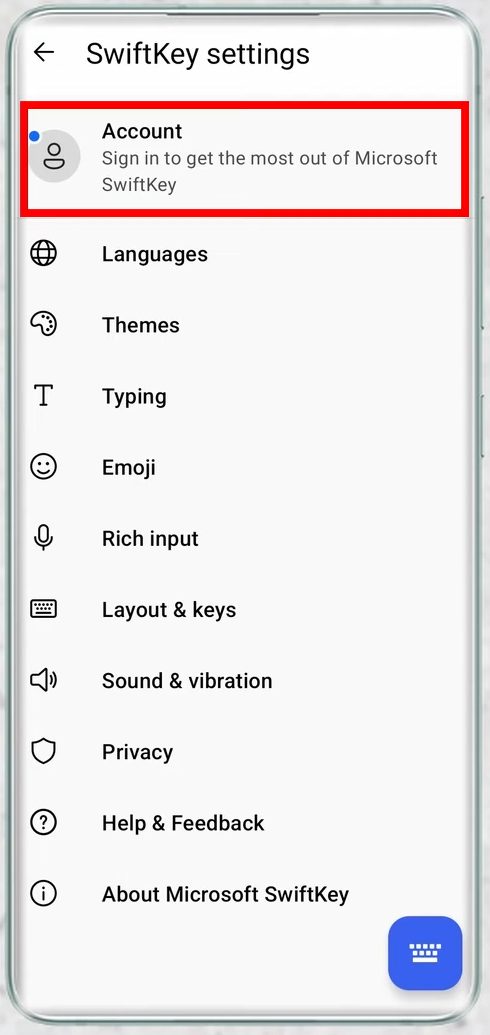
In SwiftKey settings, tap Account at the top.
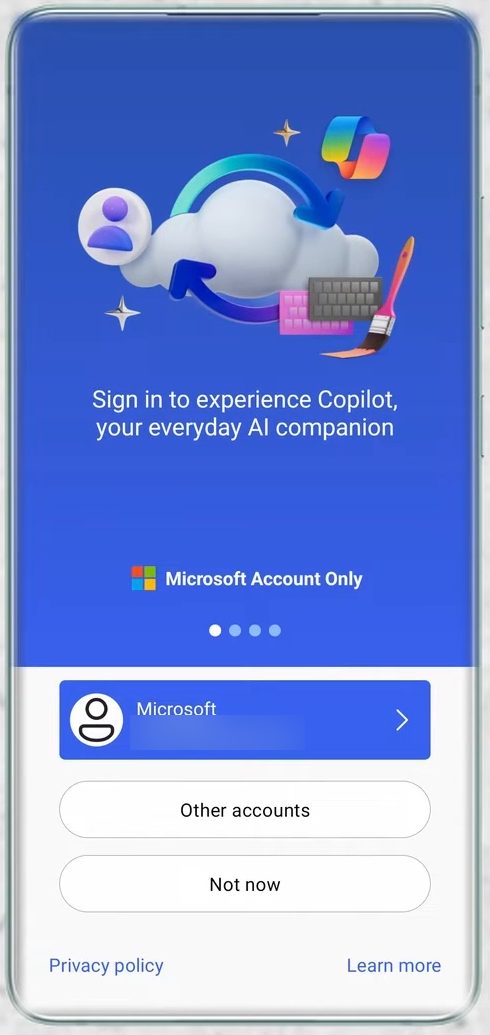
5Sign in with your Microsoft account
Sign in with the same Microsoft account you use on your Windows PC. This is what lets the two devices share a clipboard.
6Open the clipboard settings in the keyboard
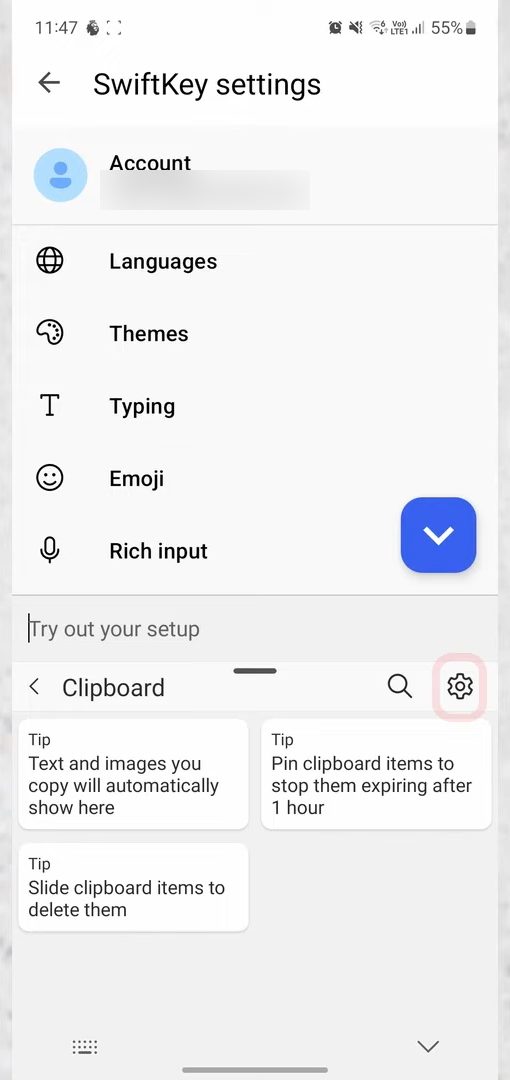
Tap the keyboard icon at the bottom right of SwiftKey settings to bring up the keyboard. Tap the clipboard icon in the toolbar above the keys, then tap the settings (gear) icon on the right of the Clipboard panel.
7Turn on Sync clipboard history
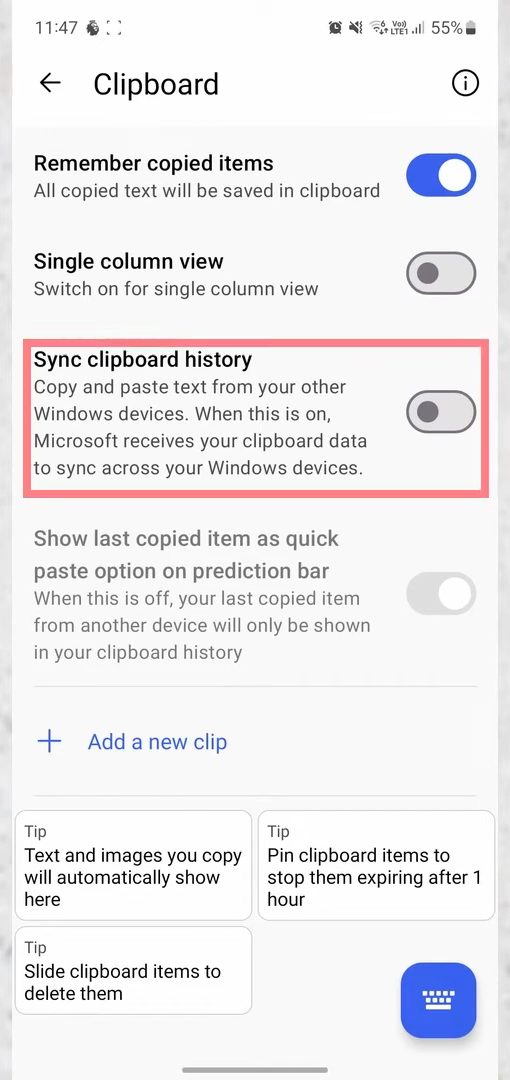
On the Clipboard settings page, switch on Sync clipboard history. The phone side is now done.
8Open Clipboard settings on your PC
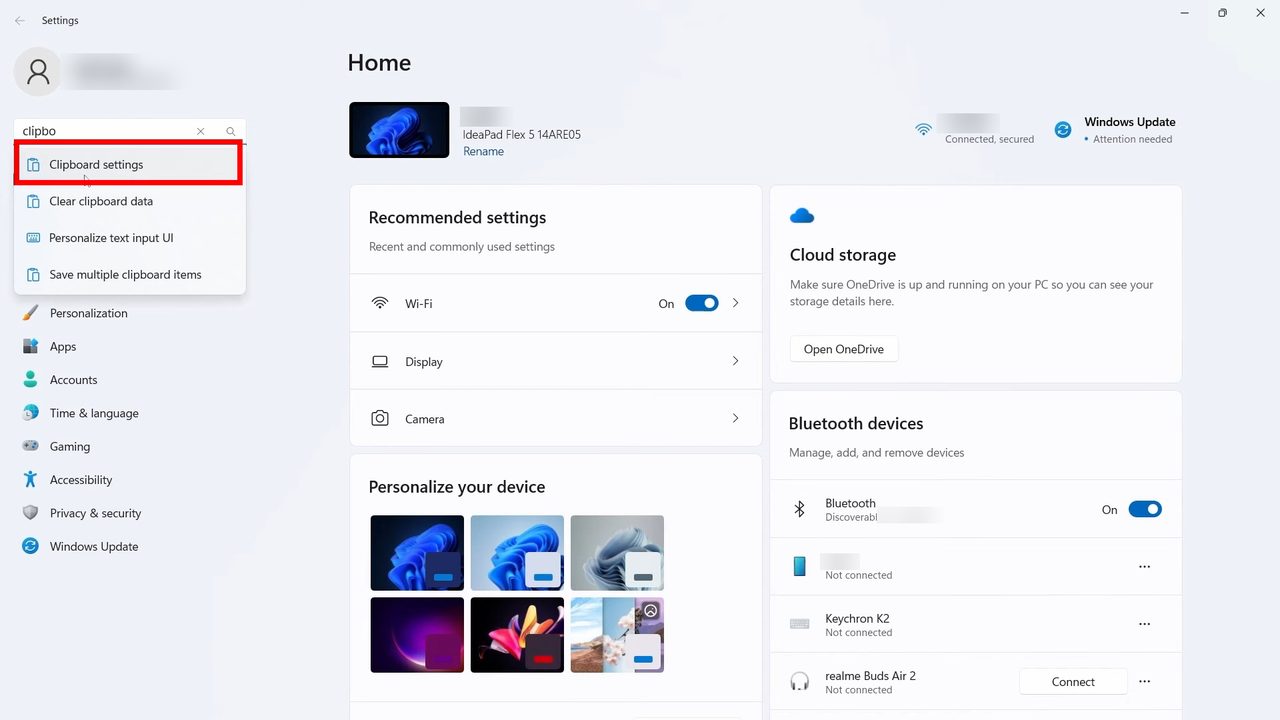
On your PC, open Settings and check that you are signed in with the same Microsoft account (it shows at the top left). Type clipboard in the search box and open Clipboard settings.
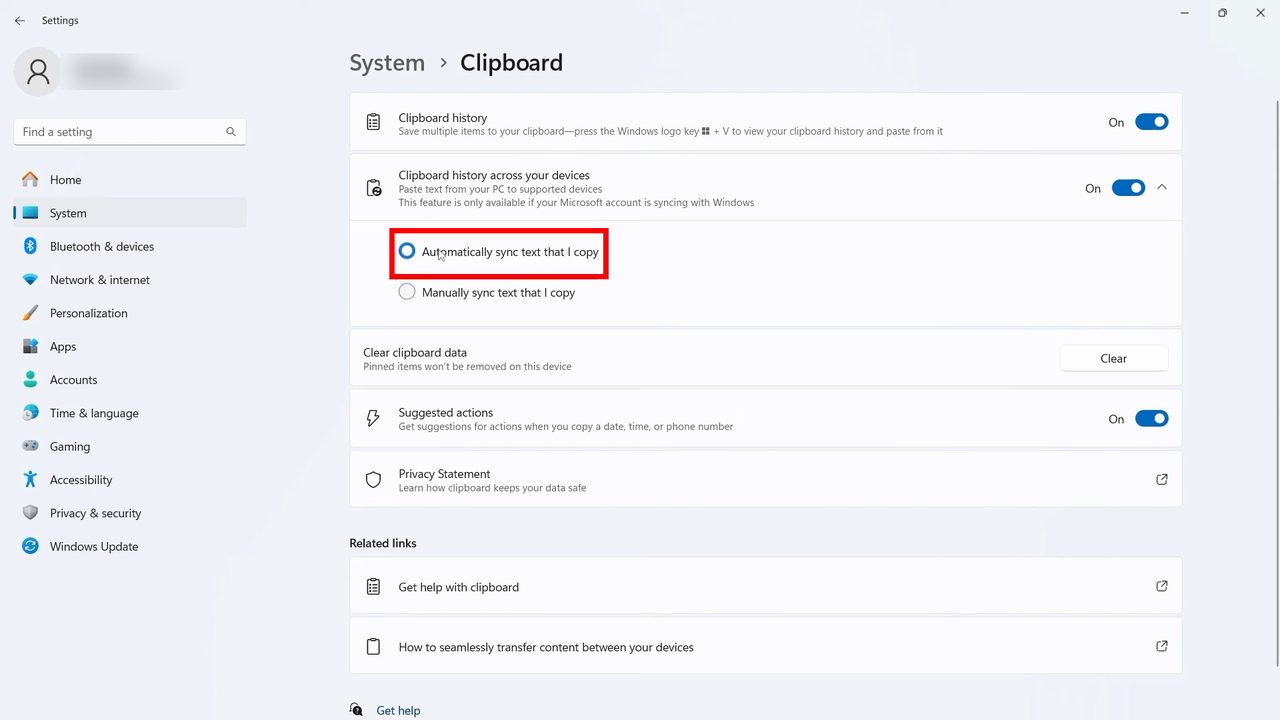
9Turn on clipboard sync across devices
Switch on Clipboard history across your devices, then select Automatically sync text that I copy.
10Copy on one device, paste on the other
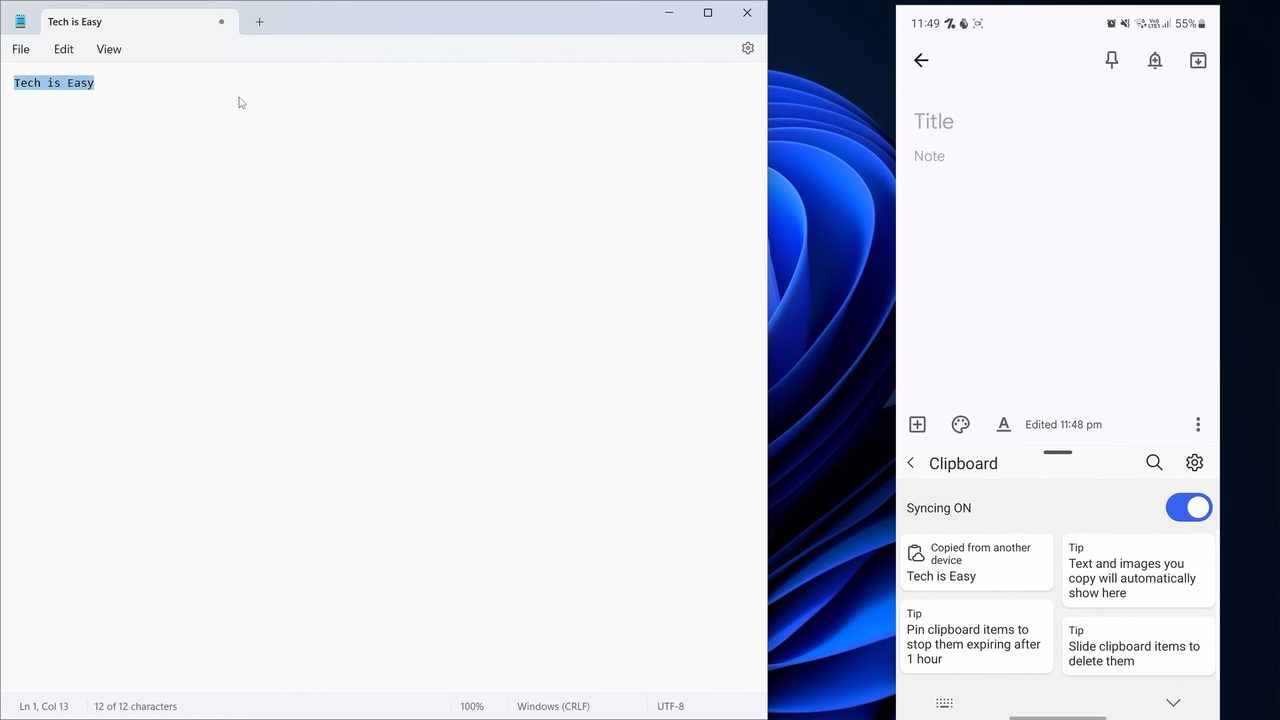
Copy some text on your PC with Ctrl + C. On your phone, tap the clipboard icon on the SwiftKey keyboard: the text appears there with the label Copied from another device, ready to paste. It works the other way too: copy text on your phone, then press Ctrl + V on your PC.
Tips / troubleshooting
- If nothing syncs, make sure the Microsoft account in SwiftKey is exactly the same one shown at the top of Windows Settings.
- Windows 10 uses different wording. Microsoft's page describes the PC side as Settings > System > Clipboard, then turning on Clipboard history and Sync across devices. On Windows 11 the same option is called Clipboard history across your devices, as in Step 9.
- The SwiftKey option name can differ too. Depending on your SwiftKey version it may say Sync clipboard history or Sync clipboard history to the cloud. Microsoft's page reaches it through the SwiftKey app under Rich input > Clipboard.
- Text copied a while ago is missing: only the last clip syncs and it expires after an hour. Copy it again.
- Paste it faster: by default the last clip from your other device shows up in SwiftKey's prediction bar above the keys, so you can tap it once to paste.
- Pause syncing for a while: tap the Clipboard icon on the SwiftKey toolbar and switch Syncing ON to OFF.
- On the PC, press Windows key + V to open your clipboard history and pick text that came from your phone.
- This syncs text only. For files and photos, see how to send files between your phone and PC with Phone Link.
FAQ
How do I copy text from my phone to my laptop?
Use Microsoft SwiftKey as your phone keyboard, sign in with your Microsoft account and turn on Sync clipboard history. On the laptop, turn on Clipboard history across your devices in Clipboard settings. Then copy on the phone and press Ctrl + V on the laptop.
Do I have to use the SwiftKey keyboard?
For this method, yes. The clipboard sync with Windows is a SwiftKey feature, so SwiftKey needs to be your active keyboard when you copy and paste.
Does it work on iPhone?
No. Microsoft's help page says the cloud clipboard is only available in SwiftKey for Android and it is not possible to sync clips to iOS. SwiftKey on the App Store is just a keyboard without this sync.
Can I use a work or Google account for clipboard sync?
No. Microsoft says the cloud clipboard only works with a personal Microsoft account such as Outlook.com or Hotmail.com. If your PC is signed in with a work account, sign in to Windows Settings with a personal Microsoft account for this to work.
Why do I need the same Microsoft account on both devices?
The copied text syncs through your Microsoft account. If the phone and the PC are signed in to different accounts, the text will not show up on the other device.
Related guides