 Tech is Easy
How to Change Background Color on Instagram Story
To change the background color on an Instagram story, open the story editor, tap the arrow under the tools on the right and tap Draw, pick a color at the bottom, then long press anywhere on the background and tap Finished. The whole background fills with that solid color. For quick gradient presets, tap the circle icon (Background) instead.
This works when you share someone's post to your story and when you make a story from scratch with text or your own photo. It's useful if the automatic background clashes with the post, or you want a clean single color that matches your brand.

Two situations, same trick
Instagram picks a background for you in two cases: when you share a feed post to your story (it uses colors from the post) and when you start a text story (it uses a gradient). In both, the fix is the Draw tool's long press, which fills the entire screen behind your content with one color. The steps below cover both cases.
Method 1: Change the background when sharing a post
1Share the post to your story
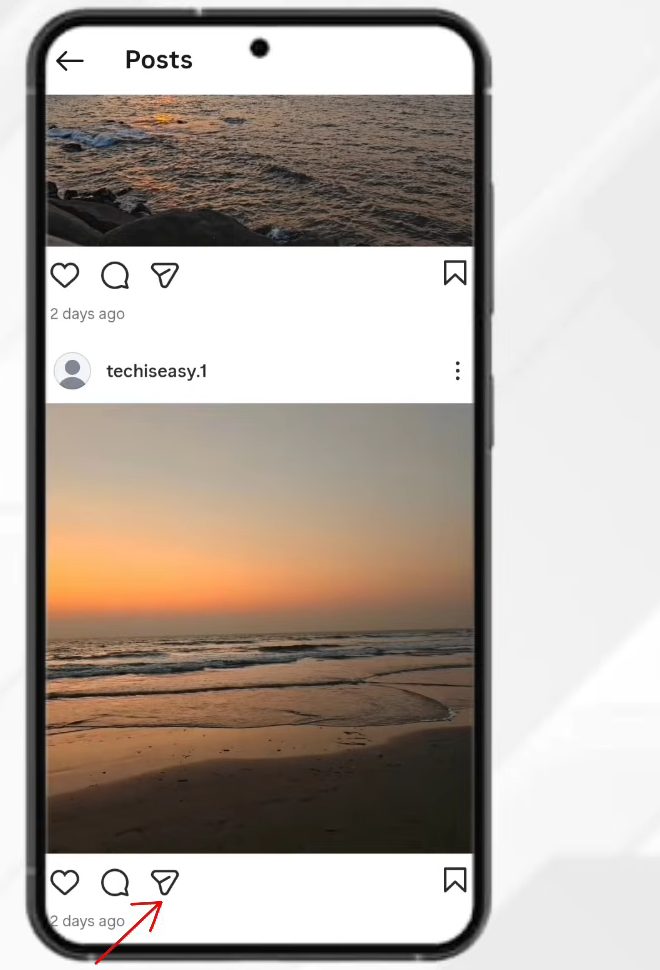
Open the post you want to share, tap the share (paper plane) icon under it and tap Add to story. The story editor opens with the post in the middle and a background picked from its colors.
2Try the Background presets
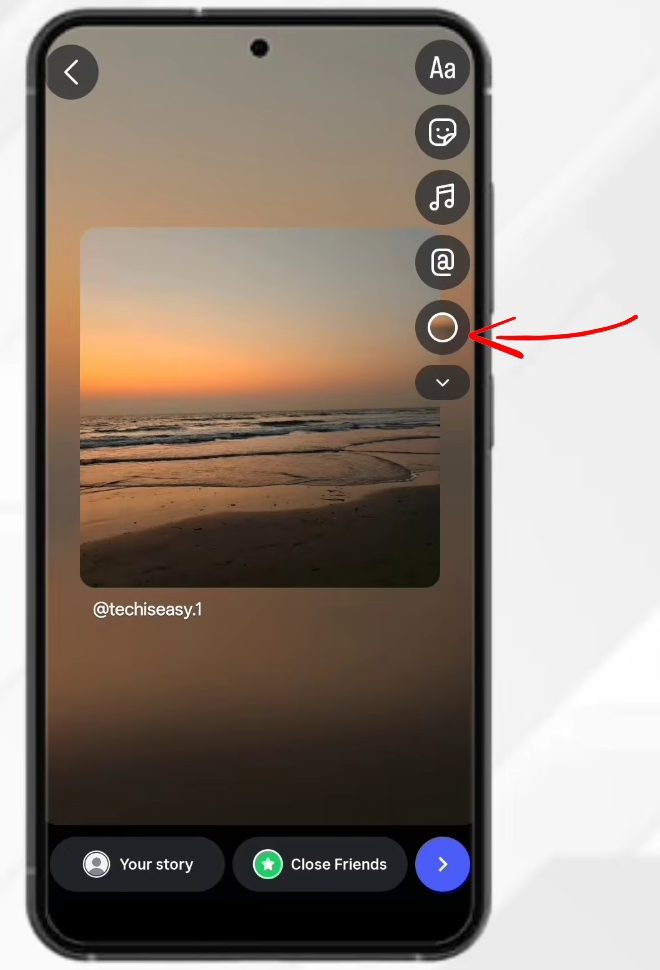
Tap the circle icon in the column on the right. Each tap switches to another ready-made background, such as a rainbow, pink-purple or green-blue gradient. If one of these works for you, you can stop here.
3Tap the arrow to see more tools
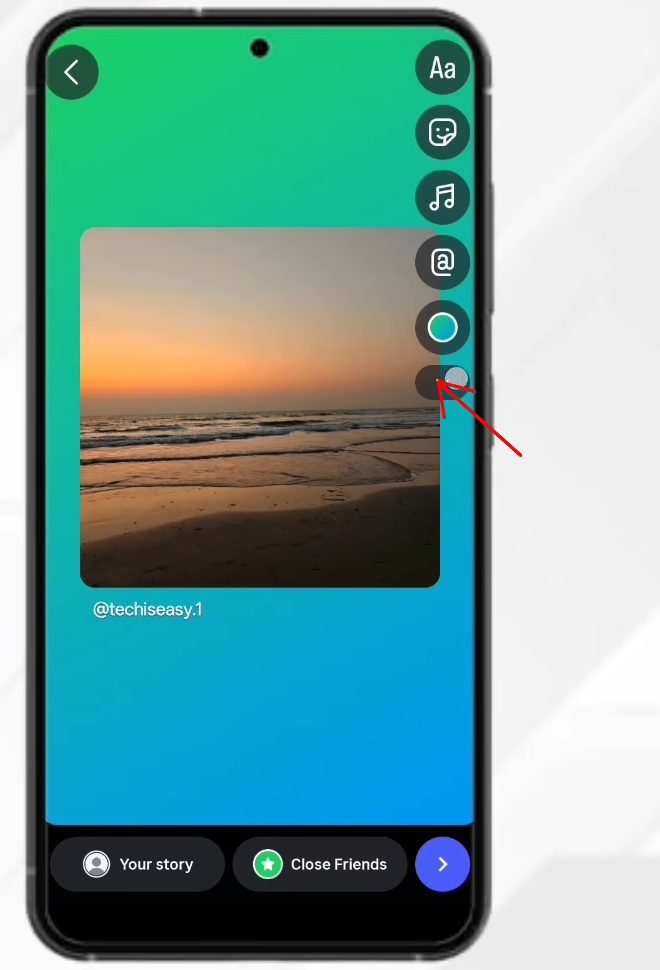
For a solid color of your choice, tap the small arrow under the circle icon. The tool list expands with labels: Text, Stickers, Music, Mention, Background, Draw, Save and More. Tap Draw.
4Pick a color and long press the background
Choose a color from the row at the bottom of the screen. Swipe the row for more colors, or use the eyedropper at the far left to pick a color from the post itself. Then long press on any empty part of the background. After a second the whole background fills with that color. We tried a light gray first.
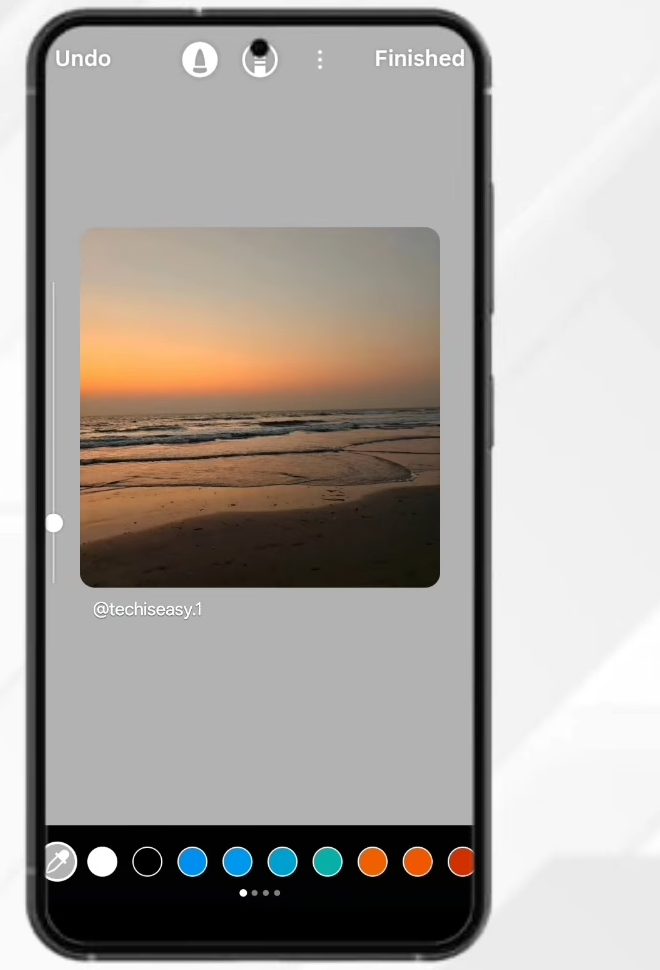
5Change it again if you like, then tap Finished
Didn't like the shade? Pick another color and long press again; it simply replaces the old one. We switched to a darker gray. When you're happy, tap Finished at the top right and share the story as usual with Your story or Close Friends.
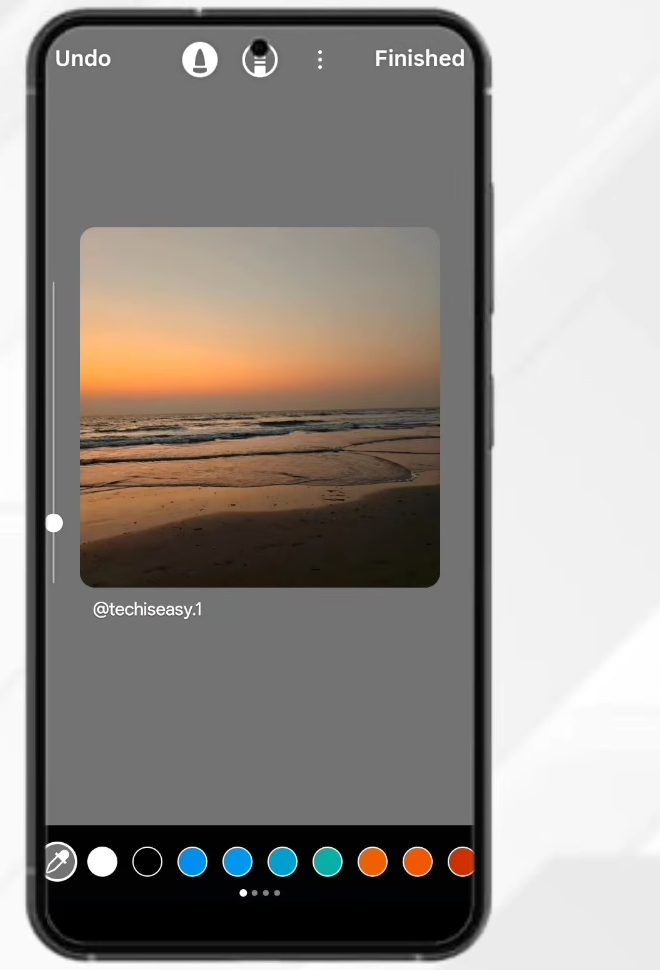
Method 2: Use a solid background for your own text or photo
6Start a new story
Go to your profile and tap the plus (+) at the top left, then choose Story.
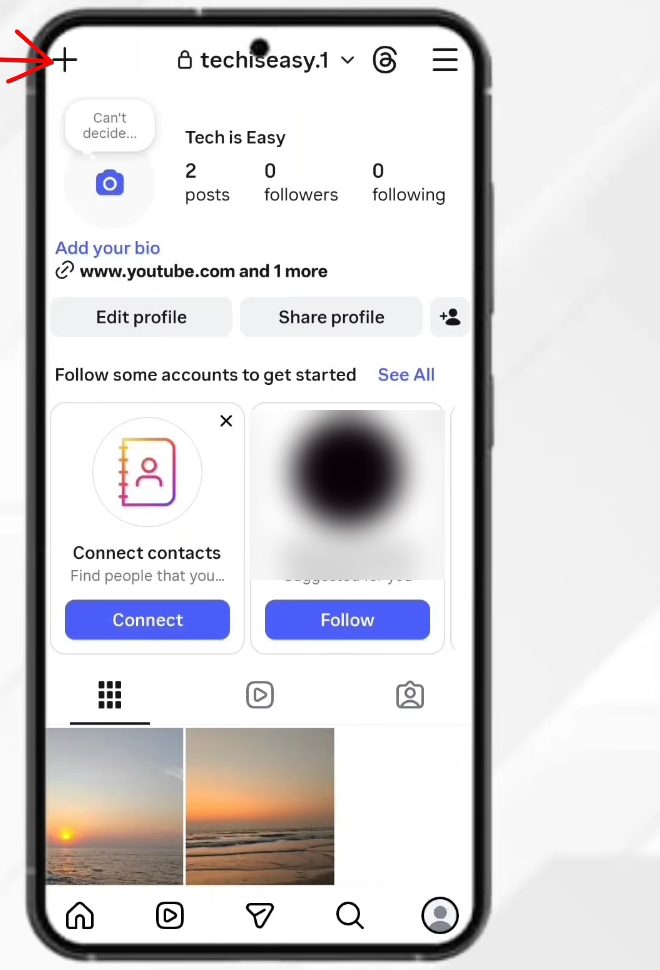
7Tap Aa to create a text story
In the story camera, tap Aa on the left. This opens Create mode with a gradient background and "Tap to type". Type any character, for example "Hi". You need something on screen to get to the editing tools.
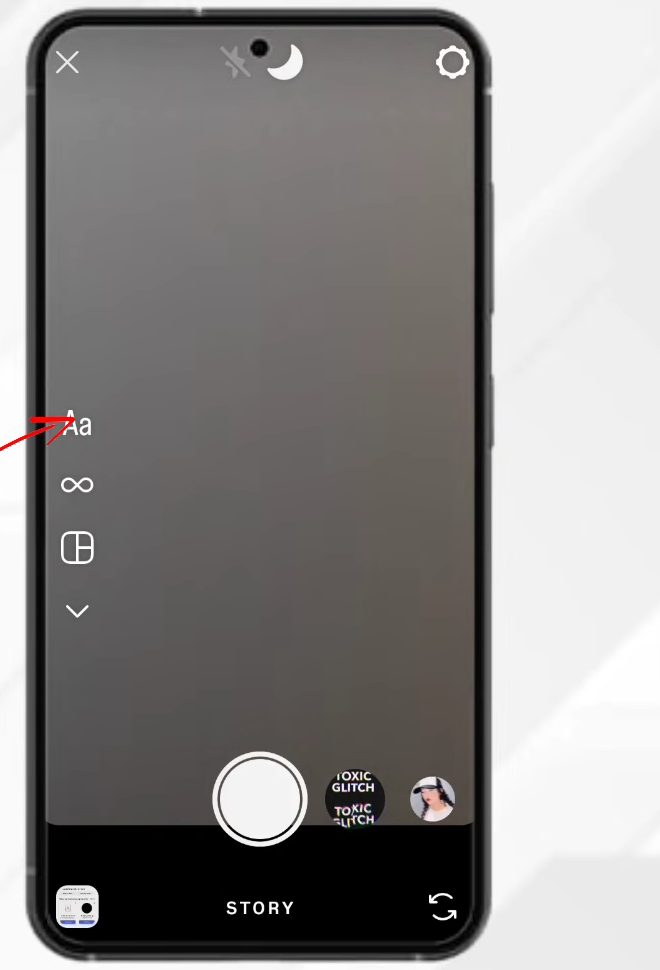
8Drag the placeholder text to the bin
Long press the text you just typed and drag it down onto the bin icon that appears at the bottom ("Drag to delete"). You're left with an empty gradient background and the full set of tools.
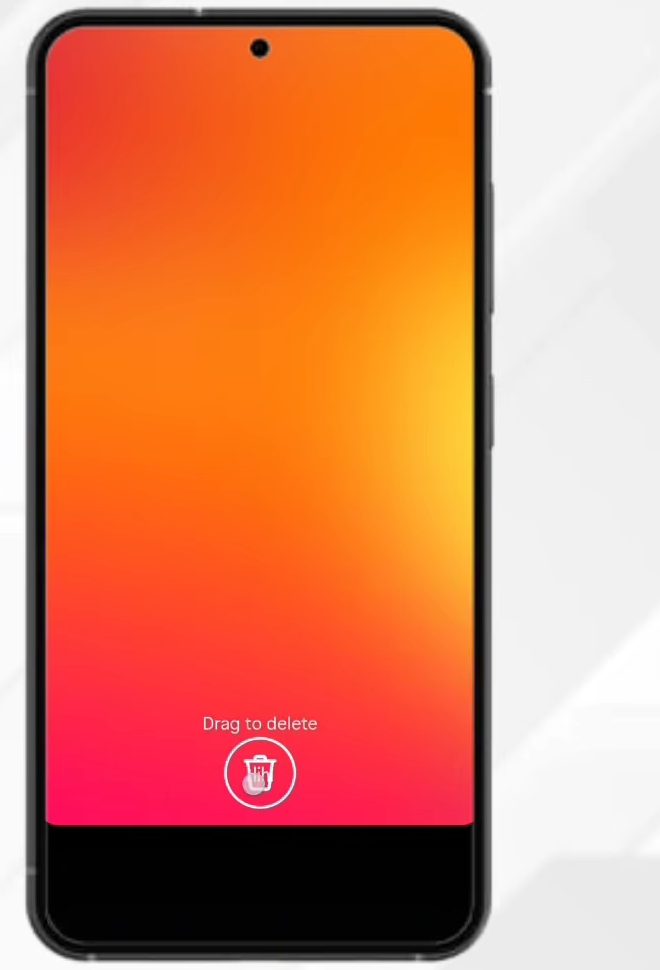
9Open Draw and fill the background
Just like before, you can tap the circle icon for the preset gradients. For a solid color, tap the arrow to expand the tools, tap Draw, pick a color and long press anywhere on the screen. Tap Finished.
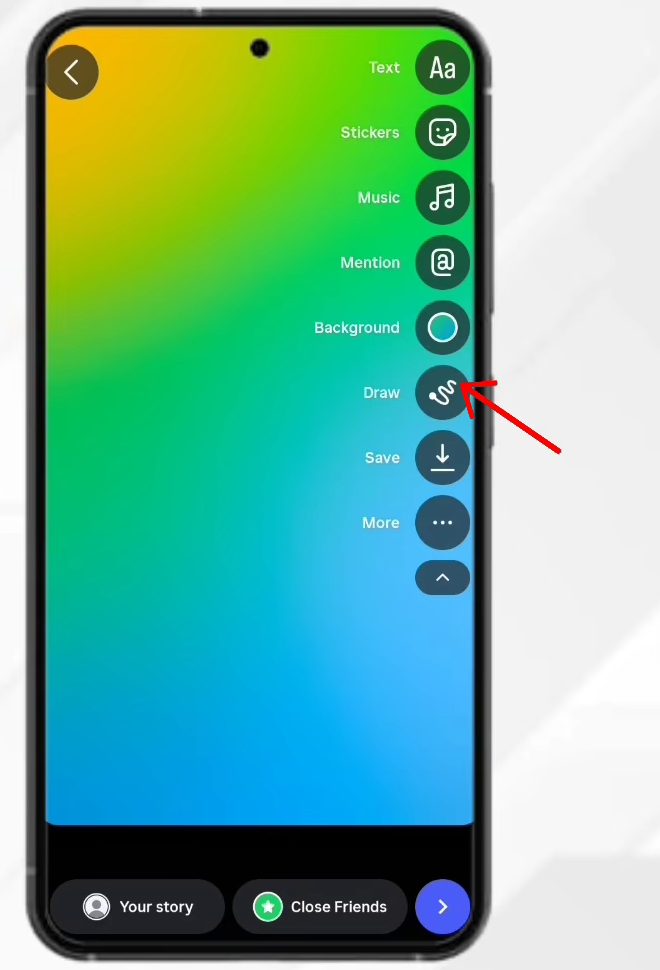
10Add your text or photo on top
Now add the actual content. For text, tap anywhere on the screen and start typing. For an image, tap the sticker icon (second from the top), tap PHOTO and pick a picture from your gallery. It lands on your solid background, and you can pinch to resize it and drag it into place. Post the story when it's ready.
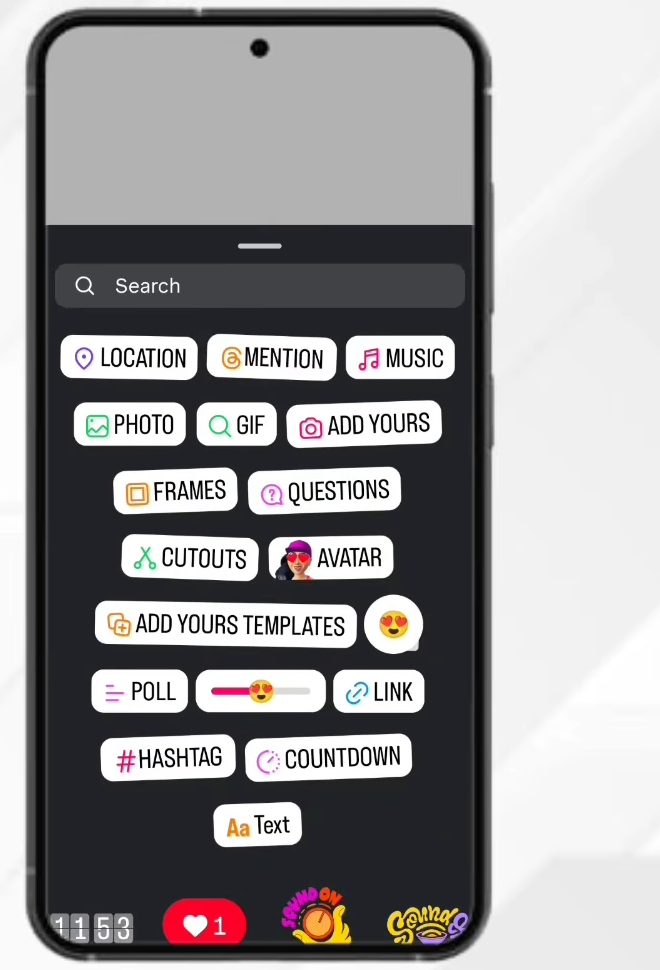
Troubleshooting
- No Draw option. Tap the small arrow under the icons on the right to expand the full list. If it's still missing, update Instagram from the Play Store or App Store.
- Long press only draws a line. You need to press and hold without moving your finger. If you drag, it draws a stroke instead of filling. Tap Undo at the top left and try again.
- The fill covers your photo when making your own story. In Method 2, fill the background first and add the photo after (Step 10). In Method 1 the shared post stays on top automatically.
- Want the original background back? Tap Undo at the top left while still in Draw mode, or go back and re-share the post.
The Instagram Help Center has a Stories section, but we couldn't confirm a page covering this exact Draw method, so no official link is included here.
What to know
Viewers just see a normal story with a solid color behind your content; nothing tells them how it was made. The color is part of that one story only. Your next story starts with Instagram's automatic background again. The video shows the Android app; the iPhone app has the same tools, though icon positions can differ slightly.
If you're tidying up your Instagram account, you may also like How to Hide Activity Status on Instagram.
FAQ
How do I make a solid background on an Instagram story?
In the story editor, tap the arrow under the icons on the right, tap Draw, choose a color and long press anywhere on the background. It fills the whole screen with that color. Tap Finished to keep it.
How do I change the background color when I share a post to my story?
After tapping Add to story, tap the circle icon to cycle through presets, or use Draw and a long press for any solid color. The post stays on top of the new background.
Can I use any color I want?
Yes. Swipe the color row for more swatches, or use the eyedropper to pick a color straight from your photo.
Does this work on iPhone?
The Instagram app works the same way on iPhone: Draw tool, choose a color, long press. The video was recorded on Android, so menu positions on iPhone are not shown.
Related guides