Tech is Easy
How to Create a Google Form on Mobile (Android or iPhone)
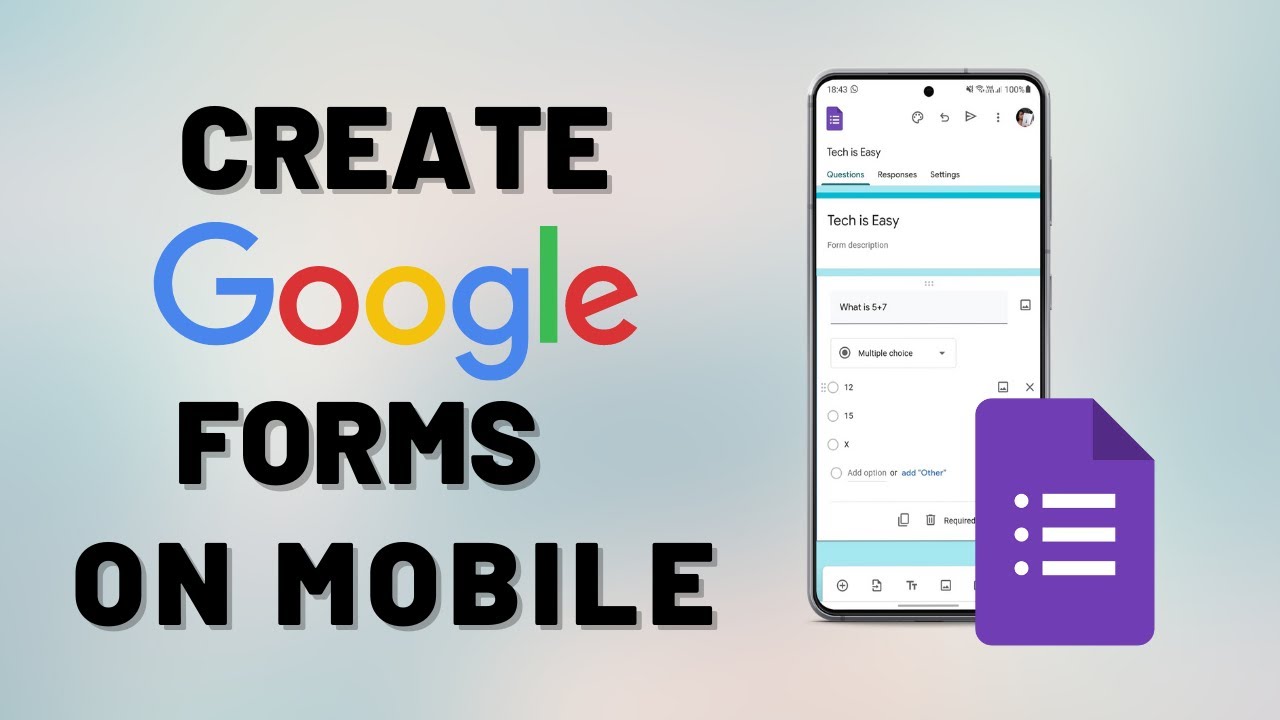
Google Forms does not have its own app, but you can still create a full Google Form on your phone through the mobile browser. This guide walks through making a form on mobile, from the title and questions to sharing the link and opening the responses in Google Sheets.
What you need
- A phone with a browser such as Chrome
- A Google account (sign in when the site asks)
- Working on a laptop instead? See how to create a Google Form on a computer
1Open forms.google.com
Open Chrome on your phone and go to forms.google.com. A new form opens in the editor. The circle at the top right shows the Google account you are signed in with. If you are not signed in, you will be asked to sign in first.
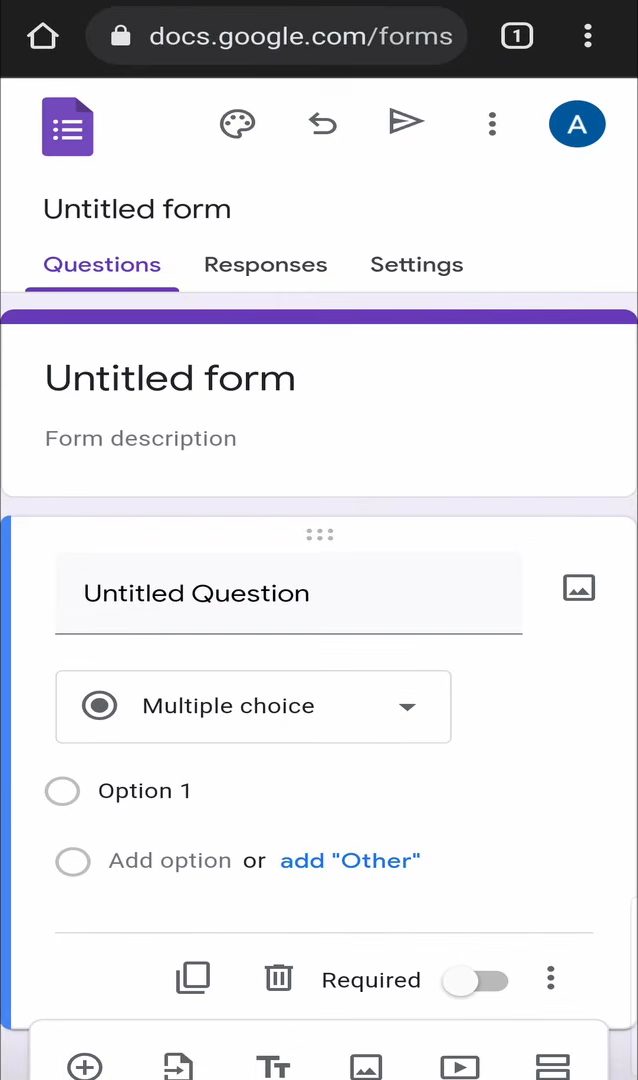
2Add a title and description
Tap Untitled form at the top, delete the placeholder text and type your form's name. Then tap Form description to add a line about the form. The title and description are the first things people see when they open it.
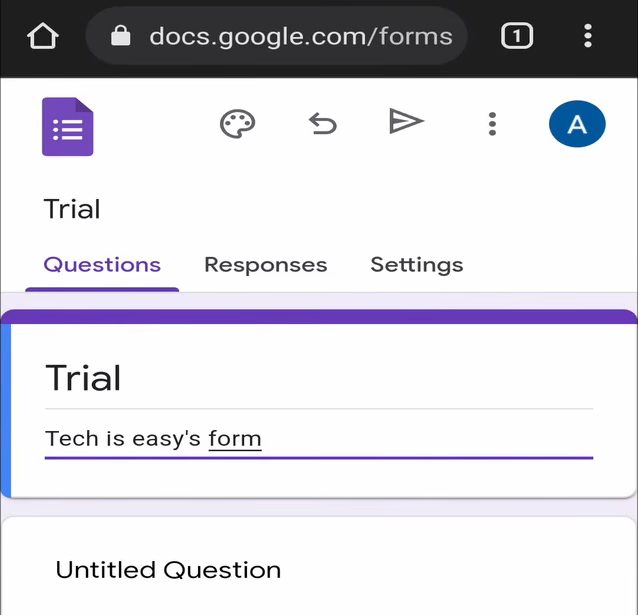
3Add your first question
Scroll down, tap Untitled Question and type the question, for example "Name". Tap the arrow next to the answer type to choose how people should answer: Short answer, Paragraph, Multiple choice, Checkboxes, Dropdown and more. Google Forms often picks a type on its own based on your question, so check it before moving on.
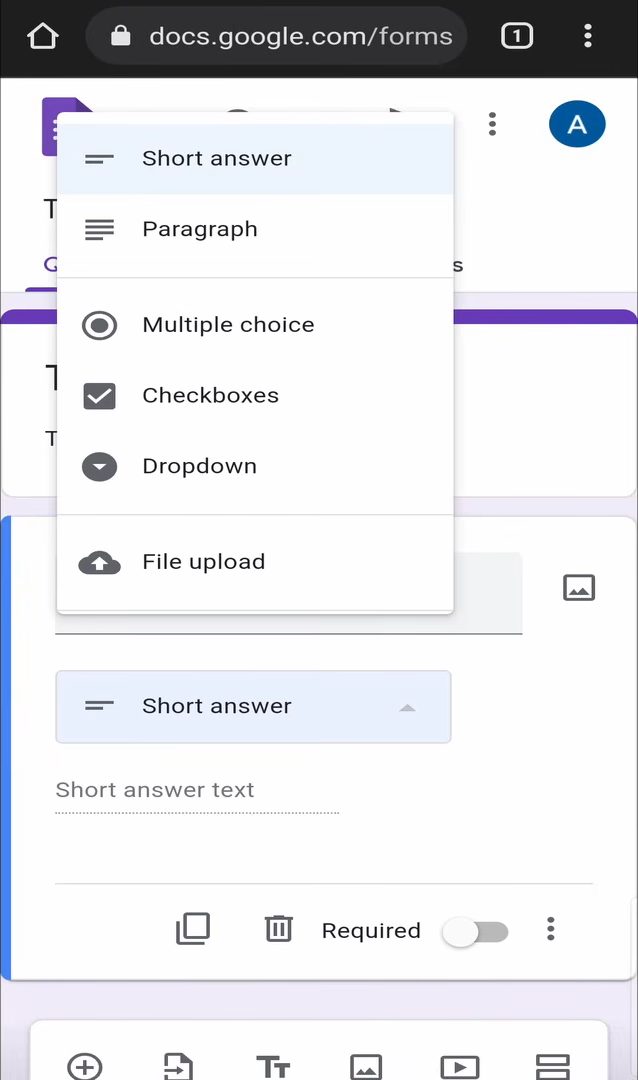
4Make the question required
At the bottom of the question, tap the switch next to Required. Now nobody can submit the form without answering this question. The icons next to it let you copy or delete the question.
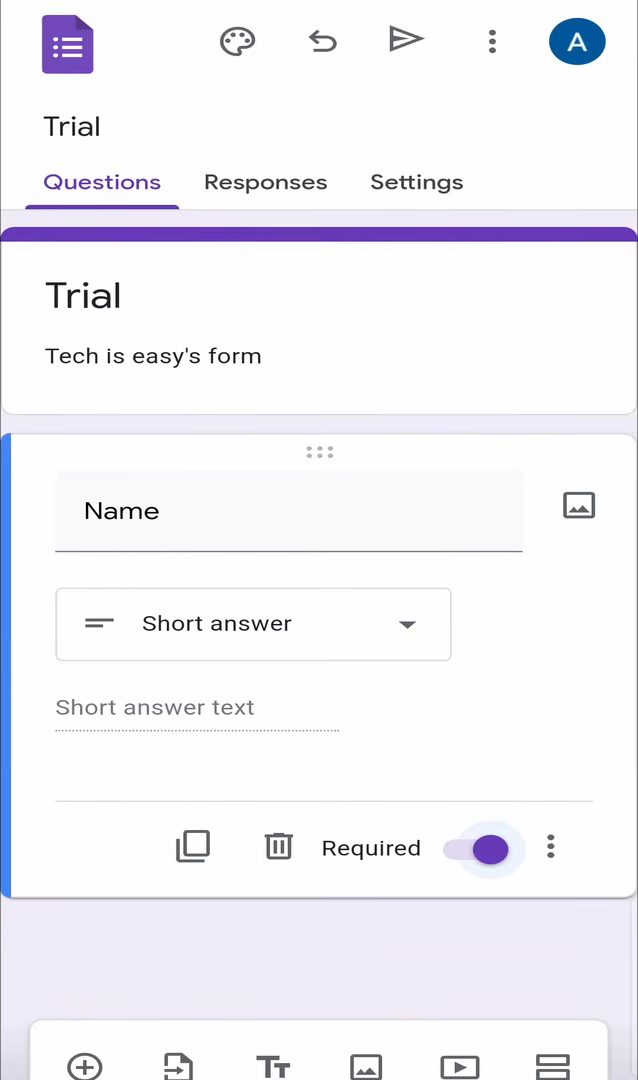
5Add more questions
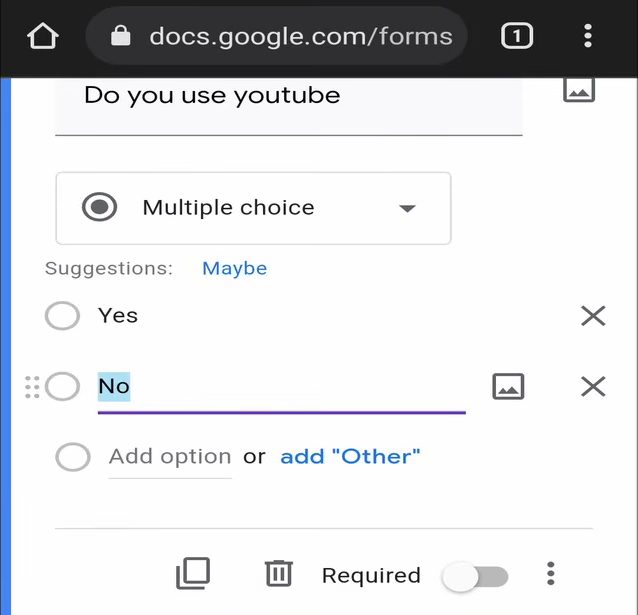
Tap the plus (Add question) button in the toolbar at the bottom of the screen. Type the next question, such as "Do you use YouTube?". For a yes or no question, keep Multiple choice, tap Option 1 to type "Yes", then tap Add option to add "No". Turn on Required if needed. For an open answer like "Comments", choose Paragraph so people can write more.
6Preview the form
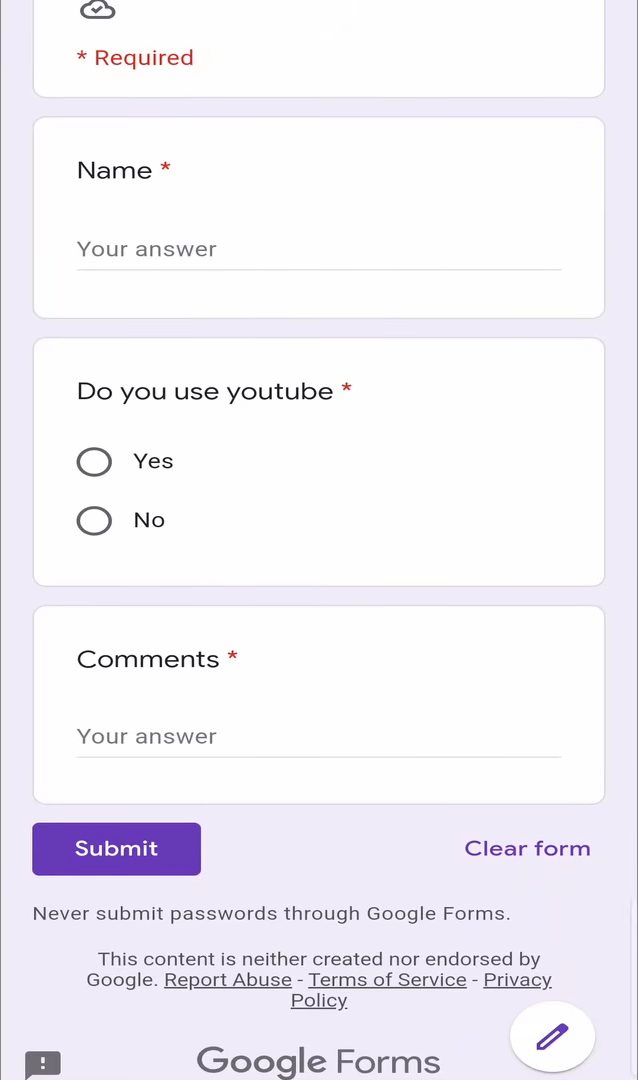
Tap the three dots at the top right and choose Preview. The form opens in a new tab exactly as others will see it. A red asterisk next to a question means it is required.
7Rearrange questions
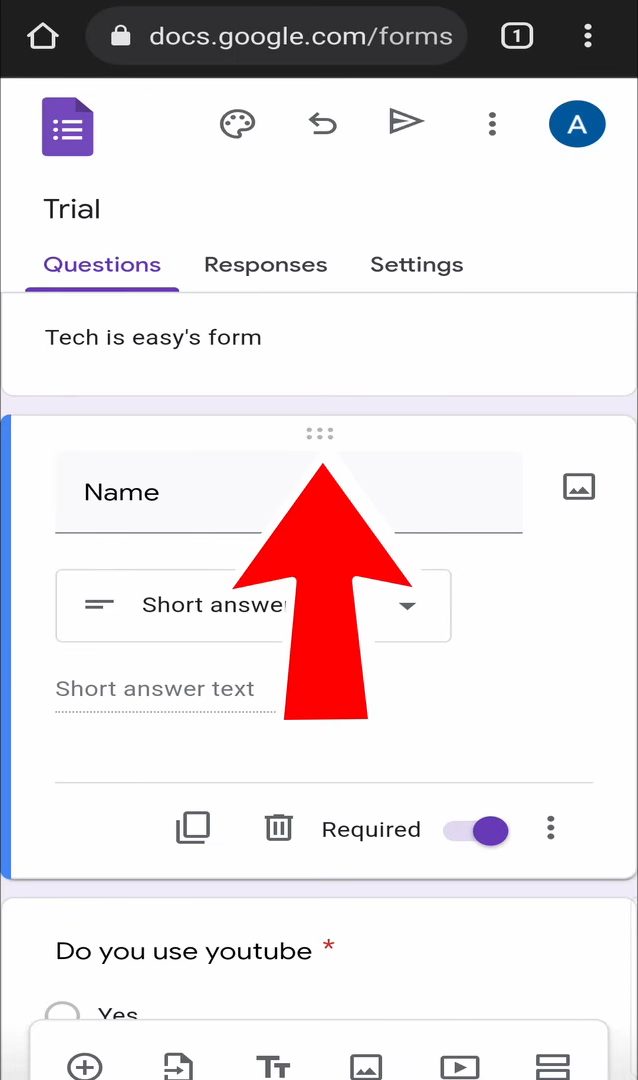
Go back to the editor tab. Long press the six dots at the top of a question and drag it to a new spot. In our example we moved "Name" below "Do you use YouTube?".
8Change the theme
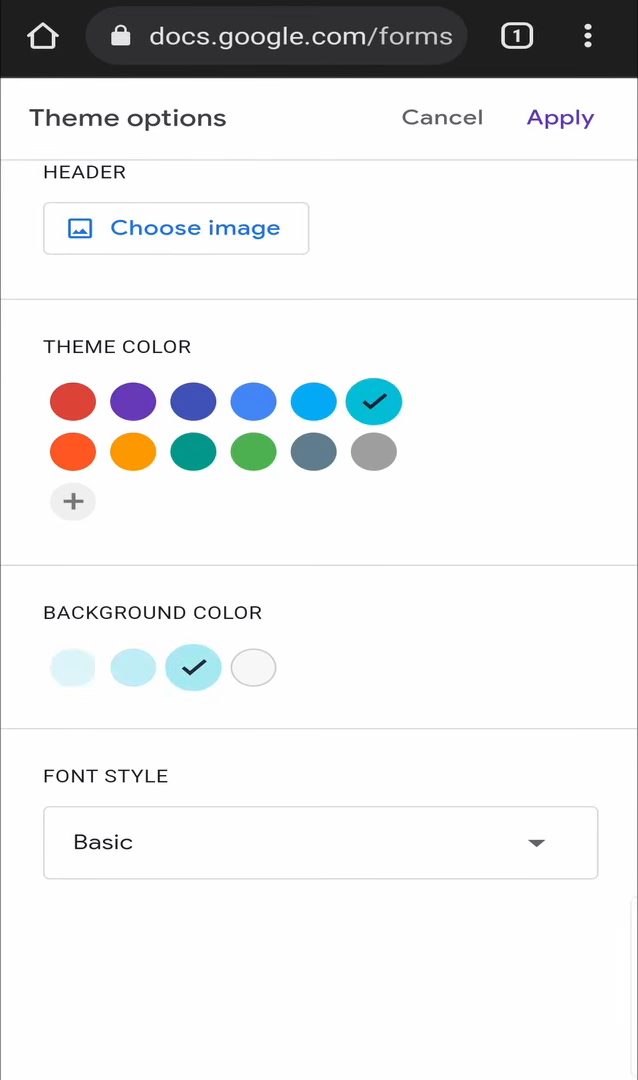
Tap the palette icon at the top. Tap Choose image to pick a header from the built-in themes or upload one from your photos. Then choose a Theme color, Background color and Font style, and tap Apply.
9Share the form
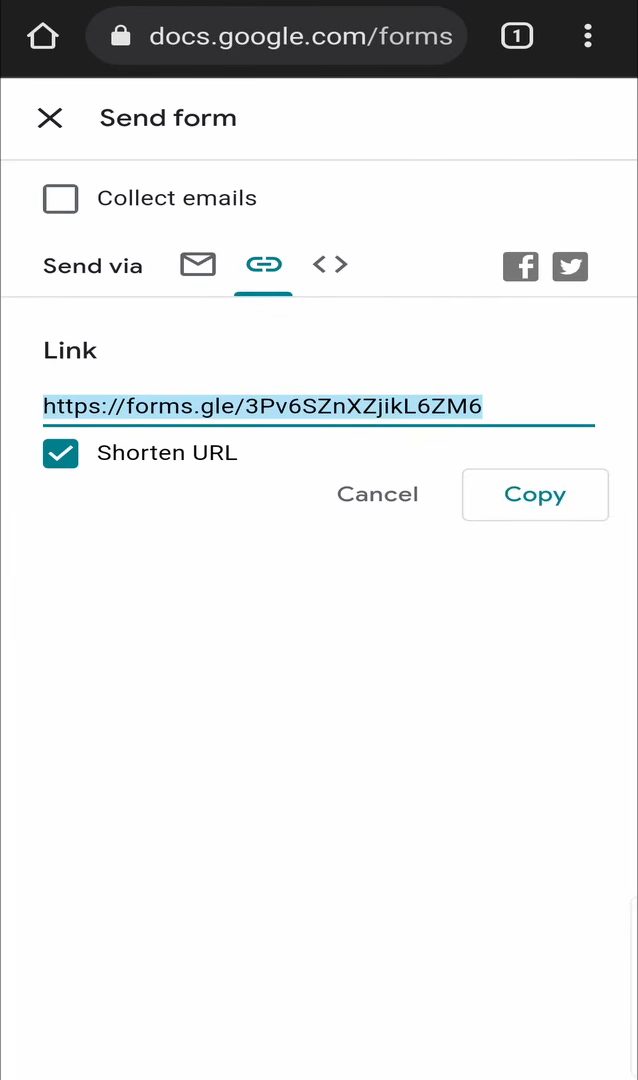
Tap the Send (paper plane) icon at the top. You can send the form by email, tap the link icon to get a link (tick Shorten URL for a shorter one, then tap Copy), or share it on Facebook or Twitter.
10View the responses in Google Sheets
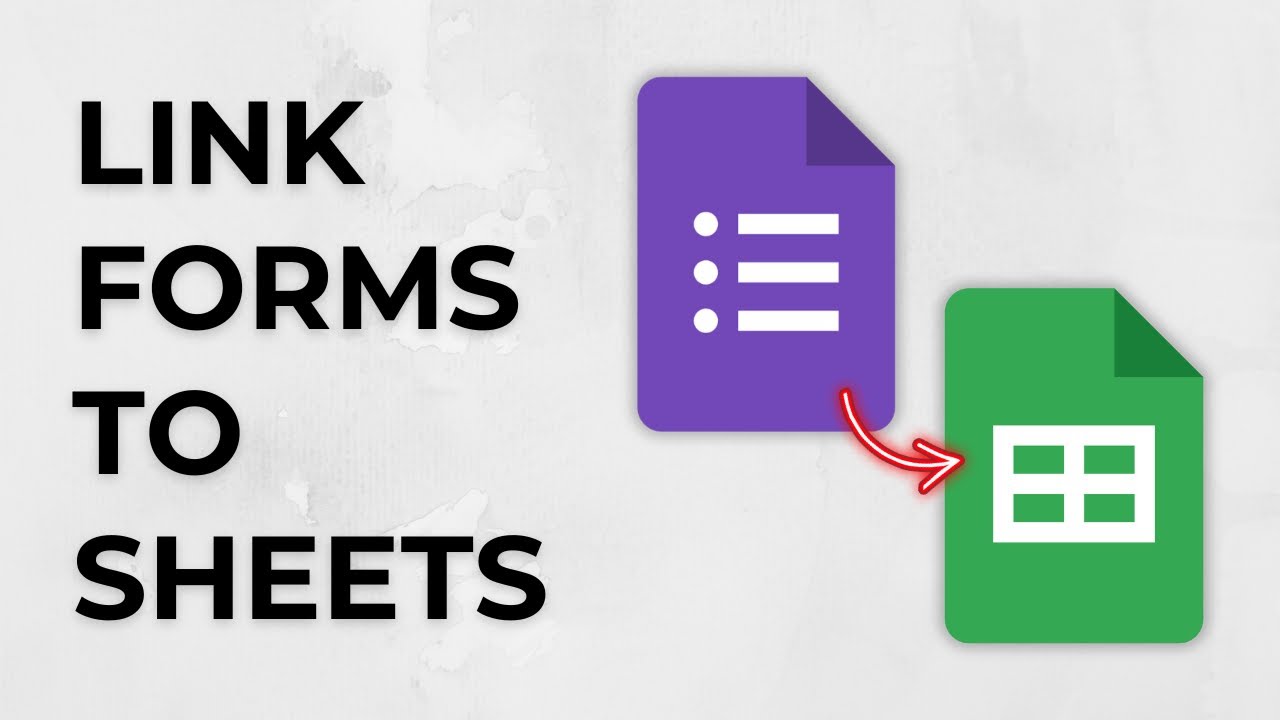
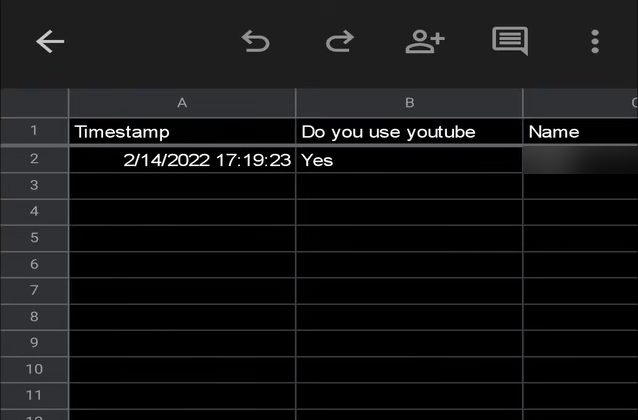
Once people fill in the form, open the Responses tab. You can switch between Summary (charts), Question and Individual views. To get everything in a spreadsheet, tap the green Sheets icon, keep Create a new spreadsheet selected and tap Create. The sheet lists the date, time and every answer, and it updates on its own each time someone submits the form.
This was recorded in 2022, so a few buttons may look slightly different in today's version of Google Forms.
FAQ
Is there a Google Forms app for Android or iPhone?
No. Google does not offer a separate Google Forms app. You create and edit forms on your phone by opening forms.google.com in a browser like Chrome.
Can I make a question required on my phone?
Yes. Tap the question and turn on the Required switch at the bottom of it. People will see a red asterisk and must answer before they can submit.
How do I share a Google Form link from my phone?
Tap the Send icon at the top, tap the link icon, tick Shorten URL if you want, and tap Copy. You can then paste the link into WhatsApp, a message or an email.
Can I see Google Form responses on my phone?
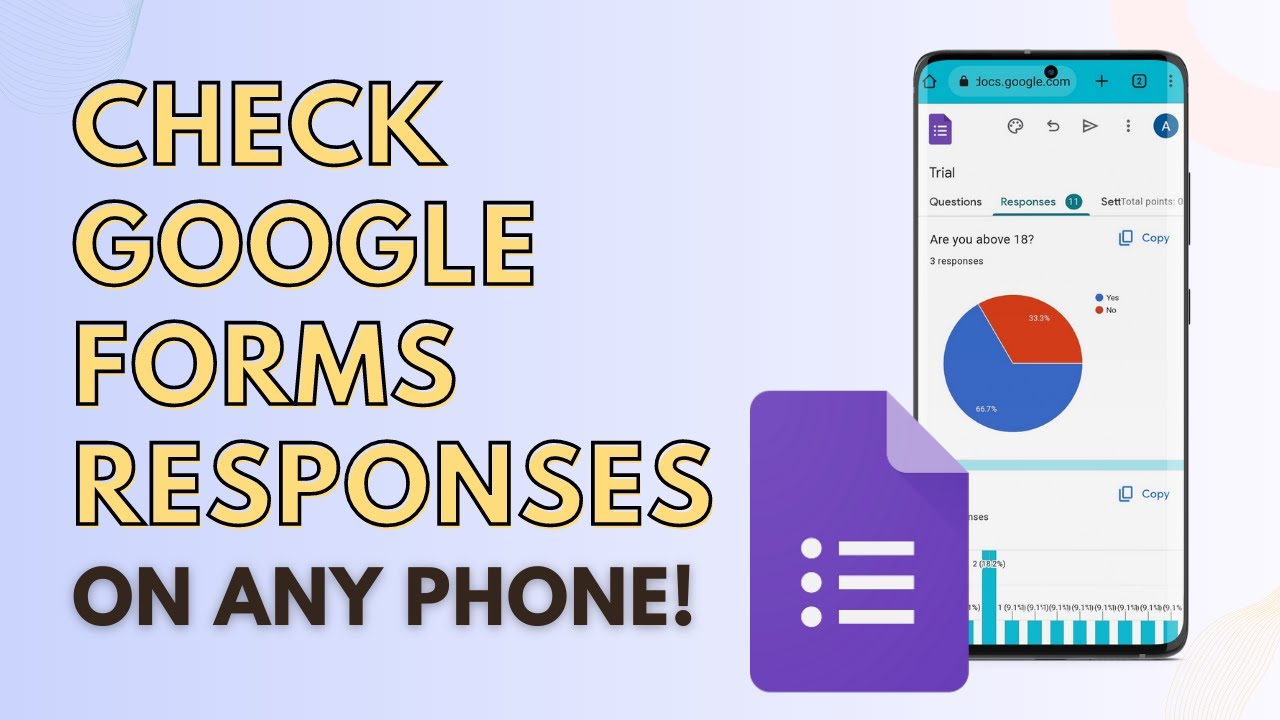
Yes. Open the form at forms.google.com and tap Responses. You can see a summary, each question or each person's answers, or link the form to a Google Sheet to see everything in rows.
Related guides