Tech is Easy
How to Link Google Forms to Google Sheets (Live Responses)
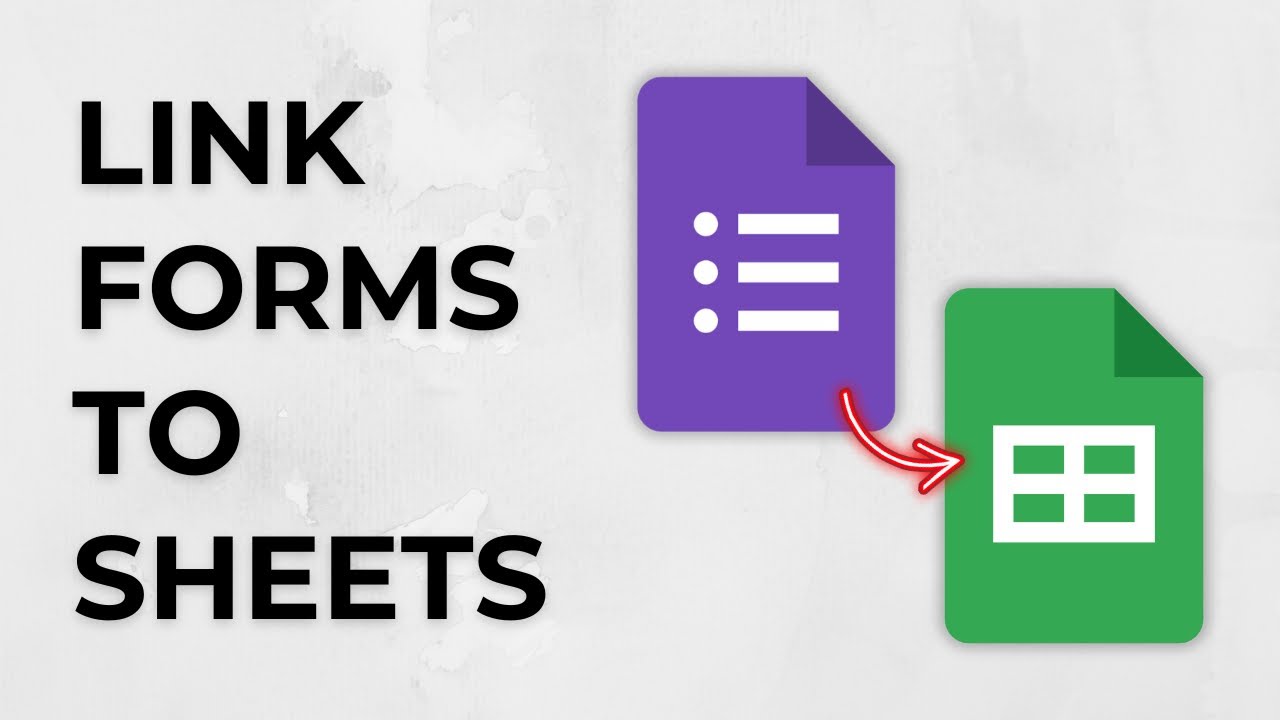
To link Google Forms to Google Sheets, open your form, click the Responses tab, click Link to Sheets, then choose Create a new spreadsheet (or Select existing spreadsheet) and click Create. This connects your form responses to a sheet that updates on its own. Handy for sign-ups, orders or surveys you want in a sortable table.
Before you start
- You need edit access to the form. Only form owners and editors see the Link to Sheets option.
- The spreadsheet is a separate file in your Google Drive. You can find it later on the Google Sheets home screen, in the Google Sheets app or in Drive.
- When you create a new response spreadsheet, anyone who already collaborates on the form gets access to it automatically. If you change the form's sharing later, that change does not carry over to the sheet, so update both files separately.
Google's own help page, Choose where to save form responses, covers the same options plus how to unlink a sheet, which we explain below.
1Open the Responses tab
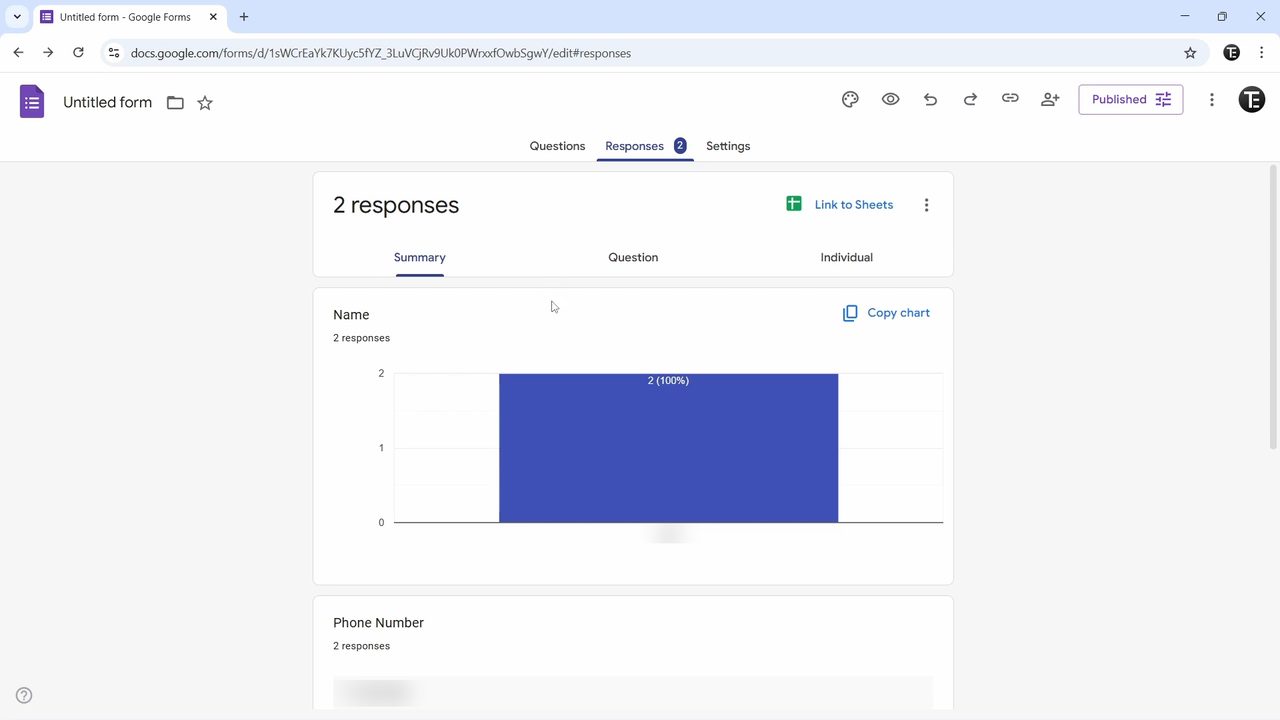
Open the form whose responses you want to connect and click Responses, the second tab at the top.
2Click Link to Sheets
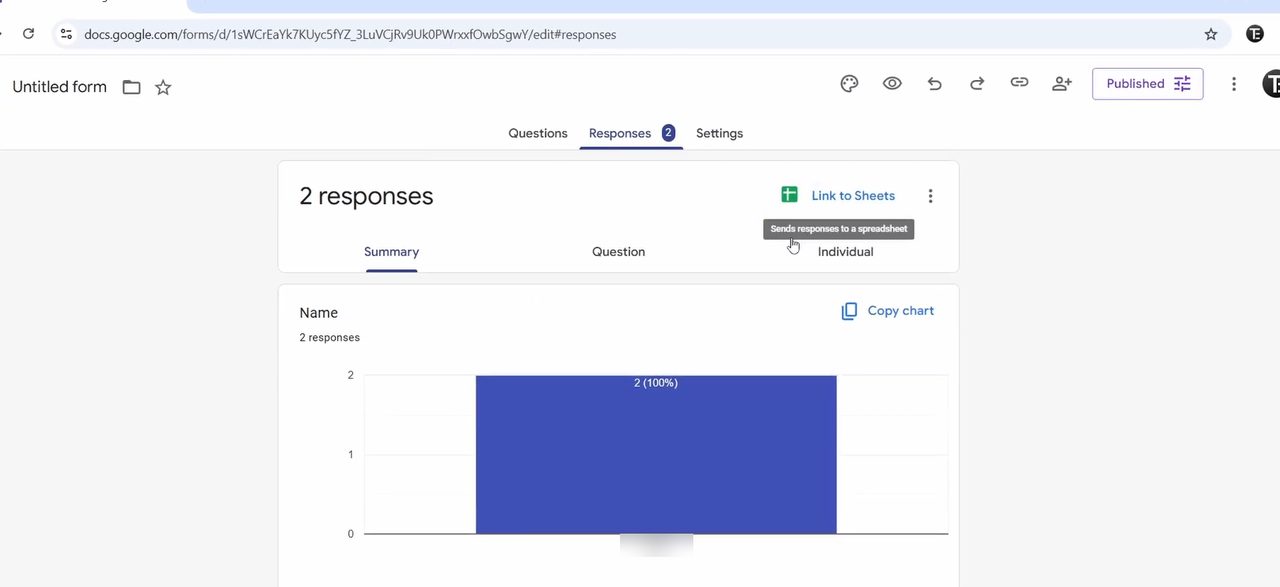
At the top right of the responses card, click Link to Sheets.
3Choose a new or existing spreadsheet
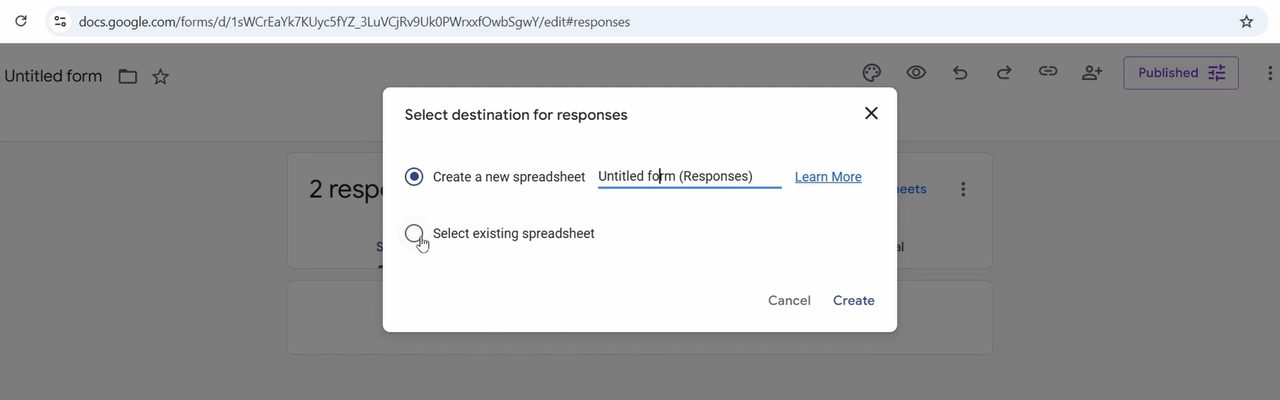
The Select destination for responses window gives you two options: - Create a new spreadsheet makes a fresh Google Sheet just for this form. - Select existing spreadsheet lets you pick a sheet you already have. Google adds a new tab to that spreadsheet and puts all the responses there.
4Name the sheet and click Create
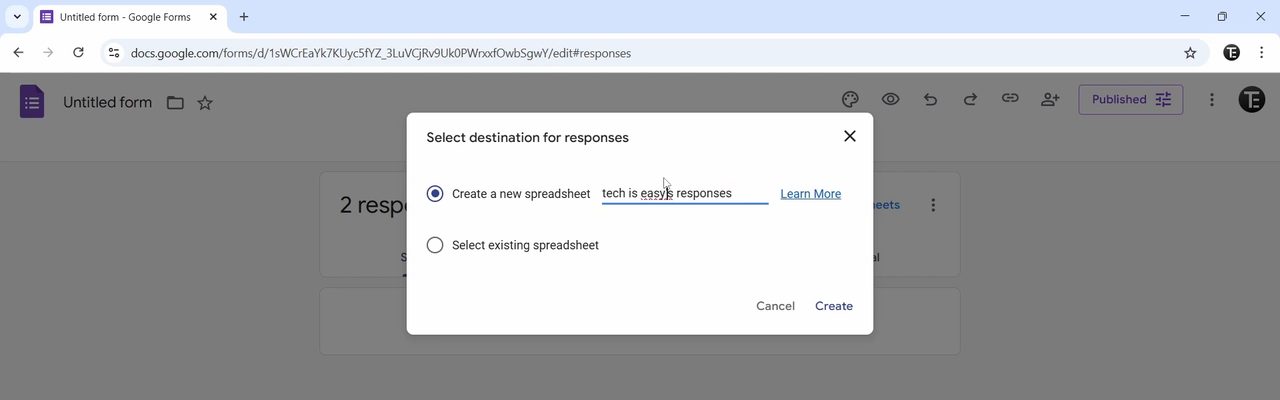
If you are creating a new spreadsheet, type a name for it in the box next to that option. Then click Create.
5Check your linked spreadsheet
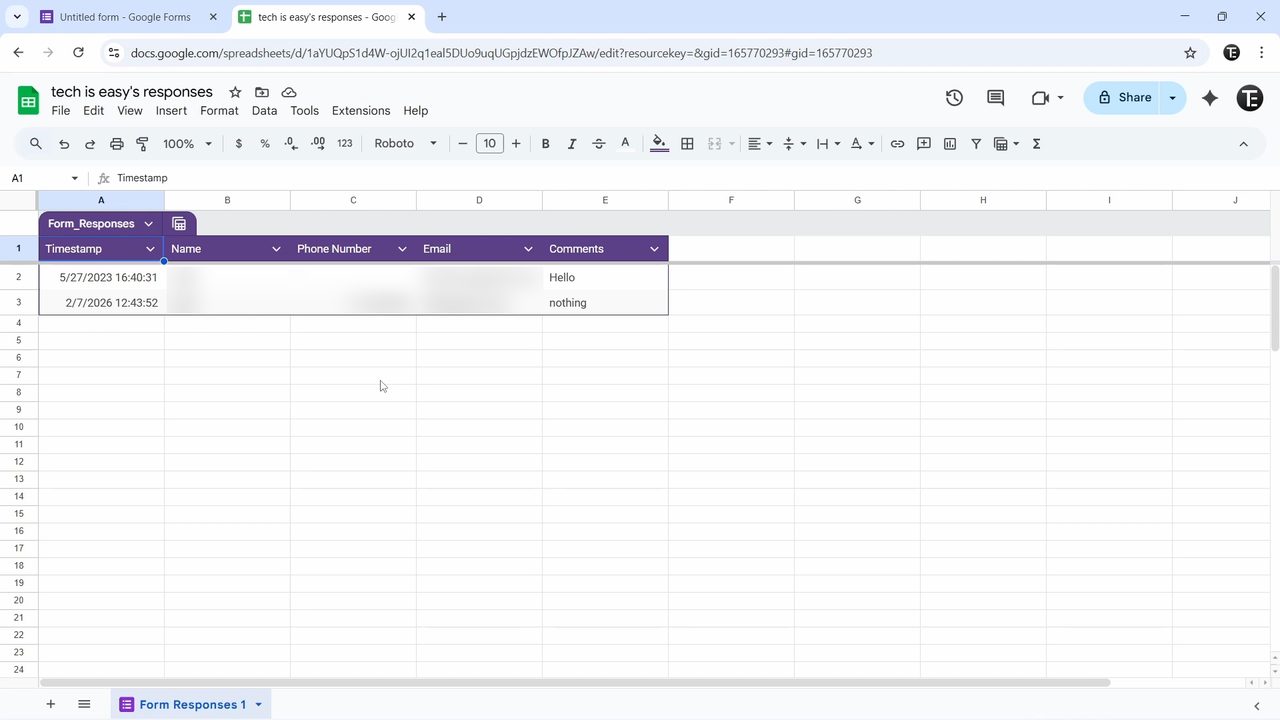
The new sheet opens with a table of all your responses, one row per person and one column per question. The link is live, so every new form submission is added as a new row automatically.
Tips / troubleshooting
- Once the form is linked, the Link to Sheets button changes to View in Sheets, which opens the same spreadsheet.
- Can't find Link to Sheets? Google sometimes moves it. Open the Responses tab, click the More (three dots) icon at the top right of the responses card and choose Select destination for responses. It opens the same window as Step 3.
- Responses tab looks empty? The Summary view only appears once the form has at least one response. You can still link a sheet before anyone answers, and the first submission will show up in it.
- Editing the sheet does not change the form. If you fix a typo or delete a row in Google Sheets, the original response is still stored in the form. Deleting responses inside the form, on the other hand, cannot be undone, so link a sheet first if you want a copy.
- Want a different spreadsheet? Use Select destination for responses again to point the form at another sheet.
- If you need a file instead of a live sheet, see how to save Google Form responses as PDF. To check answers on the go, read how to check Google Form responses on your phone.
Working with the responses in Sheets
The first column is a Timestamp showing when each person submitted the form, followed by one column per question in the order they appear in the form. Google Sheets puts the data in a table, so you can sort and filter it straight away.
A few habits keep the sheet tidy as more answers arrive: - If you add a question to the form later, Google adds a new column for it. Older rows simply stay blank in that column. - Put formulas, charts and summaries on a separate tab of the same spreadsheet. New responses are added as rows on the responses tab, so keeping your own work elsewhere means nothing gets overwritten. - Use filter views instead of deleting rows when you only want to hide some answers. Everyone else working in the sheet still sees the full list.
How to unlink the spreadsheet
If you no longer want answers going to the sheet, open the form, click Responses, click the More (three dots) icon at the top right and choose Unlink form, then confirm with Unlink. New responses stop going to the spreadsheet, but everything already in it stays. The form keeps collecting answers as usual, and you can reconnect a sheet at any time.
The form and the spreadsheet are separate files. Deleting the spreadsheet does not delete the form or its responses, and deleting the form does not delete the spreadsheet.
FAQ
How do I connect Google Form responses to an existing Google Sheet?
Click Link to Sheets on the Responses tab and choose Select existing spreadsheet. Google creates a new tab inside that spreadsheet and fills it with your responses.
Do new responses show up in Google Sheets automatically?
Yes. The table is live, so every time someone submits the form their answers appear in a new row without you doing anything.
Can I export responses that came in before I linked the sheet?
Yes. When you create the link, all the responses you have already received are added to the sheet, and new ones follow as they come in.
How do I stop Google Forms from sending responses to a sheet?
On the Responses tab, click the More (three dots) icon and choose Unlink form, then Unlink. The data already in the sheet stays, and new answers only stay in the form.
Who can see the linked spreadsheet?
You, plus anyone who was a collaborator on the form when you created the sheet. People who fill out the form cannot see it unless you share the sheet with them.
Related guides