Tech is Easy
How to Clean Up Your Gmail Inbox Fast (Step-by-Step)
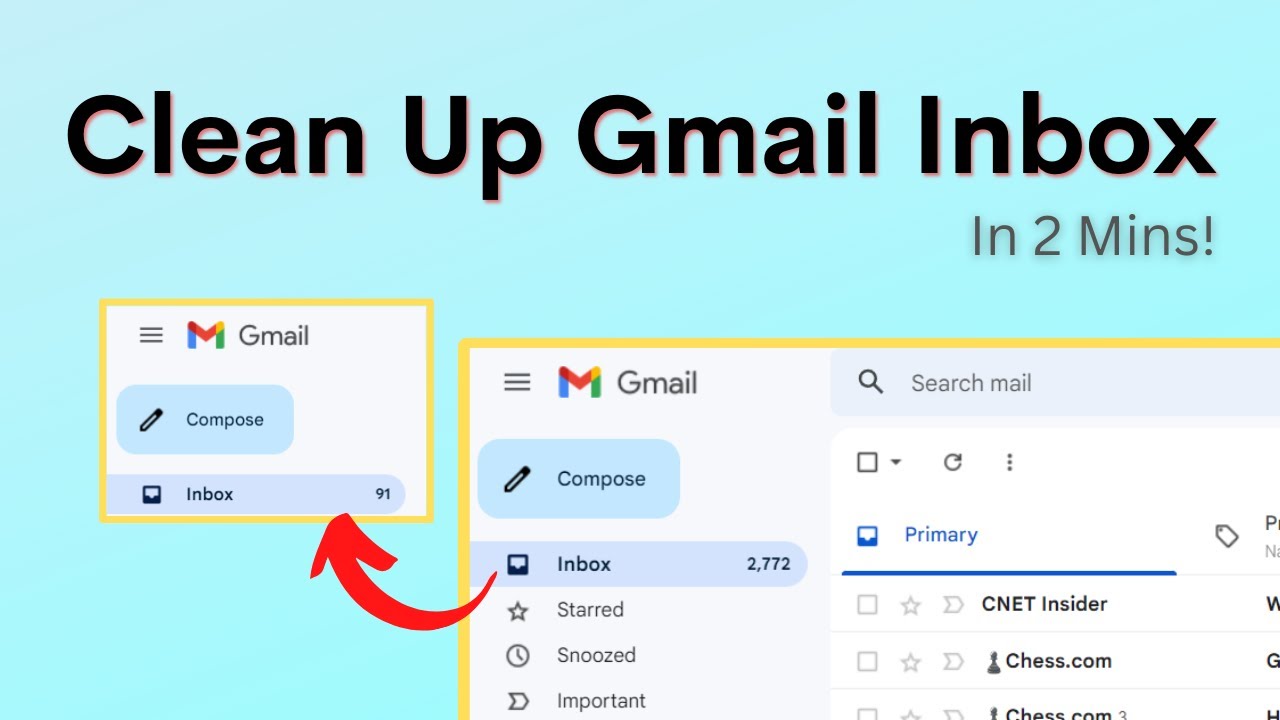
If your Gmail inbox has thousands of emails, deleting them one by one is not realistic. This guide shows a quick method: let Gmail sort automatic emails into the Updates tab, then bulk delete everything from the senders who email you the most. In our example the inbox went from about 2,800 emails to 91.
What you need
- Gmail open in a web browser on a computer (the settings used here are in the desktop version)
- The Default inbox type. Inbox categories like Updates only work with it. If you use Priority Inbox or Important first, switch to Default under Settings > Inbox type first.
Google's help page Organize your emails into categories explains the five categories Gmail can sort into: Primary, Social, Promotions, Updates and Forums. Updates holds automated confirmations, notifications, statements and reminders, which is why it is so useful for cleaning up.
1Open Gmail and check your inbox
Open Gmail in your browser. The number next to Inbox shows how many emails are sitting there. In our case it was 2,863.
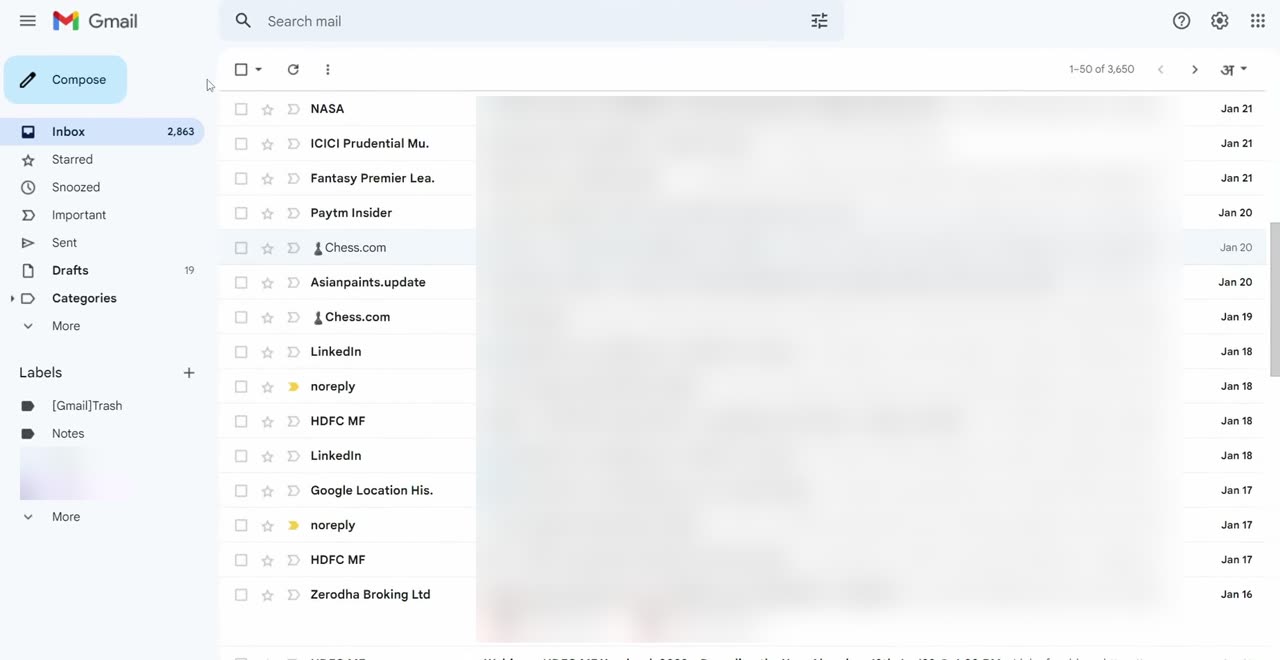
2Open all settings
Click the Settings gear icon at the top right, then click See all settings in the Quick settings panel.
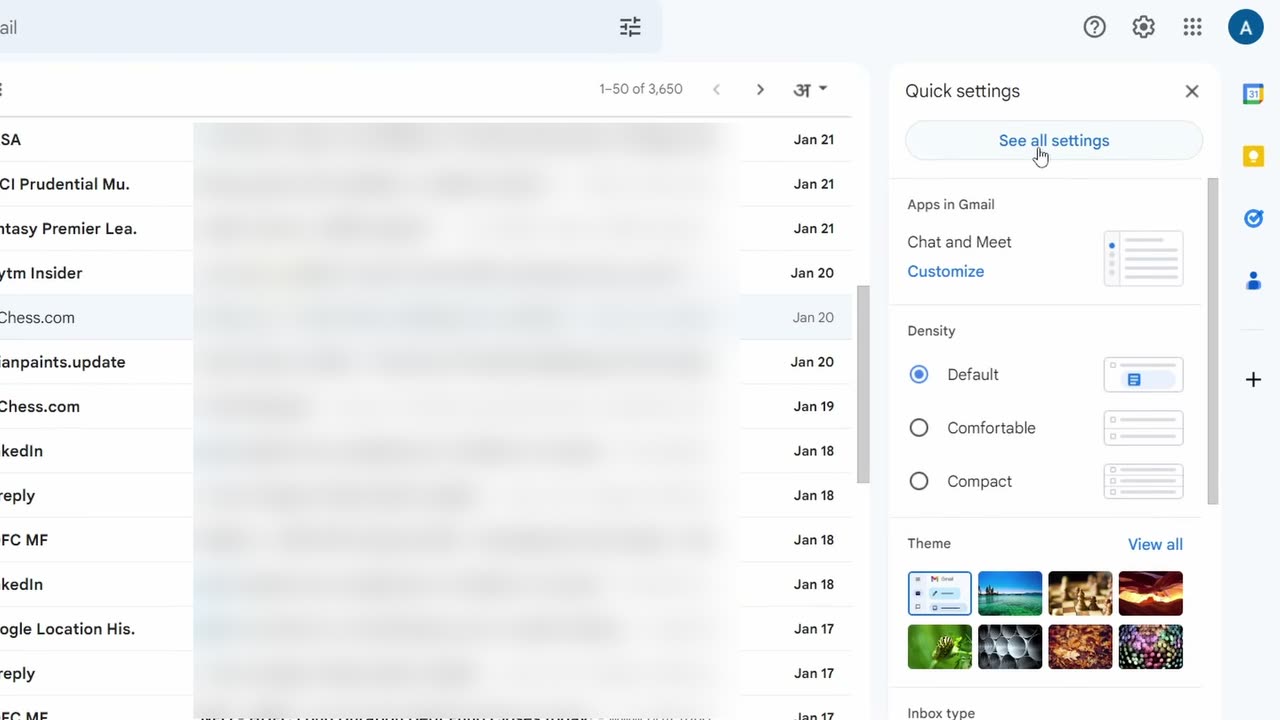
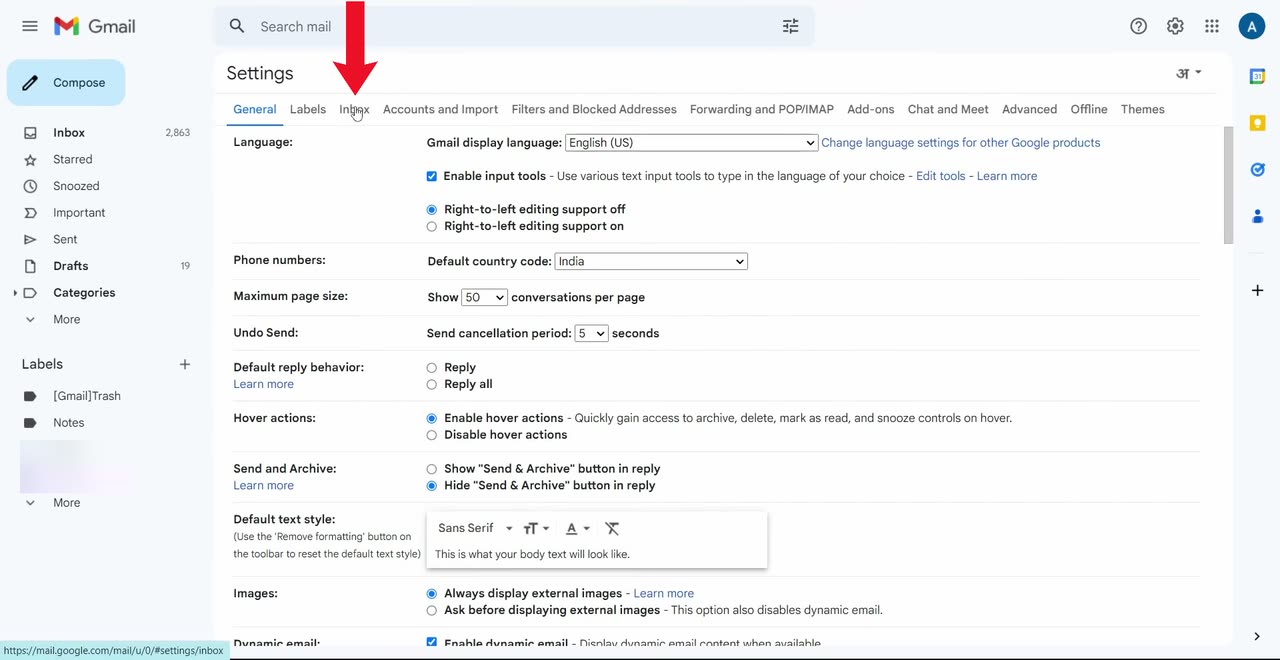
3Go to the Inbox tab
At the top of the Settings page, click the Inbox tab.
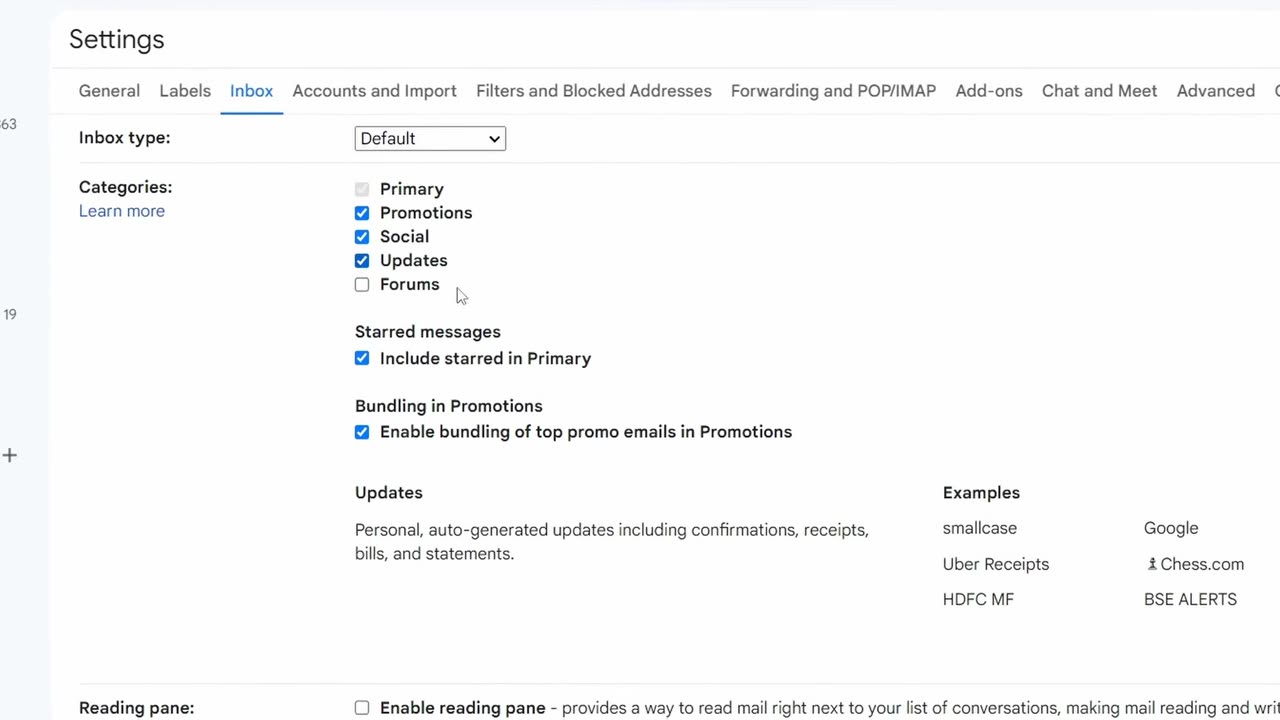
4Turn on the Updates category
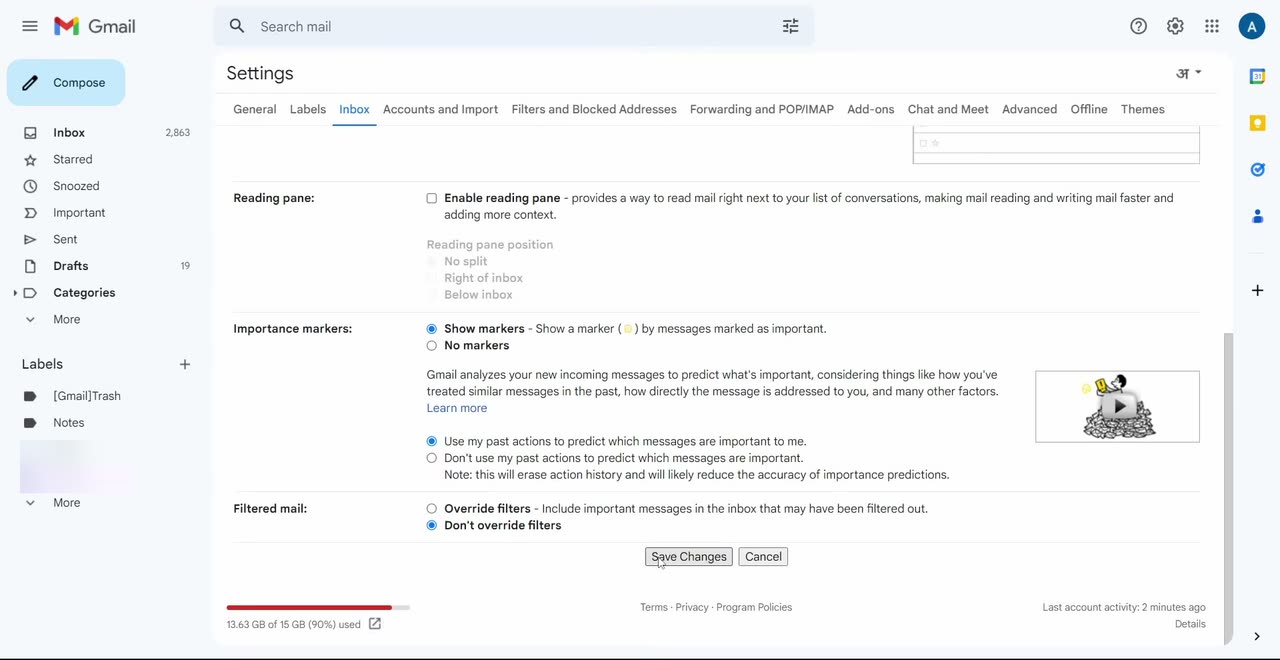
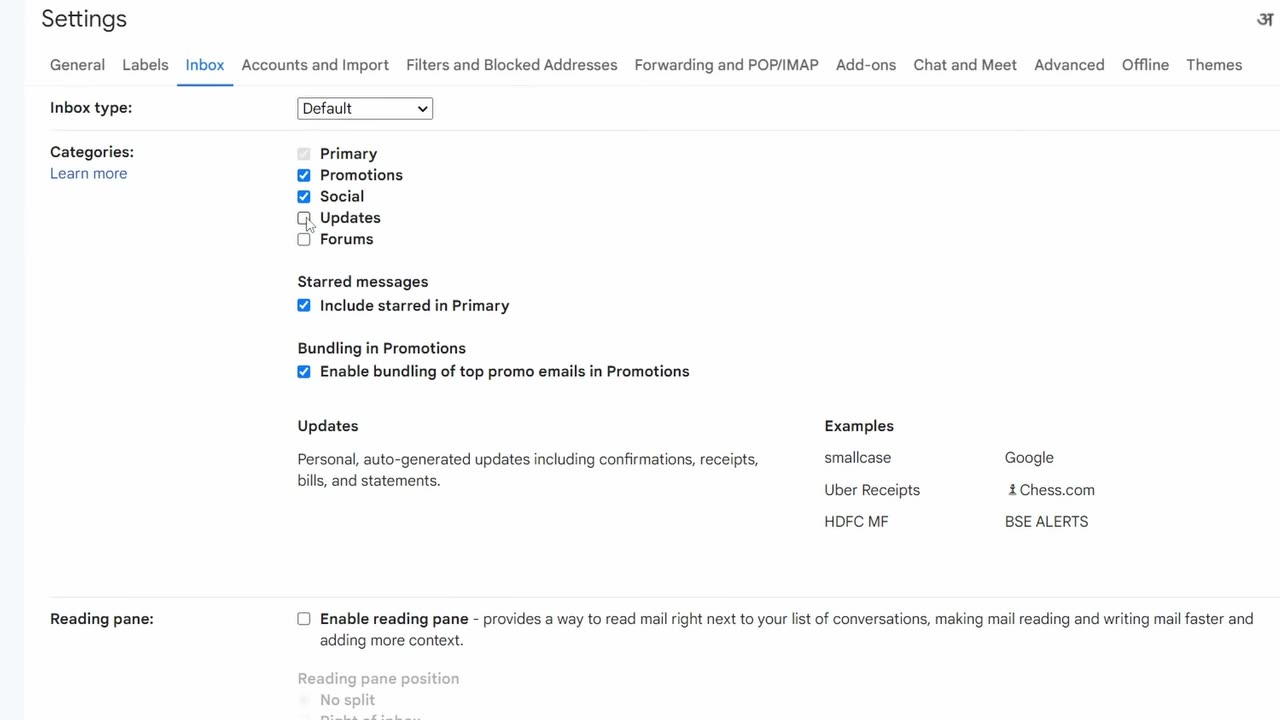
Under Categories, tick the box next to Updates. This category holds personal, auto-generated emails such as confirmations, receipts, bills and statements.
5Save your changes
Scroll to the bottom of the page and click Save Changes. Gmail reloads and moves automatic emails out of your main inbox. Our inbox count dropped from 2,863 to 91.
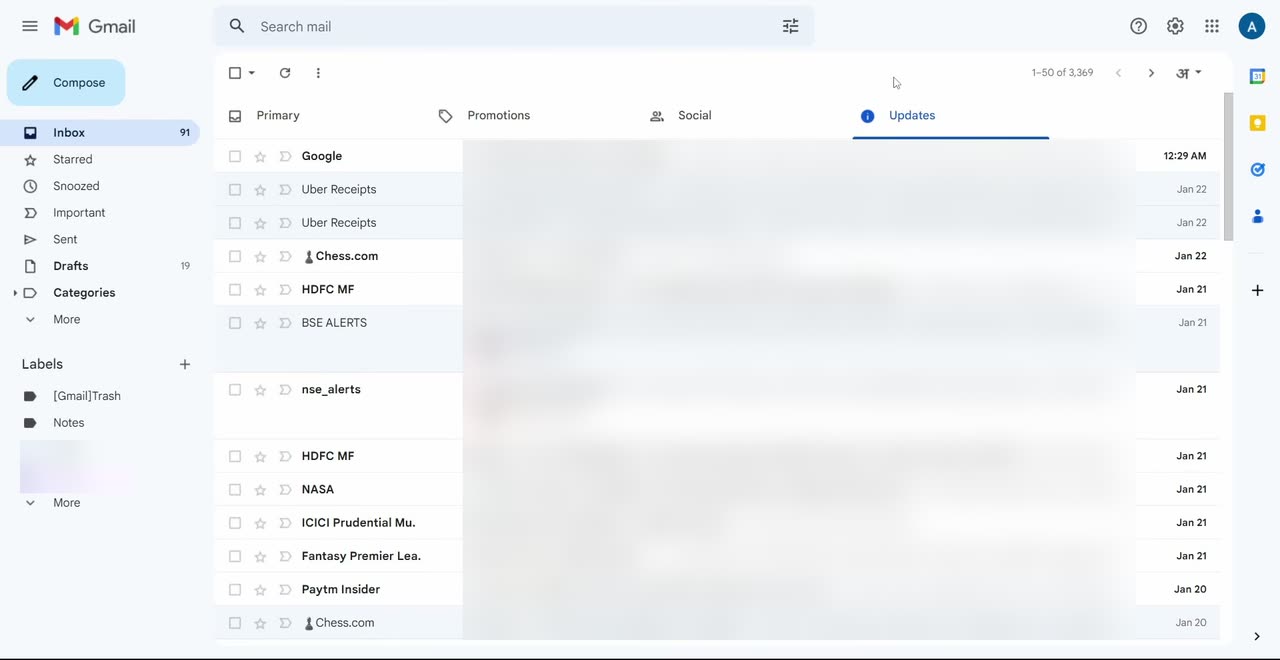
6Open the Updates tab
Click the new Updates tab above your email list. This is where notifications, newsletters, bills and statements now live. Look through it and spot the senders that show up again and again.
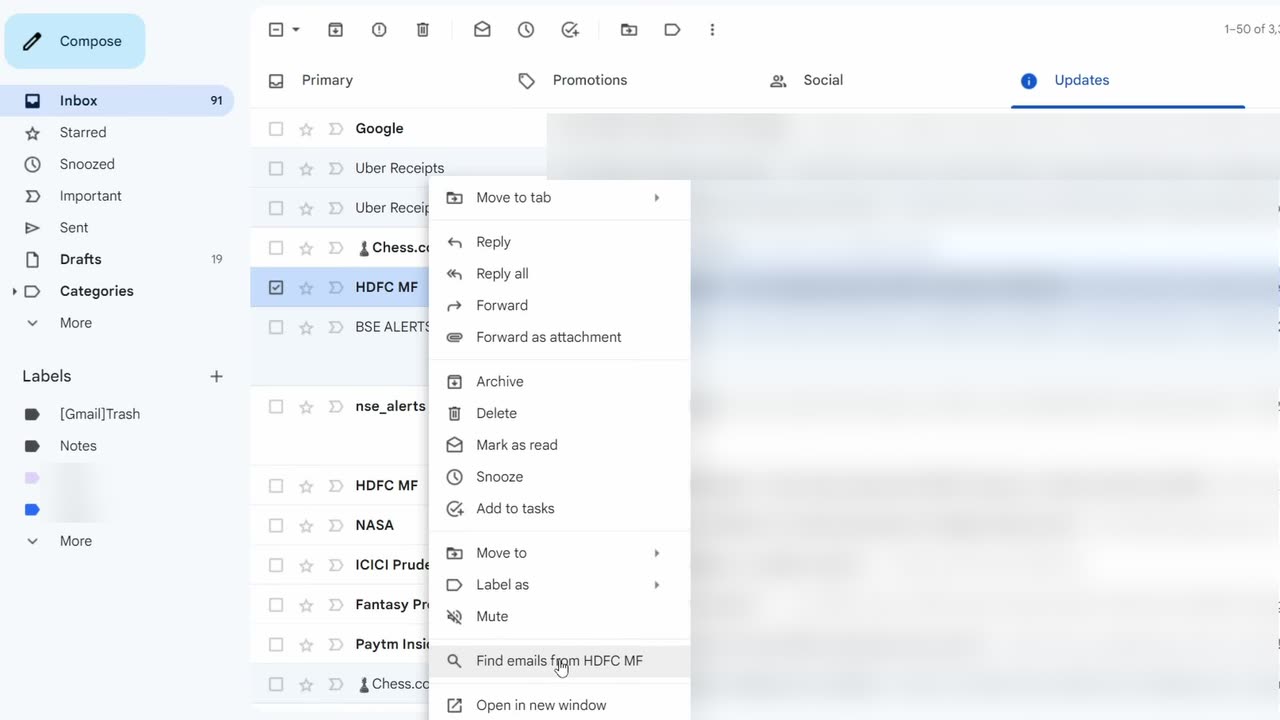
7Find all emails from one sender
Right-click an email from a sender who emails you a lot, then choose Find emails from followed by the sender's name (in our case Find emails from HDFC MF). Gmail searches and lists every email from that sender.
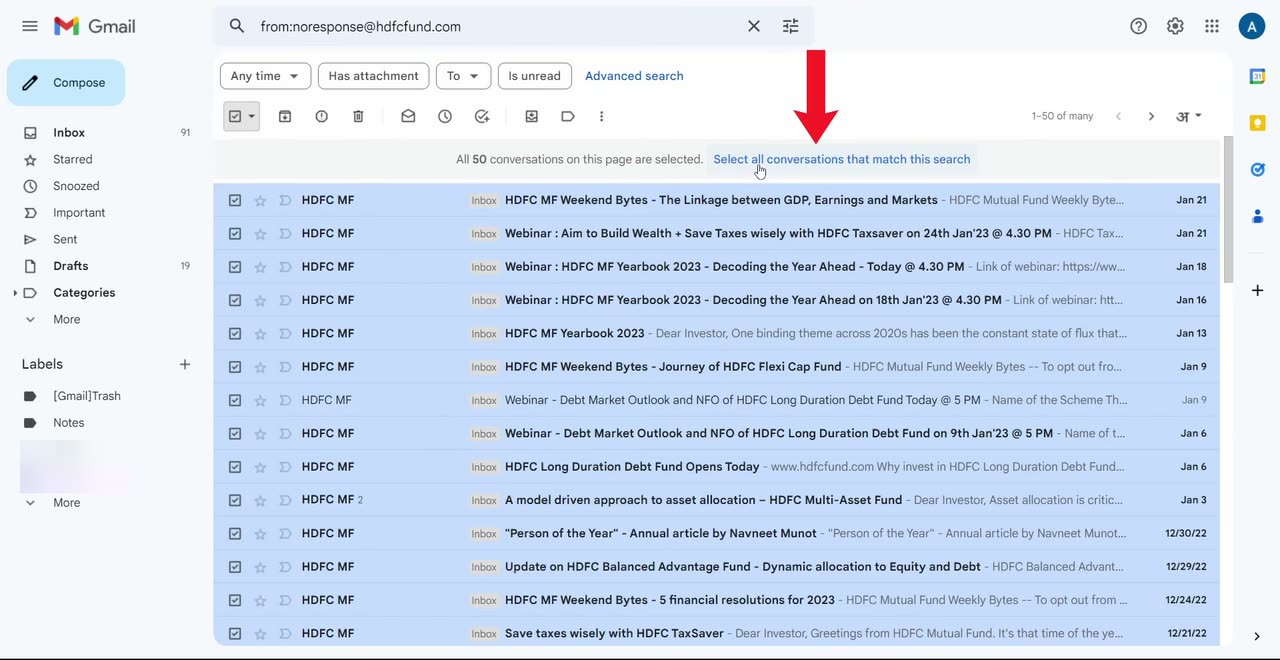
8Select every email from that sender
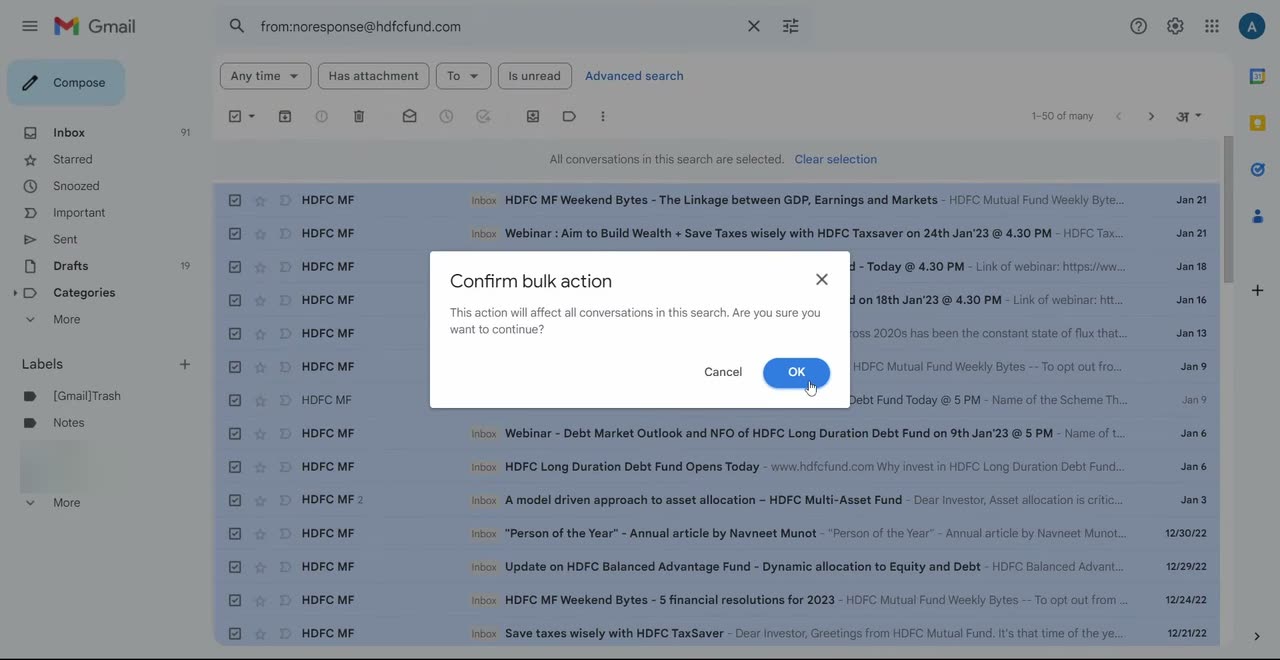
Tick the select-all checkbox at the top left of the list. Gmail only selects the 50 emails on the current page, so click Select all conversations that match this search in the bar that appears.
9Delete them
Click the Delete (bin) icon in the toolbar. A Confirm bulk action box appears, so click OK. Gmail moves all of that sender's emails to Trash. Go back to the Updates tab and repeat steps 7 to 9 for every sender that fills up your inbox.
10Turn off the Updates tab (optional)
Once you are done cleaning, you can remove the Updates tab if you prefer a single inbox. Go to Settings, See all settings, the Inbox tab, untick Updates, then click Save Changes at the bottom.
Tips / troubleshooting
- Start with the senders that send you the most mail, like banks, shopping sites and newsletters. A few of them usually make up most of the clutter.
- Deleted emails go to Trash first, so you can still recover something you removed by mistake before the Trash is emptied. Gmail empties Trash automatically after 30 days.
- Deleting emails only frees Google storage once they leave Trash. If you need the space now, open Trash and click Empty Trash now.
- Do the same for the Promotions and Social tabs. Tick them in Step 4 as well and you can bulk delete offers and social media alerts the same way.
- You can search a whole category at once. Type category:updates in the Gmail search bar to list every email in Updates, or add a time limit such as category:promotions older_than:1y to find year-old promotions only.
- Can't turn on categories? Google says the Default inbox type isn't available if you have more than 250,000 emails in your inbox. Archive or delete some first.
- If an email lands in the wrong tab, drag it to the right one. Gmail learns from this and sorts that sender correctly next time.
- Check before bulk deleting senders like banks or insurance companies. Statements and policy documents may be worth keeping, so archive those instead of deleting them.
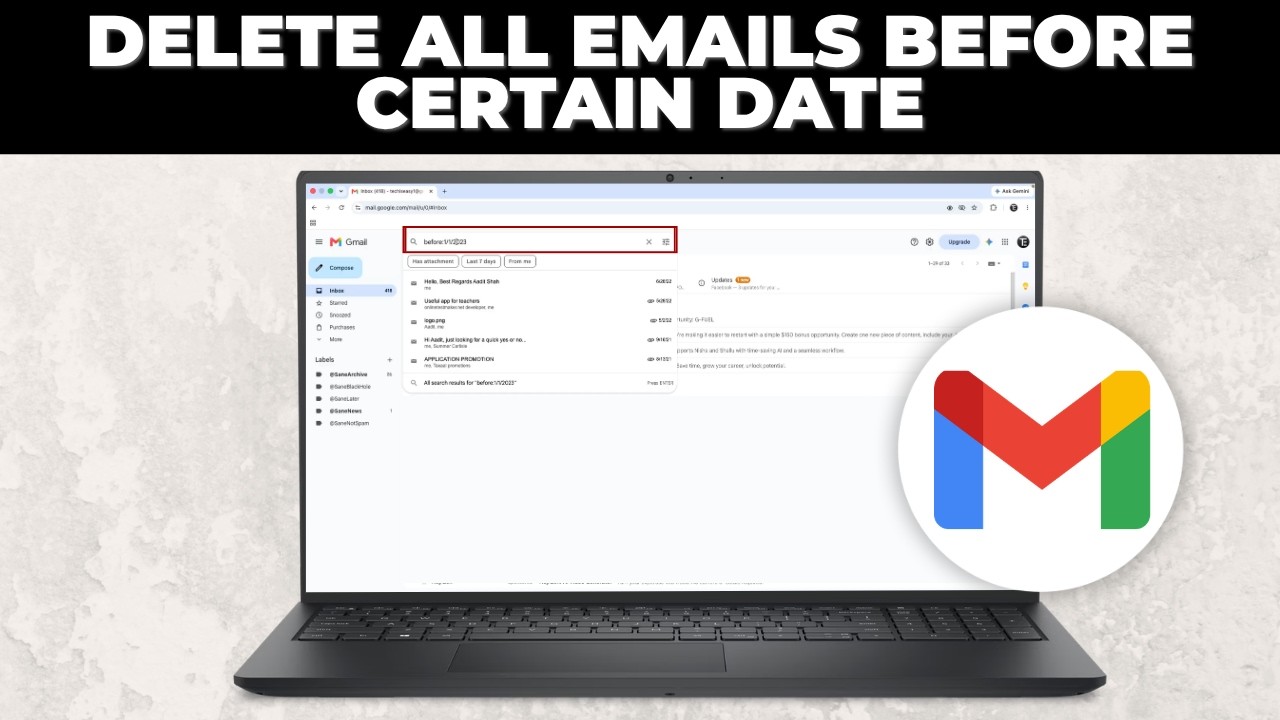
Related guides: How to Delete All Emails Before a Certain Date in Gmail and How to Clear Gmail Storage and Free Up Space (Step-by-Step).
FAQ
How do I delete all emails from one sender in Gmail?
Right-click any email from that sender and choose Find emails from. Tick the select-all box, click Select all conversations that match this search, then click Delete and confirm with OK.
Why does Gmail only select 50 emails when I tick select all?
The select-all box only covers the emails shown on the current page. After ticking it, click Select all conversations that match this search to include every matching email, not just the first page.
What is the Updates tab in Gmail?
It is an inbox category for automatic emails such as notifications, newsletters, receipts, bills and statements. Turning it on keeps those emails out of your main inbox so they are easier to review and delete.
Will turning off the Updates tab bring the emails back to my inbox?
Yes. If you untick Updates in Inbox settings, any emails still in that category show up in your main inbox again. That is why it helps to delete the unwanted ones first.
Why is there no Updates option in my Gmail settings?
Categories only appear with the Default inbox type. Click the Settings gear and under Inbox type choose Default, then come back to the Inbox tab in all settings.
Can I create my own inbox category in Gmail?
No. You can only use Gmail's built-in categories. To group emails your own way, use labels and filters instead.
Related guides