Tech is Easy
How to Transfer Emails from One Gmail Account to Another
Switching to a new Gmail address doesn't mean leaving your old emails behind. Gmail can copy every message from your old account into the new one, and then forward anything that still arrives at the old address. This guide covers both parts: Steps 1 to 5 import your old mail, and Steps 6 to 9 set up forwarding.
What you need
- Gmail open in a browser on a computer
- The login details for both accounts (the old one and the new one)
1Open settings in your new account
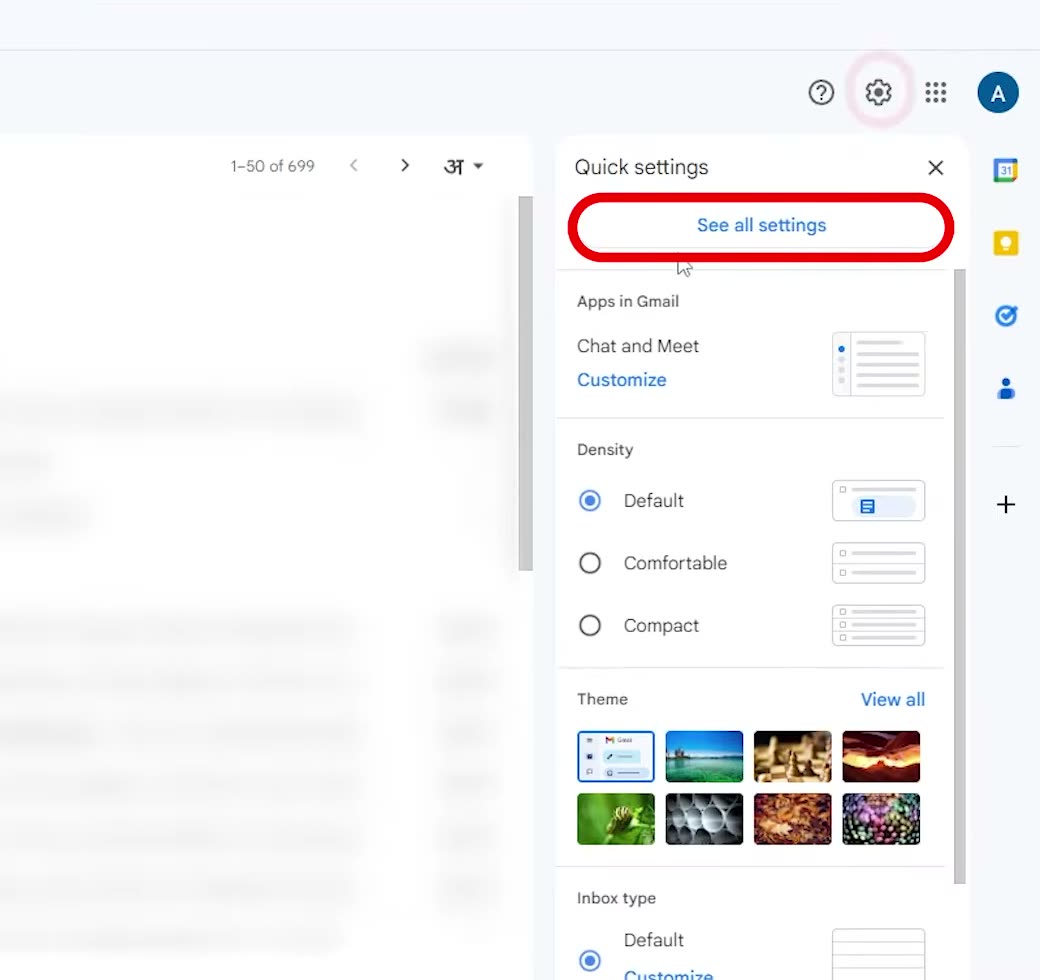
Sign in to the new Gmail account, the one you want the emails moved into. Click the gear icon at the top right, then click See all settings.
2Go to Import mail and contacts
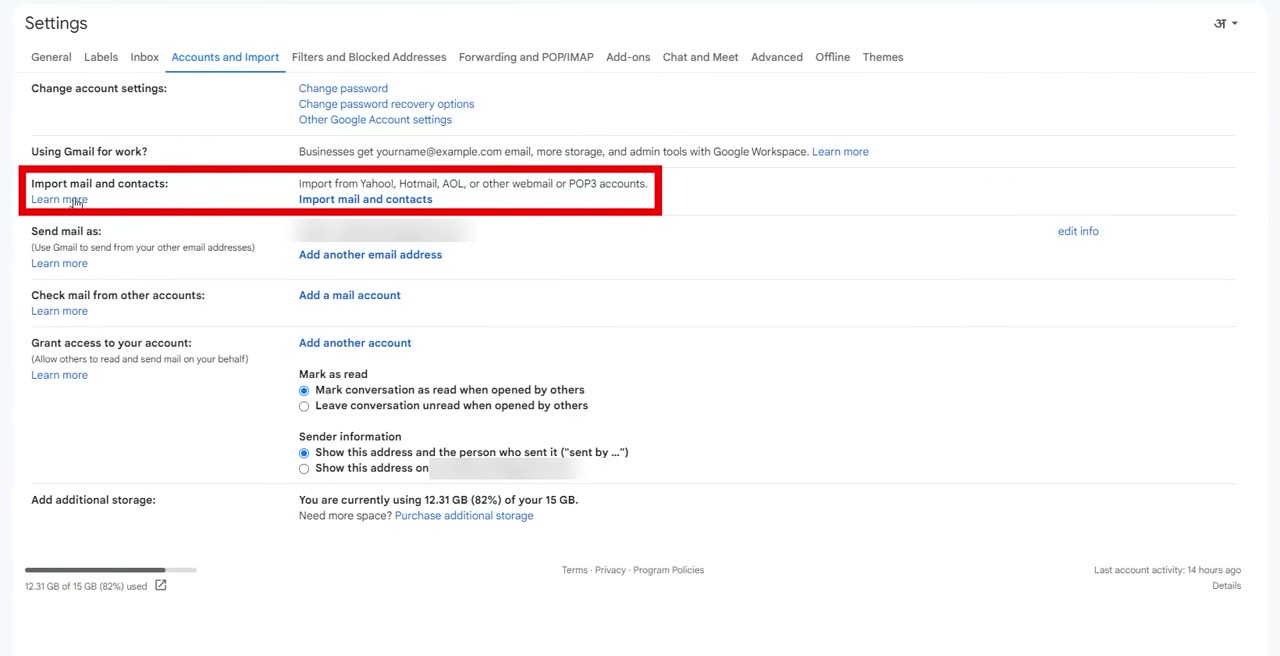
Open the Accounts and Import tab. Next to Import mail and contacts, click the Import mail and contacts link.
3Sign in to your old account
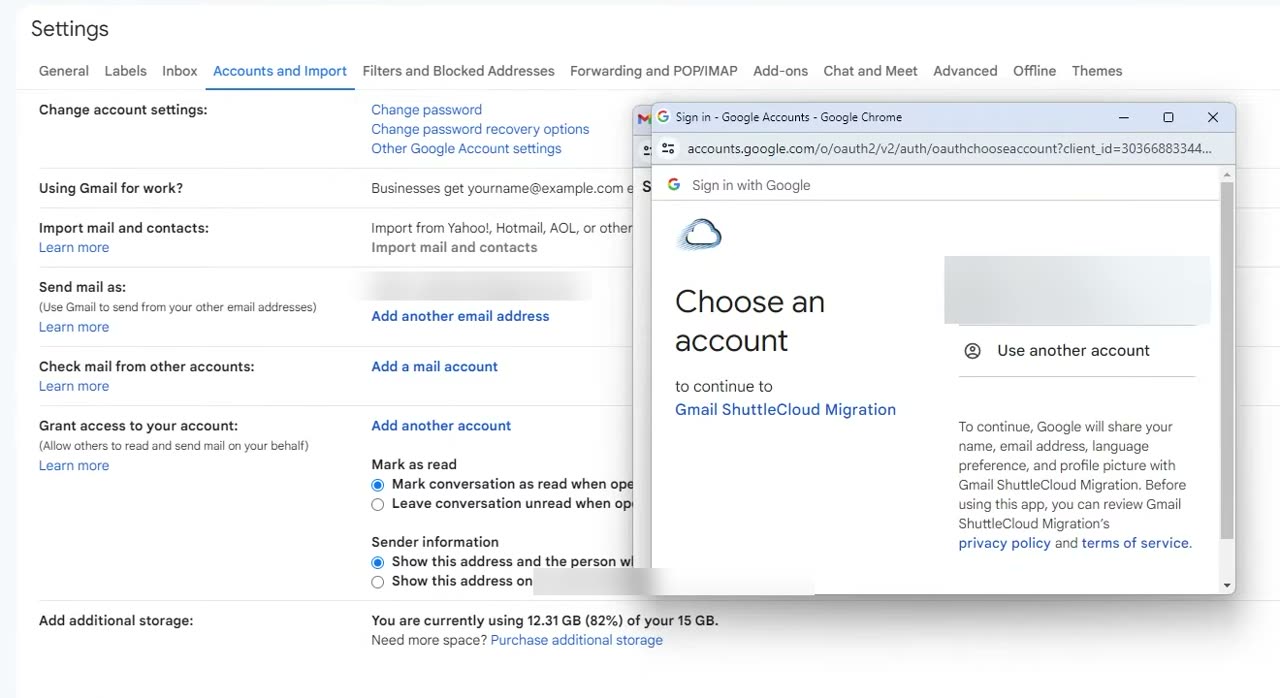
A small window opens and asks which account you want to import from. Enter or pick your old Gmail address, click Continue, and sign in. Once you see Authentication successful, close that window.
4Choose what to import and start
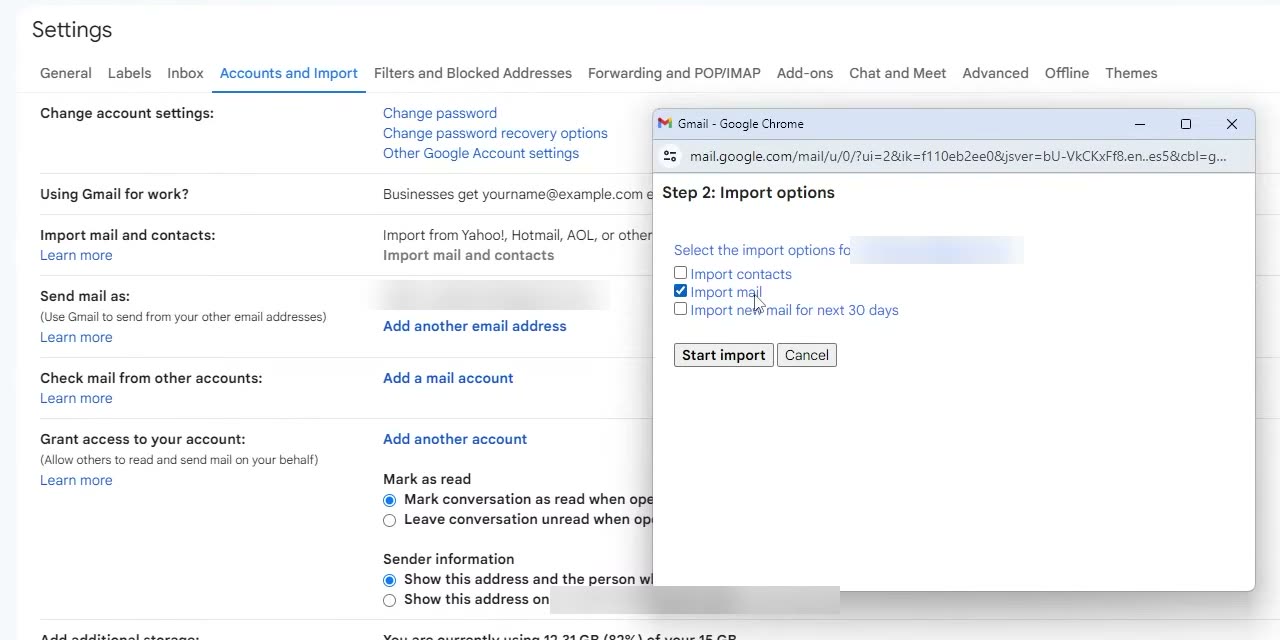
You'll see three options: Import contacts, Import mail and Import new mail for next 30 days. To bring over all the emails already in the old account, keep Import mail ticked (untick the others if you don't need them). Then click Start import.
5Let the import run
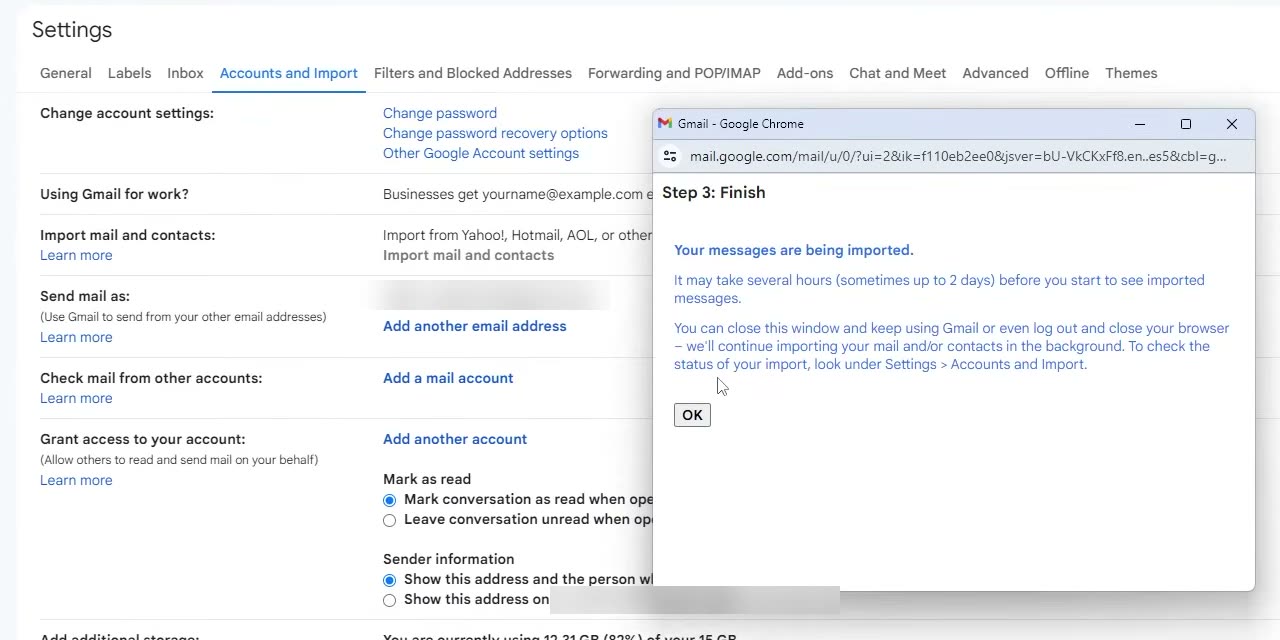
Gmail confirms that your messages are being imported. Click OK. This can take a while, up to a couple of days for a big mailbox, and it keeps running in the background even if you close the browser.
6Open forwarding settings in your old account
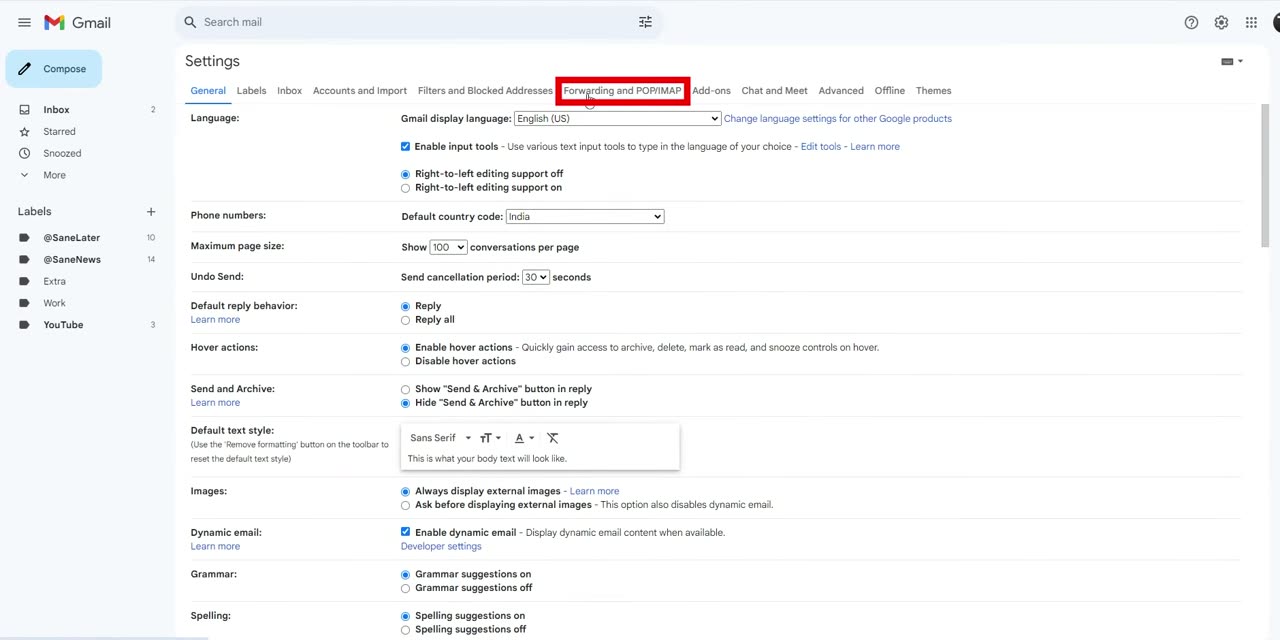
Now for the second part: forwarding. While the import runs, sign in to the old account. Click the gear icon, then See all settings, and open the Forwarding and POP/IMAP tab.
7Add your new address
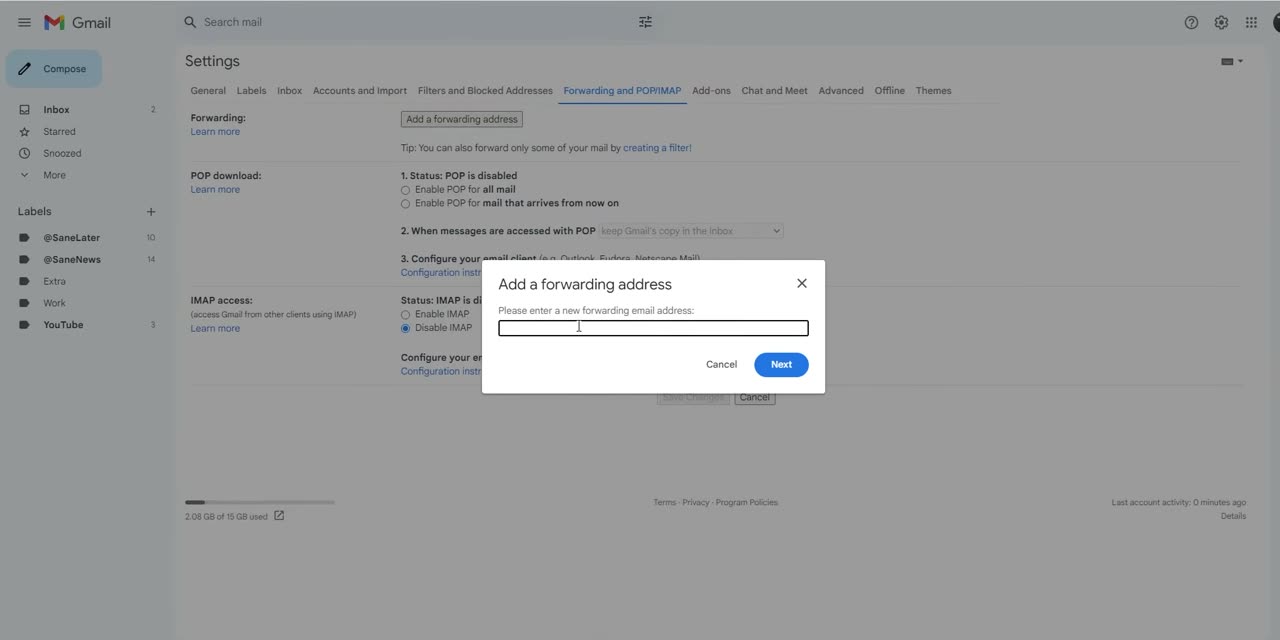
Click Add a forwarding address (the first option on the tab). Type your new Gmail address and click Next.
8Click Proceed
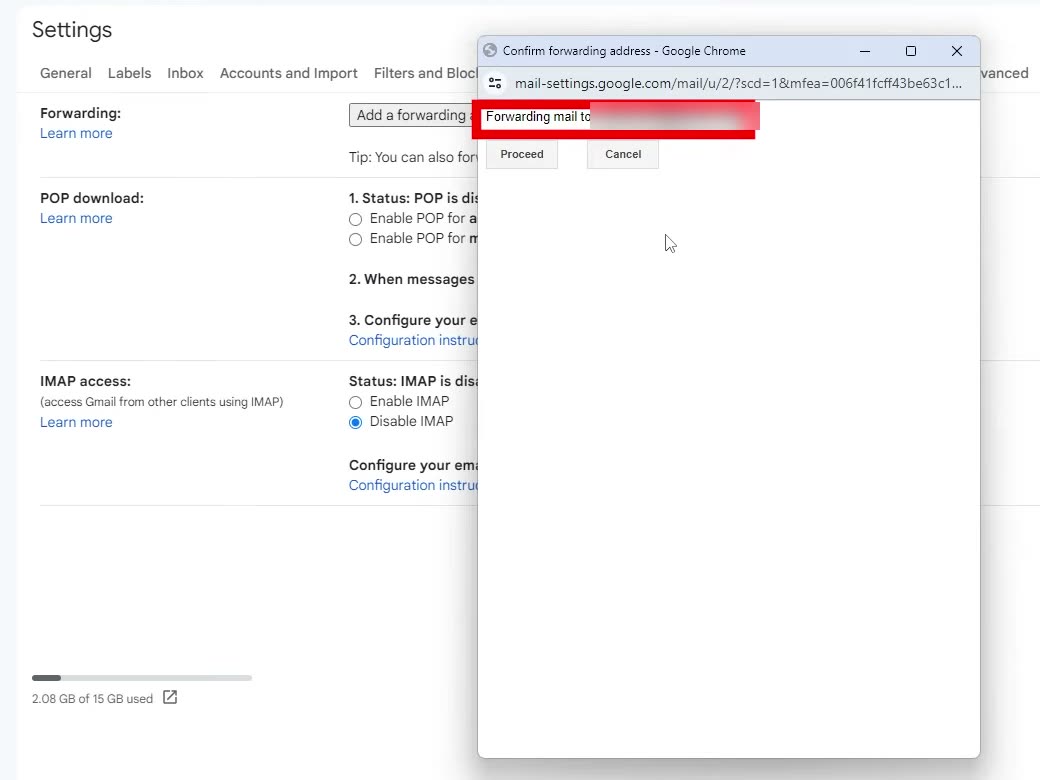
A window asks you to confirm that mail should be forwarded to that address. Click Proceed. Gmail now sends a confirmation email to your new account.
9Confirm from the new account
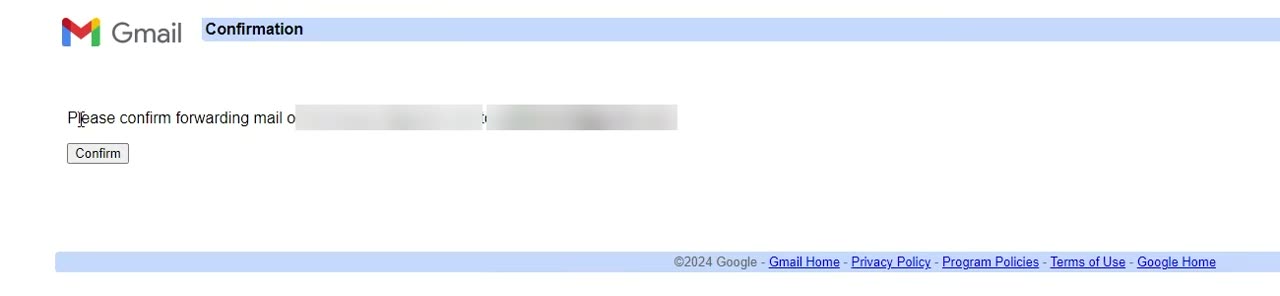
Go back to the new account and open the email from Gmail titled Gmail Forwarding Confirmation. Click the link inside it, then click Confirm on the page that opens. From now on, mail sent to the old address will also reach your new one.
10Find your imported emails
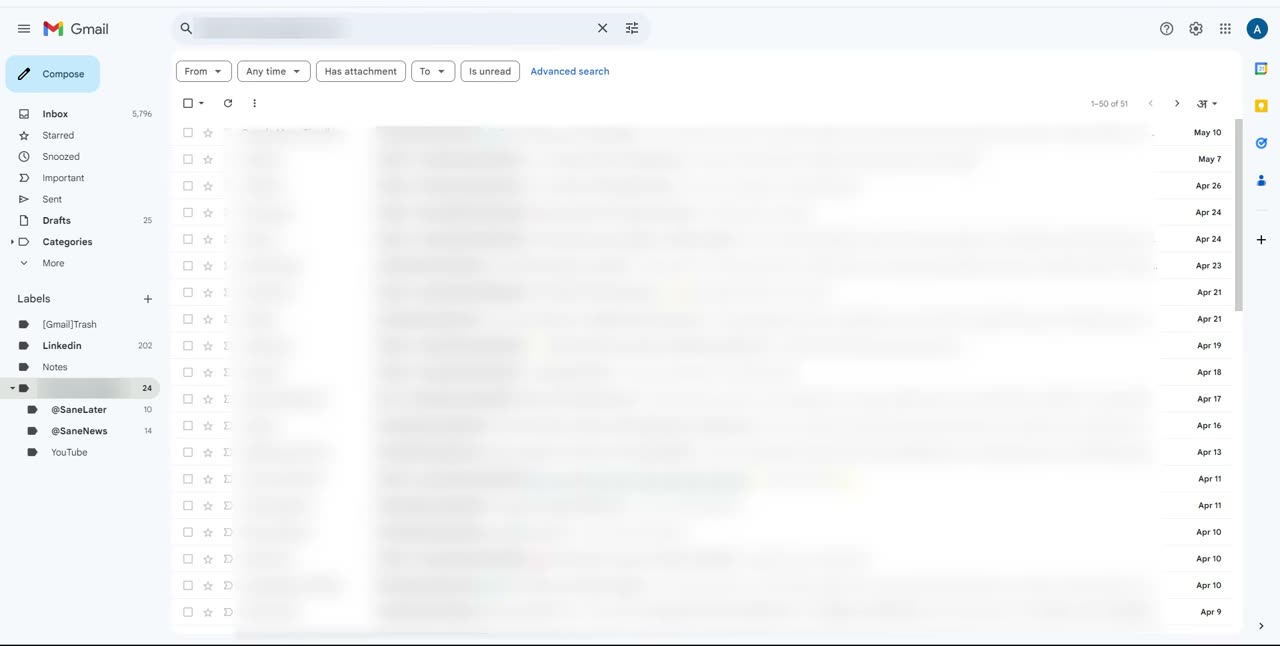
In the new account, look at the Labels list on the left. Gmail adds a new label named after your old email address. Click it to see every email that was imported from the old account.
Tips / troubleshooting
- Don't worry if the label is empty at first. The import can take several hours, sometimes up to 2 days.
- You can check how the import is going at any time under Settings > Accounts and Import in the new account.
- Forwarding only starts after you click Confirm from the new account, so don't skip Step 9.
Related guides: How to Transfer Contacts from One Gmail Account to Another and How to Find Gmail Password if Forgotten (On Your Phone).
FAQ
Can I move all my emails from one Gmail account to another?
Yes. Use Import mail and contacts under Settings > Accounts and Import in the new account and choose Import mail. Gmail copies the emails that are already in the old account into the new one.
How long does it take to import emails into Gmail?
It depends on how much mail you have. Gmail itself says it can take several hours, and sometimes up to 2 days, before you see all the imported messages.
Will new emails sent to my old Gmail still reach me?
Only if you set up forwarding. Add your new address under Forwarding and POP/IMAP in the old account and confirm it from the new account, and new mail will follow you.
Where do imported emails show up in the new account?
They appear under a new label named after your old email address, in the Labels section of the left sidebar.
Related guides