Tech is Easy
How to Delete All Emails Before a Certain Date in Gmail
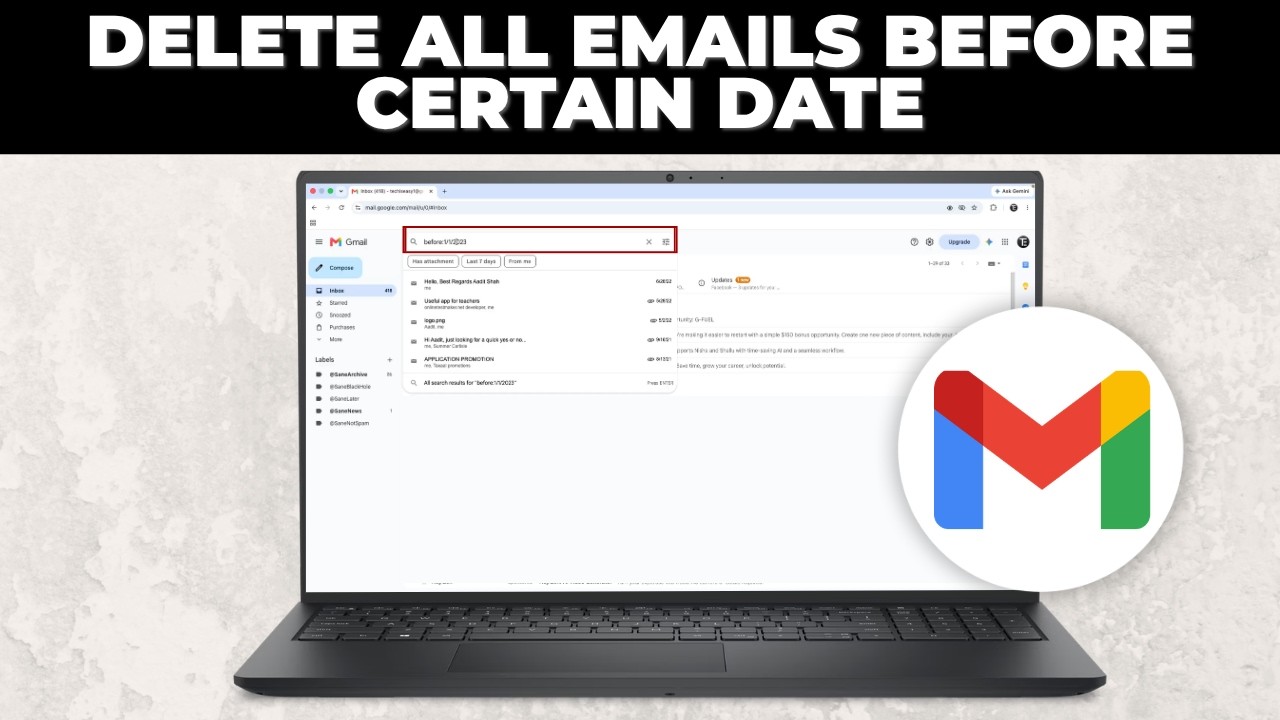
To delete all emails before a certain date in Gmail, type before: followed by the date in the search bar (for example before:1/1/2023), press Enter, select all the results and click the Delete icon. It is the quickest way to bulk delete old emails when your inbox or storage is getting full.
Before you start
- Deleted emails go to Trash, where they stay for 30 days before Gmail removes them for good. Until then you can still get them back.
- The search covers every folder except Spam and Trash, so it also picks up archived emails and anything in the Sent folder. If you sent important attachments or records years ago, they can match too.
- Do this in Gmail on a computer. Selecting every conversation that matches a search is a feature of Gmail in the browser, and it is far faster than ticking emails page by page.
- Skim the results first. Bank statements, tax papers, receipts and account recovery emails are easy to delete by accident when you clear a whole year at once.
- Want a backup before you clear years of mail? Download a copy of your Gmail from Google Takeout (takeout.google.com) first, then delete it from your inbox.
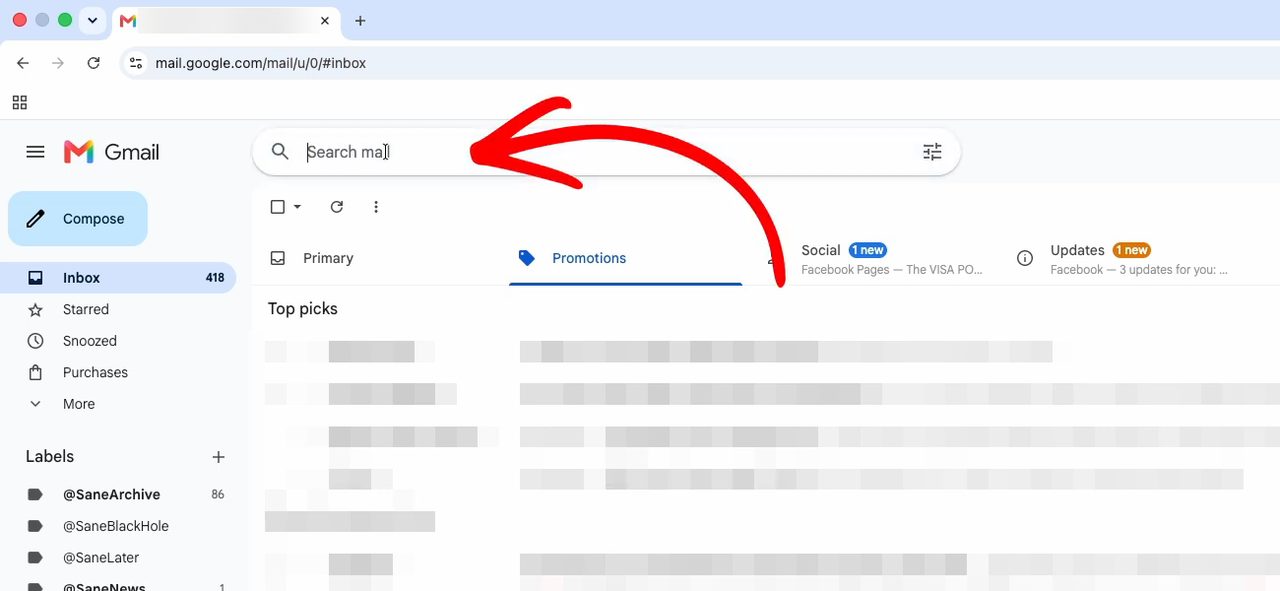
1Click the Gmail search bar
Open Gmail in your browser and click the Search mail bar at the top.
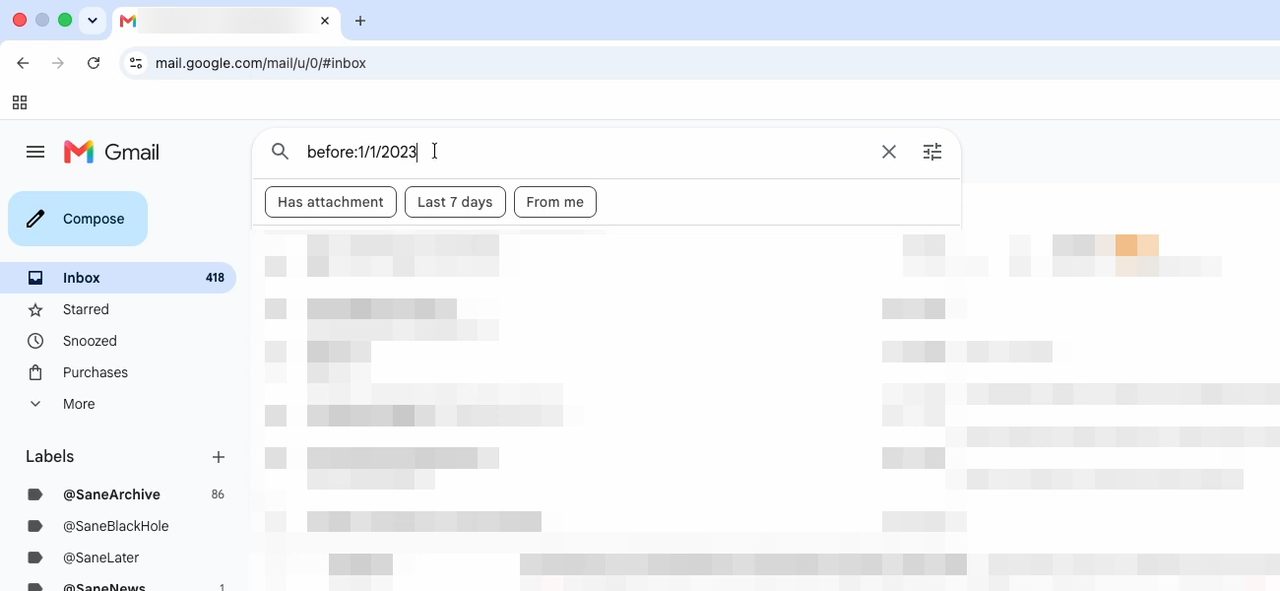
2Type before: and the date
Type before: followed by the date you want, written in the normal date format. In our example it is before:1/1/2023, which finds every email received before 1st January 2023. Leave no space after the colon.
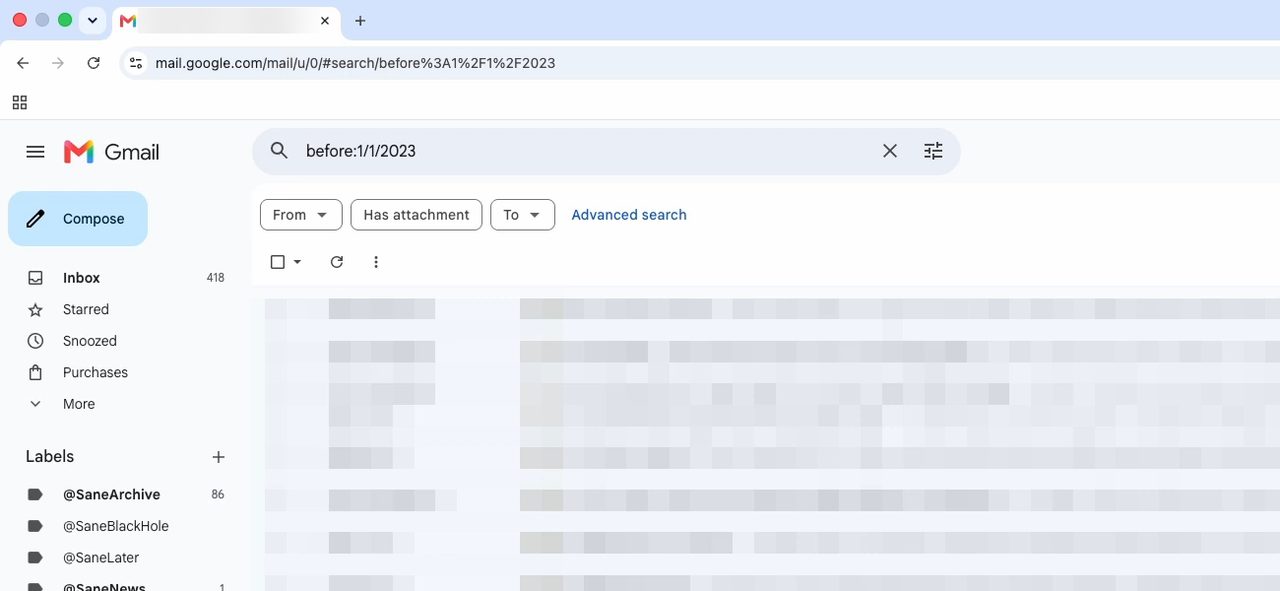
3Press Enter to see the results
Press Enter. Gmail now lists only the emails older than that date. Scroll through and check the dates on the right to confirm they are all before the date you typed.
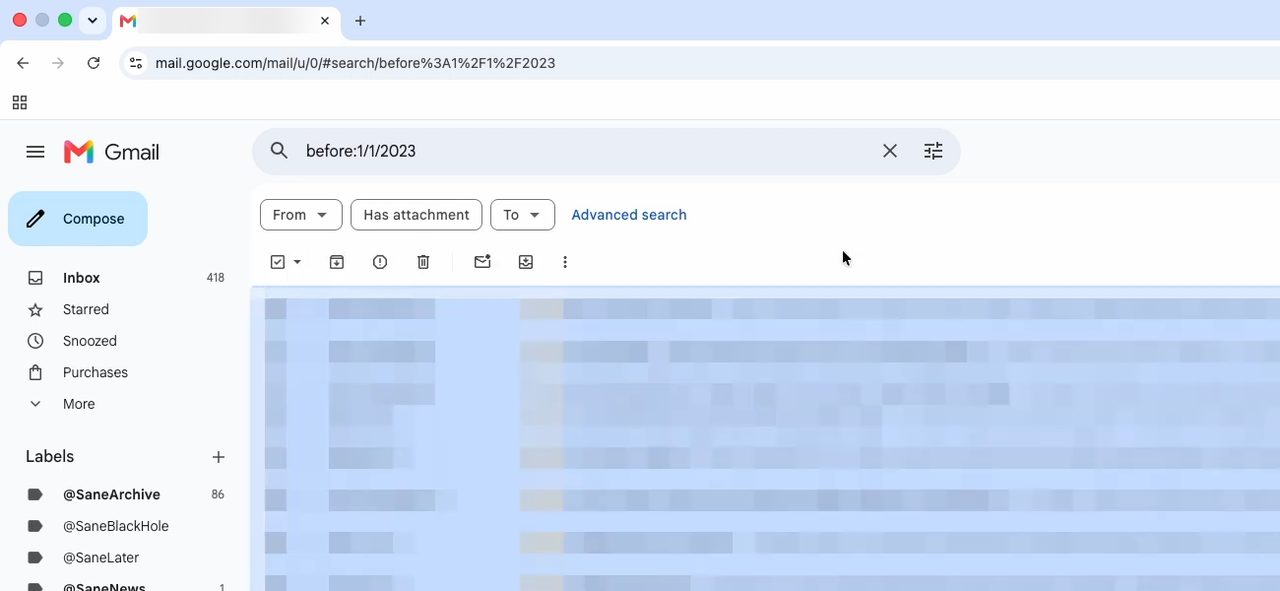
4Select all the emails
Click the select-all checkbox at the top left of the list. If your results run across more than one page, Gmail shows an option at the top to select all the emails that match the search. Click it so you don't delete only the first page.
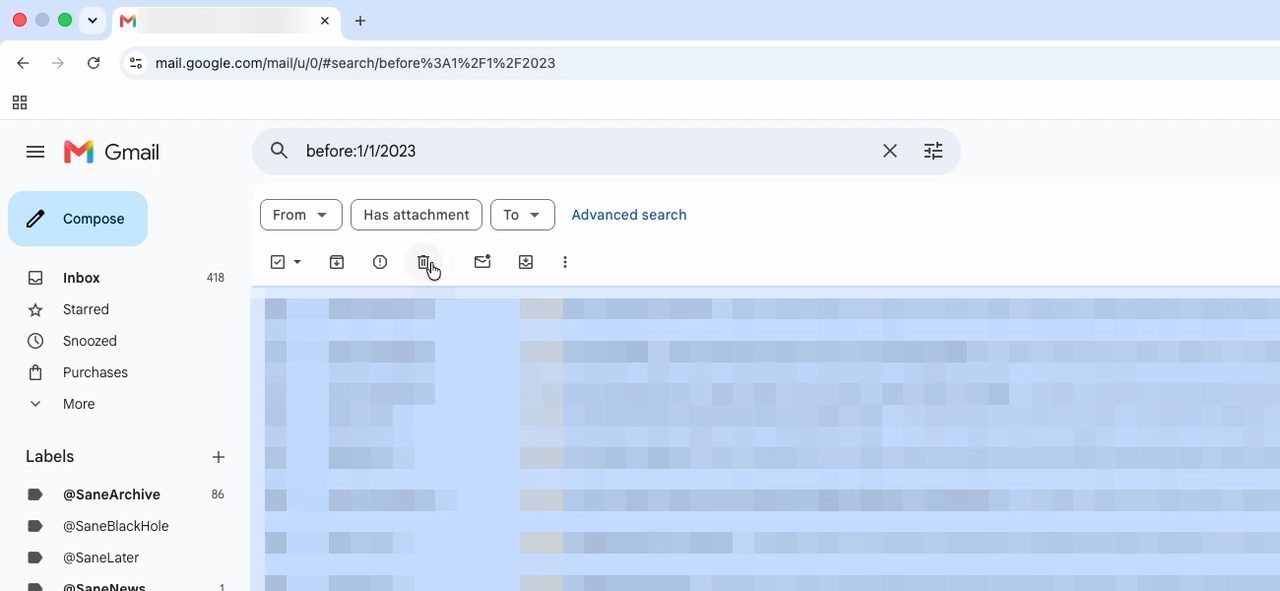
5Click Delete
Click the Delete (bin) icon in the toolbar. Every selected email is moved to Trash.
Narrow the search before you delete
You don't have to wipe everything before a date. Google's own list of Gmail search operators shows terms you can add to before: in the same search box, so only the clutter goes: - before:2023/01/01 category:promotions finds only old promotional emails, if you use inbox categories. category:social and category:updates work the same way. - before:2023/01/01 -is:starred skips anything you starred, so emails you marked as important to keep are left alone. - before:2023/01/01 has:attachment or larger:10M finds old emails with attachments or big files, which take up the most storage. - after:2020/01/01 before:2021/01/01 finds only the emails from one year. - older_than:1y finds everything older than one year from today. You can use d for days, m for months and y for years, for example older_than:2y.
Run the search, check the results, and then follow Steps 4 and 5 to delete them.
Tips / troubleshooting
- Date reads the wrong way round: Gmail's help page writes slash dates month first (04/16/2004). So before:1/12/2023 means 12 January, not 1 December. Use the year-first format before:2023/12/01 to be sure.
- No "select all conversations" link: it only appears when the results run over more than one page. If everything fits on one page, the select-all box already picks them all.
- Some old emails are still there after deleting: with tens of thousands of emails, Gmail can take a while to finish. Refresh the page, run the same search again and repeat Steps 4 and 5 if anything is left.
- Storage did not go down: emails in Trash still use space. Open Trash and click Empty Trash now to free it right away.
Want to tidy up by sender instead of by date? See how to clean up your Gmail inbox fast.
FAQ
What date format does the Gmail before: search use?
In the video the date is typed as before:1/1/2023 and Gmail reads it as 1st January 2023. Gmail also accepts the year-first format, such as before:2023/01/01, which avoids any day and month mix-up.
How do I delete emails in bulk in Gmail?
Search for the emails you want (by date, sender or keyword), tick the select-all box, click the option to select all matching conversations if it appears, then click Delete. The same steps work for any search, not just dates.
How do I delete emails older than one year in Gmail?
Search for older_than:1y, select all the results, click the option to select every matching conversation, then click Delete. Change the number to clear older mail, for example older_than:3y for anything over three years old.
How do I delete emails between two dates?
Combine both operators in one search, such as after:2020/01/01 before:2021/01/01. Gmail lists only the emails received in that range, and you delete them the same way as in Steps 4 and 5.
Can I get the deleted emails back?
Yes, for a while. Deleted emails go to Trash first, and Gmail keeps them there for 30 days before removing them for good. Open Trash, select the emails and move them back to your inbox if you deleted something by mistake.
Does deleting old emails free up Gmail storage?
Emails in Trash still count toward your storage until Trash is emptied. To get the space back straight away, open Trash and empty it, or follow our guide on how to clear Gmail storage.
Related guides