Tech is Easy
How to Clear Gmail Storage and Free Up Space (Step-by-Step)
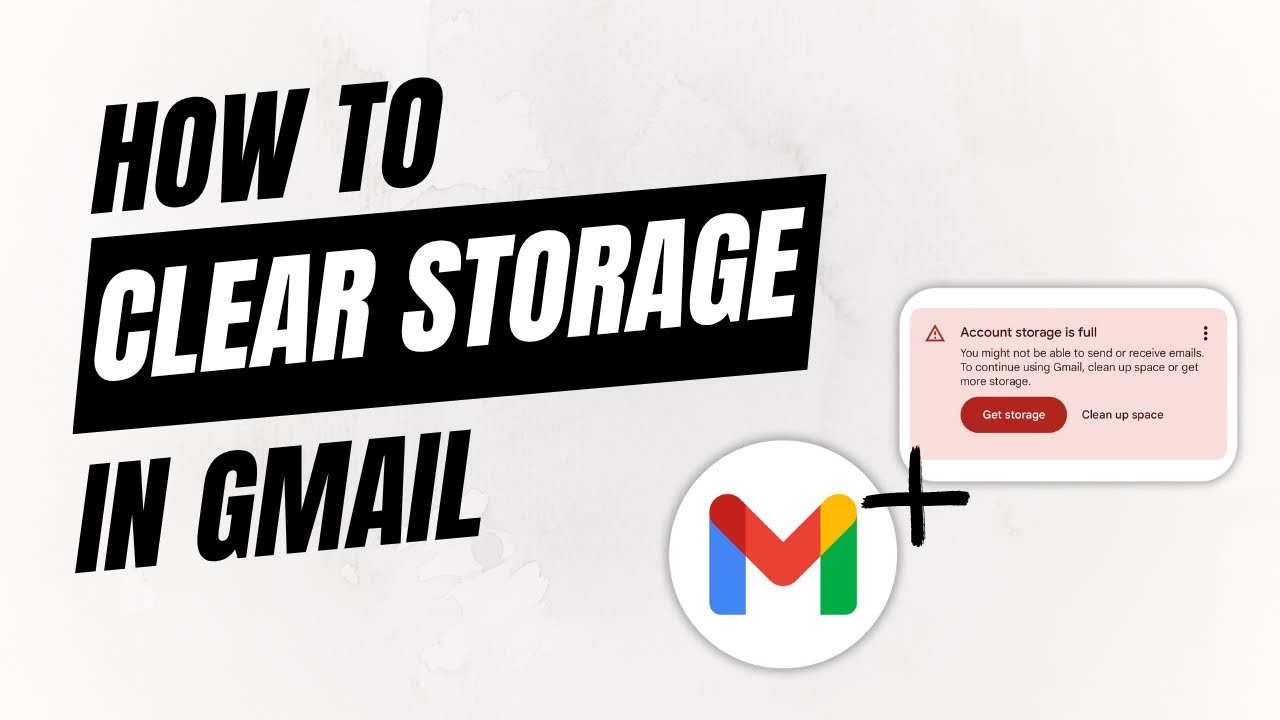
To clear Gmail storage, open one.google.com/storage/management, click Gmail under Clean up by service, then delete everything in Emails in Trash and Spam emails, and finally remove Emails with large attachments, starting with the biggest. This is for anyone who sees the "Account storage is full" warning in Gmail or wants to free up space before it gets there.
What you need
- A computer with a web browser, signed in to the Gmail account that is running out of space
Why it matters
Google's help page, Manage your storage in Drive, Gmail & Photos, explains what happens when the free 15 GB fills up: you can't send or receive email, messages sent to you bounce back to the sender, you can't upload to Drive and Photos stops backing up. Google also says that if an account stays over its limit for 2 years, it may delete content across Gmail, Drive and Photos. So it's worth clearing space as soon as you see the warning.
1Open Google One Storage Manager
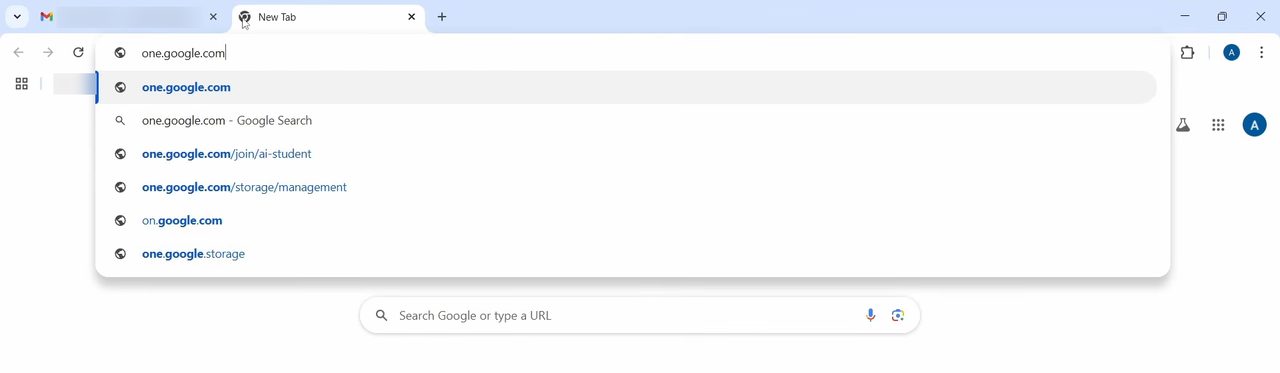
Sign in to Gmail in your browser. Then open a new tab and go to one.google.com/storage/management.
2Check what is using your storage
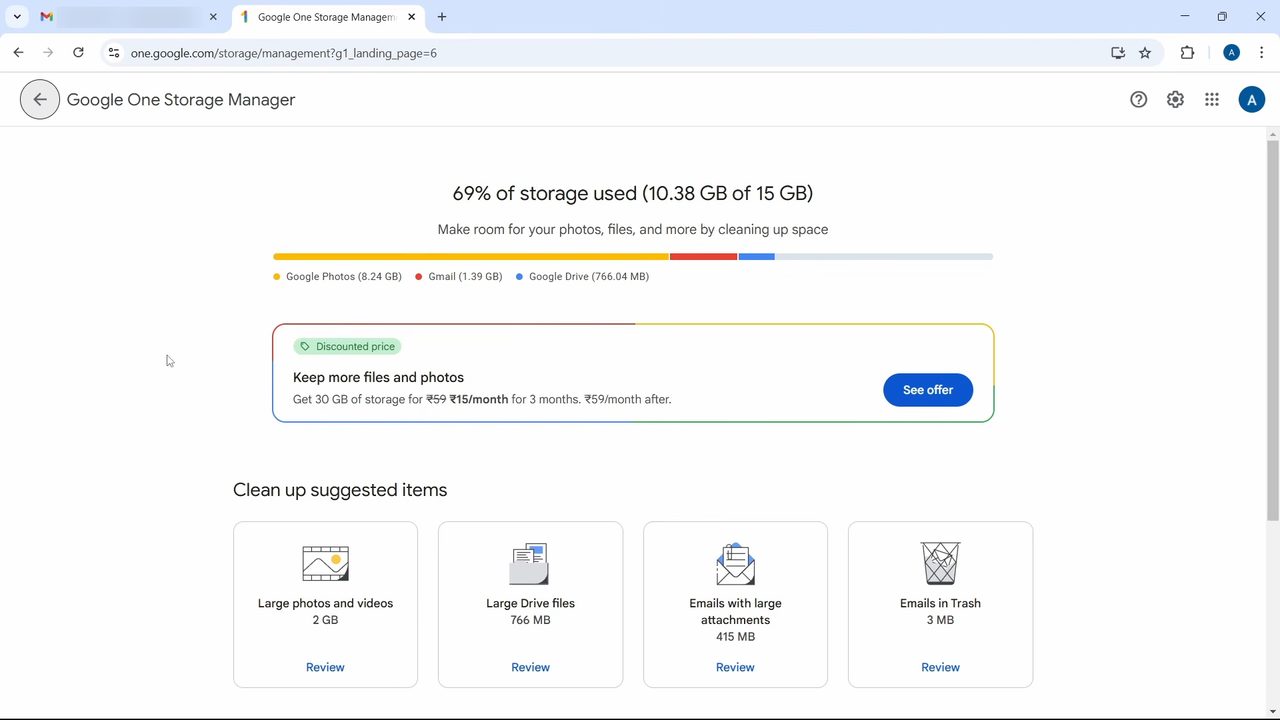
The Google One Storage Manager page shows how much of your storage is used and splits it between Google Photos, Gmail and Google Drive. Your free 15 GB is shared across all three, so this tells you where the space is going.
3Click Gmail under Clean up by service
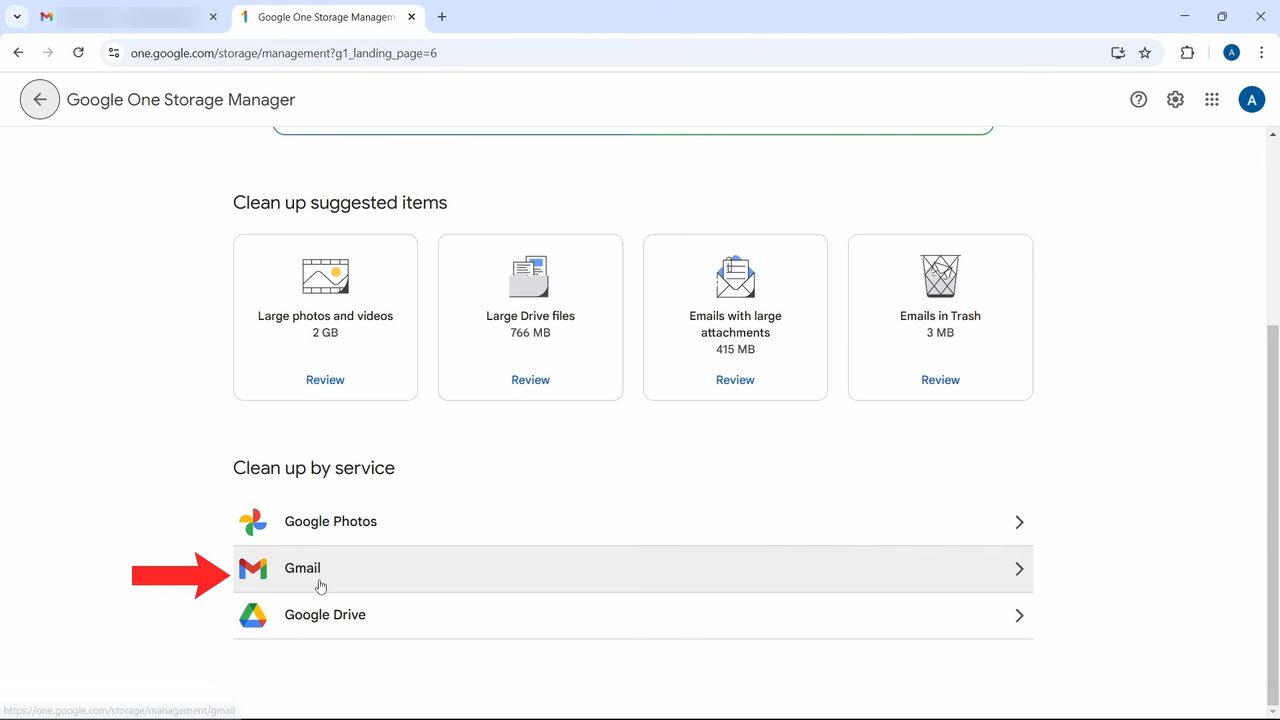
Scroll down to Clean up by service and click Gmail. Gmail items are sorted into three groups: Emails with large attachments, Emails in Trash and Spam emails.
4Select everything in Trash
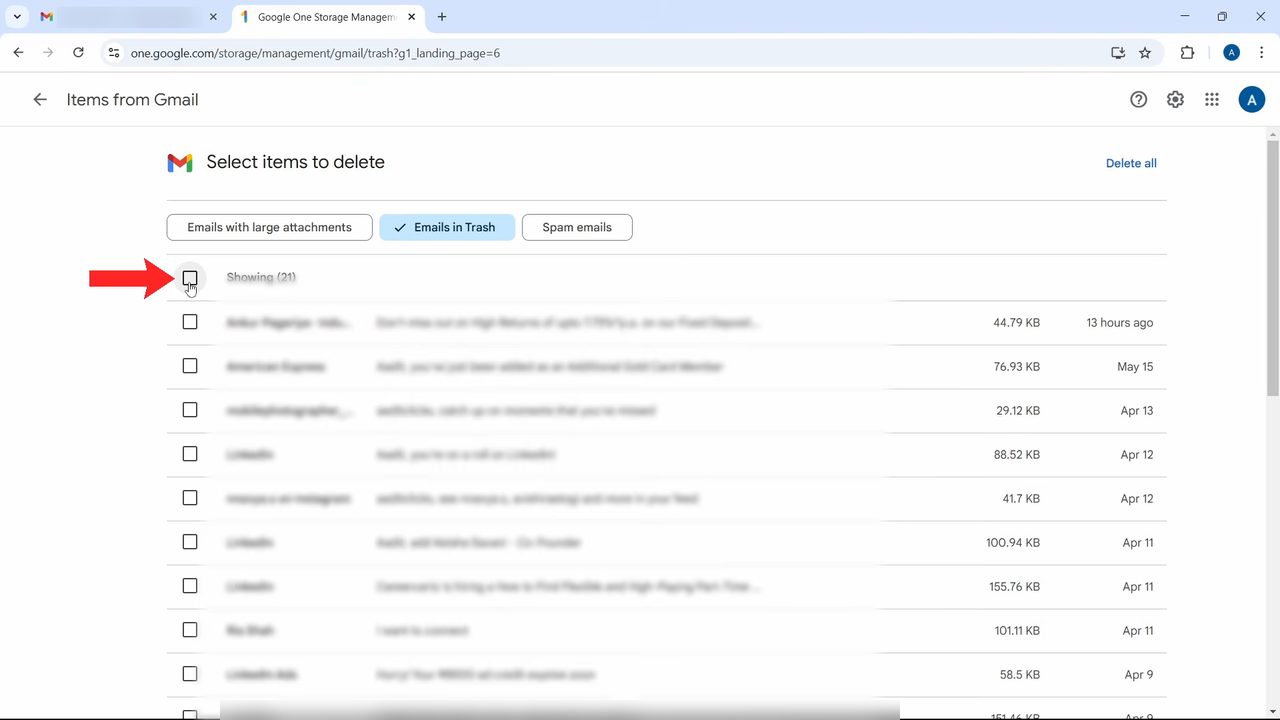
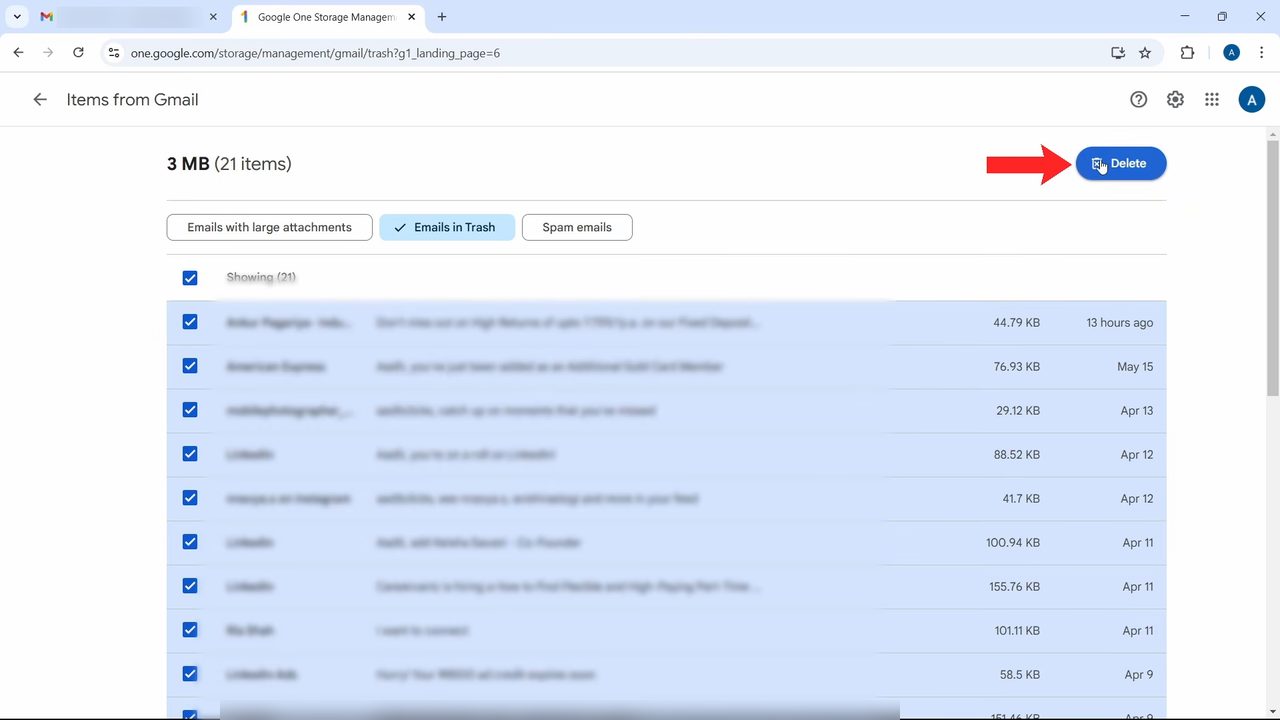
Start with the easy wins. Click Emails in Trash, then tick the checkbox at the top of the list to select all of them.
5Delete the Trash emails
With all emails selected, click the blue Delete button at the top right and confirm in the box that appears. These emails are removed for good.
6Do the same for Spam emails
Click Spam emails, tick the select-all box and click Delete again. Spam rarely holds anything you need, so this is safe space to reclaim.
7Sort large attachments by size
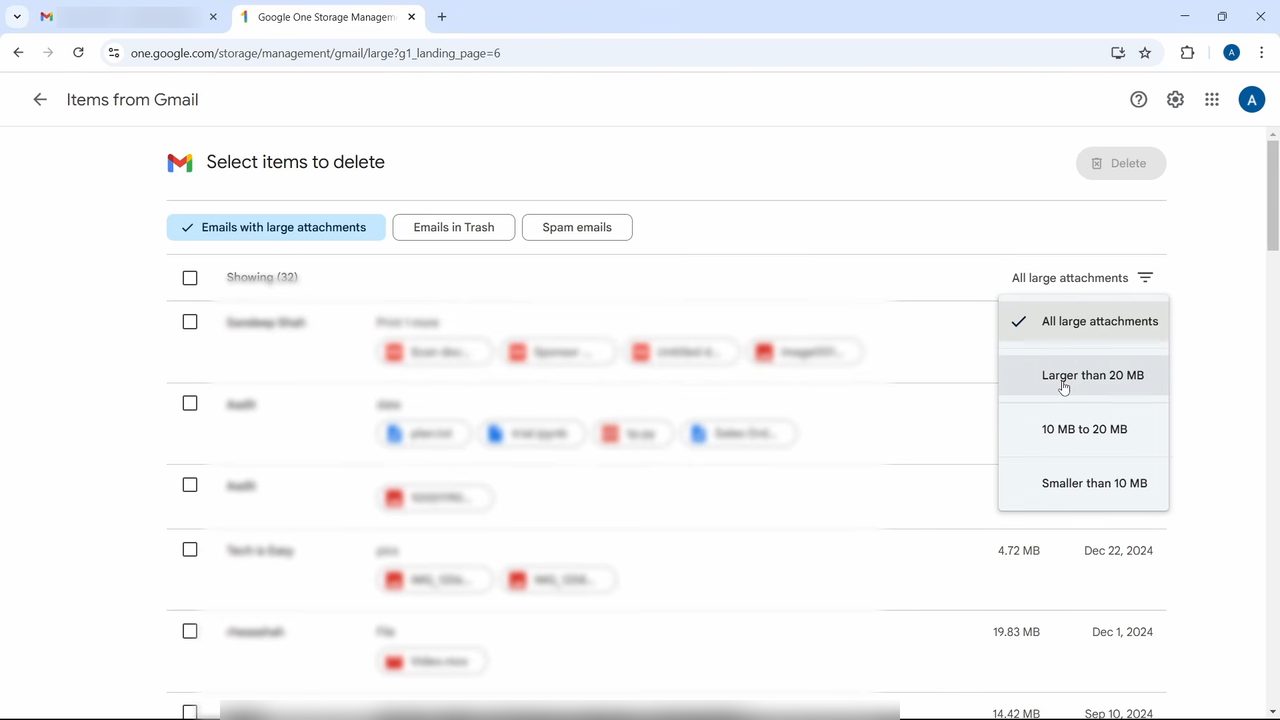
Click Emails with large attachments. Each email shows how much space it takes up. Click the All large attachments filter on the right and choose Larger than 20 MB. Clear those first, then move down to 10 MB to 20 MB and Smaller than 10 MB.
8Select and delete the emails you don't need
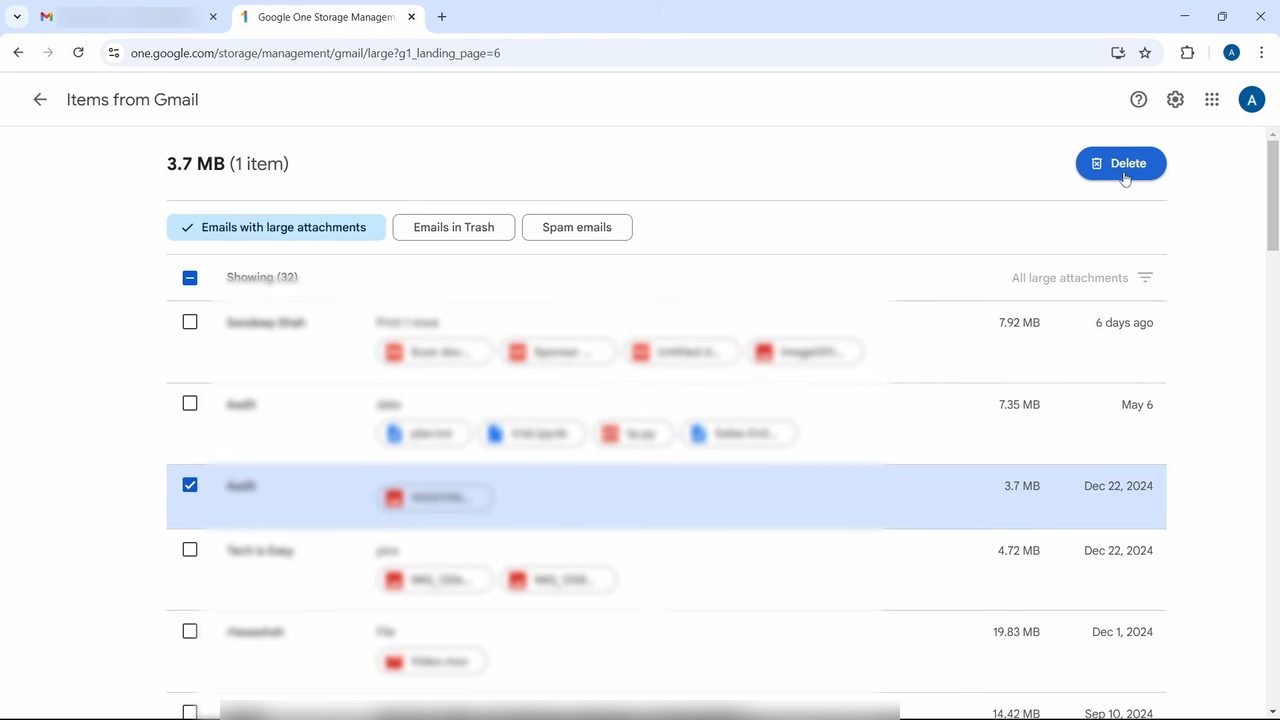
Tick the box next to each email you want to remove and click Delete. If you are not sure what an email is, click it first to open it in Gmail, have a look, then come back and delete it.
Find big emails with Gmail search
You can also hunt down large emails straight from the Gmail search bar. Google's page suggests these searches:
has:attachment larger:10Mfinds emails with attachments bigger than 10 MBfilename:.pdf larger:5Mfinds emails with PDFs bigger than 5 MBolder_than:2y has:attachmentfinds emails with attachments that are more than two years old
Select the results you don't need and click Delete. Unlike Storage Manager, deleting from Gmail moves them to Trash first, so empty the Trash afterwards to actually get the space back.
Tips / troubleshooting
- Storage still shows full after deleting. Google says it can take some time to update, and up to 48 to 72 hours after deleting a lot at once. If nothing has changed after about 30 minutes, check that the emails didn't just move to Trash.
- Gmail isn't the main problem. If Step 2 shows Google Photos or Drive taking most of the space, use the same Clean up by service section for those. In Drive, the Storage view lists files from largest to smallest.
- WhatsApp backups. On Android, WhatsApp chat backups count toward the same storage. Google suggests turning off Include videos in WhatsApp's Chat backup settings first, because deleting the backup without changing settings just creates a new one. Deleting a WhatsApp backup is permanent, so make a fresh one before you change phones.
- Download what you want to keep. Before deleting a large email you might need, open it and save the attachment to your computer.
For a cleaner inbox as well as more space, see how to clean up your Gmail inbox fast, which bulk deletes everything from your noisiest senders.
FAQ
Why is my Gmail storage full?
Gmail shares its 15 GB of free storage with Google Photos and Google Drive. The Storage Manager page shows how much each one uses, so you can see whether emails are really the problem or whether photos and files are taking most of the space.
Gmail storage full and not receiving emails, what should I do?
When storage is full, Gmail warns that you might not be able to send or receive emails. Follow the steps above to empty Trash and Spam and delete large attachments. Once you are back under your limit, email works normally again.
Can I recover emails deleted from Storage Manager?
Treat these deletions as permanent. Emails cleared from Trash and Spam are gone, so open any large email you are unsure about before deleting it.
Can I increase Gmail storage for free?
The video doesn't cover a free way to get more space. Storage Manager shows Google One paid plans, but clearing Trash, Spam and big attachments is the free way to make room.
How long does it take for Gmail storage to update after deleting?
Usually a short while. Google says to allow up to 48 to 72 hours when you delete many files at once, so don't panic if the number doesn't drop straight away.
Does deleting emails in Gmail free up space right away?
Not on its own. Deleted emails sit in Trash and still count against your storage until the Trash is emptied (Gmail clears it automatically after 30 days). Emptying Trash, as in Steps 4 and 5, frees the space now.
Related guides