Tech is Easy
How to Clear Cache in Google Chrome on Phone (Step-by-Step)
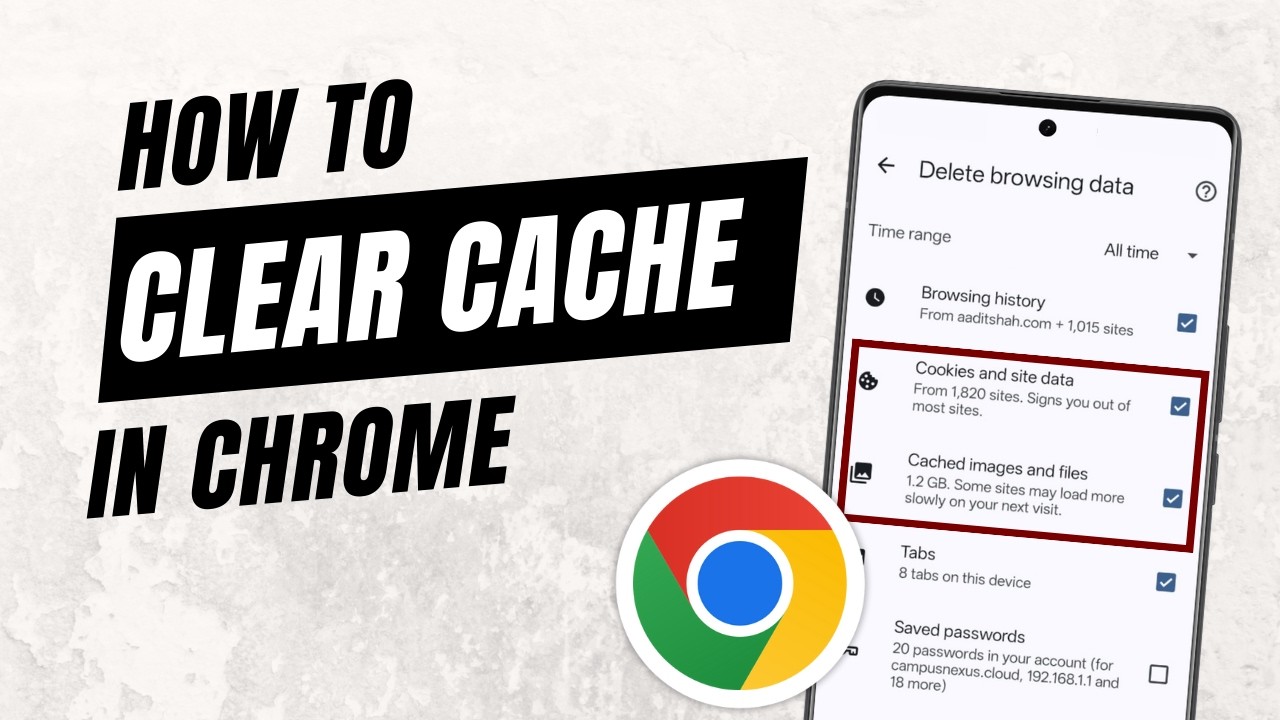
To clear cache in Google Chrome on your phone, tap the three dots at the top right, choose Delete browsing data, set the time range to All time, open More options, keep Cookies and site data and Cached images and files ticked, then tap Delete data. This is useful when pages load wrongly, a site shows old content, or Chrome feels slow, and it does not wipe your browsing history if you untick it.
What you need
- The Google Chrome app on your phone (the video uses an Android phone)
What each option deletes
Before you tap Delete data, it helps to know what each box removes. Google's help page on deleting browsing data in Chrome on Android describes them like this: - Browsing history: the sites you visited disappear from the History page, their shortcuts leave the New Tab page and the address bar stops suggesting them. Your open tabs are also closed. - Cookies and site data: small files websites save to remember you, plus site storage and licences for protected music or video you played. This is what signs you out of websites. - Cached images and files: parts of pages, like text and images, that Chrome keeps so sites open faster next time. This is the actual cache. - Saved passwords, Autofill form data and Site settings: these sit further down the list. Leave them unticked unless you really want your passwords, saved addresses and site permissions gone.
Your Google searches and other activity saved to your Google Account are not touched by any of these boxes. Those are deleted separately from your Google Account.
1Open Chrome and tap the three dots
Open the Google Chrome app. Tap the three dots menu at the top right of the screen.

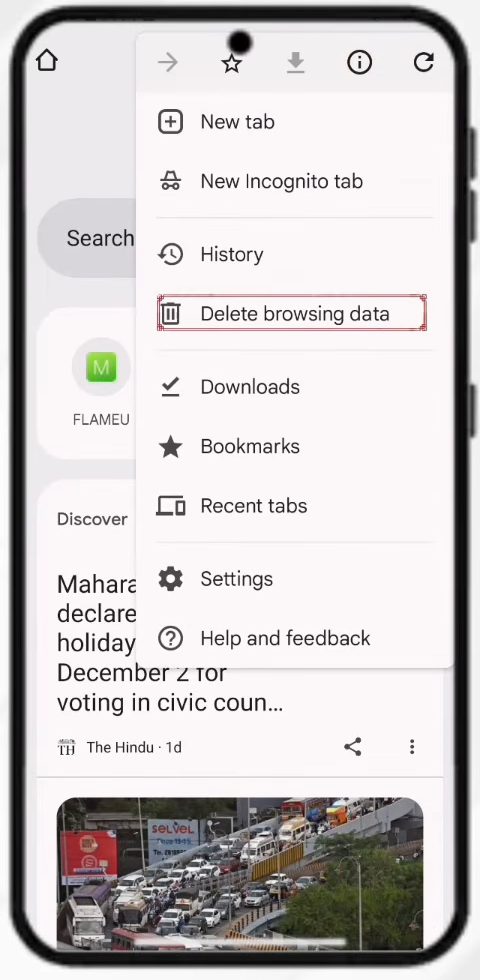
2Tap Delete browsing data
In the menu that opens, tap Delete browsing data. It sits just below History.
3Choose a time range
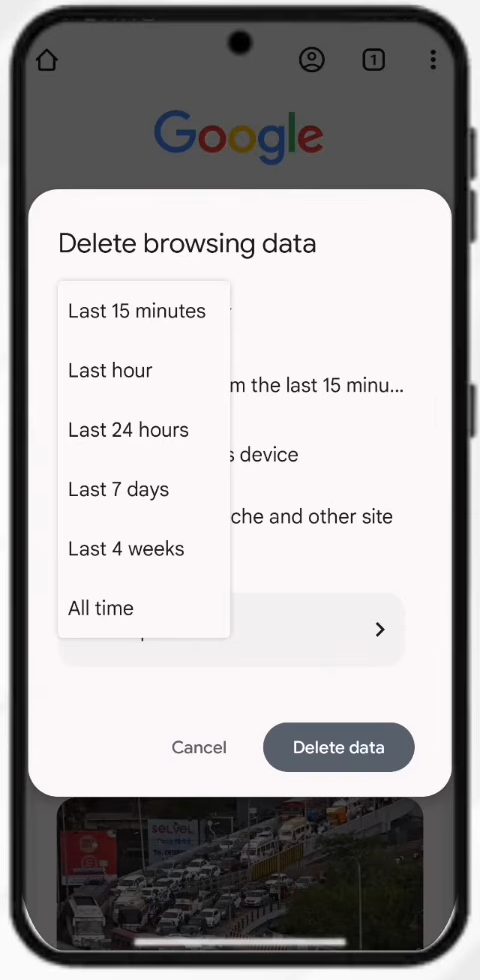
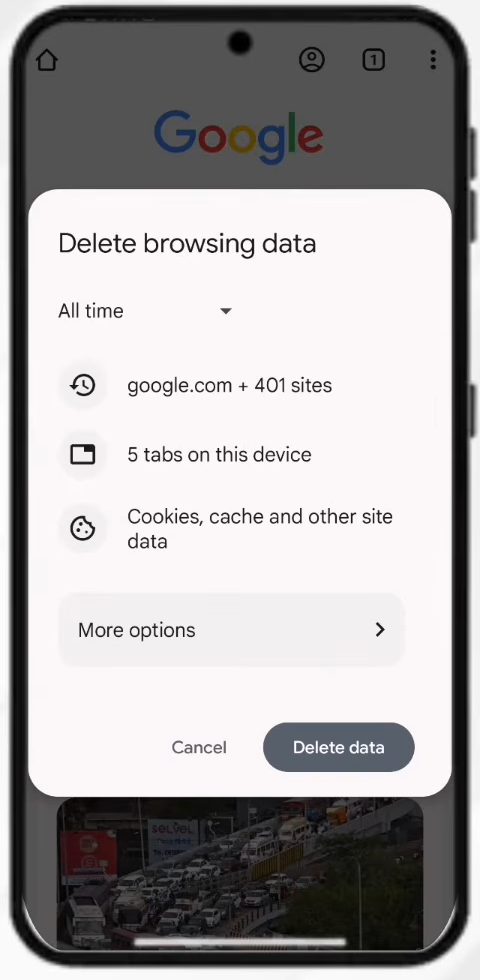
A Delete browsing data box appears. The time range starts at Last 15 minutes. Tap it and pick how far back you want to clear. To remove all cached files, choose All time.
4Open More options
With All time selected, tap More options to see exactly what Chrome is about to delete.
5Keep only the cache options ticked
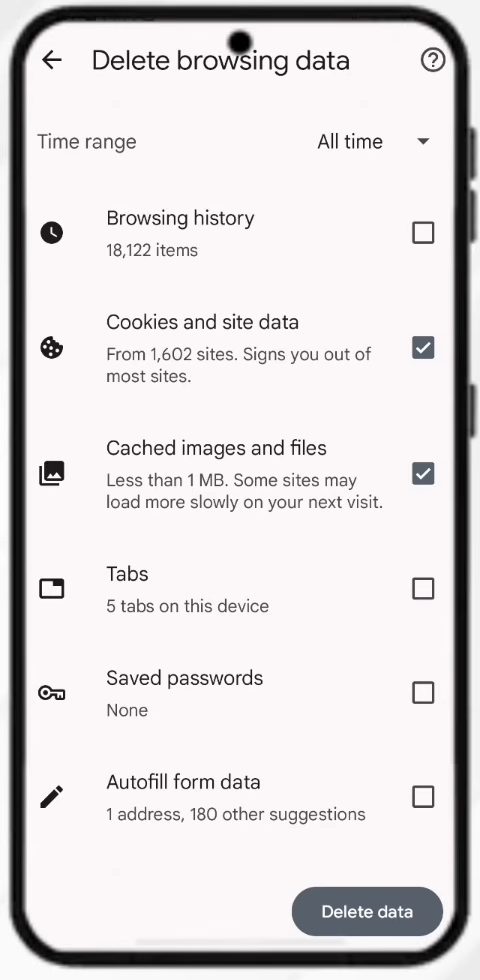
If you only want to clear cache, untick Browsing history. Leave Cookies and site data and Cached images and files ticked.
6Tap Delete data
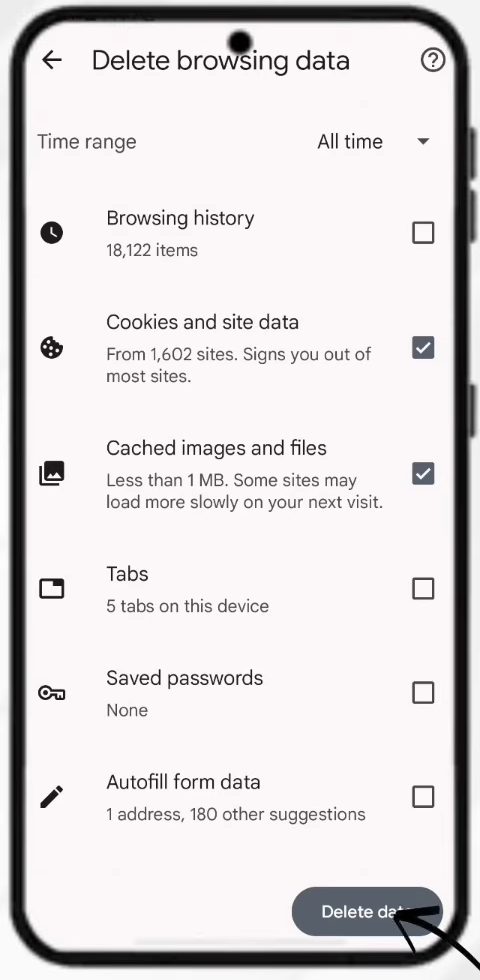
Tap Delete data at the bottom right. Chrome clears the cache and returns you to the home page. That is it.
Tips / troubleshooting
- Clearing Cookies and site data signs you out of most websites, as Chrome warns under that option. If you want to stay signed in, untick it and keep only Cached images and files.
- If you are signed in to Chrome with your Google account, deleting cookies does not sign you out of that Google account itself.
- If Chrome sync is on, Google warns that deleting data saved to your Google Account removes it from every device where you're signed in, not just this phone. Keep that in mind before ticking Browsing history or Saved passwords.
- Sites may load a little slower the first time after clearing the cache, because Chrome has to download their images and files again. That is normal and goes away after one visit.
- Faster way to get there: type Delete browsing data in Chrome's address bar and tap the action button that appears under it.
- If one site is still broken but others are fine, the problem is usually that site, not your cache. Try it in an Incognito tab to check.
For other Chrome settings worth knowing, see how to view saved passwords in Chrome.
FAQ
How do I clear cache in Chrome without deleting my history?
Open Delete browsing data, tap More options and untick Browsing history. Keep Cached images and files ticked and tap Delete data. Your history stays as it is.
Will clearing cache delete my saved passwords?
No, not with the steps above. Saved passwords is a separate option in the list and it was unticked in the video, so Chrome leaves your passwords alone.
How do I clear cache and cookies in Chrome on iPhone?
The video shows an Android phone. Chrome on iPhone has a similar Delete browsing data option under the three dots menu, but the exact layout is not shown in the video.
Does clearing cache sign me out of my Google account?
No. Google's help page says that if you delete cookies while signed in to Chrome, you won't be signed out of your Google Account. You will be signed out of most other websites, though, unless you untick Cookies and site data.
How often should I clear cache in Chrome?
There is no need to do it on a schedule. The cache exists to make pages open faster, so clearing it all the time only slows Chrome down. Clear it when a site shows old content, loads wrongly, or when you want to free up some storage on your phone.
Will clearing cache close my open tabs?
Only if Browsing history is ticked. Google notes that deleting browsing history also closes the open tabs on your device. With only cookies and cached files ticked, your tabs stay open.
Why does a site still look the same after clearing cache?
Make sure the time range was set to All time, not Last 15 minutes, and that Cached images and files was ticked. Then close the tab and open the site again.
Related guides