Tech is Easy
How to View Saved Passwords in Google Chrome (Step-by-Step)
To view saved passwords in Google Chrome, click the three dots at the top right, go to Passwords and autofill > Google Password Manager, click the site you want, then click the eye icon next to the password. If you are wondering where Chrome keeps your saved passwords, this is the place, and it also lets you edit, delete or share them.
What you need
- Google Chrome on a computer (the video uses Windows)
- Your computer's PIN, password or fingerprint, since Chrome asks you to confirm it is you
Where Chrome saves your passwords
What you see in Google Password Manager depends on how you use Chrome: - Signed in to Chrome: passwords are saved to your Google account. They follow you to Chrome on your phone and other computers, and you can also open them in any browser at passwords.google.com. - Not signed in: Chrome keeps passwords only on that computer. They won't show up anywhere else, and you lose them if you reinstall Windows or remove Chrome's data.
Google's help page Manage passwords in Chrome covers both cases, plus exporting, checking and sharing passwords.
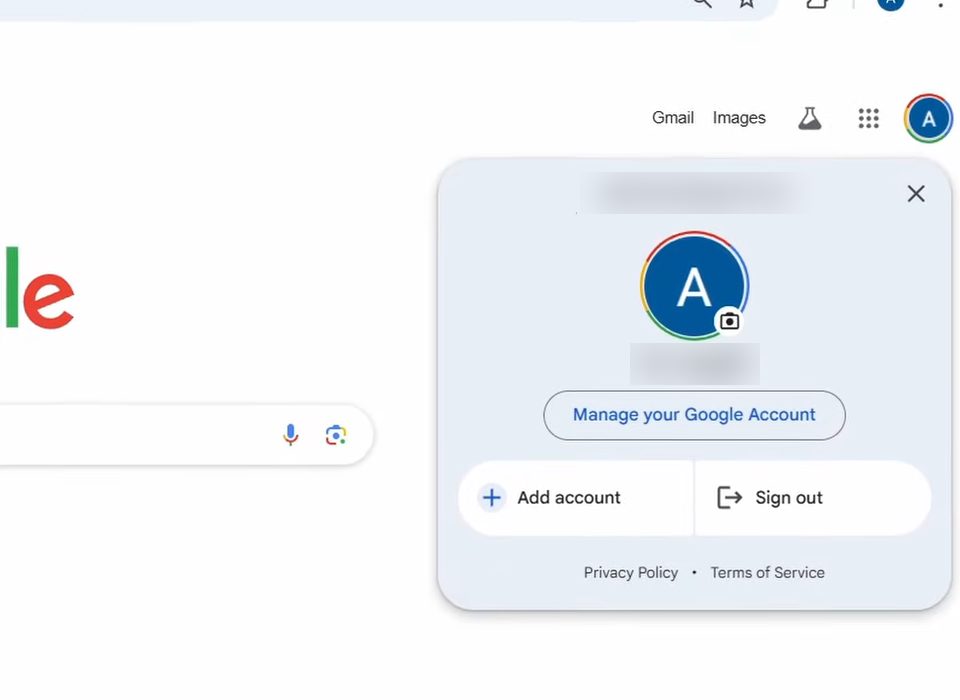
1Check which account you are signed in with
Chrome shows the passwords saved to the Google account you are signed in with. Click your profile picture at the top right to see the account. If it is the wrong one, switch accounts from here first.
2Open Google Password Manager
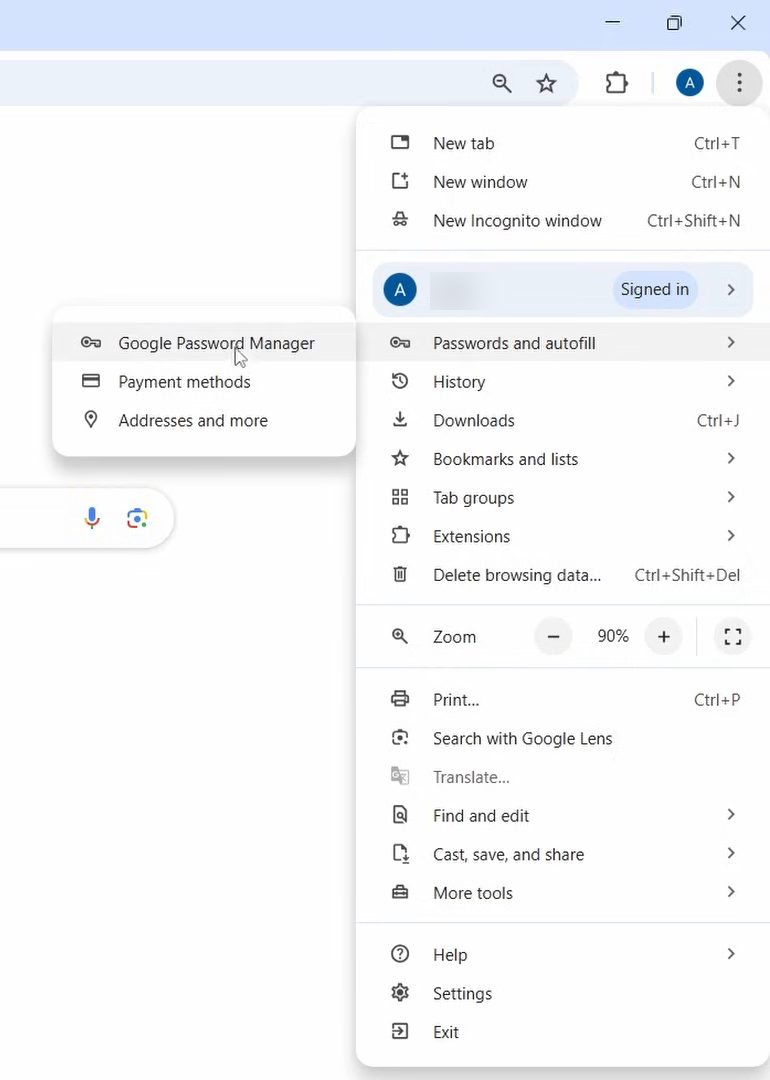
Click the three dots menu at the top right of Chrome. Hover over Passwords and autofill, then click Google Password Manager.
3Find your saved passwords
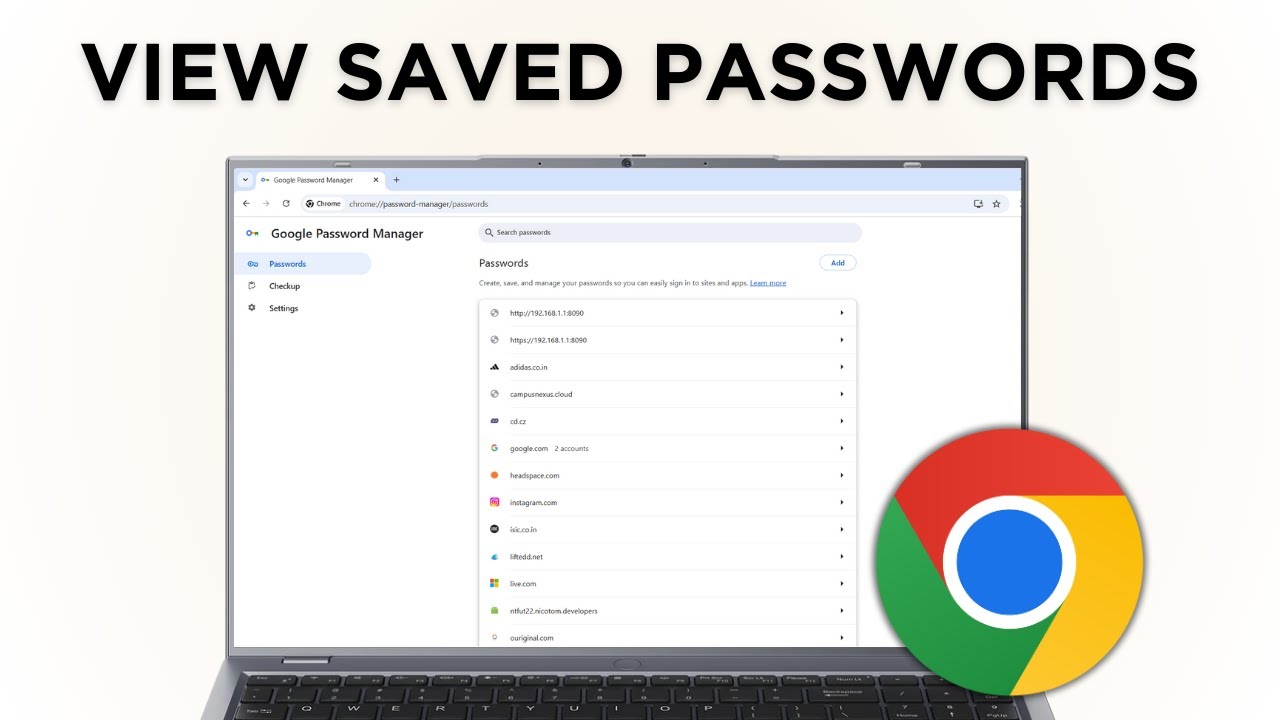
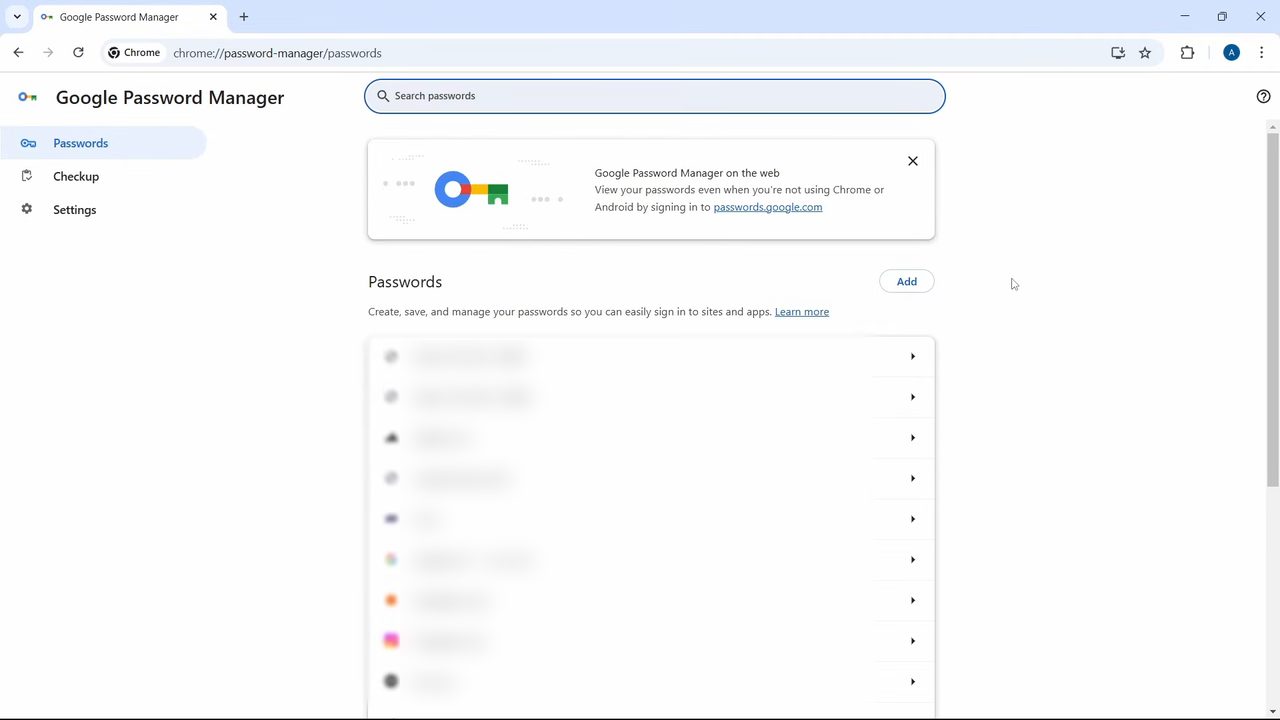
The Passwords page lists every site with a password saved to this account. From here you can Add a new one, search with Search passwords, or open any entry to manage it.
4Click the site you want
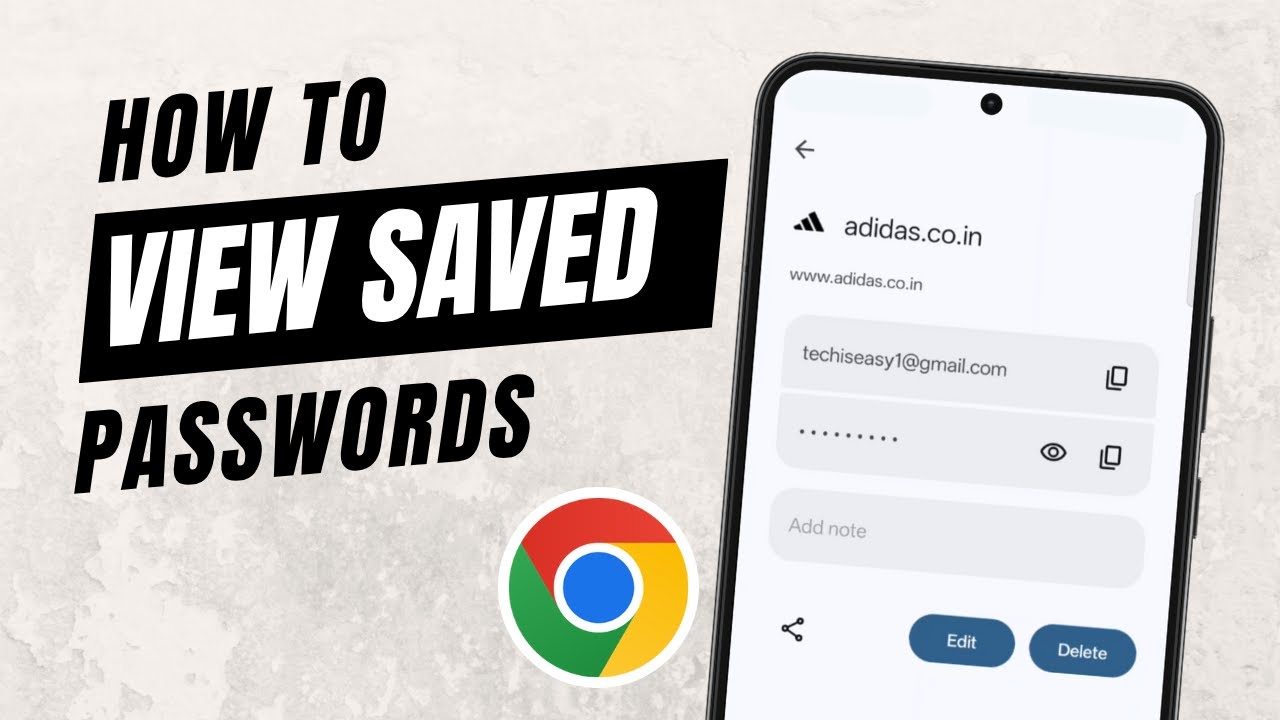
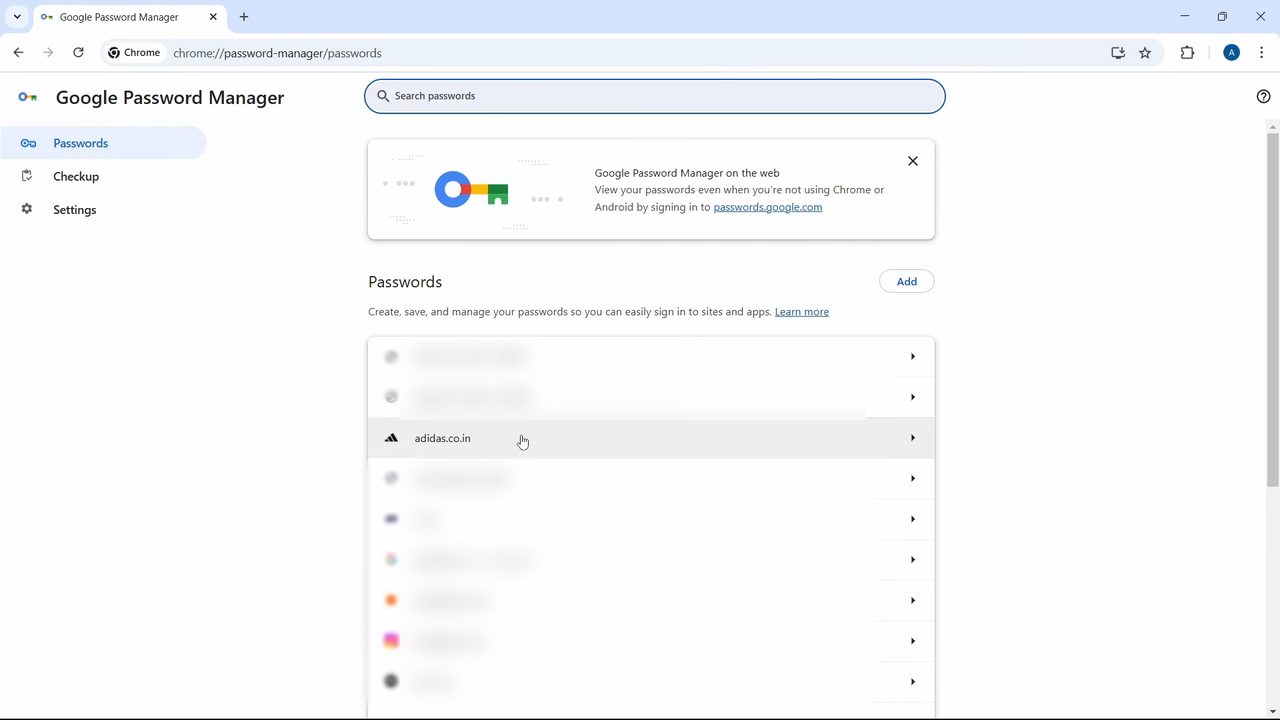
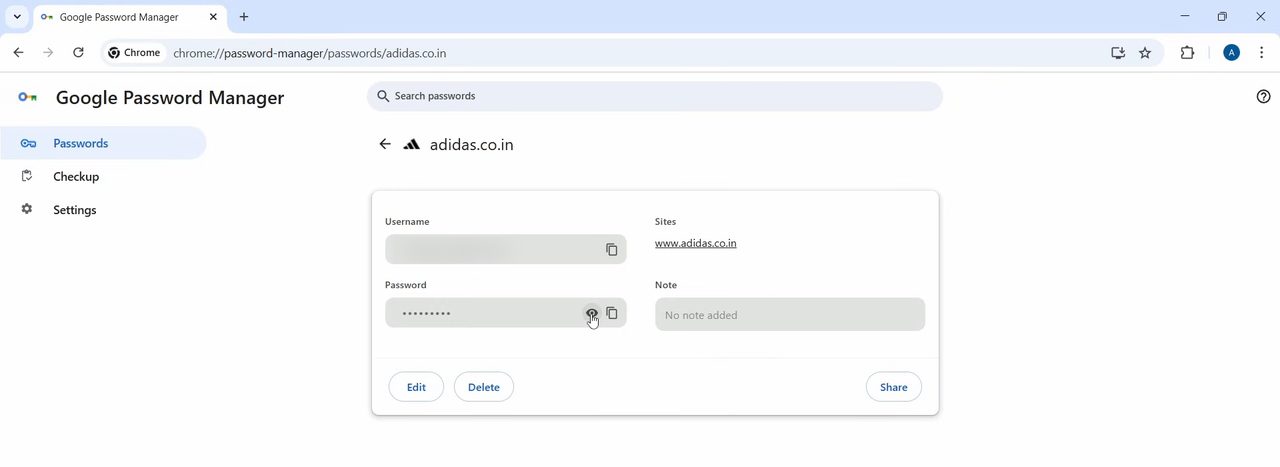
Click the site whose password you want to see. In the video we open adidas.co.in. Windows shows a Making sure it's you box, so confirm with your fingerprint, PIN or Windows password.
5Click the eye icon to view the password
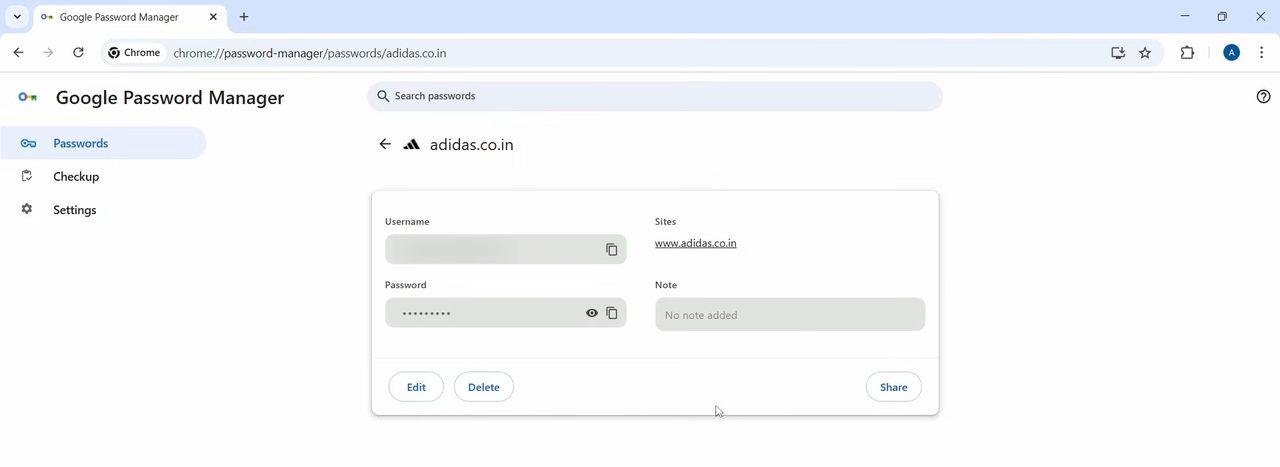
The site page shows the Username and a hidden Password. Click the eye icon next to the password to show it. In some Chrome versions this button is labelled Show password.
6Edit, delete or share it
Use the buttons at the bottom to change the entry. Edit lets you update the username or password, Delete removes it, and Share sends it to someone. Repeat the same steps for any other site.
Other useful things in Password Manager
- Checkup. Click Checkup on the left of Google Password Manager. Chrome checks every saved password and tells you which ones were exposed in a data breach and which are weak or easy to guess. Change those first.
- Notes. Click Edit on any entry to add a note, such as a security question answer. Google protects notes the same way as the password.
- Export. Under Settings on the left, click Download file next to Export passwords to save all of them to a file. That file is not protected by a password, so delete it once you have imported it elsewhere.
- Sharing. The Share button only works with members of your Google family group. The person gets a copy saved to their own Google account.
Troubleshooting
- The list is empty or a password is missing. You are probably signed in with a different Google account, or the password was saved while you were signed out, so it only exists on another computer. Check the account in Step 1 and look on the device where you first saved it.
- Chrome never offered to save a password. In Google Password Manager, open Settings and check that Offer to save passwords and passkeys is on. If you once told Chrome not to save passwords for a site, remove it from Declined sites and apps in the same place.
- The Making sure it's you box keeps rejecting you. It wants your Windows sign-in PIN or password, not your Google password. On a Mac it asks for your Mac's login password.
- You want fingerprint or face unlock. In Password Manager Settings, turn on Use Windows Hello when filling passwords on a PC, or Use your screen lock when filling passwords on a Mac. It is off by default.
FAQ
Where are saved passwords stored in Chrome?
They are in Google Password Manager. Open it from the three dots menu under Passwords and autofill. The banner on that page also mentions you can see the same passwords at passwords.google.com.
How do I edit a saved password in Chrome?
Open Google Password Manager, click the site, then click Edit at the bottom of the entry. Change the details and save.
Why does Chrome ask for my Windows password?
Chrome asks Windows to confirm it is really you before it shows passwords. Enter your Windows password or PIN, or use your fingerprint, and the password becomes visible.
Can I see my Chrome passwords on my phone?
Yes, the passwords are saved to your Google account, so they show up on your phone too. See how to view saved passwords on your phone for the mobile steps.
Can I export all my saved passwords from Chrome?
Yes. Open Google Password Manager, click Settings on the left and click Download file next to Export passwords. Keep the file safe, because anyone who opens it can read every password.
How do I know if my saved passwords were leaked?
Open Google Password Manager and click Checkup. Chrome lists any passwords found in a data breach and any weak ones, so you can change them on those sites.
Related guides