Tech is Easy
How to Disable Pop-Ups in Google Chrome (Stop Redirects Too)
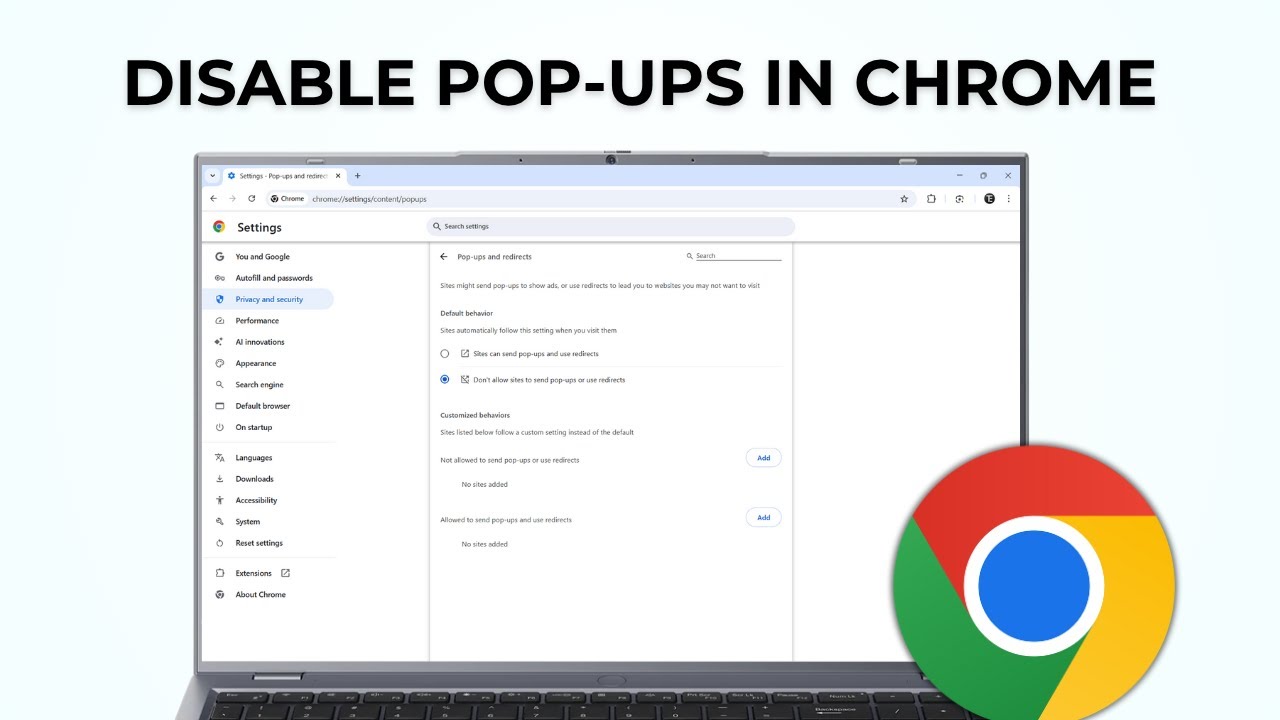
To disable pop-ups in Google Chrome, open Settings > Privacy and security > Site settings > Pop-ups and redirects and choose Don't allow sites to send pop-ups or use redirects. Then check the list of sites that are still allowed and block any you don't trust. This is for anyone getting annoying ad windows or being bounced to pages they never meant to visit, and it also works as a way to block pop-ups site by site.
What you need
- Google Chrome on a computer (the video uses Windows)
1Open Chrome settings
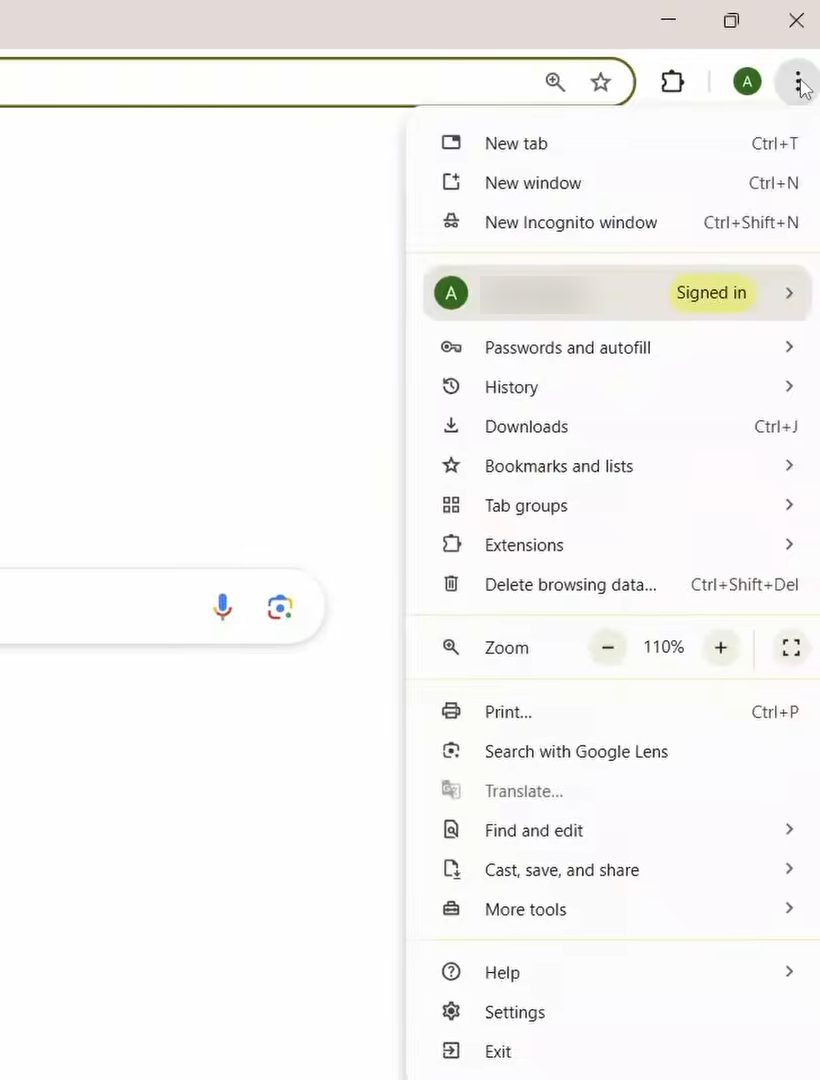
Open Chrome and click the three dots at the top right of the window. Near the bottom of the menu, click Settings.
2Go to Privacy and security
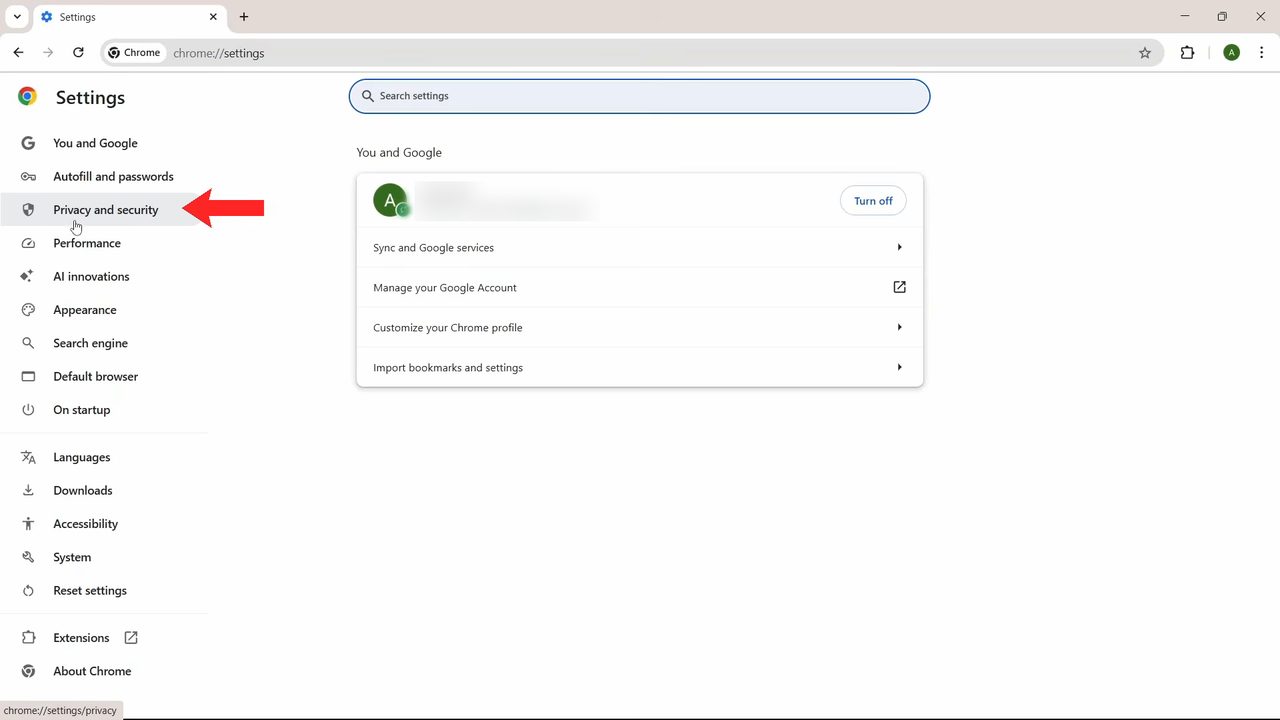
In the left sidebar of the Settings page, click Privacy and security. It is the third option in the list.
3Open Site settings
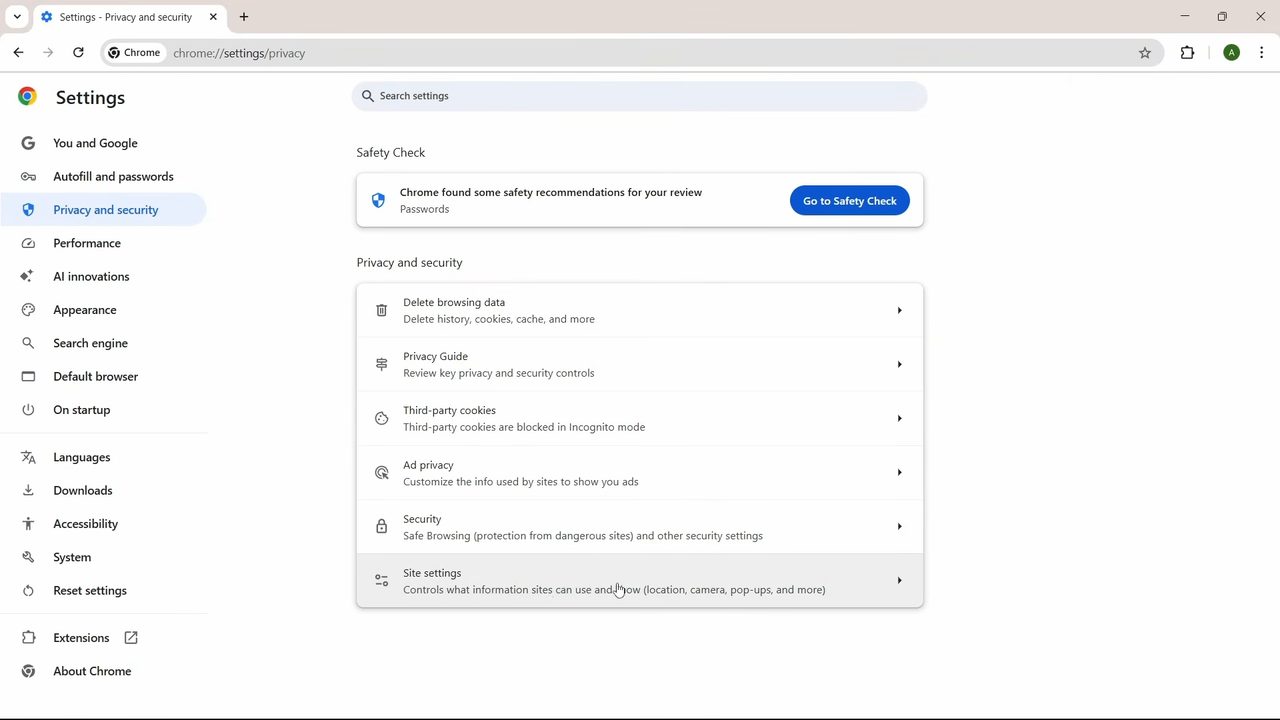
In the Privacy and security section, click Site settings. Its description mentions that it controls what sites can use and show, including pop-ups.
4Click Pop-ups and redirects
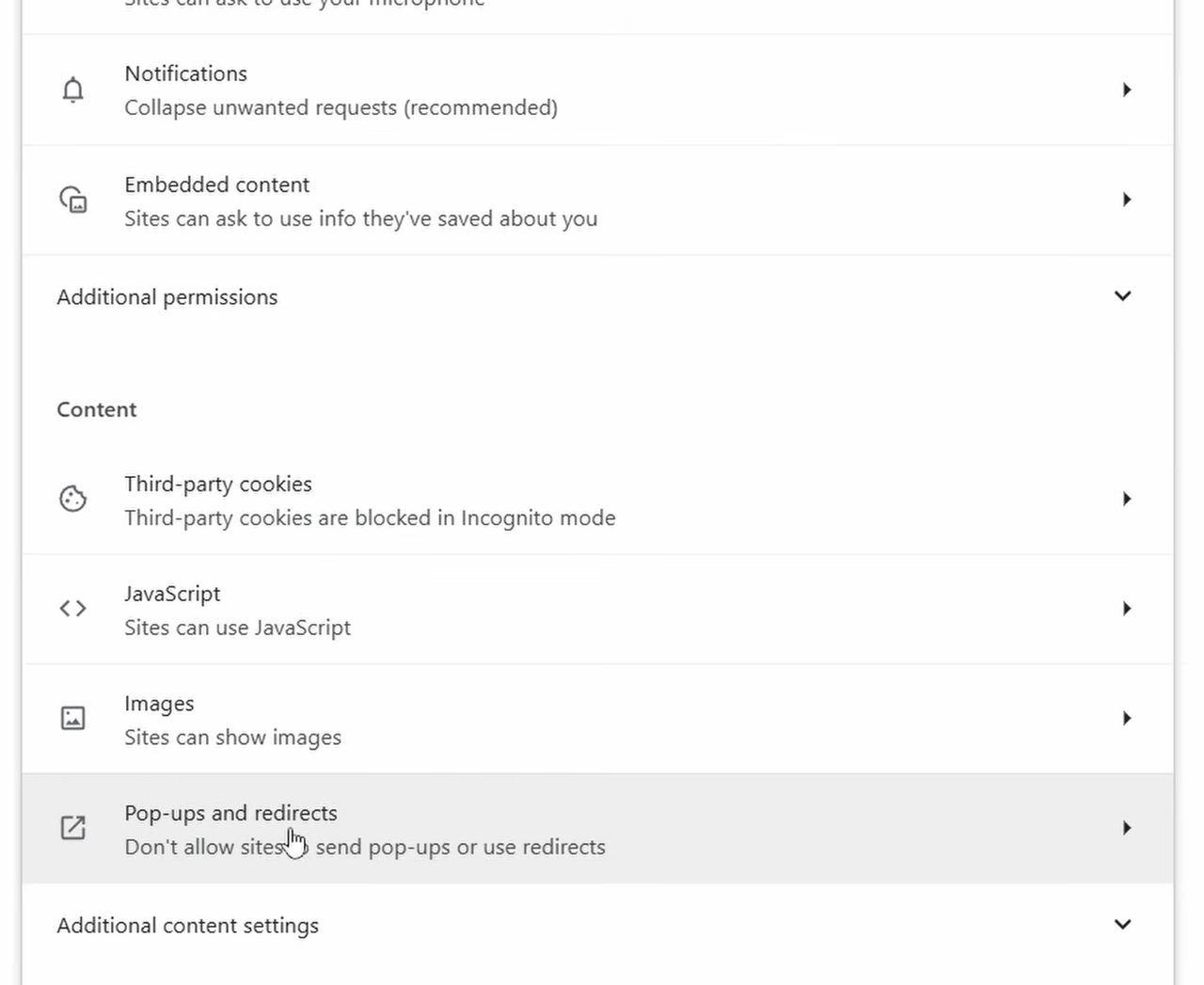
Scroll down to the Content section and click Pop-ups and redirects.
5Check which sites can send pop-ups
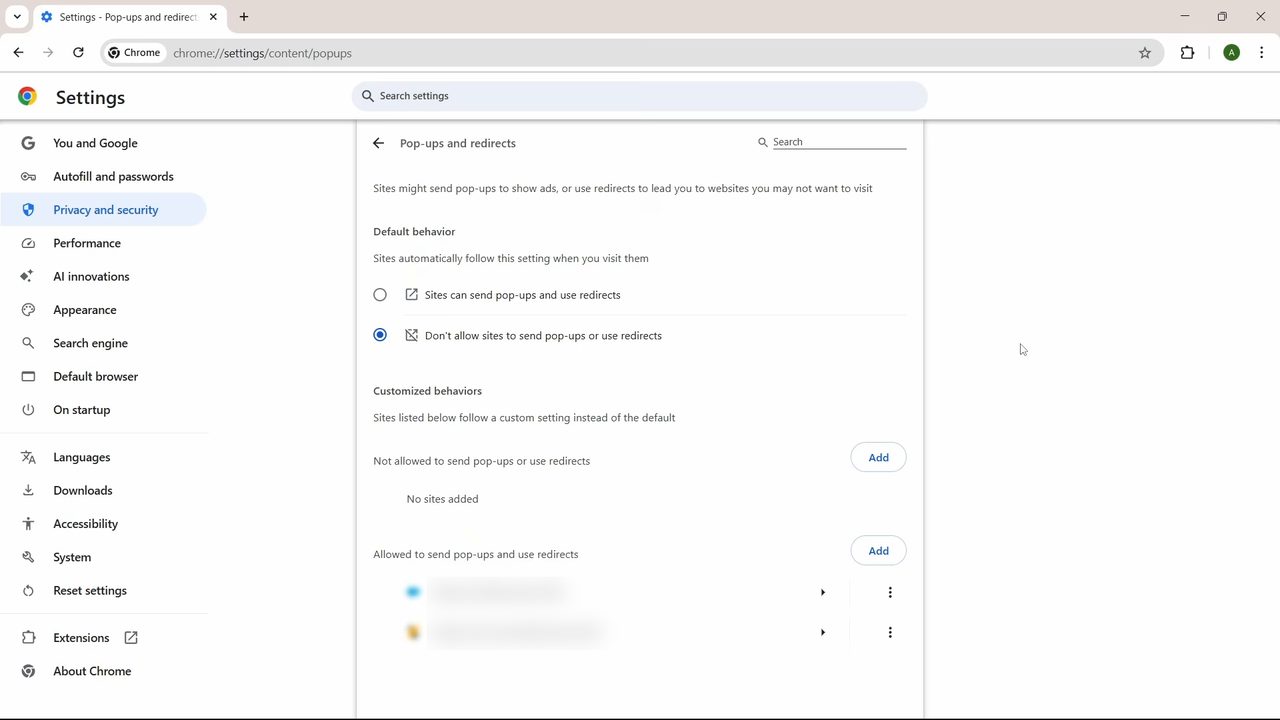
This page has two lists under Customized behaviors: - Not allowed to send pop-ups or use redirects: sites that are blocked. - Allowed to send pop-ups and use redirects: sites that can still open pop-ups.
Go through the allowed list and look for any site you don't recognise or don't want.
6Block or remove a site
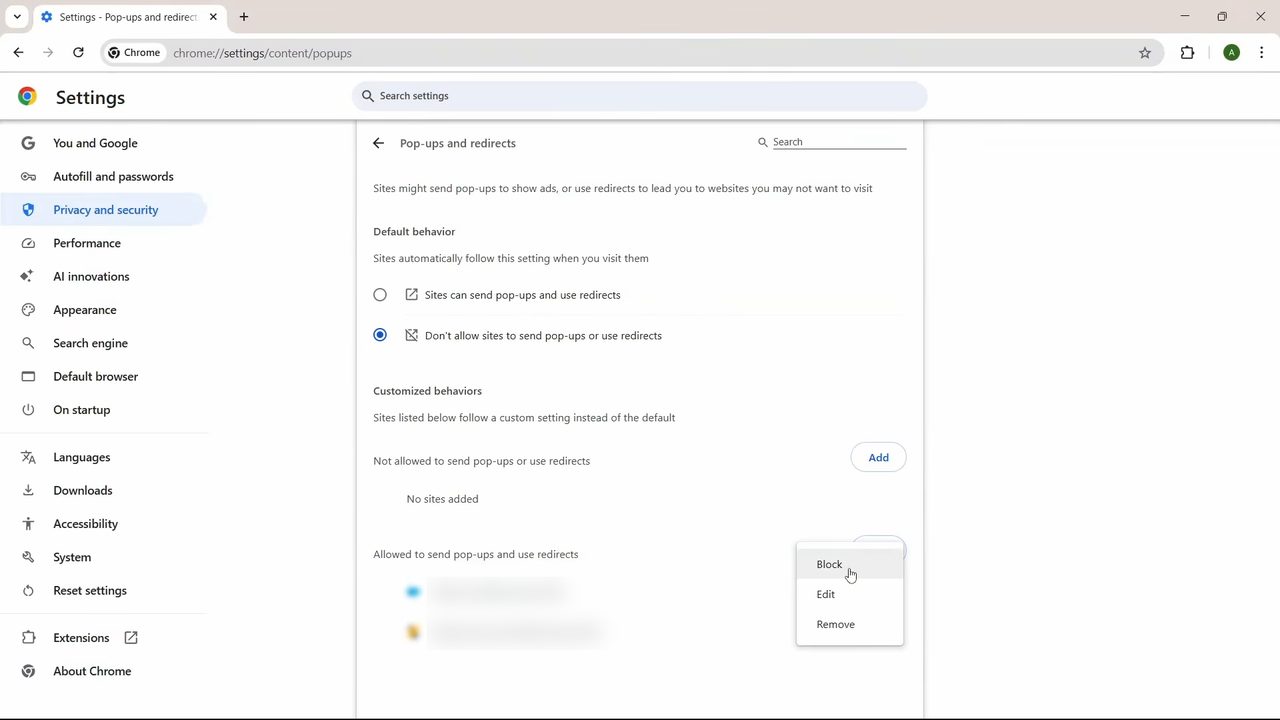
Click the three dots next to a site in the allowed list. You get three choices: Block, Edit and Remove. Choose Block and the site moves to the Not allowed list, so it can never send you pop-ups or redirects again. Remove just takes it off the list, so the site goes back to following your default setting. Repeat this for every site you want to stop, in either list.
7Set the default behavior to block pop-ups
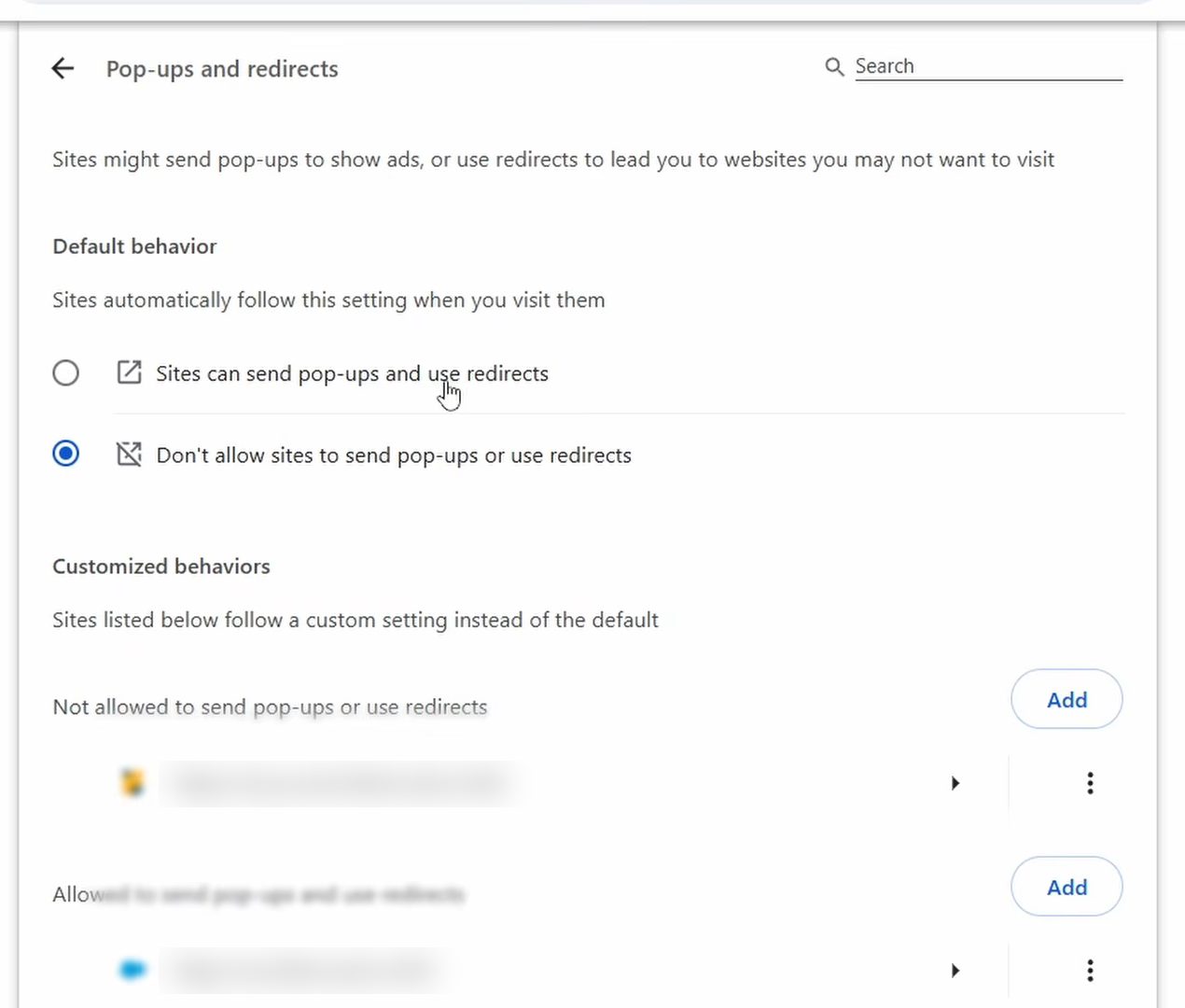
At the top of the page, under Default behavior, select Don't allow sites to send pop-ups or use redirects. This is the rule every site follows when you visit it, unless you have added it to one of the lists below. With this selected, new sites can't open pop-ups or redirect you.
How to tell Chrome blocked a pop-up
Chrome blocks pop-ups by default, so on many computers the setting in Step 7 is already selected and a site was added to the allowed list at some point. When Chrome stops a pop-up, the address bar shows a Pop-up blocked icon. Google's help page on blocking pop-ups in Chrome explains that you can click that icon, then click the link for the blocked pop-up to open it once, or choose Always allow pop-ups and redirects from that site and click Done. Be careful with "always allow", because that is how unwanted sites end up in the allowed list you cleaned up in Step 6.
Block a site that isn't in the list yet
If a site keeps redirecting you but doesn't appear under either list, you can block it ahead of time. On the Pop-ups and redirects page, click Add next to Not allowed to send pop-ups or use redirects, type the site's address and click Add. Google suggests using the pattern [*.]example.com (with the real site name) so the block covers every part of the site, not just the exact address you typed.
Tips / troubleshooting
- If a site you trust needs pop-ups to work (for example a payment or login window), add it under Allowed to send pop-ups and use redirects with the Add button instead of switching the default back.
- Still seeing "pop-ups" in the corner of your screen? These are often site notifications, not pop-ups. They come from sites you once clicked Allow for. Go to the site, click View site information (the icon left of the address), and set Notifications to Block. You can also manage them under Site settings > Notifications.
- Ads open even with everything blocked. Google's page says your computer may have malware. Pop-up ads that still appear may also come from an extension rather than a website, so check your extensions for anything you didn't install.
- The setting is greyed out. On a work or school computer, the administrator controls the pop-up blocker and you can't change it yourself.
- A site breaks after blocking. Some sites open login, payment or print windows as pop-ups. Allow just that site rather than turning the blocker off for everyone.
If your browser is also slow or showing old pages, see how to clear cache in Chrome on your phone.
FAQ
How do I stop pop-ups and redirects in Chrome?
Go to Settings > Privacy and security > Site settings > Pop-ups and redirects and pick Don't allow sites to send pop-ups or use redirects. Then block any site still listed under Allowed to send pop-ups and use redirects.
How do I turn off the pop-up blocker in Chrome for one site?
On the same Pop-ups and redirects page, click Add next to Allowed to send pop-ups and use redirects and enter the site. It can then open pop-ups while every other site stays blocked.
What is the difference between Block and Remove?
Block puts the site on the not-allowed list, so it can never send pop-ups. Remove deletes the custom rule, and the site then follows whatever your default behavior is.
Why do I still get pop-ups after blocking them in Chrome?
Most often it's notifications from a site you allowed earlier, which look like pop-ups but are a different permission. Block them under Site settings > Notifications. If ads keep appearing anyway, check your extensions and scan the computer for malware.
Does this stop pop-ups in Chrome on Android?
The video shows Chrome on a Windows computer. Chrome on Android has its own pop-up setting in the app's site settings, but those steps are not shown here.
Related guides