 Tech is Easy
How to Clear Google Drive Storage (Free Up Space Fast)
To clear Google Drive storage, open one.google.com/storage/management in your browser while signed in to your Google account. The storage manager lets you empty Gmail and Drive trash, then review Large items from Gmail, Google Drive and Google Photos and delete what you don't need. This guide is for anyone who keeps seeing "storage almost full" warnings and wants to free up space in Google Drive without paying for more storage.
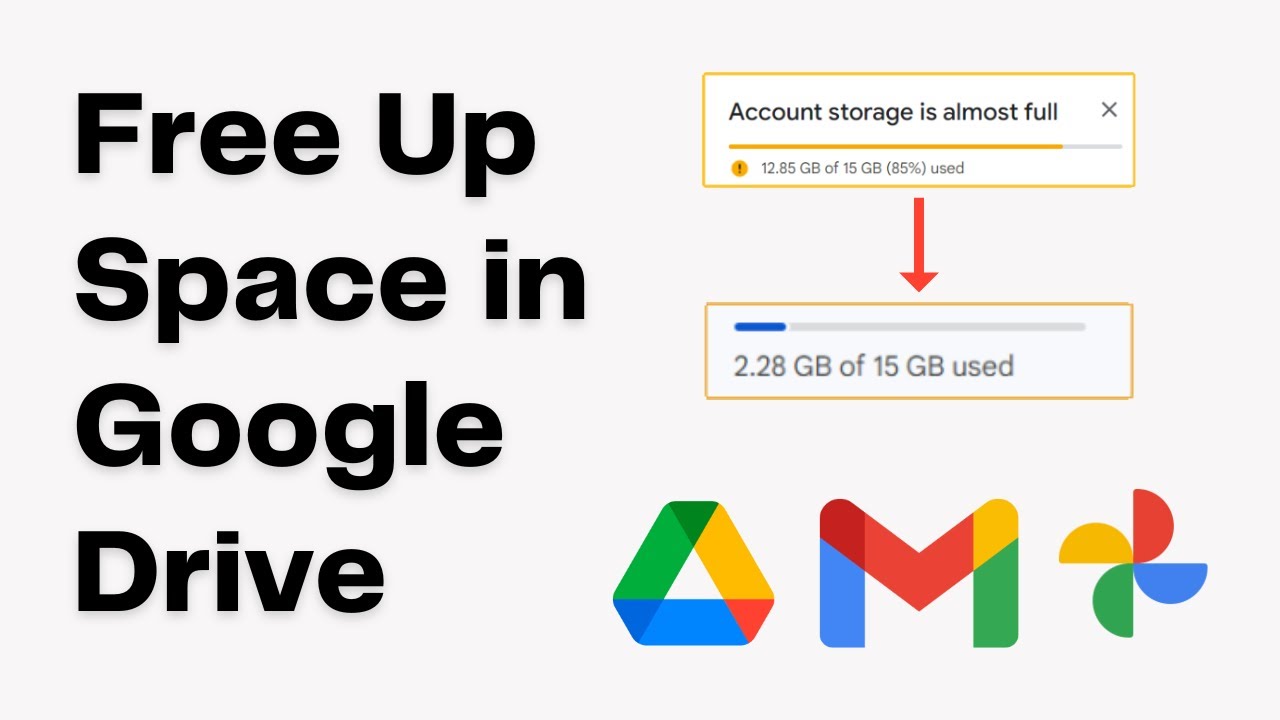
Our video was recorded in 2023, so the storage manager may look slightly different now.
Why Drive fills up so fast
Google's help page How your Google storage works explains that every Google account has up to 15 GB shared across Gmail, Google Drive and Google Photos. Gmail messages and attachments (including Spam and Trash), Drive files, and Original quality photos all count against it. That is why cleaning only your Drive folder often isn't enough: big email attachments and phone videos usually take more space. The storage manager shows all three in one place.
What you need
- A computer with a web browser
- The Google account whose storage is full, signed in
1Open the Google One storage manager
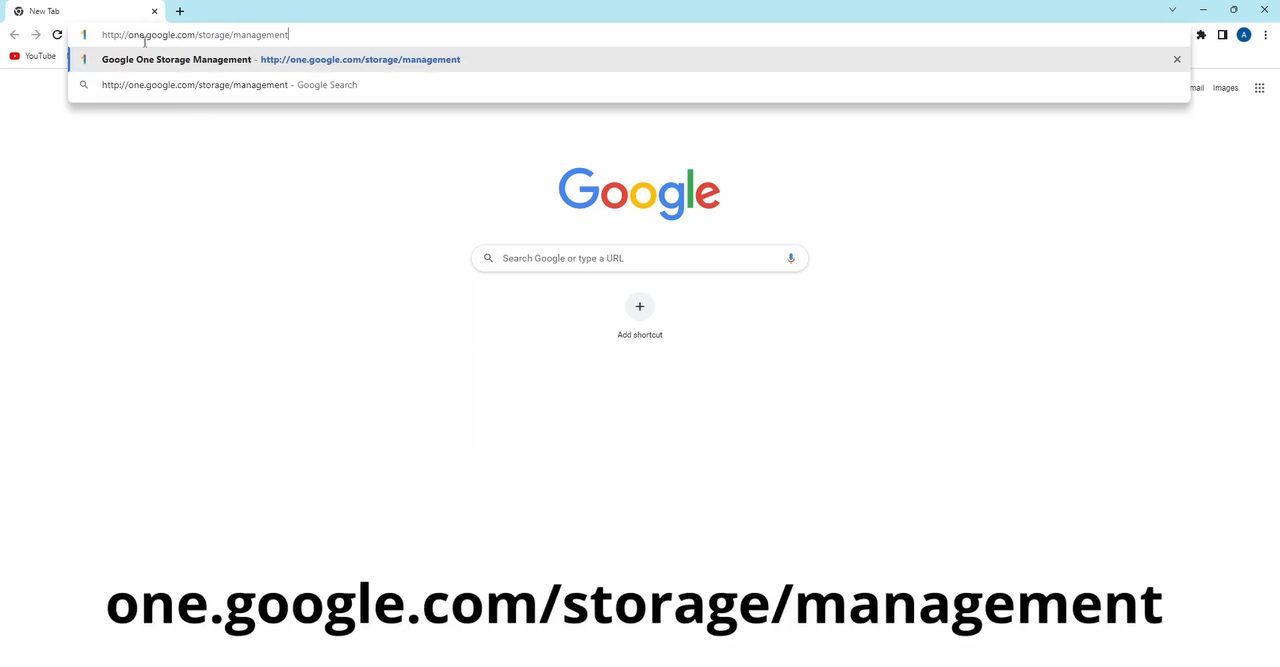
In your browser, make sure you are signed in to the right Google account, then type one.google.com/storage/management in the address bar and press Enter.
2Look at Items in Trash or Spam
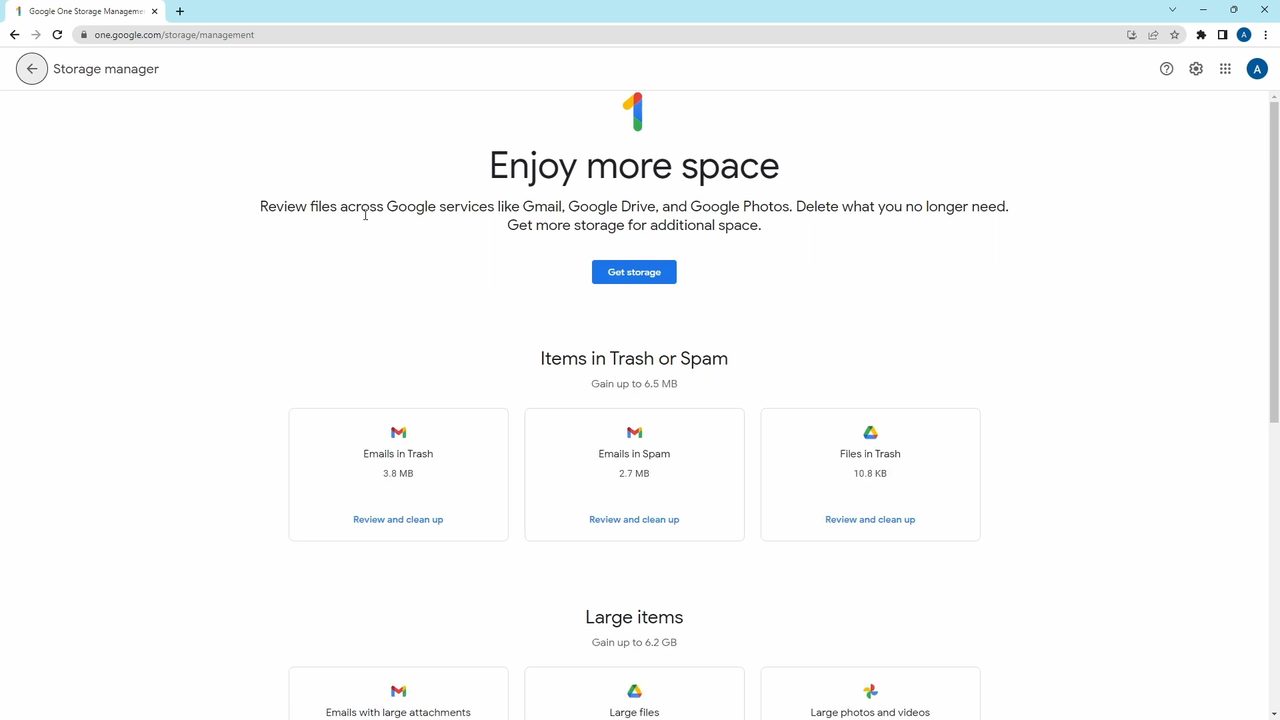
The Storage manager page opens with Enjoy more space at the top. The first section, Items in Trash or Spam, shows three cards: Emails in Trash, Emails in Spam and Files in Trash (Drive), each with its size and a total you can gain.
3Open a card with Review and clean up
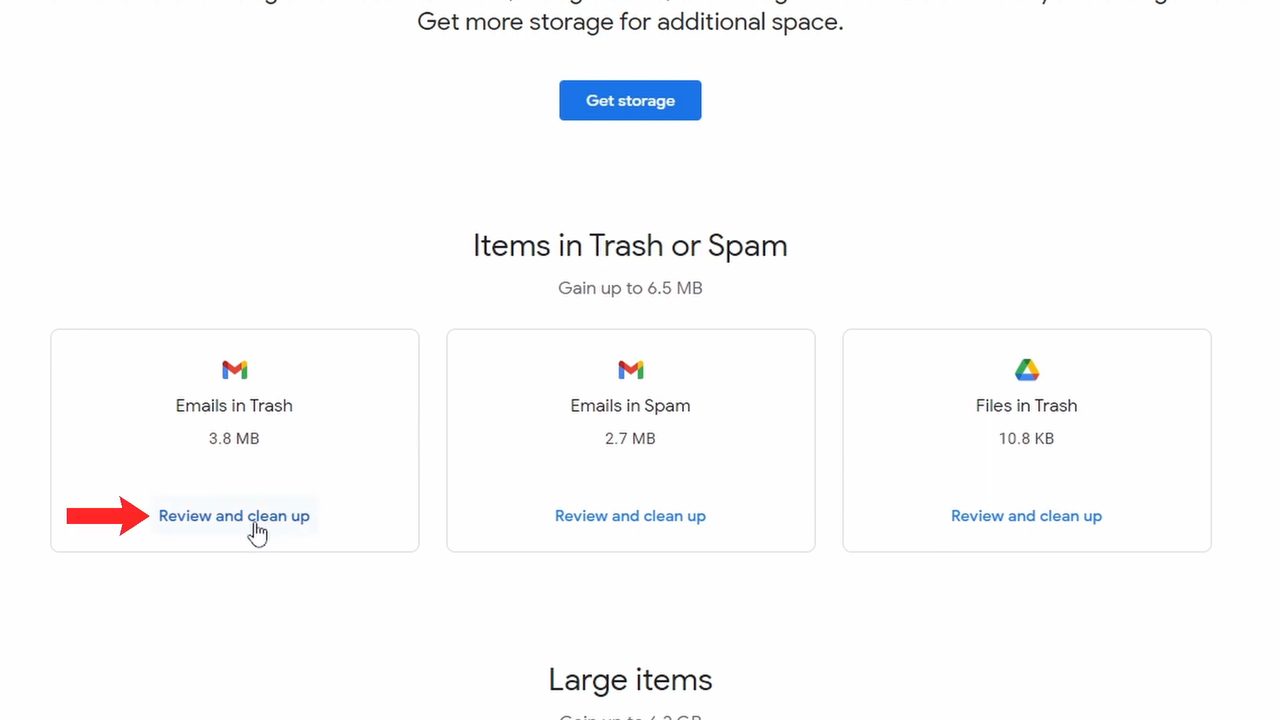
If one of these is large, click Review and clean up under it. We started with Emails in Trash.
4Delete All
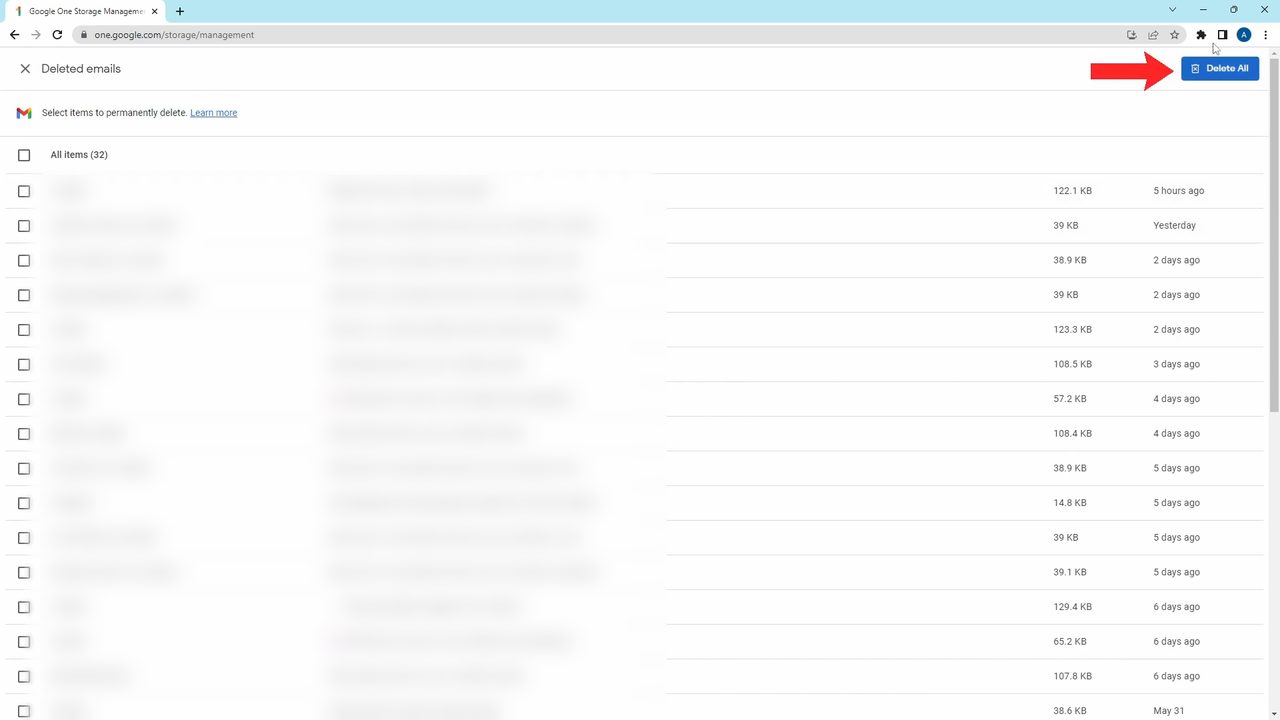
The list shows everything in that trash or spam folder with its size and date. Click Delete All at the top right and confirm. Do the same for Emails in Spam and Files in Trash. Items here are already deleted once, so emptying them is usually safe, but this second delete is permanent.
5Scroll down to Large items
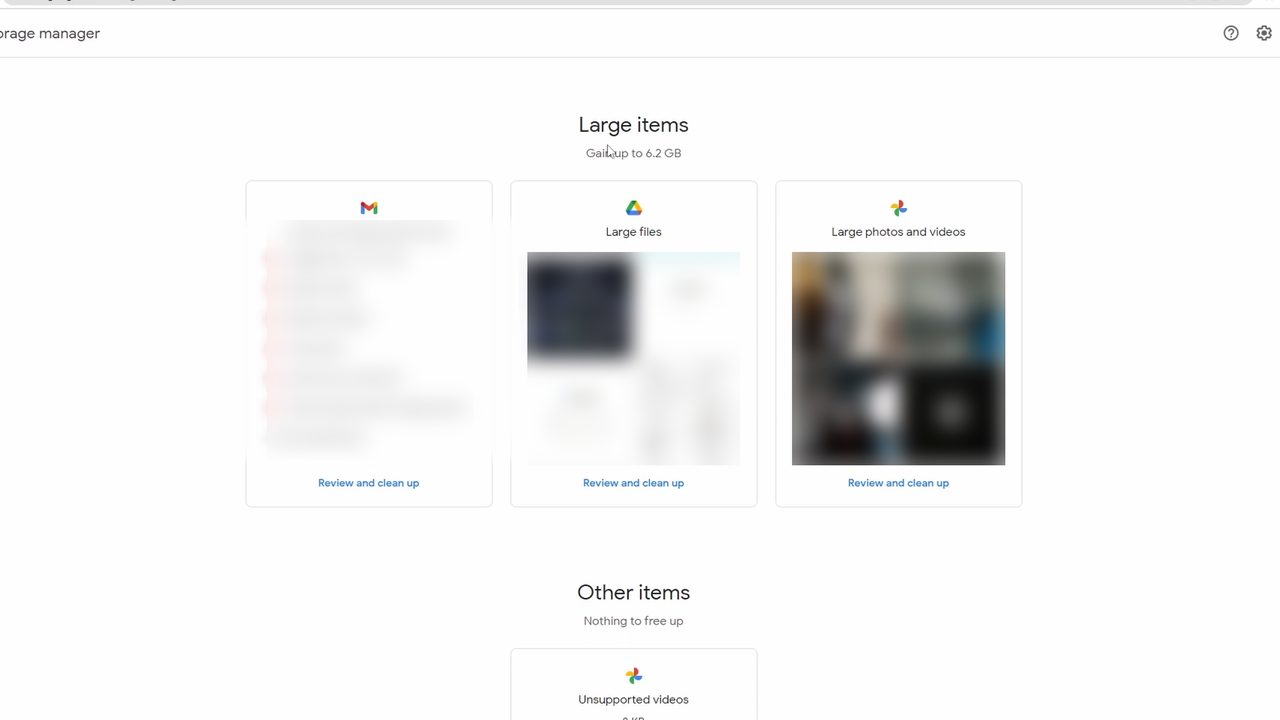
Back on the main page, scroll down to Large items. This is where most of the space is. Google groups the biggest content into three cards: Emails with large attachments (Gmail), Large files (Drive) and Large photos and videos (Photos). The heading shows how much you could gain; ours said up to 6.2 GB.
6Review large Gmail attachments and sort them by size
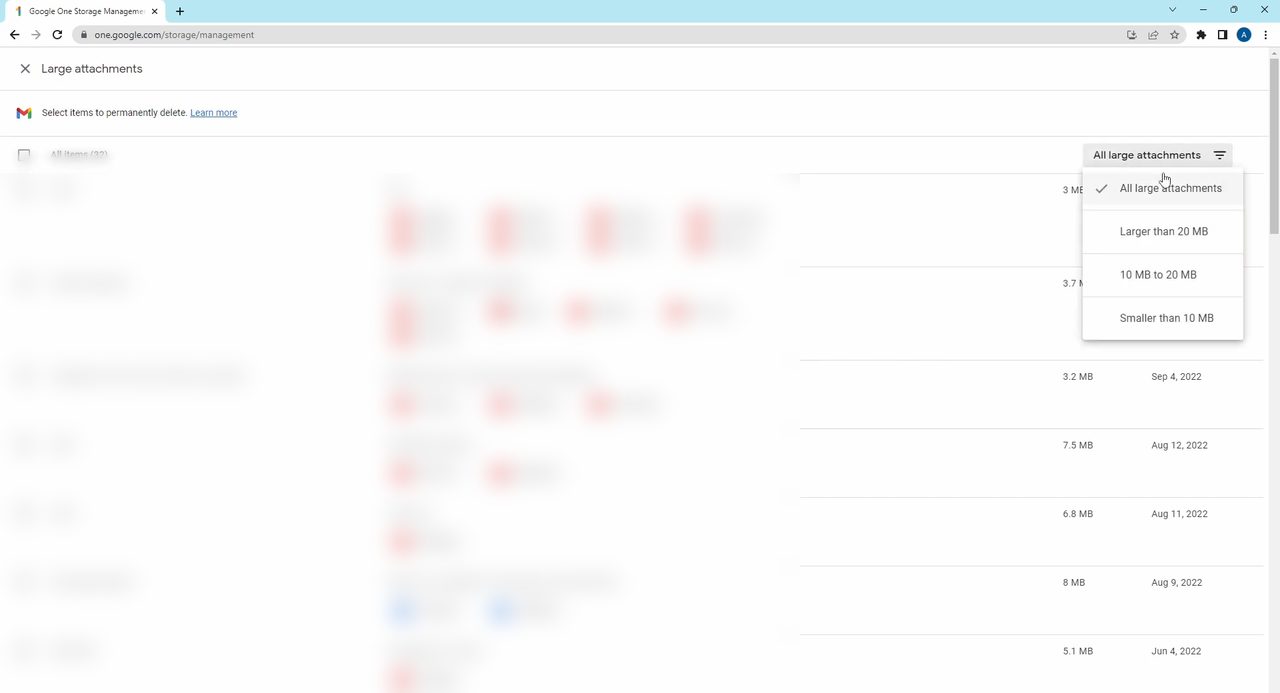
Click Review and clean up under the Gmail card. Click the filter button at the top right to narrow the list: All large attachments, Larger than 20 MB, 10 MB to 20 MB or Smaller than 10 MB. Starting with the biggest ones frees space fastest.
7Select emails and click Delete
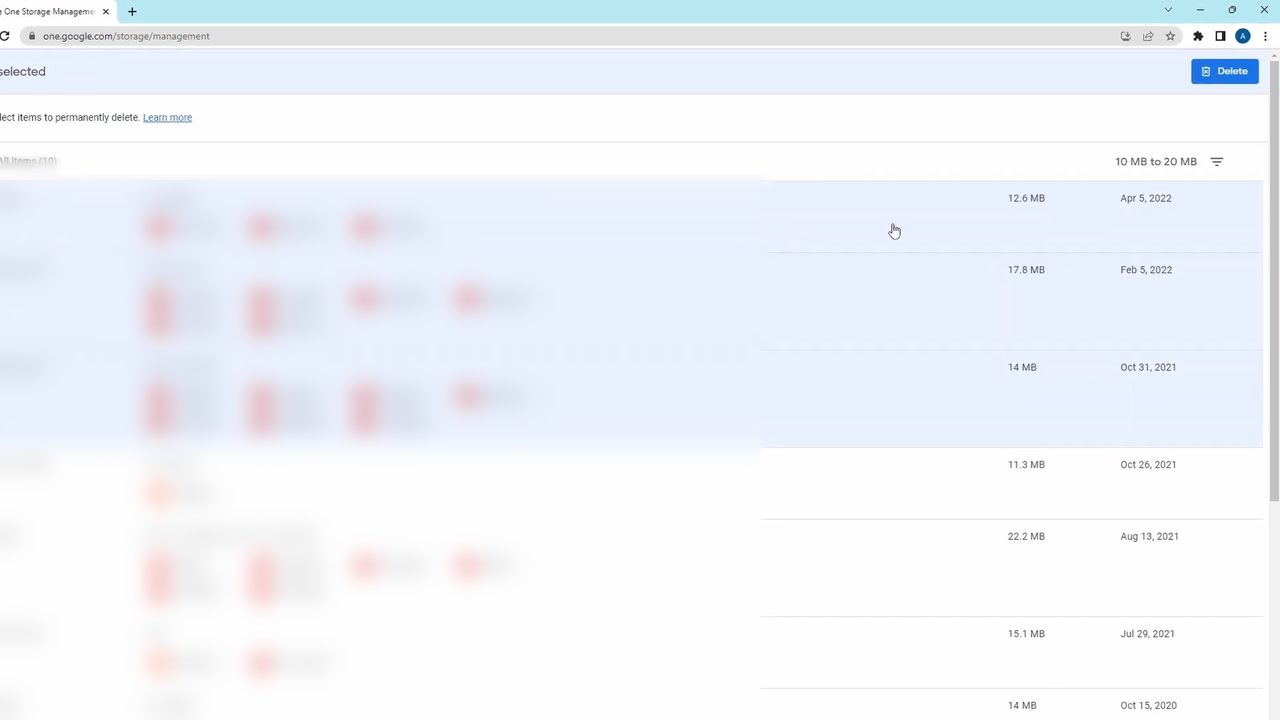
Tick the emails you don't need. The bar at the top shows how many are selected and a Delete button appears at the top right. Click Delete and confirm. The emails are removed permanently, not moved to Trash.
8Repeat for Drive files and Photos
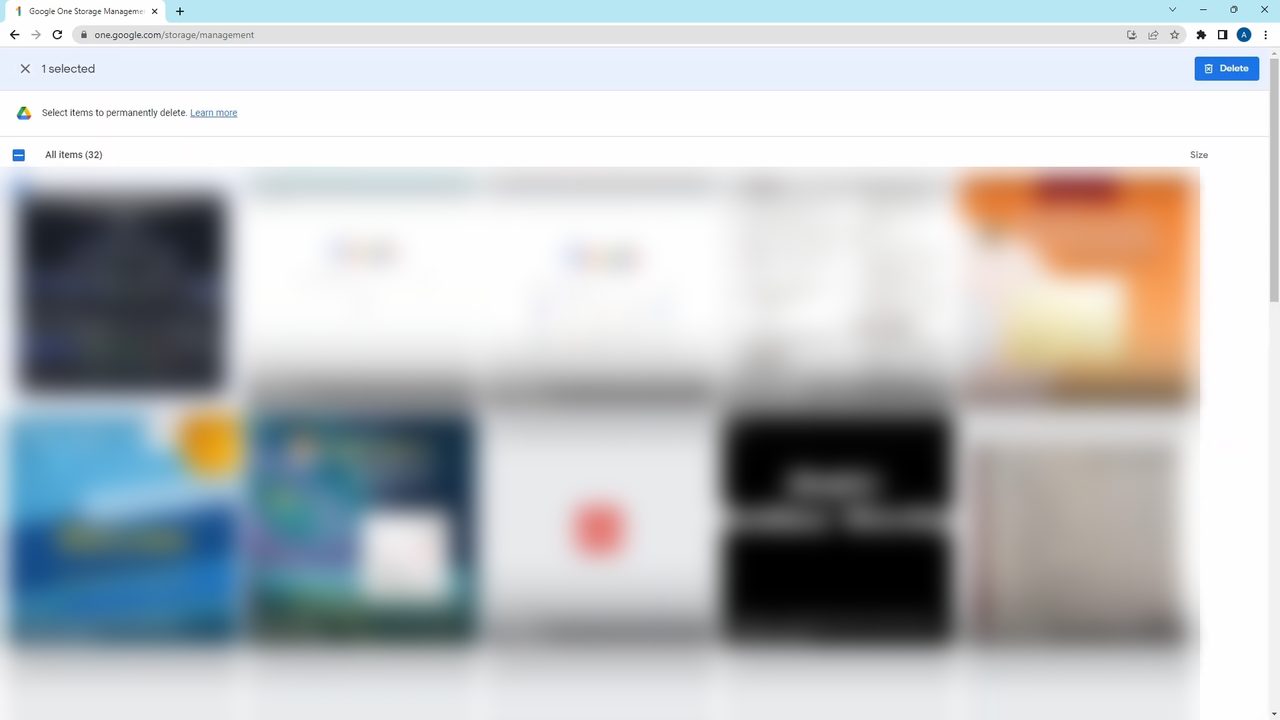
Go back and click Review and clean up under Large files and Large photos and videos. Select the files or videos you no longer need and click Delete. Download anything important first, because these deletes are permanent too.
Before you delete anything
- Open a file or email before deleting it if you are not sure what it is. Thumbnails and subject lines in the list can be misleading.
- Old phone videos and screen recordings are usually the biggest items in Large photos and videos. If you want to keep them, download them to your computer or an external drive first.
- If several people use the same family devices, check that a large file isn't something another family member still needs.
Tips and troubleshooting
- Storage didn't go down right away. Google can take some time to update the storage count after large deletes. Refresh the page later.
- Can't find a file someone shared with you. Files in shared folders only count against the owner's storage, not yours, so deleting them doesn't free your space.
- Old Google Docs barely matter. Google says Docs, Sheets and Slides created or edited before June 1, 2021 don't count toward your storage.
- Photos taking the most space? Photos backed up in High quality (now Storage saver) before June 1, 2021 are free, but newer Original quality backups count. Deleting large videos usually helps most.
- Still over quota? Google warns that when you are over your limit, Gmail may stop sending and receiving and you can't add new Drive files or back up photos. Clean up first, then consider Get storage only if needed.
Gmail tends to be a big part of the total. For a deeper Gmail cleanup, see How to Clear Gmail Storage and Free Up Space.
FAQ
How do I clear my Google Drive storage quickly?
Go to one.google.com/storage/management, empty Items in Trash or Spam with Review and clean up > Delete All, then open each Large items card and delete the biggest files, emails and videos you don't need.
Does deleting files in the storage manager remove them permanently?
Yes. Items deleted from the storage manager are permanently deleted and don't go to Trash first, so download anything you might want later before you delete it.
Why is my Google Drive full when I don't have many files?
Your 15 GB is shared with Gmail and Google Photos. Large email attachments, Spam and Trash, and Original quality photos and videos all count toward the same storage.
Can I free up Google Drive space on my phone?
The video shows the storage manager in a computer browser. The same address works in a mobile browser, and the Google One app also has a storage section.
Related guides