Tech is Easy
How to View Saved Passwords on Phone (Google Account)
To view saved passwords on your phone, open Chrome, tap the three dots, go to Settings > Google Password Manager, tap the site you want and tap the eye icon next to the password. It shows every password saved to your Google account, handy when you forget a login and have no computer nearby.
What you need
- An Android phone with the Chrome app, signed in with the Google account whose passwords you want to see
- Your phone's fingerprint, PIN or screen lock, since the phone asks you to confirm it is you
1Open Chrome settings
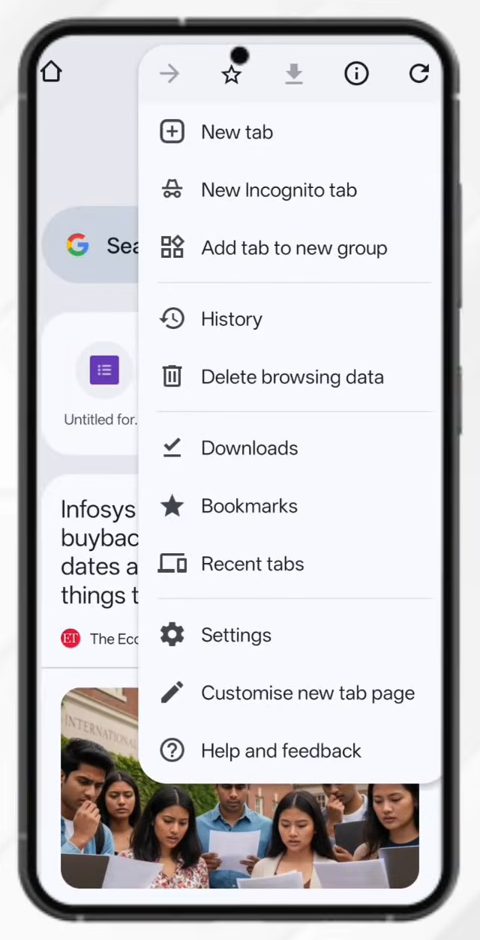
Open Chrome and make sure you are signed in with your Google account (your profile picture shows at the top). Tap the three dots at the top right, then tap Settings.
2Tap Google Password Manager
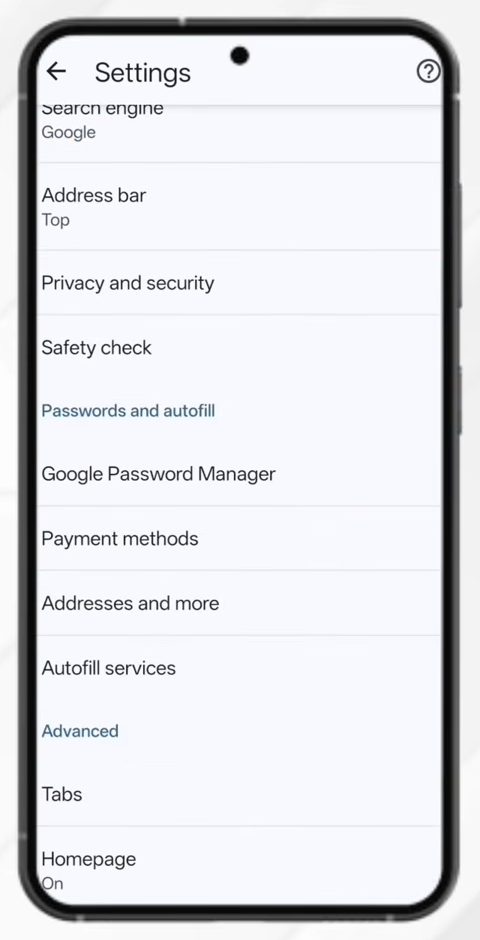
Scroll down in Settings until you reach the Passwords and autofill section. Tap Google Password Manager. In newer Chrome versions, Google's help page calls this entry Autofill and passwords, so the label may read slightly differently on your phone.
3Find the site in your saved passwords
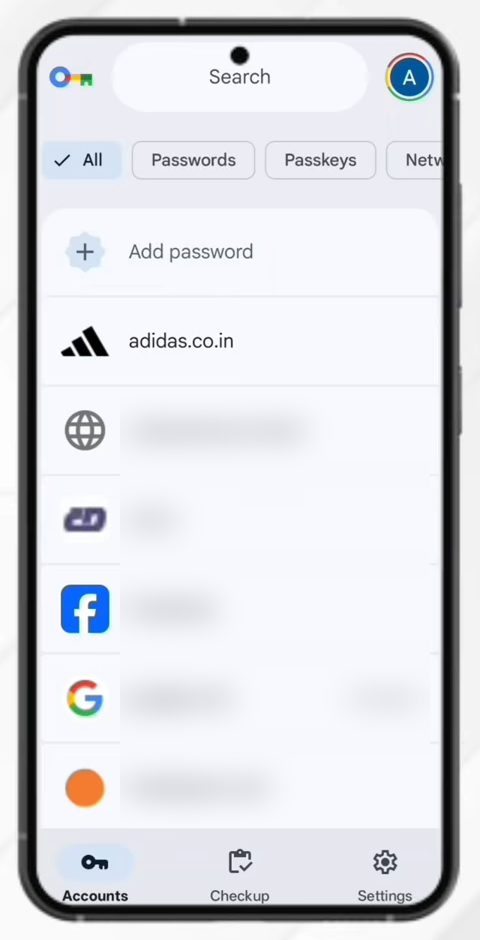
You now see every password saved to this Google account, listed by site.
4Switch accounts if needed
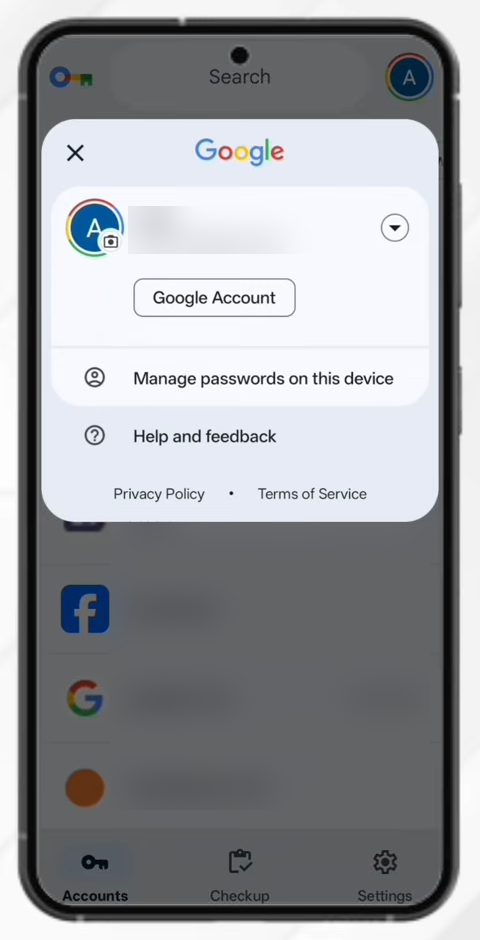
If you have more than one Google account, the list only shows the passwords for the account selected. Tap your profile picture at the top right, then tap the drop-down arrow next to the account name to pick a different account.
5Open the site and tap the eye icon
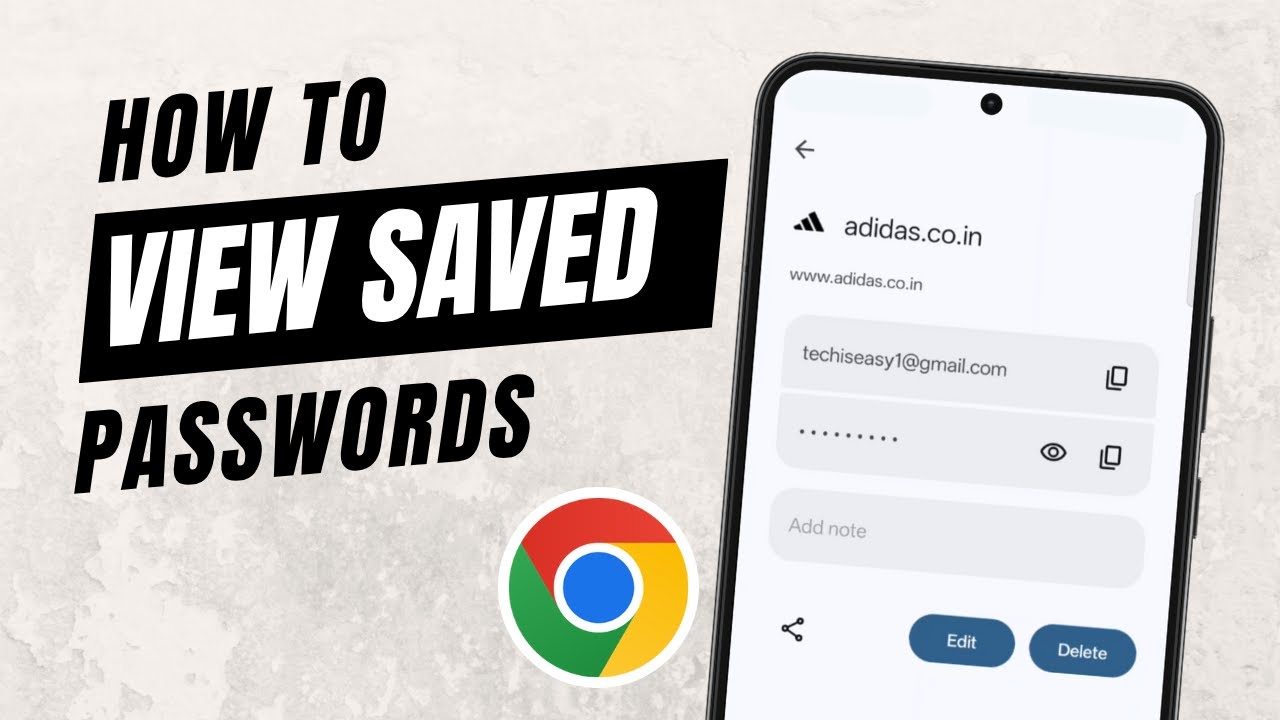
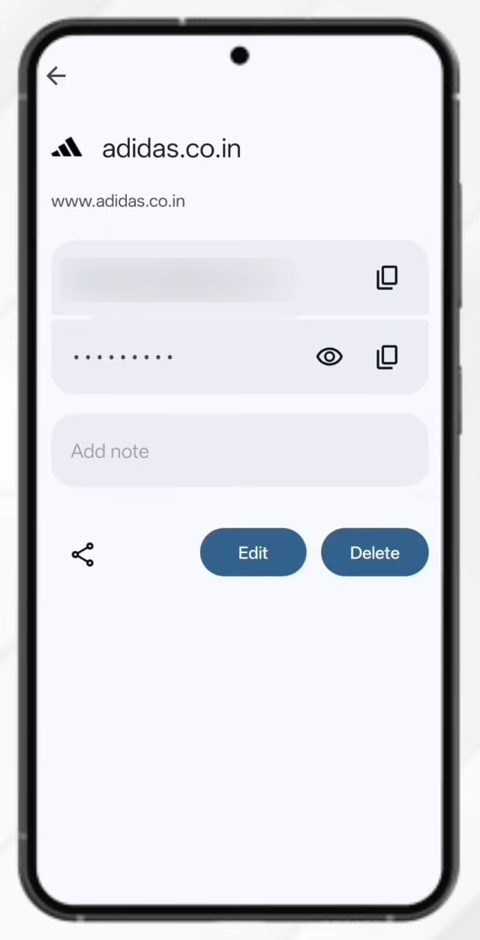
Tap the site whose password you want to see. In the video we open adidas.co.in. Confirm with your fingerprint when asked. The page shows your username and the hidden password. Tap the eye icon to show the password. From here you can also tap Edit to change it, Delete to remove it, or the share icon to send it to someone.
Which passwords you will see
Google Password Manager only lists passwords that Chrome or Android saved to the Google account you have selected. According to Google's help page on managing passwords in Chrome on Android, when you are signed in, Chrome saves passwords to your Google account and uses them across your devices. If you use Chrome while signed out, passwords are only stored on that phone. That is why a password you saved on your laptop shows up on your phone only if both were signed in with the same account.
Passwords saved in other apps are not part of this list. On Samsung phones, for example, logins saved through Samsung Internet or Samsung Pass are kept by Samsung, not by Google.
Other ways to open the same list
- Any browser: go to passwords.google.com and sign in. Google's help page notes you can manage the passwords saved to your Google account there, in Chrome or any other browser. Handy if you are on someone else's computer or an iPhone.
- Export a copy: inside Google Password Manager, open its Settings and tap Export passwords to save them as a file. Treat that file carefully, because anyone who opens it can read every password in plain text.
Tips / troubleshooting
- The phone blocks screen recording and screenshots on the password screen, which is why it may look blank if you try to record it.
- The list is empty or a password is missing? Check which account is selected (Step 4). Then make sure Chrome is signed in and syncing with that account. Passwords saved while signed out stay only on the device they were saved on.
- It won't let you see the password? Your phone needs a screen lock (PIN, pattern, password or fingerprint) to reveal saved passwords. If you have no screen lock set, add one in your phone's security settings and try again.
- Can't find Google Password Manager in Chrome settings? Update Chrome from the Play Store. Older versions show a plain Passwords entry instead.
- Anyone who can unlock your phone can also open these passwords, so keep your screen lock private.
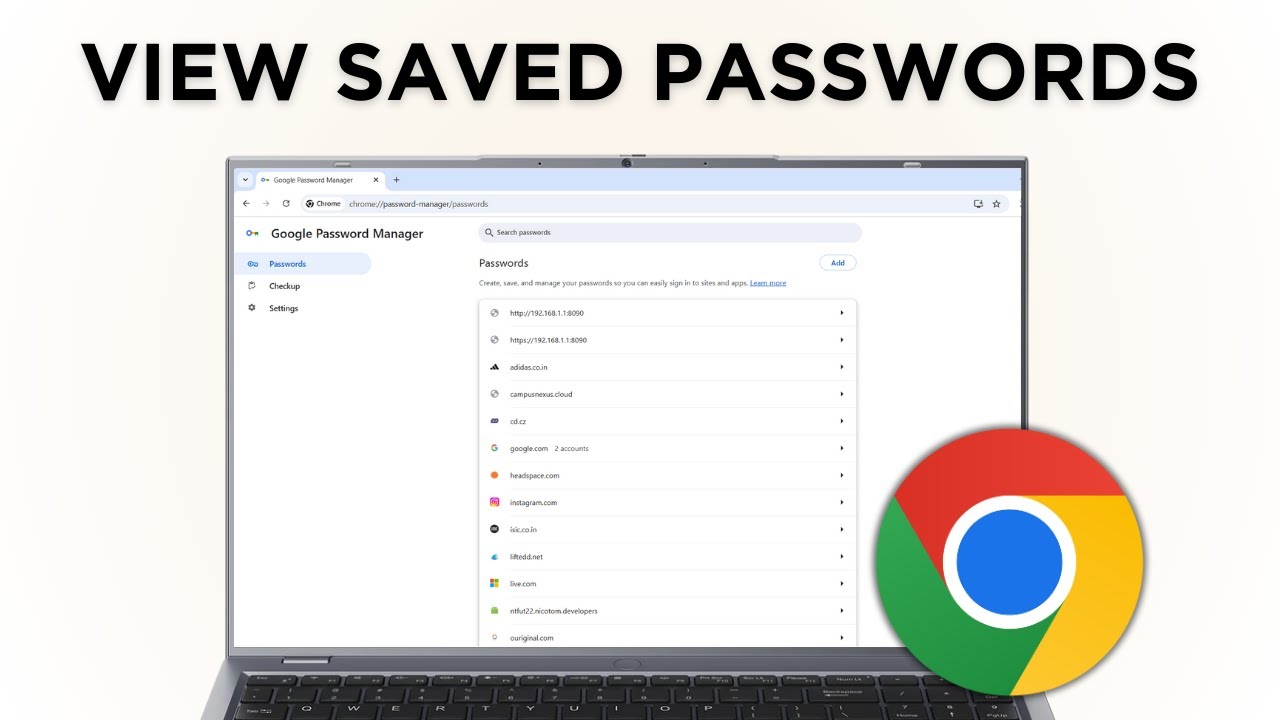
On a computer instead? See how to view saved passwords in Google Chrome.
FAQ
How do I see my Google account passwords on Android?
Open Chrome, tap the three dots, go to Settings > Google Password Manager, then tap any site and tap the eye icon. You will be asked for your fingerprint or screen lock first.
Why does it ask for my fingerprint?
Your phone checks it is really you before showing saved passwords. Use the same fingerprint, PIN or pattern you use for your screen lock.
Can I edit or delete a saved password on my phone?
Yes. Open the site in Google Password Manager and tap Edit to change the username or password, or Delete to remove it completely.
Can I see my phone's saved passwords on a computer?
Yes, if they were saved to your Google account. Open passwords.google.com in any browser and sign in with the same account to see, edit or delete them.
Who can I share a saved password with?
The share icon sends a password to someone in your Google family group. They get it in their own Google Password Manager, and you don't have to read it out or paste it into a chat.
Does this work on iPhone?
The video shows an Android phone. Chrome on iPhone also has a password manager in its settings, but the exact steps are not shown here. On any device, including an iPhone, you can see the same list by signing in at passwords.google.com.
Related guides