Tech is Easy
How to Transfer Google Drive Files to Another Account
To transfer Google Drive files from one account to another, move the files into one folder, share that folder with your other account, then open Shared with me in the second account, copy the files and paste them into its My Drive. If you would rather keep your whole folder structure, export the Drive with Google Takeout and upload the unzipped folders to the new account.
The two methods give different results, so pick one before you start:
| Method 1: share and copy | Method 2: Google Takeout | |
|---|---|---|
| Google Docs and Sheets | Stay Google Docs and Sheets | Become Word and Excel files |
| Folder structure | Lost, files end up in one folder | Kept |
| File names | Get "Copy of" in front | Unchanged |
| Best for | A handful of documents you keep editing | Moving a full Drive as an archive |
What you need
- Both Google accounts signed in. Using two browser windows or two Chrome profiles makes it easy to switch.
- Enough free storage in the account you are moving files to. Copied and uploaded files count toward the new account's storage, not the old one.
Method 1: Share a folder and copy the files (keeps Google Docs format)
1Create a transfer folder in the old account
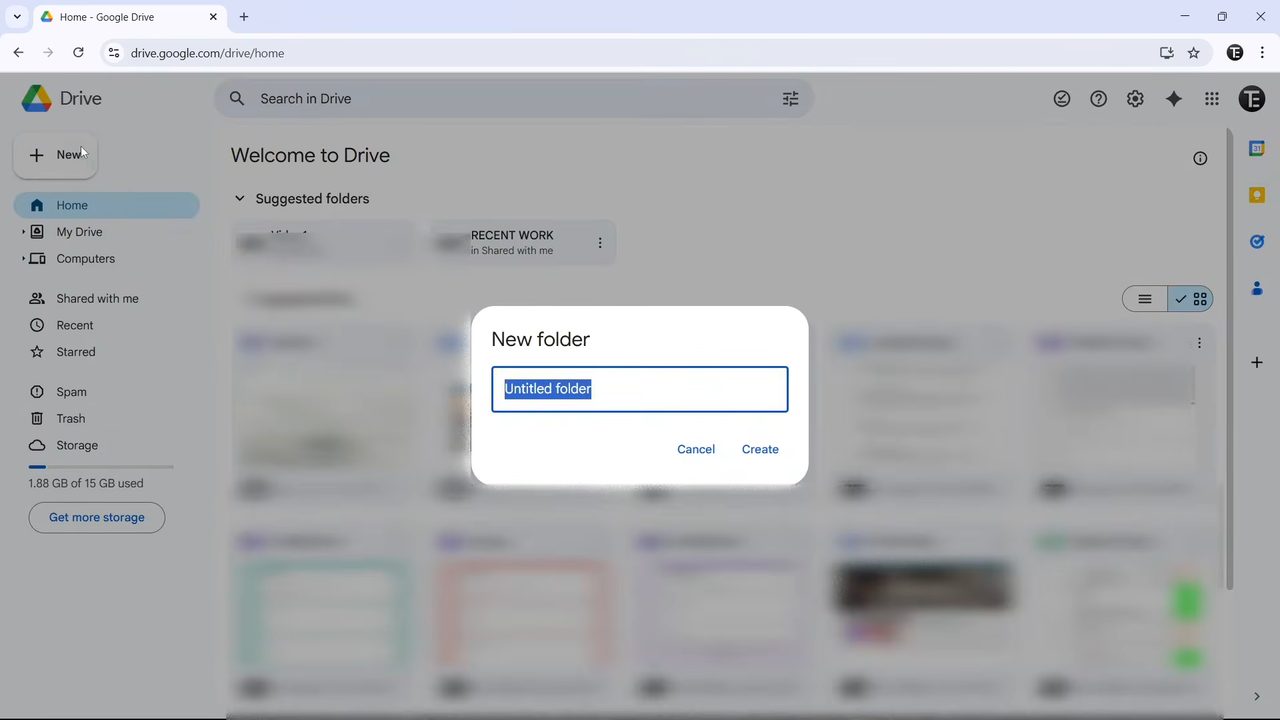
Open Google Drive in the account you are moving files from. Click New at the top left, then New folder. Give it a clear name such as Folder to transfer and click Create.
2Move your files into that folder
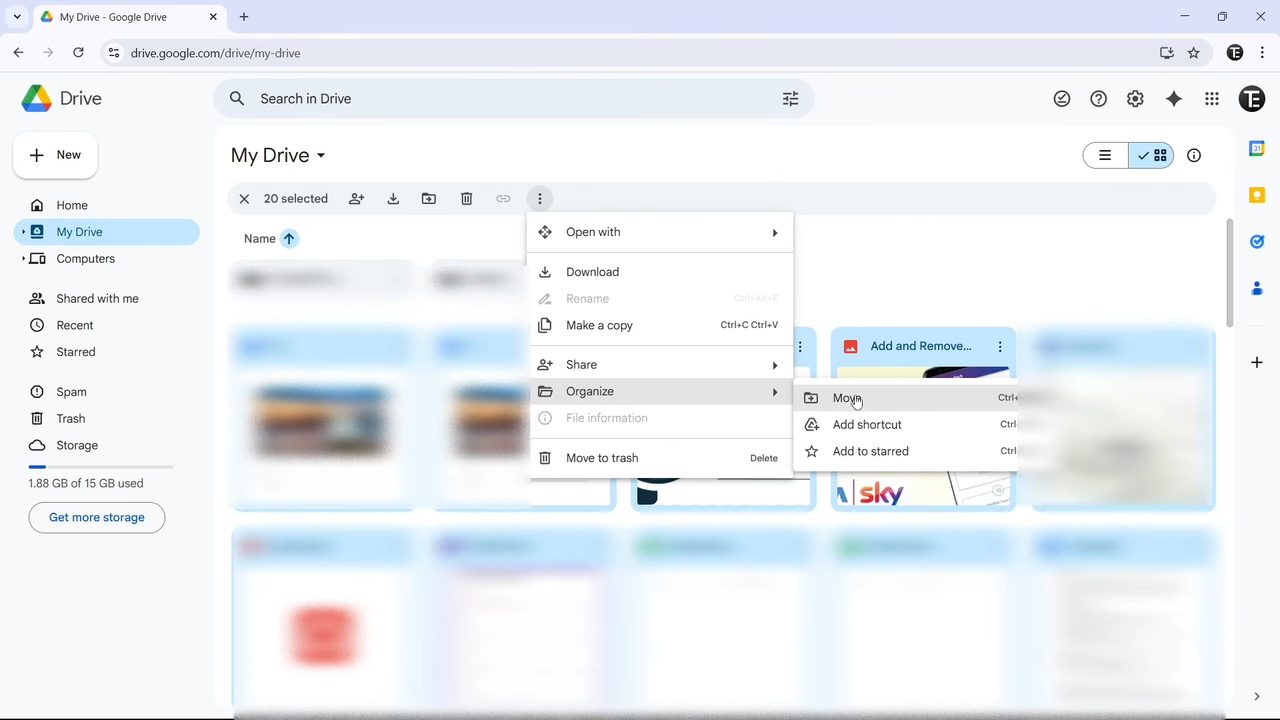
Click one file, hold Shift and use the arrow keys (or click the last file) to select everything you want to move. Click the three dots in the toolbar, choose Organize, then Move. Pick your transfer folder in the list and click Move.
Files inside other folders have to be moved separately. Open each folder, select its files and repeat the same Organize > Move steps. This is the slow part if your Drive has many folders.
3Share the folder with your other account
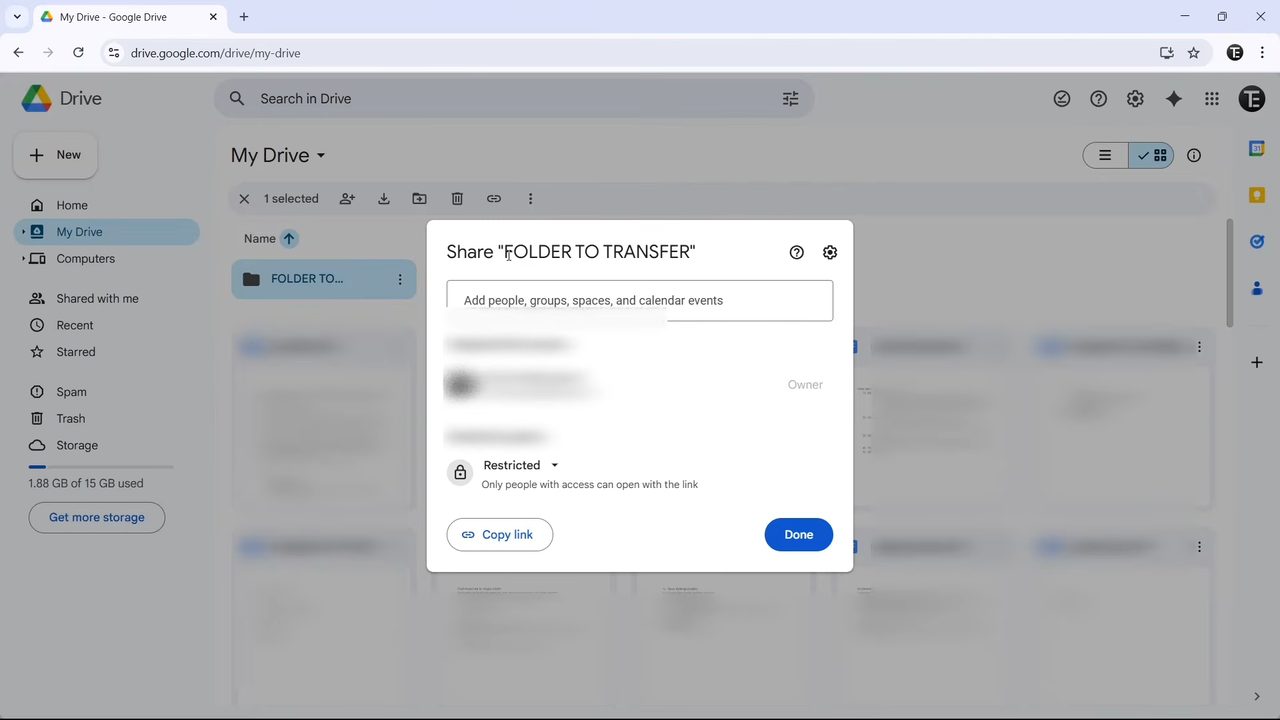
Click the three dots next to the transfer folder and choose Share. Type the email address of the account you are moving files to, then click Send. That is all you need to do in the old account.
4Open Shared with me in the new account
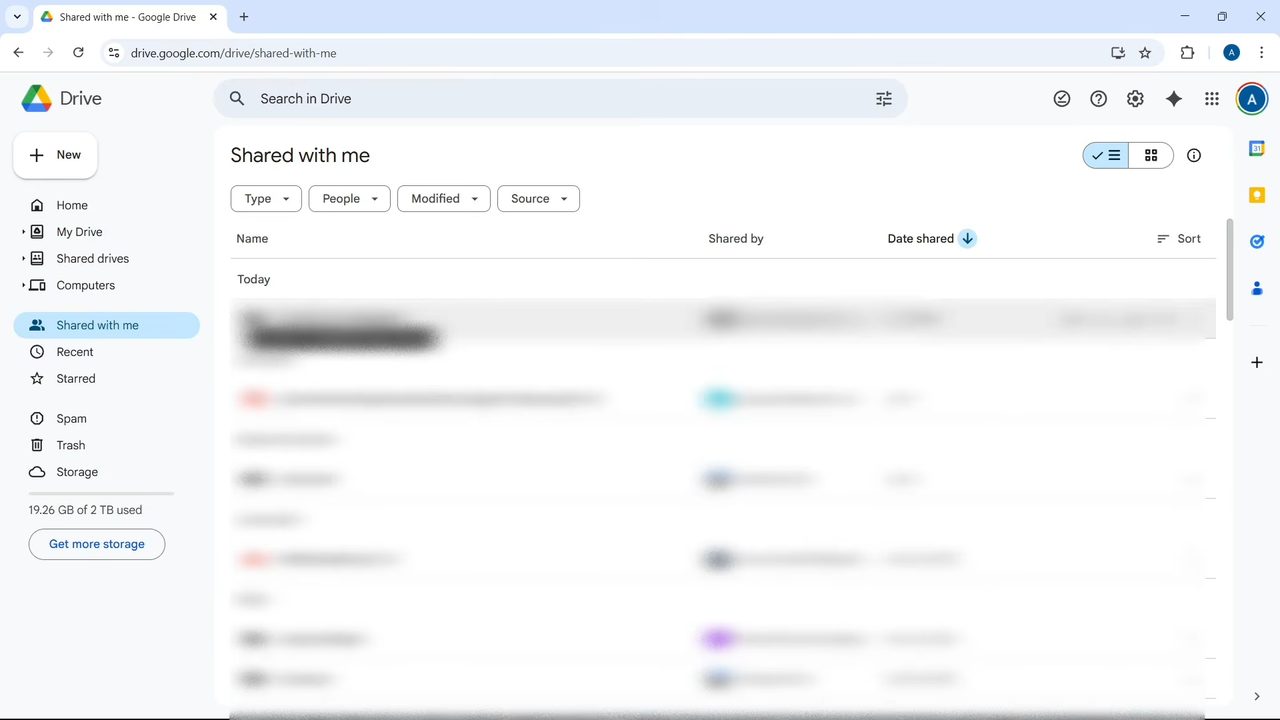
Switch to the new account's Google Drive and click Shared with me in the left menu. The folder you just shared shows up at the top. Open it, select all the files and press Ctrl + C to copy them.
5Paste the files into My Drive
Go to My Drive, click New > New folder, name it something like Backup and open it. Press Ctrl + V and Drive pastes the files one by one. A message such as Copied 20 files confirms it worked.
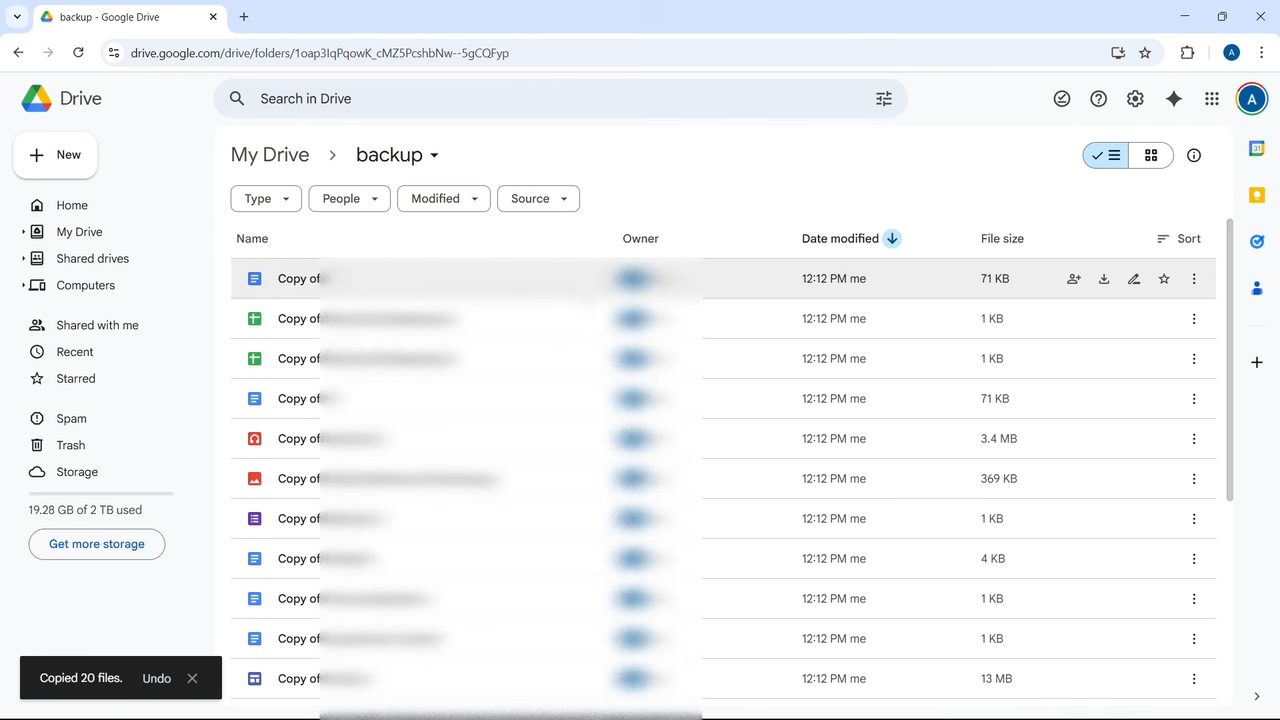
Two things change. The new account is now the owner of every copy, so the old account can be deleted without affecting them. Each file name also starts with Copy of, which you can fix by right-clicking a file and choosing Rename. The file type does not change: a Google Doc opens as a Google Doc, not as a Word file.
Method 2: Use Google Takeout (keeps folder structure)
6Select only Drive in Google Takeout
In the old account, search for Google Takeout or go to takeout.google.com. Click Deselect all, scroll down to Drive and tick its box. This includes every file you own in My Drive and Computers. Scroll to the bottom and click Next step.
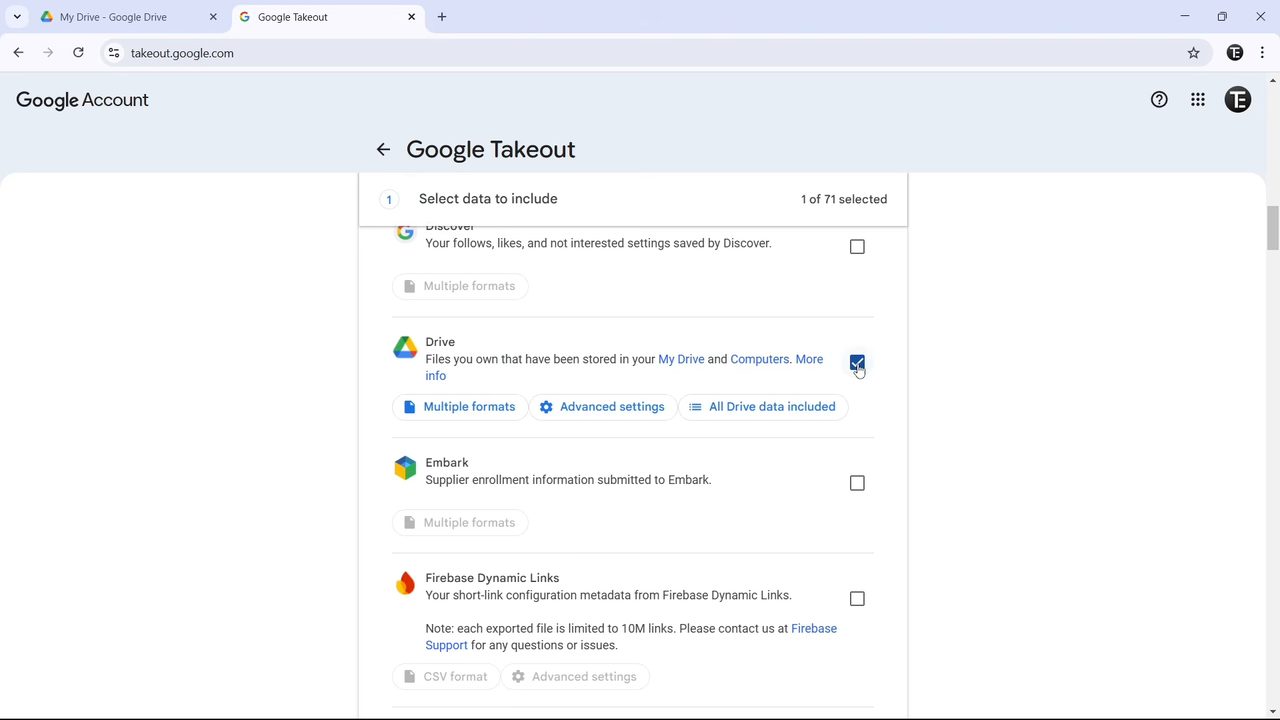
7Keep the default export settings
Leave Send download link via email, Export once and file type .zip as they are. File size can stay at 2 GB. If your Drive is bigger than that, Takeout splits it into several zip files. Click Create export.
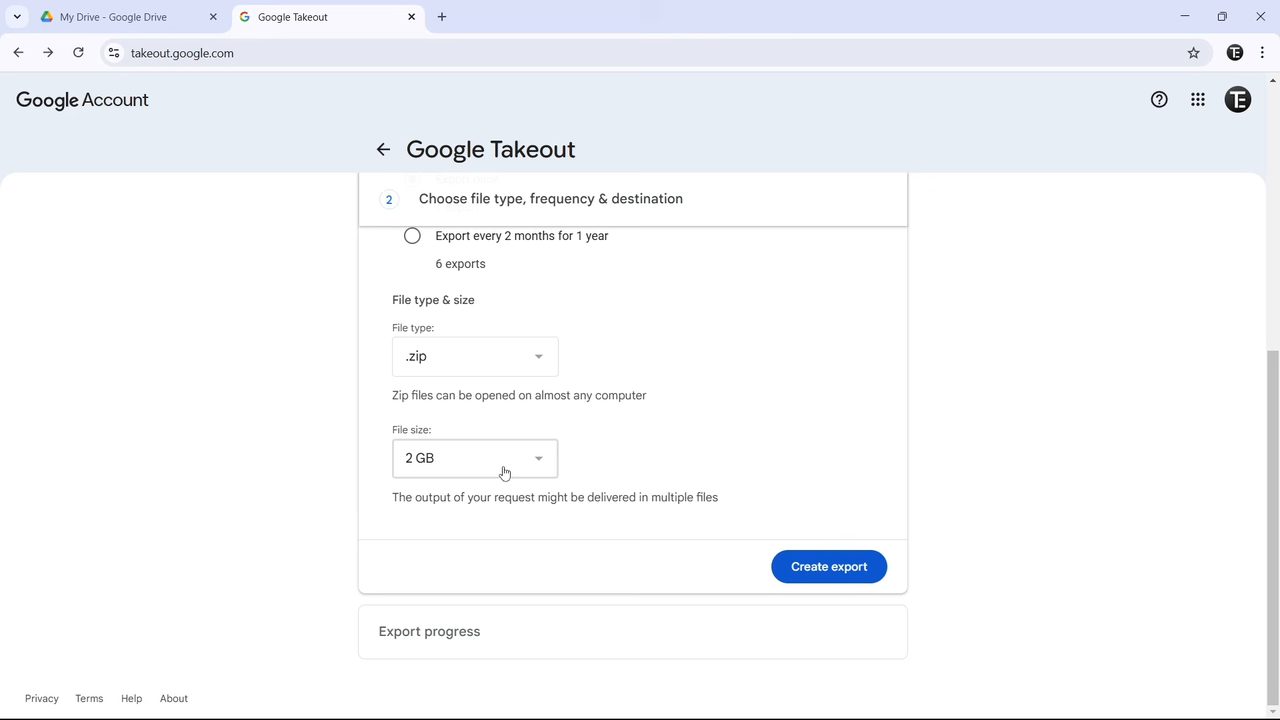
8Download the export from your email
When the email Your Google data is ready to download arrives, click Manage Google Takeout request, then Download. Google asks for your password once, then the download starts.
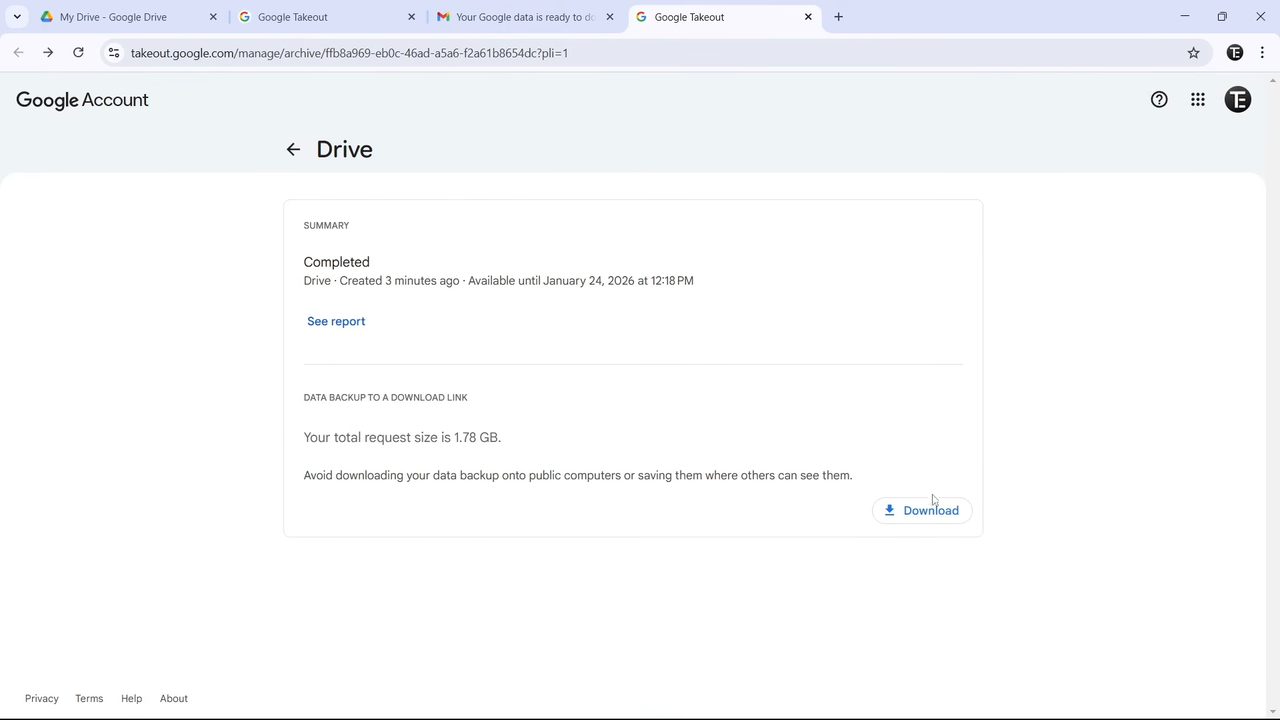
9Unzip the downloaded file
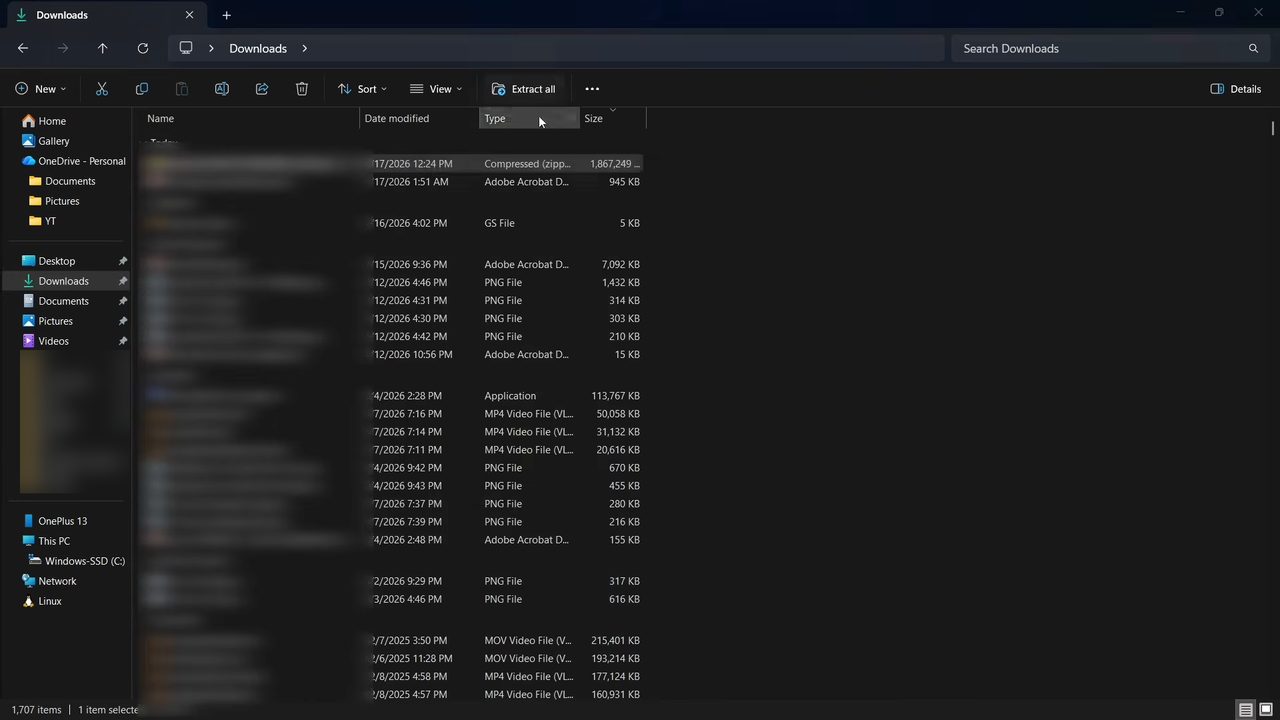
Open File Explorer, go to Downloads, select the Takeout zip file and click Extract all, then Extract. Inside the new folder, open Takeout > Drive to see all your files and folders exactly as they were arranged in Drive. On a Mac, double-click the zip to unzip it.
10Upload everything to the new account
Open Google Drive in the new account and click New > File upload (or Folder upload to bring a whole folder across with its subfolders). Go to the extracted Takeout > Drive folder, select the files and click Open.
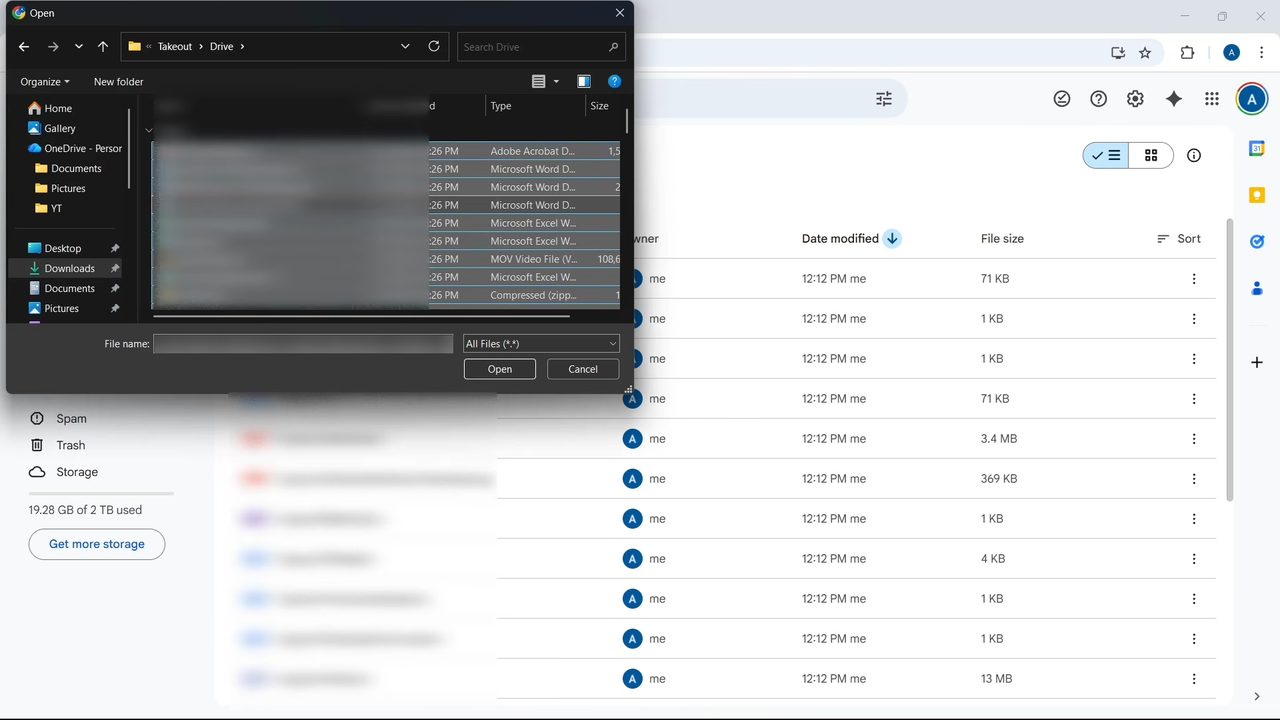
The catch with this method: Google Docs come back as Word documents and Google Sheets as Excel files, because Takeout exports them in those formats.
Tips and troubleshooting
- Files missing from the export or the shared folder? Takeout's Drive option only includes files you own. Files other people shared with you are not part of it. Ask the owner to share them with your new account directly.
- Want Word and Excel files back as Google Docs and Sheets? Open one in Drive and use File > Save as Google Docs (or Save as Google Sheets). Drive's settings also have an option to convert uploads to Google Docs editor format, which you can turn on before uploading.
- Takeout link stopped working? Google's help page How to download your Google data says an archive expires in about 7 days. Create a new export if you missed it. The same page explains that larger archives are split into multiple files, and you can pick the 50 GB size to reduce splitting.
- Only a few files to move? Instead of copying, you can make the new account the owner. Share the file, then use Transfer ownership next to the person's name. Google's guide Make someone else the owner of your file explains that the new owner has to accept the request, and work or school accounts can only transfer within their organization.
- Delete the original files from the old account only after you have checked that everything opened correctly in the new one.
Related guides: How to Transfer Google Photos From One Account to Another and How to Transfer Emails From One Gmail Account to Another.
FAQ
How do I transfer Google Drive data from one account to another without changing the format?
Use Method 1. Share a folder with the new account, then copy the files from Shared with me and paste them into My Drive. Google Docs and Sheets stay in their original format, but the file names start with "Copy of".
How do I transfer Google Drive with the folder structure?
Use Google Takeout. Export only Drive, download and unzip the file, then upload the extracted folders to the new account. The folders stay intact, but Docs and Sheets become Word and Excel files.
Will the old account still own the copied files?
No. In Method 1 the receiving account becomes the owner of each copy, and with Takeout you upload fresh files, so the new account owns them too. Deleting the old account does not remove them.
Can I move files from one Google Drive to another on my phone?
Not shown in the video. Method 1 relies on selecting many files and pasting them, and Takeout downloads a zip file, so both are much easier on a computer.
Related guides