Tech is Easy
How to Create a Gmail Account on Laptop (Step-by-Step)
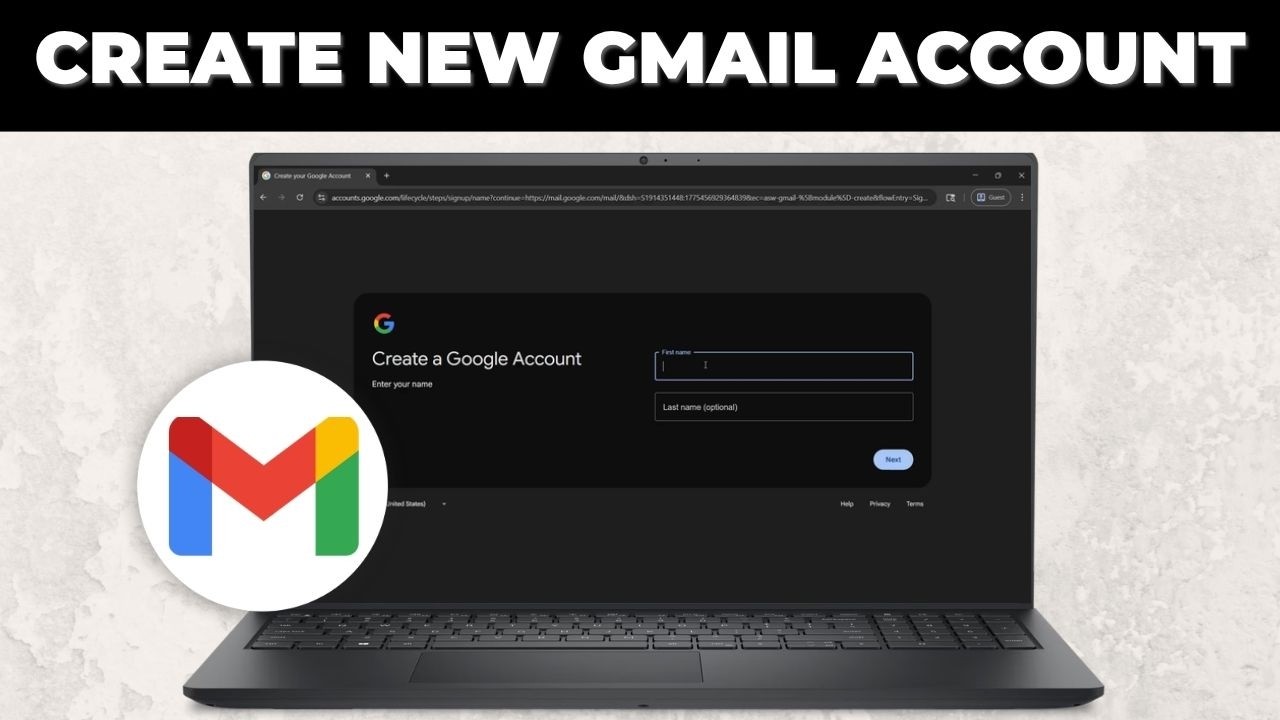
To create a Gmail account on a laptop, go to gmail.com in your browser, click Create an account > For my personal use, then enter your name, birthday, the Gmail address you want and a password, and finish the verification Google asks for. This guide is for anyone making their first Gmail address, or a second one for work, school or shopping, on a Windows laptop, Mac or any PC. The steps to make a Gmail account are the same in Chrome, Edge, Firefox or Safari.
What you need
- A laptop or PC with a web browser and internet
- Your phone nearby, because Google may ask you to verify with it
- A few Gmail address ideas, in case your first choice is taken
Google's help page says to sign out of any Gmail account you are already using before you create a new one. Using a private or guest browser window, as in our video, has the same effect.
1Go to gmail.com and click Create an account
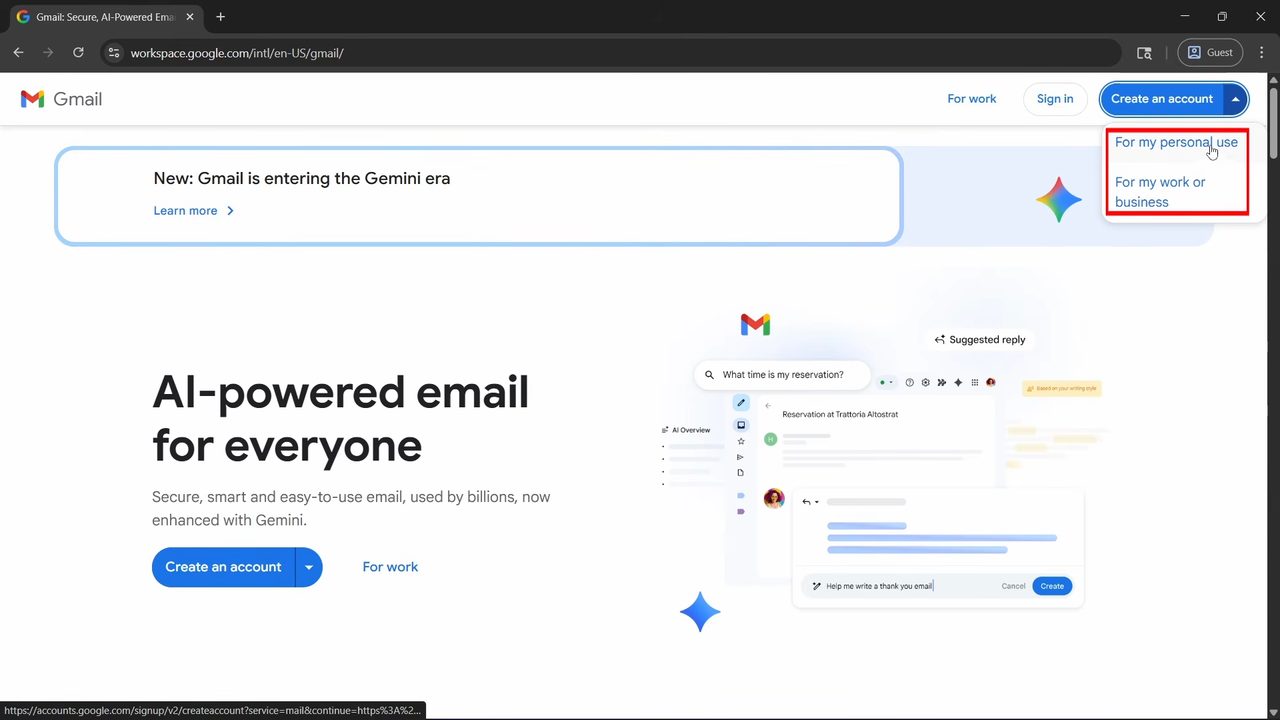
Open your browser, type gmail.com in the address bar and press Enter. On the Gmail page, click Create an account at the top right. A small menu asks who the account is for. Choose For my personal use. (Pick For my work or business only if you want a business account.)
2Enter your name
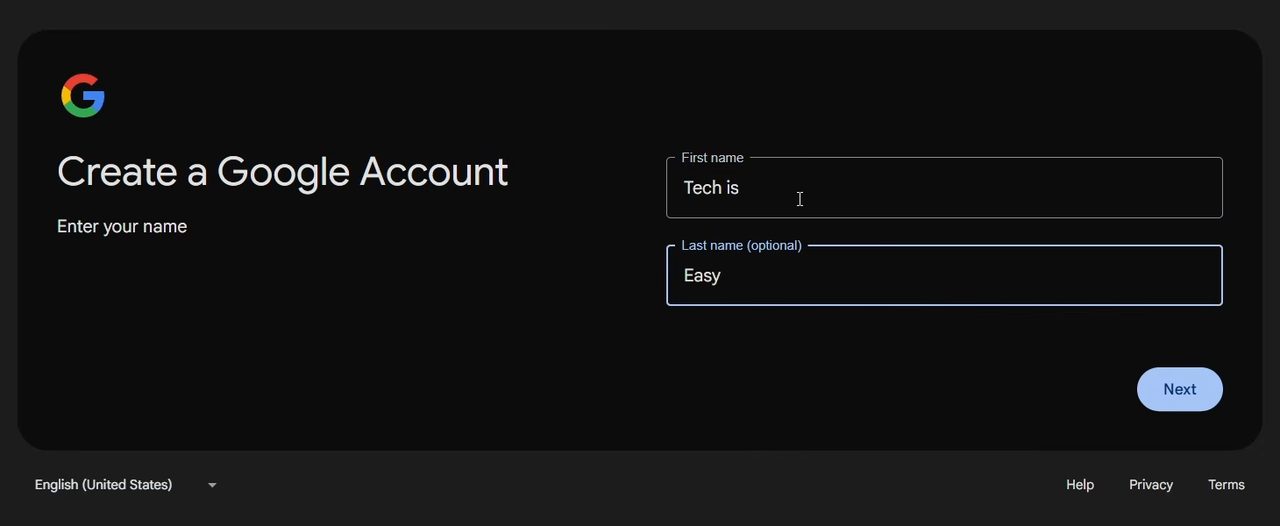
Type your First name and, if you want, your Last name (it is optional). This is the name people see when you send them an email. Click Next.
3Add your birthday and gender
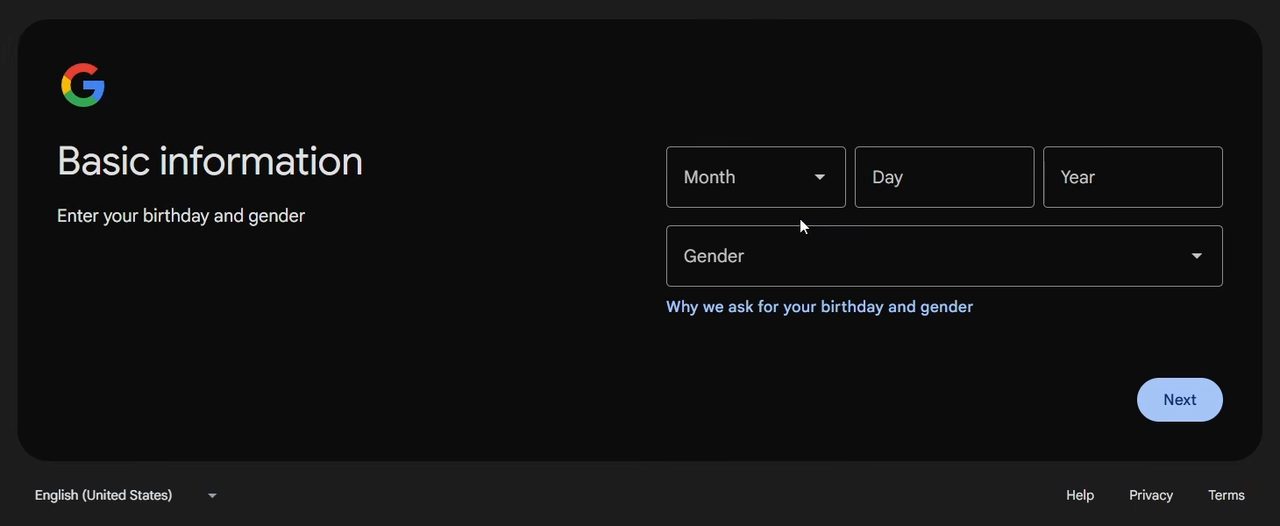
On Basic information, choose your birth Month, then type the Day and Year, and pick a Gender from the dropdown. Click Next. Google uses your birthday to apply age-based settings, so enter your real date of birth.
4Choose your Gmail address
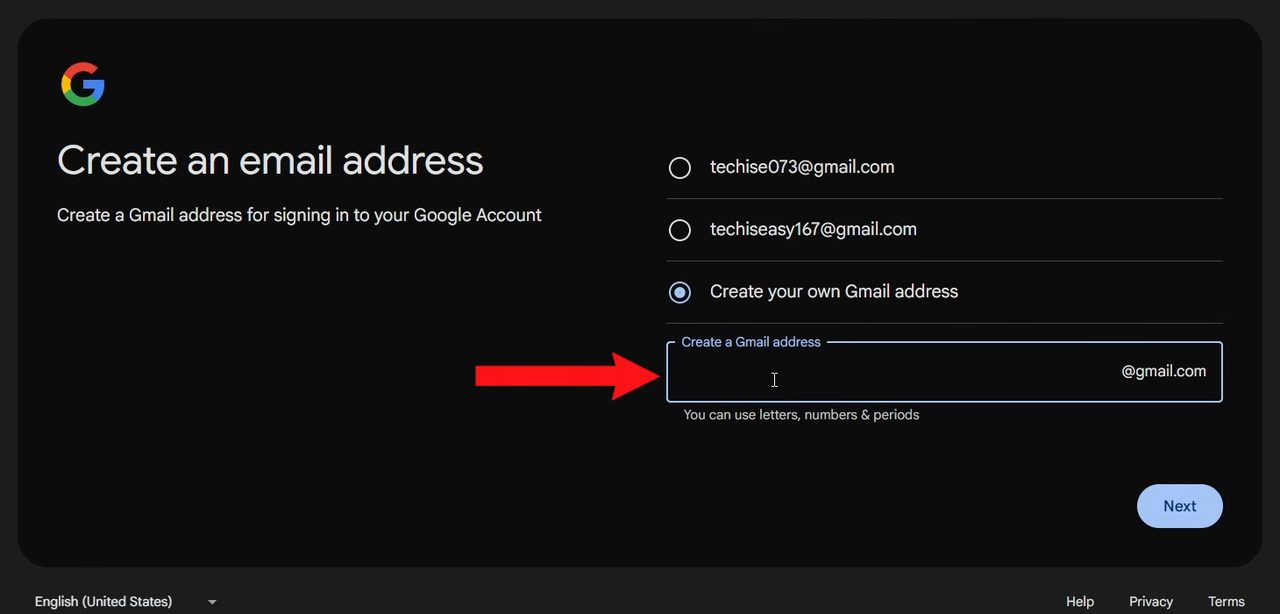
Google suggests a couple of addresses based on your name. You can click one of them, or select Create your own Gmail address and type the address you want in the box. Only letters, numbers and periods are allowed. Click Next. If the address is already taken, Google tells you and you can try another.
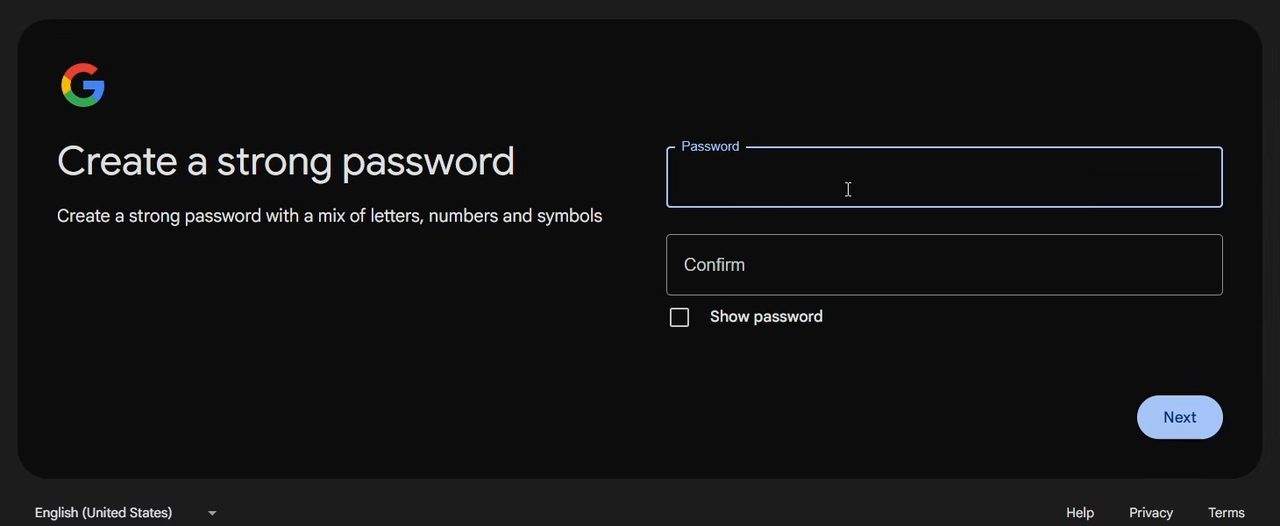
5Create a strong password
Type a password in Password and type it again in Confirm. Use a mix of letters, numbers and symbols. Tick Show password if you want to check what you typed, then click Next.
6Complete the verification
Google now checks that you are a real person. The verification step differs from person to person. In our case a Verify some info before creating an account page showed a QR code. Scan it with your phone's camera, tap the link and follow the steps on the phone. Ours asked to Verify your phone number; we tapped Verify and went back to the laptop when the phone said so. Others may be asked for a phone number and a code by text message instead.
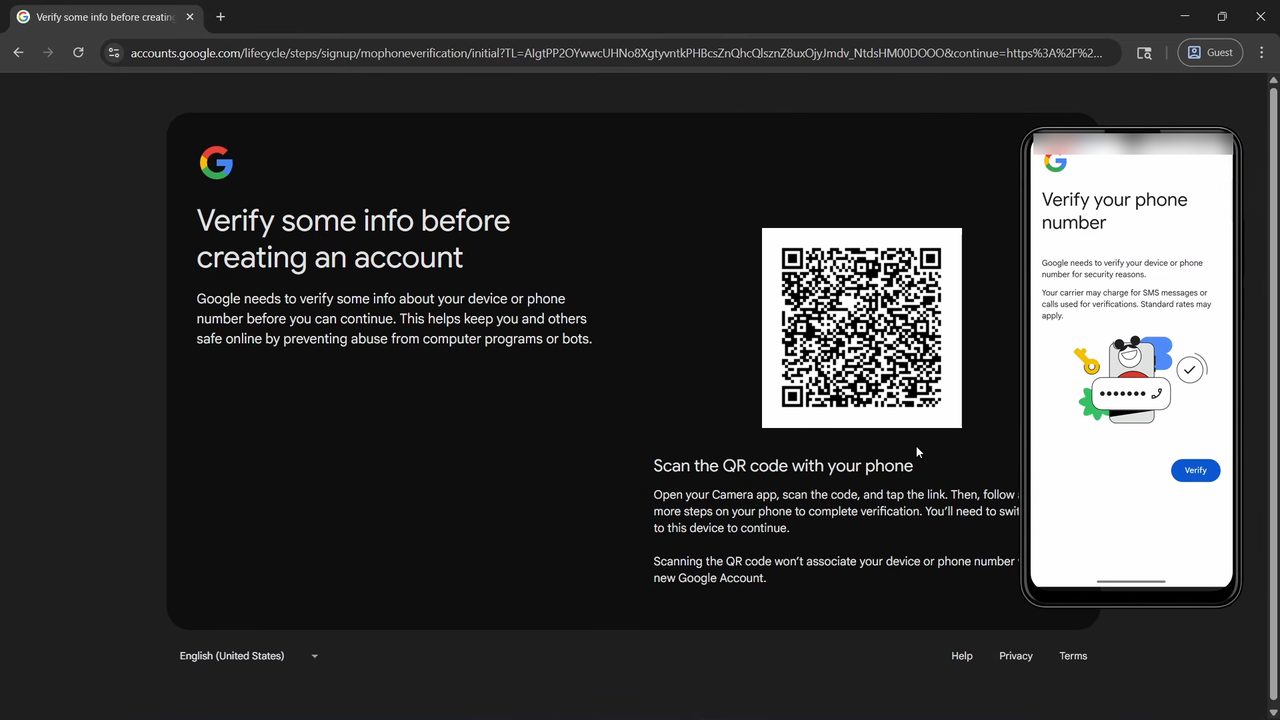
Google notes on that page that scanning the QR code doesn't attach your phone or phone number to the new Google Account.
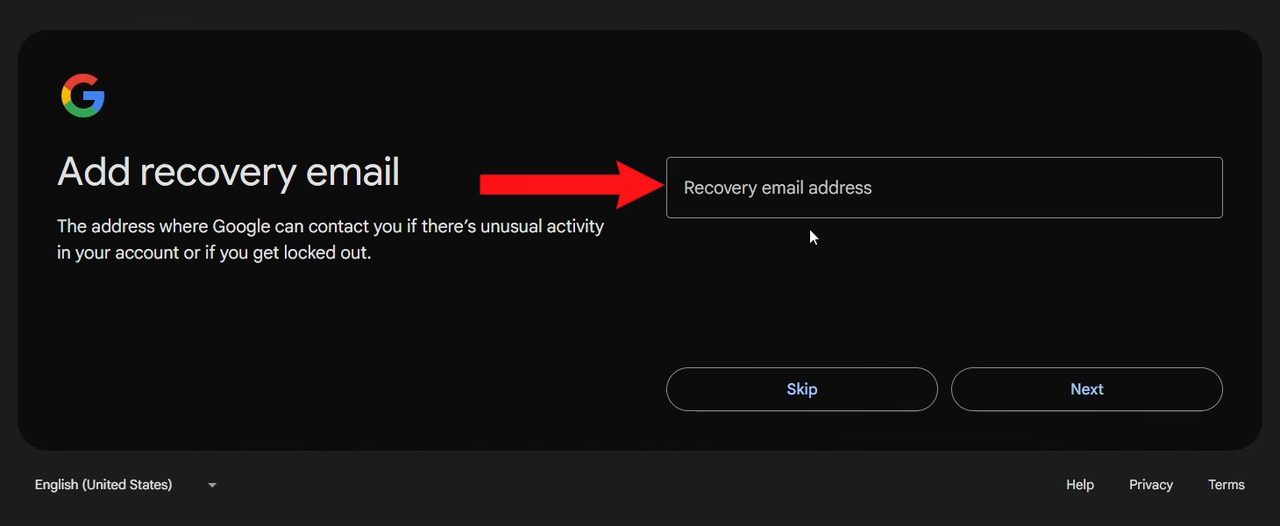
7Add a recovery email (or skip)
You can type a Recovery email address: a backup address Google can use if there is unusual activity or you get locked out. Click Next to save it, or Skip if you don't have one. We skipped it in the video, but adding one is a good idea.
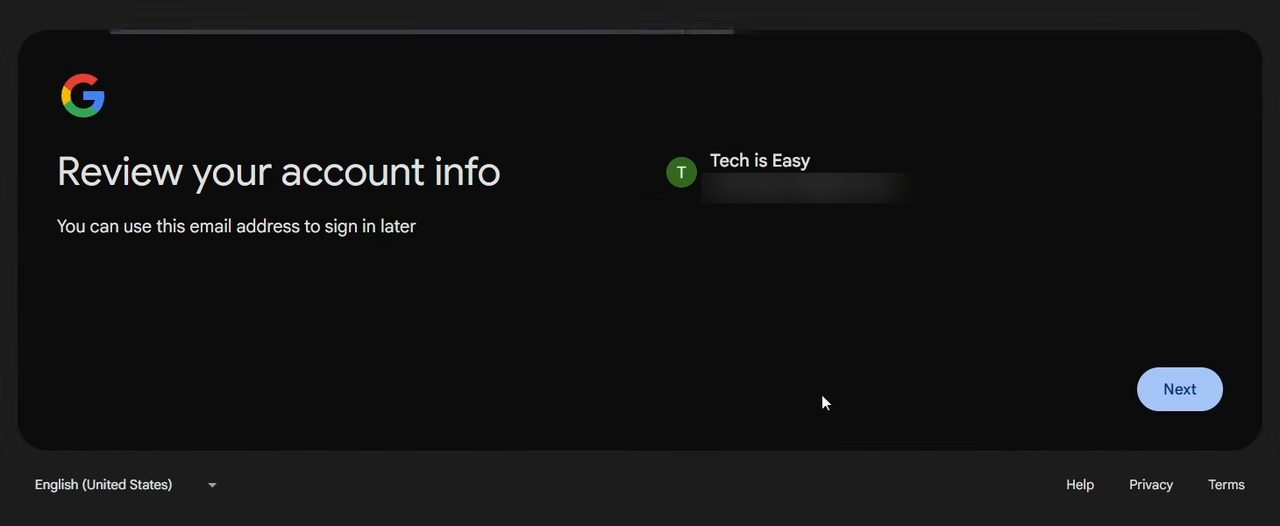
8Review your account info
Google shows the name and the new Gmail address. Write the address down. If it looks right, click Next.
9Agree to the Privacy and Terms
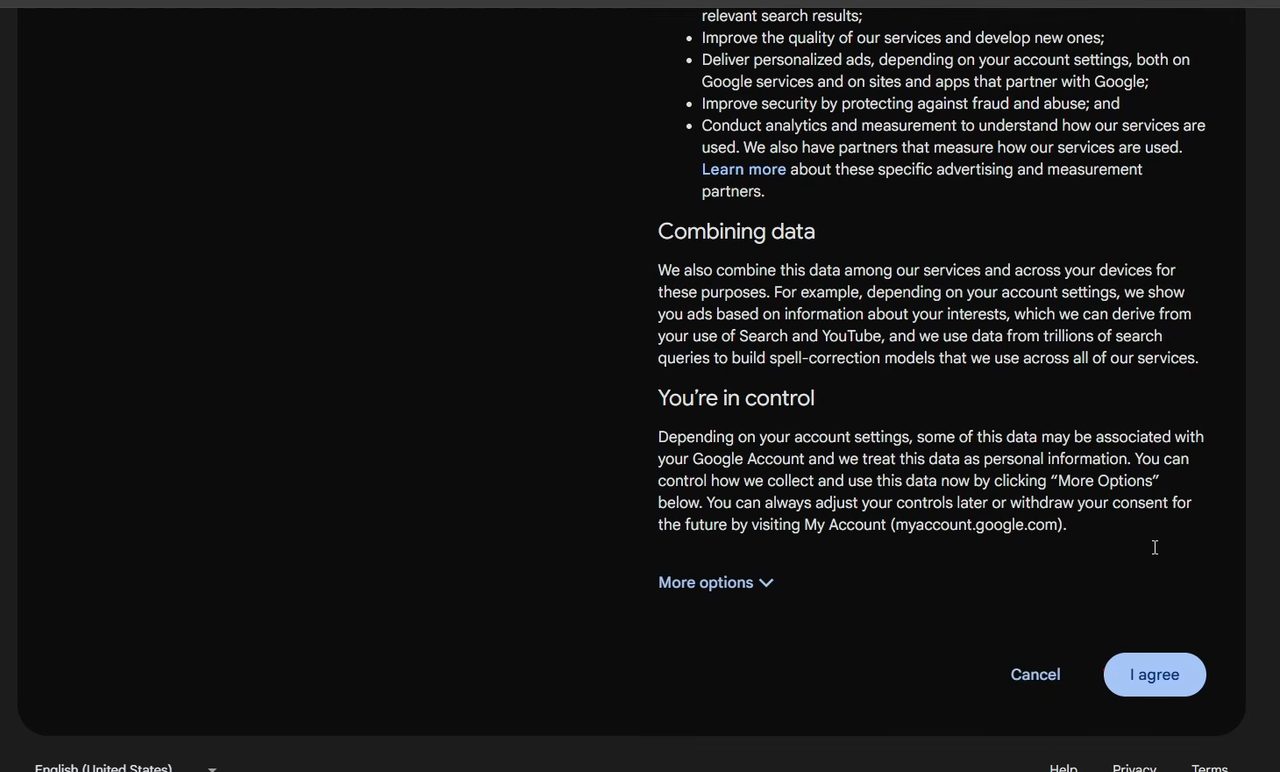
Scroll down the Privacy and Terms page. You can open More options to change some data settings now, or later from your Google Account. Click I agree to create the account.
10Start using Gmail
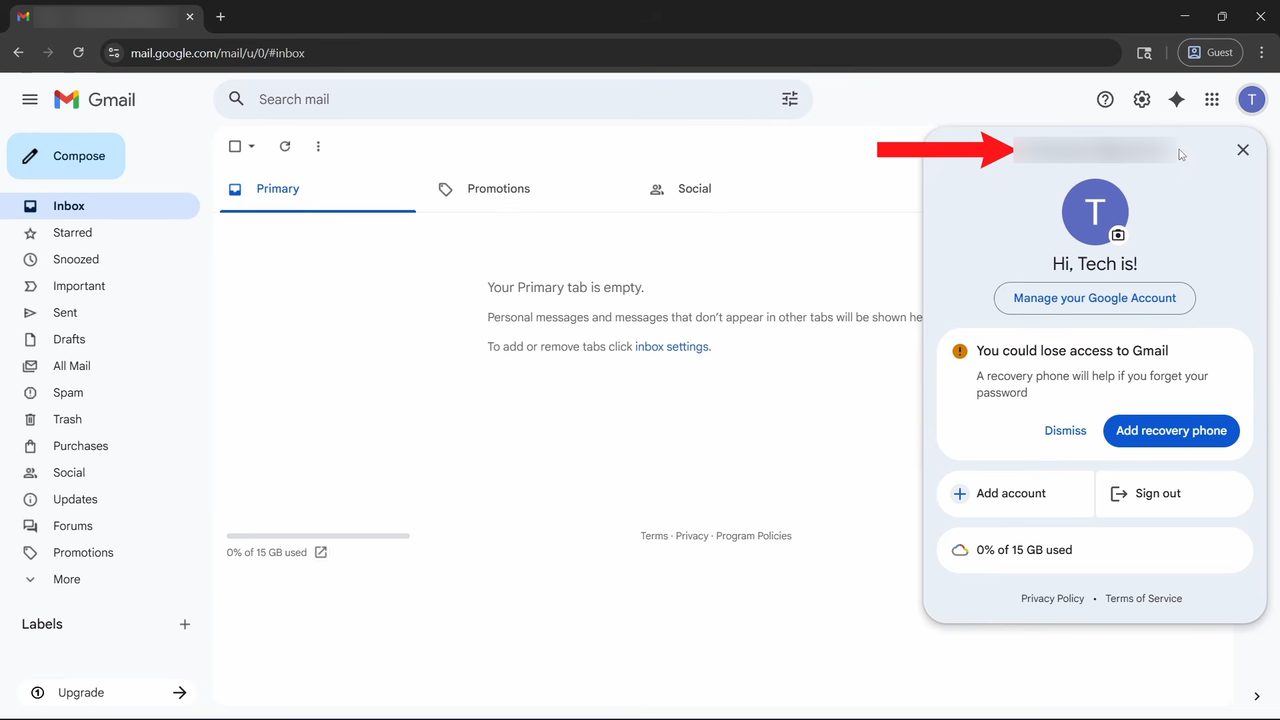
Gmail opens with your new, empty inbox. Click your profile picture at the top right to see the new address. From now on you can sign in on any device with this email address and the password you set.
Tips and troubleshooting
- "That username is taken." Google's help page explains that you can't register an address that is in use, is very close to an existing one (example@gmail.com blocks examp1e@gmail.com), was used and deleted before, or is reserved. Add a number, a period or your city.
- Periods don't make a different address. Gmail ignores dots, so john.smith and johnsmith land in the same inbox. Pick something easy to read out loud.
- Verification won't go through. Try another phone number you own, or try again later. If a QR code is shown, make sure the phone has internet and that you return to the laptop after finishing on the phone.
- "You could lose access to Gmail." The new inbox asks for a recovery phone. Adding one makes it much easier to get back in if you forget the password. If that ever happens, see How to Find Your Gmail Password If You Forgot It.
- You get 15 GB of free storage, shared across Gmail, Google Drive and Google Photos. The inbox shows how much you have used at the bottom.
Google's official steps are on Create a Google Account for Gmail. The same account also signs you in to YouTube, Google Play, Google Drive and Google Photos.
After you create the account
- Turn on 2-Step Verification from Manage your Google Account > Security so a stolen password alone can't open your mail.
- If this is a second account, use Add account in the same profile menu to switch between both inboxes without signing out.
FAQ
How do I create a Gmail account on my laptop?
Go to gmail.com, click Create an account > For my personal use, enter your name, birthday and gender, choose your Gmail address, set a password, complete the verification, then click I agree.
Can I make a Gmail account without a phone number?
The video's account was verified with a phone through a QR code, and Google decides case by case which check to show. Some people are asked for a phone number, so keep one ready.
Is creating a Gmail account free?
Yes. A personal Gmail account is free and includes 15 GB of storage. Only Google Workspace (for business email on your own domain) and extra storage plans cost money.
Can I change my Gmail address later?
Not the @gmail.com address itself. If you want a different one, create a new account with the steps above. You can change the display name at any time.
Related guides