Tech is Easy
How to Save Contacts to Gmail (Back Up Phone Contacts)
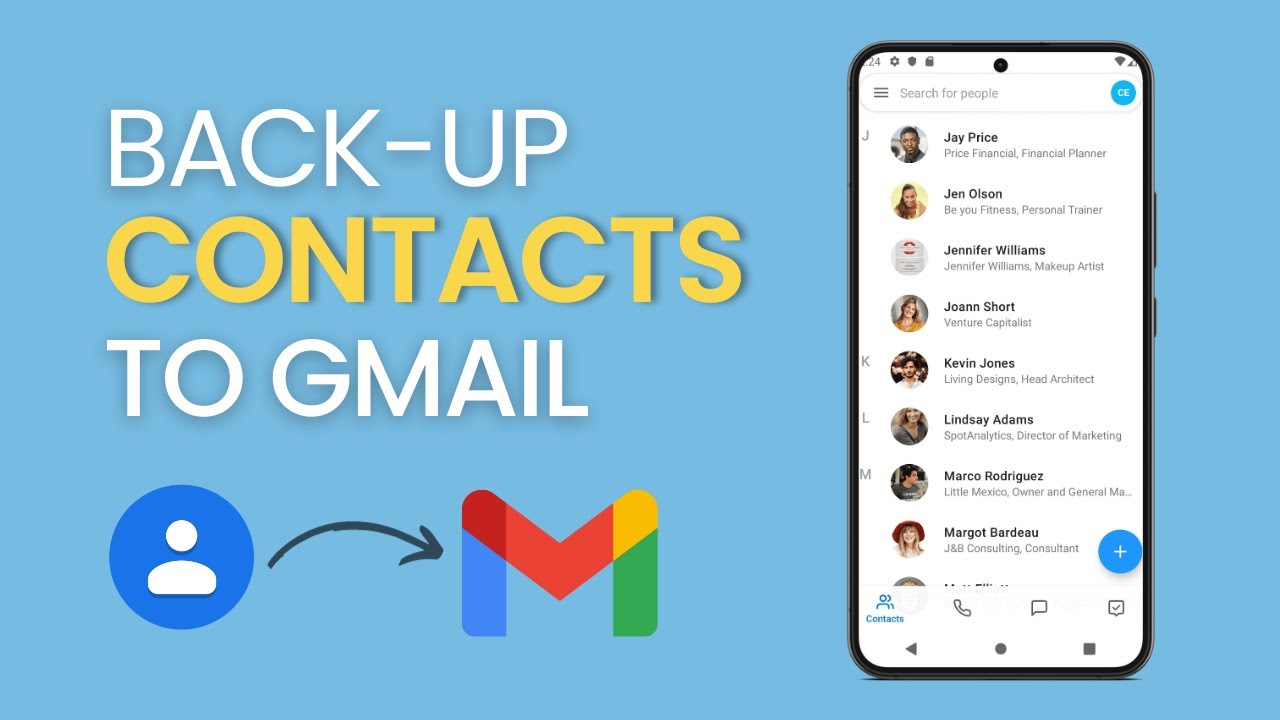
To save contacts to Gmail, export them from your phone's Contacts app as a VCF file (on Samsung: three dots > Manage contacts > Export contacts), then open contacts.google.com, tap the menu, choose Import and pick that file. This is for anyone whose contacts are stored only on the phone or SIM and who wants a backup in their Google account before switching phones, resetting, or just to be safe.
The same method works if you want to move or back up contacts to a Gmail account that is not the main account on the phone. In our test, 521 contacts landed in the Google account in a few seconds.
What you need
- An Android phone with your contacts on it. We used a Samsung phone; other brands have the same idea under slightly different names.
- The Gmail (Google) account you want to save the contacts to, and its password if it isn't already signed in to your browser.
- A browser on the same phone. Chrome is used here.
Why export a file instead of just syncing?
Contacts saved under "Phone" or "SIM" on Android are not stored in your Google account, so they disappear if the phone is lost, reset or replaced. Exporting them to a VCF (vCard) file and importing that file into Google Contacts copies every one of them into the account. After that they show up in Gmail, in Google Contacts on any computer, and on any phone you sign in to with the same account.
Method 1: Export the contacts from your phone
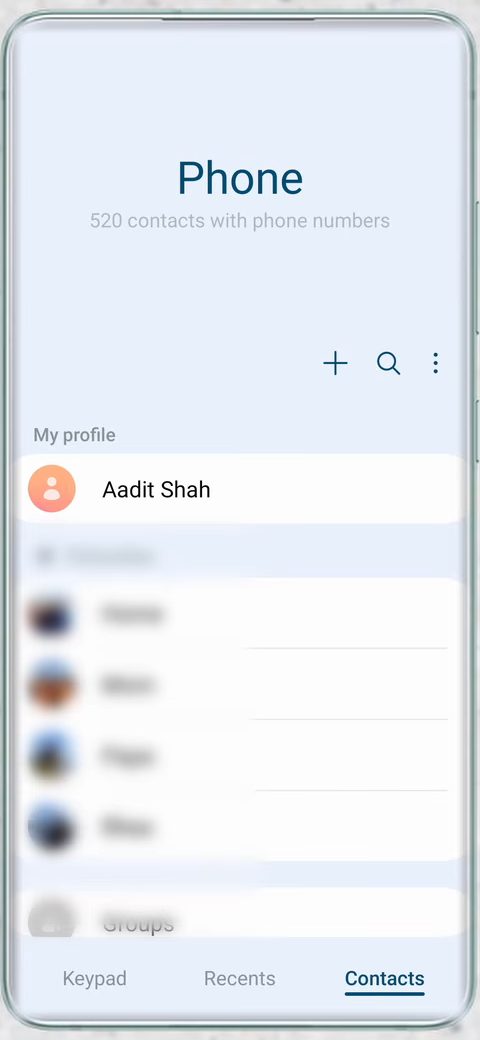
1Open Contacts and tap the three dots
Open the Contacts app (or the Contacts tab of the Phone app). On a Samsung phone, tap the three dots at the top right, next to the plus and search icons.
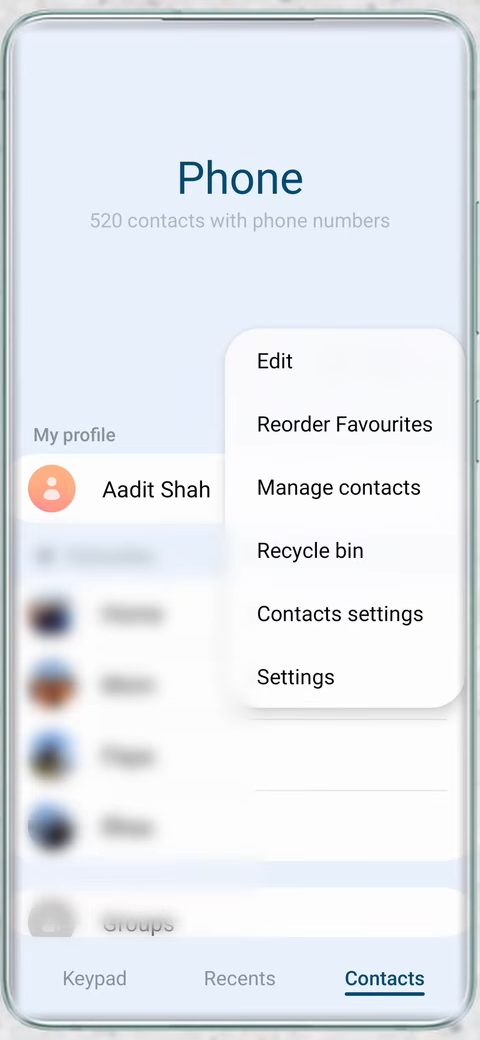
2Tap Manage contacts
From the menu that opens, tap Manage contacts. On other phones, look through the menu or the app's settings for anything named Export or Import/Export; the wording changes from brand to brand.
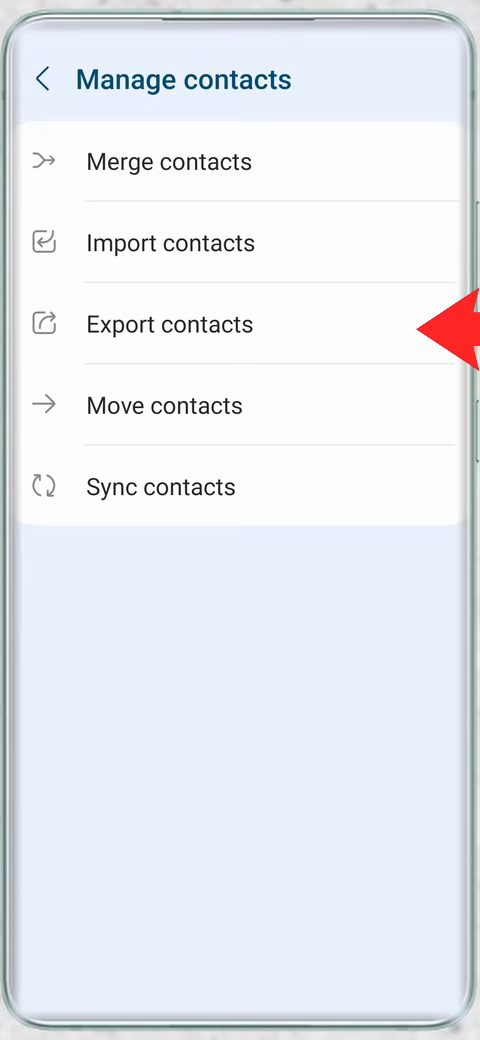
3Tap Export contacts
On the Manage contacts screen, tap Export contacts. This turns your contact list into a single file you can move anywhere.
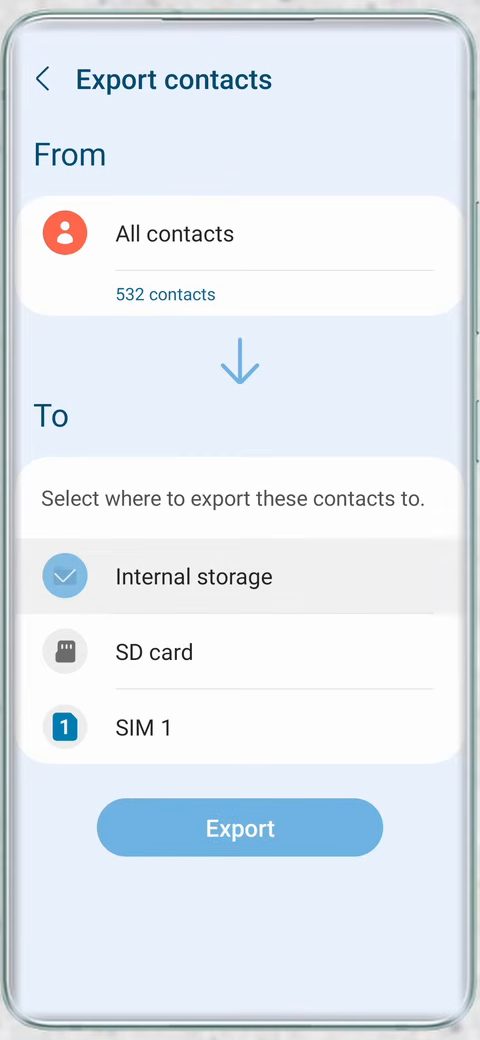
4Choose Internal storage and tap Export
Under From, leave All contacts selected so nothing is missed (our phone showed 532 contacts). Under To, select Internal storage, then tap Export. Picking internal storage keeps the file easy to find in the next part.
5Note the file name
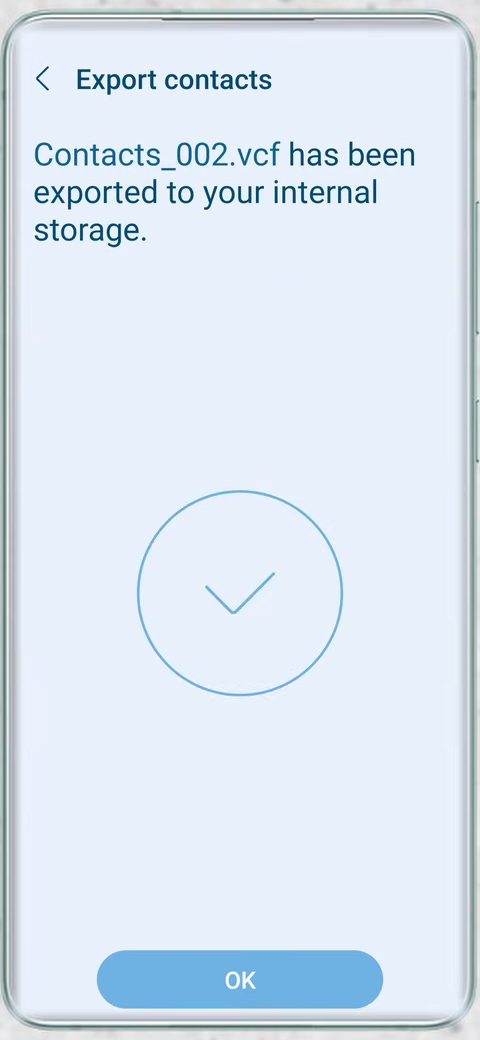
After a few seconds the phone confirms the export, for example Contacts_002.vcf has been exported to your internal storage. Remember the name, then tap OK.
Method 2: Import the file into your Gmail account
6Open contacts.google.com and check the account
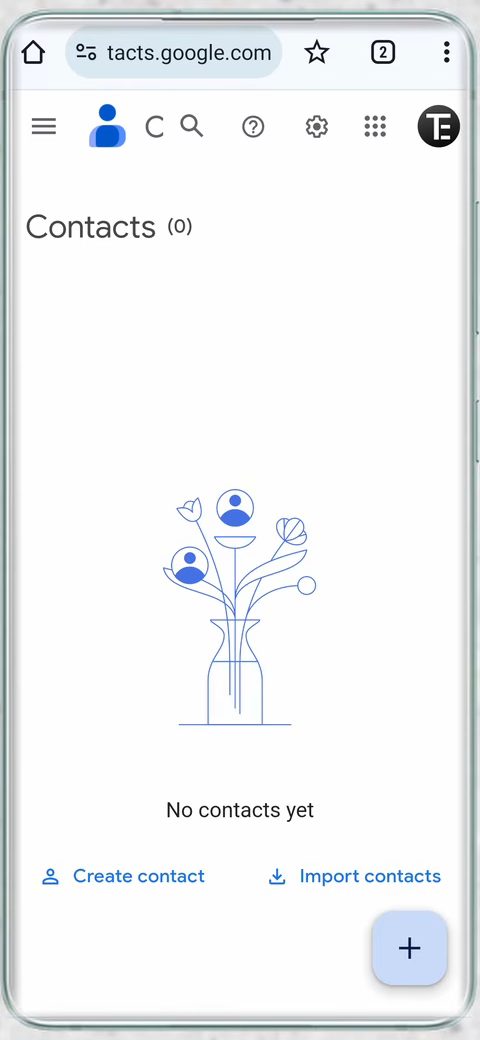
Open your browser and go to contacts.google.com. Before importing, make sure you are signed in to the Gmail account where you want the contacts saved. Tap the profile picture at the top right to switch to another account if needed. The account we used had 0 contacts, so it was easy to see the result.
7Open the menu and tap Import
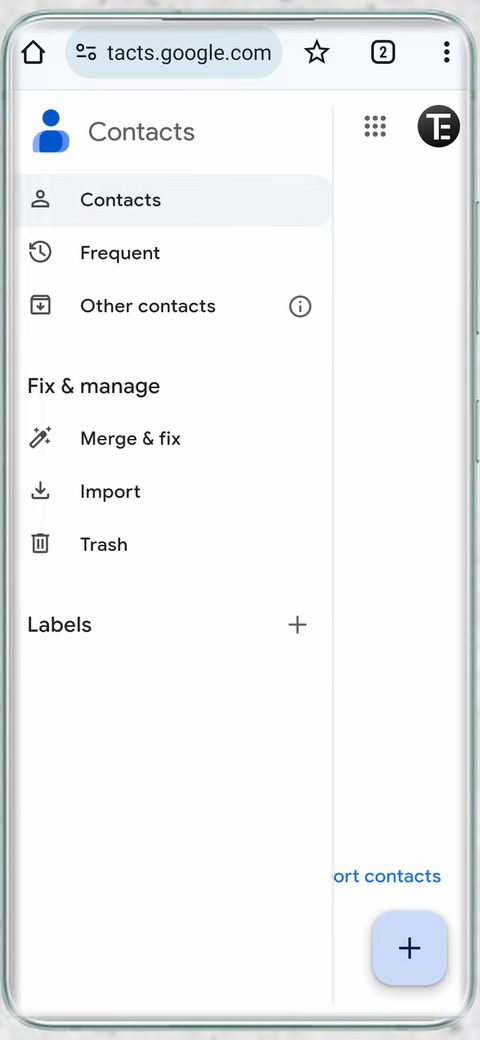
Tap the three lines at the top left to open the side menu, then tap Import under Fix & manage.
8Tap Select file
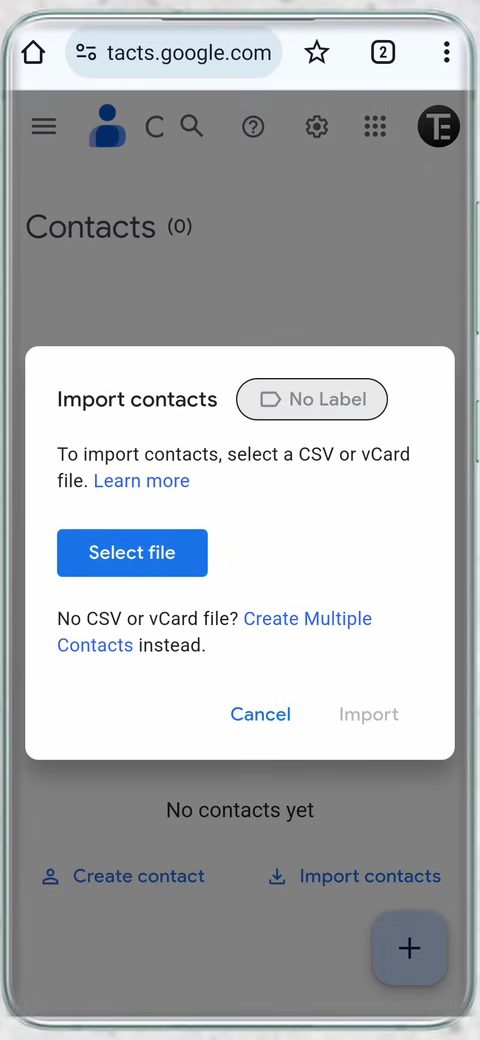
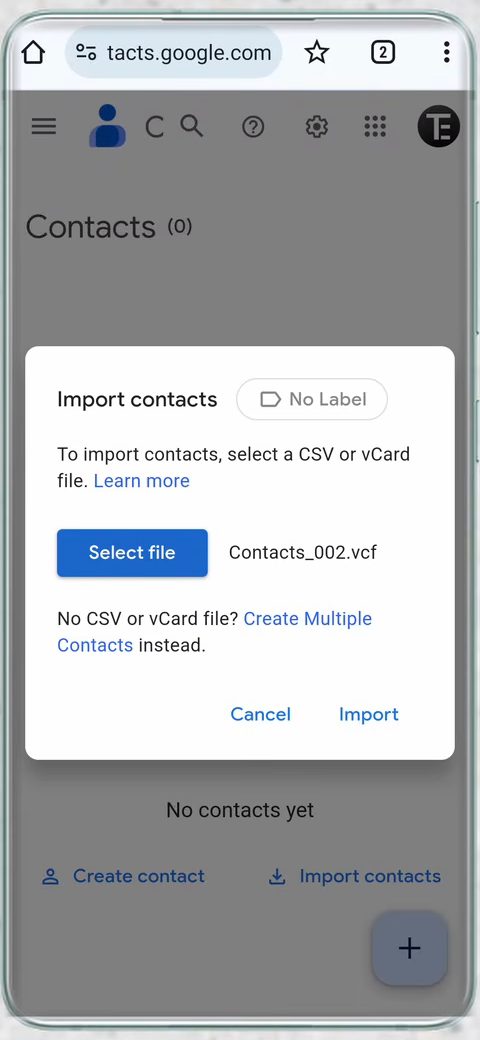
The Import contacts box explains that you can import a CSV or vCard file. Tap Select file.
9Pick the VCF file
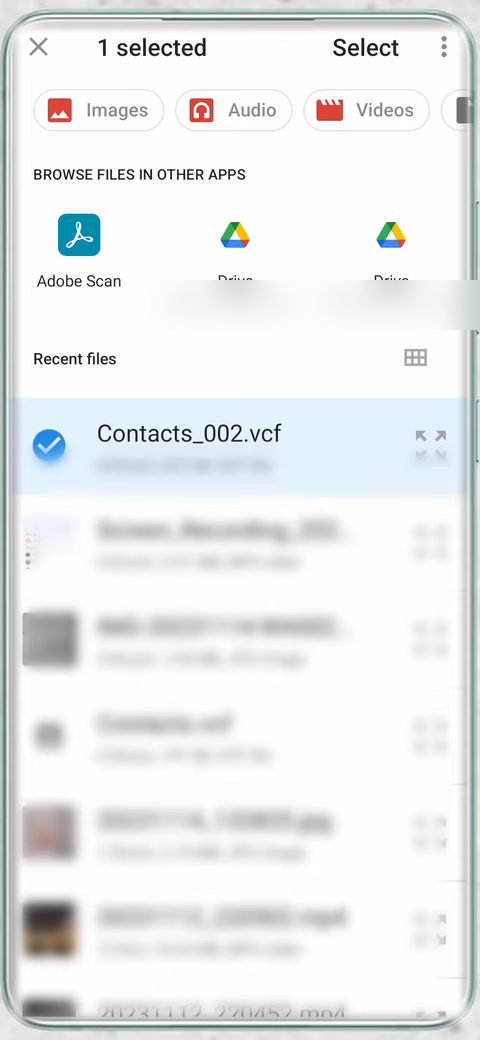
Your file picker opens on Recent files. Tap the VCF file you created in Step 5 (ours was Contacts_002.vcf), then tap Select at the top right.
10Tap Import
The file name now appears next to Select file. Tap Import. A small "Importing" message shows at the bottom while it works; it usually takes a few seconds.
11Check your imported contacts
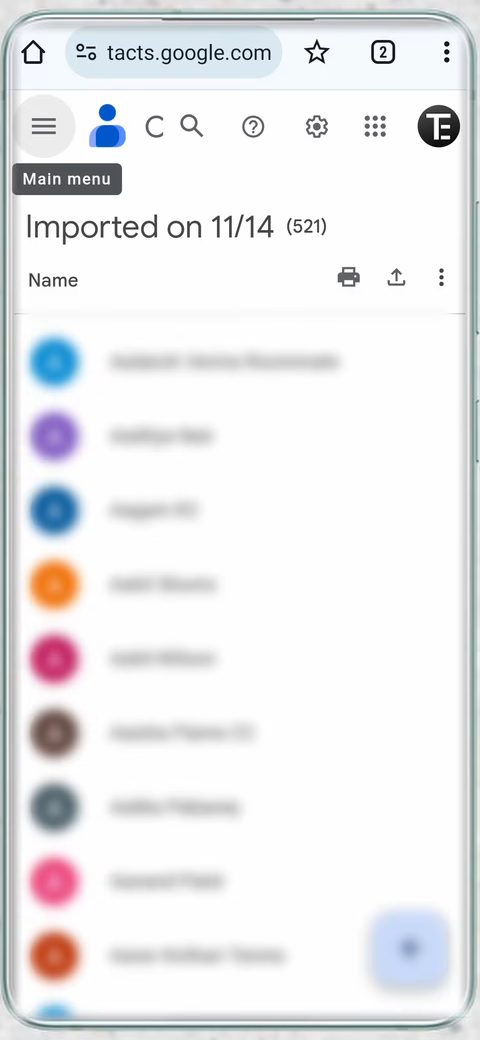
When it finishes, Google Contacts opens a new label named Imported on plus today's date, with the number of contacts in brackets. We got 521. These contacts are now saved to your Gmail account.
Tips and troubleshooting
- Can't find Export contacts? On phones that use the Google Contacts app (Pixel and many others), Google's help page says to tap Fix & manage > Export to file and choose Export to .VCF file. See Export, back up, or restore contacts and pick the Android tab.
- The count is lower than on the phone. Our phone listed 532 contacts and 521 were imported. The video doesn't explain the gap, so spot-check a few important names. If one is missing, open it on the phone and check which account it is saved under, then add it by hand.
- Duplicates after importing twice. If you run the import again, you will get a second copy. Open the menu and use Merge & fix to combine duplicates.
- File not in Recent files. Tap the three lines in the file picker and browse to Internal storage. The VCF file is usually in the main folder or in Download.
- Imported into the wrong account. Every imported contact sits under the "Imported on" label, so you can open that label, select all and delete them, then repeat the import in the right account.
What to know afterwards
The VCF file stays on your phone. Keep a copy somewhere safe (Google Drive, email it to yourself, or a computer) if you want an offline backup too. To make new contacts go straight to Google from now on, choose your Google account as the save location when you add a contact on Samsung, so you don't have to repeat this export later.
If you ever need to copy everything from one Google account to a different one, see How to Transfer Contacts from One Gmail Account to Another.
FAQ
How do I backup contacts to Gmail on Android?
Export your contacts from the Contacts app to a VCF file, then open contacts.google.com, tap the menu, choose Import and select that file. Every contact in the file is copied to your Gmail account.
Will importing delete the contacts on my phone?
No. Exporting only makes a copy in a file, and importing adds that copy to Google. The original contacts stay on your phone, so you may see them twice on the phone until you remove the phone-only copies.
Can I do this on a computer instead?
Yes. Copy the VCF file to your computer, open contacts.google.com, click Import in the left menu and select the file. The import box is the same as on the phone.
Does this work on an iPhone?
The import part is the same, since Google Contacts accepts any vCard file. Exporting from an iPhone works differently and is not shown in the video.
Related guides