Tech is Easy
How to Find Gmail Password if Forgotten (On Your Phone)
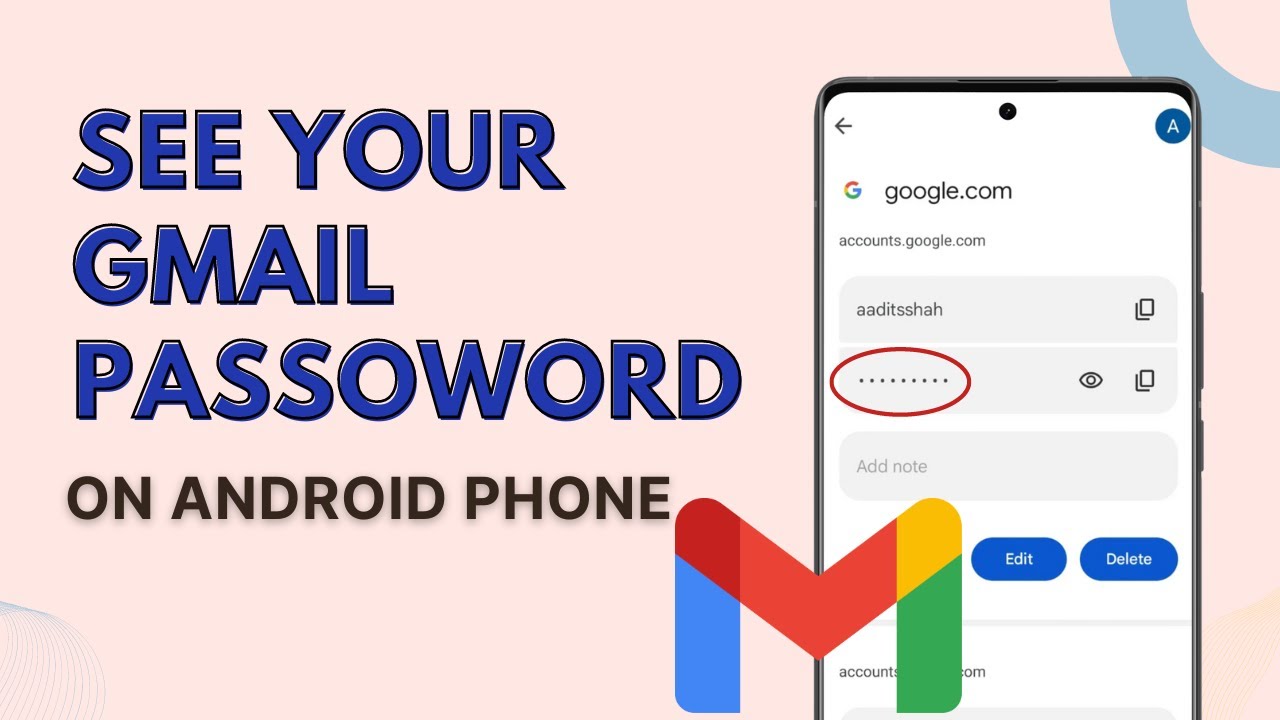
To find your Gmail password if you have forgotten it, open Settings > Google > Manage your Google Account > Security > Password Manager, tap google.com and then tap the eye icon to see the password. This works for anyone whose phone is signed in to the Google account and who had the password saved in Google Password Manager.
What you need
- An Android phone that is still signed in to your Google account
- The password saved in Google Password Manager at some point (for example, when Chrome offered to save it)
1Open Google in your phone's Settings
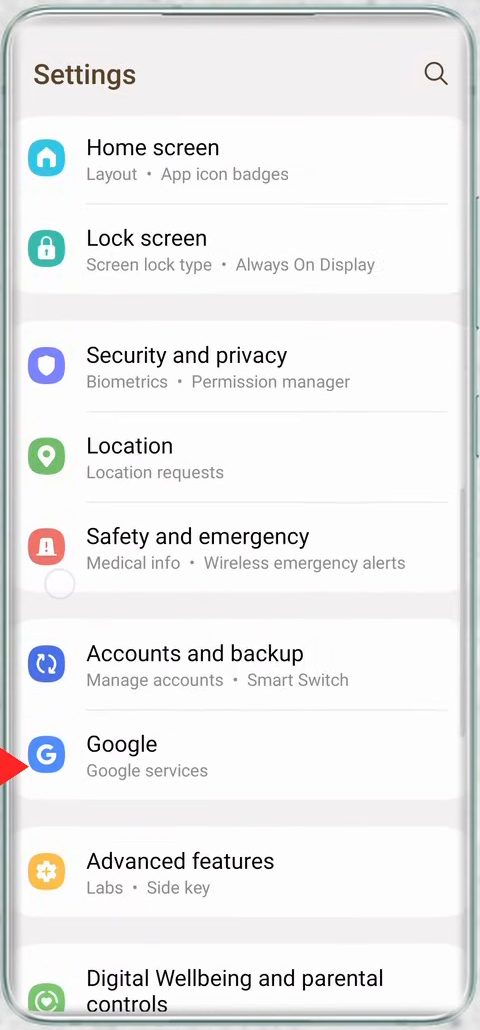
Open the Settings app and scroll down to Google (you can also use the search icon at the top to find it). Tap it.
2Tap Manage your Google Account
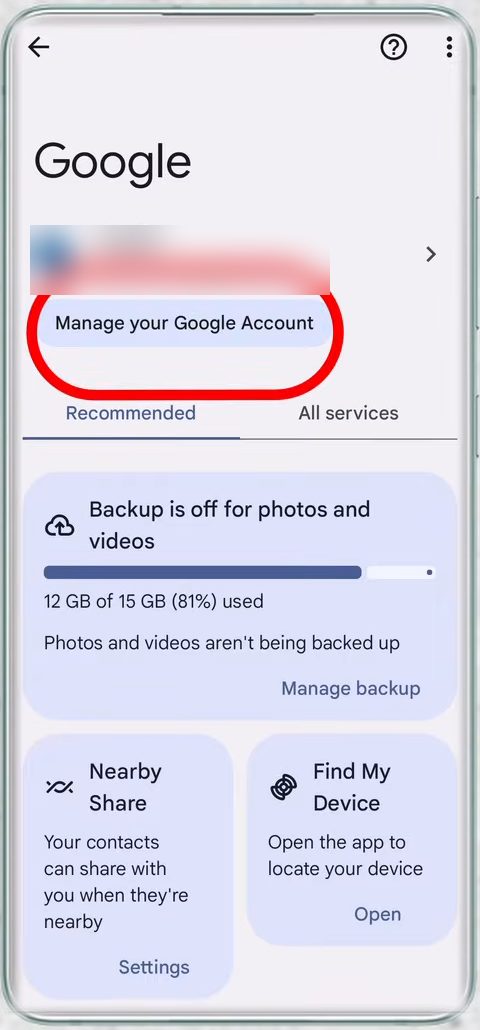
At the top of the Google page, under your account name, tap Manage your Google Account.
3Go to the Security tab
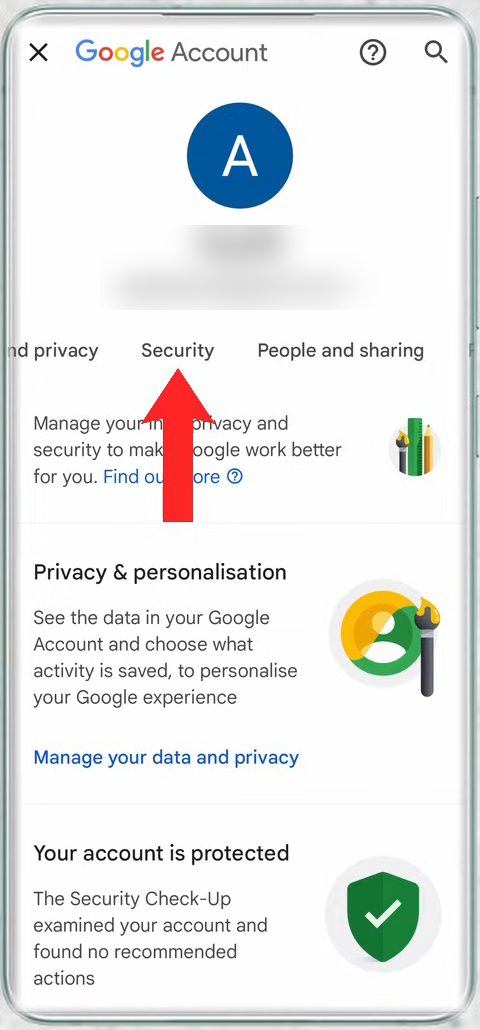
Your Google Account opens with a row of tabs under your profile picture. Swipe the tabs to the left and tap Security.
4Open Manage passwords
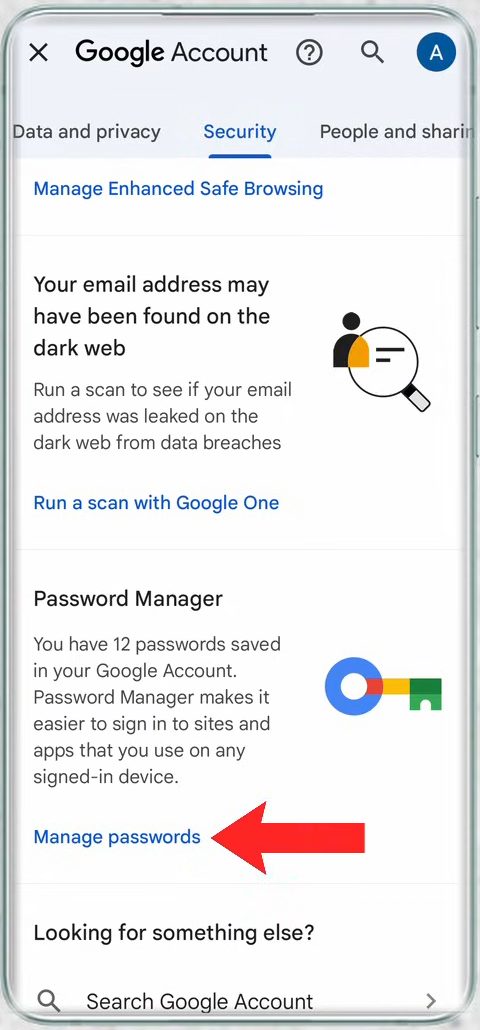
Scroll down the Security page to the Password Manager card and tap Manage passwords.
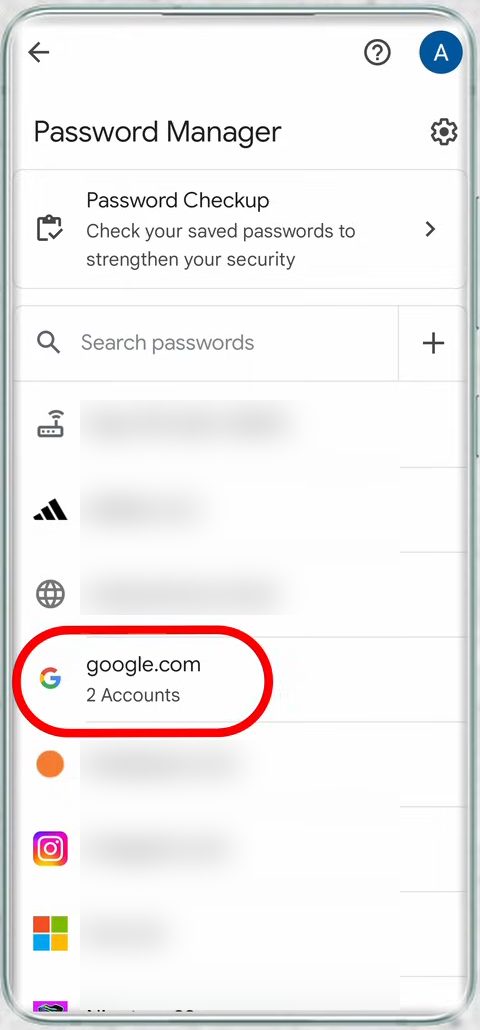
5Find the google.com entry
You now see every saved password. Look for the entry that says google.com. This is where your Gmail password is stored. Tap it. Your phone may ask for your fingerprint or screen lock first.
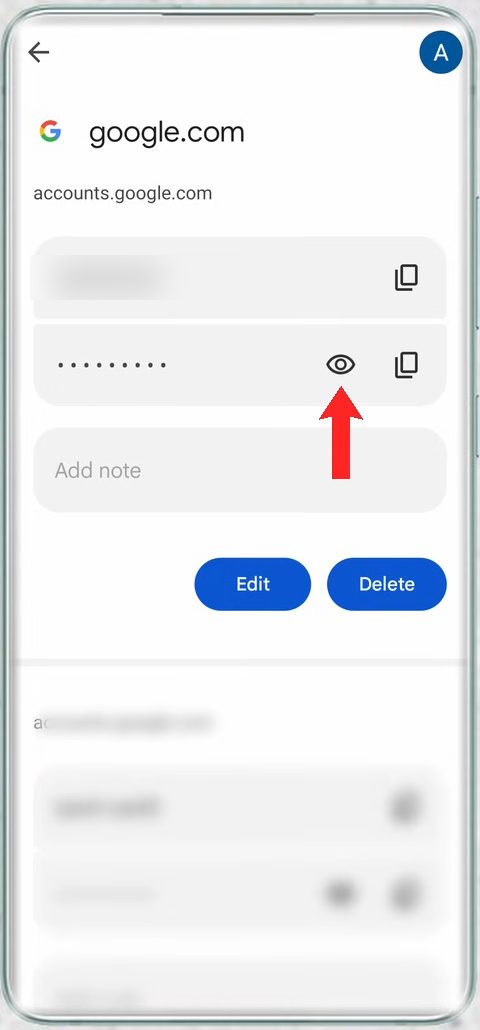
6Tap the eye icon to see the password
Check that the username at the top matches the Gmail account you need, then tap the eye icon next to the dots. The password appears in plain text.
Other ways to open the same Password Manager
The steps above go through your phone's Settings, but the list of saved passwords lives in your Google account, not on the phone. Google's help page on using passwords and passkeys across your devices says you can view and manage them in Google Password Manager on Android, in Chrome, or at passwords.google.com. So if you are on a computer: - Open passwords.google.com in any browser and sign in with the account you saved the password to, or - In Chrome, click the three dots at the top right, then Passwords and autofill > Google Password Manager.
You will find the same google.com entry there, and you will be asked to confirm it's you before the password is shown.
Troubleshooting
- No Google option in Settings. On most Android phones it is listed as Google in the main Settings list. If you can't spot it, type "Google" in the Settings search bar.
- Several google.com entries. If you use more than one Gmail account, each one can have its own entry. Open each and check the username at the top before you trust the password.
- The password shown doesn't work. The saved entry is only as fresh as the last time it was saved. If you changed your password on another device and didn't save the new one, Password Manager can still be holding the old one. In that case reset it (see below).
- The eye icon asks for a lock you don't have. Android needs a screen lock (PIN, pattern, password or fingerprint) to reveal saved passwords. Set one up under your phone's security settings, then try again.
- Work or school account. If your Gmail is managed by an office or college, the admin may control password saving, and the account recovery steps below might not work either. Ask your admin.
If the password isn't saved: reset it instead
When there is no google.com entry, there is no way to read the old password, and the only route is to set a new one. Google's guide on how to recover your Google Account or Gmail walks through it. Tap Forgot password? on the Gmail sign-in screen and answer the questions as best you can. A few things from that page worth knowing: - Wrong guesses won't kick you out of the recovery process, and there's no limit to how many times you can try. - If you change your recovery info, it can take up to 7 days to take effect. - You can't call Google to get into your account, and Google doesn't work with any service that claims to recover passwords. Don't give your password or codes to anyone offering this.
Once you are back in, let Google Password Manager save the new password when it offers, so you can look it up with the steps in this guide next time.
FAQ
Why is google.com not in my Password Manager?
The password was probably never saved to Google Password Manager, so there is nothing to show. In that case you will need to reset it through Google's account recovery page ("Forgot password?" on the sign-in screen) instead.
Can I see my Gmail password on a computer instead?
The video only shows the phone route. The same Password Manager is part of your Google account, so it also opens from the Security section of myaccount.google.com in a browser, as covered in our Google Account privacy and security settings guide.
Is it safe that anyone with my phone can see my passwords?
Your phone asks for your fingerprint, face or screen lock before showing saved passwords, so keep a strong screen lock on the device.
Can I see my Gmail password without resetting it?
Only if it was saved in Google Password Manager (or another password manager you use). Gmail itself never shows your current password anywhere in its settings. If it was never saved, resetting it is the only option.
Will viewing my password sign me out anywhere?
No. Looking at a saved password doesn't change anything. Changing or resetting the password is different: Google may sign you out on other devices, and you'll need the new password there.
Does this work on iPhone?
Not shown in the video. iPhones do not have the Google option in Settings, so this exact path is for Android phones. On an iPhone you can still open passwords.google.com in a browser and sign in to see the same saved passwords.
Related guides