Tech is Easy
How to Make Stickers on WhatsApp (Custom Stickers)
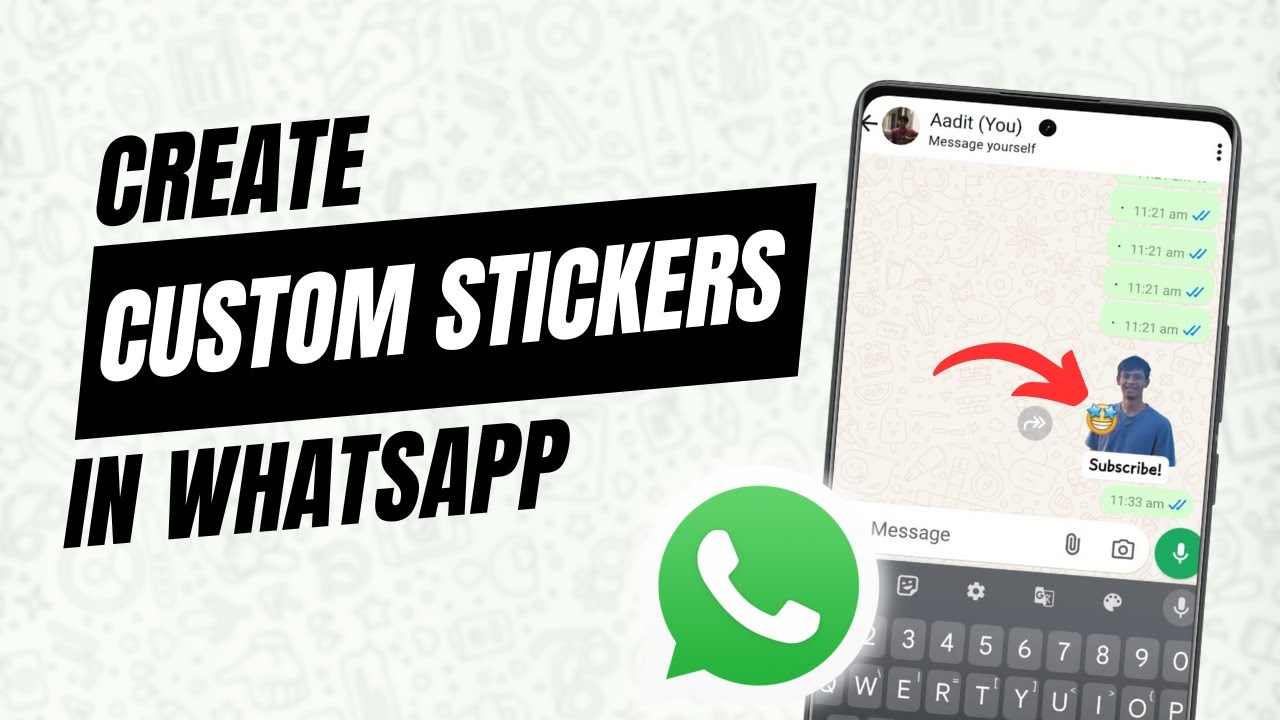
WhatsApp has its own sticker maker, so you can turn any photo into a sticker without installing a separate app. It even cuts out the person for you. Here is how to make one, decorate it, send it and keep it in your favourites.
What you need
- WhatsApp updated to a recent version
- A photo saved on your phone (a clear picture of a person works best)
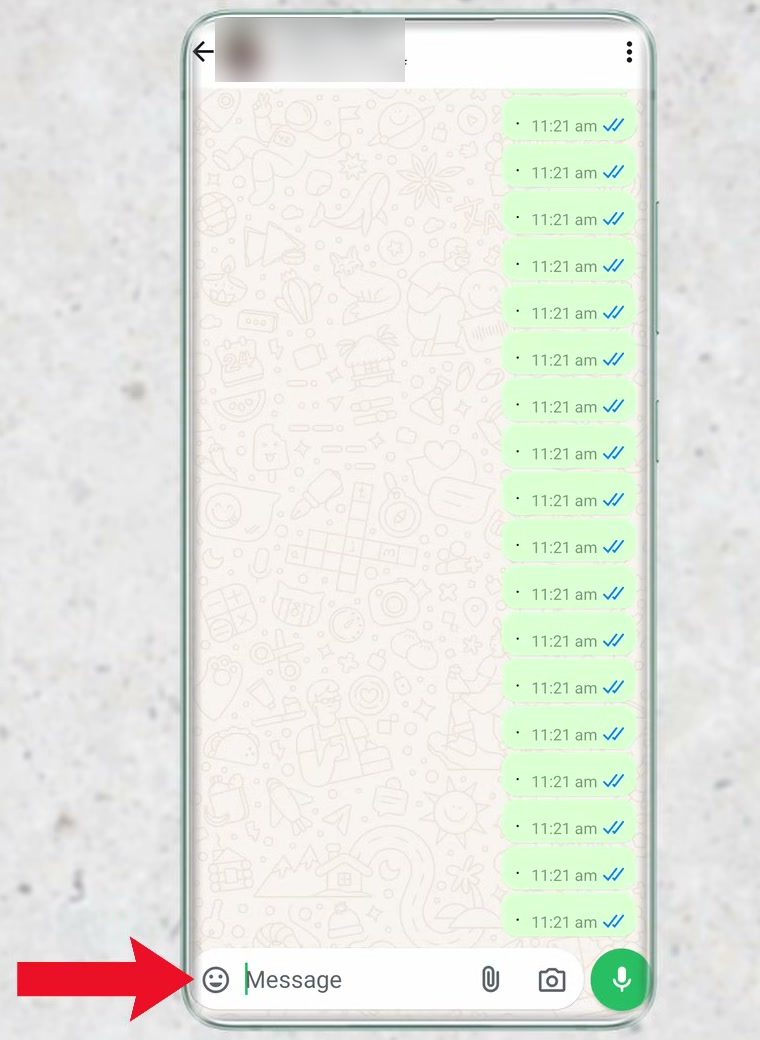
1Open a chat and tap the emoji icon
Open WhatsApp and go into any chat. Next to the message box at the bottom left, tap the emoji icon to open the emoji panel.
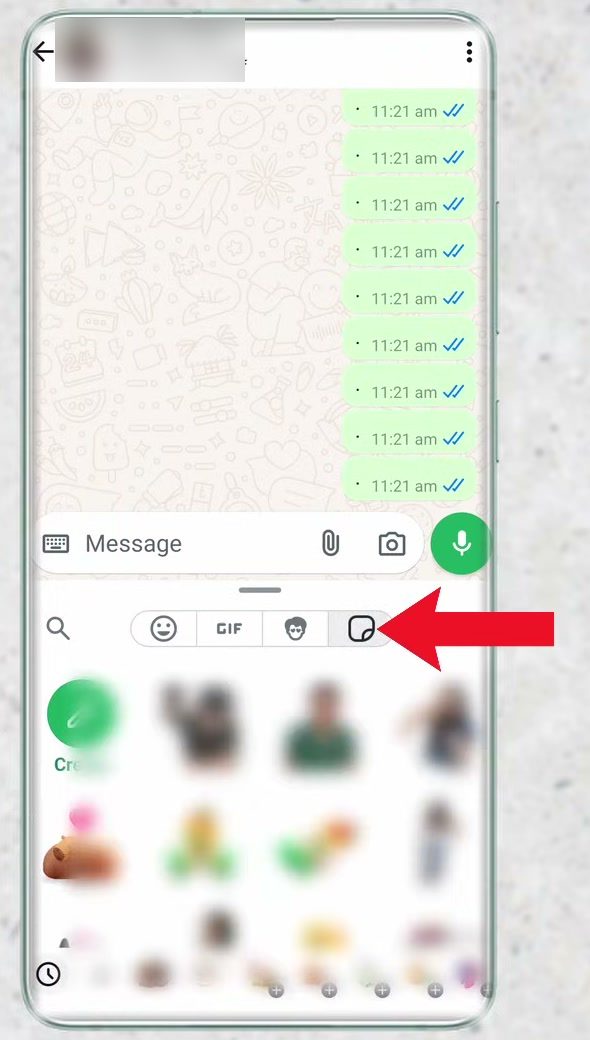
2Go to the stickers tab
At the top of the panel, tap the stickers icon on the right. This shows all the stickers you have saved.
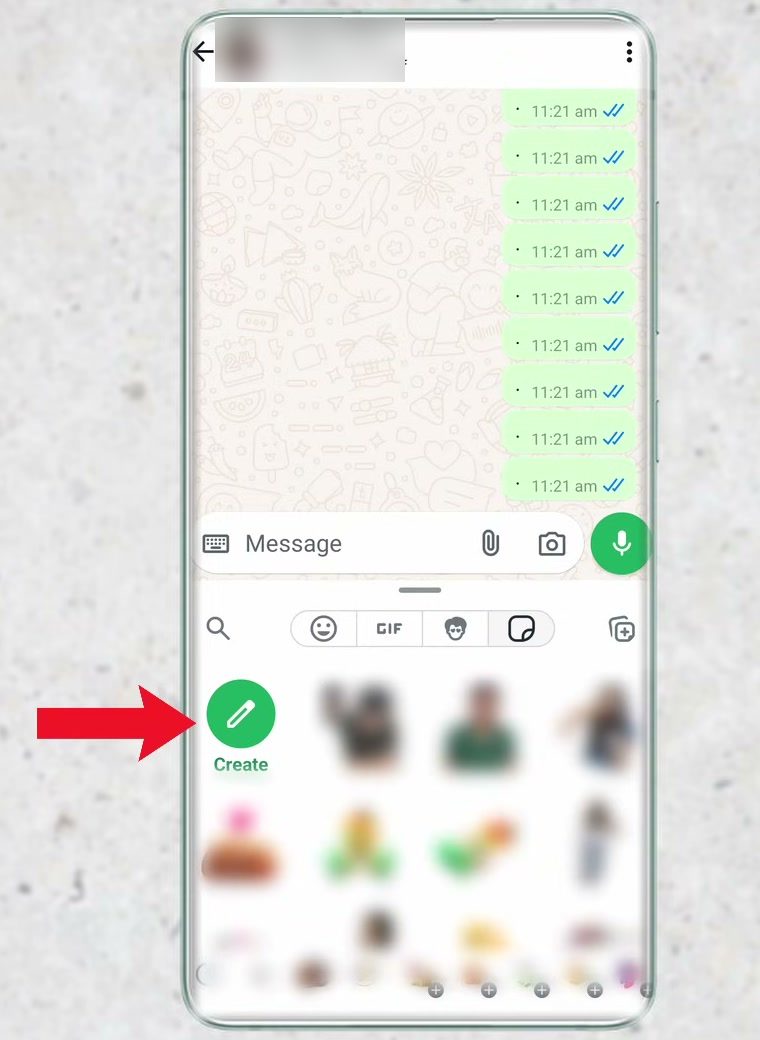
3Tap Create
The first item in the first row of the sticker list is Create. Tap it to start the sticker maker.
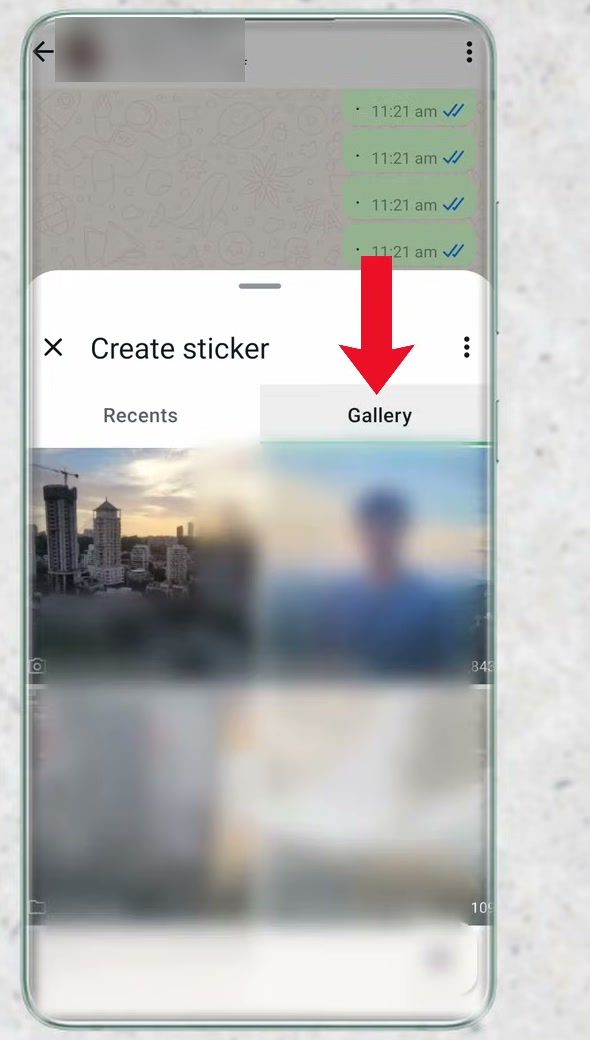
4Pick a photo
The Create sticker screen shows your Recents first. If the photo you want isn't there, switch to the Gallery tab on the right and browse your albums. Tap a picture to use it.
5Keep or remove the background
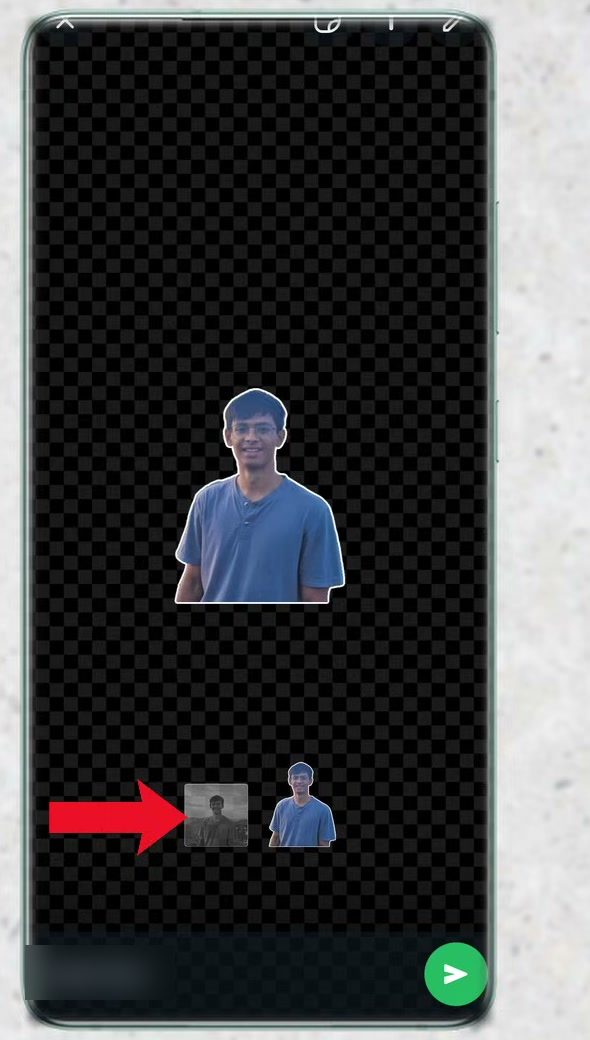
WhatsApp removes the background automatically. Below the preview there are two options: the left one keeps the full photo with its background, and the right one gives you just the outline of the person. Pick the look you want.
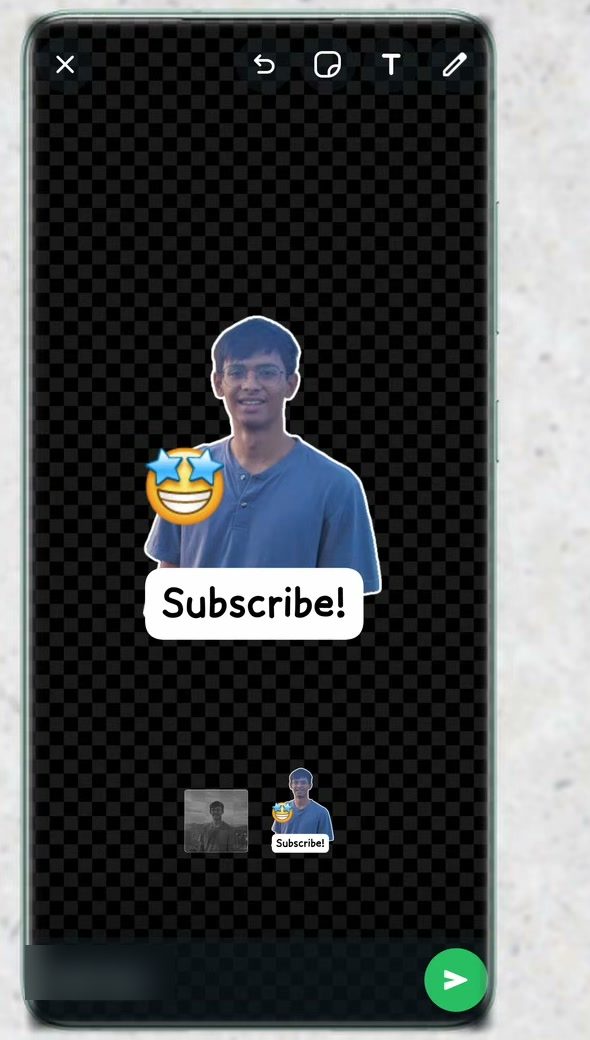
6Add stickers or emoji on top
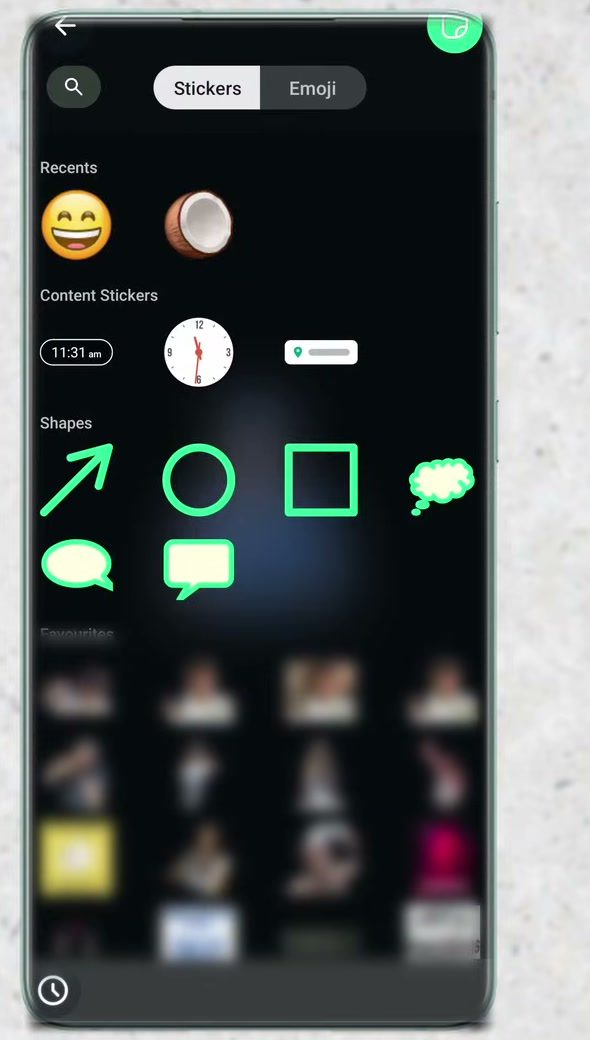
There are three buttons at the top of the editor. The first one lets you place more stickers or emoji on your sticker. Choose one, then drag it to move it and pinch to resize it.
7Add text
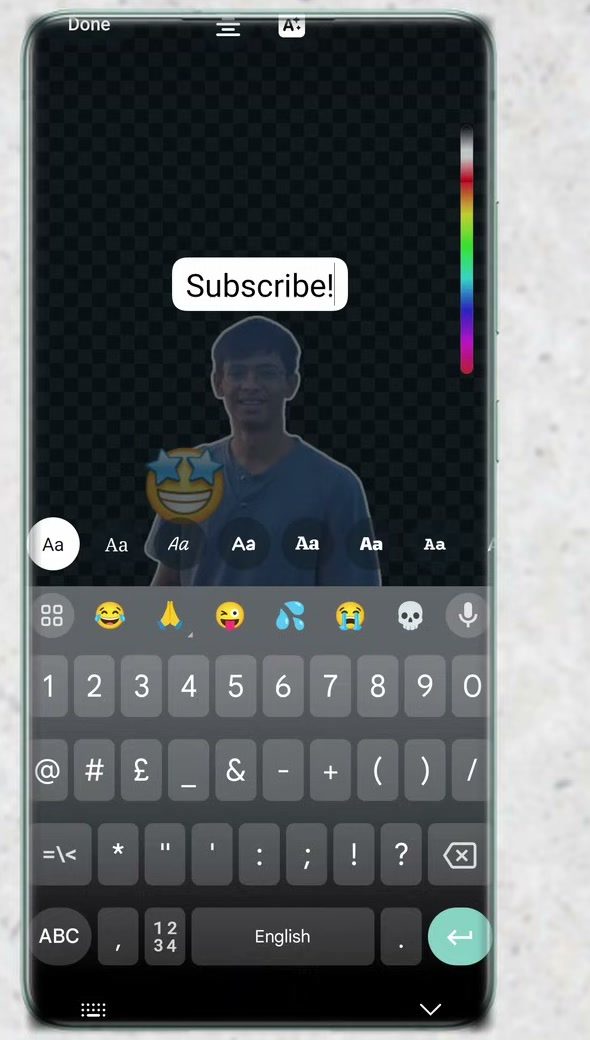
Tap the second button (T) to type text onto the sticker. You can change the font and the colour from the options shown above the keyboard.
8Draw on it
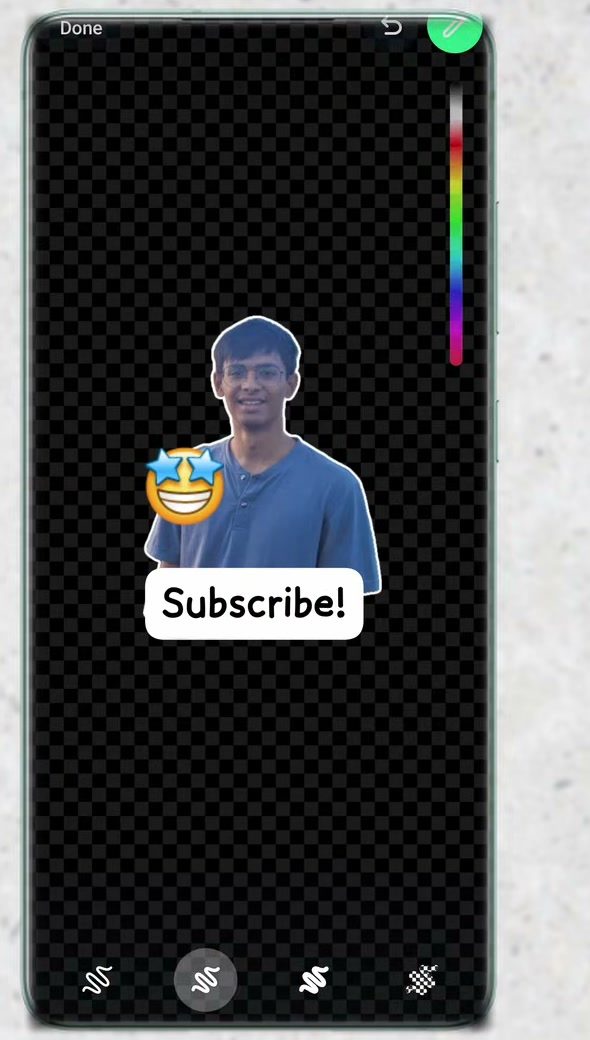
The third button is the pen. Tap it, choose a colour from the slider on the right and draw on the sticker. If you change your mind, undo it, then tap Done when you're happy.
9Send the sticker
You'll see a preview of the final sticker. If it looks right, tap the send button at the bottom right and it is posted in the chat.
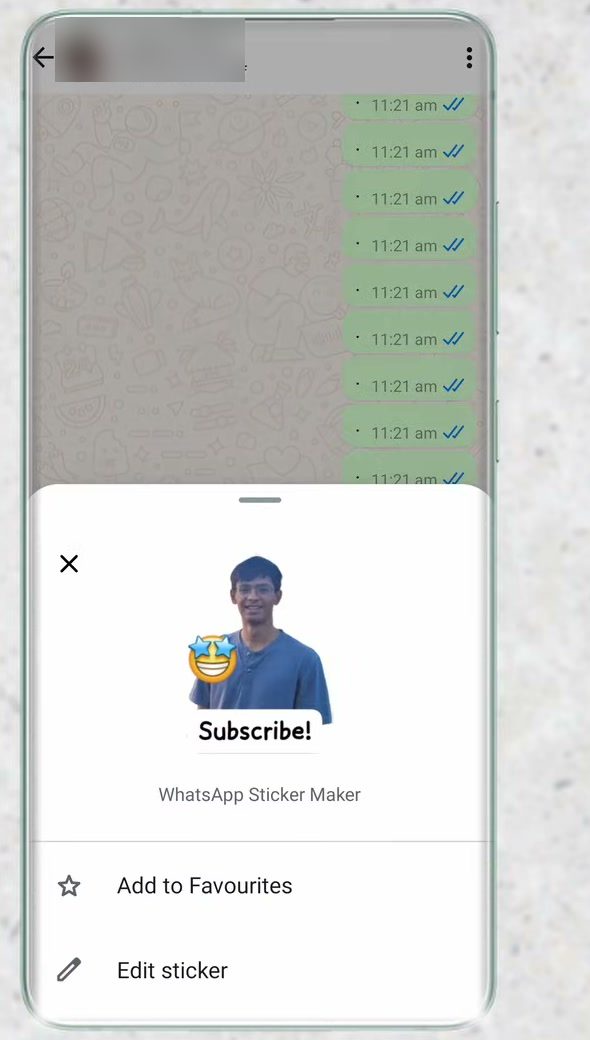
10Save it to your favourites
To reuse the sticker later, tap it in the chat and choose Add to Favourites. It will now show up in the favourites section of your stickers tab.
Tips for a better sticker
- Pick a photo with a clear subject. The automatic cut-out works best when one person, pet or object stands out from a plain background. Busy backgrounds, several people close together or low light can leave odd edges.
- Crop close. A sticker is shown small in chats, so a close-up face or object reads much better than a full-body shot from far away.
- Keep text short. One or two words in a bold colour stay readable at sticker size. Long sentences become tiny.
- Not happy with the cut-out? Choose the option that keeps the background, or try another photo. The cut-out can't be adjusted by hand in the steps shown here.
Other ways to make stickers in WhatsApp
WhatsApp's own help page, How to create and share custom stickers and sticker packs, covers a few more options in the same Create menu: - Selfie stickers: take a new photo with the camera instead of picking one from your gallery, and send it as a sticker straight away. - AI stickers: describe a sticker in words and WhatsApp generates options for you. WhatsApp says this is only available in some countries and languages, so you may not see it yet. - Sticker packs: group your custom stickers into your own pack so they are easier to find and share with friends.
The help page has separate versions for Android, iPhone and WhatsApp Web, so check the one for your device if your menus look different from ours.
If the Create option is missing or doesn't work
- Update WhatsApp. The sticker maker needs a recent version. Update it from the Play Store or App Store and reopen the chat.
- Check photo permission. If the Create sticker screen shows no photos, WhatsApp may not have access to your gallery. Allow photo access for WhatsApp in your phone's app settings, then try again.
- Look in the right tab. The Create button is only in the stickers tab, not in the emoji or GIF tabs of the same panel.
Related guides: How to Hide Chats on WhatsApp With a Secret Code and How to Clear WhatsApp Storage on Android (Free Up Space).
FAQ
Do I need a separate app to make WhatsApp stickers?
No. The Create option in the stickers tab is built into WhatsApp. It lets you pick a photo, remove the background and decorate it without any other app.
Can I keep the photo background in my sticker?
Yes. After you pick a photo, choose the left option under the preview to keep the background, or the right one if you only want the cut-out of the person.
Where do my custom stickers get saved?
Once you send a sticker, tap it in the chat and select Add to Favourites. You'll find it in the favourites row of the stickers tab from then on.
I don't see the Create option. What should I do?
Update WhatsApp to the latest version from your app store. The sticker maker sits at the start of the first row in the stickers tab, and older versions may not have it.
Can the other person save my custom sticker?
Yes. Like any sticker, the person you send it to can tap it and add it to their own favourites. Keep that in mind before turning a photo of someone into a sticker.
How do I remove a sticker from my favourites?
Open the stickers tab, go to your favourites, then long-press the sticker and remove it from favourites. It stays in any chats where you already sent it.
Related guides