Tech is Easy
How to Clear WhatsApp Storage on Android (Free Up Space)
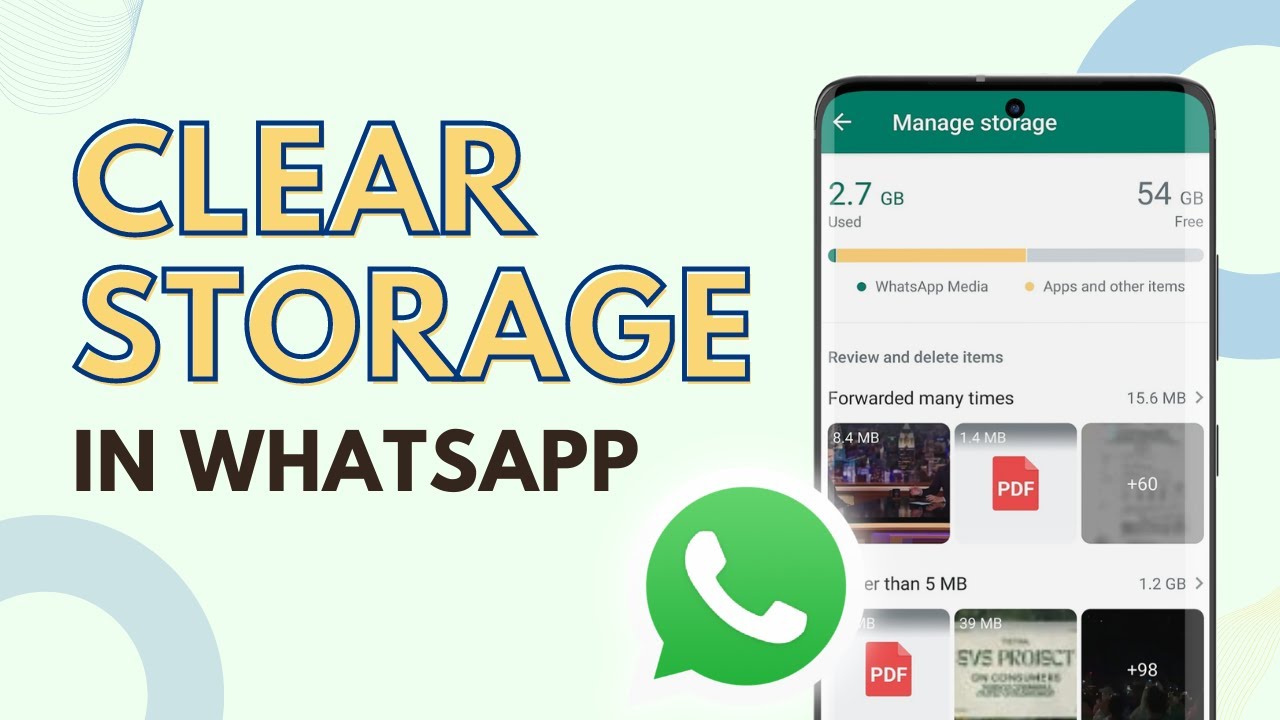
To clear WhatsApp storage on Android, open WhatsApp, tap the three dots > Settings > Storage and data > Manage storage, and delete the big and forwarded files listed there. Then search for WhatsApp in your phone's Settings, open Storage and tap Clear cache. This guide is for anyone whose phone is running out of space and wants to free up space in WhatsApp without losing their chats.
The video was recorded in 2023, so some menus may look slightly different on newer versions of WhatsApp.
Before you start
- Deleting here is permanent. WhatsApp's help page says items deleted this way can't be downloaded again from the chat they were in. Save any photo, video or document you want to keep first.
- It only affects your phone. The other people in the chat keep their copies.
- Your backup keeps the old files until the next backup. If you restore from an older backup, deleted media can come back.
- Newer menu names. In recent versions of WhatsApp the same screen may sit under Settings > Chats > Chat backup > Manage your storage, with a Review and delete media option. The steps after that are the same.
WhatsApp's official guide, How to free up storage on WhatsApp, covers these points along with the iPhone steps.
Method 1: Delete large files inside WhatsApp
1Open WhatsApp Settings
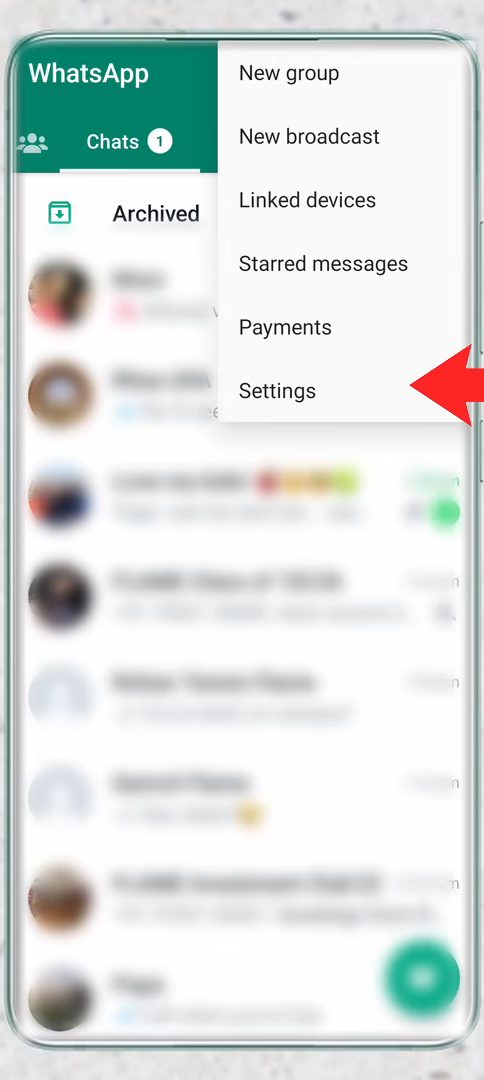
Open WhatsApp and tap the three dots at the top right, then tap Settings.
2Go to Storage and data
Scroll down a little and tap Storage and data.
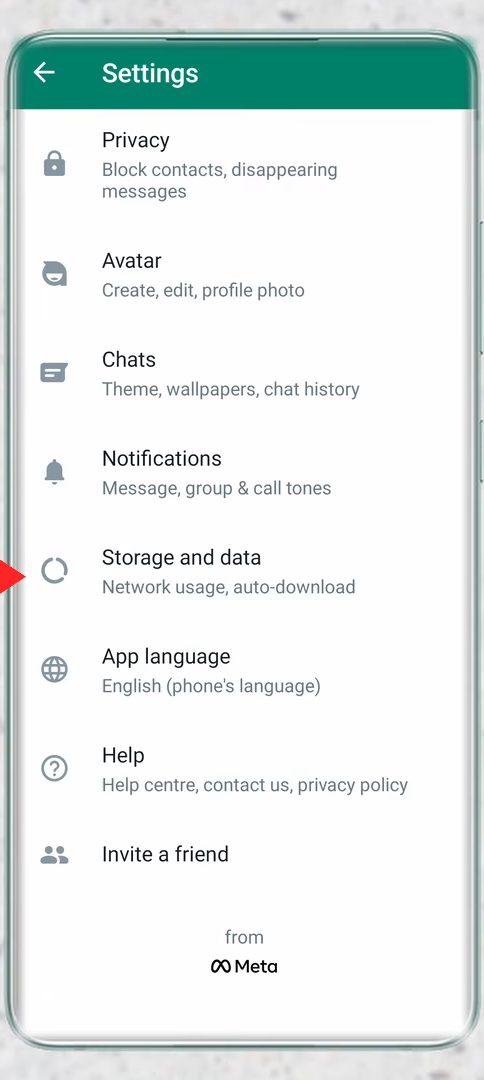
3Open Manage storage
Tap Manage storage at the top of the page. It already shows how much space WhatsApp is using.
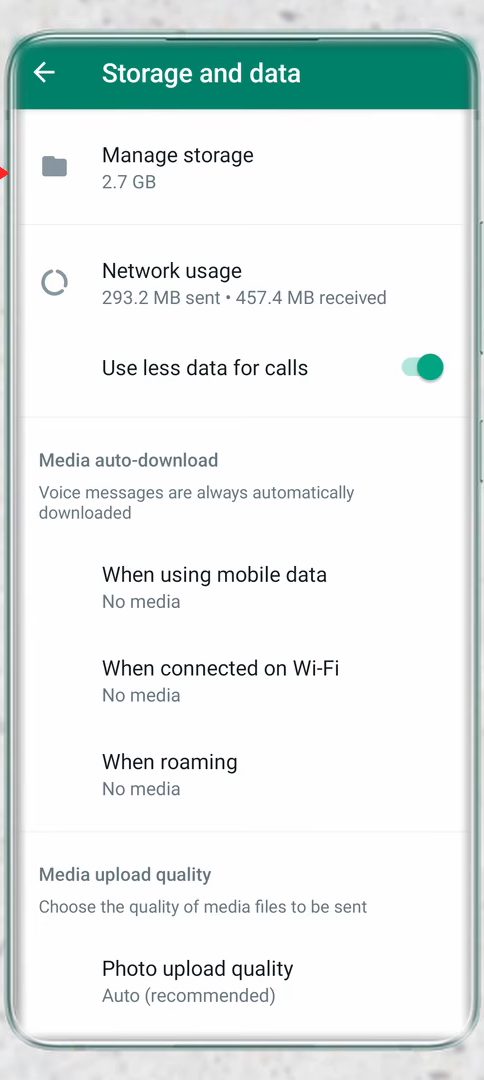
4See what's taking up space
At the top you'll see the total WhatsApp is using (2.7 GB in our case). Below that, under Review and delete items, WhatsApp groups files into Forwarded many times and Larger than 5 MB.
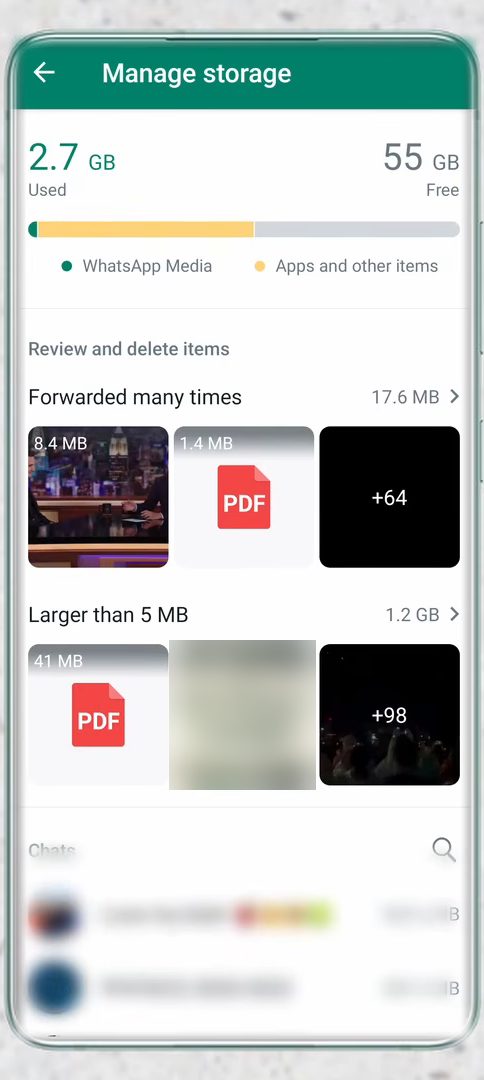
5Select and delete files
Tap Forwarded many times. Tick Select all to choose everything, or long press files to pick them one by one. Tap the delete (bin) icon at the top right and confirm with Delete. Then go back and do the same in Larger than 5 MB, which is usually where most of the space goes because all the big videos and documents sit there.
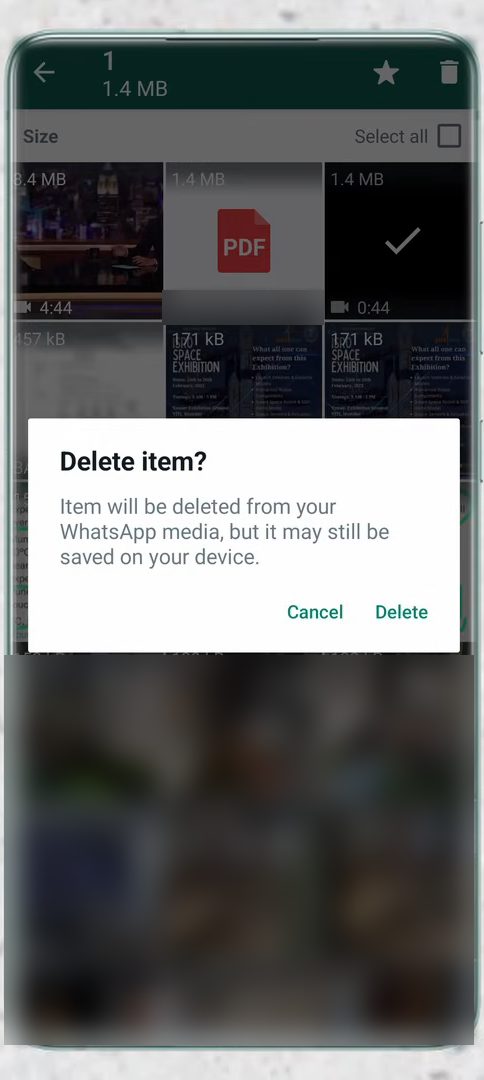
6Clean up the heaviest chats
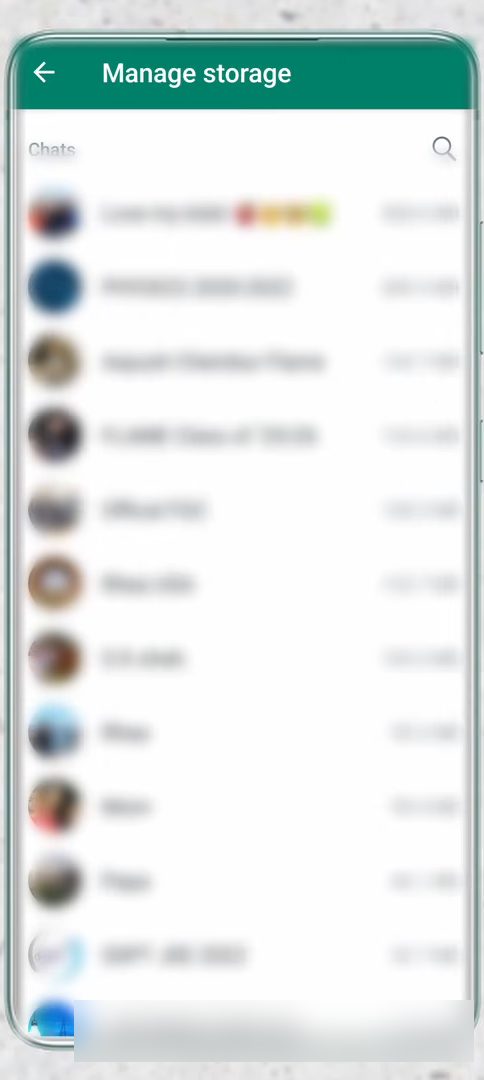
Back on Manage storage, scroll down to the Chats list. It sorts your chats by how much space each one takes. Tap a chat at the top, select the files you don't need and delete them the same way.
Method 2: Clear WhatsApp's cache
7Find WhatsApp in your phone's Settings
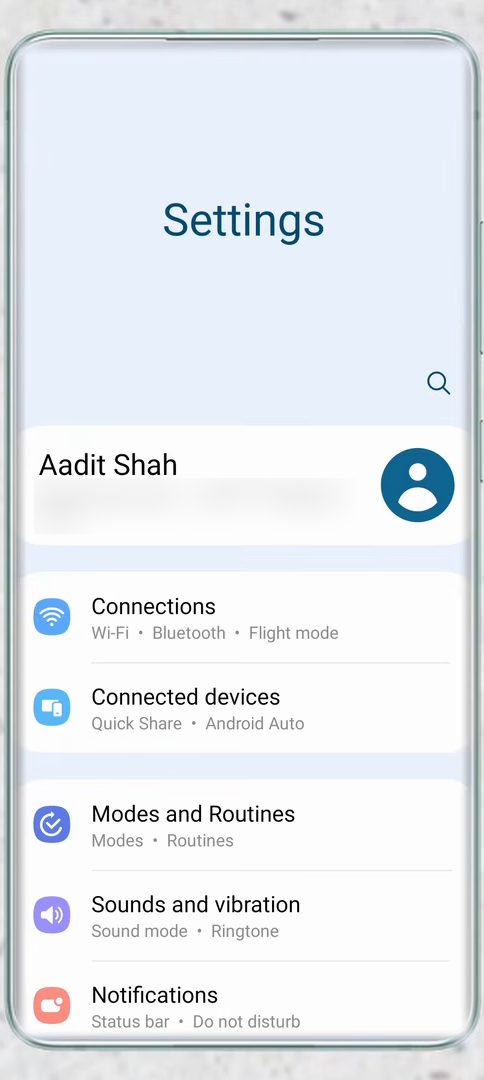
Open your phone's Settings app (not WhatsApp's), tap the search icon and search for WhatsApp to open its App info page.
8Open Storage
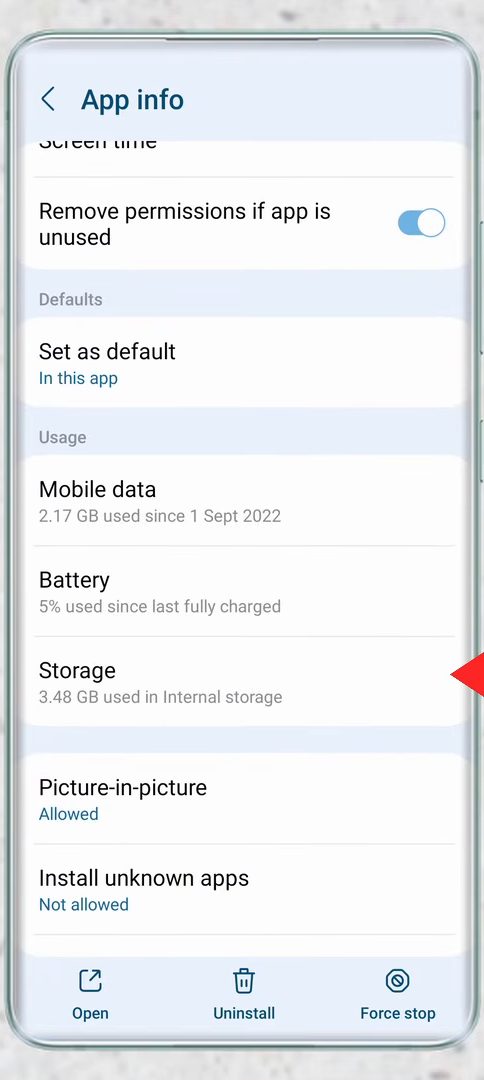
On the App info page, scroll down and tap Storage.
9Tap Clear cache
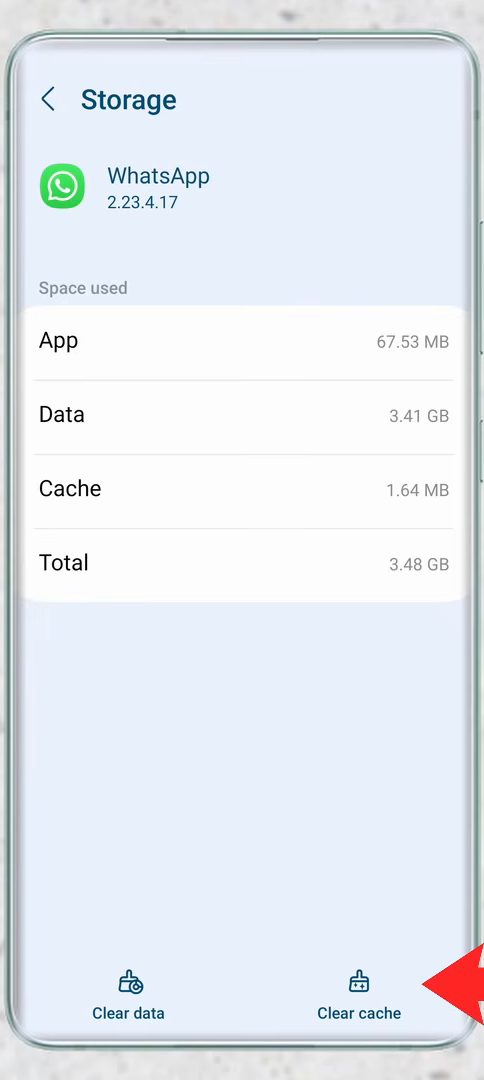
Tap Clear cache at the bottom right. Our cache was small because it had just been cleared, but it can easily be 100 MB or more. Don't tap Clear data, which is a different button.
Tips / troubleshooting
- Start with Larger than 5 MB. A few videos and documents there often free up more space than everything else combined.
- WhatsApp warns that deleted items may still be saved on your device, for example in your Gallery. Check there too if the space doesn't go down as much as expected.
- When you delete a file that also exists elsewhere in WhatsApp (for example, the same video forwarded into two groups), newer versions offer Delete any copies. Tick it, or you will only free part of the space.
- Clearing a chat removes its messages and media but does not delete the chat itself or take you out of a group.
- If you are short on phone storage in general, moving files to a memory card also helps. See how to move files from internal storage to SD card.
Stop WhatsApp filling up again
Cleaning up once helps, but WhatsApp downloads new media every day. Two settings slow it down: - Media auto-download. On the same Storage and data page you opened in Step 2, set When using mobile data, When connected on Wi-Fi and When roaming to download only what you want, or nothing. Media you skip shows a download button in the chat, so you can still open it when you need it. - Disappearing messages for busy groups. In a group that shares a lot of forwards, turn on disappearing messages from the group's info page (if you are allowed to change group settings). Messages are removed from the chat after the set time, though media already saved to your Gallery stays there.
Repeat the Larger than 5 MB check every month or two. It takes a minute once you know where it is.
FAQ
How do I clear WhatsApp storage without deleting chats?
Use Manage storage and only delete media and documents, not whole chats. Your messages stay, and clearing the cache doesn't remove chats either.
Is it safe to clear WhatsApp cache?
Yes. Cache is temporary data that WhatsApp can rebuild, and clearing it doesn't delete your messages or media. Avoid Clear data on the same screen, which resets the app.
Why does WhatsApp still take a lot of space after deleting files?
Deleted items can still be saved in your phone's storage or gallery, as WhatsApp's own delete message notes. Large chats you haven't cleaned up also add up, so check the Chats list at the bottom of Manage storage.
Is this the same on Samsung phones?
Yes. The video uses a Samsung phone. On other Android phones the WhatsApp steps are identical, while the phone Settings path to Storage and Clear cache may be named a little differently.
Can I recover a WhatsApp file after deleting it from Manage storage?
Not from the chat. WhatsApp says items deleted this way can't be downloaded again. The easiest fix is to ask someone in the chat to send it again, since deleting it on your phone doesn't touch their copy.
Does deleting media for me delete it for the other person?
No. Deleting from Manage storage only removes the file from your phone. Everyone else in the chat keeps their copy.
Related guides