Tech is Easy
How to Use the Same WhatsApp Account on Two Phones
To use the same WhatsApp account on two phones, open WhatsApp on the second phone, tap Agree and continue, then the three dots > Link as companion device, and scan the QR code it shows from your main phone in Linked devices > Link a device. It's for anyone who wants one number on two mobiles with the same chats on both.
What you need
- WhatsApp installed on both phones
- Your account already set up on one phone (this is your primary phone)
- An internet connection on both phones while they link and sync
Before you start
- The second phone gets logged out of any other account. Linking only works from a fresh WhatsApp start screen. If the second phone already uses WhatsApp with its own number, that account has to be logged out first, so back up its chats if you need them.
- Your primary phone stays in charge. WhatsApp's own page, How to link a device, says you link up to four devices from your primary phone. That limit covers everything you link, including WhatsApp Web, the desktop app and tablets, not just phones.
- Old chats may not all appear. WhatsApp notes a known issue where some linked devices don't show up to one year of chat history. New messages always sync to both phones.
1Start WhatsApp on the second phone
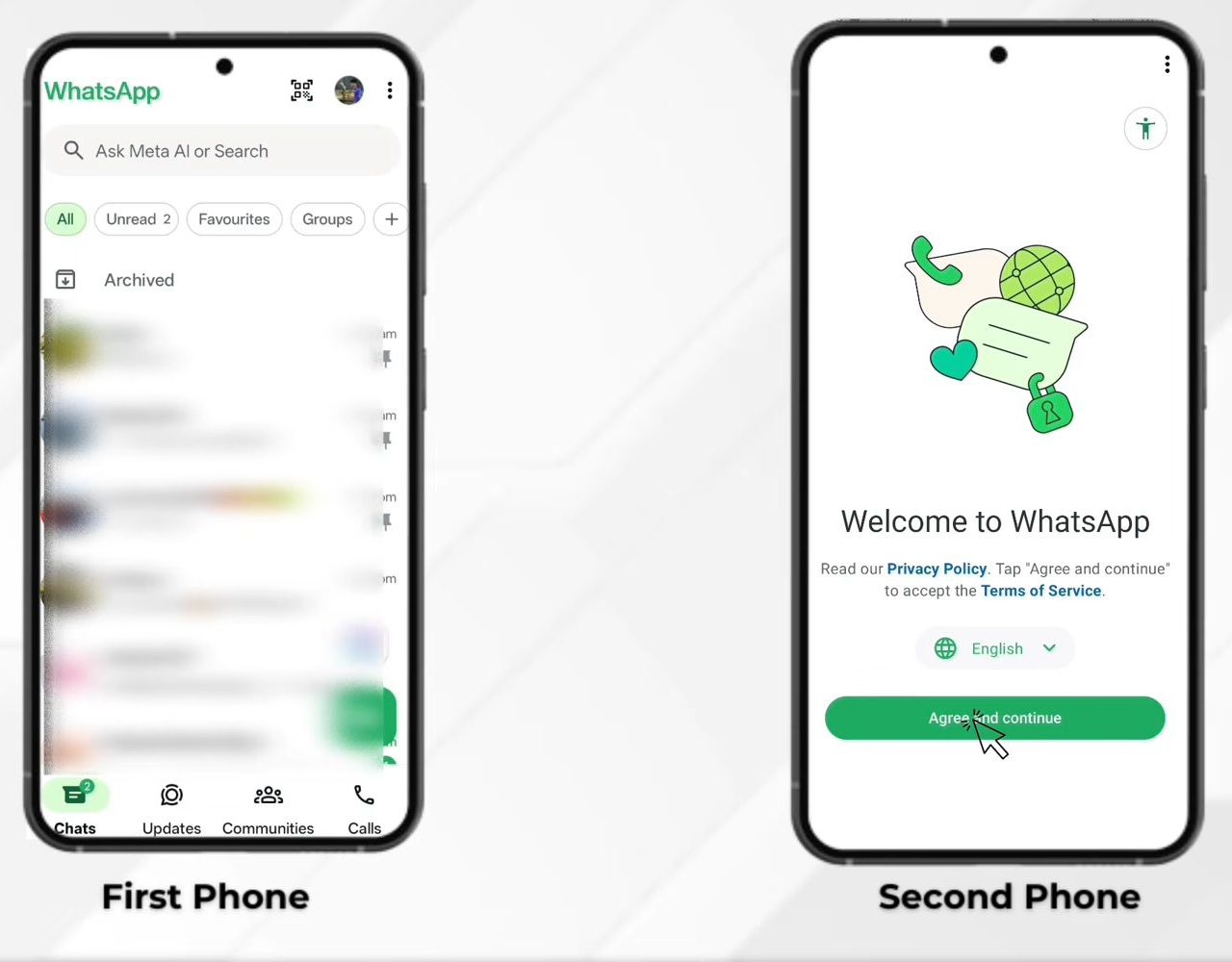
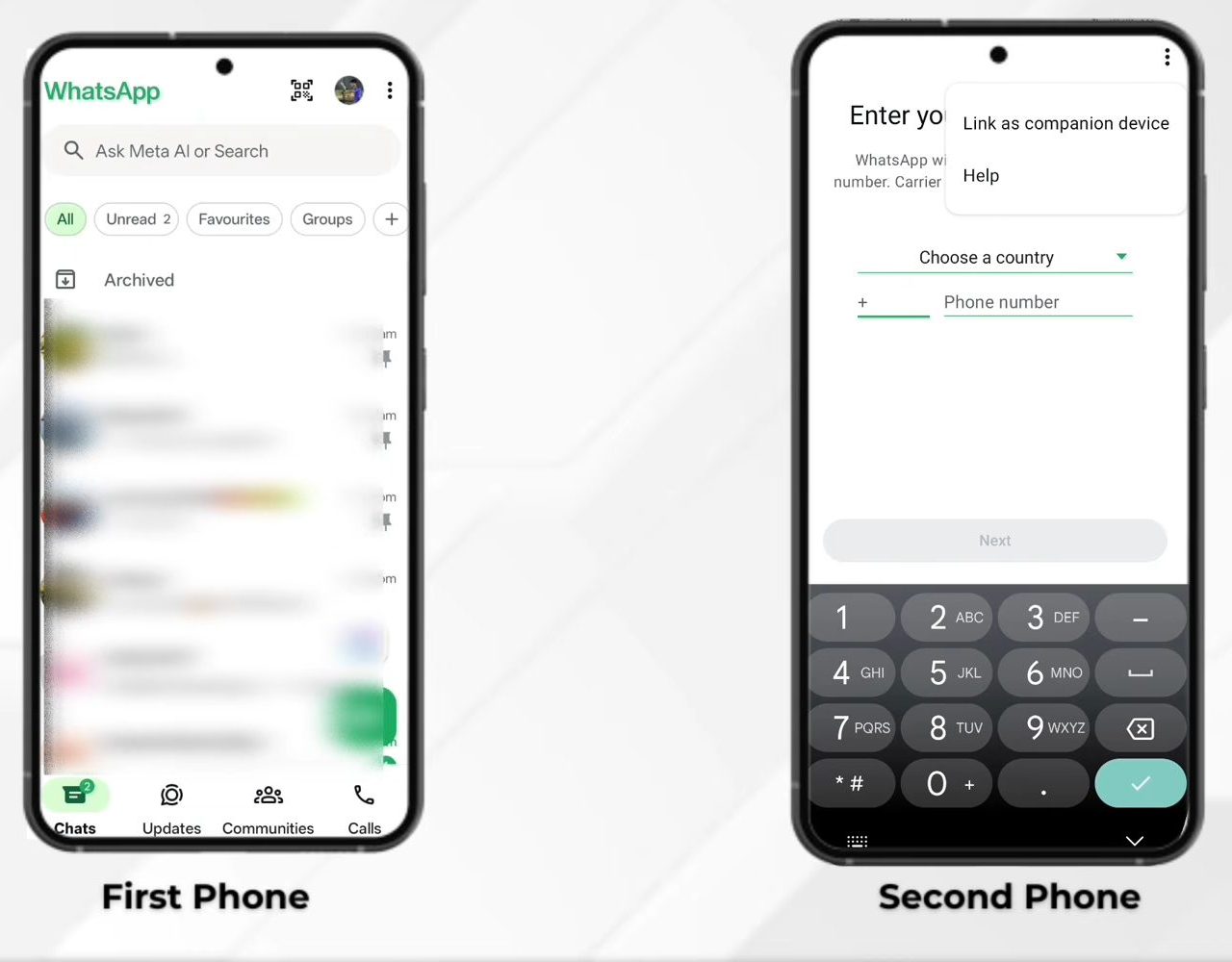
Open WhatsApp on the phone that doesn't have your account yet and tap Agree and continue on the Welcome screen.
2Choose Link as companion device
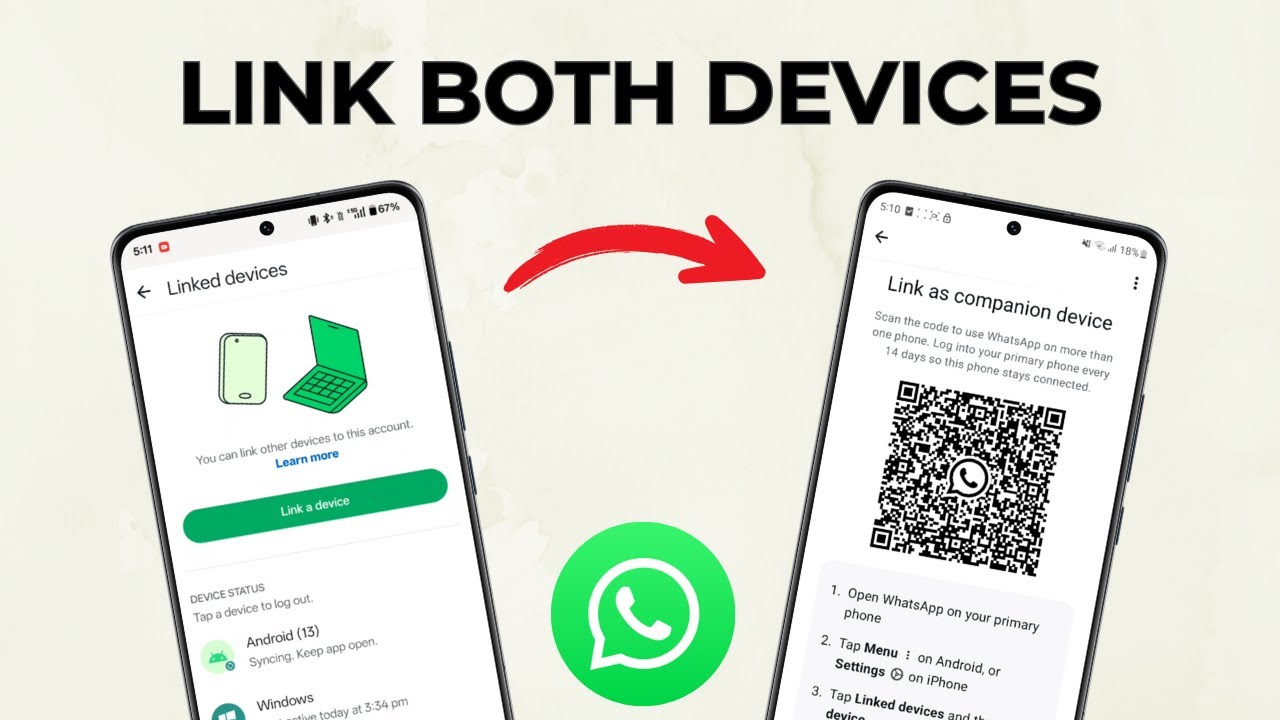
On the Enter your phone number screen, don't type your number. Instead tap the three dots at the top right and select Link as companion device. The phone now shows a QR code.
3Open Linked devices on your main phone
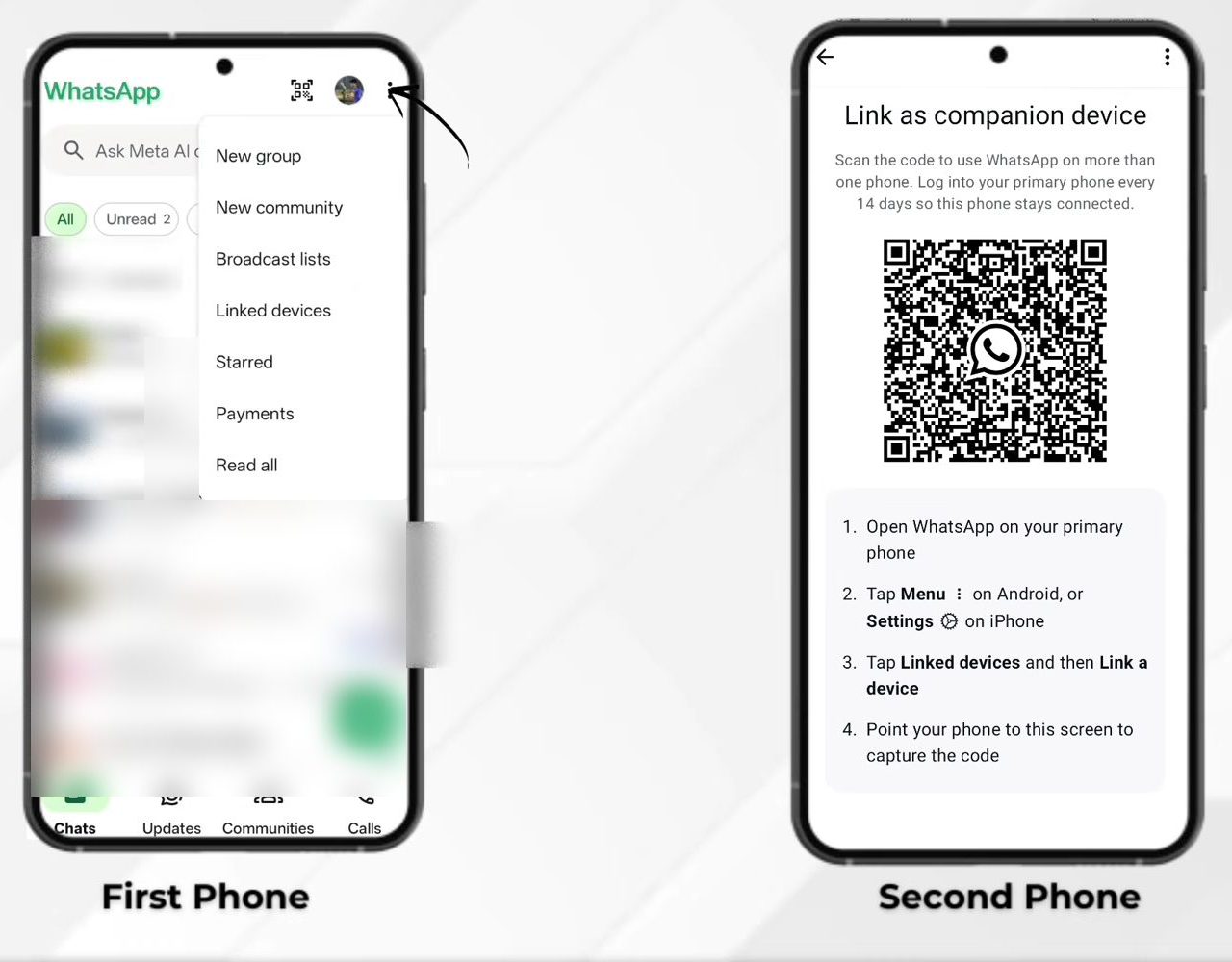
Pick up your primary phone, open WhatsApp and tap the three dots at the top right. Choose Linked devices.
4Tap Link a device
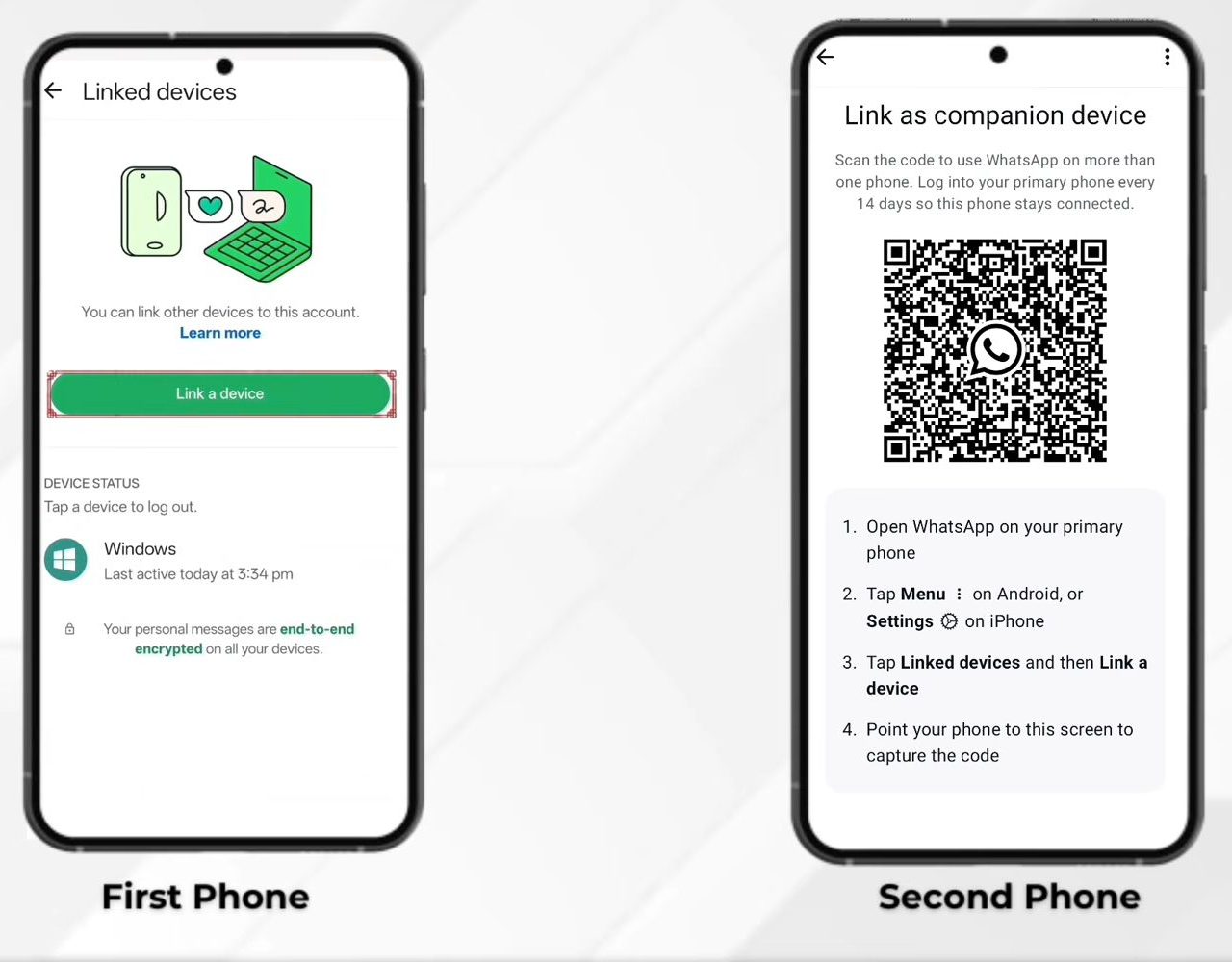
Tap Link a device. Confirm with your fingerprint or PIN if asked, and the camera opens.
5Scan the QR code
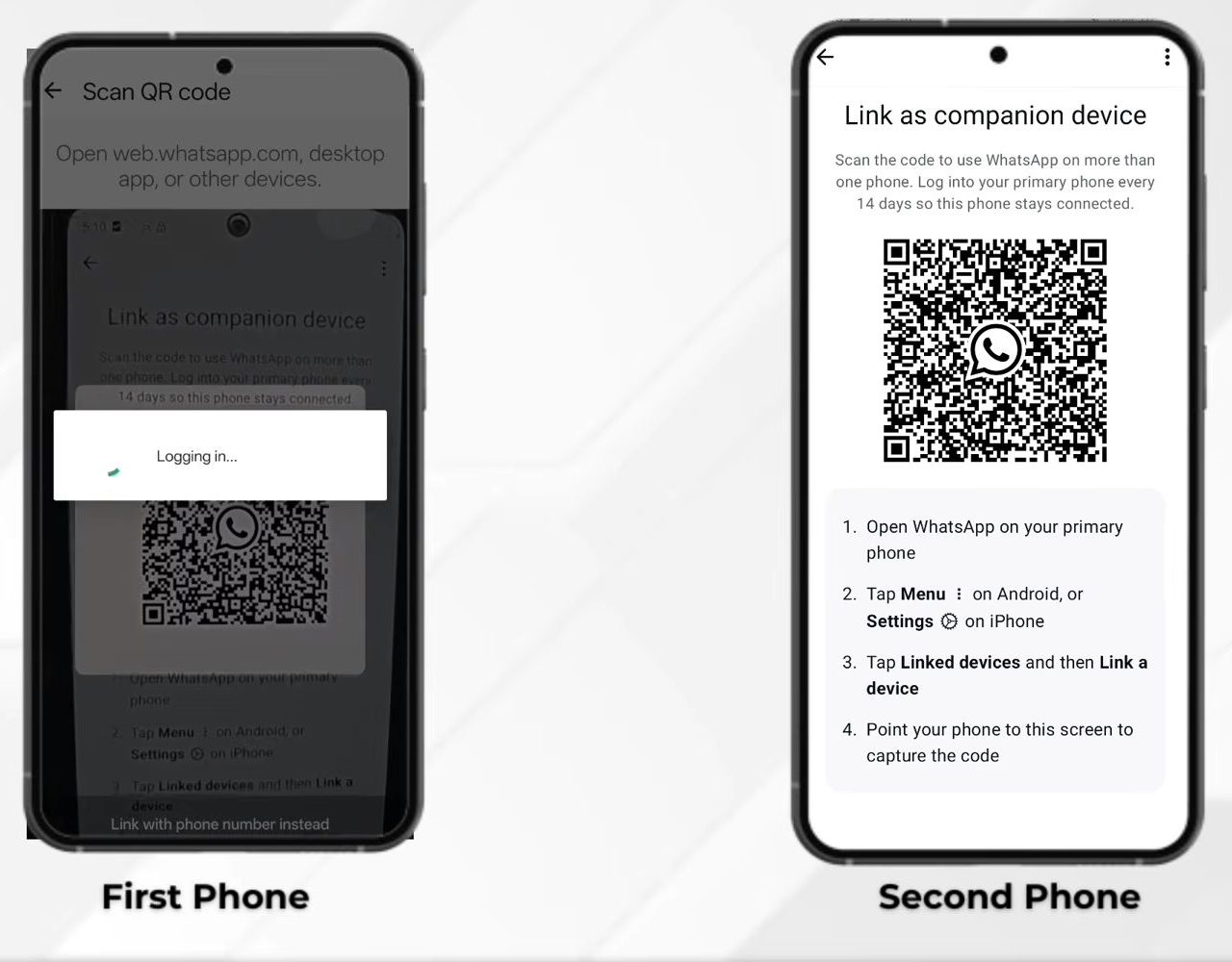
Point your main phone at the QR code on the second phone. You'll see Logging in, and the second phone starts loading your chats.
6Wait for the chats to sync
The second phone shows Initialising for a few minutes and appears under Linked devices on the main phone. When it's done, both phones show the same chats, and a message sent from one shows up on the other.
What works on the second phone
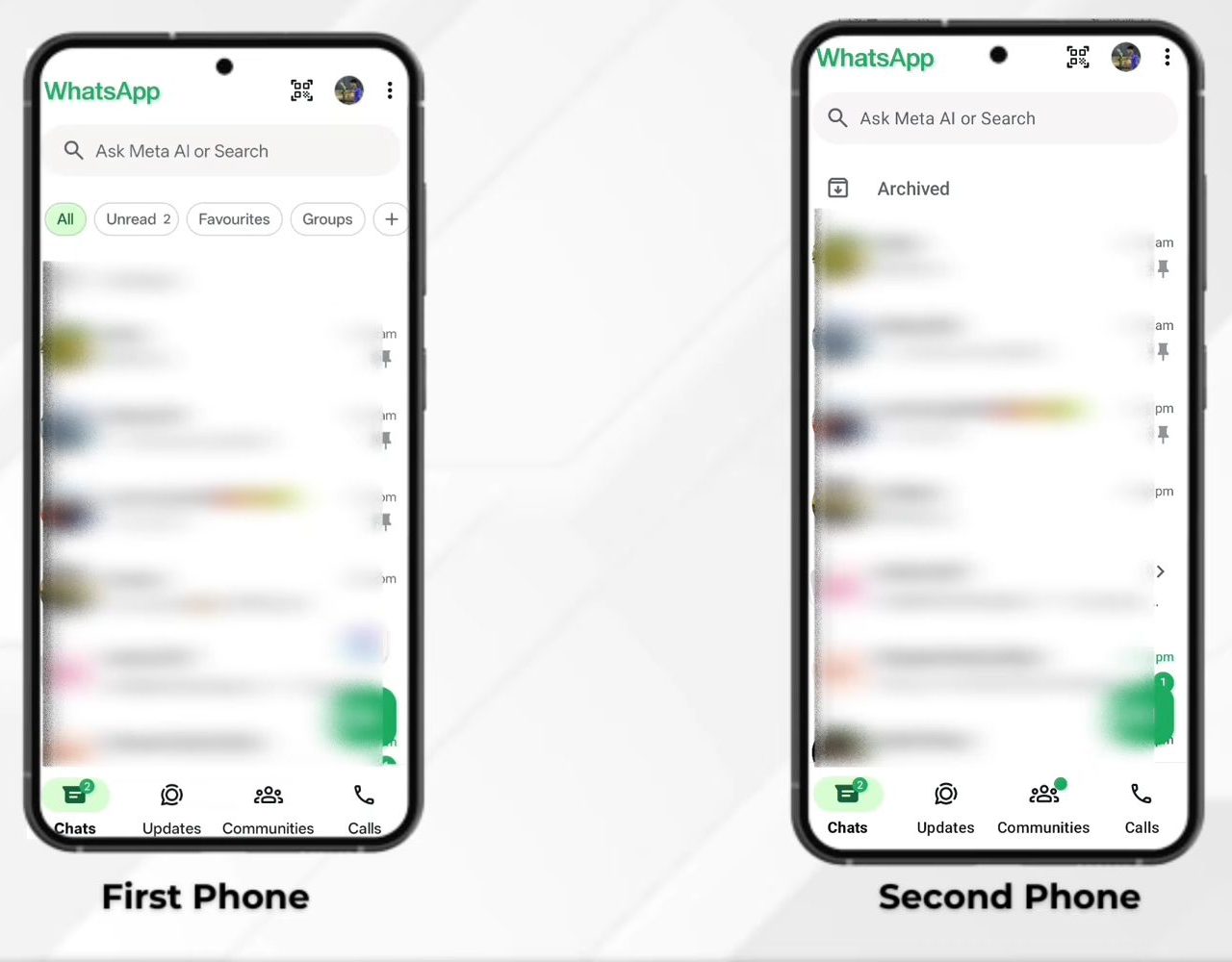
Once linked, the second phone can send and receive messages, photos, voice notes and calls on your number, and it keeps working even when the primary phone is switched off or has no internet. Messages and calls stay end-to-end encrypted, because each device connects to WhatsApp on its own.
A few things are still limited on linked devices. WhatsApp lists viewing someone's live location, creating and viewing broadcast lists, and some business features (WhatsApp Flows) as not supported. You also can't use the companion phone to link more devices or register the account, since that always happens on the primary phone.
Tips / troubleshooting
- The linking screen notes that you need to open WhatsApp on your primary phone at least every 14 days so the second phone stays connected. WhatsApp also disconnects a linked device that hasn't been used for 30 days.
- QR code won't scan. Turn up the brightness on the second phone, hold the main phone steady about a hand's length away, and make sure the QR code hasn't expired. It refreshes after a short time, so if scanning keeps failing, go back and open Link as companion device again.
- Can't link a fifth device. You've hit the four-device limit. Log out an old computer or browser session from Linked devices on your primary phone, then try again.
- "Unrecognised device" prompt. WhatsApp may ask you to confirm a new device. Tap Link device only if it is your own second phone. If you didn't start the linking, tap Don't link.
- Second phone stuck on Initialising. Keep both phones open on WhatsApp and connected to the internet until it finishes. A large chat history takes longer.
- Keep WhatsApp updated on both phones, since linked device features depend on the app version.
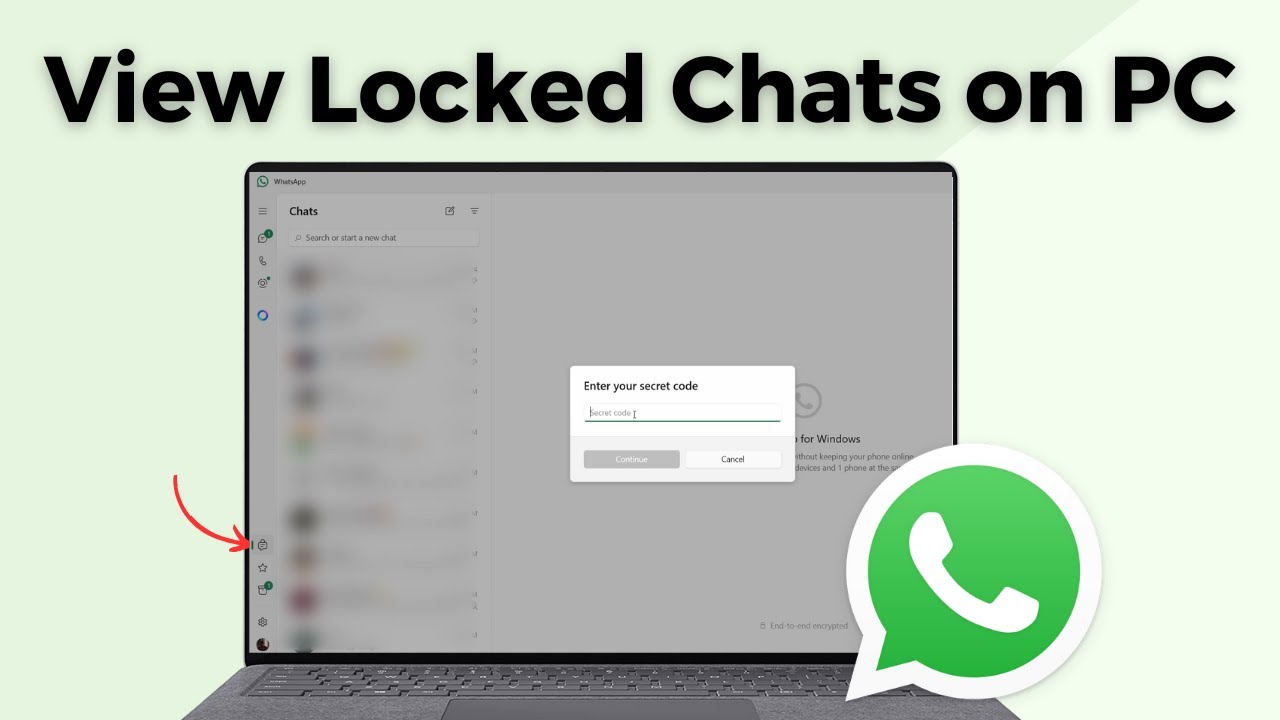
- Locked chats need a secret code on linked devices. See how to view locked chats in WhatsApp on PC.
FAQ
Can I use one WhatsApp number on two phones at the same time?
Yes. Linked as a companion device, both phones use the same account at the same time.
Why don't I see Link as companion device?
It's in the three dots menu on the Enter your phone number screen of a fresh WhatsApp install. If that phone is logged in with another number, log out first, and update WhatsApp if it's still missing.
How do I remove the second phone later?
On your primary phone, open Linked devices, tap the second phone in the list and choose Log out. WhatsApp recommends checking this list now and then so you know every device that has access.
Does this work with an iPhone?
The video uses two Android phones. The QR screen notes that on iPhone you find Linked devices under Settings instead of the three dots menu.
How many devices can use one WhatsApp account?
One primary phone plus up to four linked devices. Linked phones, tablets, computers and WhatsApp Web all count toward those four.
Will the second phone keep working if my main phone is off?
Yes. Linked devices work on their own, even when the primary phone is off or offline. Just open WhatsApp on the primary phone at least once every 14 days, or the linked phone gets logged out.
Related guides