Tech is Easy
How to Delete a Google Family Link Group (Step-by-Step)
To delete a Google Family Link group, open the Family Link app, tap your profile icon at the top right, tap the three dots and choose Delete family group, then tap Delete and confirm your Google password. This is for the family manager (the parent account that created the group) who wants to remove the family group and stop Family Link supervision.
This guide was made in 2020, so menus in the Family Link app may look slightly different now.
What you need
- The Google Family Link app on the parent's phone, signed in to the family manager account
- The password for that Google account
Before you start
Deleting a family group is permanent. Google's help page on managing your family on Google lists what to sort out first and what changes afterwards: - Children under 13 (or the minimum age in your country) can't simply be dropped from the group. You first have to transfer their supervision to another parent or delete the child's supervised Google Account. - Supervised teens over that age need supervision stopped before the group can be deleted. - Adults keep their Google Accounts and any content on their devices bought with the family payment method. - Shared services end. Family plans such as YouTube Music or Google One stop for the other members, shared Google One storage goes away, and Google Play Family Library content added by others disappears. - Purchases already in progress are still charged. You can request a refund for unwanted or accidental ones. - There is a 12-month limit. After deleting, you can only create or join another family group once in the next 12 months.
If you only want one person out of the group, you don't need to delete it. Remove that member instead (see the FAQ below).
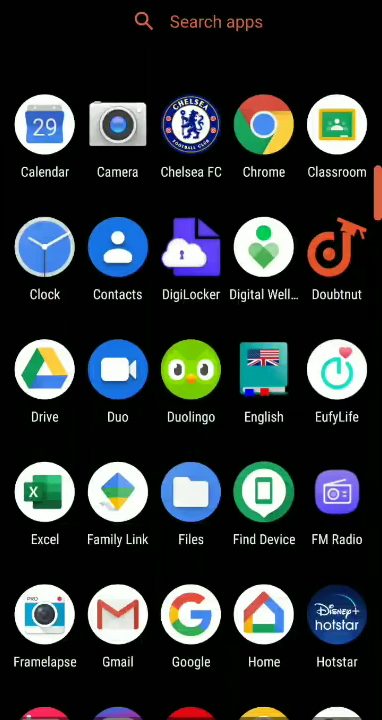
1Open the Family Link app
Find Family Link in your app drawer and open it.
2Tap your profile icon
Tap your profile picture at the top right of the screen.

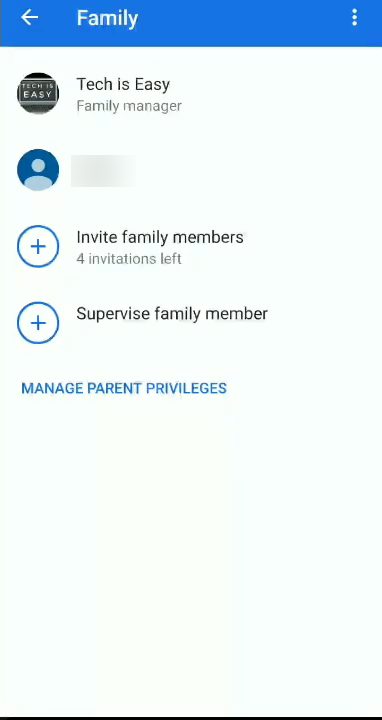
3Check the family members
The Family page lists everyone in the group, with you shown as Family manager. Tap the three dots at the top right.
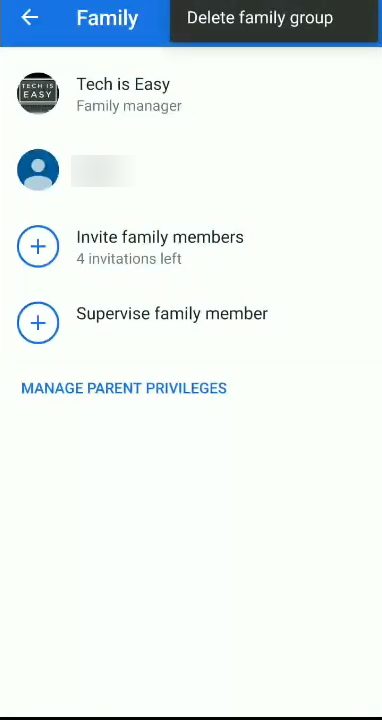
4Choose Delete family group
Tap Delete family group in the menu that appears.
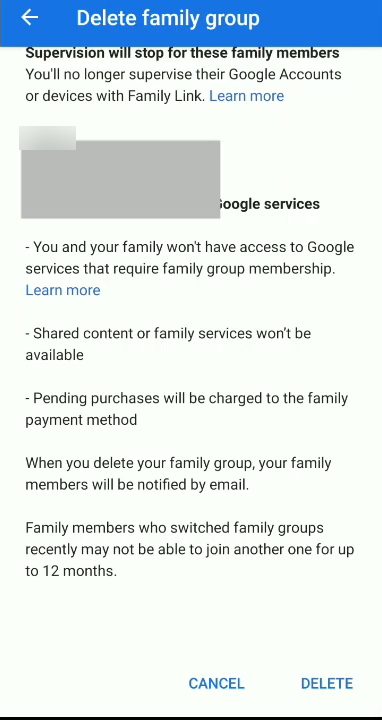
5Read the warning and tap Delete
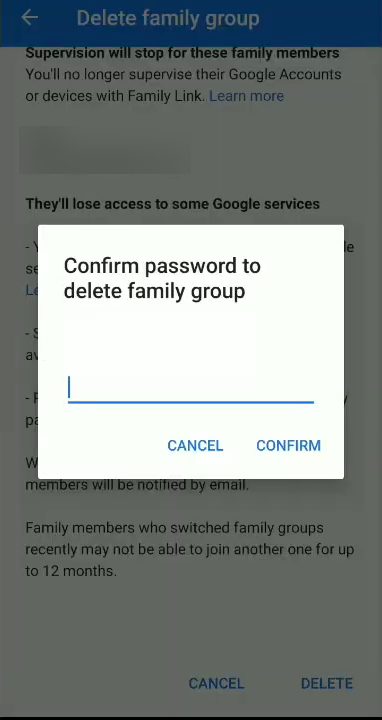
Google explains what happens: supervision stops for the listed family members, everyone loses access to Google services that need family group membership, shared content and family services stop working, and every member gets an email about it. If you are sure, tap Delete at the bottom right.
6Confirm your password
Type your Google account password in the Confirm password to delete family group box and tap Confirm. The app confirms that the family group has been deleted, and Google sends an email saying you stopped Family Link supervision for that member.
Other ways to delete the family group
The Family Link app has been redesigned since this video. In the current version, Google's help page says to select your child's profile at the top left, tap Manage family, then tap Delete family group under "Delete your family group", enter your password and tap Delete.
You can also do it without Family Link: - On a computer or any browser: go to g.co/YourFamily while signed in to the family manager account and select Delete family group. - In the Google Play app: tap your profile icon at the top right, then Settings, Family, Manage family members. Tap the family manager's account, then Delete family group and Delete. - In the Google One app: tap Menu, Settings, Manage family settings, Manage family group. Tap the family manager's account, then Delete family group and Delete.
Tips / troubleshooting
- No Delete family group option: you are probably signed in as a parent or member, not the family manager. Only the account that created the group can delete it.
- Google won't let you delete yet: there is still a supervised child in the group. Transfer that child's supervision to another parent, stop supervision for an older child, or delete the under-13 child's account first, then try again.
- Family Link is missing or won't open: Google notes that Family Link availability may be limited in some countries. Use g.co/YourFamily in a browser instead.
- Wrong password error: use the password of the family manager's Google account, not the child's account and not your phone's screen lock.
FAQ
What happens when you delete a Google family group?
Family Link supervision stops for the child's account and devices, shared family content and services stop working, and pending purchases are charged to the family payment method. All members are notified by email.
Can members join another family group afterwards?
Google says that after you delete a family group, you can only create or join another one once in the next 12 months. The warning screen in the app also mentions this limit, so think about it before deleting.
Can I undo deleting a family group?
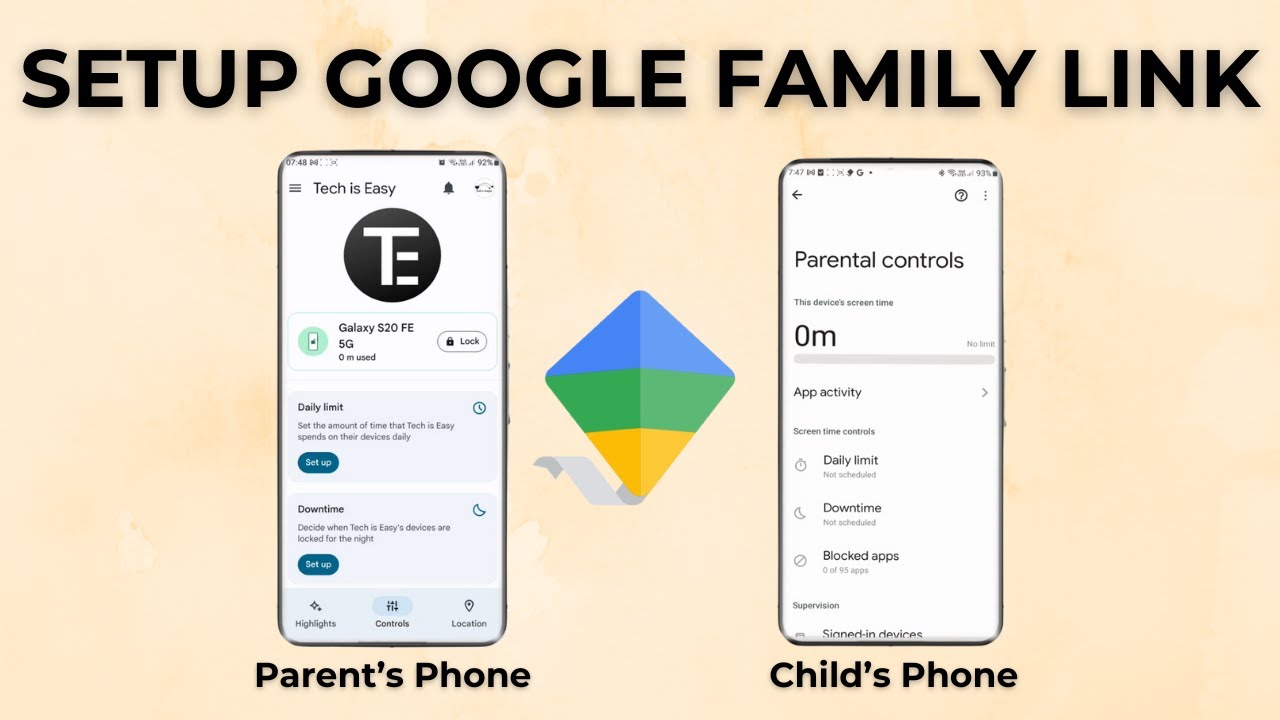
The video does not show a way to restore a deleted group. You would need to create a new family group and invite or supervise members again. Our guide on how to set up Google Family Link walks through that.
Who can delete the Family Link group?
Only the family manager, the account that created the group. The delete option is in that account's Family page in the Family Link app, and also at g.co/YourFamily.
How do I remove just one person from my family group?
As the family manager, go to g.co/YourFamily, select the person and choose Remove member, then Remove. They keep their own Google Account but lose access to shared family services. A supervised child under 13 can't be removed this way: you have to transfer their supervision or delete their account.
Related guides