Tech is Easy
How to Remove Gmail Account From Android Phone (Easy Steps)
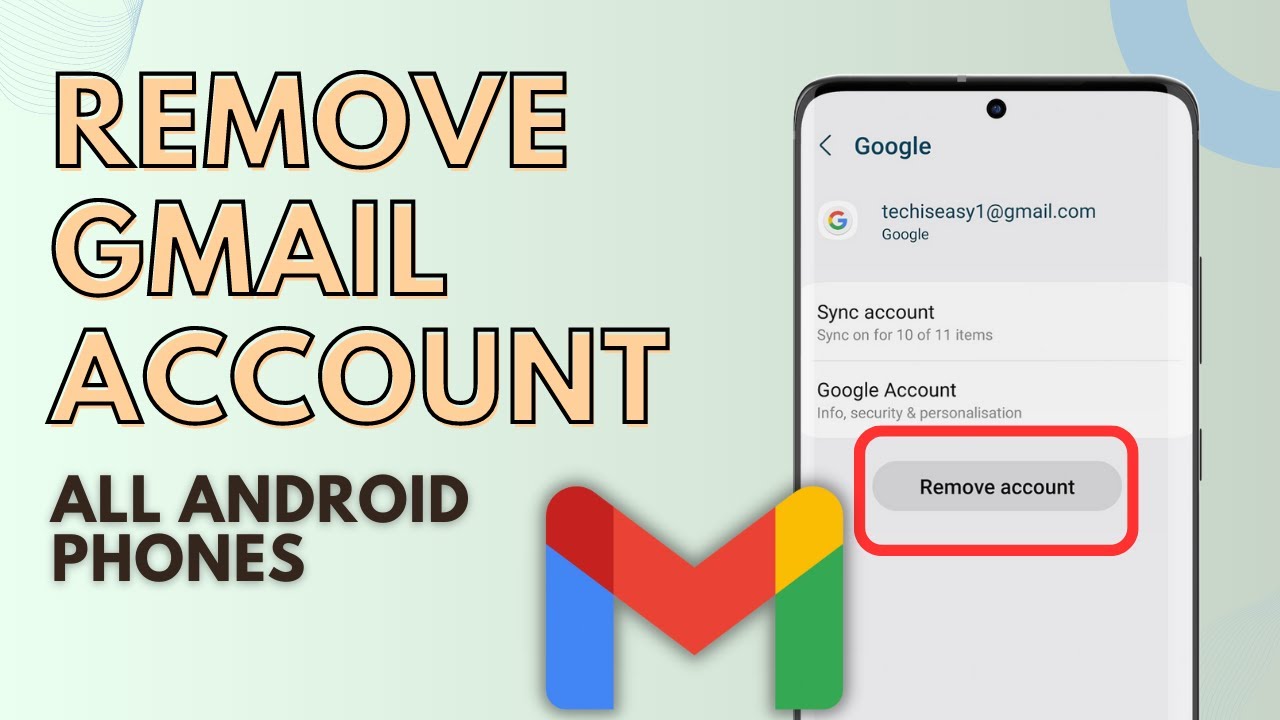
To remove a Gmail account from an Android phone, open the Gmail app, tap your profile picture, choose Manage accounts on this device, tap the account and press Remove account. This works for anyone who has several Google accounts on one phone, or who is handing an old phone to someone else. It removes the account from the phone only, not from Google.
Before you start
- Removing is not deleting. The account, its emails, Drive files and photos all stay on Google's servers. Only the copy on this phone goes away.
- Synced data leaves the phone with it. Contacts, calendar events and Gmail messages that belong to that account disappear from the phone's apps. Anything saved only on the phone (not synced) is not affected.
- Know your password. If you want the account back on this phone later, you need its password and possibly your 2-Step Verification code.
- Selling or giving away the phone? Remove every Google account before you factory reset it. If a Google account is still on the phone during a reset, Android's theft protection can ask for that account's password when the next person sets it up.
1Open the Gmail app
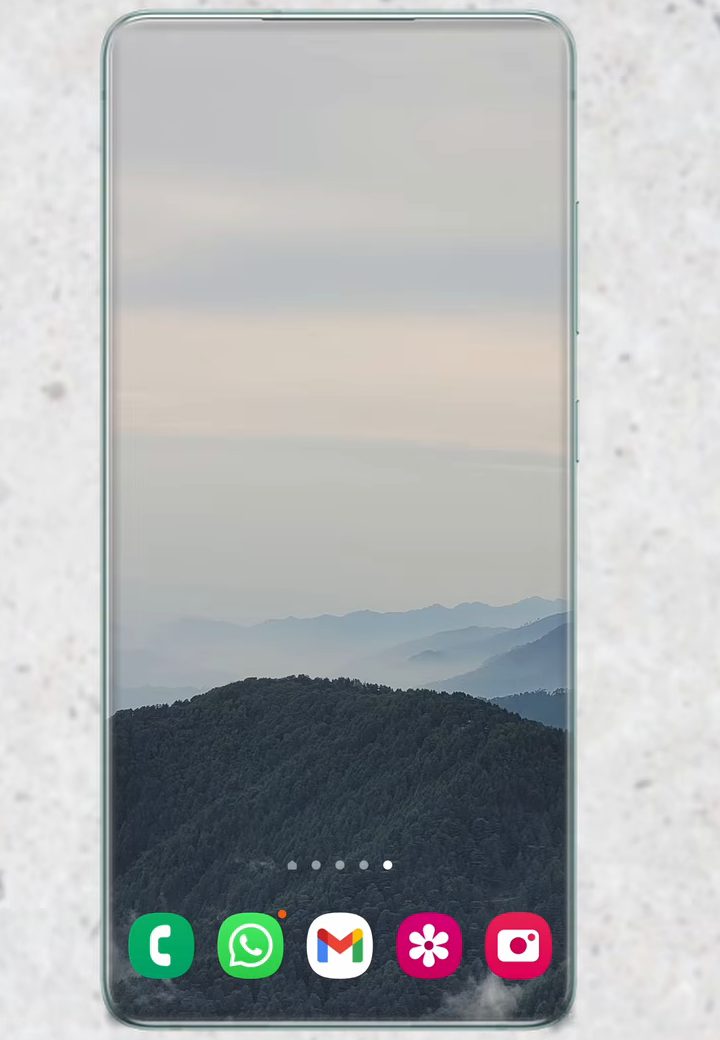
Find the Gmail app on your home screen or in the app drawer and open it.
2Tap your profile picture
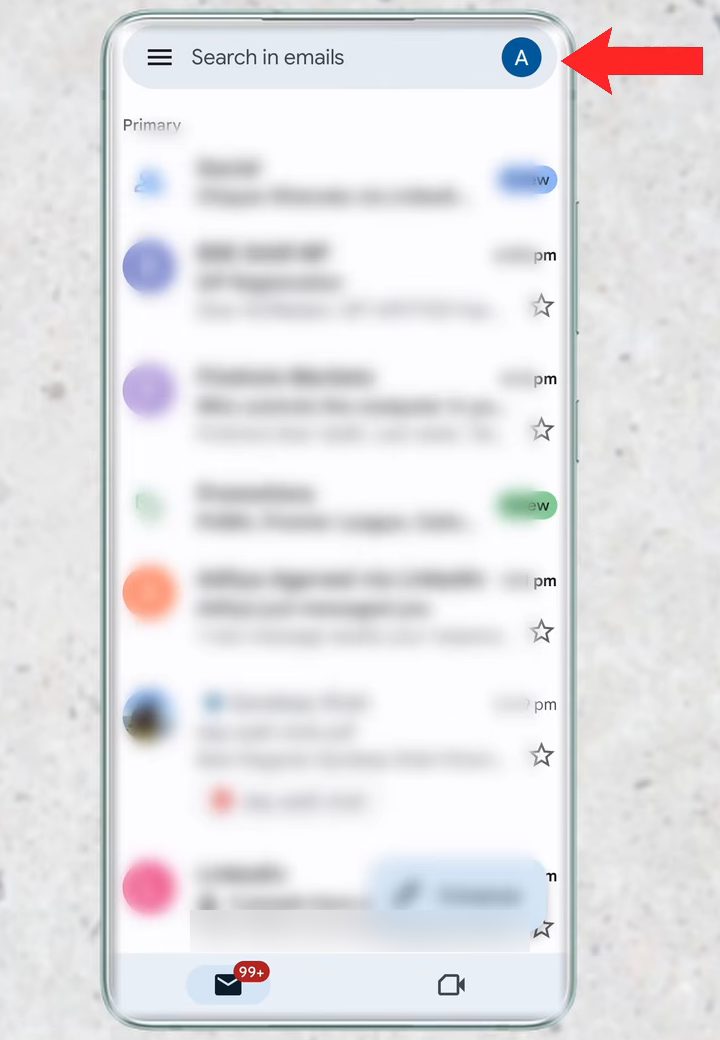
In the Gmail inbox, tap your profile picture (or initial) at the top right, next to Search in emails.
3Tap Manage accounts on this device
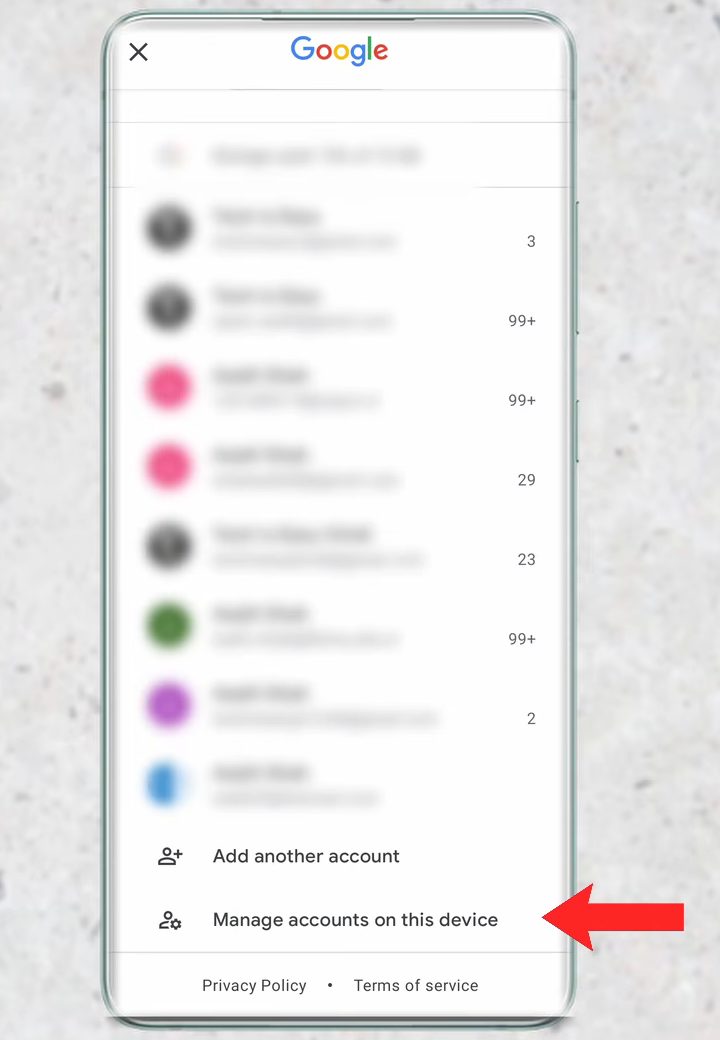
A panel opens with every account signed in on the phone. At the bottom, tap Manage accounts on this device.
4Pick the account you want to remove
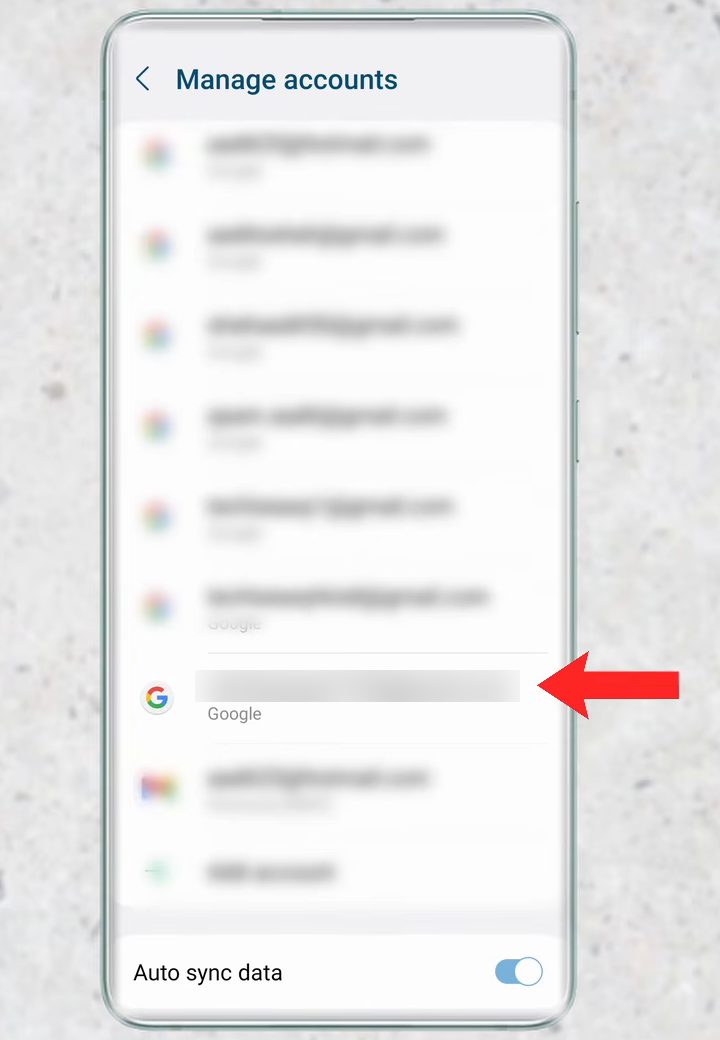
The phone's Manage accounts screen lists all the email accounts on the device. Tap the Gmail account you want to take off the phone.
5Tap Remove account
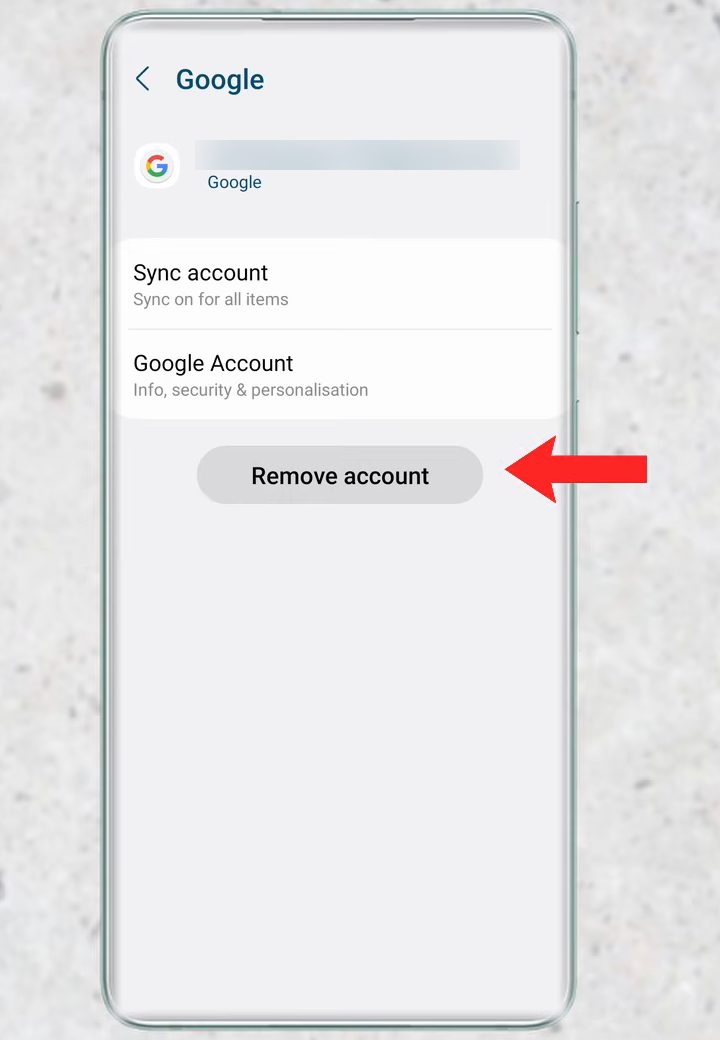
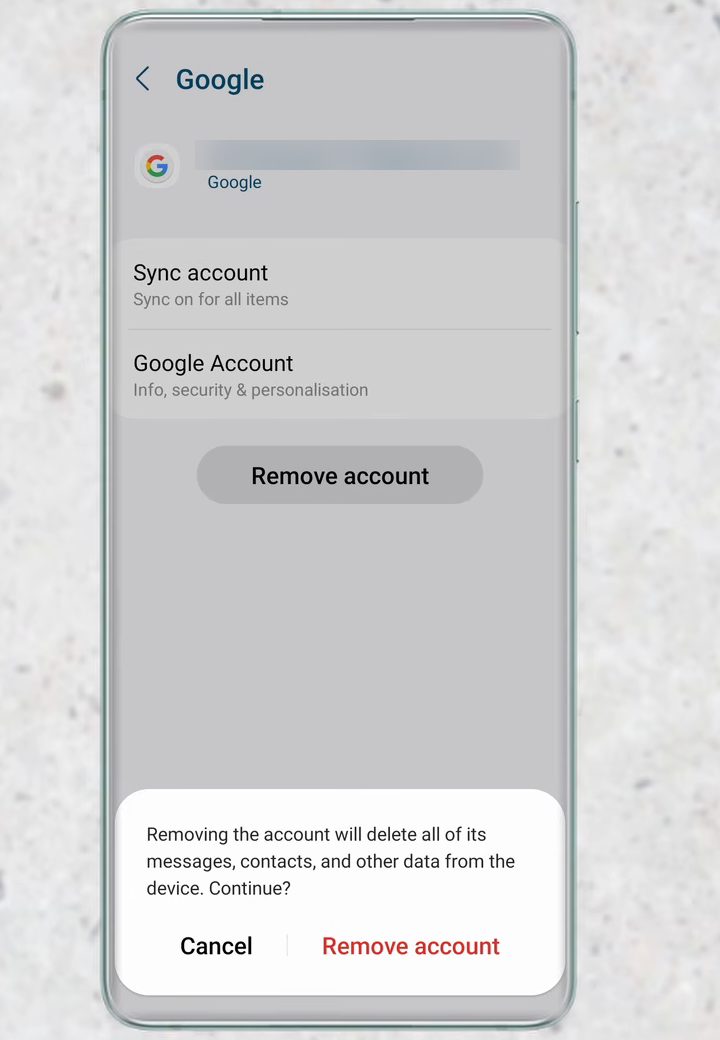
On the account page, tap Remove account below Sync account and Google Account.
6Confirm
A message warns that removing the account deletes its messages, contacts and other data from the device. Tap Remove account again. You are taken back to Manage accounts and that email address is no longer in the list.
Remove the account from phone Settings instead
You can reach the same screen without opening Gmail. Google's own help page, Add or remove an account on Android, gives this route: open the Settings app, tap Passwords & accounts, tap the account under Accounts, then tap Remove account and confirm.
The name of that menu changes from phone to phone. Google lists Users & accounts, Passwords, passkeys & autofill, Password, passkeys & accounts and Manage accounts as the other names you might see. On Samsung Galaxy phones it sits under Accounts and backup > Manage accounts. If you can't spot it, type "accounts" into the search bar at the top of Settings.
If Remove account doesn't work
- It asks for your PIN or pattern. Google's help page notes this happens when it is the only Google account on the phone. Enter your screen lock to continue.
- The button is missing or greyed out. This usually means the account was added by your school or employer as a work account, or the phone is managed by an organisation. Only the admin can remove it, or you can remove the whole work profile from Settings.
- You only want to stop Gmail syncing. Tap the account in Manage accounts and open Sync account instead, then turn off Gmail. The account stays on the phone but its email stops downloading.
What happens after you remove it
Gmail, Play Store, Photos and other Google apps switch to the next Google account on the phone. If it was the only account, the Play Store will ask you to sign in before you can download apps, and Google Photos backup stops until you add an account again. Apps you installed stay installed.
FAQ
Does removing a Gmail account from my phone delete the account?
No. It only signs the account out of this phone and clears its emails, contacts and other synced data from the device. The account and everything stored in it are still there, and you can sign in again any time.
Can I remove a Google account from a phone I no longer have?
Not with these steps, since they need the phone in your hand. Instead, sign out of it remotely from your Google Account page, as shown in how to remove a Google account from other devices.
Can I remove the account from phone Settings instead?
The Manage accounts on this device option in Gmail opens the phone's own account settings, so you end up on the same screen. Going through Gmail is just the quickest route.
Does this work on iPhone?
These steps are shown on an Android phone, where the button opens Android's account settings. The iPhone Gmail app works differently and isn't covered here.
Will I lose my contacts and photos if I remove my Google account?
Not from your account. Contacts and photos that were backed up to that Google account stay online, and they come back if you sign in again. Photos stored only on the phone's memory remain on the phone. Only contacts that were synced from that account vanish from the phone's contact list.
How do I add the account back later?
Open the Gmail app, tap your profile picture and choose Add another account, or go to Settings > Passwords & accounts (or your phone's version of it) > Add account > Google, then sign in.
Related guides