Tech is Easy
Google Family Link Parental Controls: How to Set Up
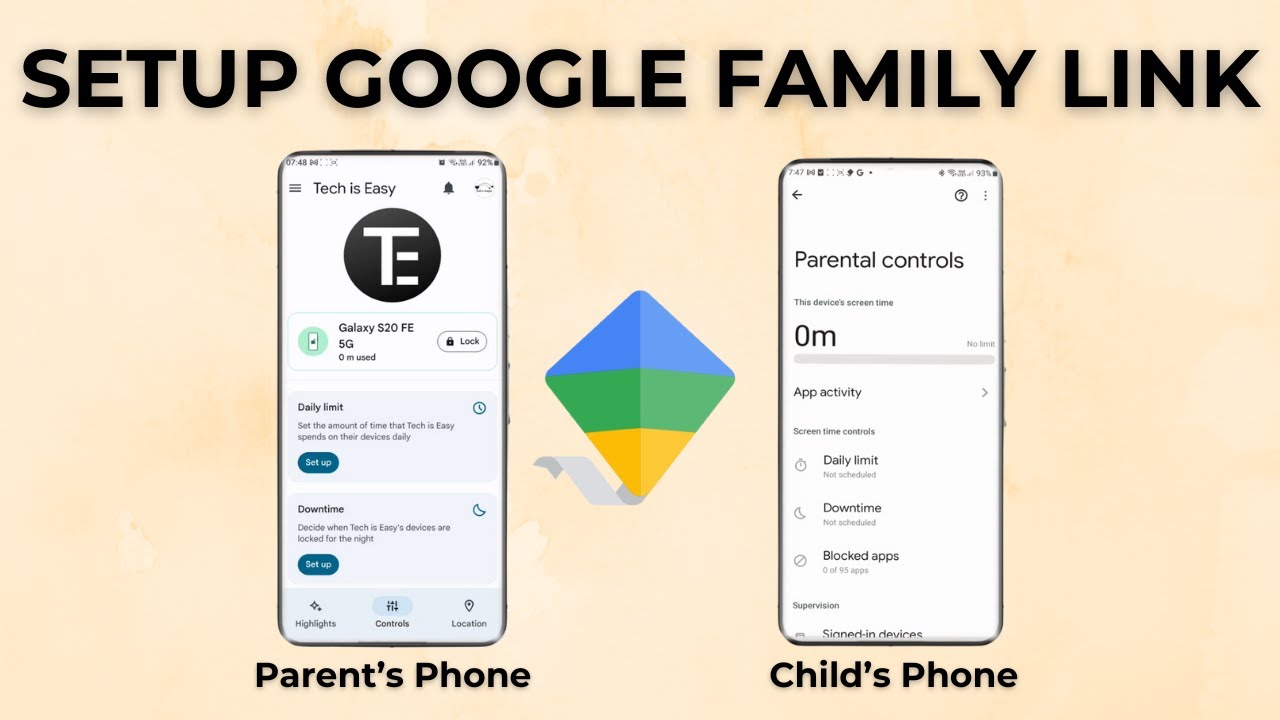
Google Family Link lets a parent supervise a child's Android phone, with screen time limits, downtime, content filters and the option to lock the phone. Setup happens in two parts: you start supervision from the child's phone, then you manage it from the parent's phone using the Family Link app.
What you need
- The child's Android phone, signed in to the child's Google account
- The child's Google account password
- The parent's phone with the parent's Google account
- The parent's email address
Check that your devices are supported
Google's Get started with Family Link page lists the requirements: - Parent: 18 or older (or the adult age in your country), with a Google Account, and living in the same country as the child. - Parent's device: an Android phone or tablet on Android 6.0 or later, an iPhone or iPad on iOS 16 or later, or a Chromebook that runs Android apps. Some settings can also be managed at familylink.google.com. - Child's device: an Android phone or tablet on Android 6.0 or later, a Chromebook on Chrome OS 71 or later, or a compatible Fitbit. - Not supported: iPhones, iPads and computers other than Chromebooks can't be supervised, and Google Workspace for Education (school) accounts can't be managed with Family Link. Family Link may also not be available in every country.
So the parent can use an iPhone, but the child's phone has to be Android.
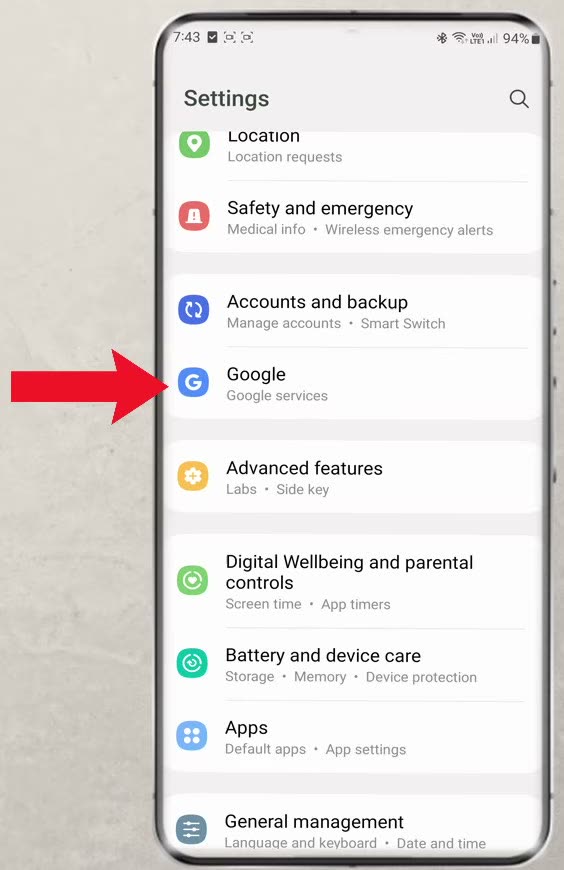
1Open Google in the child's phone settings
On the child's phone, open Settings, scroll down and tap Google. You will find this option on any Android phone.
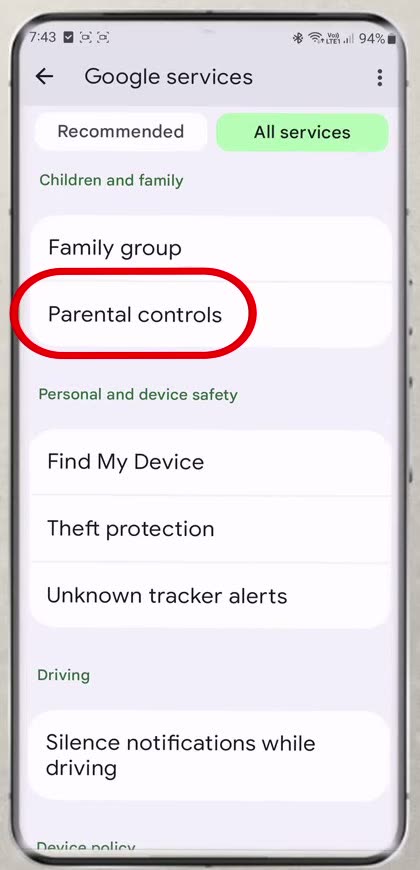
2Open Parental controls
Tap the All services tab, then scroll down and tap Parental controls under Children and family. Depending on your phone, this page may look a little different, but the option is there.
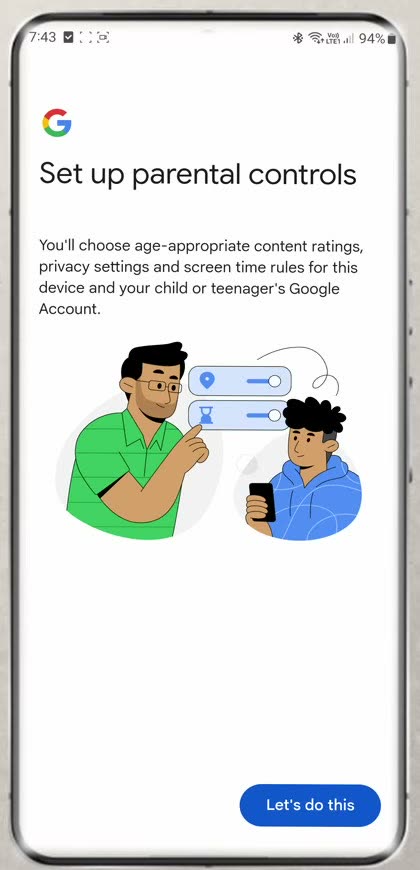
3Start the setup
On the Set up parental controls screen, tap Let's do this.
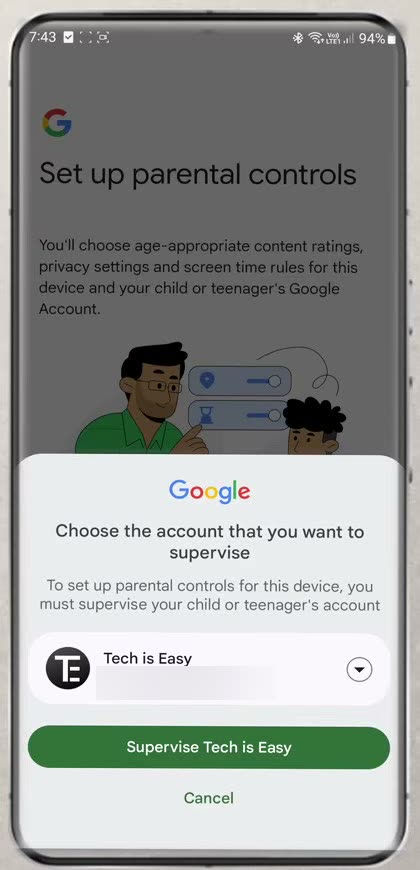
4Choose the account to supervise
Pick the child's account that you want to supervise. Tap the account to switch to a different one if needed, then tap Supervise.
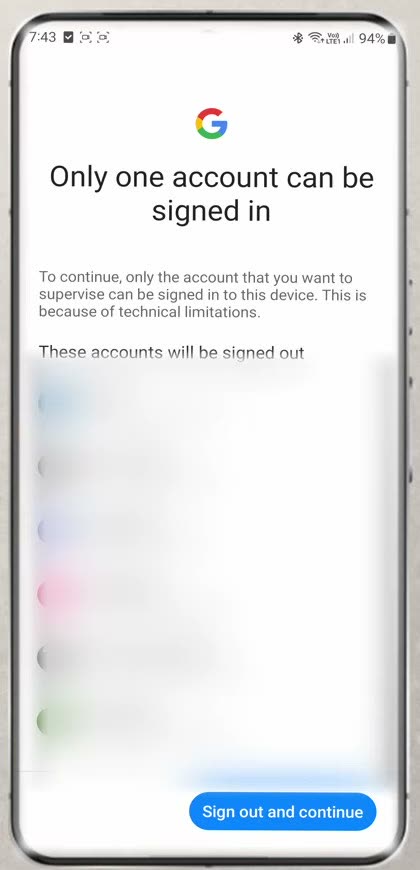
5Sign out other accounts
Only one account can be signed in on a supervised phone, so any other accounts will be signed out. Tap Sign out and continue.
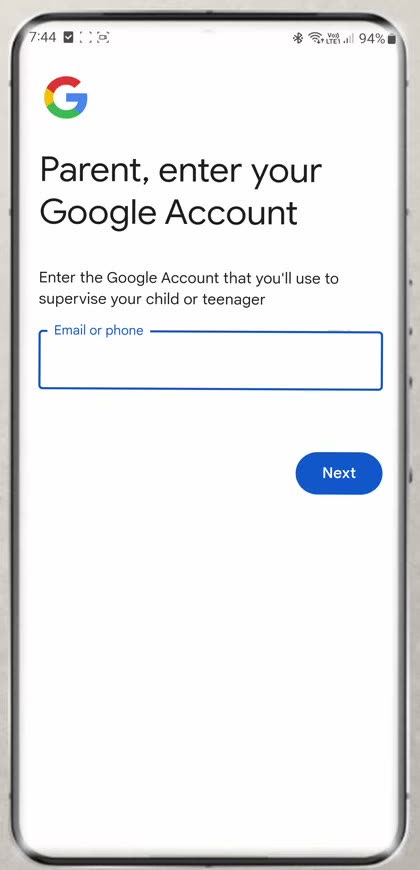
6Enter the parent's email
Tap Next on the screen that says the next steps are for the parent. Then type the parent's email address in Email or phone and tap Next. This is the account you will use on the parent's phone to supervise the child.
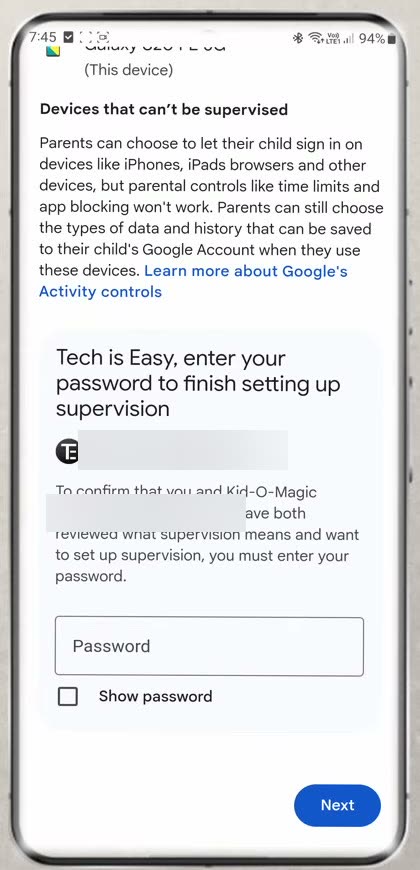
7Review access and enter the child's password
Read through what the parent will be able to see and do. At the bottom, enter the child's account password and continue. When asked to allow supervision, tap Allow.
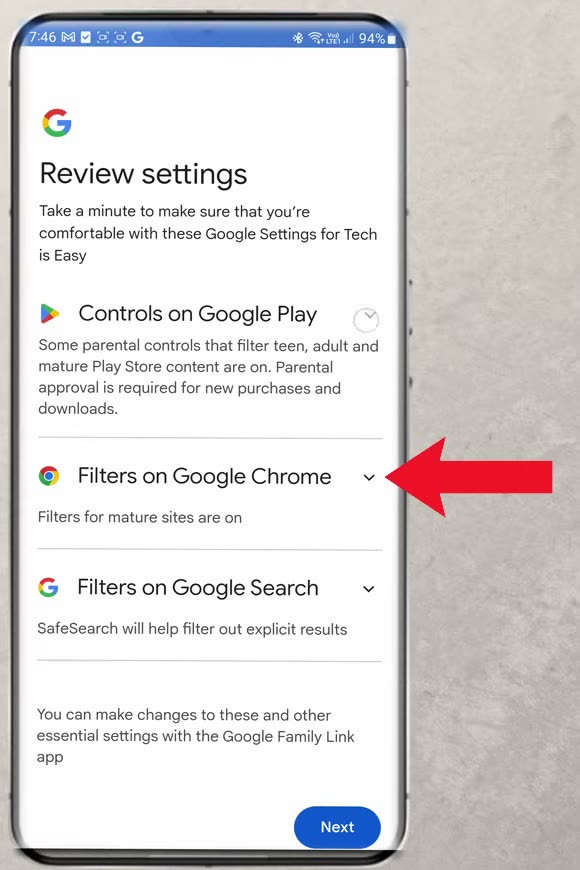
8Review the default settings
The Review settings page shows controls for Google Play, Google Chrome and Google Search. Tap the arrows to expand each one and change them if you want, then tap Next. The child's phone is now done.
9Install Google Family Link on the parent's phone
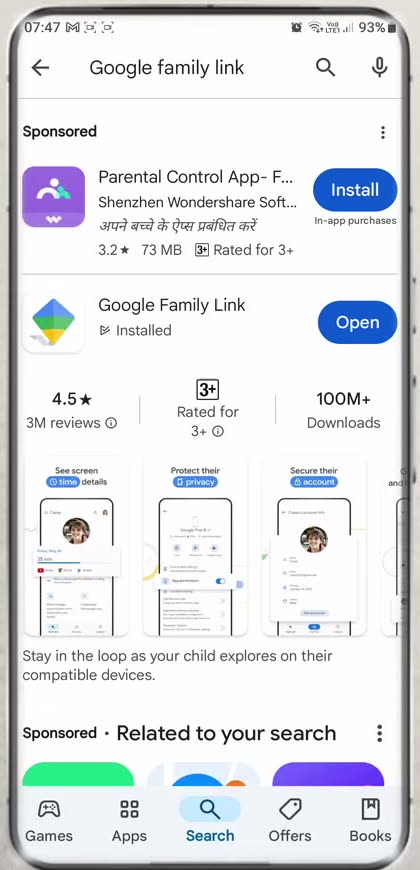
On the parent's phone, open the Play Store, tap Search and look for Google Family Link. Install the app by Google (it shows the green, blue and yellow diamond icon) and then open it.
10Sign in as the parent and manage the child's phone
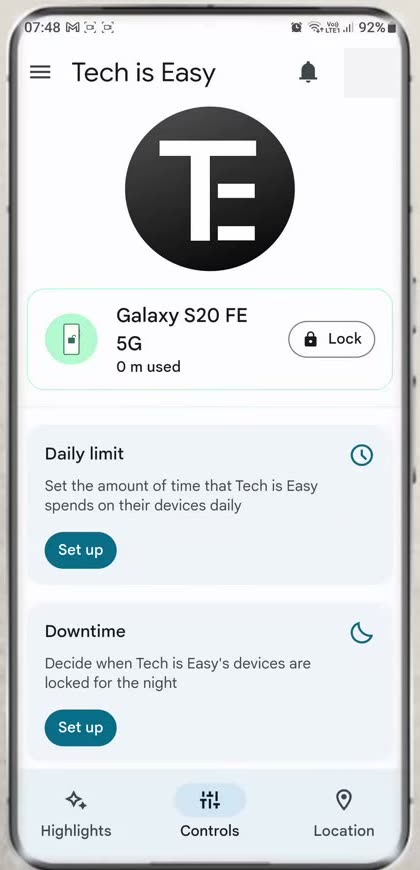
In Family Link, select the same parent email you entered on the child's phone and tap Continue. You now see the child's phone, where you can set a Daily limit, set Downtime, Lock the phone and change other settings.
What to set up after supervision starts
Once the child's phone shows up in Family Link, these are the controls most parents set first. Paths below are from Google's help page and may look slightly different in your version of the app: - Daily screen time limit: select your child at the top left, tap Screen time, then Time limits, and turn on Daily limit. Use Weekly schedule to set different limits for different days. - Block an app: in Screen time, Time limits, App limits, tap the app and switch it to Blocked. It is blocked on all of the child's Android devices within about 5 minutes, and the child gets a one-minute warning if they are using it. - Bonus time: under Screen time, tap Bonus time to give extra minutes for today without changing the daily limit. - Location: tap Location, then Set up location, to see where the child's Android phone is.
Daily limits apply to each device separately. A 2-hour limit means 2 hours on each Android device or Chromebook the child uses.
Tips / troubleshooting
- Parental controls is not under Google: Google's page says that on Android 8.1 and later the child's phone may list it in Settings as Digital Wellbeing & parental controls. On other versions it sits under Google, then Parental controls, as in this guide.
- Can't add supervision: check that the child's account is a personal Google account, not a school account, and that the phone runs Android 6.0 or later.
- Child's other accounts disappeared: this is expected. Only the child's account can stay signed in on a supervised phone (Step 5).
- A block or limit did not apply: changes reach the child's phone once it is connected to the internet, so check it is online.
Related guides: How to Delete a Google Family Link Group (Step-by-Step) and How to Set Parental Controls on Instagram (Family Centre).
FAQ
Do I need two phones to set up Google Family Link?
Yes. You start supervision on the child's Android phone and then manage it from the parent's phone, which needs the Google Family Link app installed.
Where is Parental controls in Android settings?
Go to Settings, then Google, then the All services tab, and look for Parental controls under Children and family. The exact layout can differ between phone brands, but it is under the Google section.
Why does Family Link sign out other accounts on the child's phone?
A supervised phone can only have one account signed in, which is the child's account. Any other accounts on that phone are signed out when you continue.
Can I use Google Family Link if my child has an iPhone?
No. Google says iPhones and iPads can't be supervised with Family Link. The parent can install Family Link on an iPhone to manage an Android child's phone, but not the other way round.
What can a parent control with Google Family Link?
From the parent's phone you can set a daily screen time limit, schedule downtime, lock the child's phone, and adjust filters for Google Play, Chrome and Search.
Related guides