Tech is Easy
How to Remove Payment Method from Google Play Store
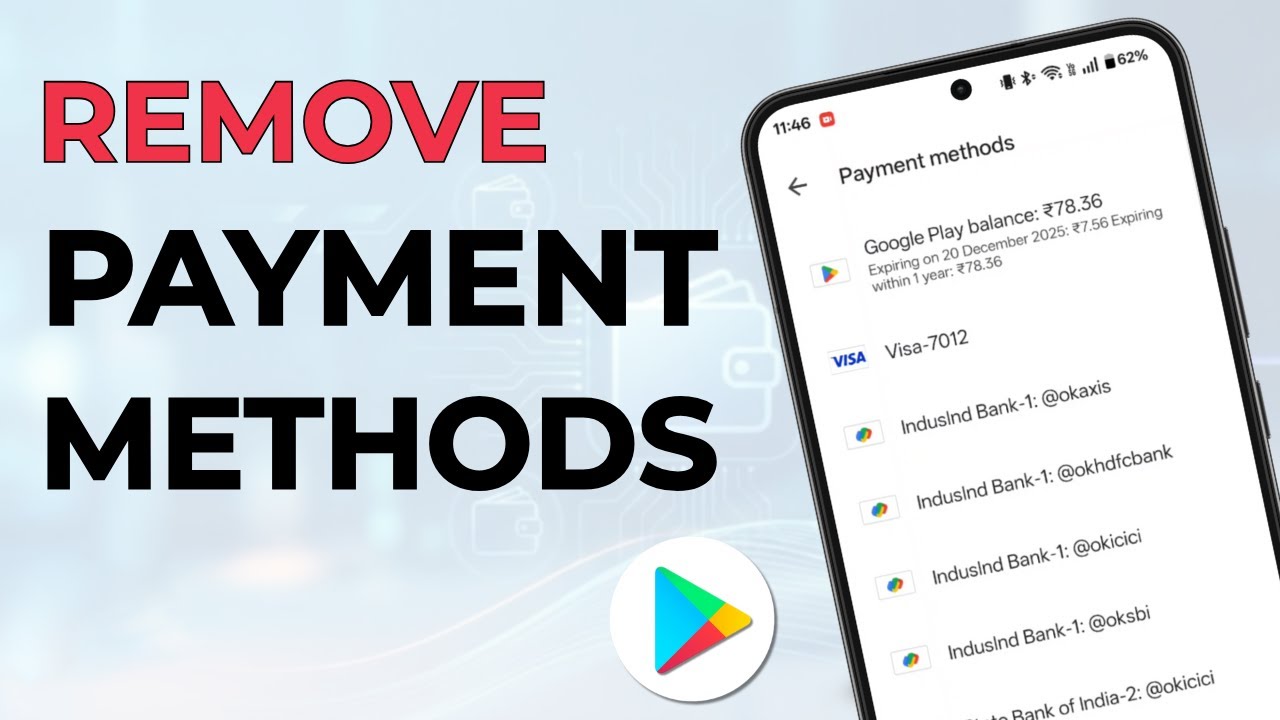
To remove a payment method from the Google Play Store, open Play Store, tap your profile icon, then go to Payments and subscriptions > Payment methods > More payment settings and tap Remove under the card or UPI ID you want gone. This guide is for anyone who wants to delete an old card, an expired card or a UPI ID they no longer use from their Google Play account.
What you need
- An Android phone with the Google Play Store
- The Google account that has the payment method saved
- An internet connection, because the last part of the process opens the Google payments page in your browser
Before you start, know that Play Store payment methods are saved to your Google account, not to the phone. Removing a card here removes it from that Google account everywhere it is used for payments, not just from this one phone.
1Open Play Store and check the account
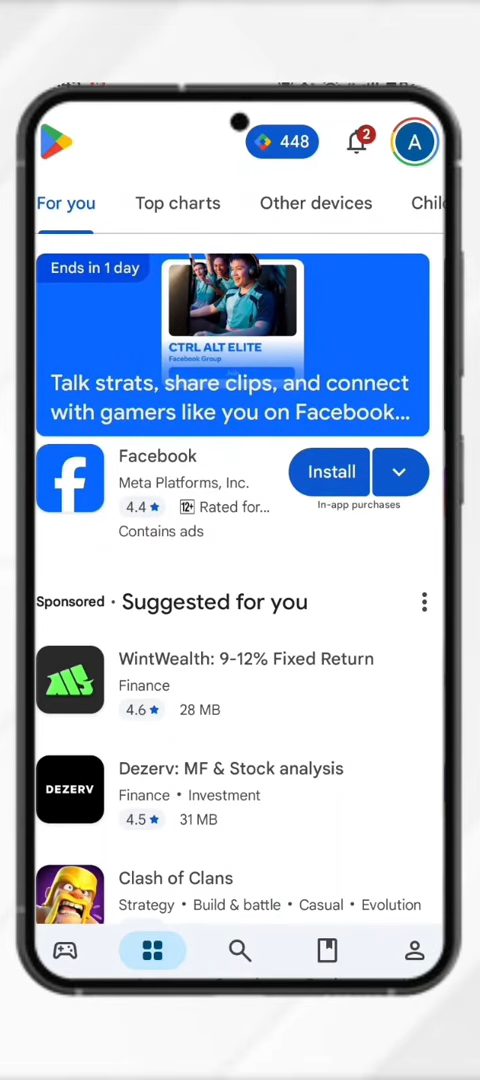
Open the Play Store app. Look at the profile icon at the top right. That is the account whose payment methods you are about to change. If you have more than one Google account on the phone, tap the icon and use the small arrow next to your name to switch to the right one first.
2Tap Payments and subscriptions
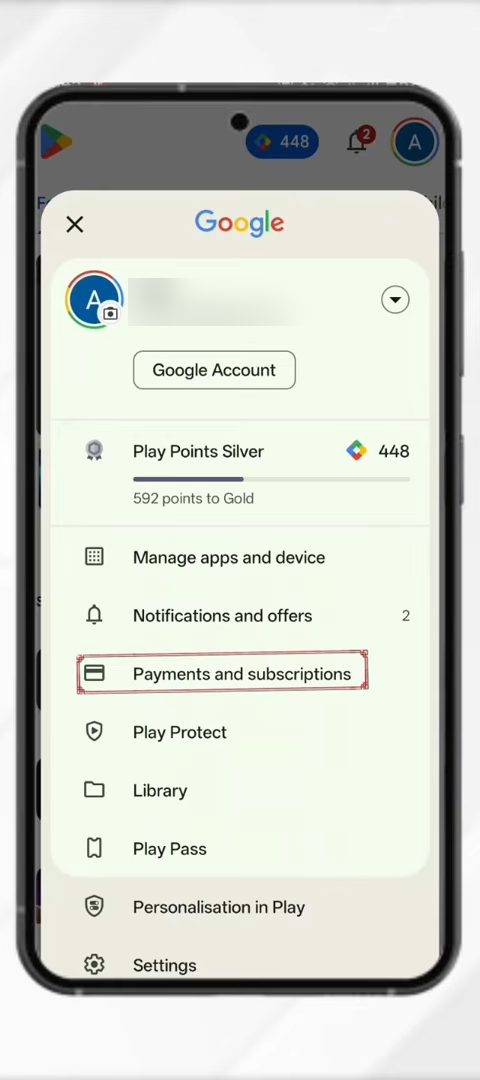
Tap your profile icon to open the account menu, then tap Payments and subscriptions.
3Open Payment methods
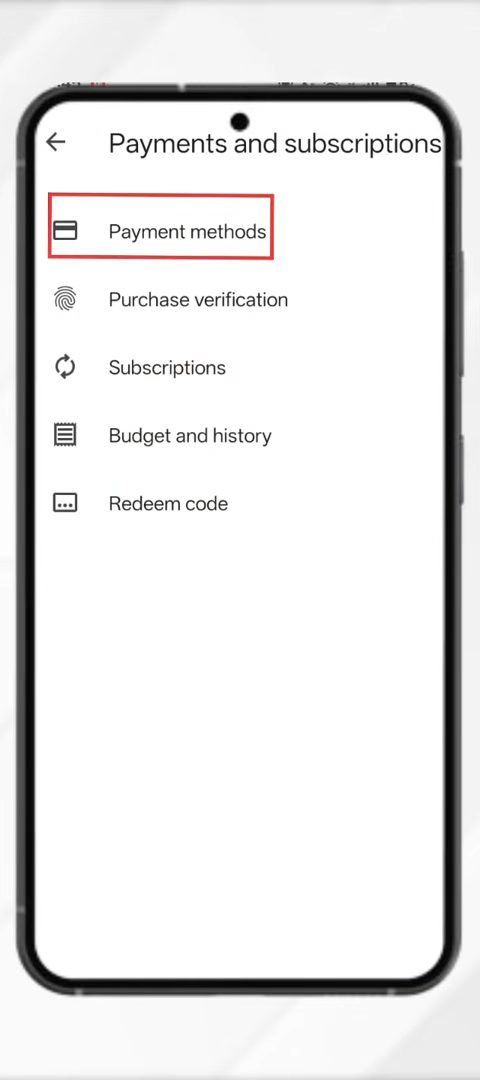
On the Payments and subscriptions screen, tap the first option, Payment methods. The other options on this screen (Subscriptions, Budget and history, Redeem code) are not needed here.
4Review your saved payment methods
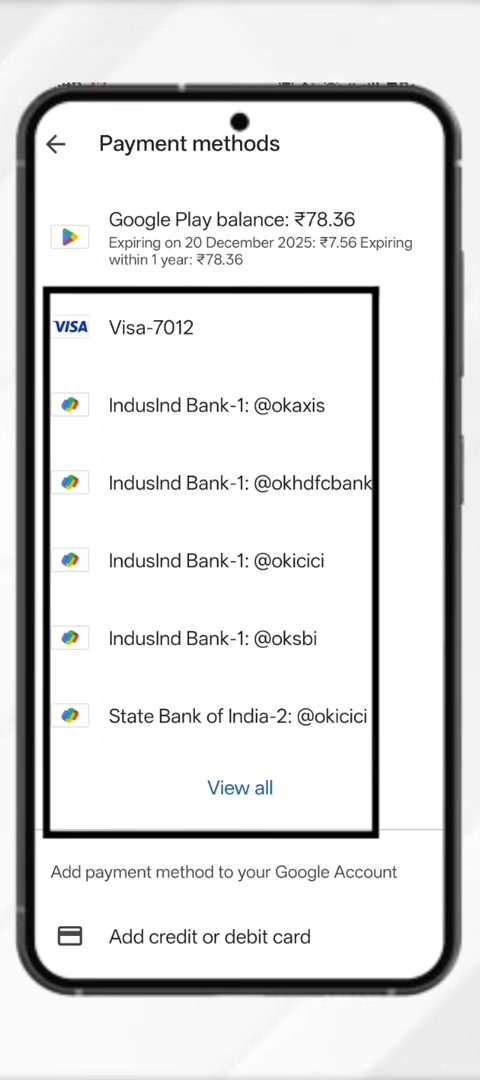
You now see every payment method linked to the account: cards, UPI IDs and your Google Play balance. Tap View all if the list is cut off. You can't remove anything from this screen, it only lists what is saved.
5Tap More payment settings
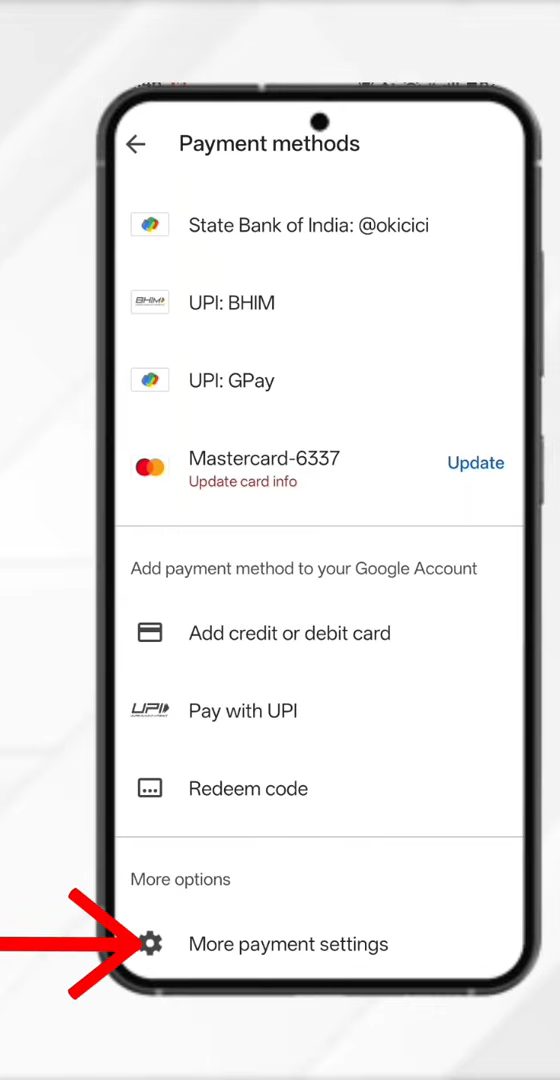
Scroll to the bottom of the list and tap More payment settings under More options. This opens the Google payments page in your browser, signed in with the same account. If you are asked to sign in or confirm your identity, do that first.
6Tap Remove under the payment method
Scroll through the payment methods on the payments page until you find the one you want to delete. Tap Remove below it.
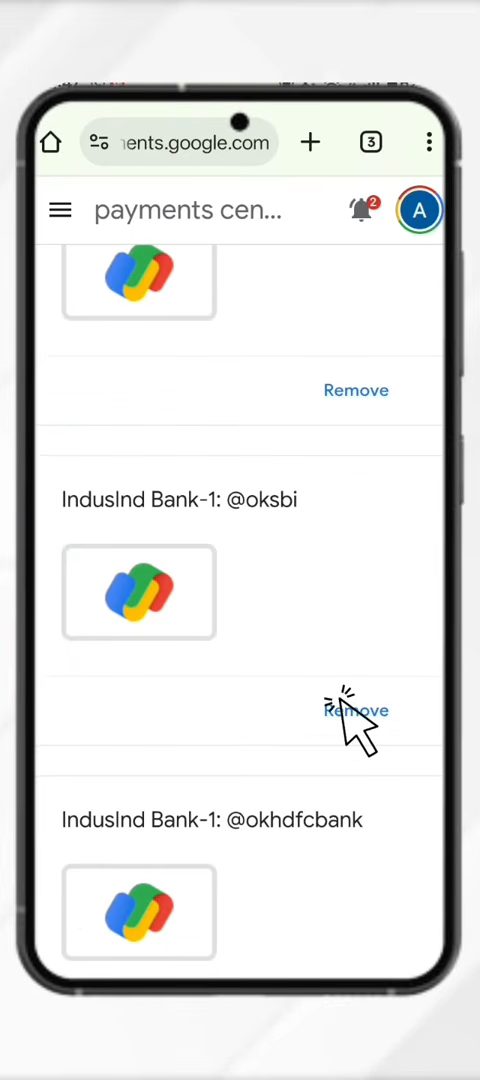
7Confirm the removal
A confirmation box appears. Tap Remove again to confirm. The page reloads and the payment method is no longer in the list. You can go back to Payment methods in the Play Store to check that it is gone there too.
8If the card is linked to a subscription, choose a replacement
If the card pays for an active subscription, tapping Remove does not delete it right away. In our example the Visa card showed Incomplete card information and was paying for two subscriptions.
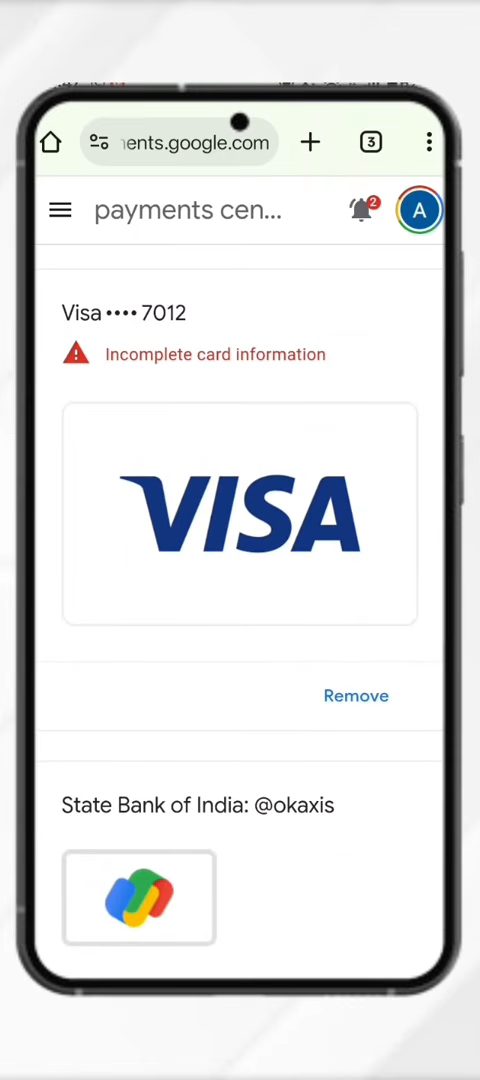
Instead of a simple confirmation, a Remove payment method screen asks you to choose a new payment method first. It lists the subscriptions that will move to the new method (here a Spotify Premium Family plan and Google AI Pro from Google One). Pick an existing option such as your Google Play balance, or tap Add credit or debit card, then tap Save and remove. Only then is the old card removed.
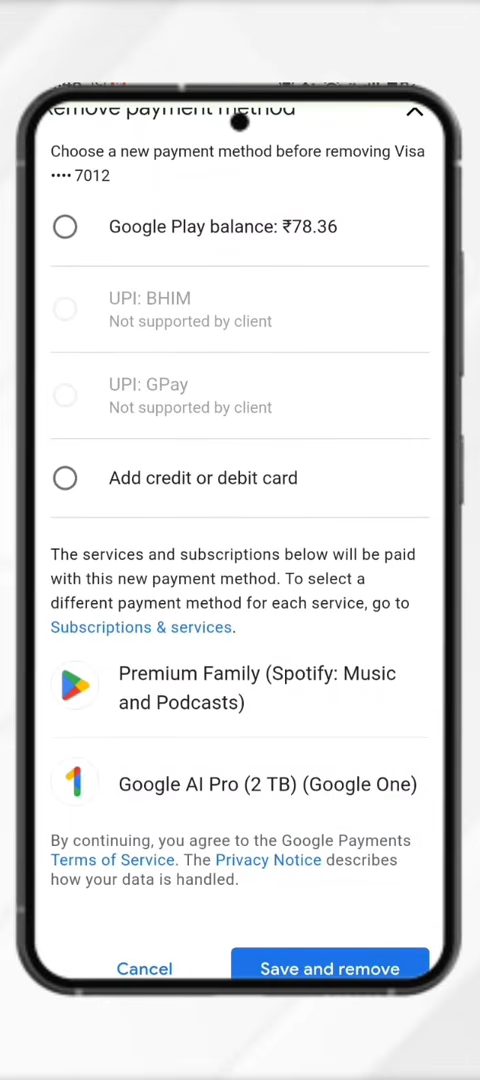
Some options may appear greyed out with Not supported by client. In our case the UPI options could not be used as the replacement for these subscriptions, so only the Play balance or a new card were available.
Tips and troubleshooting
- There is no Remove button in the Play Store app. That is expected. The app only lists your payment methods. Removing happens on the payments page that More payment settings opens.
- Remove doesn't work or keeps asking for a new method. The method is still paying for at least one subscription. Either pick a replacement as in Step 8, or cancel the subscription first under Payments and subscriptions > Subscriptions and wait until it ends.
- UPI Autopay in India. Google's help page says that if you pay a subscription with UPI Autopay, you can't remove that UPI method until the end of the subscription's billing cycle, even if you cancel. Canceled subscriptions may also keep showing as active on the payments page until then.
- Wrong account. If the card you want to remove is missing from the list, it is probably saved to a different Google account. Switch accounts in Step 1 and check again.
- Removed the wrong card? There is no undo, but you can add it again any time with Add credit or debit card on the Payment methods screen.
Google's own instructions are on How to add, remove, or edit your Google Play payment methods. They match the steps above: Payment methods, More payment settings, then Remove.
What happens after you remove a payment method
- Future Play Store purchases won't offer that card or UPI ID, so you will need to pick or add another method the next time you buy an app or subscribe.
- Your Google Play balance (gift card credit) is not affected. It stays on the account and keeps its expiry dates.
- Because the payment method belongs to your Google account, it is also removed from other Google services that used it from the same payments page.
If you are cleaning up an old Google account, you may also want to sign it out of devices you no longer use. See How to Remove Your Google Account from Other Devices.
FAQ
How do I remove a payment method from Google Play Store?
Open Play Store, tap your profile icon, then Payments and subscriptions > Payment methods > More payment settings. On the payments page that opens, tap Remove under the card or UPI ID and confirm with Remove again.
Why can't I remove my card from Google Play?
Usually because the card is paying for an active subscription. Google asks you to choose another payment method first, then tap Save and remove. With UPI Autopay in India, you have to wait until the subscription's billing cycle ends.
Will removing a payment method cancel my subscriptions?
No. Removing the card doesn't cancel anything. When a card is linked to subscriptions, Google moves those subscriptions to the new payment method you choose. To stop paying, cancel the subscription itself under Payments and subscriptions > Subscriptions.
Can I remove a payment method from Google Play on a computer?
The video only shows the Android phone. Since the removal itself happens on Google's payments page in a browser, the same payment methods are tied to your Google account on any device, and Google's help page has a separate Computer tab for this.
Related guides