Tech is Easy
How to Disable Hotkeys in Windows 10 and Enable Function Keys
To disable hotkeys in Windows 10 and enable function keys, restart the laptop, press F2 to enter the BIOS, go to POST Behavior > Fn Lock Options and change the Fn Lock setting, then click Apply and Exit. A quicker option on many laptops is to press Fn + Esc, which toggles Fn Lock without restarting. This guide is for anyone whose top-row keys do the wrong thing, for example F3 not changing the volume unless Fn is held, or F5 changing brightness when you wanted a plain function key.

The video was recorded in 2020 on a Dell laptop, so BIOS screens on newer or other brands may look slightly different.
The problem
Each key in the top row has two jobs: a standard function key (F1 to F12) and a hotkey such as volume, brightness or media controls. Which job the key does by default is controlled by Fn Lock. In our case, pressing F3 alone did nothing, and the volume only went up when pressing Fn + F3 together. Changing Fn Lock flips that.
Method 1: Change Fn Lock in the BIOS
1Restart and press F2 to open the BIOS
Save your work and restart the laptop. As soon as the screen goes dark and the laptop starts again, press F2 a few times until the BIOS setup screen opens. On Dell laptops F2 is the BIOS key; other brands may use a different key.

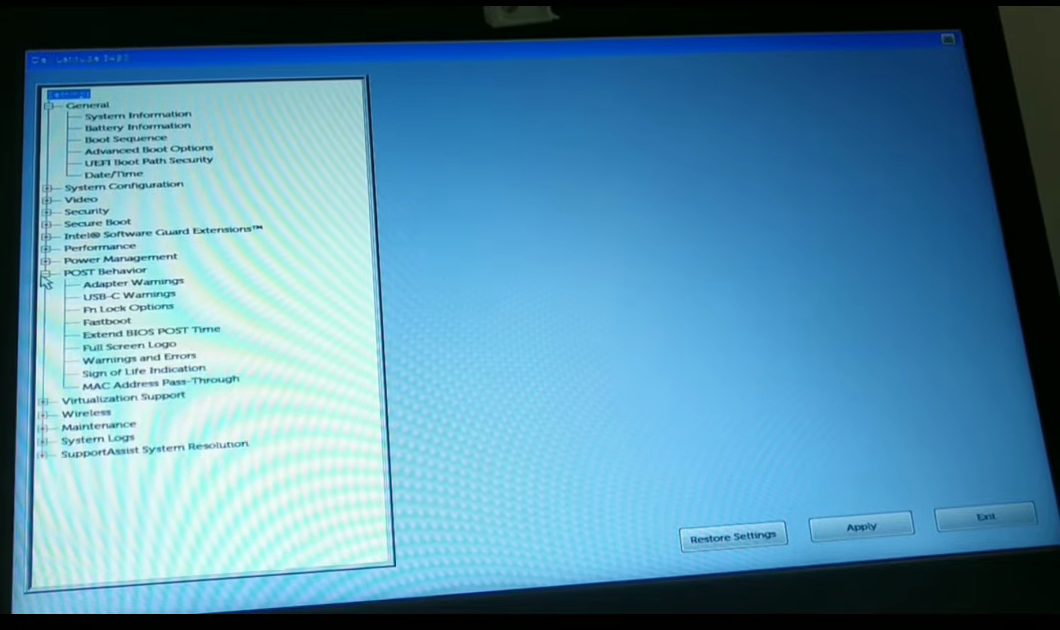
2Expand POST Behavior
In the settings list on the left, click the + next to POST Behavior to expand it.
3Open Fn Lock Options
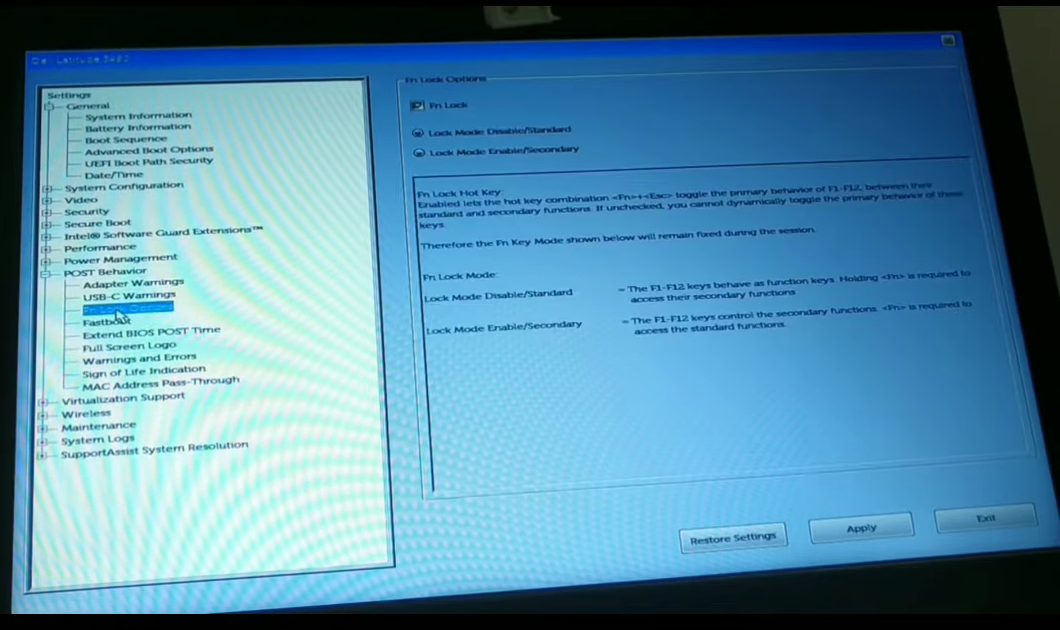
Under POST Behavior, click Fn Lock Options. The right side shows the Fn Lock checkbox and two modes. The BIOS explains them: with Lock Mode Disable/Standard the F1-F12 keys behave as function keys and you hold Fn for the hotkeys, while with Lock Mode Enable/Secondary the F1-F12 keys control the hotkey functions and you hold Fn for the function keys.
4Change Fn Lock, then Apply and Exit
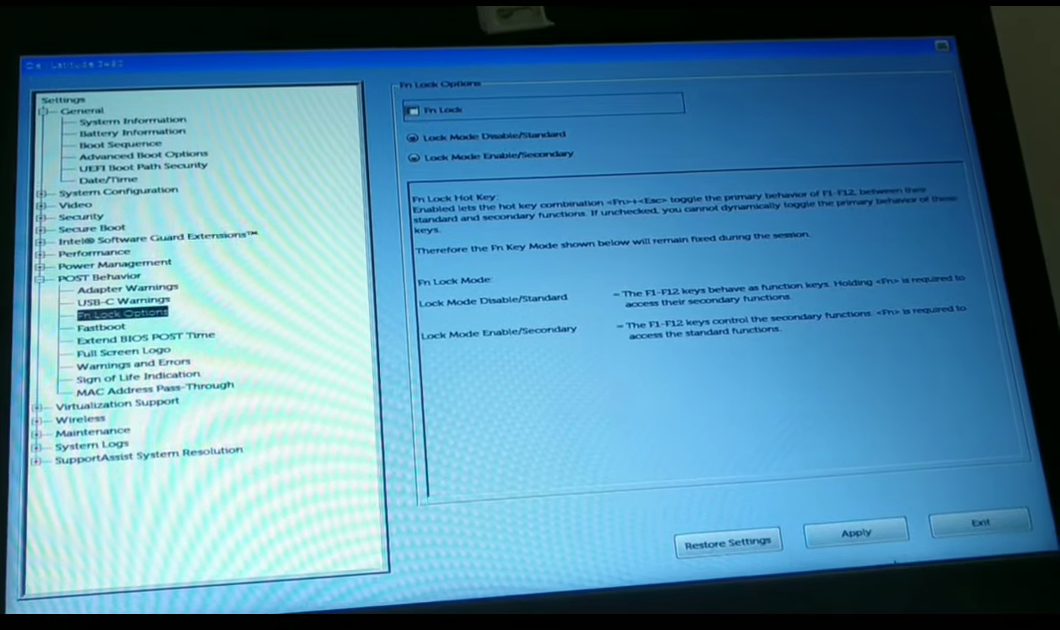
Click the box next to Fn Lock to turn it off, as shown in the video. If you want the opposite result (plain F1-F12 by default), pick Lock Mode Disable/Standard instead. Then click Apply at the bottom and click Exit. The laptop restarts with the new setting.
5Test the key
Once Windows has loaded, press the key that was giving you trouble. In our test, pressing F3 on its own now raised the volume, so there was no need to hold Fn any more.
Method 2: Use the Fn + Esc shortcut
6Press Fn and Esc together
On many laptops the Esc key has a small lock icon, which means Fn + Esc toggles Fn Lock. Hold Fn and press Esc, then try your function keys again. Press the same combination to switch back. This does not work on every laptop, which is why Method 1 is also covered.

Tips / troubleshooting
- If F2 does not open the BIOS, restart again and start pressing it earlier, right as the screen goes black.
- The BIOS help text notes that if the Fn Lock hot key option is unchecked, you cannot toggle the keys with Fn + Esc, and the chosen mode stays fixed. If Fn + Esc stops working after Method 1, that is the reason.
Related guides: How to Disable Left or Right Speaker on a Windows Laptop and How to Make Chrome Your Default Browser on Windows 11.
FAQ
Why are my function keys not working in Windows 10?
Most likely Fn Lock is set so the top row runs hotkeys (volume, brightness) instead of F1-F12, or the other way round. Press Fn + Esc to toggle it, or change it in the BIOS under POST Behavior > Fn Lock Options.
How do I enable function keys without pressing Fn?
In the BIOS, open Fn Lock Options and choose Lock Mode Disable/Standard, which the BIOS describes as making the F1-F12 keys behave as function keys. Then click Apply and Exit.
Can I undo this?
Yes. Go back into the BIOS with F2 and change the Fn Lock setting back, or press Fn + Esc if your laptop supports it.
Does this work on HP, Lenovo or Acer laptops?
The video only shows a Dell laptop. Most brands have a similar Fn Lock or "Action Keys" option in the BIOS and many have an Fn + Esc style shortcut, but the key to enter the BIOS and the menu names can differ.
Related guides