Tech is Easy
How to Disable Left or Right Speaker on a Windows Laptop
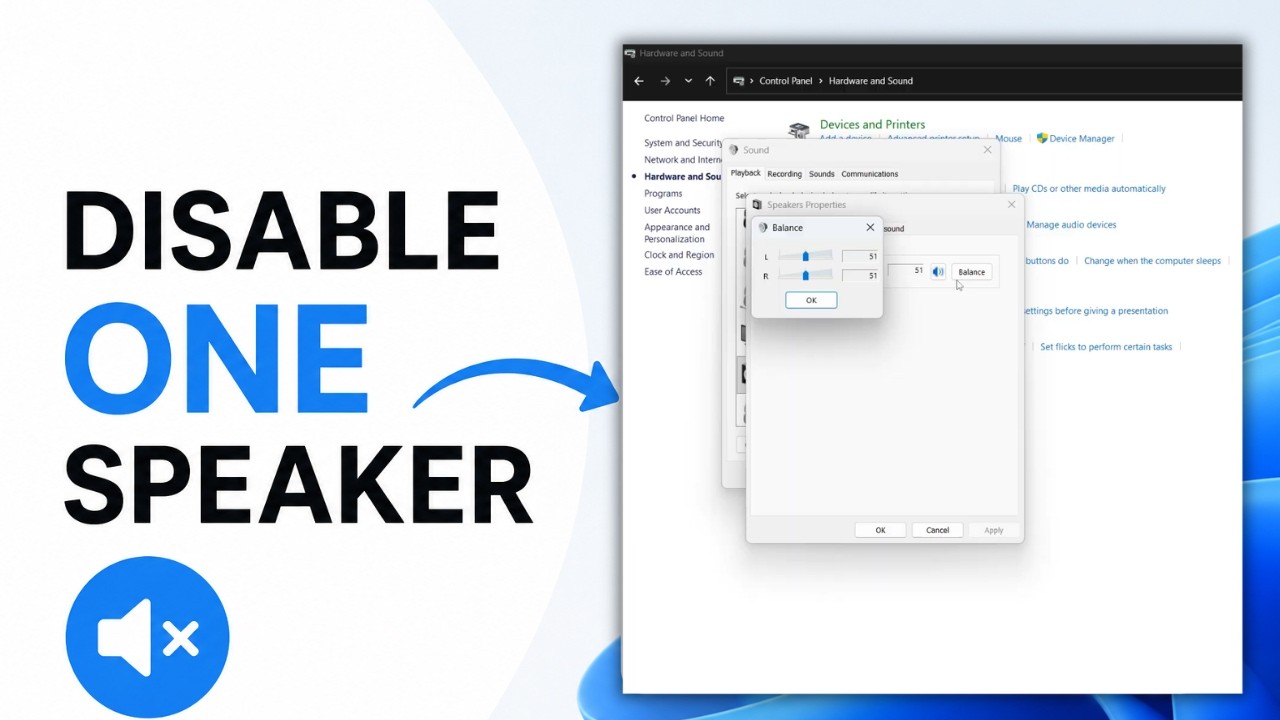
To disable one speaker on a laptop, open Control Panel > Hardware and Sound > Sound, right-click Speakers, choose Properties, open the Levels tab, click Balance and drag the left (L) or right (R) slider to 0. This helps if one speaker crackles or is damaged, or if you just want sound from one side. It works on Windows 10 and Windows 11.
1Open Control Panel
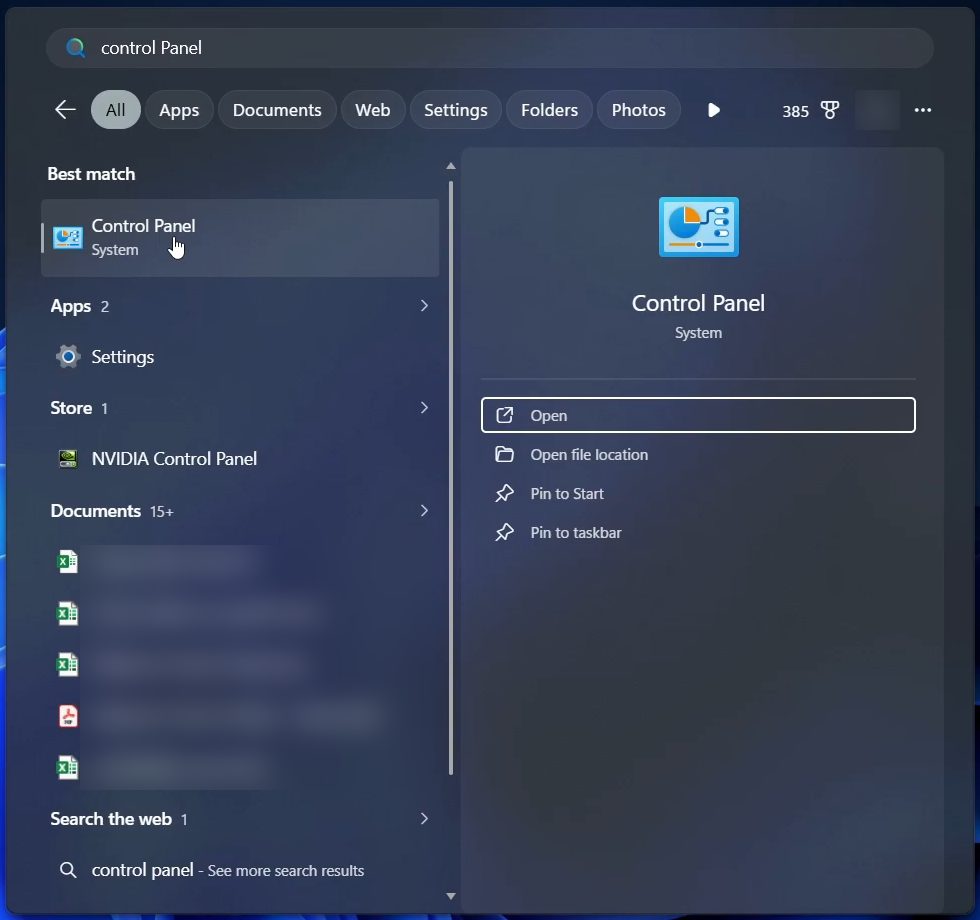
Open the Start menu, type control panel in the search box and click Control Panel under Best match.
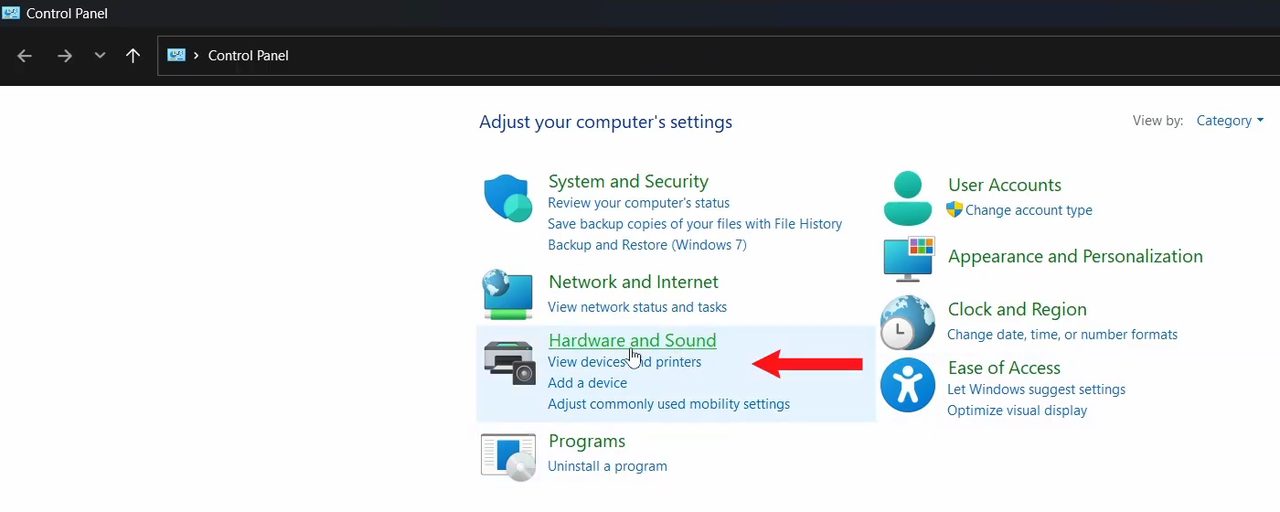
2Click Hardware and Sound
On the Control Panel home page (View by: Category), click Hardware and Sound.
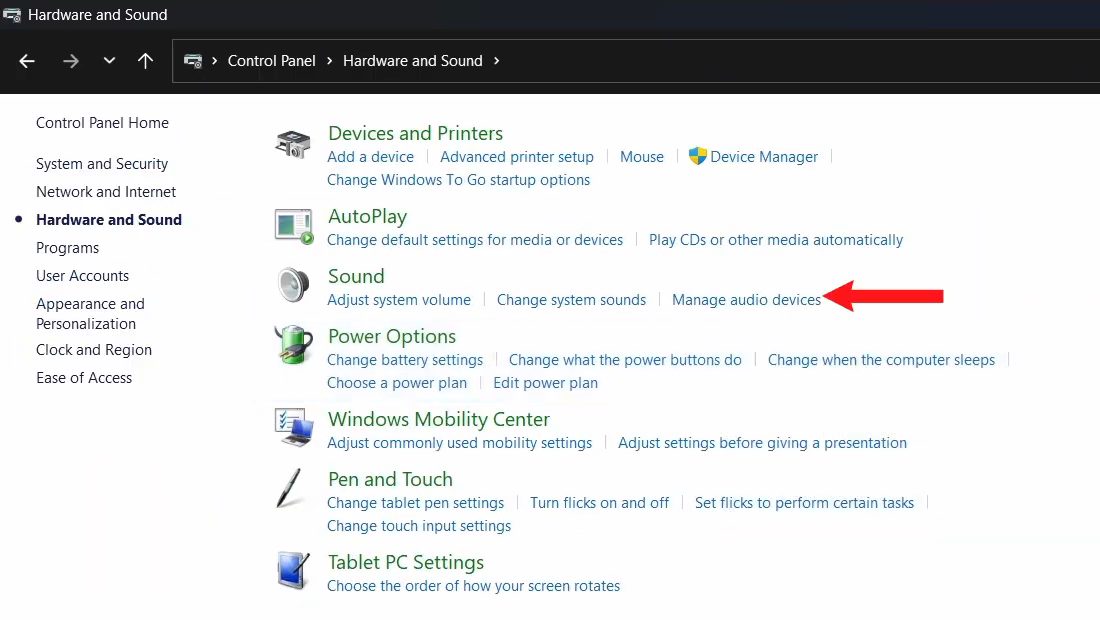
3Open Sound
Click Sound (the Manage audio devices link under it opens the same window). The Sound window lists all your output devices on the Playback tab. If you want to change balance for headphones or another device instead, pick that one in the next step.
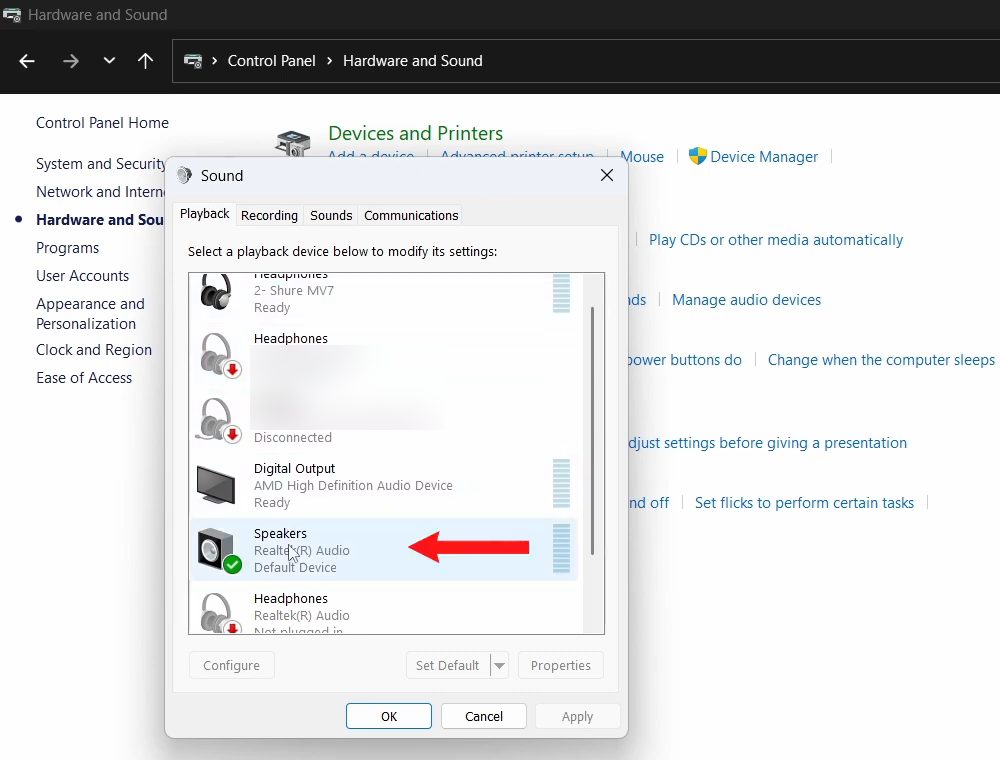
4Open your speakers' properties
Right-click Speakers (the laptop's built-in speakers, usually marked as the default device) and click Properties.
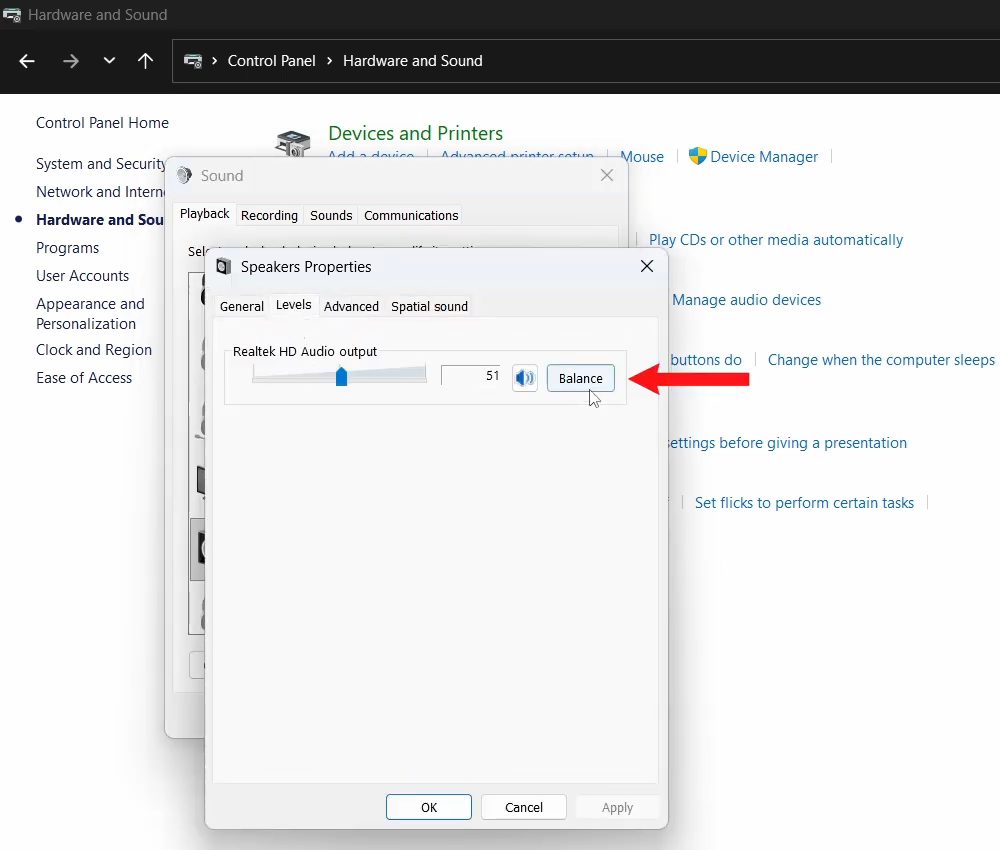
5Go to Levels and click Balance
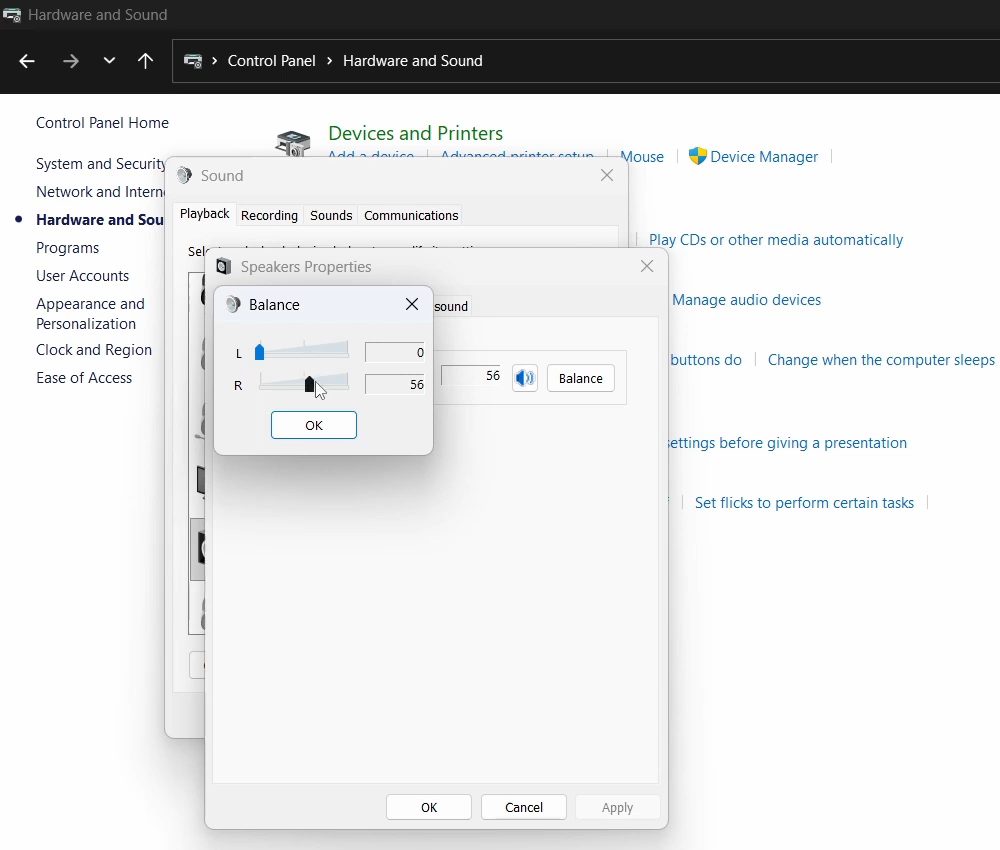
In Speakers Properties, open the Levels tab and click the Balance button next to the volume slider.
6Set one speaker to 0 and save
The Balance box shows two sliders: L for the left speaker and R for the right. To disable the left speaker, drag L down to 0 (or type 0 in its box). To disable the right one, set R to 0 instead. You can also raise the other side if it sounds too quiet. Click OK in the Balance box, then OK in Speakers Properties and OK in the Sound window. The change applies right away.
Turn on Mono audio so you don't miss anything
Many songs, videos and games send some sounds to only the left or only the right channel. Once one speaker is at 0, those sounds disappear completely. Windows has a fix for this called Mono audio. Microsoft's guide to audio playing in only one channel describes it as converting stereo sound into a single channel so you can hear everything, even through one side. On Windows 11 the toggle is under Start > Settings > System > Sound, in the Output section. Turn it on while you are using one speaker, and off again when both work.
Windows 11 Settings app method
Control Panel works on both Windows 10 and 11, which is why we used it. Windows 11 also has left and right levels in the Settings app. The same Microsoft guide goes to Start > Settings > System > Sound, selects the device under Output, and then shows Left and Right sliders under the output settings. Normally both sit at the same level. Setting one of them to 0 there does the same job as the Balance box in Control Panel.
Tips / troubleshooting
- The change only affects one device. Balance is saved per output device. If you plug in headphones or connect a Bluetooth speaker, that device has its own balance, so the muted side only applies to the laptop speakers.
- One side went quiet by itself. Before replacing anything, open the Balance box and check whether a slider was moved. Microsoft's guide also suggests checking that Mono audio is set the way you expect and that both channels are at the same level.
- Balance reset after an update. A driver or Windows update can put the levels back to equal. Repeat the steps if the disabled speaker starts playing again.
- Your laptop has its own audio app. Some laptops come with a sound app from the audio chip or speaker maker. If its settings seem to override Windows, check that app for a balance or speaker option too.
- This doesn't fix a damaged speaker. Setting a side to 0 only stops sound from going to it. If the speaker rattles even at 0, have the hardware checked.
Related guides: How to Disable Hotkeys in Windows 10 and Enable Function Keys and How to Make Chrome Your Default Browser on Windows 11.
FAQ
How do I disable the right speaker on my laptop?
Follow the same path: Control Panel > Hardware and Sound > Sound, right-click Speakers, Properties, Levels, Balance. This time drag the R slider to 0 and leave L where it is, then click OK on each window.
How do I turn the speaker back on?
Open the Balance box again and drag the slider you set to 0 back up to match the other side. Click OK to save.
Why can't I find the Balance button?
Balance is set per device, so make sure you opened Properties for the device that is actually playing sound (for example Speakers and not a disconnected headset). The video shows it on Realtek speakers; some other audio drivers may lay out this tab differently.
Will I miss some sound if I disable one speaker?
You can, because some audio is mixed into only one channel. Turn on Mono audio in Settings > System > Sound so everything plays through the speaker that is still on.
Is disabling one speaker the same as unplugging it?
No. Windows still treats the laptop as having two speakers and just sends zero volume to one side. You can undo it at any time by raising the slider again.
Does this work for headphones too?
Yes. In the Sound window, right-click your headphones instead of Speakers and follow the same Levels and Balance steps.
Related guides