Tech is Easy
How to Make Calls From PC Using Your Phone (Windows)
You can make and receive phone calls on your Windows laptop using the phone you already have. This guide shows how to make calls from your PC using your phone with Microsoft's free Phone Link app. It works with both Android phones and iPhones, and once it is set up you can dial numbers, search contacts and answer incoming calls from your computer.
What you need
- A Windows PC or laptop with Bluetooth
- An Android phone or iPhone
- The same Microsoft account signed in on the PC and in the phone app
1Open Phone Link on your PC
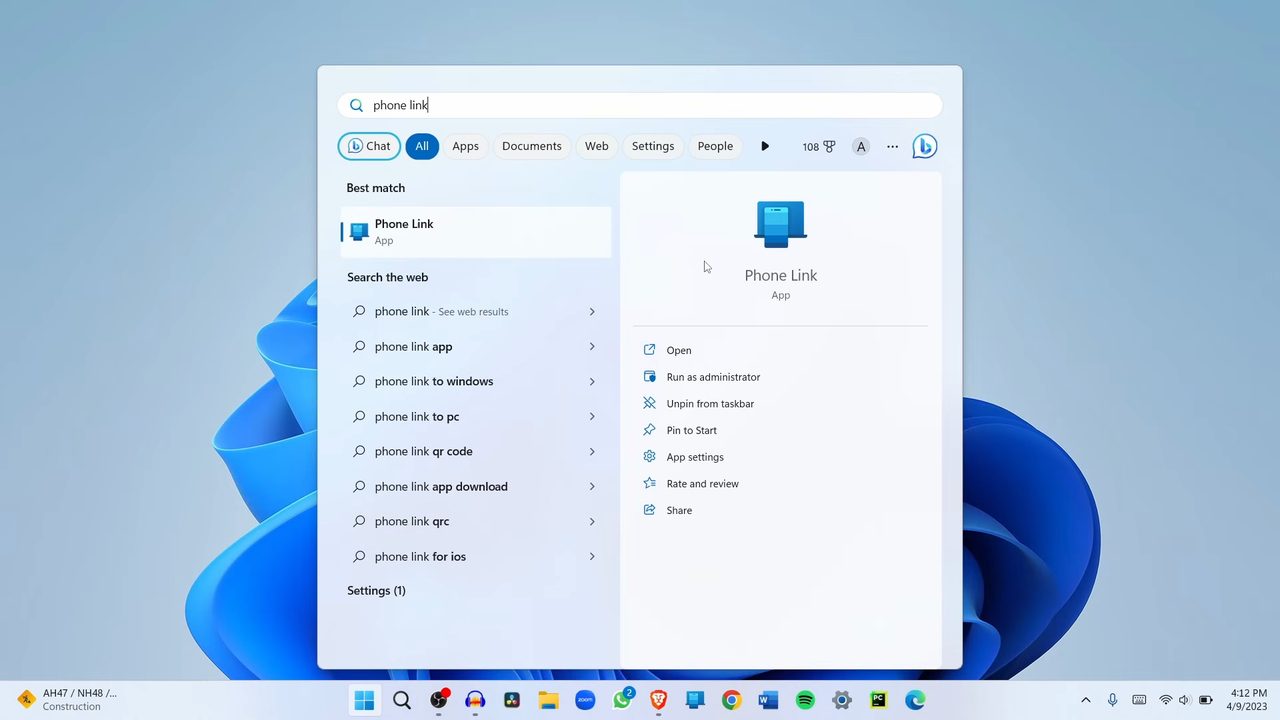
Search for Phone Link in the Start menu and open it. It comes installed on most Windows 11 PCs. If you can't find it, install Phone Link from the Microsoft Store first.
2Pick your phone
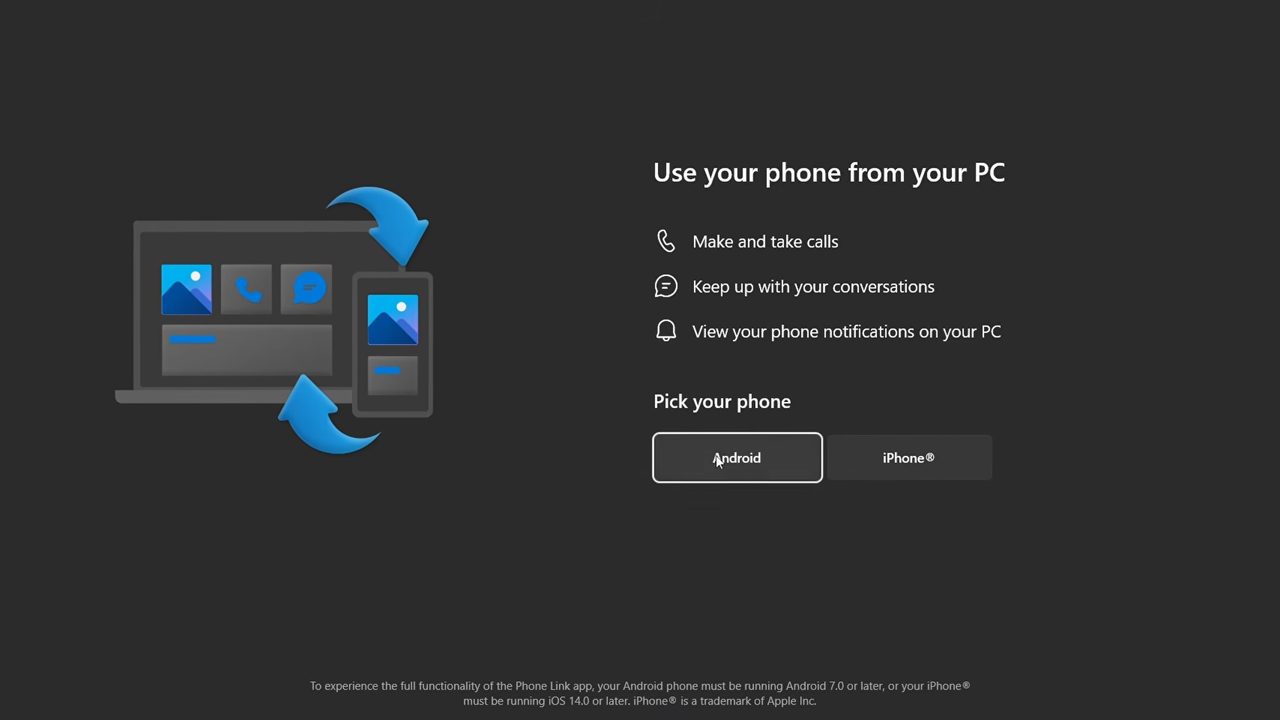
Under Pick your phone, choose Android or iPhone depending on what you use.
3Install Link to Windows on your phone
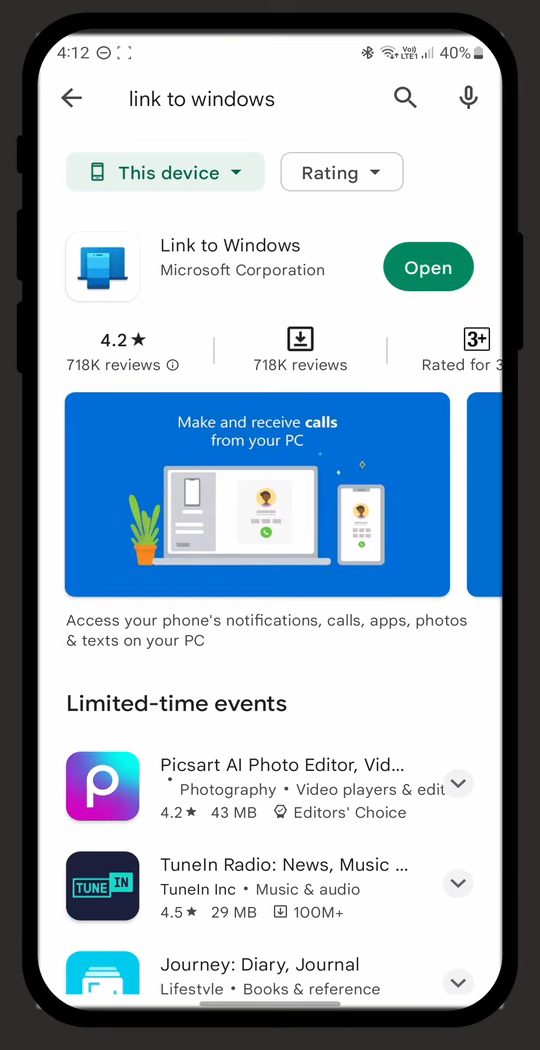
Phone Link now asks you to install Link to Windows on your phone. Open the Play Store (or the App Store on an iPhone), search for Link to Windows, install it and open it.
4Choose Pair with QR code on the PC
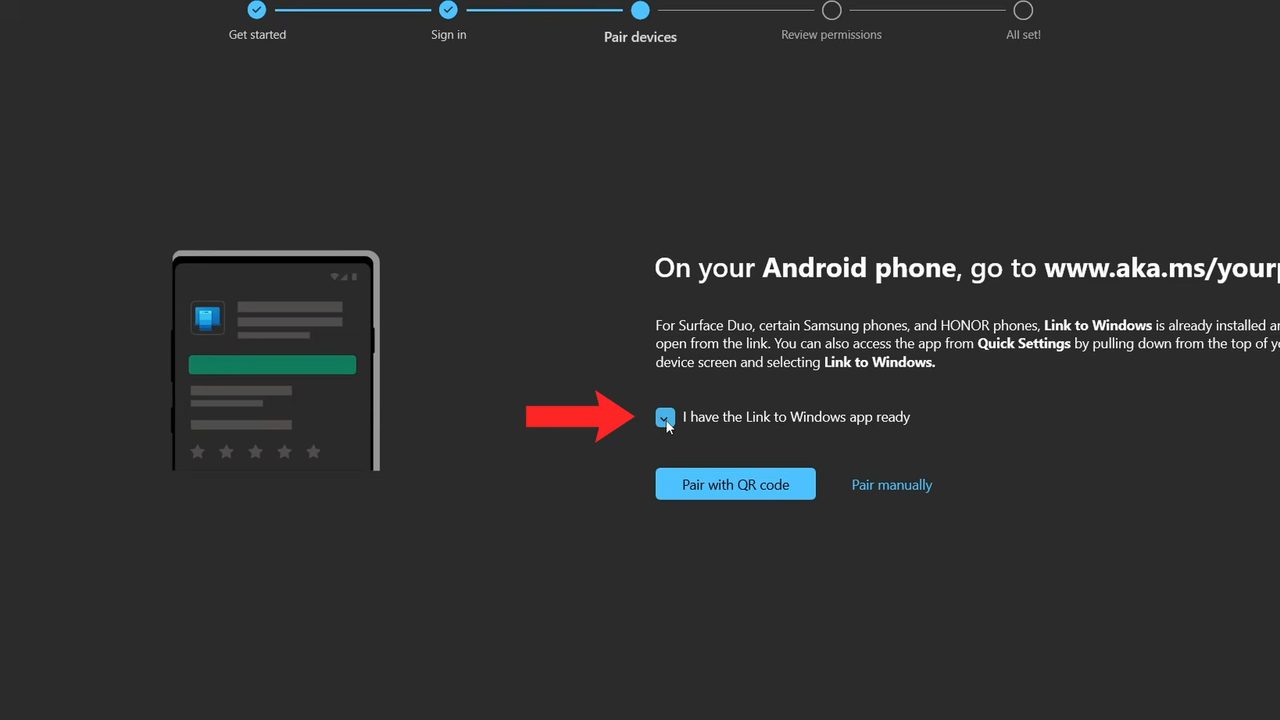
Back on the laptop, tick I have the Link to Windows app ready and click Pair with QR code. A QR code appears on the screen.
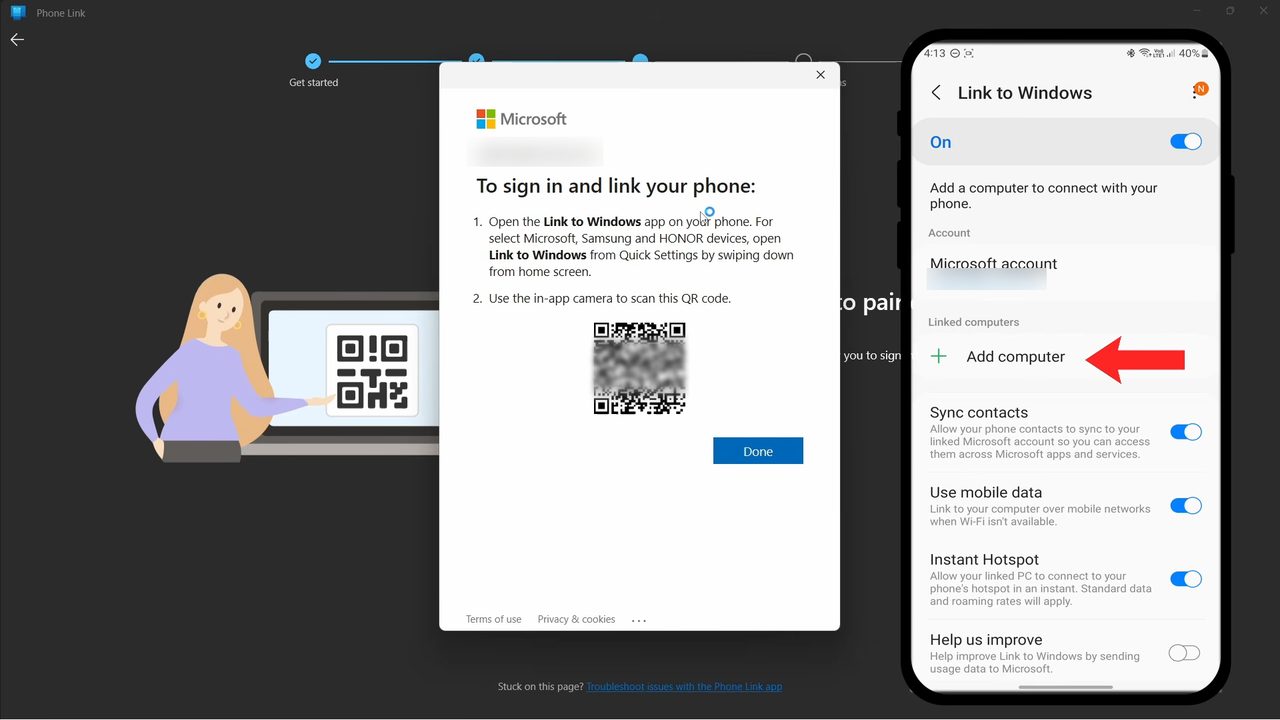
5Tap Add computer on your phone
Make sure the phone app and the PC are signed in with the same Microsoft account; the account is shown on both screens. Then in the Link to Windows app on your phone, tap Add computer.
6Scan the QR code
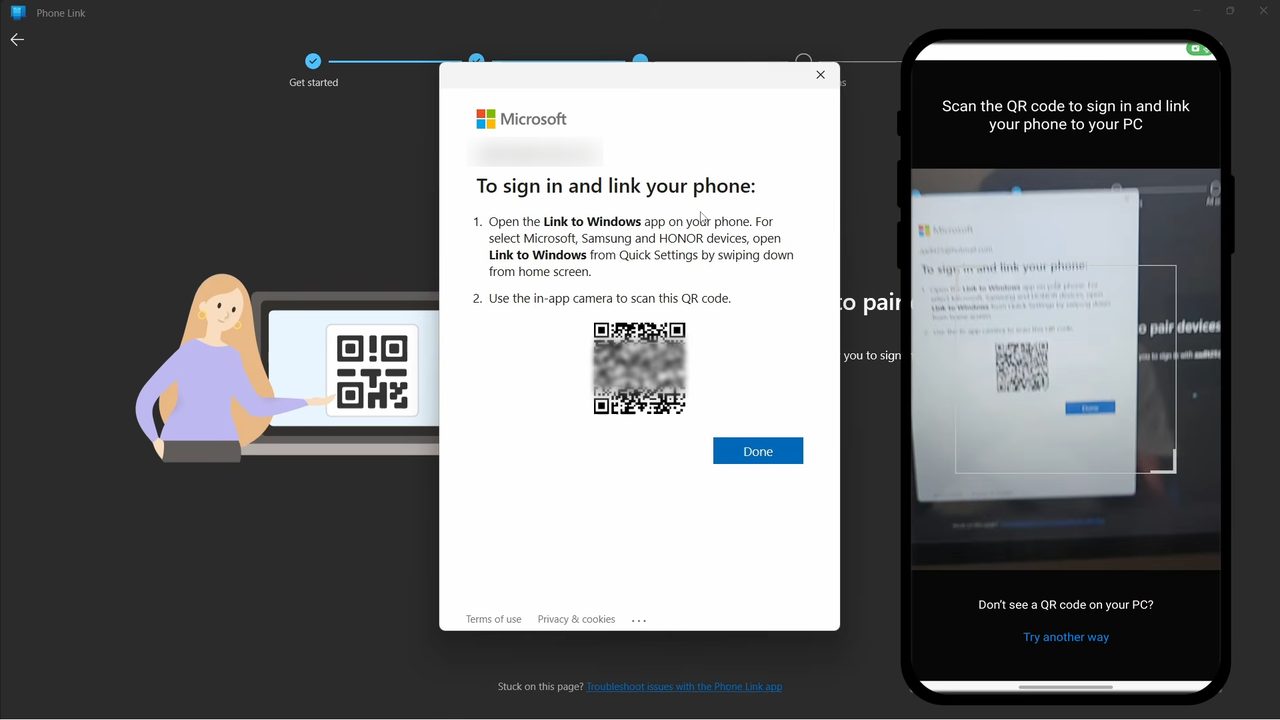
Tap Continue on the phone. The camera opens, so point it at the QR code on your PC screen. The phone starts pairing with the PC.
7Finish the setup
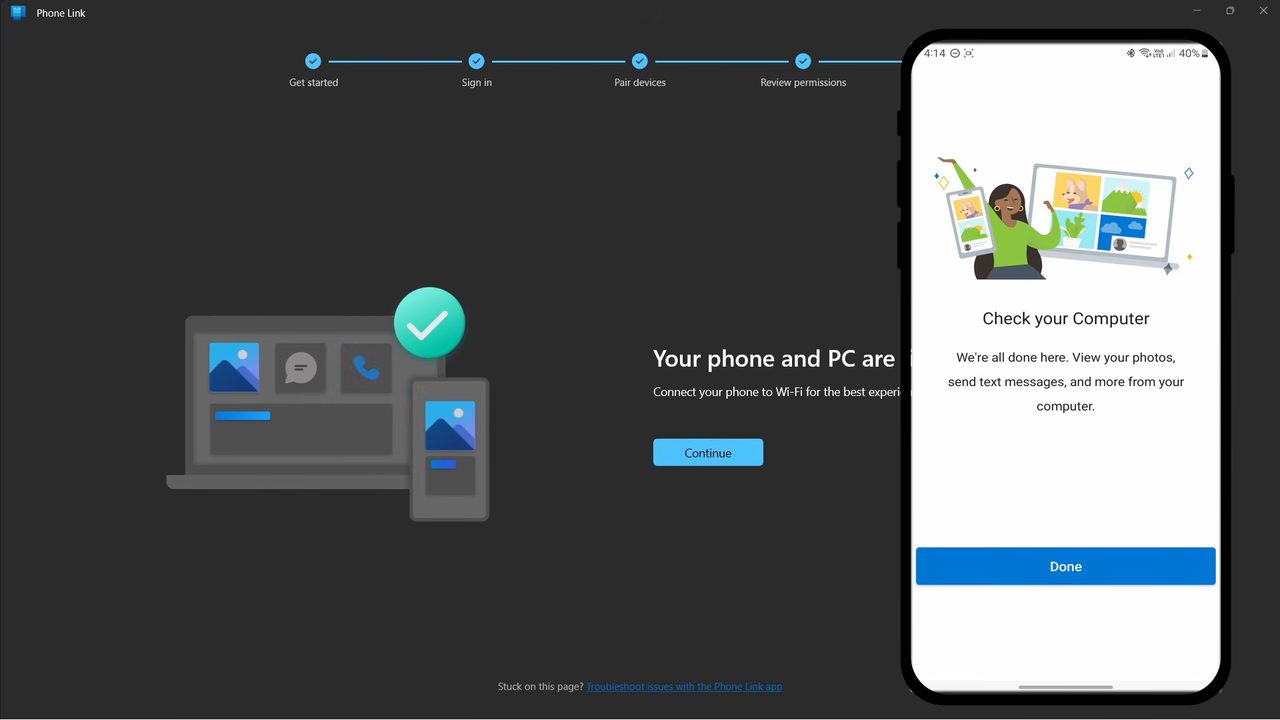
When pairing is done, the phone shows Check your Computer and the PC confirms that your phone and PC are linked. Tap Done on the phone and Continue on the PC.
8Connect the phone and PC over Bluetooth
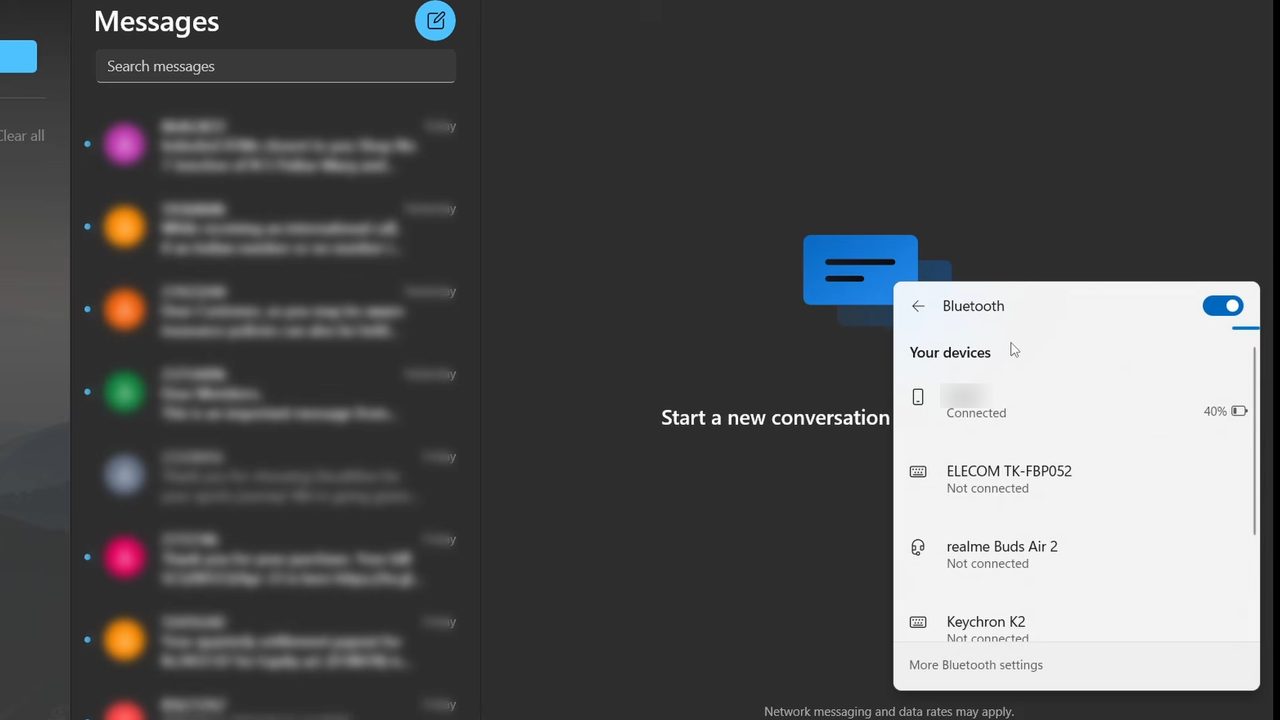
Calls go through Bluetooth, so connect your phone to the laptop over Bluetooth. Open the Bluetooth panel from the Windows quick settings and check that your phone shows as Connected.
9Open the Calls page
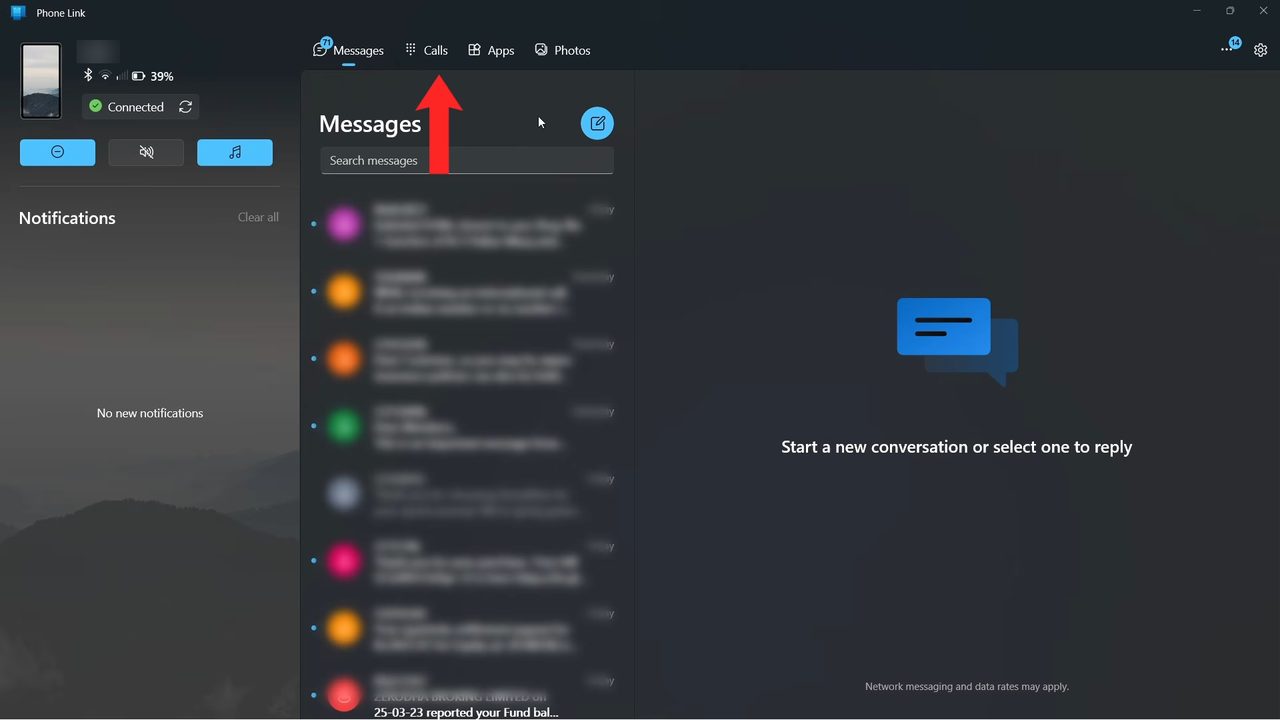
In Phone Link, click Calls at the top. The first time, Phone Link asks you to accept some permissions. Once you allow them, the calls page opens.
10Make a call
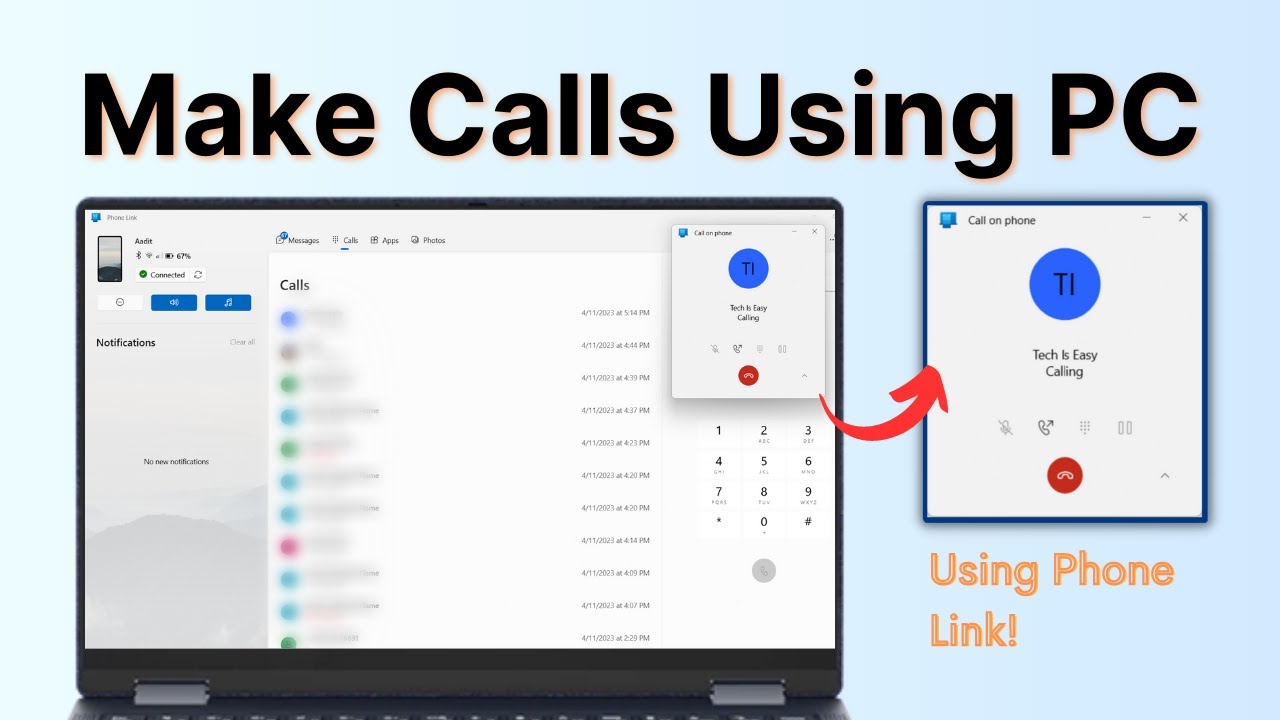
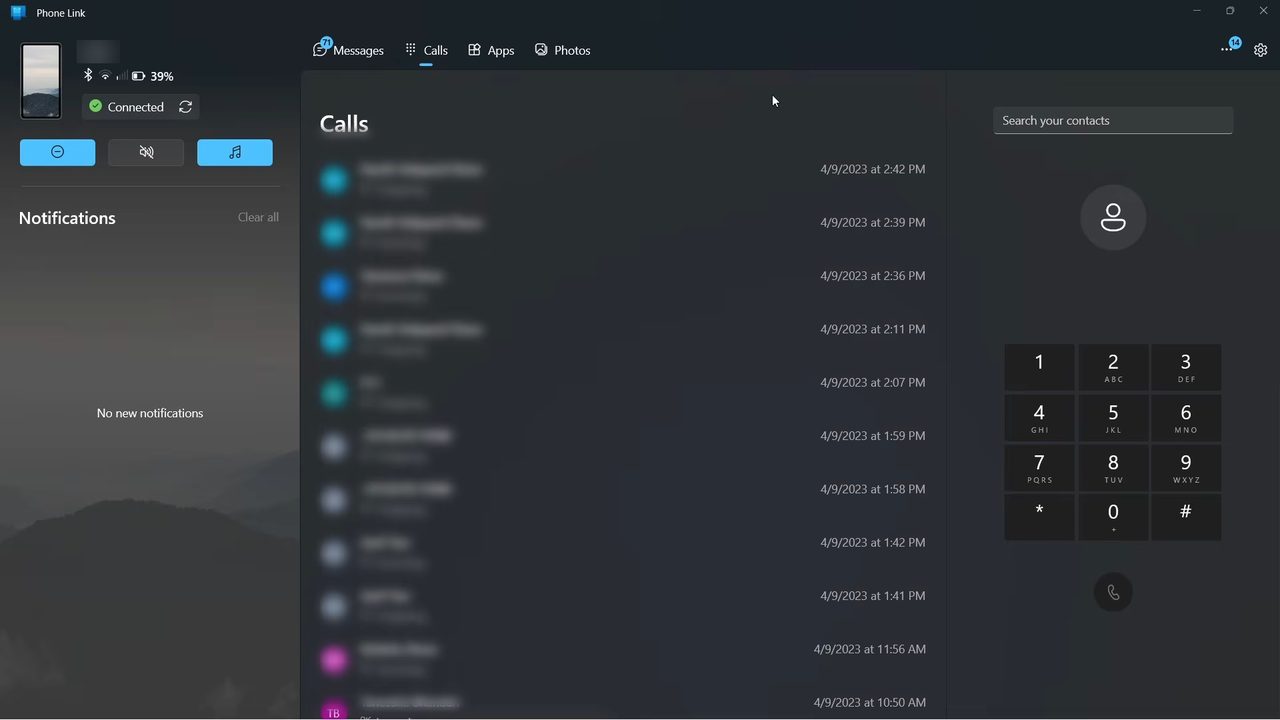
Your recent calls appear on the left and a dialer on the right. Type any number on the dialer and press the call button, or type a name in Search your contacts and pick the number from the results.
Receiving calls on your PC
Once everything is set up, any call that comes to your phone also shows as a pop-up on your laptop, so you can answer it from the PC without picking up your phone.
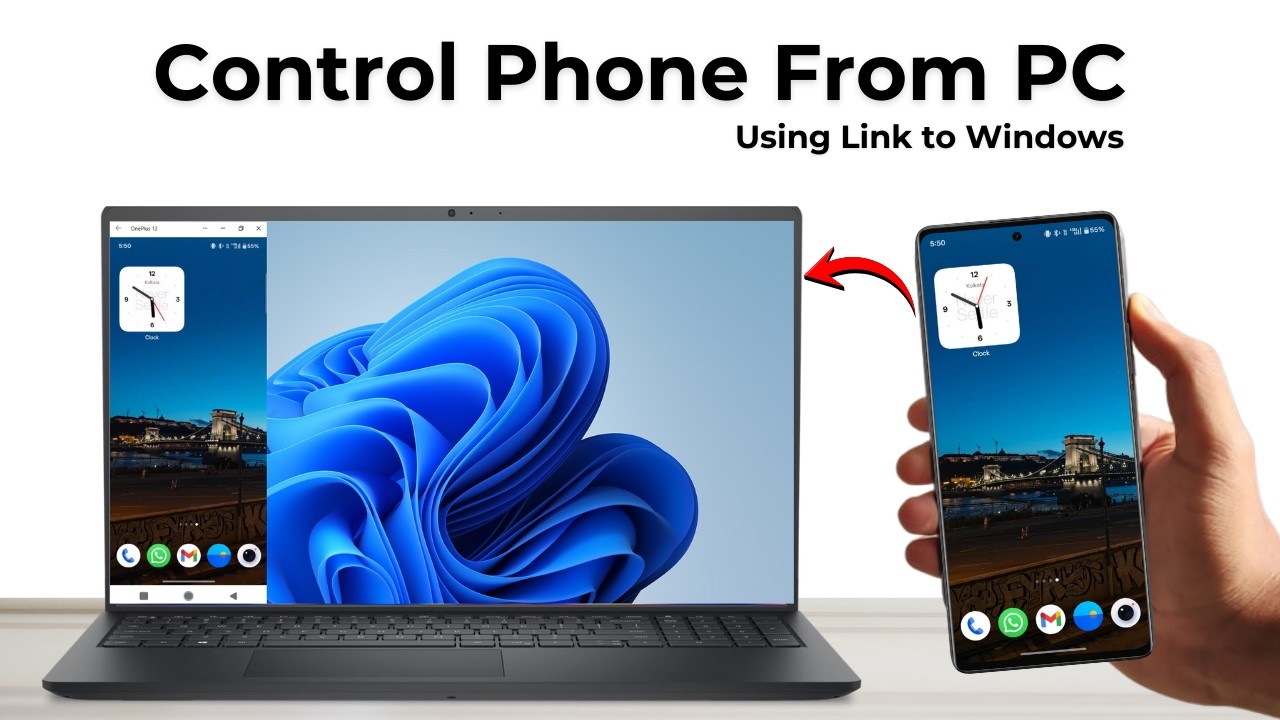
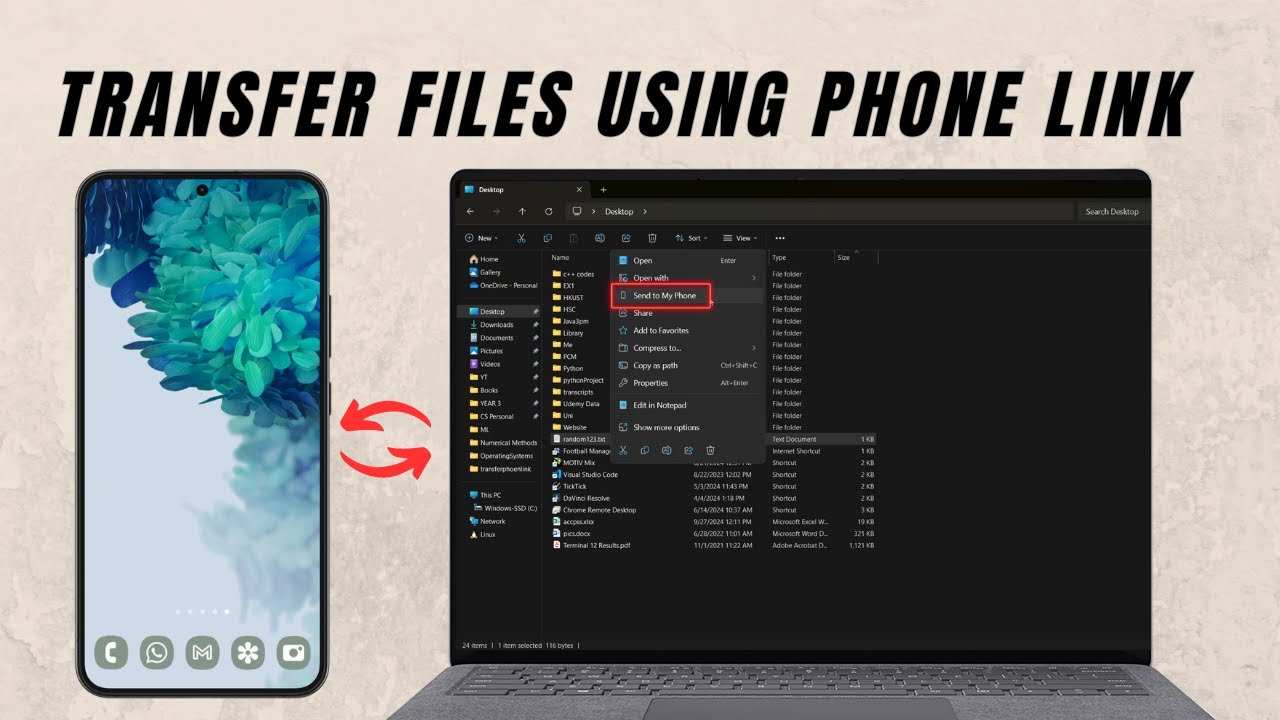
Phone Link can do more than calls. See our guide on how to transfer files between phone and PC using Phone Link.
FAQ
Can I make calls from my PC with an iPhone?
Yes. Choose iPhone in Phone Link, install Link to Windows from the App Store, and pair in the same way. Calls still need the phone and PC connected over Bluetooth.
Why can't I make calls in Phone Link?
The most common reason is that Bluetooth is not connected between the phone and the PC. Check that the phone shows as Connected in the Windows Bluetooth panel, and that you allowed the permissions Phone Link asks for on the Calls page.
Do I need the same Microsoft account on both devices?
Yes. The Link to Windows app on the phone and Phone Link on the PC have to use the same Microsoft account, or the pairing will not work.
Can I answer incoming calls on my laptop?
Yes. After setup, incoming calls on your phone show a pop-up on your laptop, and you can answer the call from there.
Related guides