Tech is Easy
How to Find Clipboard on Android (Gboard and Samsung Keyboard)
To find the clipboard on Android, open the keyboard in any app, tap the three dots in the keyboard's top toolbar and tap Clipboard. That works on both Gboard (used on Pixel, OnePlus and many other phones) and the Samsung Keyboard. If the toolbar is missing on a Samsung phone, turn on Settings > Samsung Keyboard > Keyboard toolbar.
Android has no separate clipboard app. The clipboard lives inside your keyboard, which is why people often can't find it. This guide is for anyone who copied something earlier and wants it back, or who wants to keep a few bits of text ready to paste.
What the clipboard is
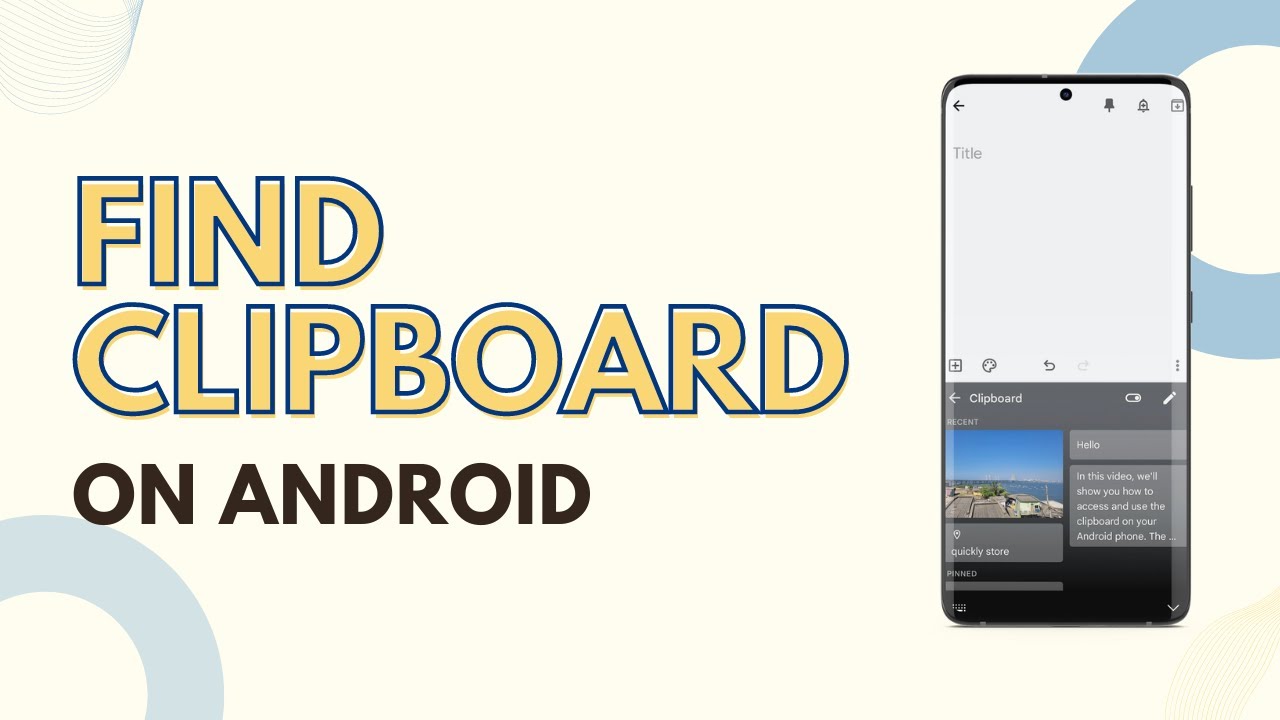
Whenever you copy text (and on many keyboards, images), it gets saved to the clipboard. The clipboard panel shows your recent copies so you can paste something you copied a while ago, not just the last thing. You can also pin items you use often, like an address or a standard reply.
Method 1: Find the clipboard in Gboard
1Open an app and copy something
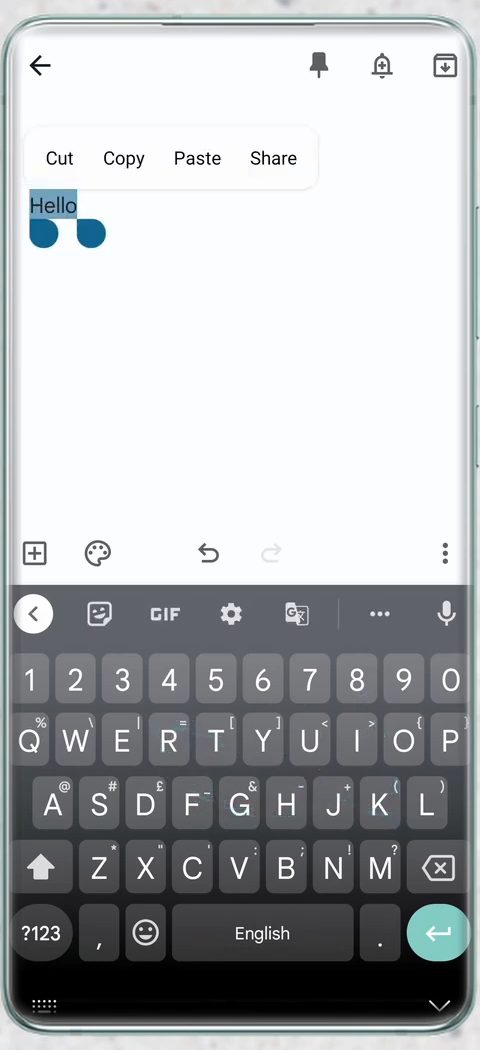
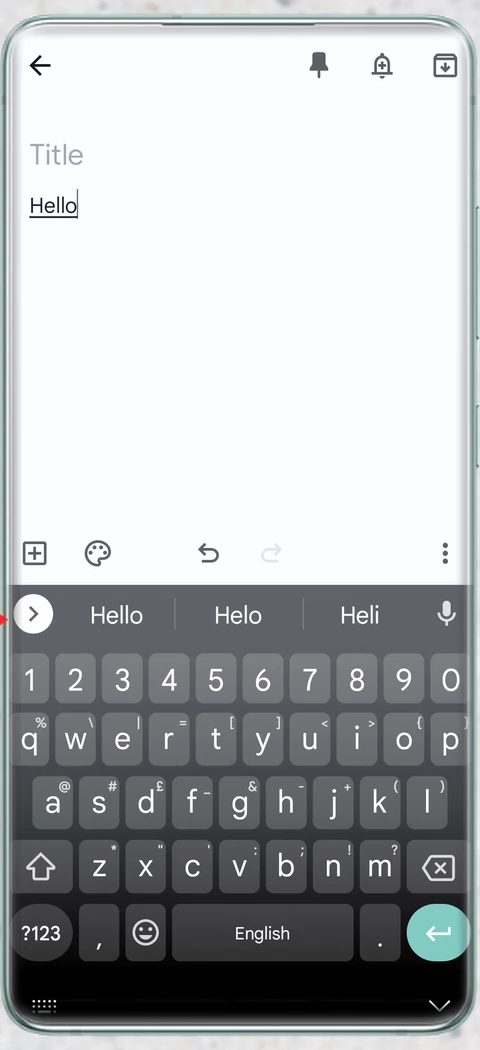
Open any app where you can type, such as a notes app. To test the clipboard, type a word, long press it and tap Copy. We copied "Hello".
2Open the Gboard toolbar
With the keyboard open, the strip above the keys may show word suggestions. Tap the arrow at the left end of that strip to switch it to the toolbar with icons.
3Tap the three dots
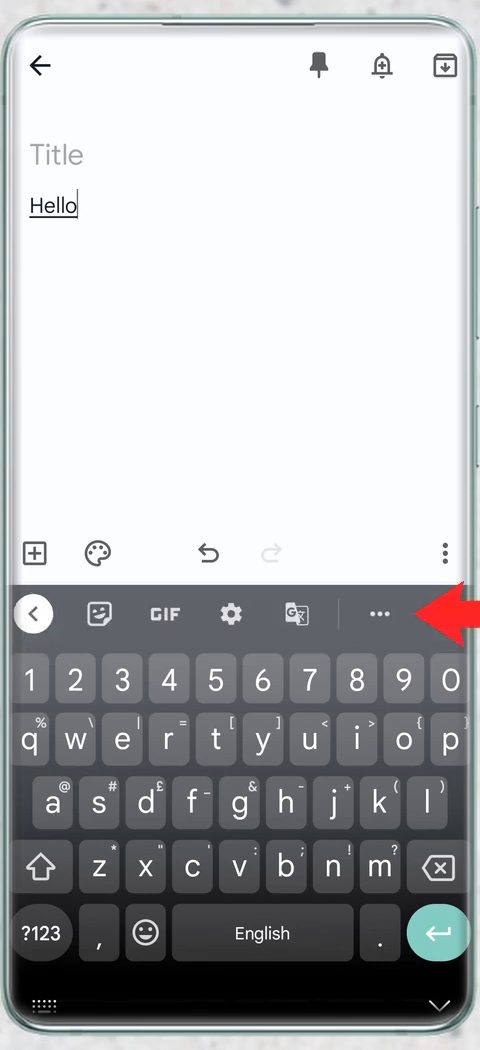
In the toolbar, tap the three dots to see more options.
4Tap Clipboard
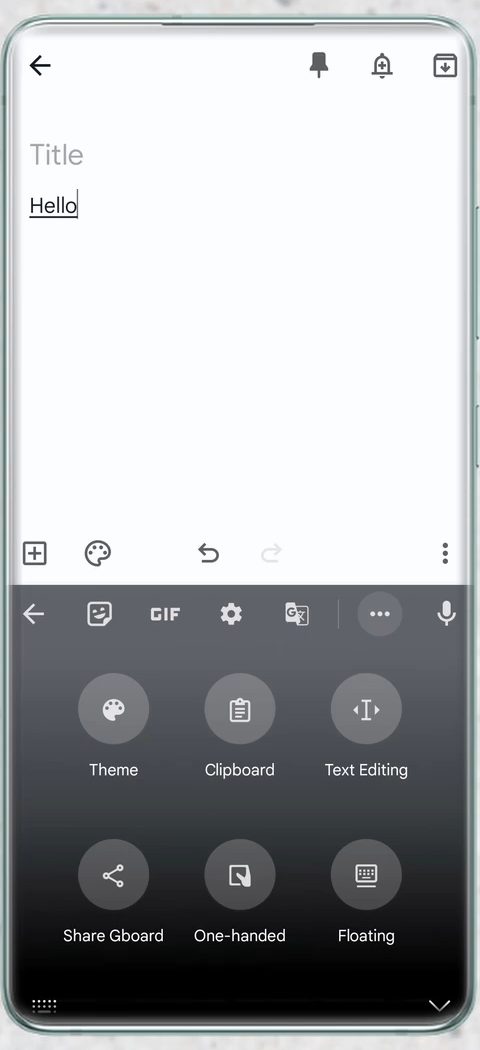
Gboard shows a grid of tools such as Theme, Clipboard, Text Editing, Share Gboard, One-handed and Floating. Tap Clipboard. If you use it often, you can drag it onto the toolbar so it's one tap away next time.
5Find your copied text
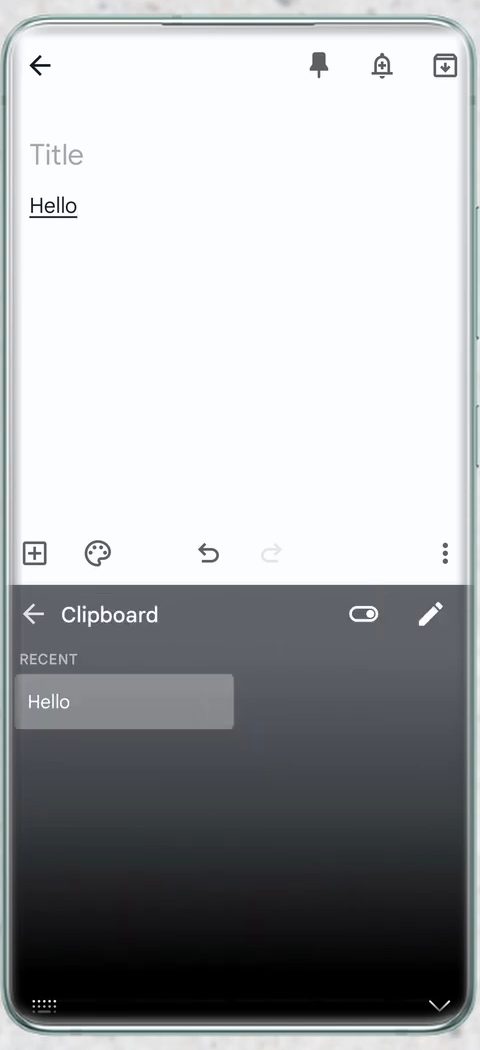
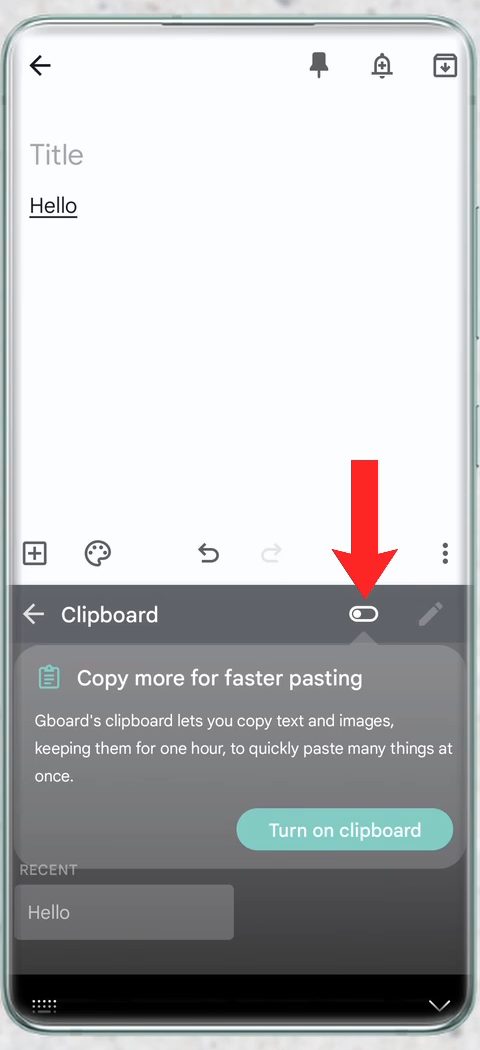
The Clipboard panel opens and lists your copies under Recent. Our "Hello" was there. Tap any item to paste it where your cursor is.
6Turn the clipboard on if it's off
If the panel says the clipboard is off, tap the switch at the top next to the pencil icon, or tap Turn on clipboard. Gboard explains that its clipboard keeps copied text and images for one hour, so it's meant for recent copies, not long-term storage.
7Paste, pin or delete an item
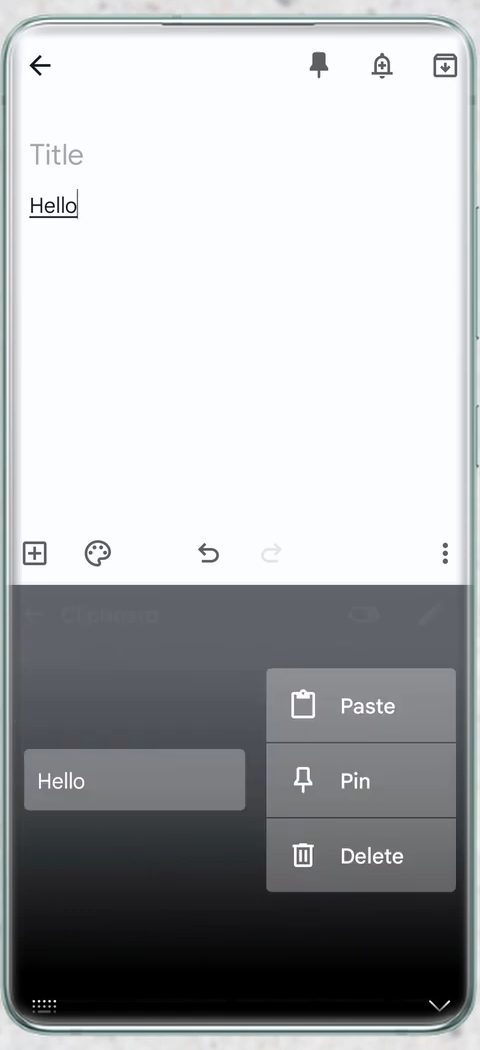
Long press an item in the clipboard to get Paste, Pin and Delete. Pin the things you want to keep; pinned items are not cleared with the rest.
Method 2: Find the clipboard on Samsung Keyboard
8Tap the three dots in the keyboard toolbar
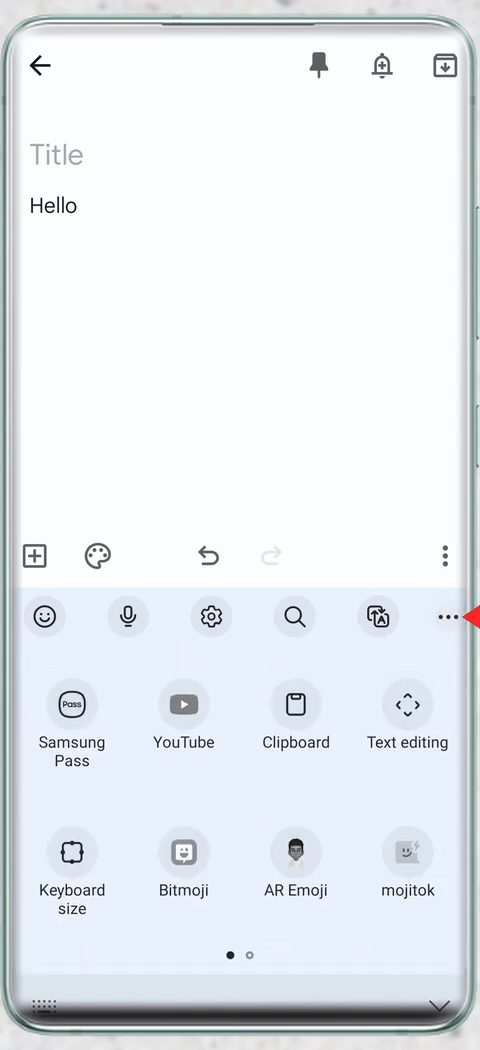
Samsung phones use the Samsung Keyboard by default. Open it in any app and tap the three dots at the right end of the toolbar above the keys.
9Tap Clipboard
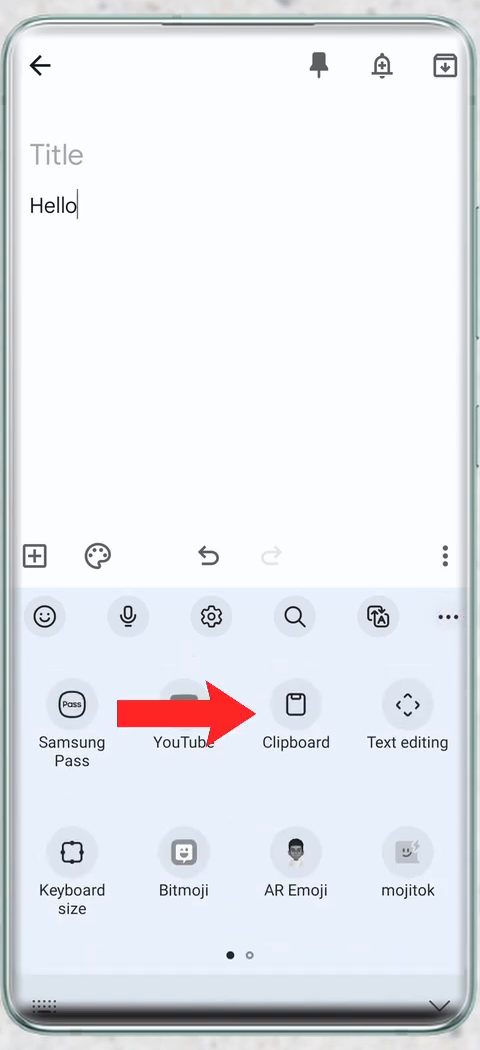
A panel with Samsung Pass, YouTube, Clipboard, Text editing, Keyboard size and more opens. Tap Clipboard.
10Pick what to paste
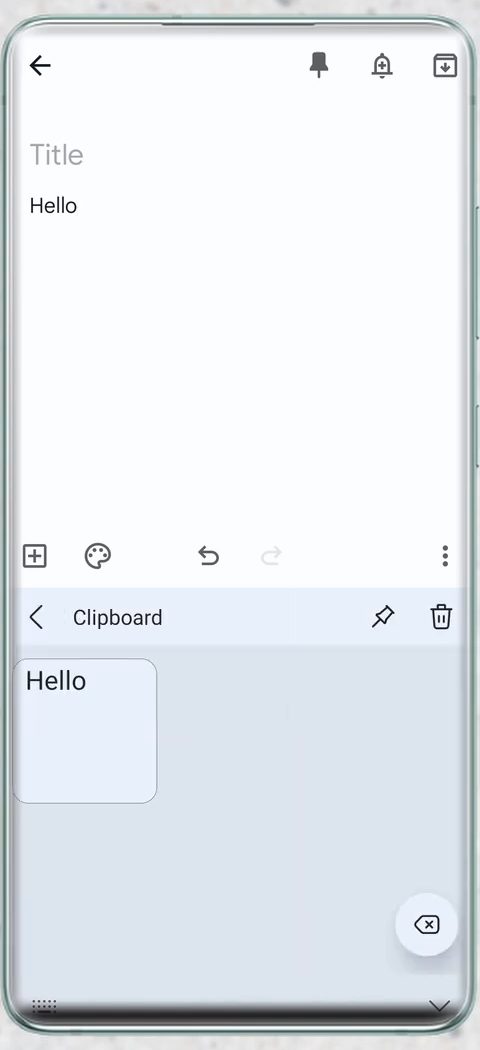
The clipboard opens with everything you copied recently, shown as tiles. Tap one to paste it. Use the pin icon at the top to keep items, or the bin icon to clear the clipboard.
11Turn on Keyboard toolbar if you don't see it
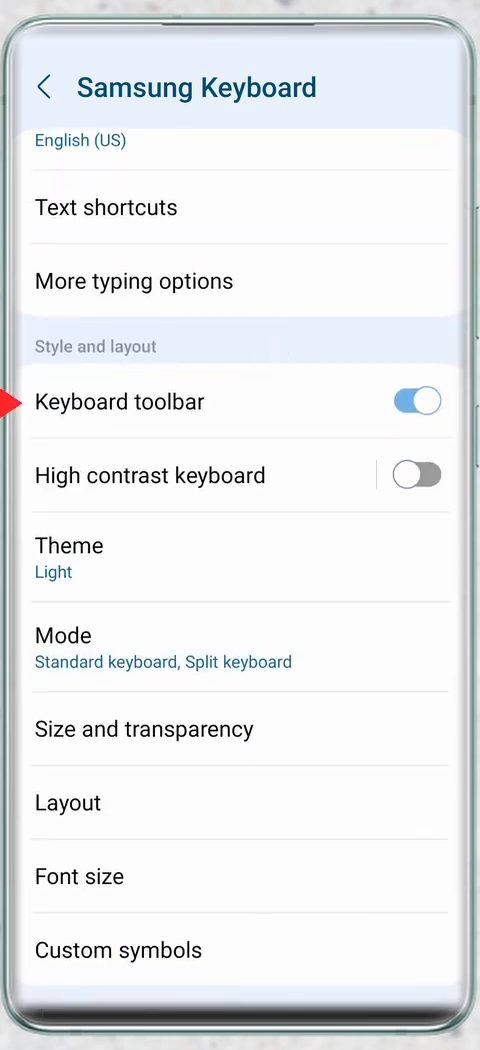
If there's no toolbar or three dots on your Samsung Keyboard, open Settings, search for Samsung Keyboard and open it. Scroll to Style and layout and switch on Keyboard toolbar. Go back to your app and the clipboard is reachable the same way.
Troubleshooting
- No Clipboard option at all. Check which keyboard you are using. The clipboard belongs to the keyboard app, so if you installed a different keyboard, look in its own toolbar or settings. You can switch keyboards from the small keyboard icon that appears in the navigation bar while typing, or in your phone's keyboard settings.
- Old copies are gone. Gboard clears the history shortly after you last use it; the message in Step 6 says items are kept for one hour. Pin anything you need to keep.
- Clipboard is empty even though you copied something. The Gboard clipboard switch may be off (Step 6). Copies made while it was off are not saved, so copy the text again after turning it on.
- Copied a password or bank details? Delete them from the clipboard afterwards so they don't sit there for anyone using your phone.
Google's Gboard help page Copy & paste sections of text with Gboard confirms the main points: tap Clipboard at the top of the keyboard to reuse earlier copies, touch and hold an item to Pin it, and the clipboard clears your history shortly after you last use it, except for pinned text.
Other phones
OnePlus, Pixel, Motorola and most phones that ship with Gboard follow Method 1. Samsung phones follow Method 2 unless you switched to Gboard. Other brands with their own keyboard apps usually place the clipboard in the keyboard toolbar too, but their exact menus aren't shown in the video.
Want to paste on your computer what you copied on your phone? See How to Copy Paste Text Between Android and Windows PC.
FAQ
Where is the clipboard on my Android phone?
It's in your keyboard. Open the keyboard in any app, tap the three dots in the toolbar and tap Clipboard. On Gboard, you may need to tap the arrow at the left of the suggestion strip first.
How do I find the clipboard on a Samsung phone?
Open the Samsung Keyboard, tap the three dots at the right of the toolbar and tap Clipboard. If the toolbar is missing, turn on Keyboard toolbar in Settings > Samsung Keyboard.
How long does Android keep clipboard items?
On Gboard, recent copies are kept for about an hour and then cleared, while pinned items stay. Samsung Keyboard keeps a list of recent items too; the video doesn't show how long it keeps them.
Can I recover something I copied days ago?
Usually not, unless you pinned it. Once the clipboard clears an item, it can't be brought back from the keyboard.
Related guides