Tech is Easy
How to Enable Split Screen on Android (Use 2 Apps at Once)
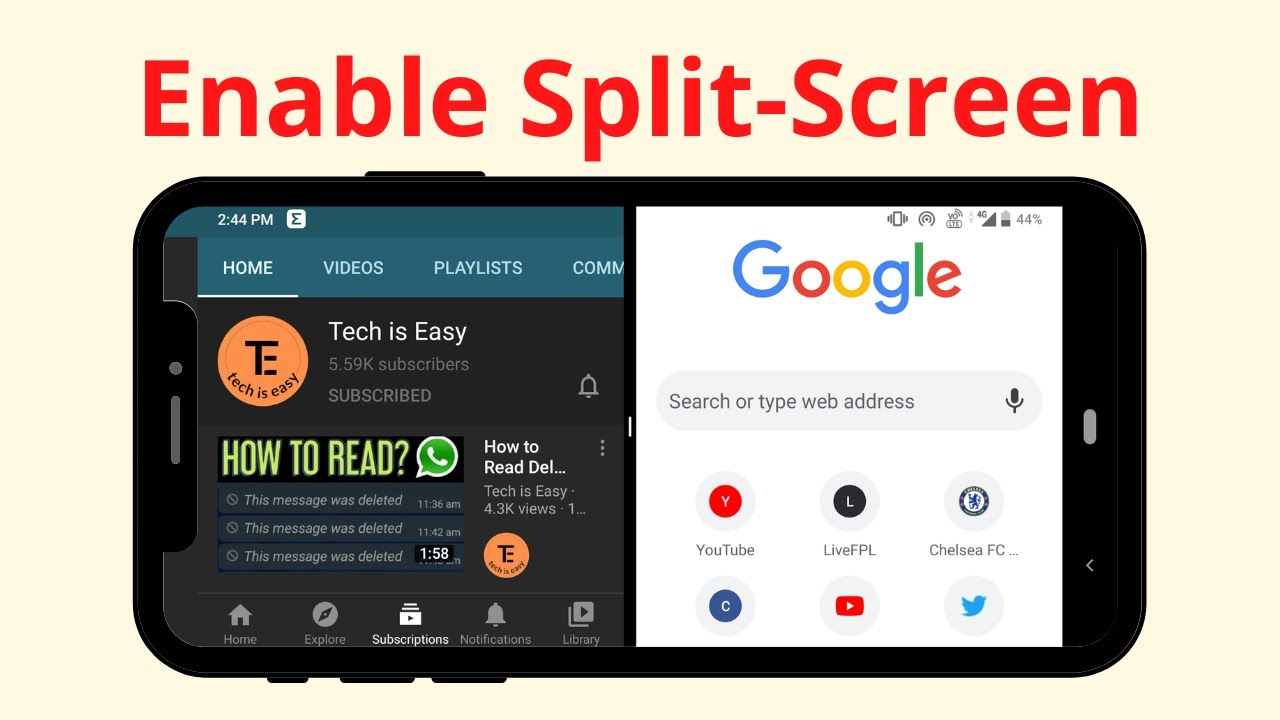
To enable split screen on Android, open the first app, go to Recent apps, tap that app's icon at the top of its preview and choose Open in split screen view, then pick the second app. It lets you watch a video while browsing without switching back and forth.
This guide was recorded in 2021 on a Samsung phone, so menu names and the look of the Recent apps screen may be slightly different on your phone today.
Before you start
- Split screen only works with apps that support it. Most big apps like YouTube, Chrome, Gmail, WhatsApp and Maps do, but some apps, such as many games, don't.
- The app you open first goes to the top half (or the left side if you hold the phone sideways). The second app fills the other half.
- Both apps stay fully usable. You can scroll, type and tap in either one, and the keyboard opens in whichever half you tap.
- Nothing is changed permanently. Closing split screen just puts you back to one app.
1Open the first app
Open the app you want on the top half of the screen. We used YouTube.
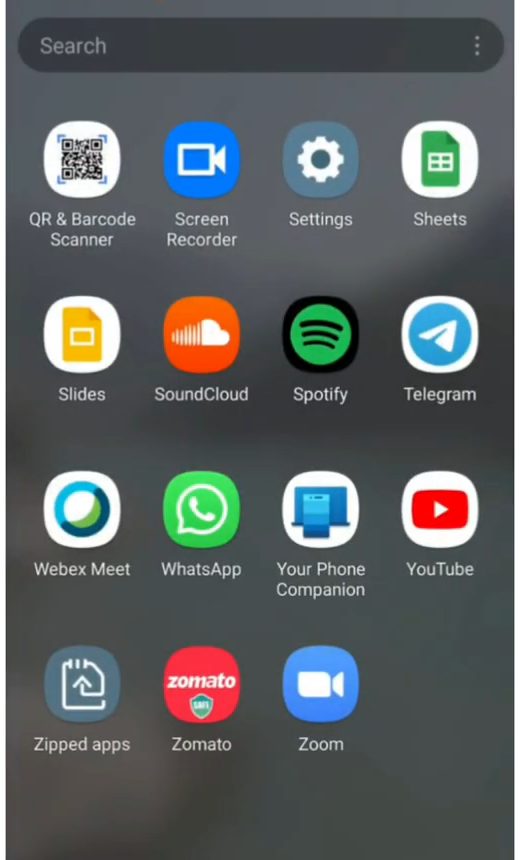
2Go to Recent apps
With the app open, tap the Recent apps button in the navigation bar at the bottom (the three vertical lines on Samsung phones). If you use gesture navigation, swipe up from the bottom and hold instead.
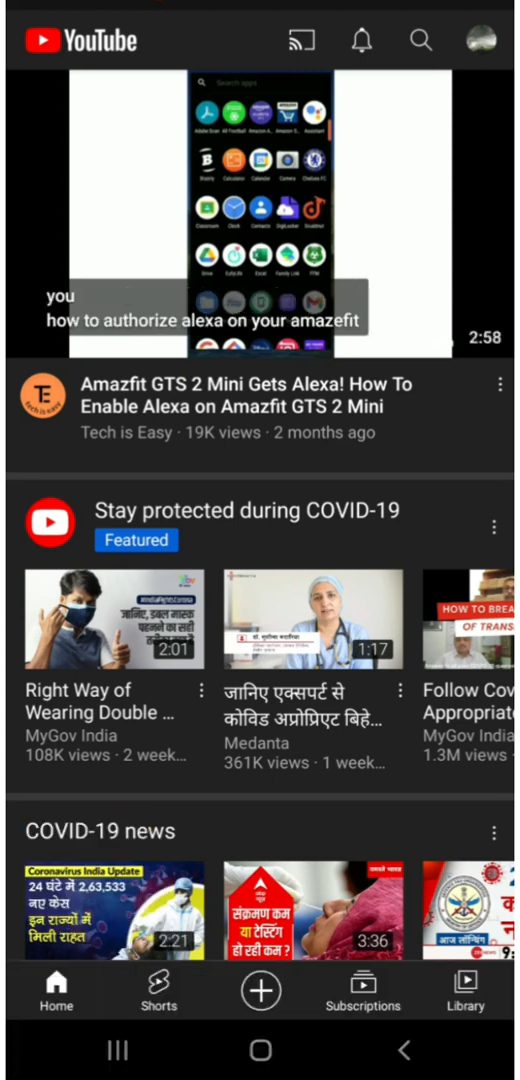
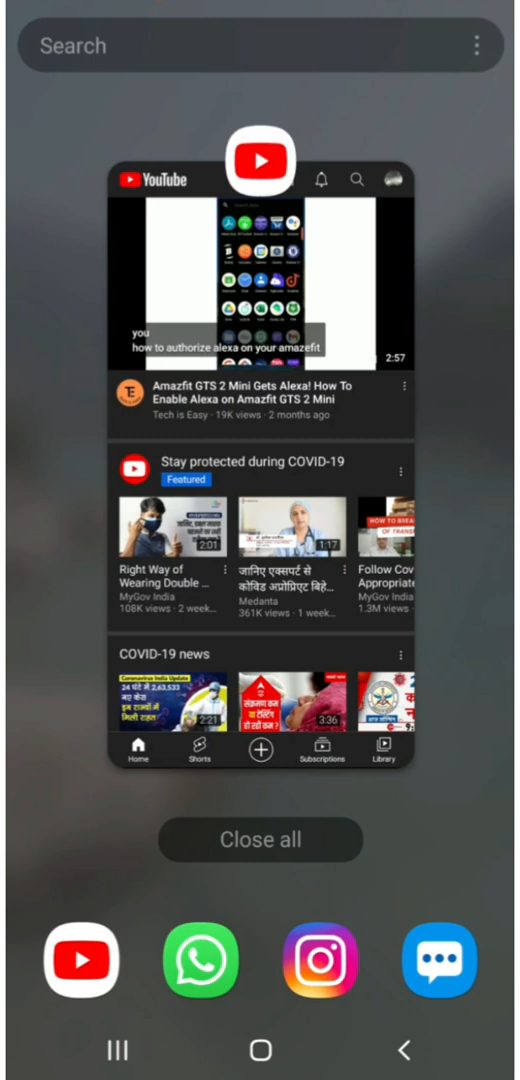
3Tap the app icon above the preview
In the Recent apps screen, find the app's preview card and tap the small app icon at the top of it (here, the YouTube logo). A menu opens.
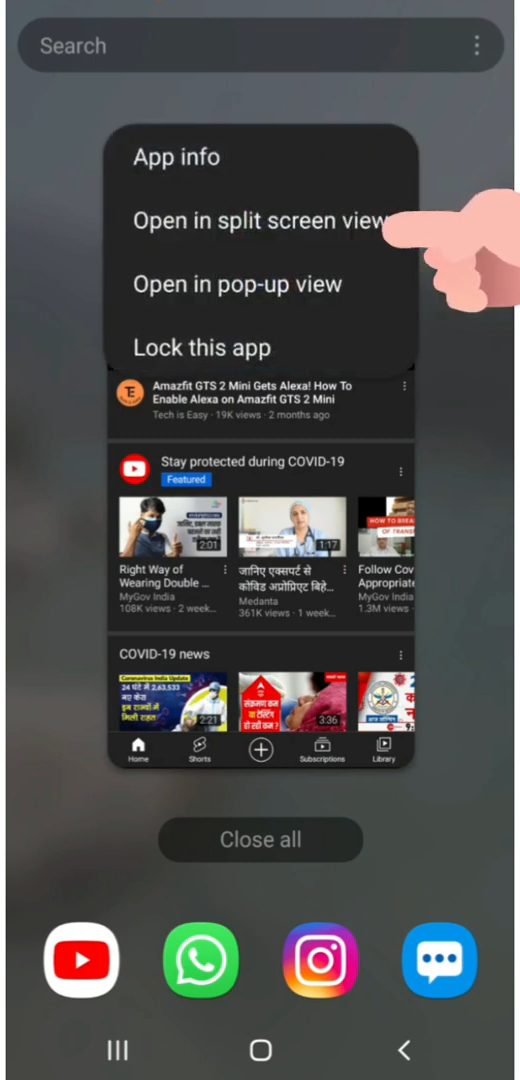
4Choose Open in split screen view
Tap Open in split screen view. The same menu also has Open in pop-up view if you would rather have a small floating window.
5Pick the second app
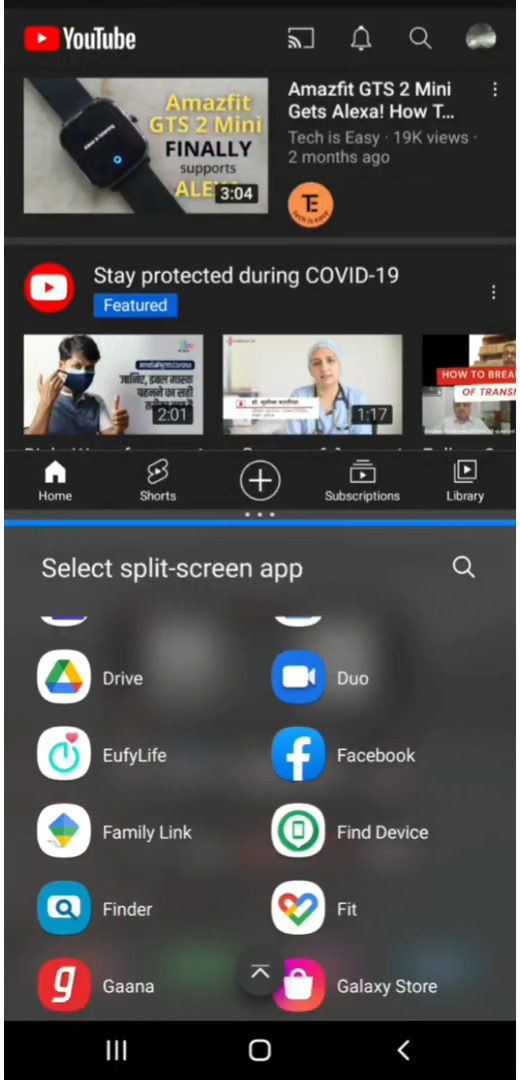
The first app moves to the top half and a Select split-screen app list appears below. Tap the app you want, or search for it.
6Use both apps together
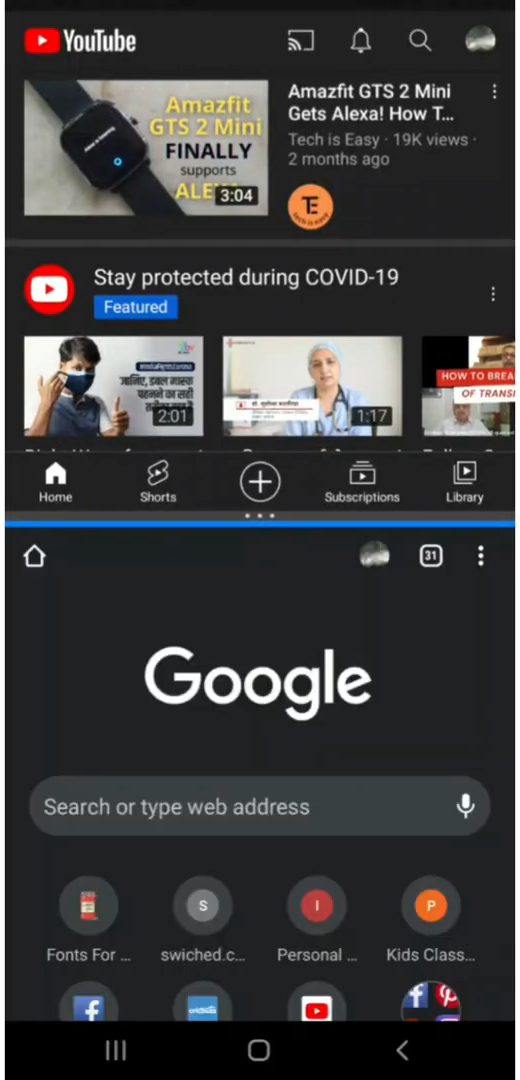
Both apps now run at the same time, one above the other. In our example YouTube plays on top while Chrome is open below.
Split screen on Google Pixel and other phones
The idea is the same on every Android phone, but the words change. Google's help page on seeing two apps at the same time on Pixel gives the Pixel steps: 1. Open an app. 2. Swipe up from the bottom of the screen, hold, then let go to see your recent apps. 3. Tap the app's icon above its preview. 4. Tap Split screen. 5. In the second screen, tap another app.
So on Samsung the option is called Open in split screen view, while on a Pixel it is just Split screen. Google notes that some of these steps only work on Android 14 and up, so update your phone if the option is missing on an older Pixel.
Tips / troubleshooting
- Change the size of each app: drag the divider line between the two apps up or down to give one app more room.
- Option missing in the menu: the app doesn't support split screen, and there is no setting to force it. The same apps often can't open in pop-up view either. Pick a different app, or switch between the two with Recent apps.
- Recent apps button not there: your phone uses gesture navigation. Swipe up from the bottom and hold to open Recent apps, as in Step 2.
- Just want a video playing while you use another app? Picture-in-picture is often the better fit. Google's page says to play a video, then swipe up or tap Picture-in-picture, depending on the video app. If the app closes instead, that app doesn't support it.
- Rotate the phone: in landscape the two apps sit side by side, which works well for reading and taking notes at the same time.
If you want to go a step further and show your phone on a bigger display, see how to cast your Android screen to a PC.
FAQ
Why don't I see Open in split screen view?
Some apps don't support split screen. The wording also changes between brands and Android versions, so look for something like "Split screen" or "Multi-window".
Can I use two apps at once on any Android phone?
Split screen is built into modern Android, but each brand places it a little differently. We used a Samsung phone; most others have it in the same Recent apps screen.
How do I exit split screen?
Exiting is not shown in the video. Google's help page says to drag the bar between the two apps to the top or bottom of the screen. The app you drag towards closes and the other one fills the screen. Samsung works the same way.
How do I make one app bigger in split screen?
Drag the divider line between the apps. Moving it down gives the top app more space, and moving it up gives the bottom app more space. Dragging it all the way to an edge closes split screen.
Can I use split screen on a Samsung tablet or foldable?
Yes. Bigger Samsung screens have the same Recent apps option and also extra multi-window tools, but the steps above are for a regular phone and those extras are not shown here.
Can I open an app in a small window instead?
Yes. In the same menu from Step 4, choose Open in pop-up view to open the app as a floating window over the other app.
Related guides