Tech is Easy
How to Extract Audio From Video on Android (Free, No App)
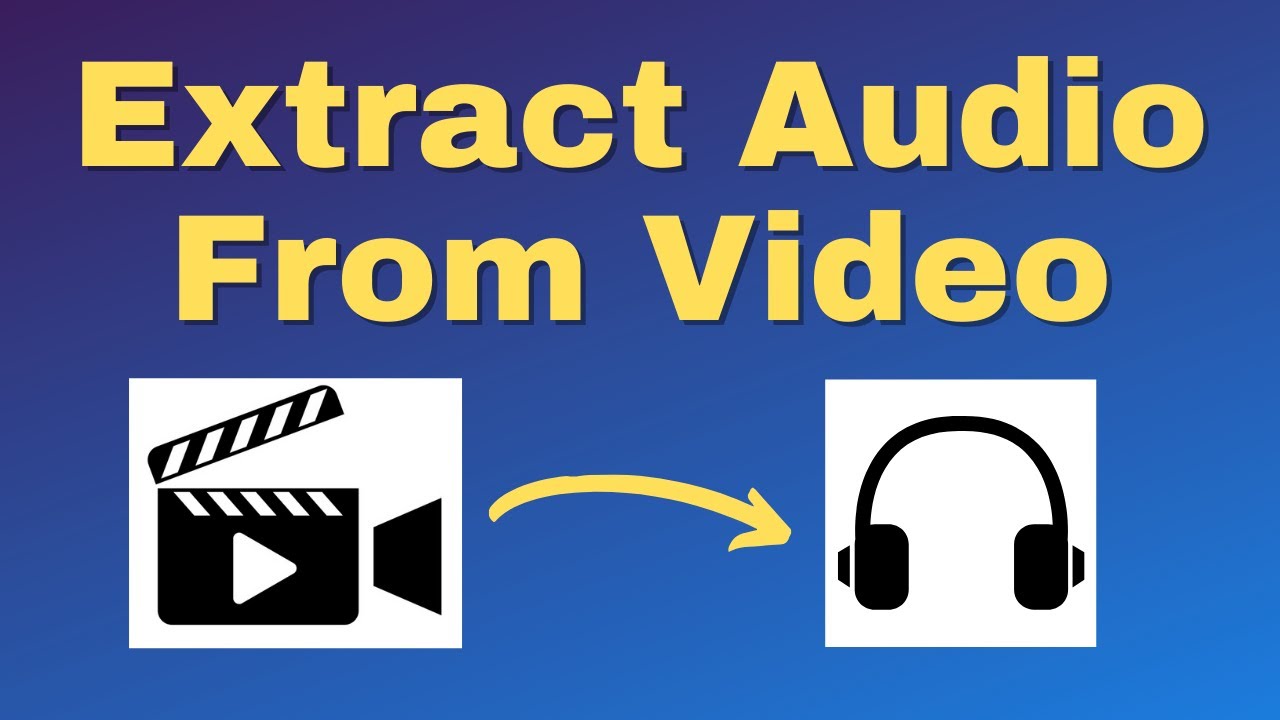
To extract audio from a video on Android, open Chrome, go to freeconvert.com/convert/video-to-mp3, tap Choose Video Files, pick your video, tap Convert To MP3 and then Download MP3. The audio is saved to your phone's Download folder as an MP3. This is useful if you want to convert a video to audio, like keeping the sound of a recording or a song, without installing an extra app.
The video was made in 2021, so the FreeConvert site and Android menus may look slightly different now.
What you need
- An Android phone with Chrome (any browser works)
- The video saved on your phone
- An internet connection, since the video is uploaded for conversion
Before you start
- Size limit: the FreeConvert Video to MP3 page currently says the maximum file size is 1 GB without upgrading. A few minutes of phone video is well under that, but long 4K recordings can go over.
- Data use: the whole video is uploaded, not just the sound. On mobile data a large video can use a lot of your plan, so use Wi-Fi if you can.
- Privacy: the file goes to FreeConvert's servers to be converted. Avoid uploading private recordings you would not want to leave your phone. The site also asks you to confirm you own the rights to the files you upload.
- Your video stays as it is. You get a new MP3 file and the original video is not changed.
1Open FreeConvert in Chrome
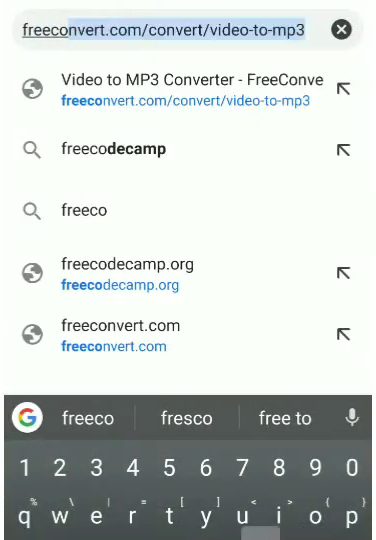
Open Chrome and search for freeconvert.com. Tap the Video to MP3 Converter - FreeConvert result, or go straight to freeconvert.com/convert/video-to-mp3.
2Tap Choose Video Files
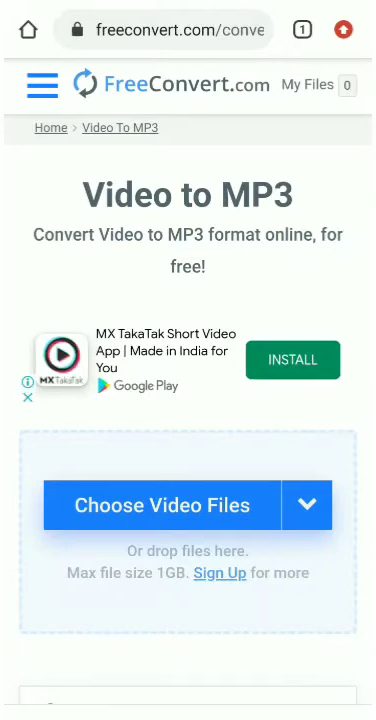
On the Video to MP3 page, scroll down a little and tap the blue Choose Video Files button. The free version takes files up to 1 GB.
3Pick the video from your phone
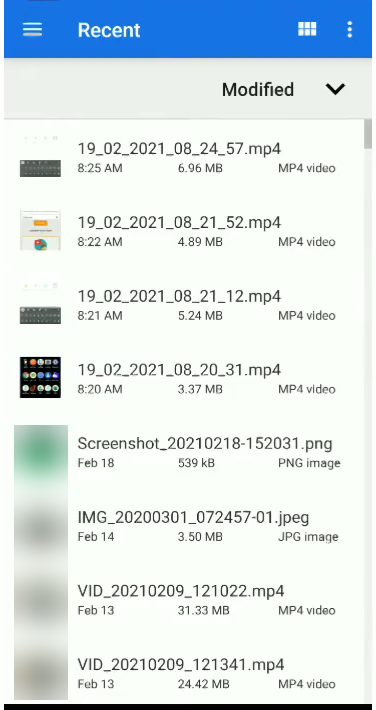
Your phone asks how to choose the file. Pick Files, then tap the video you want the audio from.
4Convert the video to MP3
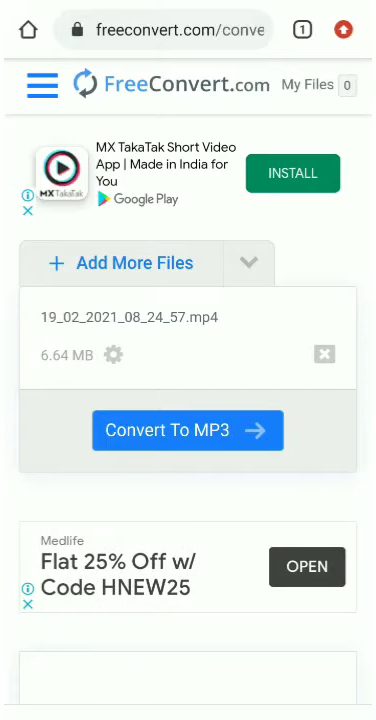
The video now shows up in the list on the site. Tap the blue Convert To MP3 button. FreeConvert uploads the video and converts it, which can take a minute for bigger files.
5Download the MP3
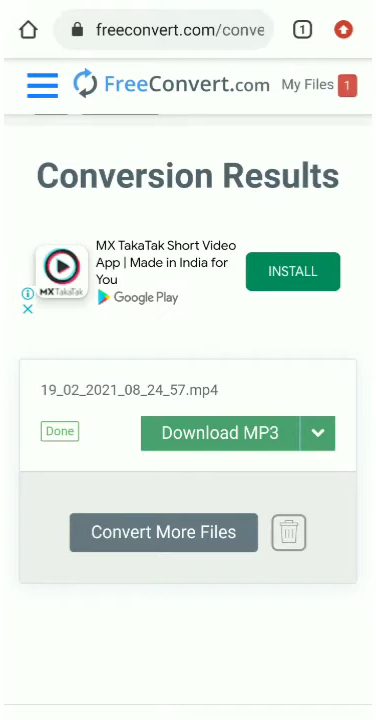
When the status changes to Done, tap Download MP3. If you want to extract audio from another video, tap Convert More Files instead.
6Open the downloaded file
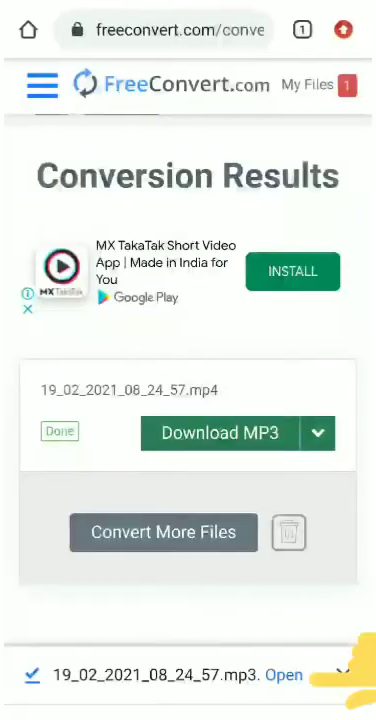
Chrome shows a bar at the bottom once the download finishes. Tap Open to check the file. You can also tap the download notification.
7Play the audio
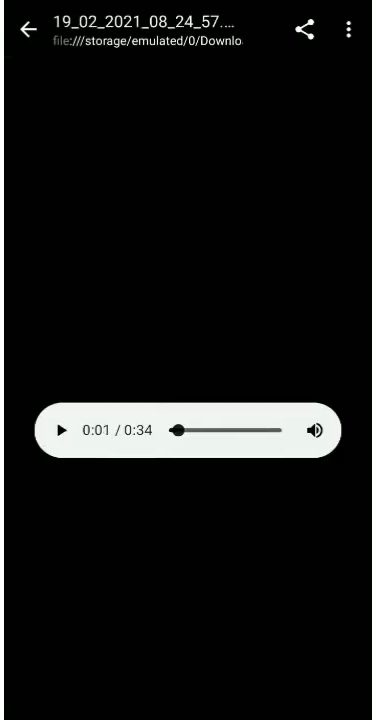
The MP3 opens in a simple player so you can confirm the audio came out right. The file is stored in the Download folder on your phone.
8Find it in your music app
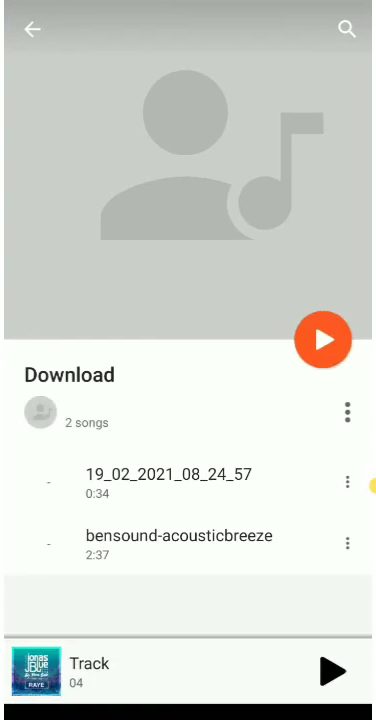
Open your music player app. In our case (Google Play Music), a new Download section appeared with the extracted track inside it, ready to play like any other song.
Optional: trim the audio or change the volume
The site has changed a little since the video. The main button now reads Choose Files, and it lets you pick a video from your device or from Dropbox, Google Drive, OneDrive or a URL. Before you convert, you can open Advanced settings (optional) to: - Trim Start and Trim End, so you only keep part of the audio, such as one song from a longer video. Times are in hours, minutes, seconds. - Adjust Volume, where 100% is the original loudness. - Add a fade in at the start or a fade out at the end.
You can leave all of these alone. The default Auto audio settings suit most conversions.
Tips / troubleshooting
- Keep the browser tab open while the file uploads. Closing it stops the conversion.
- If the upload stays stuck at the same percentage, switch to a stronger Wi-Fi connection and try again. Big files can take several minutes.
- If the site says the file is too large, trim the video first with your phone's gallery editor, or convert a shorter clip.
- Google Play Music, used at the end of the video, has since been shut down. Any music player app, or the Files app, will play the MP3.
- If the MP3 does not show up in your music app, open the Files app and look in the Download folder.
- FreeConvert shows ads on the page. Ignore the Install and Open ad buttons and only tap the blue and green converter buttons.
FAQ
How do I extract audio from a video on my phone?
Upload the video to FreeConvert's Video to MP3 page in Chrome, tap Convert To MP3, then Download MP3. The audio lands in your Download folder.
Do I need to install an app to convert video to audio?
No. Everything here happens in the browser, so there is nothing to install. You only need an internet connection to upload the video.
Does the original video get deleted?
No. FreeConvert makes a separate MP3 file. Your original video stays on your phone as it was.
Can I extract only part of the audio from a video?
Yes. Open Advanced settings (optional) on the FreeConvert page before converting and set Trim Start and Trim End to the times you want. Only that part of the audio is saved to the MP3.
Is FreeConvert free to use?
Converting files up to 1 GB is free on the site. Larger files need a paid upgrade, as the upload box notes. In the video the conversion works without signing in to any account.
Does this work on iPhone?
The video only shows Android. FreeConvert is a website, so it should open in Safari too, but the file picking and download steps on an iPhone are not shown here.
To move the MP3 to your computer afterwards, see how to transfer files from Android to PC.
Related guides