Tech is Easy
How to Hide Apps on Samsung (and Open Hidden Apps)
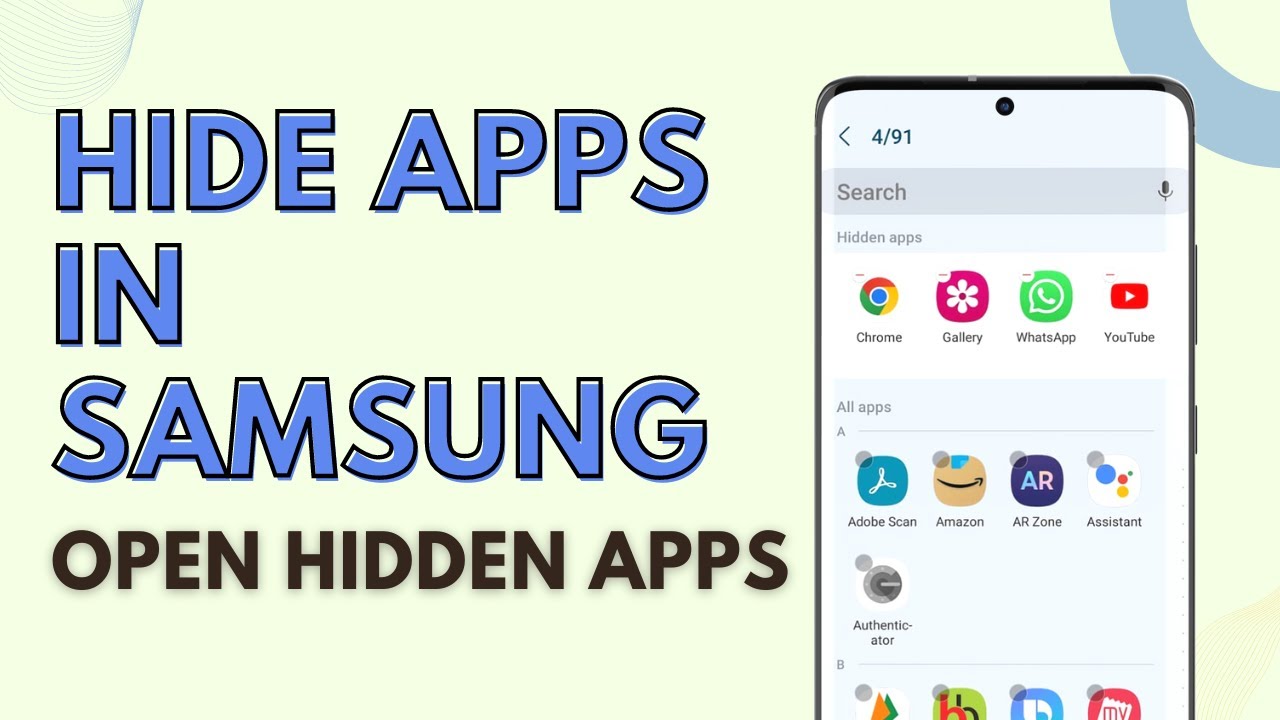
Samsung phones have a built-in option to hide apps from the Home screen and app drawer, so you don't need a third-party launcher. This guide shows how to hide apps on Samsung, then two ways to open a hidden app: from search while it stays hidden, or by unhiding it.
Before you start
- This works with Samsung's own launcher (One UI Home), which every Galaxy phone uses unless you installed a different one. With a third-party launcher, the option lives in that launcher's settings instead, if it has one.
- Hiding is not uninstalling. The app keeps running, updating and storing data as normal. Only the icon disappears from the Home screen and the app drawer.
- You can undo it at any time, and nothing is lost when you do.
Samsung's own support article, Access and organize the apps on your Galaxy phone, describes the same Hide apps on Home and Apps screens option and confirms you can still open hidden apps from the Apps screen search bar.
1Open the app drawer menu
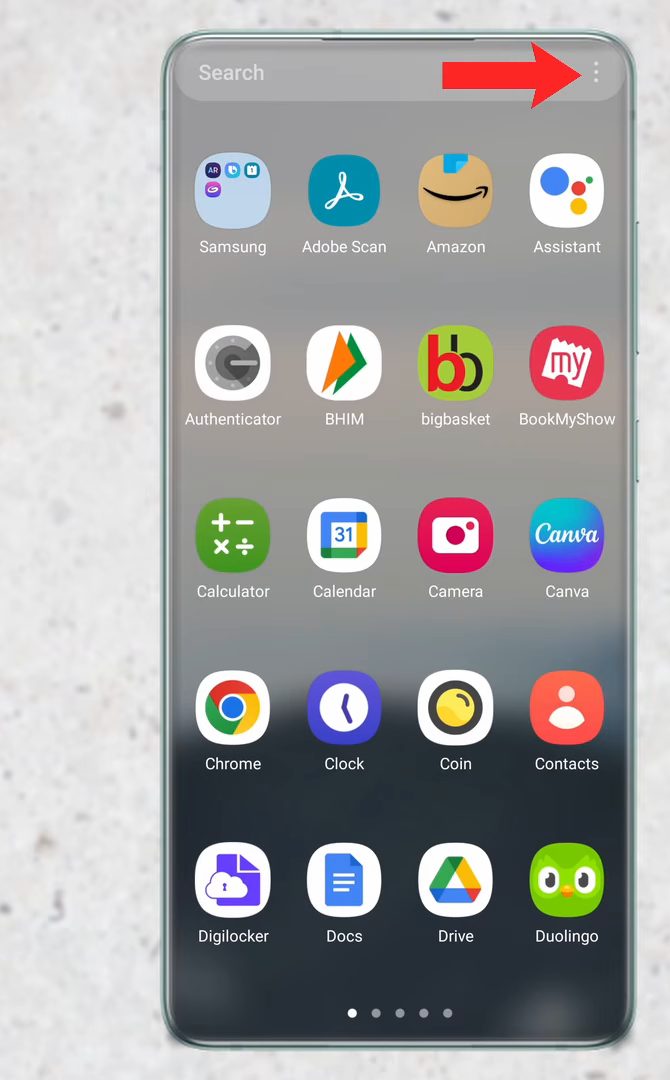
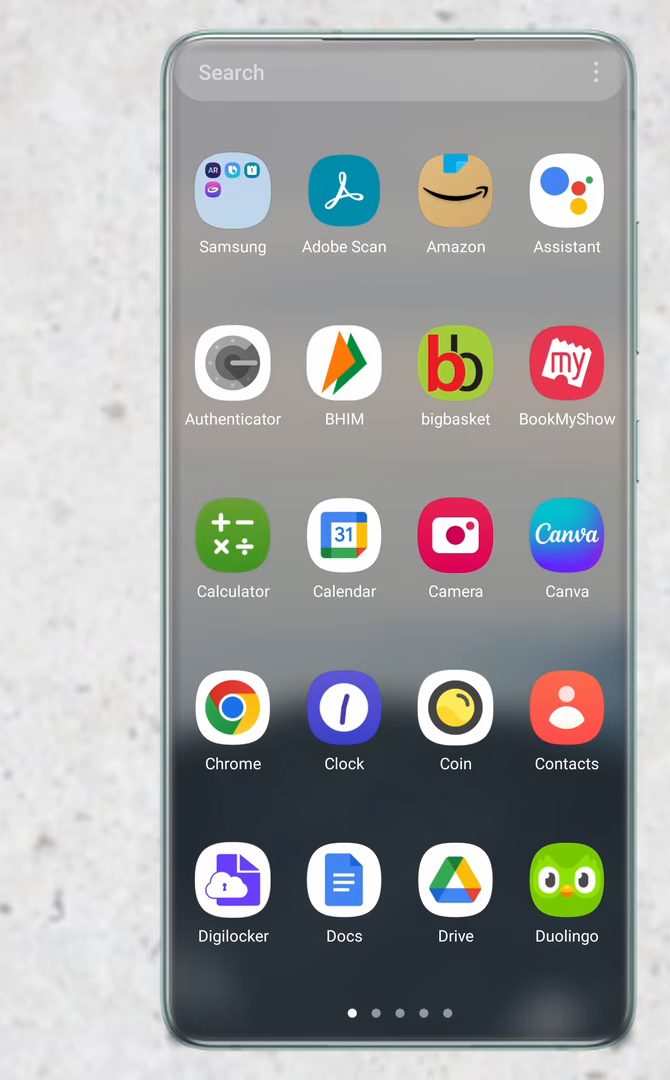
Swipe up on the Home screen to open the app drawer. Tap the three dots at the top right, next to the search bar.
2Tap Settings
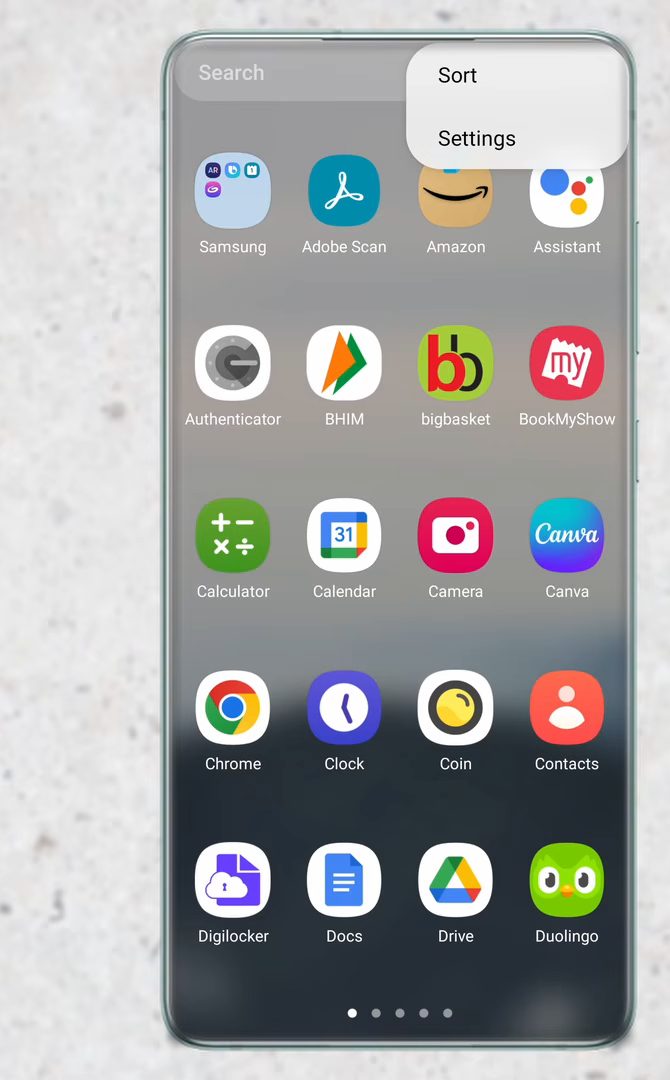
In the menu that appears, tap Settings. This opens Home screen settings.
3Open Hide apps on Home and Apps screens
Scroll down and tap Hide apps on Home and Apps screens.
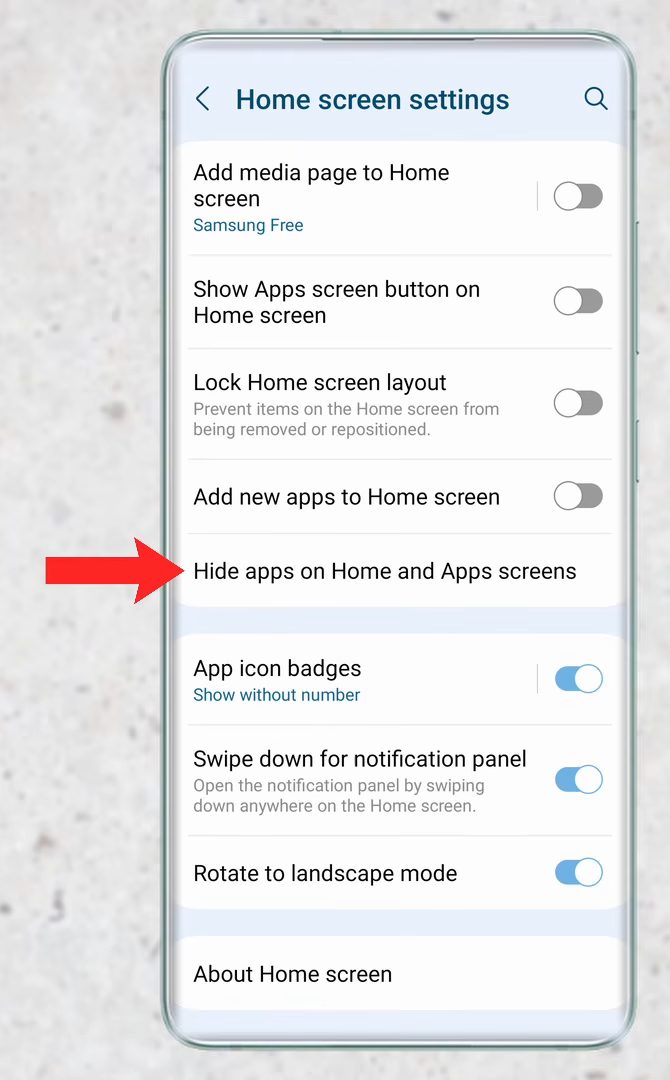
Another way in: touch and hold an empty spot on the Home screen and tap Settings. This opens the same Home screen settings page, which helps if your app drawer has no three-dot menu.
4Select the apps to hide
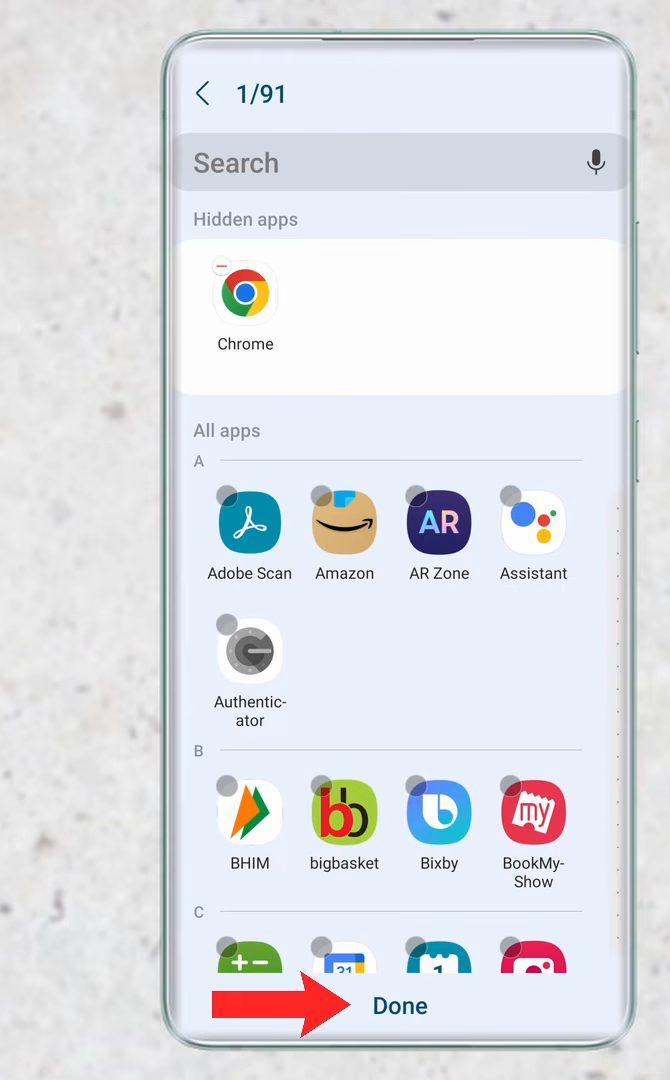
Scroll through the list or use the search bar at the top to find the app. Tap it to select it. It moves up into the Hidden apps section. We hid Chrome. Tap Done at the bottom.
5Check the app drawer
Go back to the app drawer. The app is gone from the list. To hide more apps later, repeat the same steps and select them.
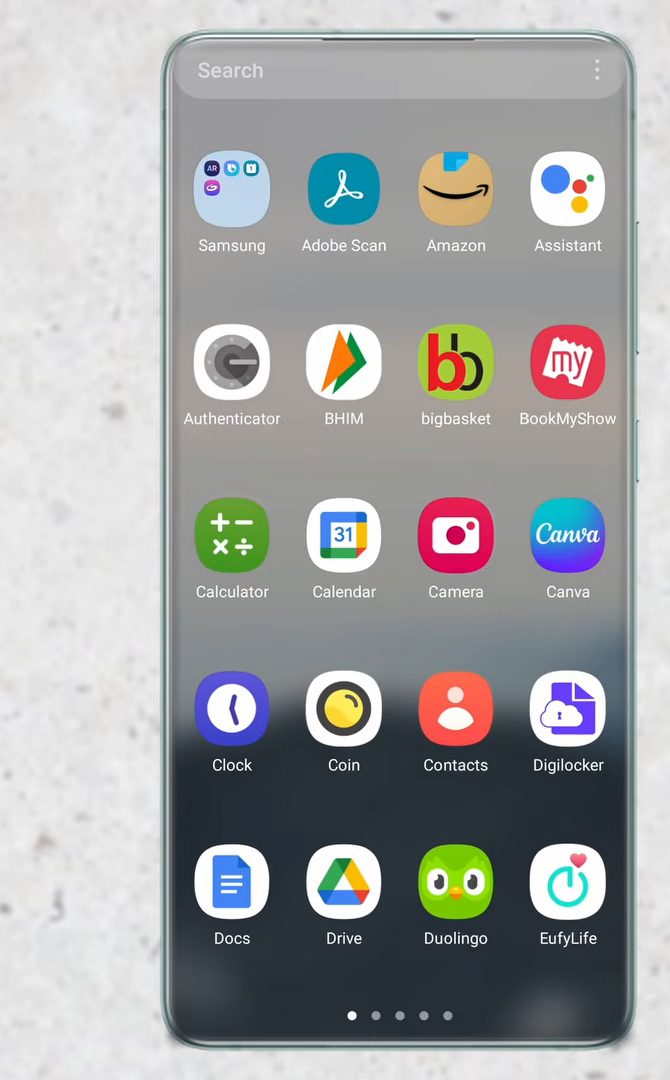
6Method 1: Search for the app
This is the quicker way, and the app stays hidden. Tap the search bar at the top of the app drawer and type the app's name. Under Settings in the results, tap the app (in our case Chrome, labelled App info).
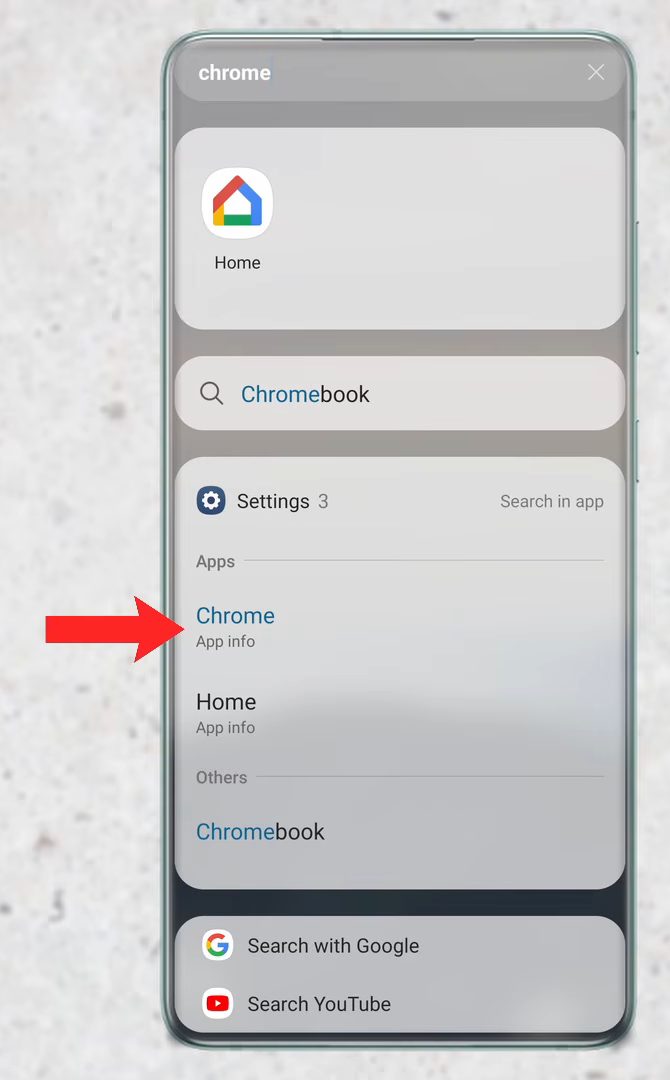
7Tap Open
The App info page for the app opens. Tap Open at the bottom left. The app launches, but it is still hidden from the app drawer.
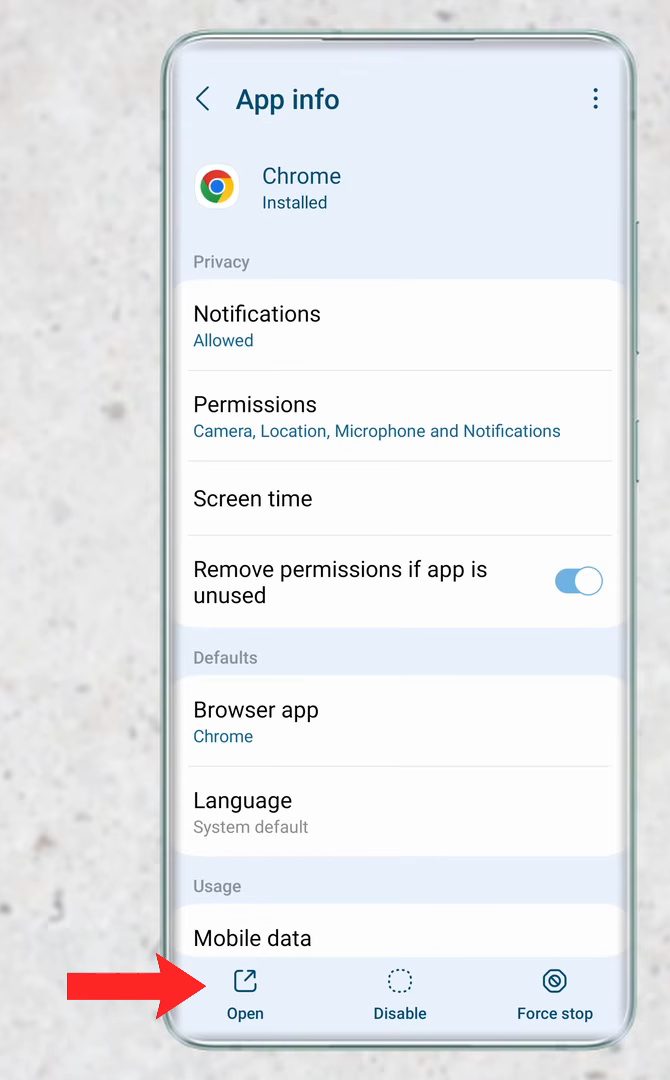
8Method 2: Unhide the app
If you want the app back in the app drawer, tap the three dots, then Settings, then Hide apps on Home and Apps screens. The hidden app is shown at the top. Tap it to deselect it, then tap Done.
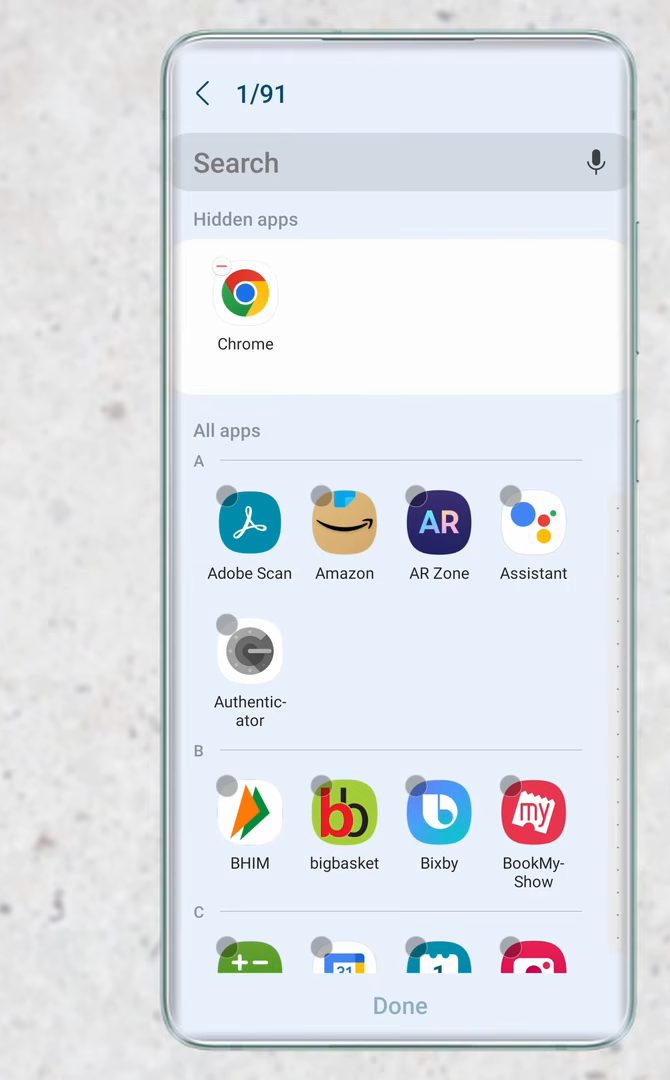
9Open the app normally
Go back to the app drawer. The app is back in its usual place and you can open it like any other app.
Tips / troubleshooting
- Hiding an app only removes its icon. It does not lock it, and anyone can still find it through search. If you want an app to need a password or fingerprint, see how to lock apps on a Samsung phone.
- Menu names can differ slightly between One UI versions, but the option sits in Home screen settings. On some older models it is just called Hide apps.
- Can't find the option? It is part of Home screen settings, not the Apps page. In the main Settings app, look under Home screen instead. If you use a different launcher, switch back to One UI Home or use that launcher's own hide feature.
- Unhiding on newer One UI: selected apps show a small red minus icon in the hidden list. Tap the minus to bring the app back, then tap Done.
- Hidden apps are not fully invisible. They still appear in the main Settings app under Apps, in Play Store or Galaxy Store as installed, and in the app drawer search, as shown in Method 1.
- For real privacy, use Secure Folder. Apps you add to Secure Folder sit behind a separate PIN, pattern or fingerprint. Photos can be hidden in a similar way, see how to hide photos on Samsung.
FAQ
How do I hide apps on a Samsung phone?
Open the app drawer, tap the three dots, then Settings, then Hide apps on Home and Apps screens. Select the apps you want to hide and tap Done.
How do I open a hidden app on Samsung without unhiding it?
Search for the app's name in the app drawer search bar. Tap the app under Settings in the results to open its App info page, then tap Open.
How do I unhide apps on Samsung?
Go back to Hide apps on Home and Apps screens, tap the app in the Hidden apps section to deselect it, and tap Done. It returns to the app drawer.
Does hiding an app delete it or its data?
No. The app stays installed with all its data. Only the icon is removed from the Home screen and app drawer.
Can someone else find my hidden apps?
Yes, if they know where to look. Hidden apps still show up in search and in Settings > Apps. Hiding is meant to tidy your screens, not to protect an app. Use an app lock or Secure Folder if you need that.
Is hiding an app the same as disabling it?
No. A hidden app still works and can run in the background. Disabling, which is only available for some pre-installed apps in the Settings app, stops the app from running at all and also removes its icon.
Related guides