Tech is Easy
How to Hide Photos on Samsung Phone (Secure Folder)
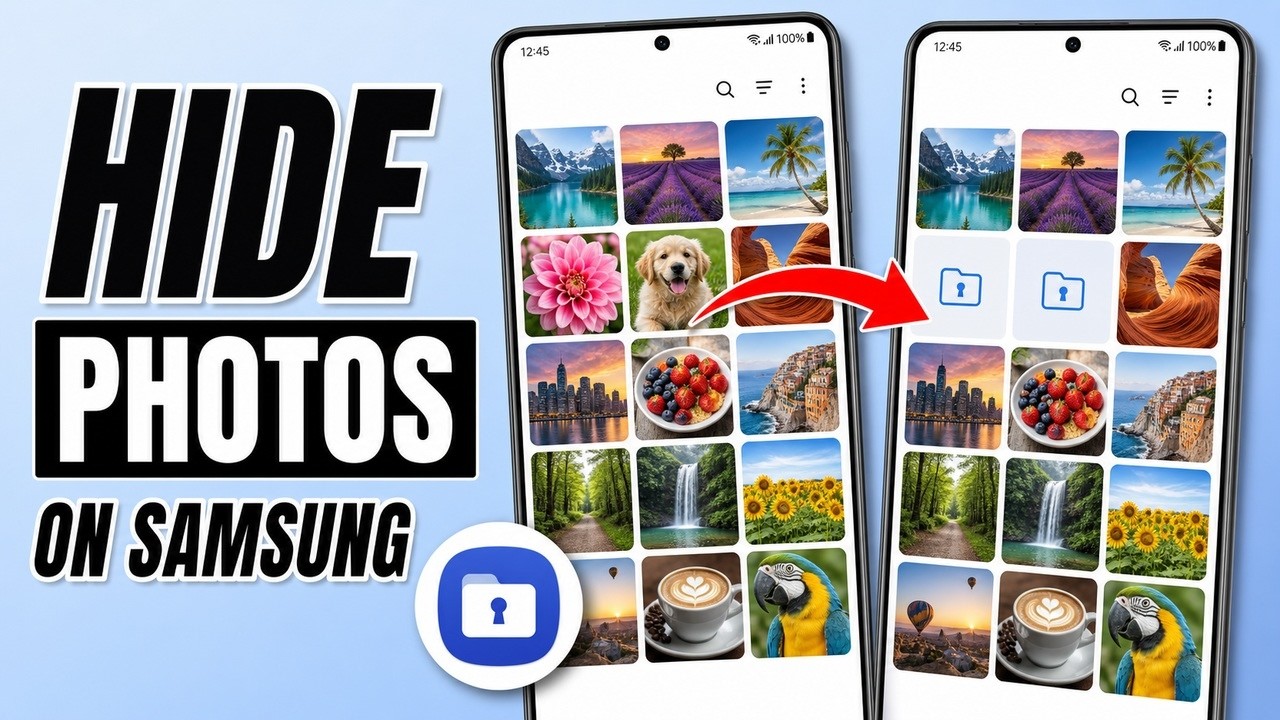
To hide photos on a Samsung phone, open Gallery, long-press the photos, then tap More > Move to Secure Folder. They disappear from your Gallery and only show up inside Secure Folder, which is locked with its own PIN, password or pattern. It works for photos and videos on any Samsung Galaxy phone with Secure Folder.
Before you start
- You need a Samsung Account. Samsung's own guide, What is the Secure Folder and how do I use it?, says you have to sign in to or create a Samsung Account while setting up Secure Folder. That account is also how you reset the lock if you forget it, so use one you can actually sign in to.
- Older phones may not have it. The same page notes that some older Galaxy models no longer support Secure Folder.
- Move vs copy. From the Gallery, Move to Secure Folder moves the original file, so it is no longer in your normal Gallery. When you add files from inside Secure Folder instead, Samsung lets you choose copy (a second version stays outside) or move.
1Select the photos you want to hide
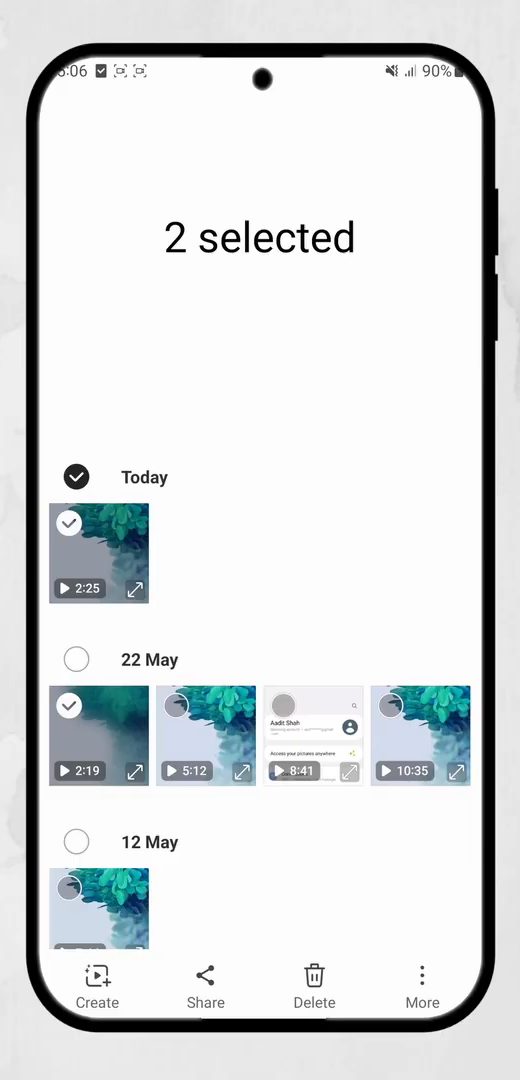
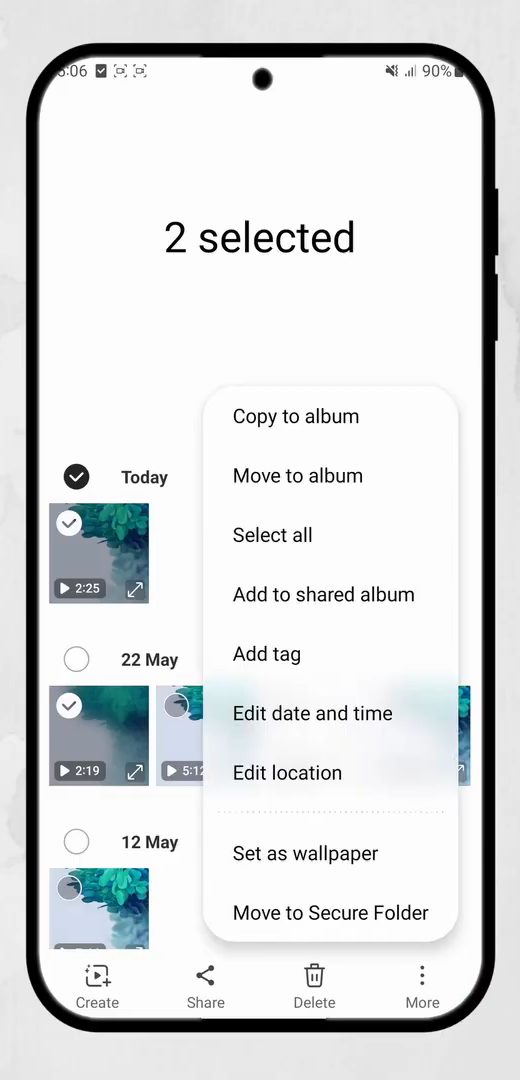
Open the Gallery app. Long-press a photo or video, then tap any others you want to hide. The top of the screen shows how many are selected.
2Tap More, then Move to Secure Folder
Tap More at the bottom right of the screen, then choose Move to Secure Folder at the bottom of the menu.
3Set up Secure Folder (first time only)
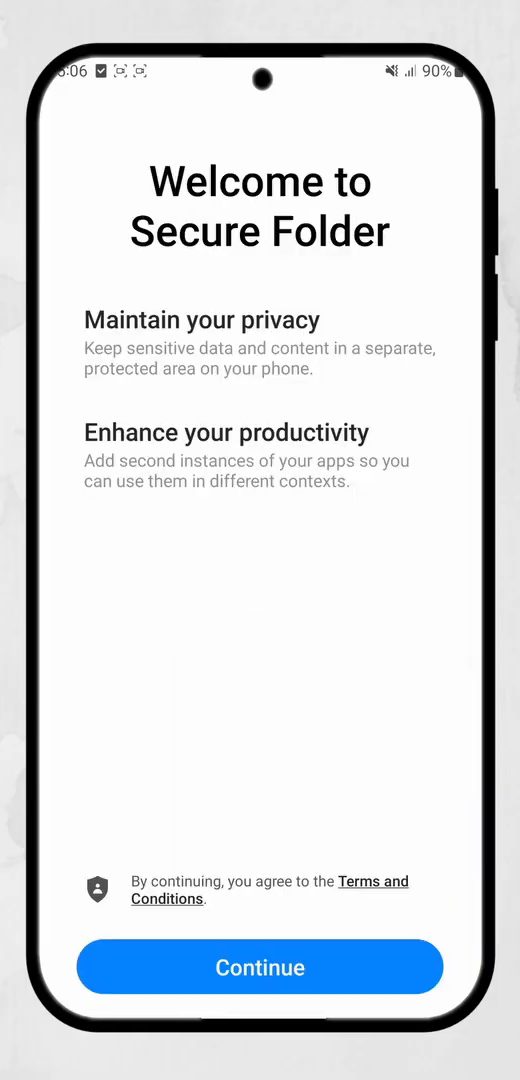
If you have never used Secure Folder, the phone asks you to create one first. Tap Continue on the Welcome to Secure Folder screen, tap Continue again, and allow the permissions it asks for. The phone then creates the Secure Folder.
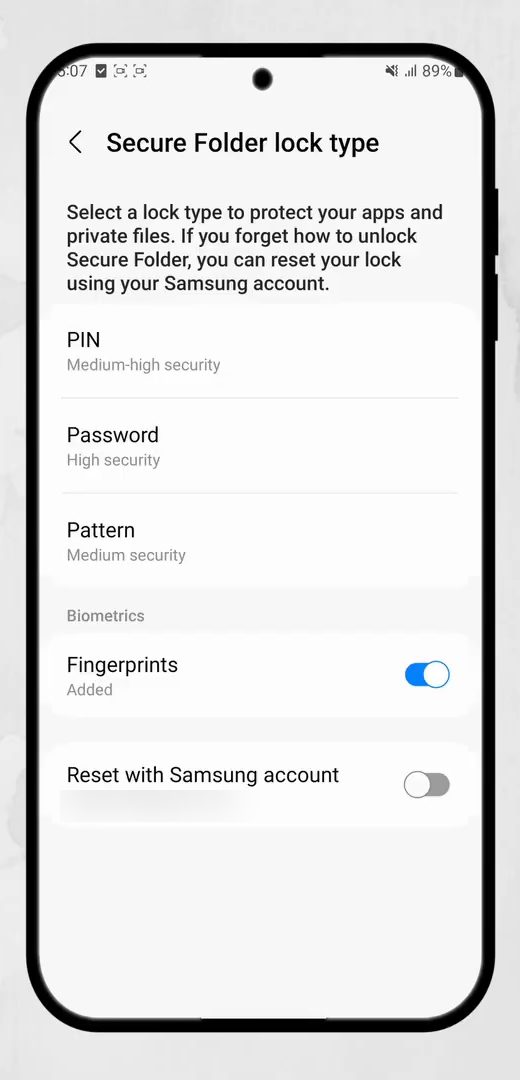
4Choose a lock type
Pick how you want to open Secure Folder: PIN, Password or Pattern, and set it. You can also keep Fingerprints on. The selected photos then leave your Gallery and move into Secure Folder. Repeat steps 1 and 2 to hide more.
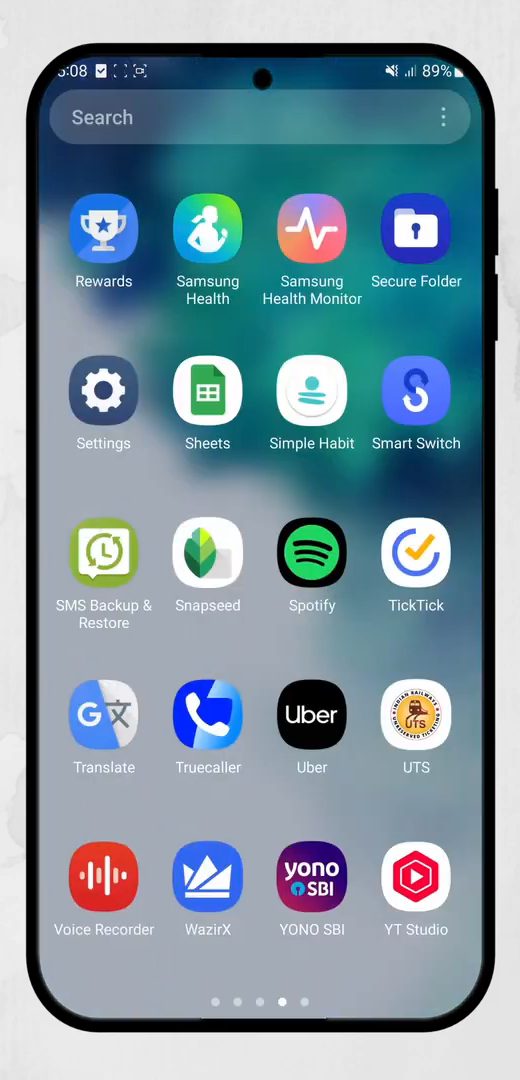
5Open Secure Folder from the app drawer
To see your hidden photos, swipe up to open the app drawer and tap Secure Folder. If you can't find it there, search for Secure Folder in Settings. Enter your PIN, password or pattern.
6Open Gallery inside Secure Folder
Tap Gallery inside Secure Folder. The photos and videos you hid are all here, and only here.
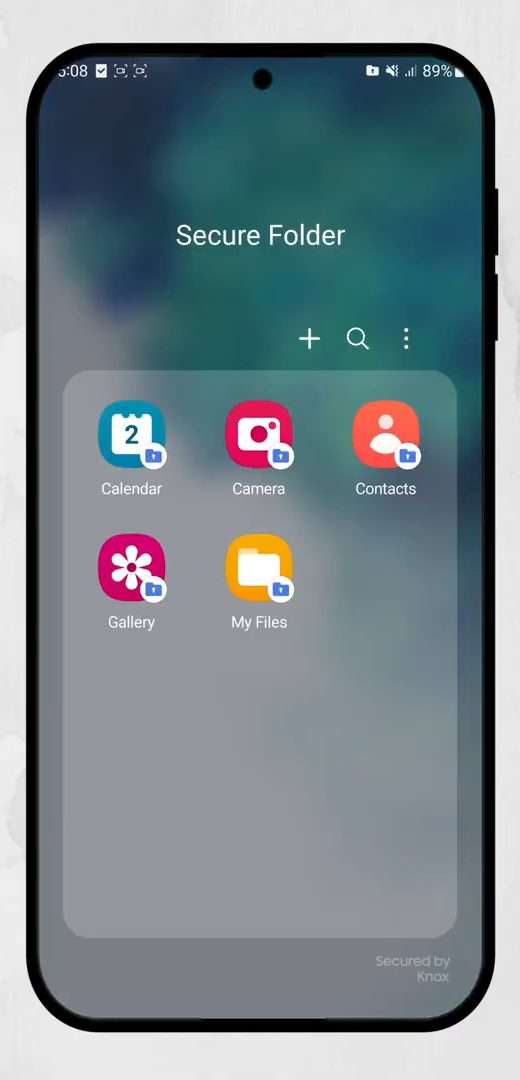
What happens to the hidden photos
Secure Folder is a separate, encrypted space on the phone, protected by Samsung Knox. Photos you move there are stored only inside it, so your normal Gallery, file manager and other apps outside Secure Folder no longer show them. They stay on the same phone, though. They are not uploaded anywhere just because you hid them.
To make a photo visible again, open Gallery inside Secure Folder, select it and look in the More menu for the option to move it out of Secure Folder. It then goes back to your normal Gallery.
Make Secure Folder harder to find
Anyone who picks up your phone can see the Secure Folder icon, even if they can't open it. Samsung's guide shows how to hide the icon: open Settings, go to Security and privacy > More security settings > Secure Folder, turn off Add Secure Folder to Apps screen and tap Hide to confirm. You can still get in through that same Settings screen, or by adding the Secure Folder tile to your Quick Panel (swipe down with two fingers, tap the pencil icon and drag the tile in).
Tips / troubleshooting
- Move to Secure Folder is missing. Samsung says this option only appears in Samsung's own apps, such as Gallery, My Files and Voice Recorder. In Google Photos or another gallery app you won't see it, so switch to the Samsung Gallery.
- Forgot your Secure Folder PIN. Open Secure Folder, enter a wrong code, tap Forgot PIN and enter your Samsung Account password to reset it. If you have lost both, Samsung asks you to contact its support.
- Removing Secure Folder. Samsung lists Uninstall under More settings on the Secure Folder settings screen. Move your photos out first so you don't lose them.
- Secure Folder stops working. Samsung's fix is clearing the Secure Folder app's data in Settings > Apps, but it warns this deletes everything inside it. Treat it as a last resort and move your files out first if you can still open it.
If you want to keep whole apps private too, see how to lock apps on a Samsung phone using the same Secure Folder.
FAQ
Where do hidden photos go on Samsung?
They move into the separate Gallery app inside Secure Folder. They no longer appear in your normal Gallery, so you have to open Secure Folder with your PIN, password or pattern to see them.
How do I use Samsung Secure Folder for the first time?
The first time you tap Move to Secure Folder, the phone walks you through creating it: tap Continue, allow permissions and pick a lock type.
Can I hide videos the same way?
Yes. Select videos in the Gallery just like photos and use More > Move to Secure Folder.
Does this work on other Android phones?
Secure Folder is a Samsung feature, so these exact steps only apply to Samsung Galaxy phones. Other brands have their own hidden album options, not shown here.
How do I unhide photos from Secure Folder?
Open Secure Folder, tap Gallery, select the photos and use the More menu to move them out of Secure Folder. They return to your normal Gallery.
Can I set up Secure Folder from Settings instead?
Yes. Samsung's guide sets it up from Settings > Security and privacy > More security settings > Secure Folder. Once it exists, the Gallery's Move to Secure Folder option sends files straight into it.
Related guides