Tech is Easy
How to Lock Apps on Samsung Without Any App (Built-In Way)
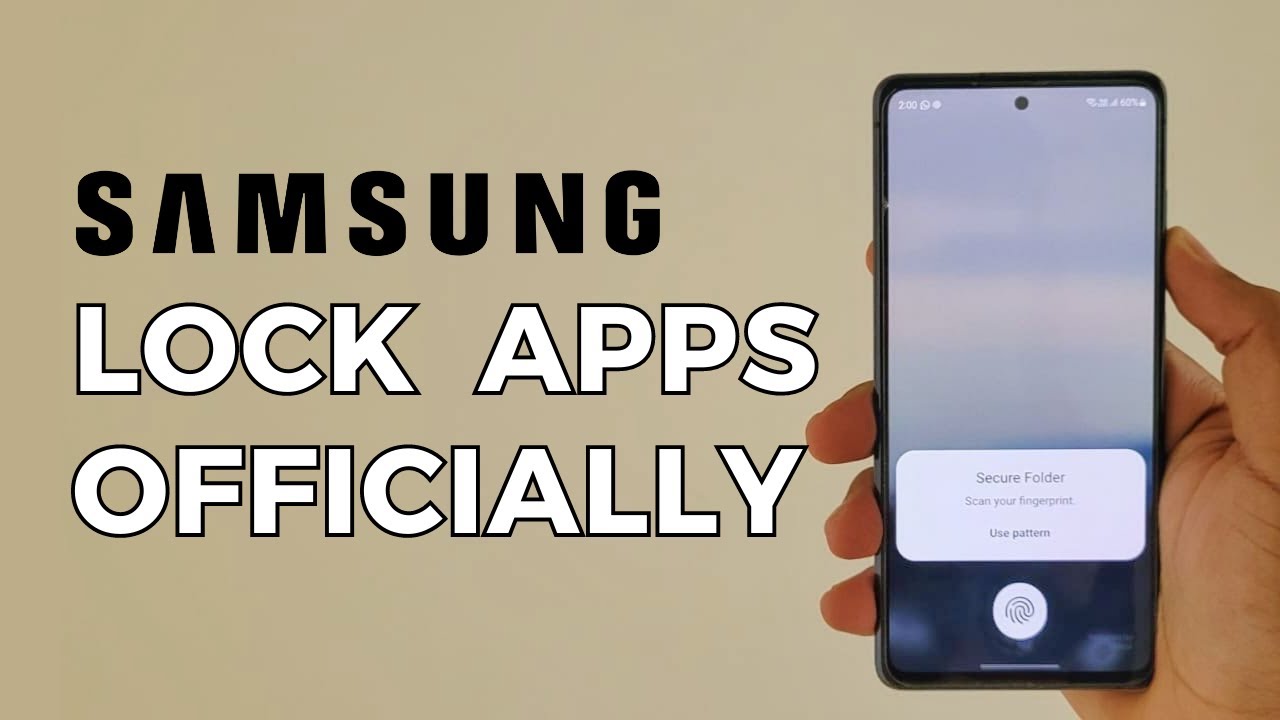
Samsung phones don't have a regular app lock setting, so a lot of people install third-party lock apps, which can cause problems on the phone. A better option is Samsung's own Secure Folder: a separate, locked space where you put the apps you want to protect. This guide shows how to set it up and lock an app like WhatsApp.
What you need
- A Samsung Galaxy phone with Secure Folder (it's in Settings on most recent models)
- A Samsung account signed in on the phone
1Open Settings
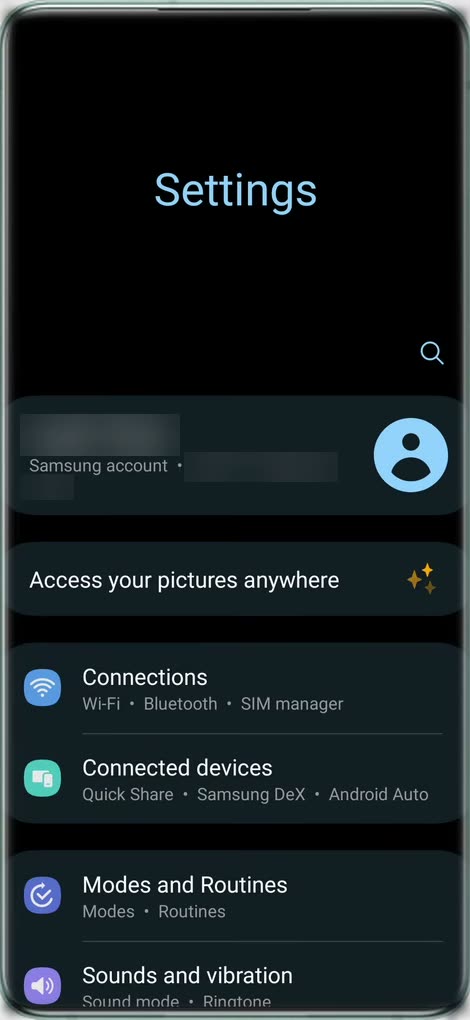
Open the Settings app on your Samsung phone and tap the search icon at the top.
2Search for Secure Folder
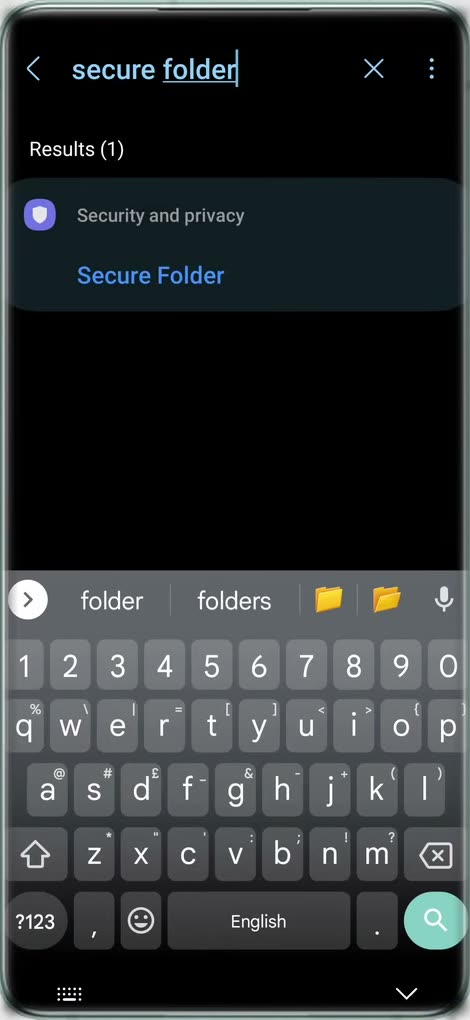
Type secure folder in the search bar. Under Security and privacy, tap Secure Folder.
3Read the intro and tap Continue
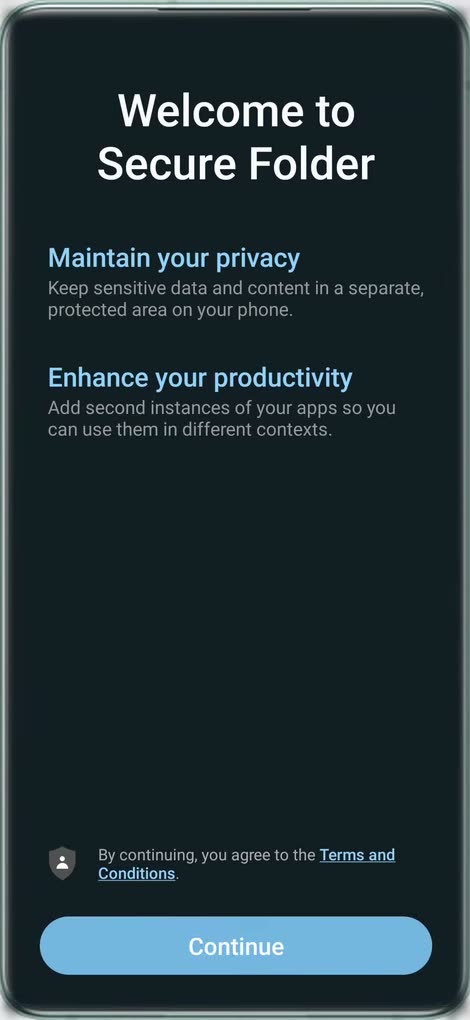
You'll see the Welcome to Secure Folder screen, which explains that it keeps your data in a separate, protected area. Tap Continue.
4Allow the permissions
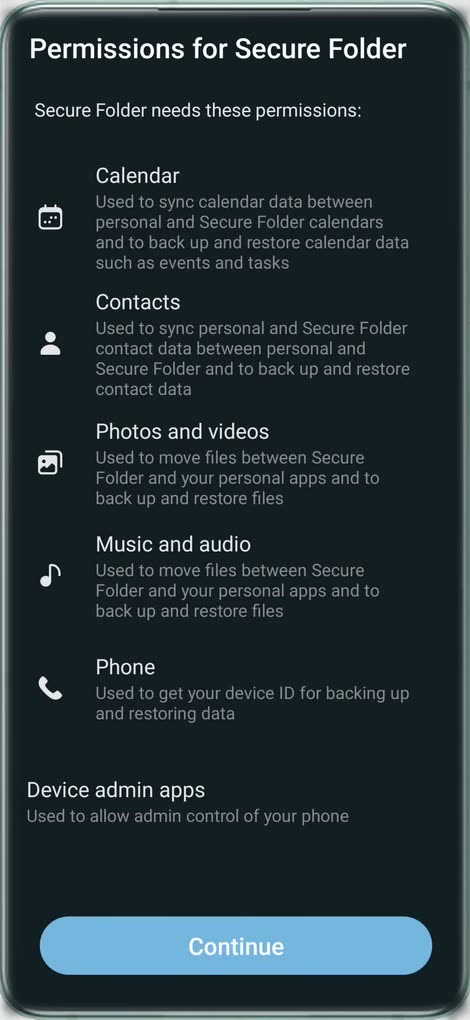
Secure Folder asks for permissions such as Calendar, Contacts, Photos and videos, Music and audio, and Phone. Go through the list and tap Continue. The phone then takes a short while to create the folder.
5Choose a lock type
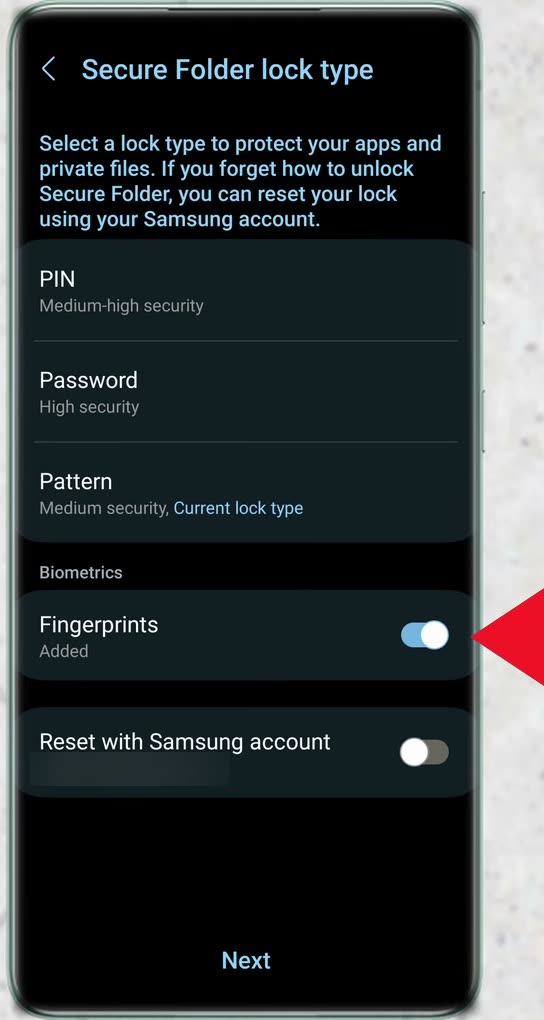
On Secure Folder lock type, pick PIN, Password or Pattern. We used Pattern and drew one. You can also turn on Fingerprints so you can open the folder with your fingerprint. Tap Next.
6Tap the plus button to add apps
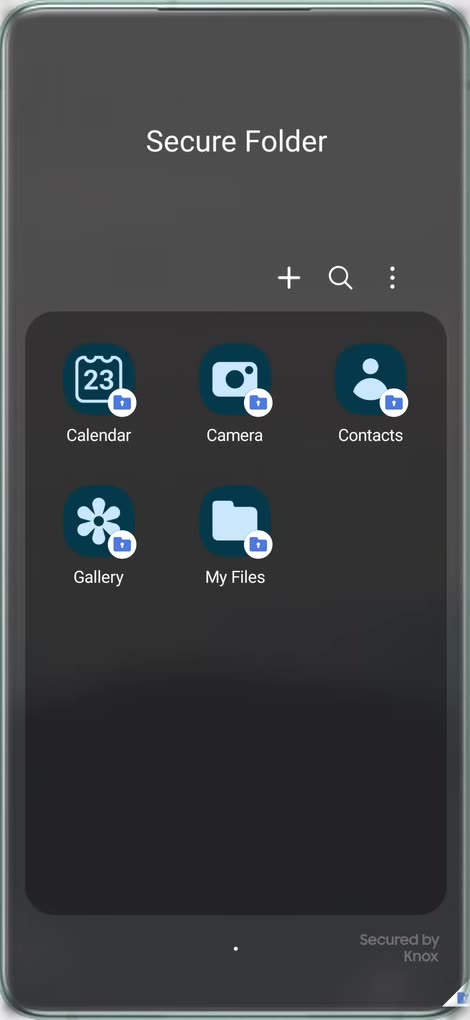
Your Secure Folder is now created, with a few default apps like Calendar, Camera and Gallery. Tap the + button at the top to add the apps you want to lock.
7Search for the app and select it
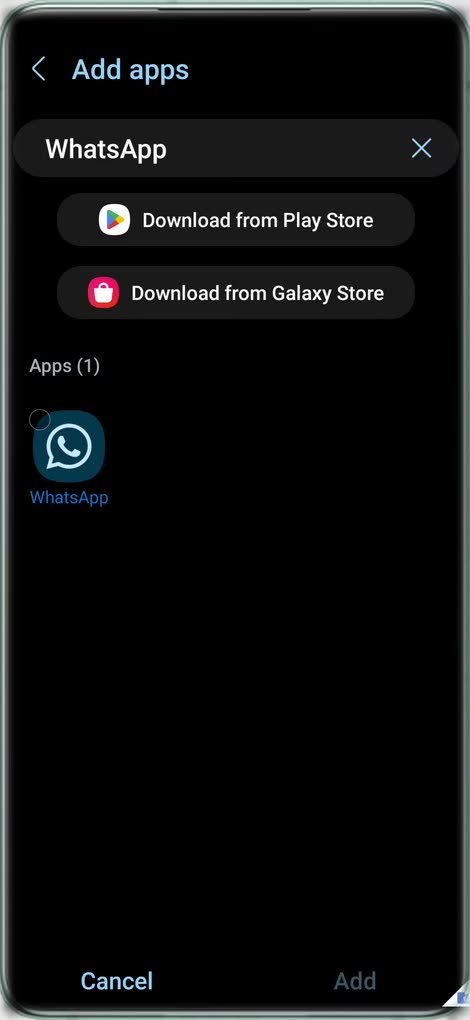
In Add apps, search for the app you want to protect, for example WhatsApp, and tap it to select it. You can select more apps from the list too.
8Tap Add
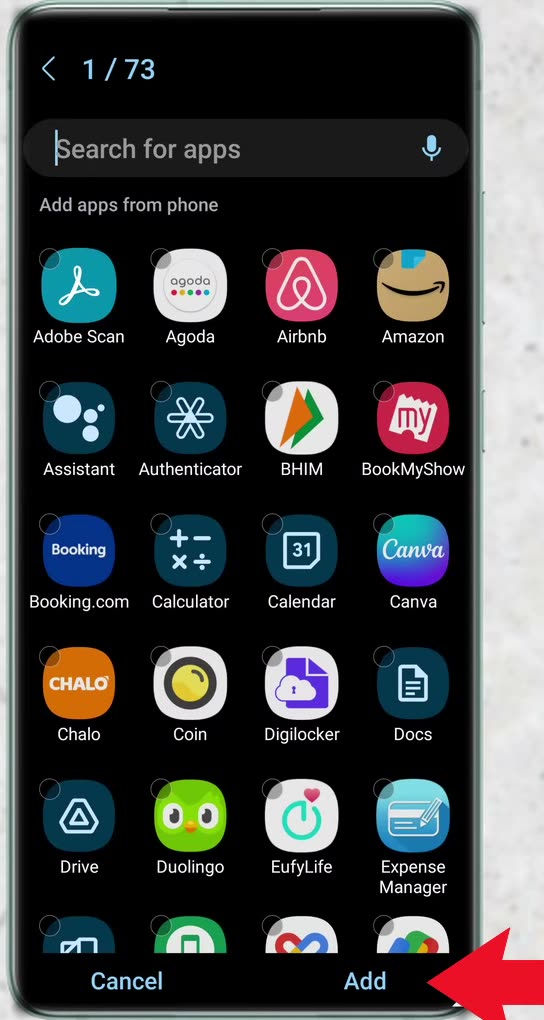
Once you've picked your apps, tap Add at the bottom right.
9Check that the app is in Secure Folder
WhatsApp now shows inside Secure Folder. Every app here can only be opened after you enter your pattern (or PIN/password) or use your fingerprint.
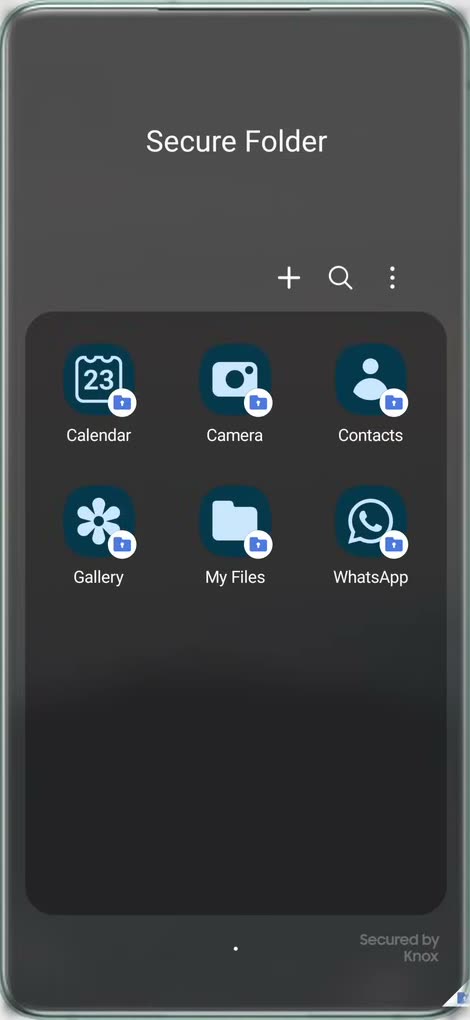
10Open Secure Folder from the apps screen
To get back to your locked apps later, open your apps screen and tap the Secure Folder icon. Enter your pattern or fingerprint and you're in.
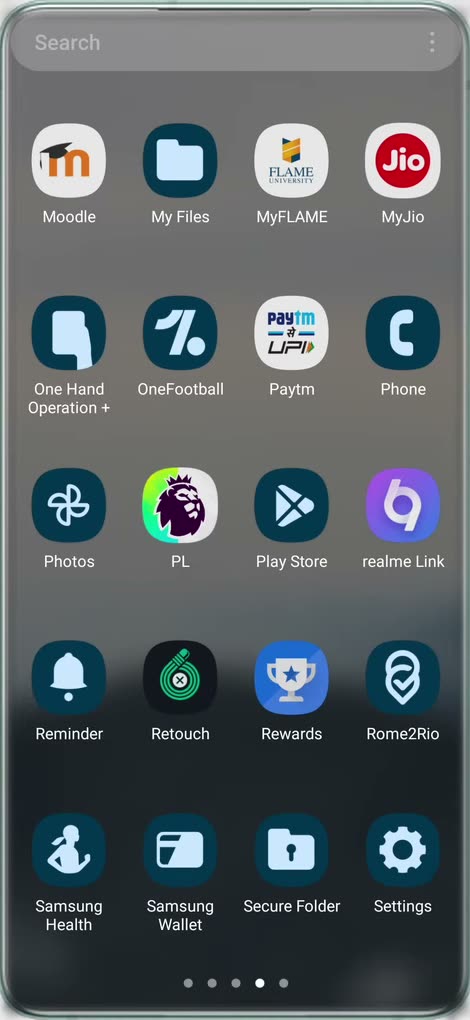
Keep the app only in Secure Folder
Adding an app makes a second copy, so the original on your home screen is still unlocked. Samsung's help page on what the Secure Folder is and how to use it explains that if you want an app to exist only in Secure Folder, you should uninstall the original from your main apps screen. You can also install apps straight into Secure Folder: on the Add apps screen there are Download from Play Store and Download from Galaxy Store options, and apps installed that way only exist inside the folder.
Move private photos and files in too
Secure Folder isn't only for apps. Open it, tap the More options (three dots) icon and choose Add files, then pick the type of file. Samsung's page notes you can either copy the files (the original stays where it was) or move them (the original is removed from the normal Gallery or My Files). Moving files from inside an app only works with Samsung's own apps, such as My Files, Gallery and Voice Recorder. Everything in Secure Folder is protected by Samsung Knox, which encrypts the data stored there.
Hide the Secure Folder icon
If you don't want the Secure Folder icon to show on your apps screen, go to Settings > Security and privacy > More security settings > Secure Folder and turn off Add Secure Folder to Apps screen, then tap Hide. The folder and everything in it stays, and you can still open it from Settings. To bring the icon back, turn the same option on again.
Tips / troubleshooting
- Apps you add to Secure Folder are separate copies. When we opened WhatsApp inside it, our chats weren't there and it asked us to sign up again. That also means you can run two different WhatsApp accounts on one phone.
- If you want a specific account locked, sign in to that account inside the Secure Folder copy of the app.
- Can't find Secure Folder in Settings? Samsung says some older phone models may no longer support it. Search for it in Settings as shown in Step 2; if nothing comes up, your model likely doesn't have it.
- Asked to sign in? Secure Folder needs a Samsung account. Sign in to an existing one or create one during setup.
- Removing Secure Folder deletes its contents. Uninstalling it (Settings > Security and privacy > More security settings > Secure Folder > More settings > Uninstall) deletes the data inside, so move out anything you want to keep first.
FAQ
Does Samsung have a built-in app lock?
There's no simple app lock toggle, but Secure Folder does the same job. Any app you put inside it can only be opened with your PIN, password, pattern or fingerprint.
Will my WhatsApp chats show up in Secure Folder?
No. The WhatsApp inside Secure Folder is a separate copy, so it starts fresh and asks you to register. Your regular WhatsApp on the home screen stays as it is.
Can I use fingerprint to open Secure Folder?
Yes. While choosing the lock type, turn on Fingerprints. You can then open Secure Folder with your fingerprint instead of the pattern or PIN.
Can I lock apps on Samsung without Secure Folder?
Samsung phones don't have a separate password option for each app outside Secure Folder, so Secure Folder is the only built-in way. If you just want an app out of sight, you can hide apps on Samsung from Home screen settings instead. Anything else needs a third-party app lock from the Play Store.
What if I forget my Secure Folder PIN or pattern?
You can reset it with your Samsung account. On the unlock screen, tap Forgot PIN (or the equivalent for your lock type) and enter your Samsung account password. If you've lost both the Secure Folder lock and your Samsung account password, Samsung asks you to contact its support team.
Do I need to install a third-party app lock?
No. Secure Folder comes from Samsung and is already on the phone, so you don't need to download anything.
Related guides