Tech is Easy
How to Hide Instagram Chats Without Deleting Them
To hide Instagram chats without deleting them, open the chat, tap the person's name at the top, then tap Options > Restrict. The chat moves out of your Primary inbox into Requests, and every message stays where it was. This works on any account type, including private accounts, and you don't need a professional account.

What you need
- The Instagram app on your phone, signed in to your account
- An existing chat you want to hide
1Open your chats
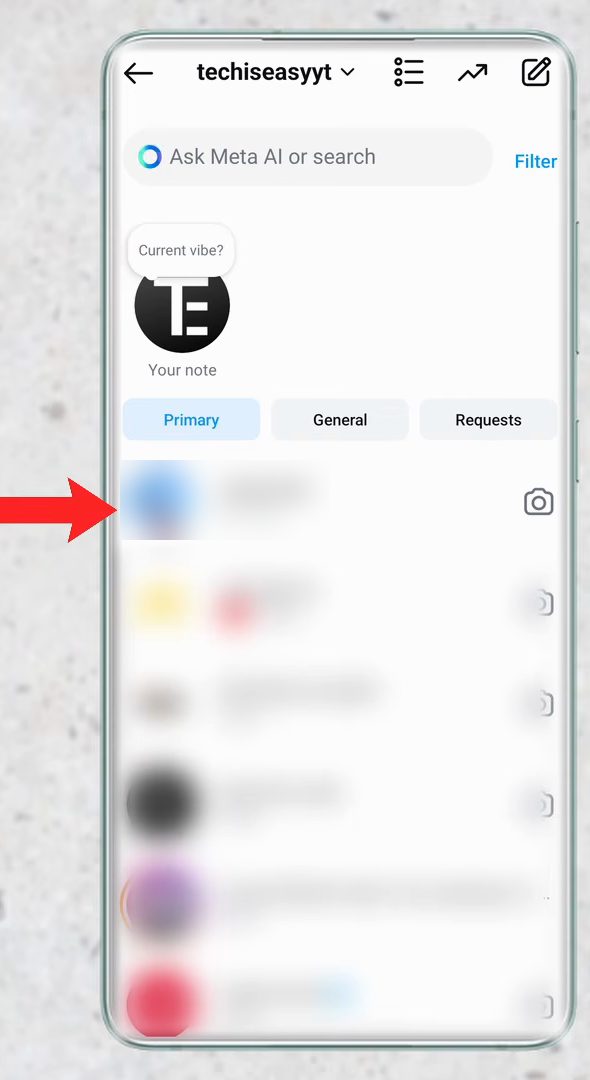
Open Instagram and go to your chats (the messages icon). Find the conversation you want to hide. In our example it sits at the top of the Primary tab.
2Open the chat and tap the name at the top
Tap the chat to open it, then tap the person's name and username at the top of the screen. This opens the chat details page.
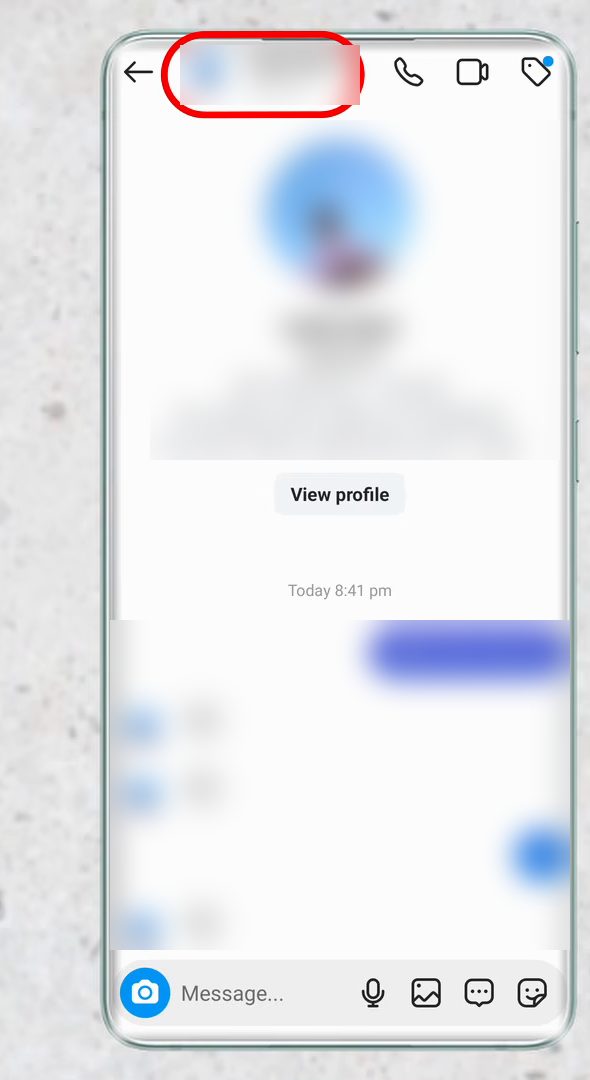
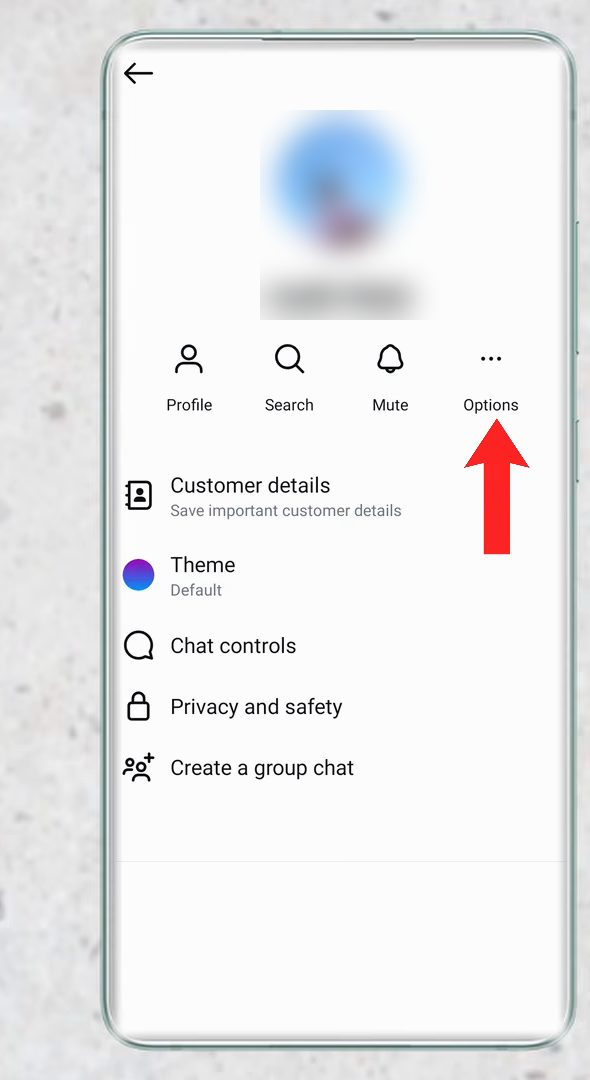
3Tap Options
On the details page you will see Profile, Search, Mute and Options. Tap Options (the three dots).
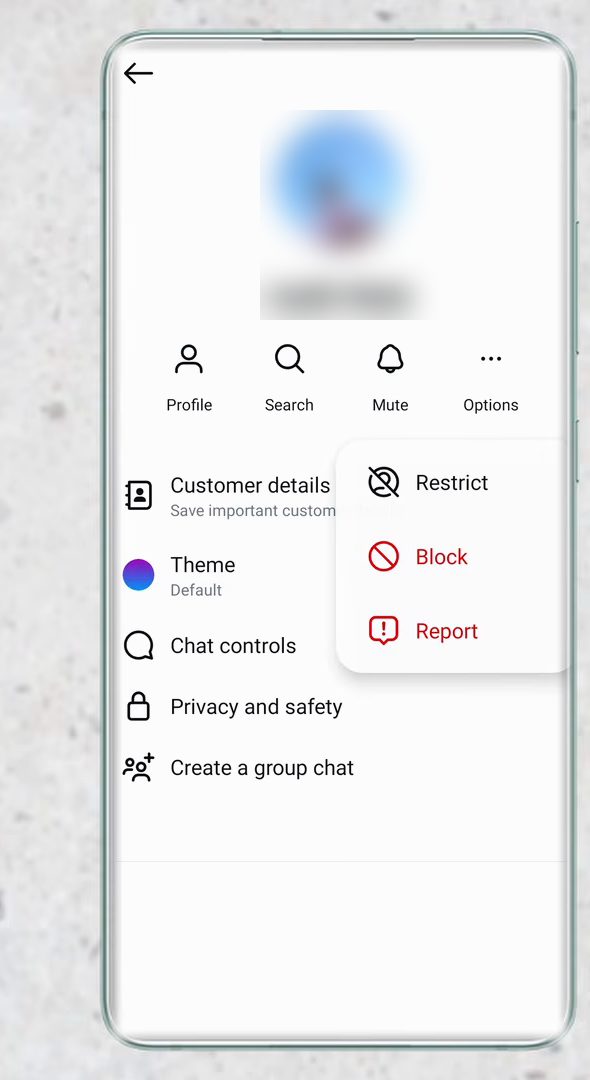
4Tap Restrict
From the menu that appears, tap Restrict. Restricting an account does three things: the person can't see when you are online, they can't see when you've read their messages, and the chat moves from Primary to Requests. They are not told that you restricted them.
5Check that the chat is hidden
Go back to your chats. The conversation is no longer in Primary. Nothing has been deleted, it has only moved.
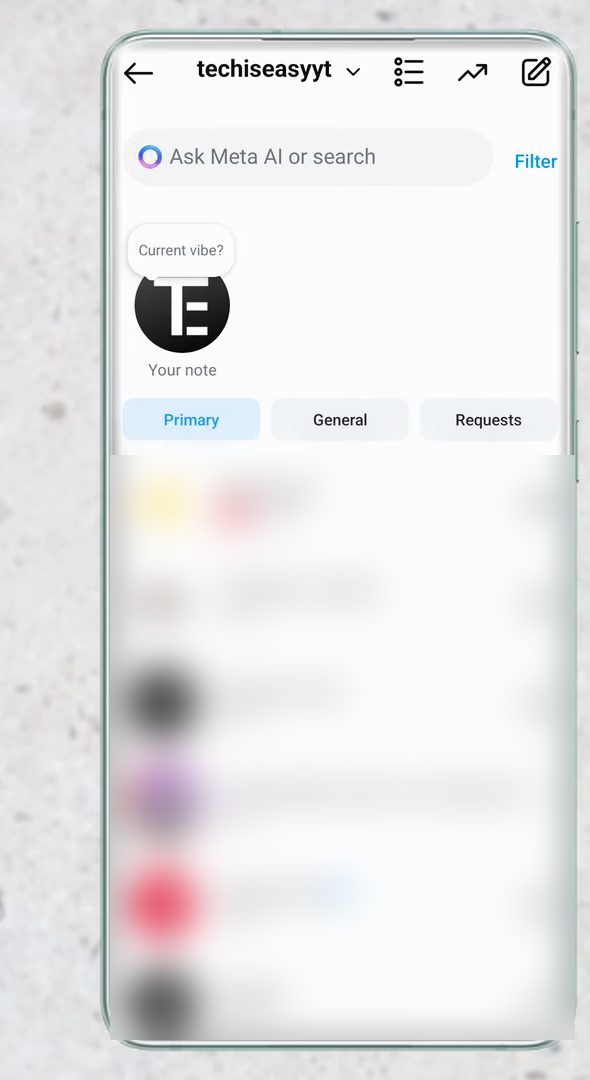
6Find the hidden chat in Requests
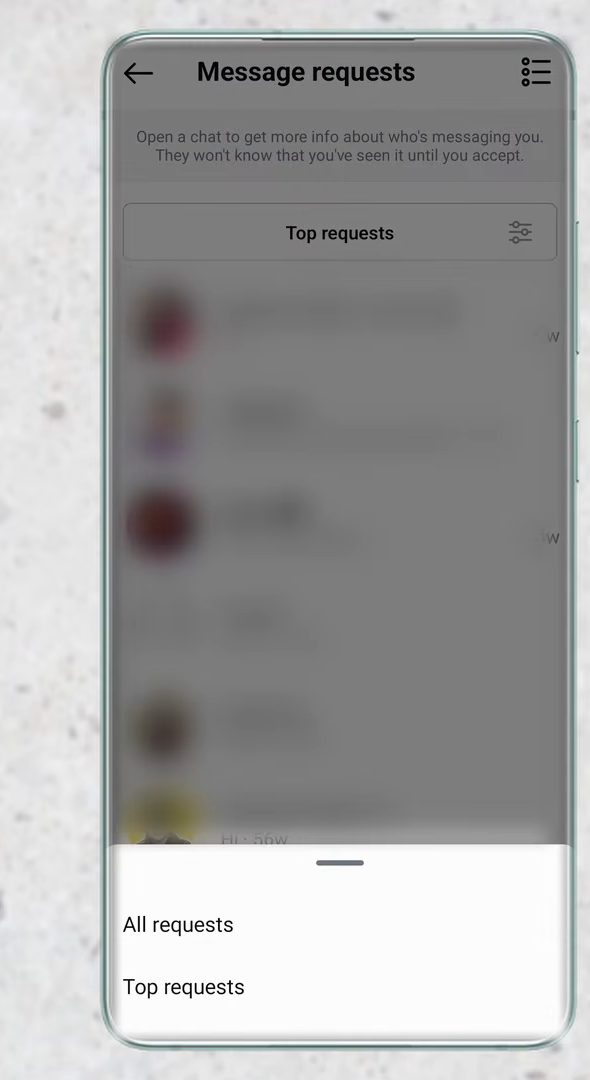
To see the hidden chat, tap the Requests tab. If you can't spot it, tap Top requests at the top of the list and switch it to All requests. The restricted chat shows up there, and you can open it and read every message, including new ones they send.
7Unrestrict to reply, then hide it again
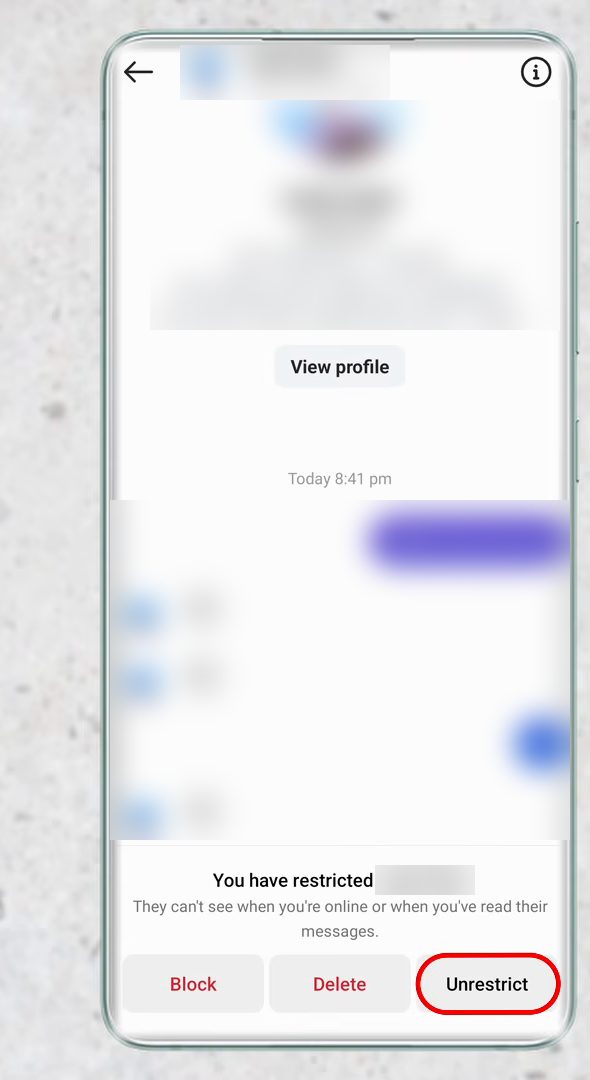
You can't reply while the account is restricted. To type back, open the chat and tap Unrestrict at the bottom. When you want to hide the chat again, repeat steps 2 to 4 and restrict the account once more.
What else Restrict changes
Restrict is a privacy tool, so it does a bit more than move a chat. Instagram's help page on restricting someone lists the effects: - Future messages go to Requests too. It's not just the old chat. Anything new they send lands in Message requests as well, so the conversation stays out of your main inbox. - You can read without them knowing. You can see their messages without the person seeing that you've read them. - Comments are hidden. Their new comments on your posts are only visible to them. You can tap See comment to read one, then Approve it to make it public or Delete it. - No comment notifications. You stop getting notified when they comment on your posts. - Group chats warn you. If you share a group chat with someone you restricted, Instagram shows a warning that you'll see a restricted account's messages, and you can choose to stay or leave.
If you only want the comment and notification part without hiding the chat, this is not the right tool, since Restrict always does both.
Other ways to restrict (and find who you've restricted)
You don't have to open the chat to restrict someone. Instagram's help page also lists: - From their profile: open their profile, tap Options at the top right and tap Restrict. - From a comment: tap and hold their comment on your post and tap Restrict account. - From settings: go to your profile, tap the menu at the top right, and under How others can interact with you tap Restricted. This page lists every account you have restricted, and you can Unrestrict anyone from here. It's the quickest way to find a chat you hid months ago.
If you use Instagram Lite, Instagram says you can only restrict someone from their profile.
Restrict vs mute vs block
- Mute (on the same chat details page) only stops notifications. The chat stays in Primary where anyone can see it.
- Restrict hides the chat in Requests, hides your online and read status from them, and keeps every message.
- Block stops them from contacting you at all. Use it for harassment, not just to tidy your inbox.
Tips / troubleshooting
- Restrict is the cleanest way to hide a single chat because it keeps the full history. Deleting the chat removes it from your side for good.
- Since restricting also hides your online status from that person, you may want to hide it from everyone. See how to hide your activity status on Instagram.
FAQ
How do I hide a chat on Instagram without deleting it?
Open the chat, tap the name at the top, then tap Options > Restrict. The chat leaves your Primary inbox and moves to Requests with all messages intact.
Where do hidden Instagram chats go?
They go to the Requests tab. If the chat isn't showing, change Top requests to All requests and it will appear in the list.
Will the other person know I hid the chat?
Instagram doesn't send them a notice when you restrict them. They just won't see when you are online or when you've read their messages while the restriction is on.
How do I see all the chats I've hidden this way?
Go to your profile, tap the menu at the top right and open Restricted under How others can interact with you. Every account listed there has its chat in Requests.
Can I reply to a hidden chat?
Not while it is restricted. Tap Unrestrict in the chat to reply, then restrict the account again if you want the chat hidden.
Related guides