Tech is Easy
How to Import and Export Bookmarks in Chrome (Step-by-Step)
To export and import bookmarks in Chrome, open the three dots > Bookmarks and lists > Bookmark manager, click the three dots at the top right of the manager and choose Export bookmarks to save an HTML file. In the other Chrome account or computer, open the same menu and choose Import bookmarks to load that file. It's the quickest way to move bookmarks from one Google account to another, or to keep a backup before resetting Chrome or switching PCs.
What you need
- Google Chrome on a computer (the video uses Windows)
- Access to both Chrome profiles or accounts, or a way to copy the file to the other computer (USB drive, email, cloud storage)
Method 1: Export bookmarks from Chrome
1Open Bookmark manager
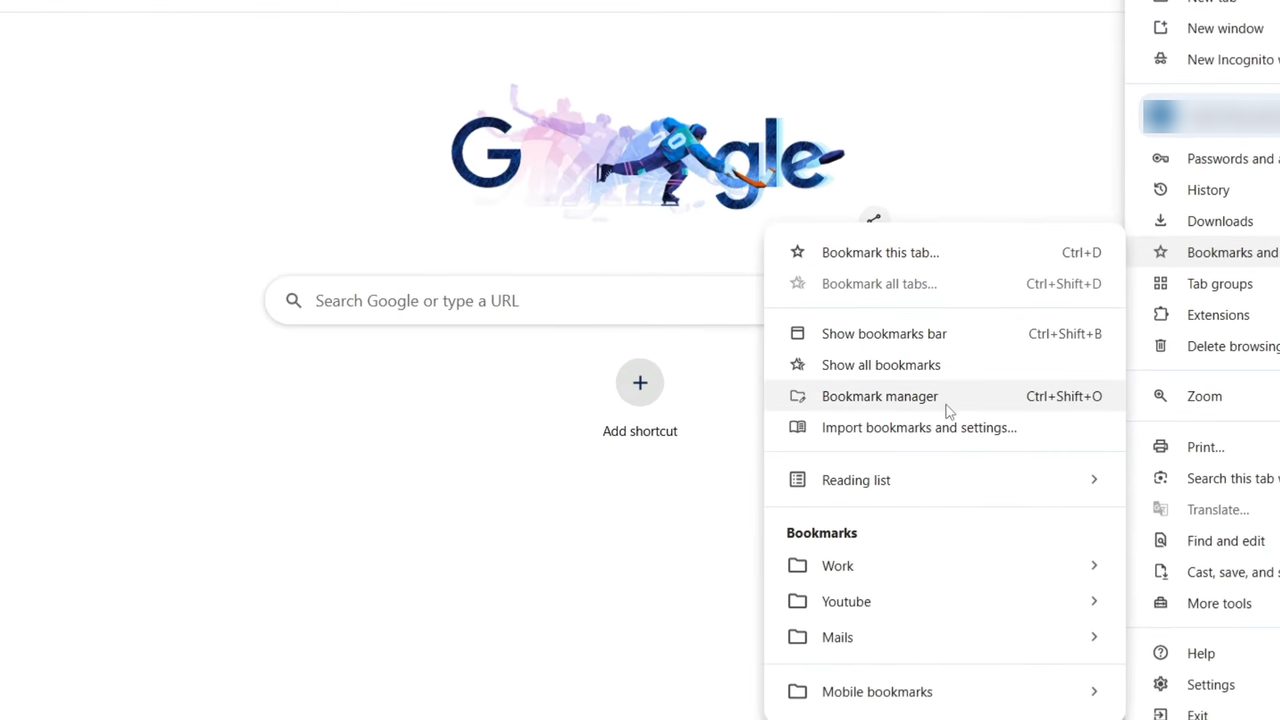
Open Chrome with the account that has your bookmarks. Click the three dots at the top right, hover over Bookmarks and lists, then click Bookmark manager. You can also press Ctrl+Shift+O to open it directly.
2Check what will be exported
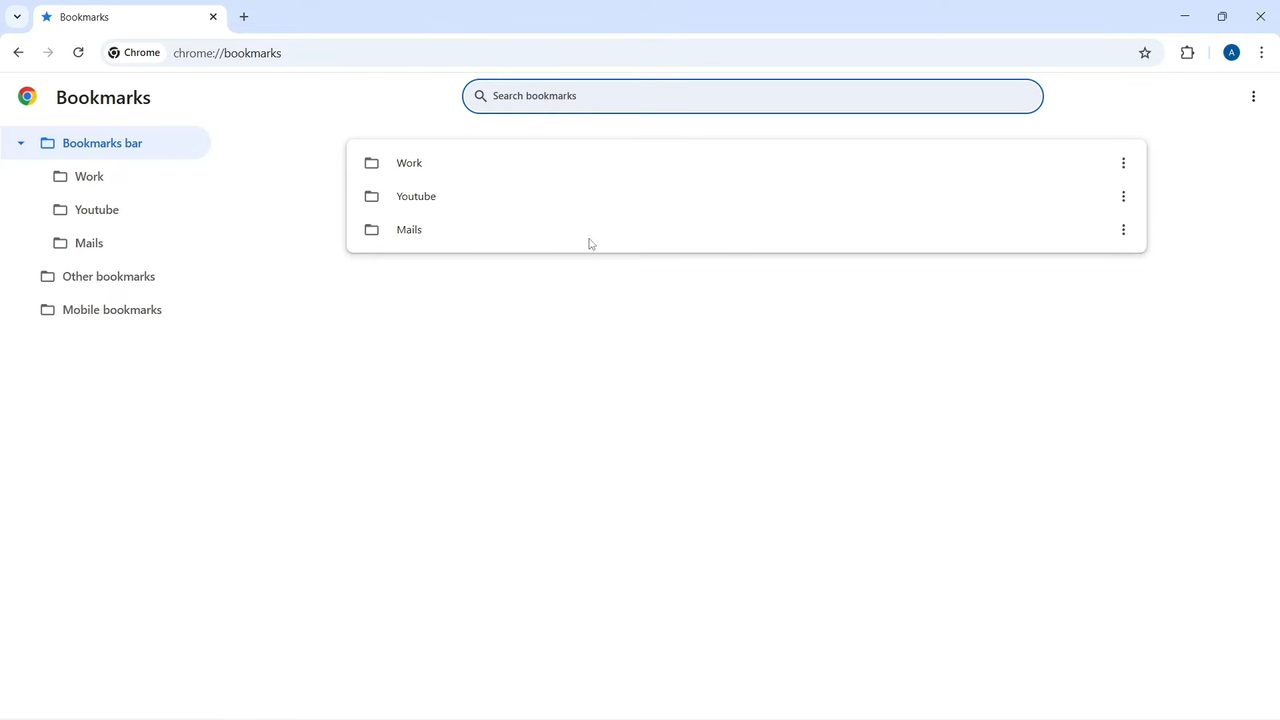
Bookmark manager shows every bookmark and folder in this profile, including Bookmarks bar, Other bookmarks and Mobile bookmarks. Everything here goes into the export file, so add, delete or tidy up folders now if you want the copy to be cleaner.
3Click Export bookmarks
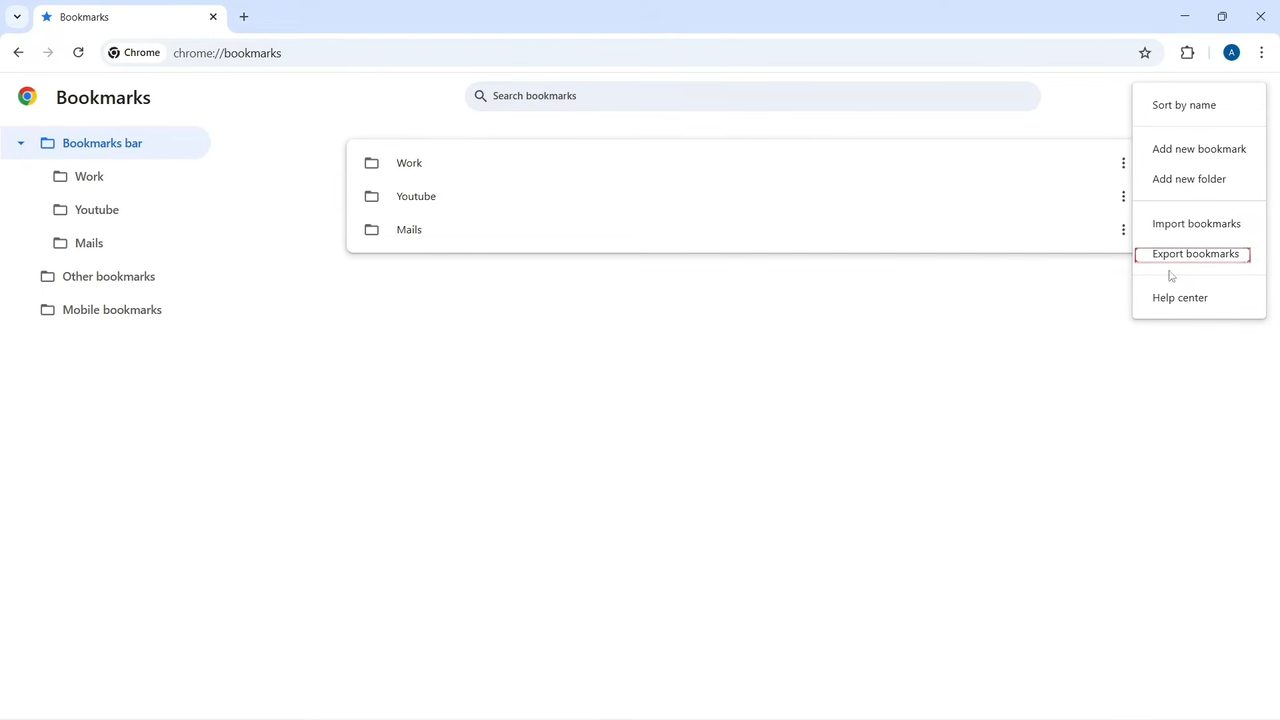
Click the three dots at the top right of the Bookmark manager page (not the main Chrome menu), then click Export bookmarks.
4Save the HTML file
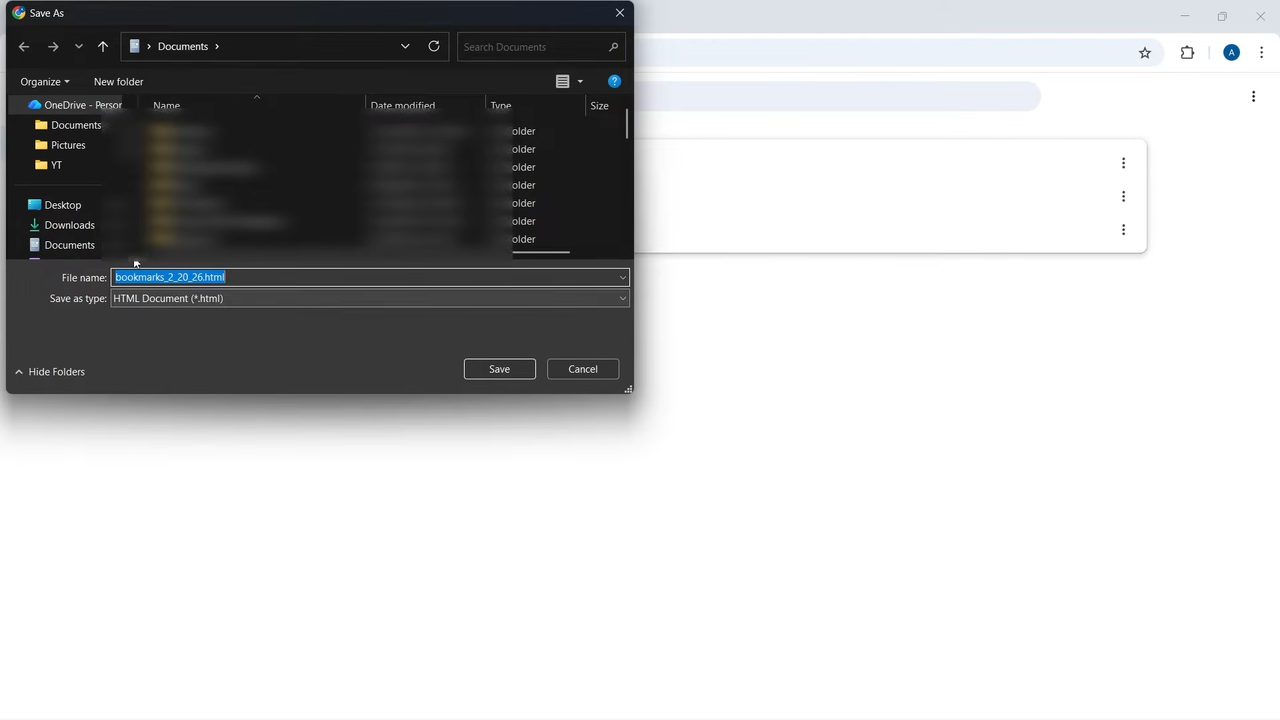
A Save As window opens with a file name like bookmarks_2_20_26.html (the numbers are the date). Save it somewhere easy to find, such as the Desktop or Downloads, and click Save. Your bookmarks are now exported.
Method 2: Import bookmarks into Chrome
5Open Bookmark manager in the other account
Switch to the Chrome profile or Google account where you want the bookmarks, or open Chrome on the new computer. Go to three dots > Bookmarks and lists > Bookmark manager again. In our example this account had no bookmarks yet. Click the three dots at the top right of the manager and choose Import bookmarks.
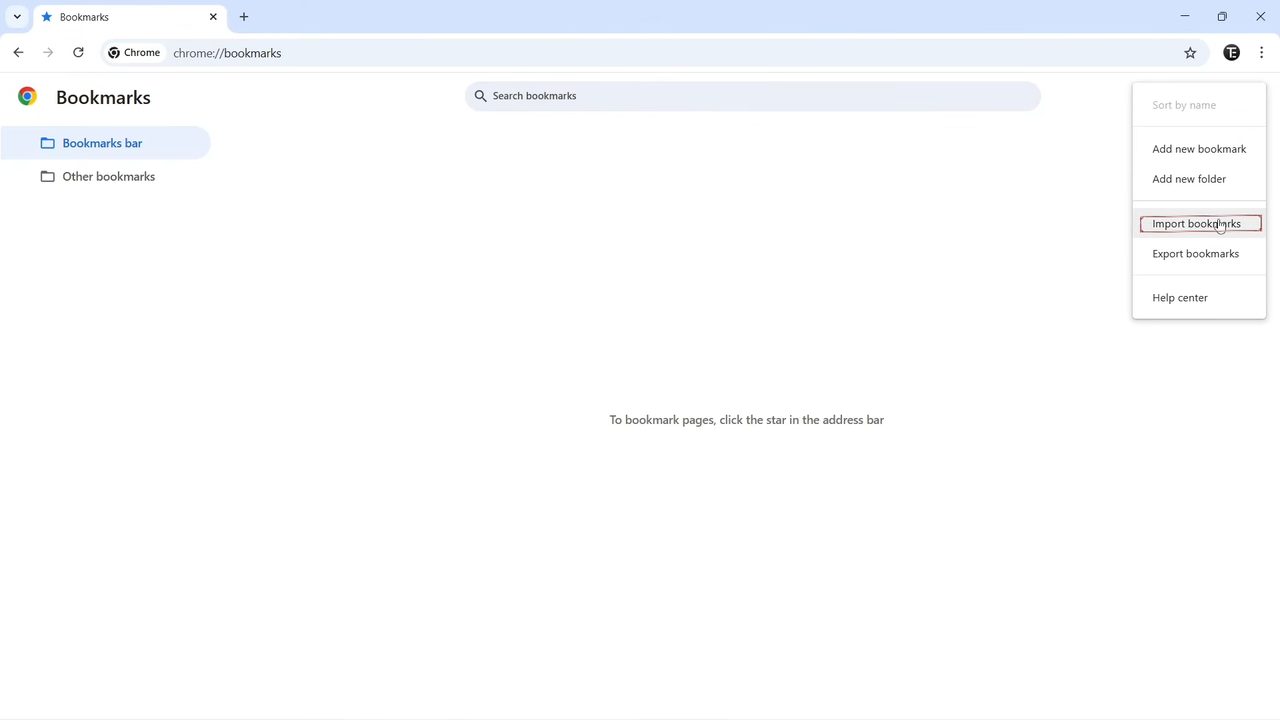
6Select the exported file
Browse to the HTML file you saved in Step 4, select it and click Open. Chrome imports it straight away. There is no confirmation message.
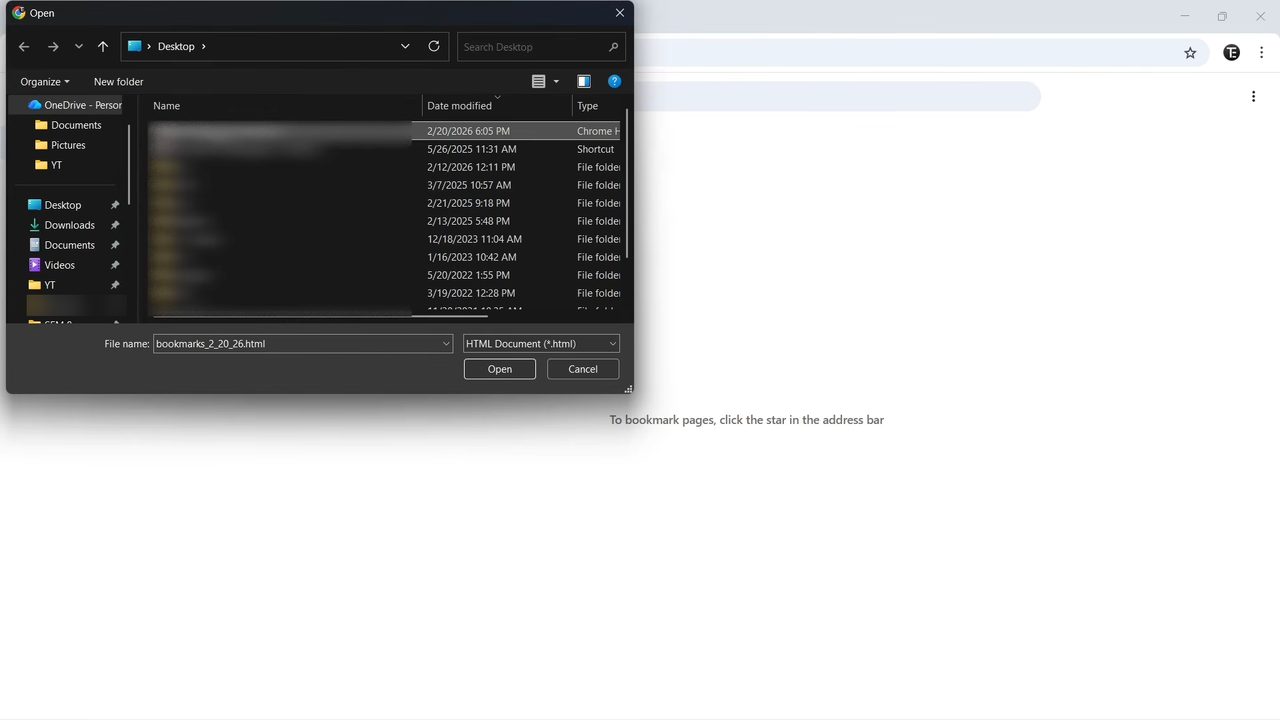
7Check your imported bookmarks
Your folders now appear in Bookmark manager and on the bookmarks bar. Open a new tab to see them on the bar, just like in the original account.
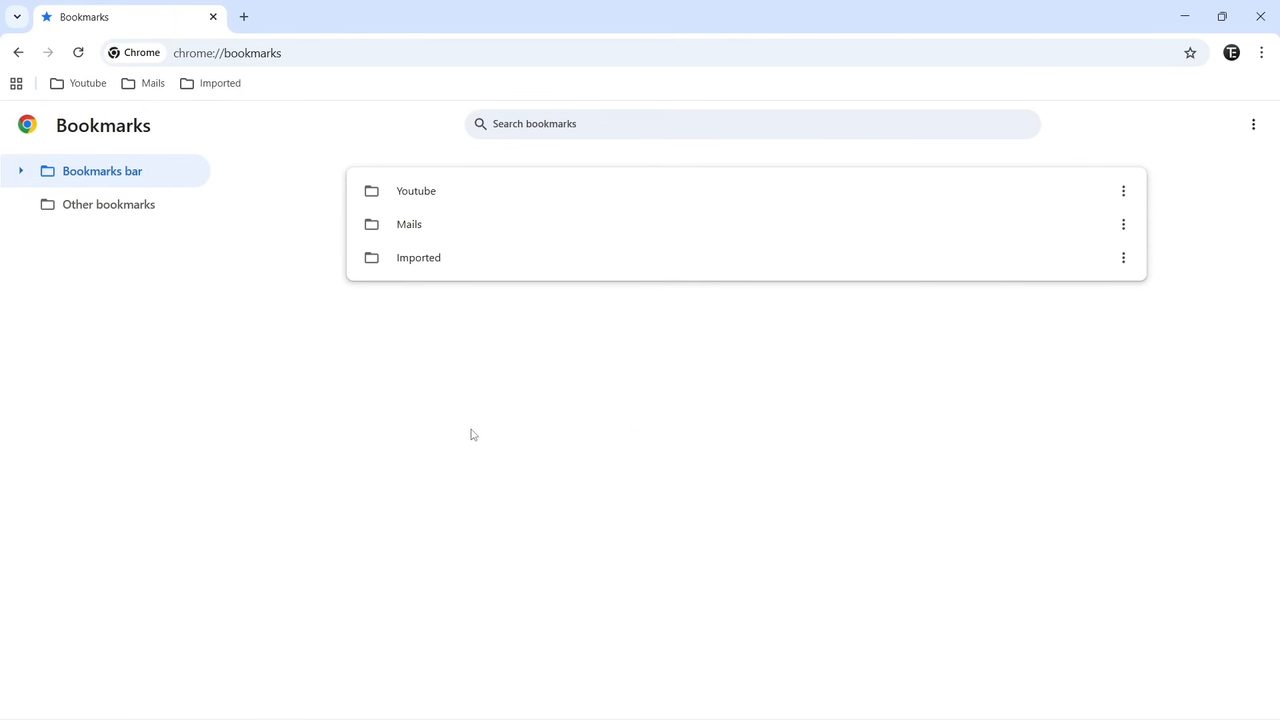
Where do imported bookmarks go?
It depends on whether the profile already had bookmarks. Google's help page says that if you didn't have any bookmarks in Chrome, the imported ones go on the bookmarks bar. If you already had some, Chrome puts the imported bookmarks in a separate folder so they don't mix with yours. In our test an Imported folder appeared on the bar next to the other folders. You can drag folders out of it and delete the empty folder afterwards.
Good to know
- Exporting doesn't remove anything. The original account keeps all its bookmarks. You get a copy, not a move.
- The file is readable. The HTML file lists every bookmarked web address. It doesn't contain passwords, but it can show what sites you use, so don't leave it on a shared computer.
- Bookmarks only. This method doesn't copy passwords, history or extensions. To move saved passwords, see How to Import and Export Passwords in Chrome.
- Works with other browsers too. The export is a standard bookmarks HTML file, so Edge, Firefox and other browsers can import it as well. Chrome's three dots > Bookmarks and lists > Import bookmarks and settings menu can also pull bookmarks from another browser on the same computer.
- You may not need a file at all. If you only want the same bookmarks on your own devices, signing in to Chrome with the same Google account and turning on sync keeps them in step automatically. The file method is for moving bookmarks between different accounts or making a backup.
Troubleshooting
- Can't find Export bookmarks? You are probably in the main Chrome menu. Export and import live in the three dots menu inside the Bookmark manager page itself (chrome://bookmarks).
- Imported bookmarks appear twice. Importing the same file twice adds a second copy. Delete the duplicate folder in Bookmark manager.
- The file won't open in the import window. Make sure you pick the .html file Chrome exported. Chrome's Bookmark manager import expects that HTML format.
- Bookmarks bar is hidden. Press Ctrl+Shift+B or click Show bookmarks bar in the Bookmarks and lists menu to see the imported folders at the top of the window.
Google's own page, Import Chrome bookmarks & settings, covers importing from other browsers as well.
FAQ
How do I transfer bookmarks from one Google account to another?
Export them from the first account with Bookmark manager > three dots > Export bookmarks, then switch to the second account and use Bookmark manager > three dots > Import bookmarks to load the HTML file.
Where are Chrome bookmarks saved when I export them?
In the folder you choose in the Save As window. The file is named something like bookmarks_2_20_26.html, with the export date in the name.
Will importing bookmarks delete my existing bookmarks?
No. Import only adds bookmarks. Existing ones stay where they are, and the imported ones are added alongside them or in a separate folder.
Can I import Chrome bookmarks on a phone?
Not shown in the video. The Bookmark manager import and export options are in Chrome on a computer. To get bookmarks on your phone, import them on a computer and sign in to Chrome on the phone with the same Google account and sync turned on.
Related guides