Tech is Easy
How to Import and Export Passwords in Chrome (Step-by-Step)
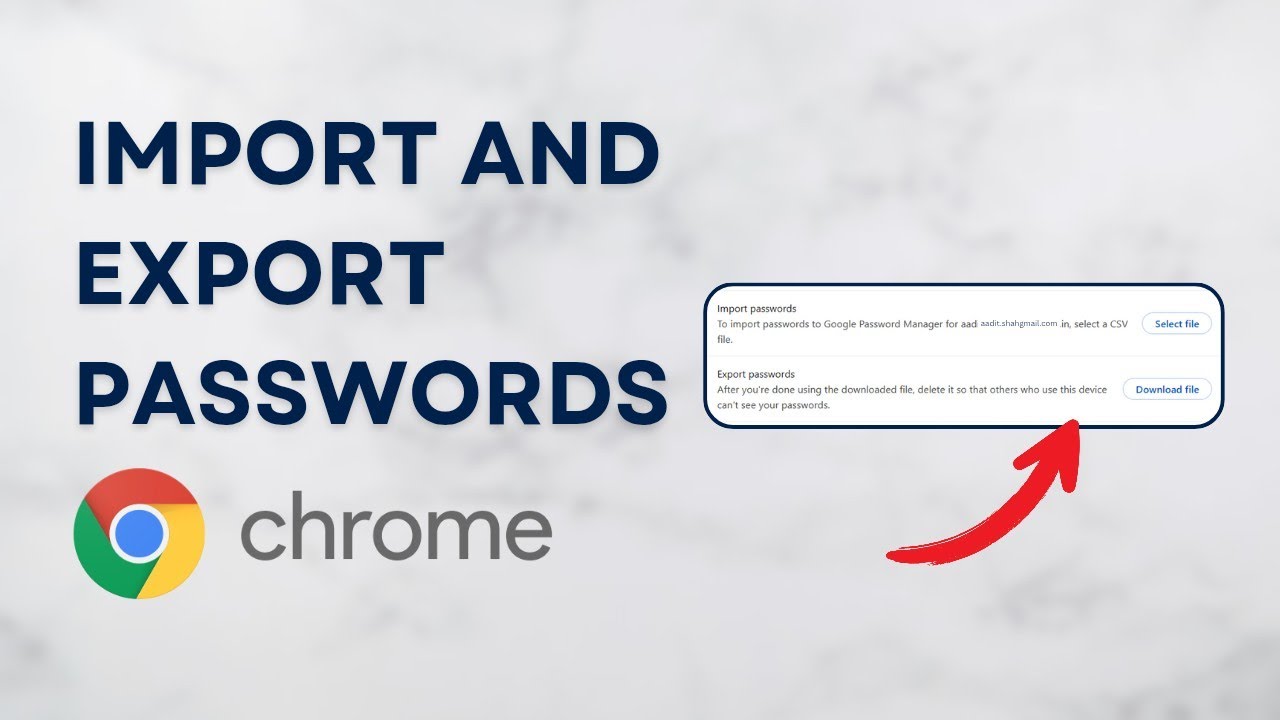
To import and export passwords in Chrome, click the three dots > Settings > Autofill and passwords > Google Password Manager, then open Settings on the left. Click Download file next to Export passwords to save them as a CSV file, and Select file next to Import passwords to load that file into another account. This is the easiest way to move or transfer passwords from one Google account to another, or to keep a backup copy of everything Chrome has saved.
What you need
- Google Chrome on a computer (the video uses Windows)
- The Chrome profile or Google account that has the passwords, and the one you want to move them to
- Your Windows PIN or password, in case Chrome asks you to confirm it's you before exporting
Method 1: Export passwords from Chrome
1Open Chrome settings
In Chrome, sign in with the account whose passwords you want to export. Click the three dots at the top right of the window and choose Settings near the bottom of the menu.
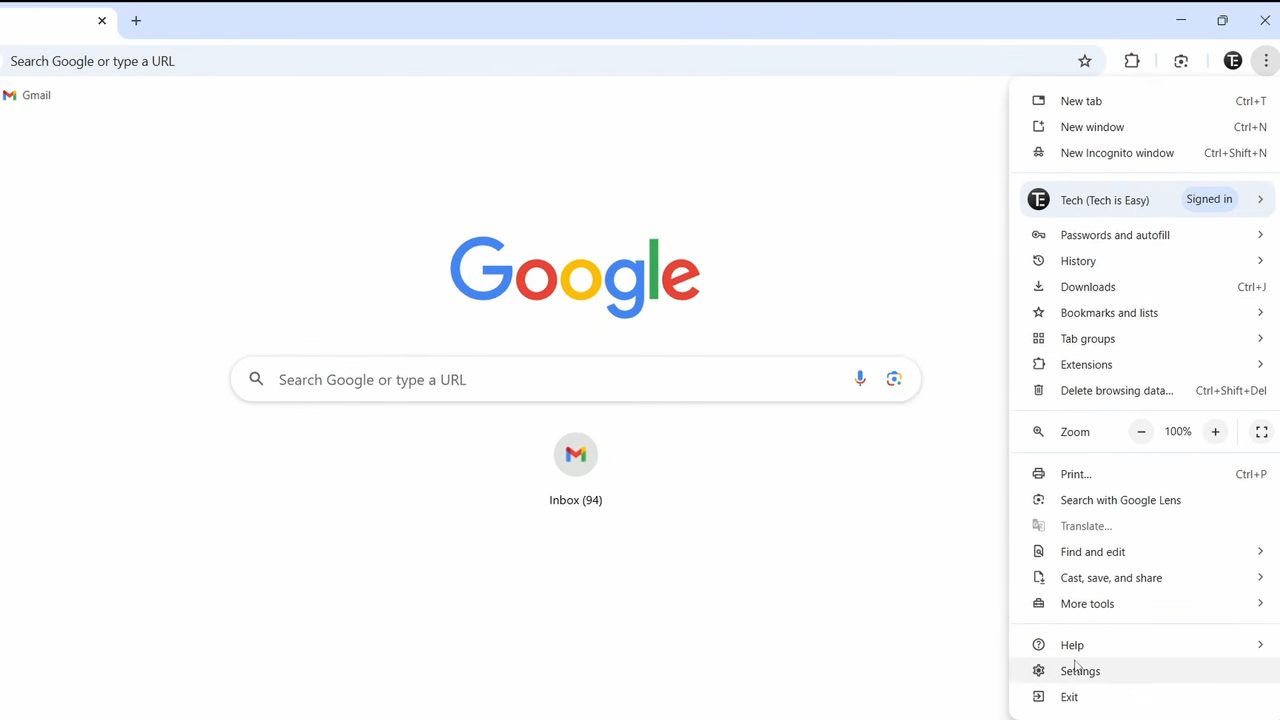
2Open Google Password Manager
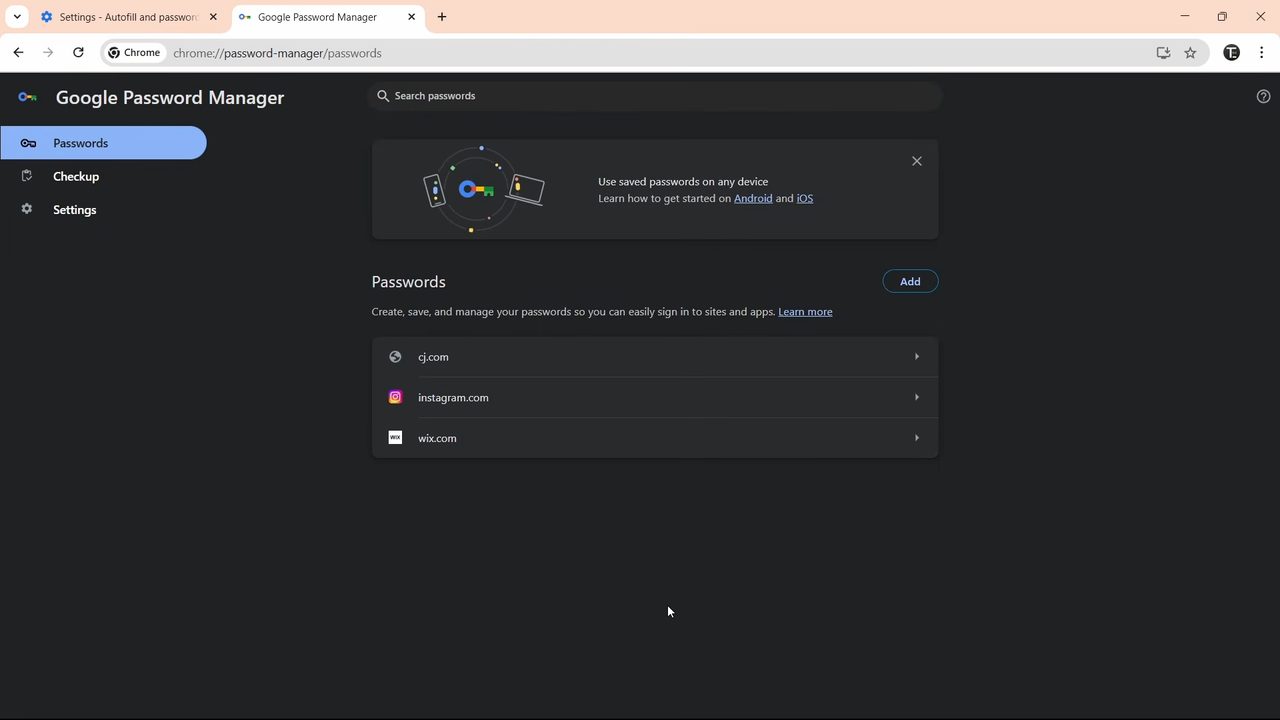
Click Autofill and passwords in the left sidebar, then click Google Password Manager. It opens in a new tab and lists every website you have a saved password for. In our example there are three: cj.com, instagram.com and wix.com.
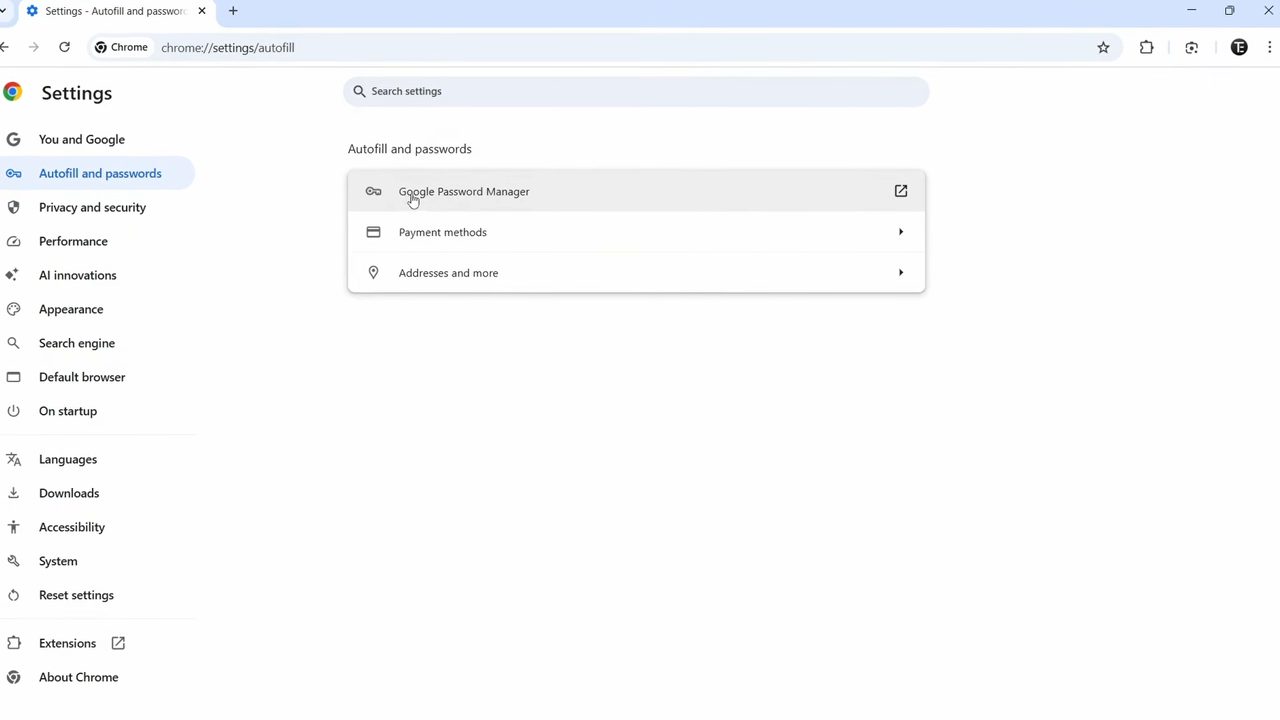
3Go to the Password Manager settings
In Google Password Manager, click Settings in the left menu. This is a separate page from Chrome's main settings and holds the import and export options.
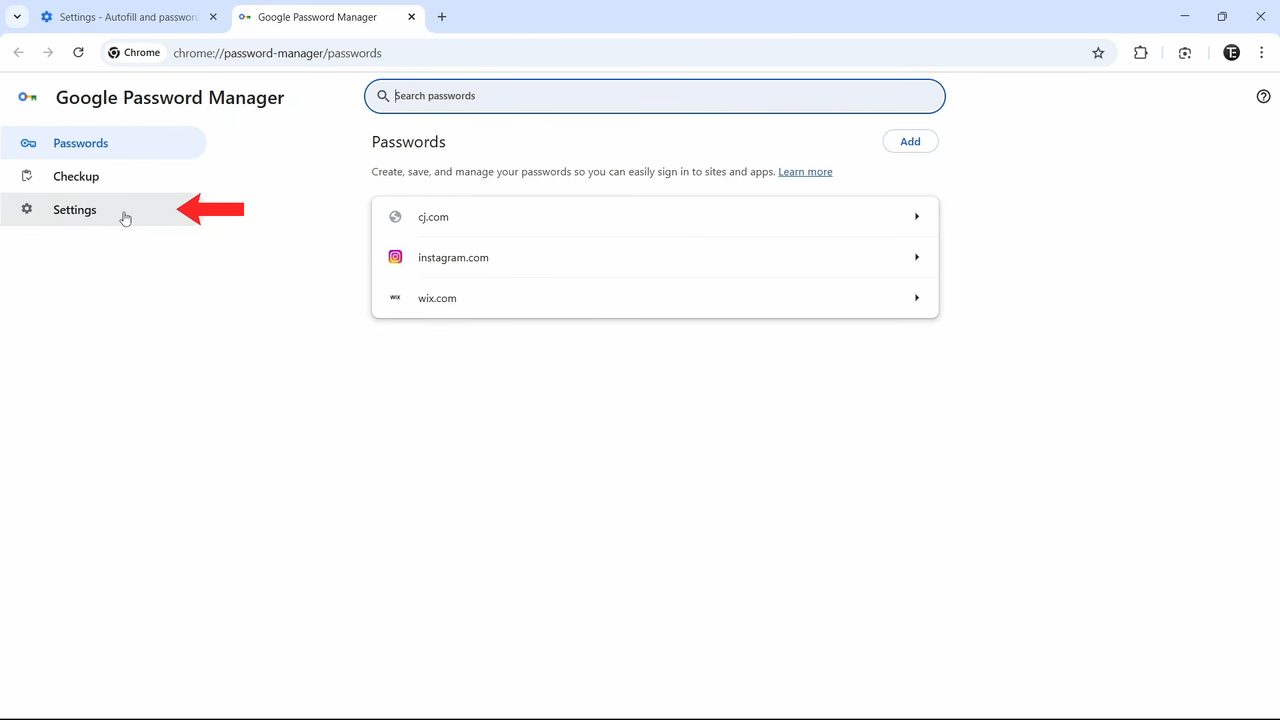
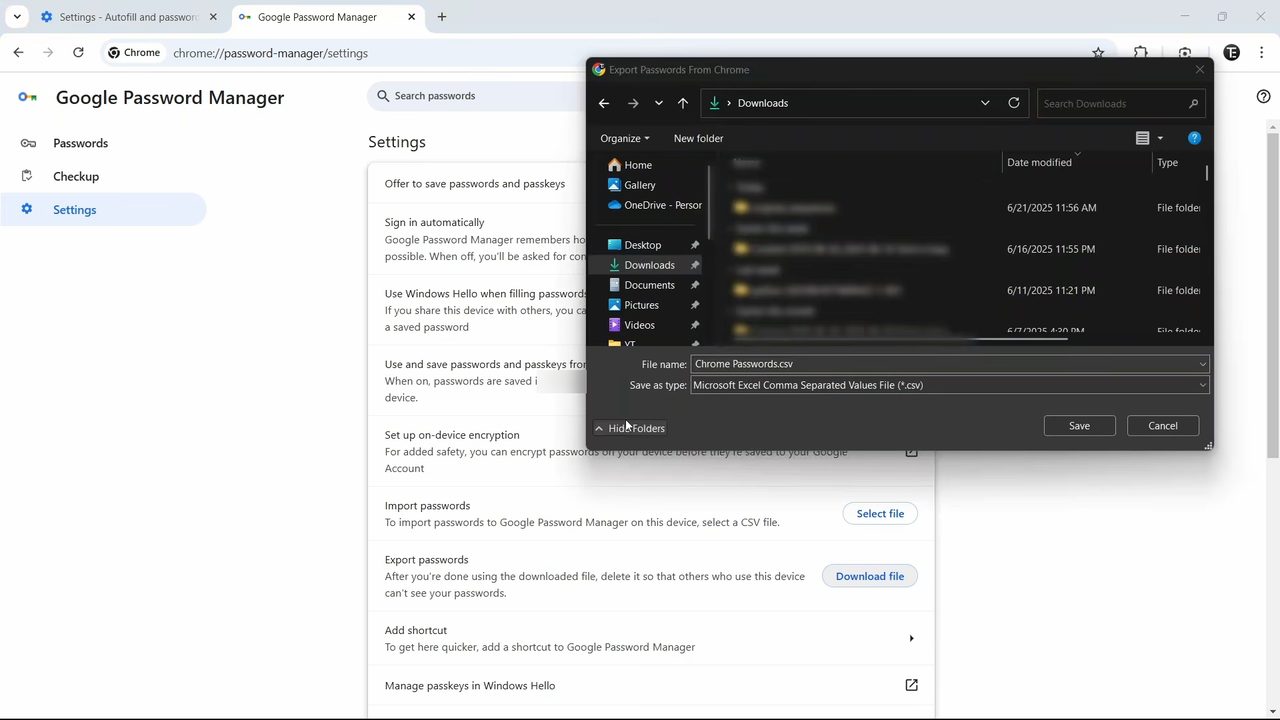
4Click Download file next to Export passwords
Find Export passwords and click Download file beside it. Chrome may ask for your computer's PIN or password first to make sure it's really you.
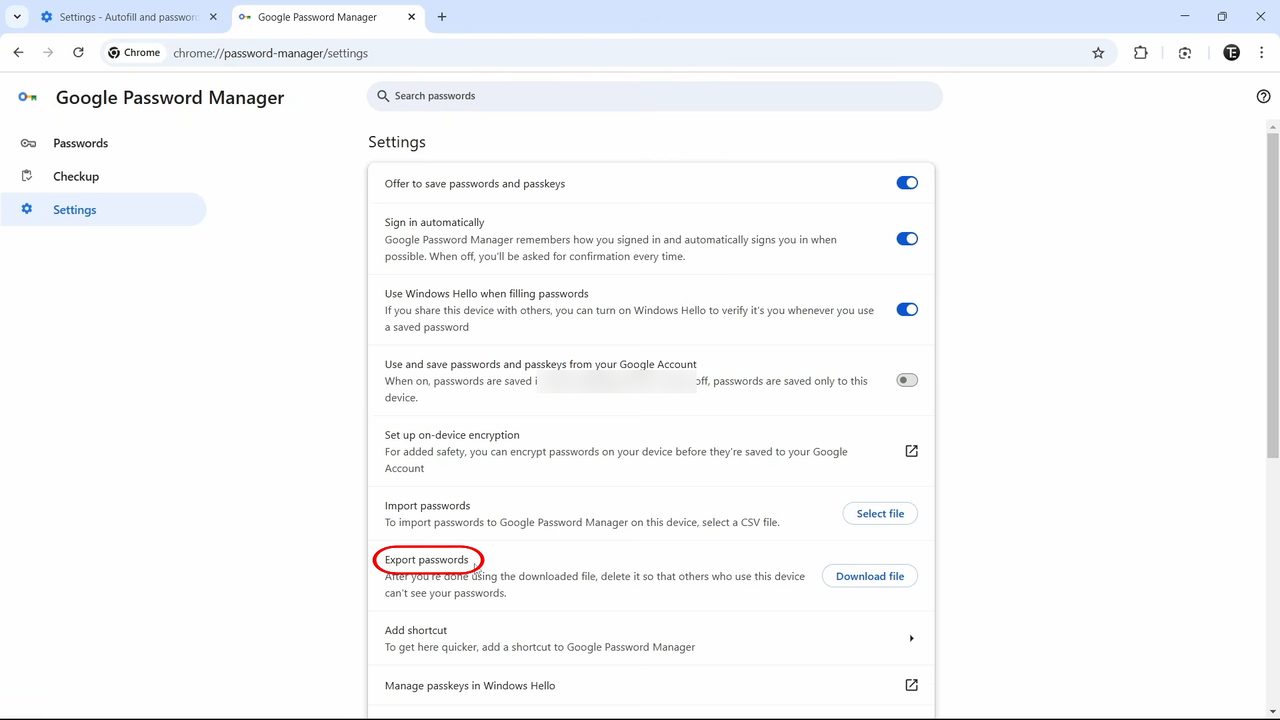
5Save the CSV file
A save window opens with the file name Chrome Passwords.csv. Pick a folder you can find again (Downloads works) and click Save. The export is now done.
Method 2: Import passwords into Chrome
6Open Password Manager settings in the other account
Switch to the Chrome profile or Google account you want to move the passwords to. Repeat the same path: three dots > Settings > Autofill and passwords > Google Password Manager, then click Settings on the left. In our case the second account had no saved passwords yet.
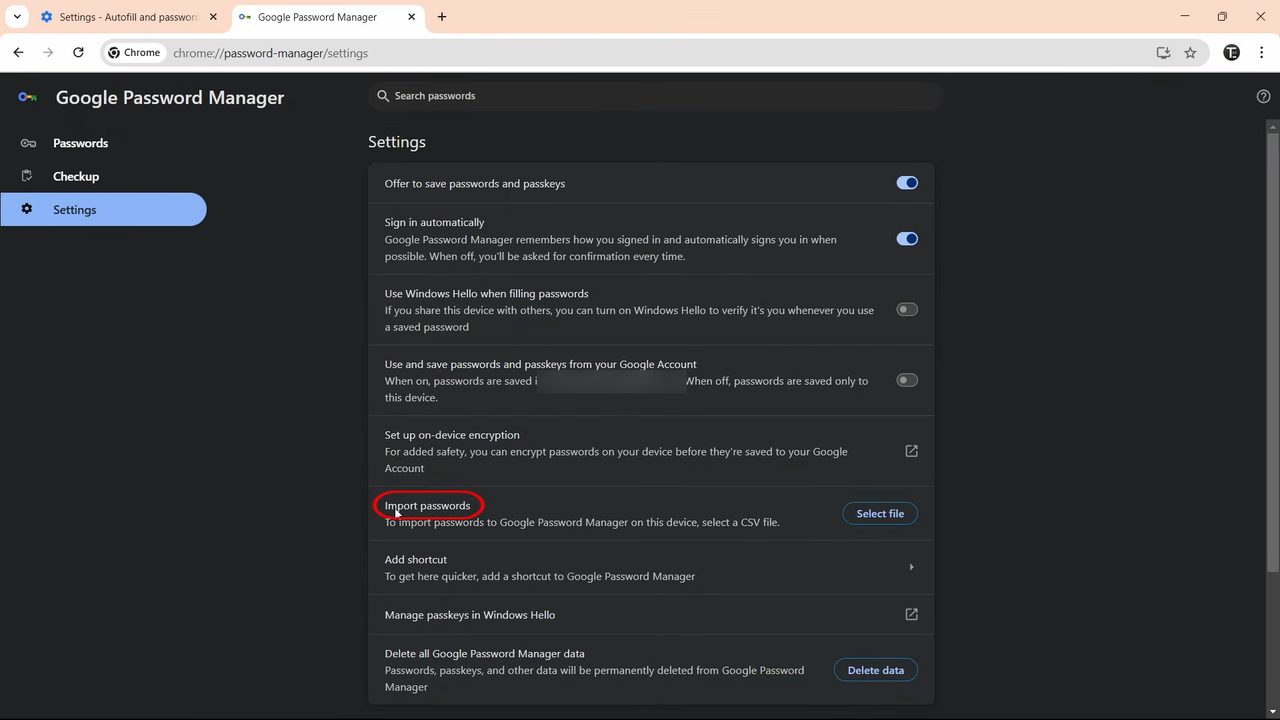
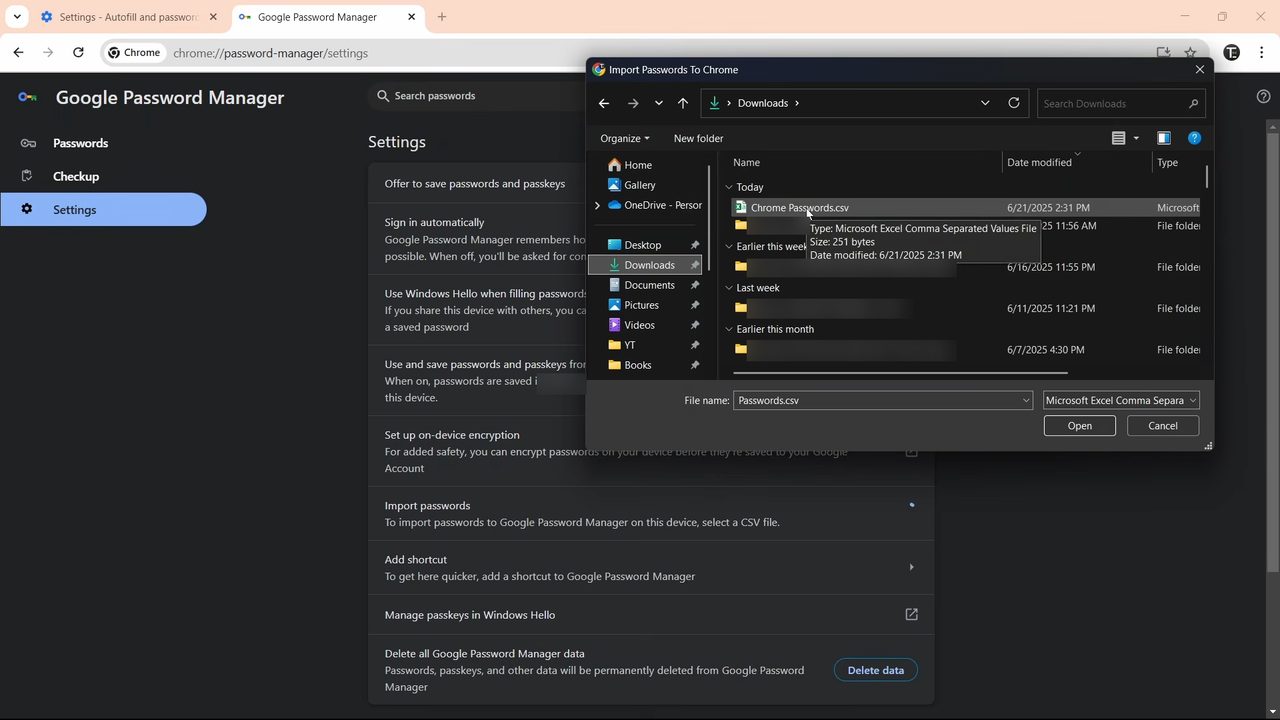
7Select the CSV file
Next to Import passwords, click Select file. Browse to the CSV file you exported, select Chrome Passwords.csv, and click Open.
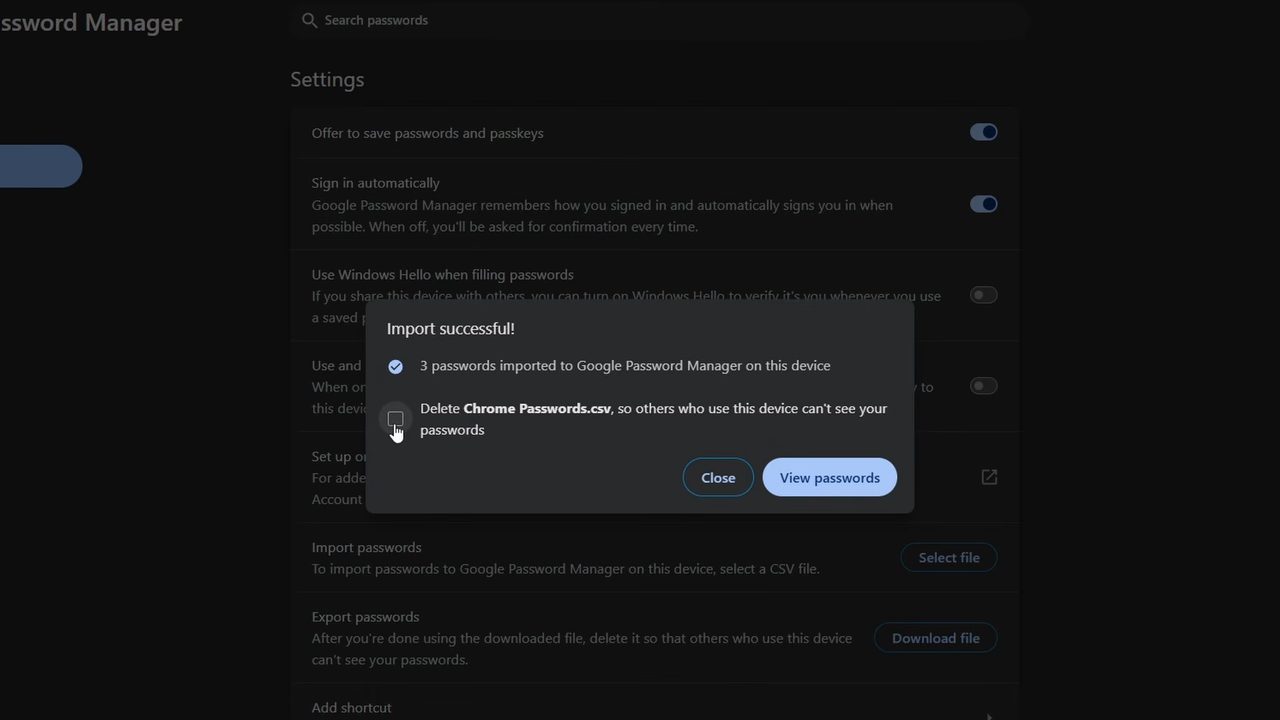
8Delete the CSV file and view your passwords
Chrome shows Import successful! with the number of passwords it added. Tick the box to Delete Chrome Passwords.csv, so nobody else using the computer can open it, then click View passwords.
9Check that your passwords are there
The Passwords list now shows the same websites as the original account. Click any of them to check the username and password came across correctly.
Before you export: keep the file safe
The CSV file is plain text. Anyone who opens it can read every username and password in it, with no PIN or password needed. Chrome even warns about this next to the export button. So: - Don't email the file to yourself or leave it in a shared or synced folder. - Import it straight away, then delete it. The tick box in Step 8 does this for you. If you skipped it, delete the file manually and empty the Recycle Bin. - If you kept it as a backup, store it somewhere encrypted rather than on the desktop.
Troubleshooting
- Passwords only show on one computer after import. The success message says "imported to Google Password Manager on this device". If Use and save passwords and passkeys from your Google Account is turned off in Password Manager settings, Chrome keeps the passwords on that computer only. Turn it on if you want them to sync to your Google account and your phone.
- Import fails or skips passwords. Google only accepts .csv files, and the first line must contain the column names url, username and password. A file exported from Chrome already has these. A file from another password manager may need a column renamed.
- Too many passwords. Google's help page says you can import 3,000 passwords at a time and store up to 10,000 in your Google account. Split a bigger file into several CSVs.
- No export option. Make sure you are in Google Password Manager's own Settings (left menu), not Chrome's main settings page.
You can also import a CSV from any browser at passwords.google.com under Settings > Import, as described on Google's help page Import passwords to your Google Account. To look up a single password instead of moving all of them, see How to View Saved Passwords in Google Chrome.
FAQ
How do I transfer passwords from one Google account to another?
Export the passwords from the first account as a CSV file (Google Password Manager > Settings > Export passwords > Download file), then sign in with the second account and use Import passwords > Select file to load that file. Delete the CSV once the import is done.
Where does Chrome save exported passwords?
Wherever you choose in the save window. By default the file is called Chrome Passwords.csv and Windows usually suggests your Downloads folder.
Can I import passwords from another browser or password manager?
Yes, as long as you can export them as a CSV file with url, username and password columns. Then use Import passwords in Google Password Manager the same way. Exporting from the other app itself is not shown in the video.
Is it safe to export my Chrome passwords?
Exporting is safe as long as you handle the file carefully. The CSV is not encrypted, so delete it right after importing and never share it.
Related guides