Tech is Easy
How to Insert a YouTube Video in PowerPoint (Step-by-Step)
You can put a YouTube video straight onto a PowerPoint slide, so it plays inside your presentation without switching to a browser. This guide covers copying the link (with an optional start time), inserting it with Online Videos, and two settings worth knowing: the cover image and how the video starts.

What you need
- PowerPoint on your computer
- The YouTube video you want to use, open in your browser
- An internet connection while presenting, since the video streams from YouTube
Which PowerPoint versions can do this
Microsoft's help page, Insert a video from YouTube or another site, says pasting a YouTube link works in PowerPoint for Microsoft 365, PowerPoint 2019, 2021 and 2024, and PowerPoint for the web. On a Mac it works in PowerPoint for Microsoft 365, 2021 and 2024, where the menu item is called Online Movie instead of Online Videos. Earlier Mac versions can't insert online videos at all.
PowerPoint 2016 on Windows works differently: instead of pasting the page link, you either search YouTube by name from the Online Video box or paste an embed code. Microsoft notes the embed code must be the iframe code from YouTube's Share > Embed option. If what you copied starts with "http", it's the wrong code.
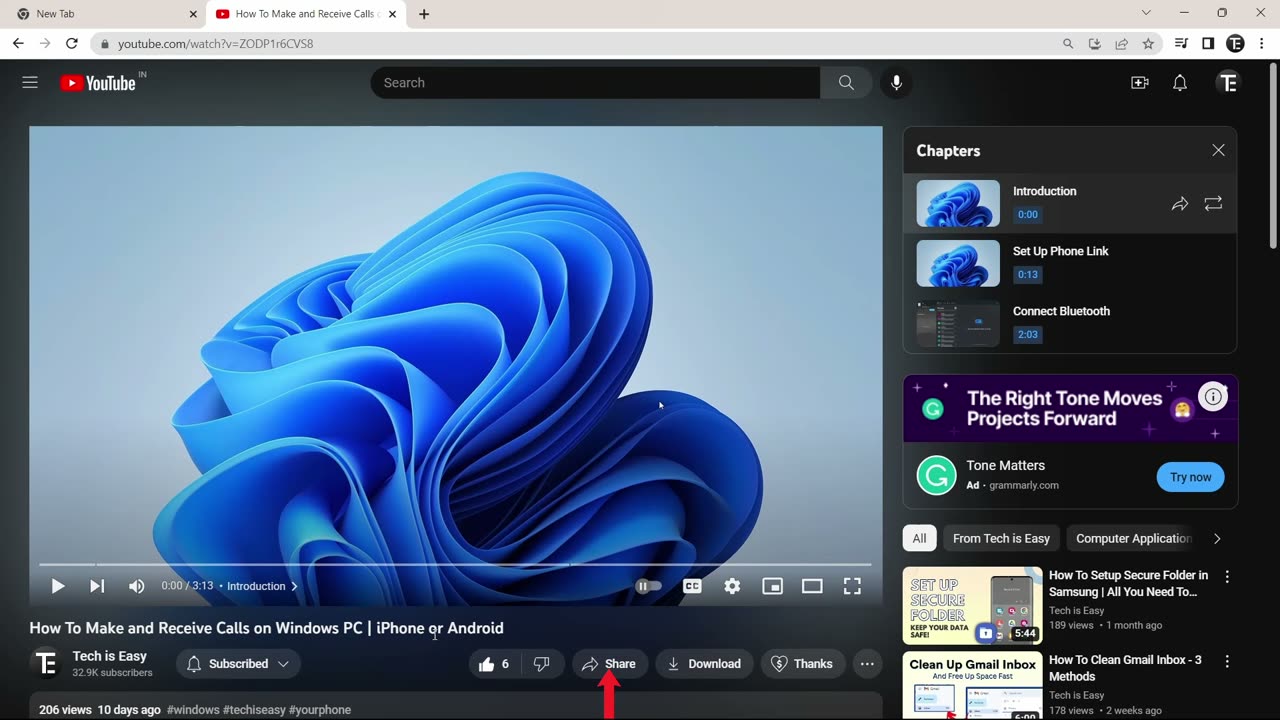
1Open the video and click Share
In your browser, go to the YouTube video you want to add. Under the video, click Share.
2Set a start time (optional) and copy the link
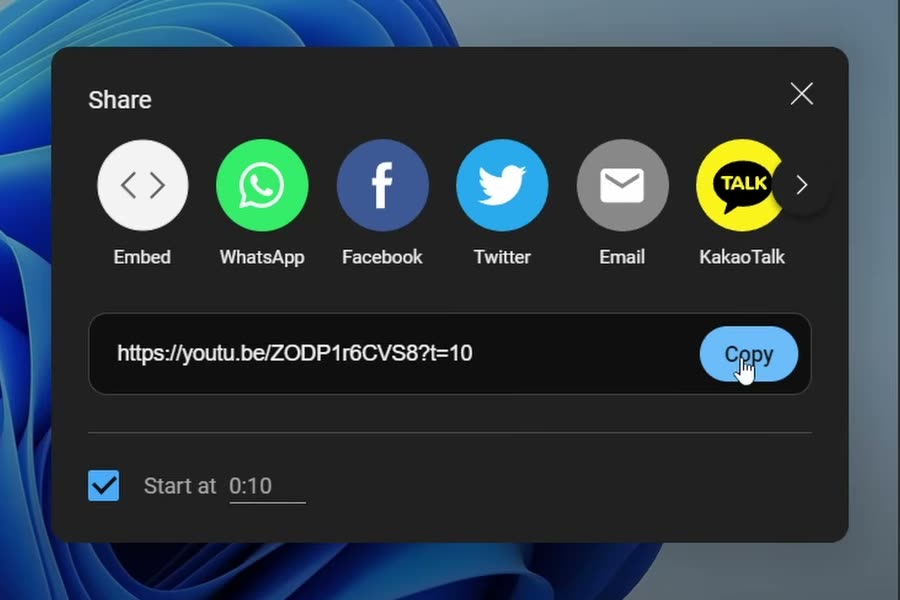
The Share window shows the video's link. If you want the video to start partway through, tick the Start at box and type the time. Here it's set to 0:10, so the link ends in ?t=10. Then click Copy.
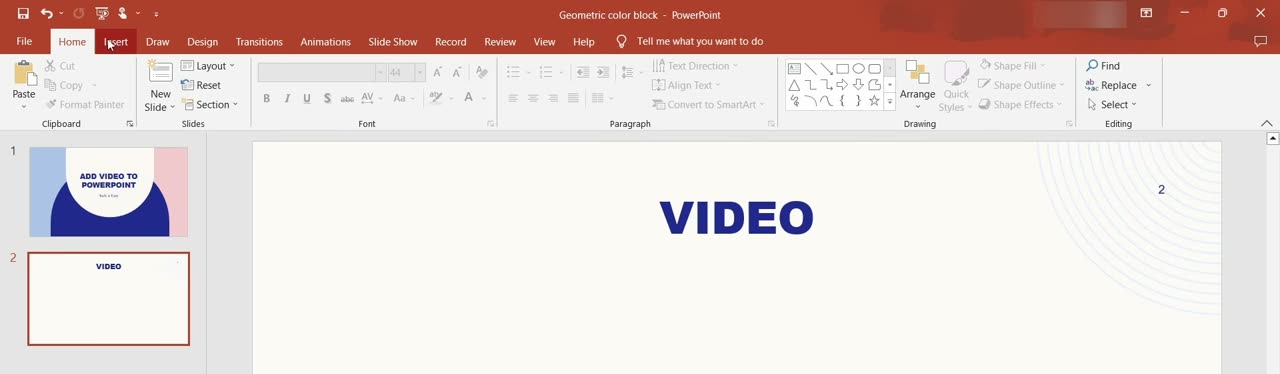
3Go to your slide and open the Insert tab
Switch back to PowerPoint and select the slide where the video should go. Click Insert in the menu at the top left.
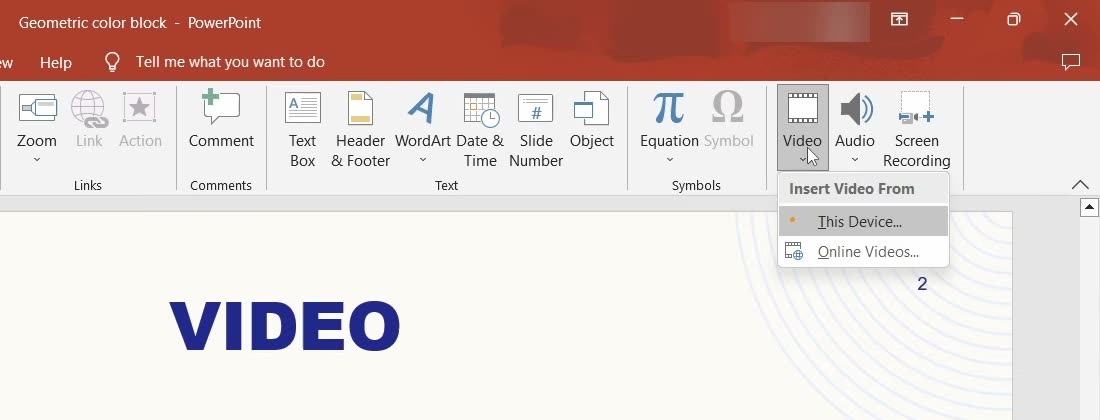
4Click Video, then Online Videos
On the Insert tab, click Video in the Media group on the right. From the menu, choose Online Videos.
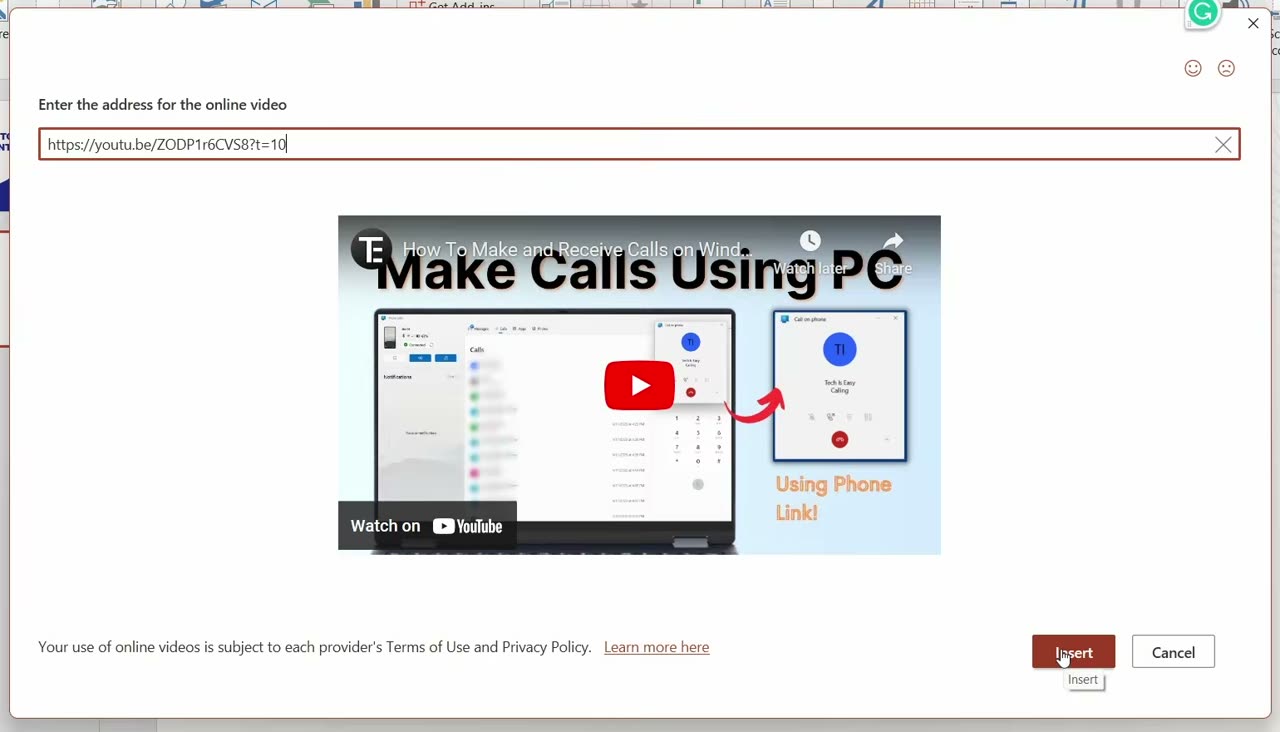
5Paste the link and click Insert
A box asks you to enter the address for the online video. Paste the link you copied. PowerPoint finds the video and shows a preview. Click Insert.
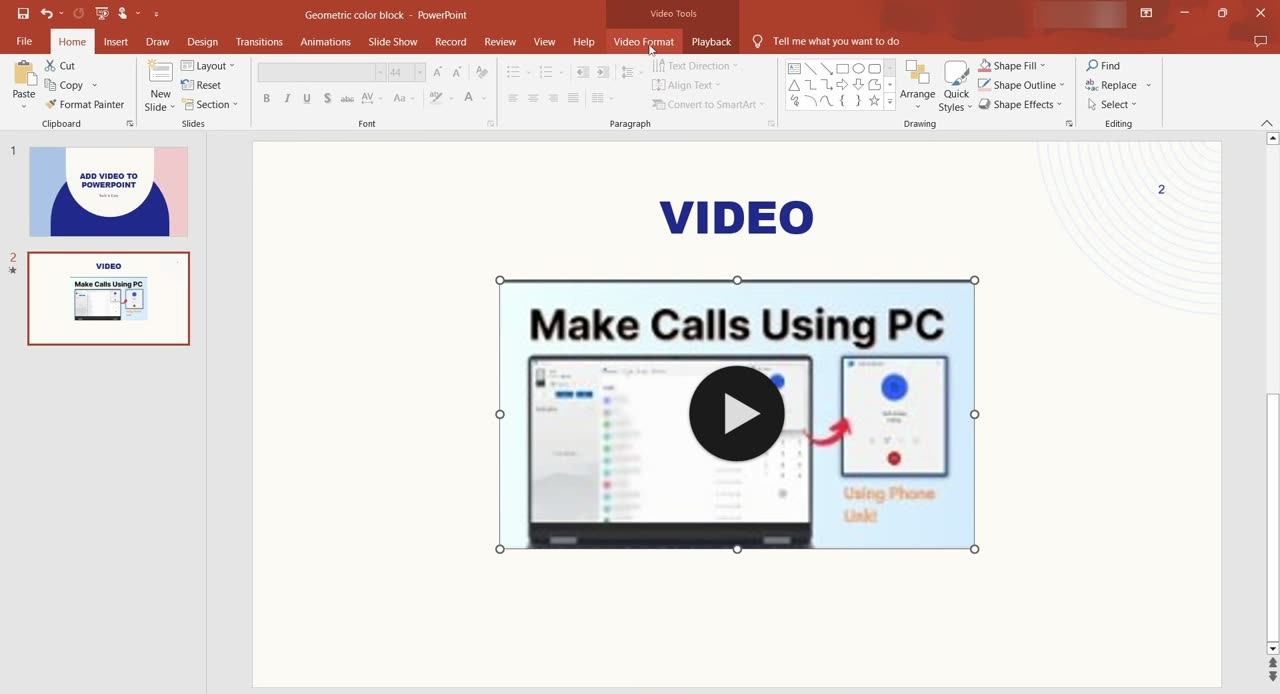
6Resize and position the video
The video now sits on your slide. Drag the corner handles to make it bigger, and drag the video itself to move it where you want.
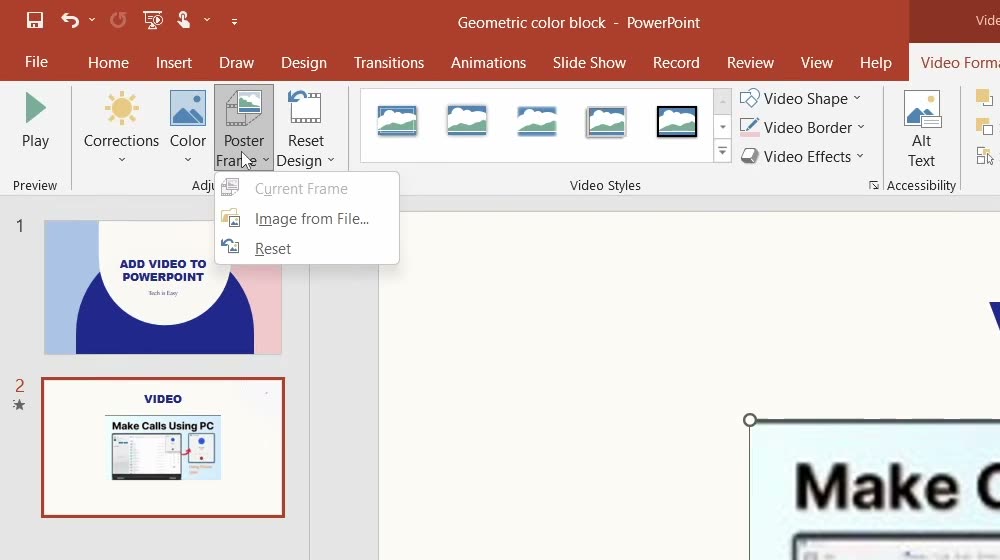
7Change the cover image with Poster Frame (optional)
By default the video shows its YouTube thumbnail. To use a different picture, click the Video Format tab, then Poster Frame, and choose Image from File.
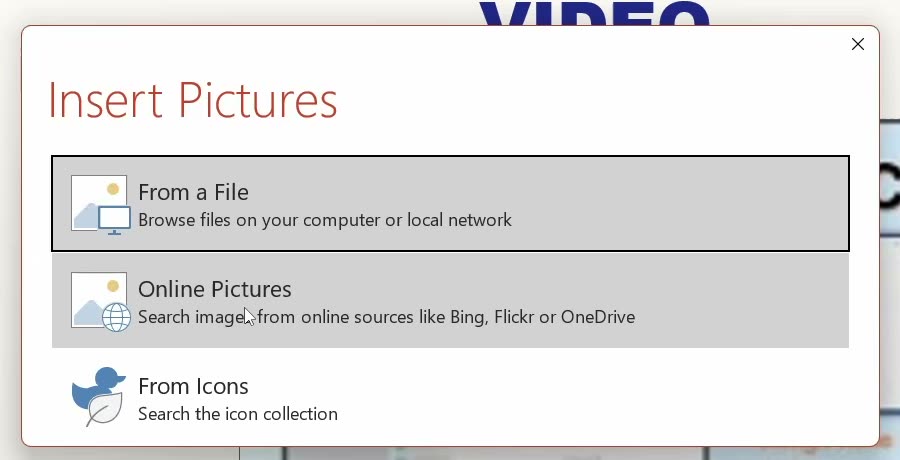
8Pick a picture
The Insert Pictures window lets you choose an image From a File on your computer or search Online Pictures. Pick one and click Insert. The video's cover changes to that picture.
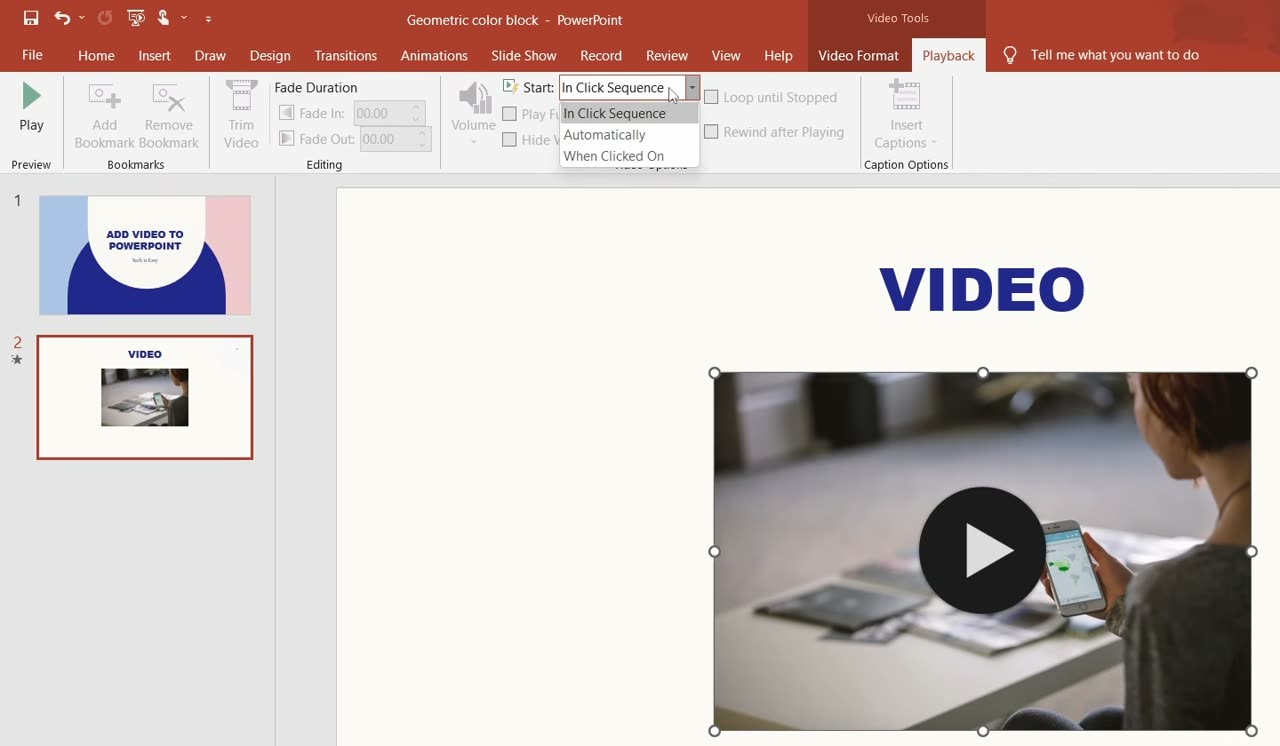
9Choose how the video starts playing
Click the Playback tab. Next to Start, open the dropdown and choose one of the options: In Click Sequence, Automatically or When Clicked On. Here it's set to When Clicked On, so the video plays only when you click it.
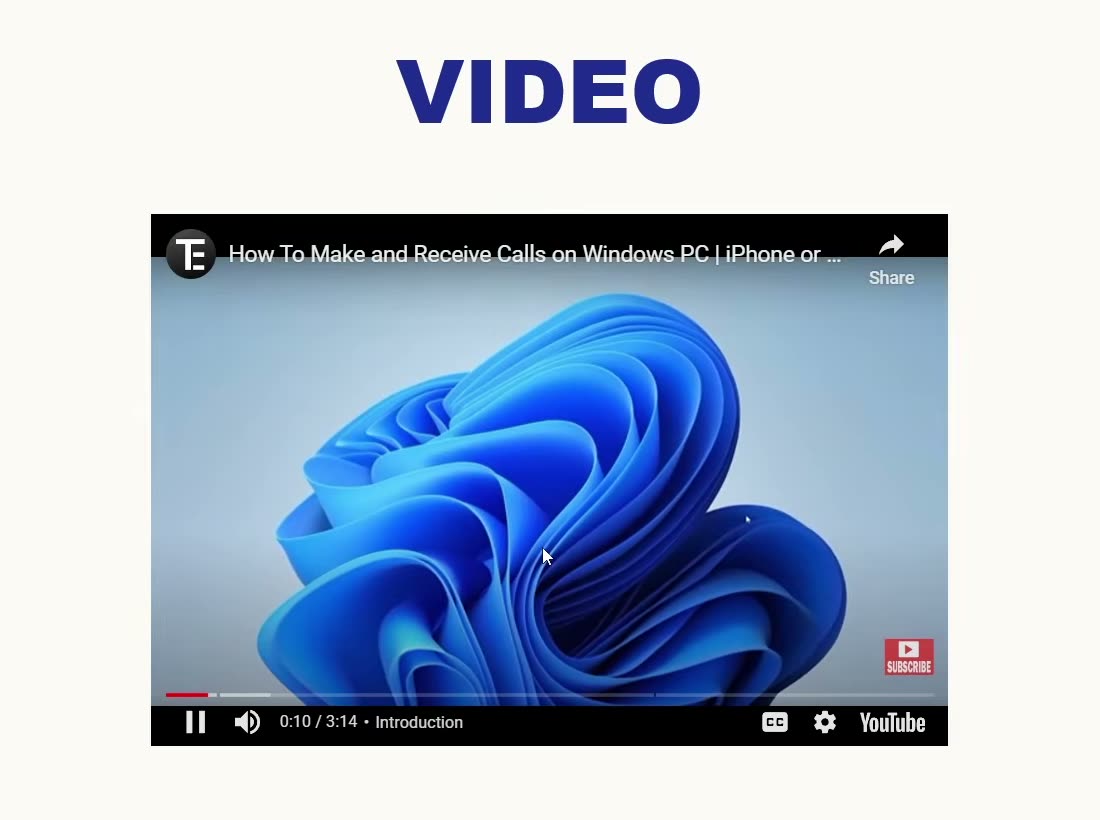
10Test it in presentation mode
Start your slideshow and go to the slide. Click the video and it starts playing. If you set a start time, it begins from there, as shown here at 0:10.
What online videos can't do
An inserted YouTube video still plays from YouTube, with YouTube's own play, pause and volume controls. Microsoft points out that PowerPoint's own video tools, such as Fade, Bookmark and Trim, don't work on online videos. If you need to cut a clip down or play it with no internet, insert a video file saved on your computer instead, using Insert > Video > This Device (the other option in Step 4's menu).
Tips / troubleshooting
- The video won't insert or shows an error. Some YouTube uploaders turn off embedding, and Microsoft notes that not every online video is allowed to be embedded. Try another video, or check on YouTube whether it offers an Embed option under Share.
- Online Videos is greyed out or missing. Your PowerPoint may be too old, or not fully updated. Microsoft suggests installing the latest Office updates if a video doesn't insert correctly.
- It plays in the wrong order. Microsoft says YouTube videos play in click sequence by default, so pressing the spacebar or clicking advances to the video like any other animation. Change Start on the Playback tab (Step 9) if you want something else.
- Test on the presenting computer. Run the slideshow once on the laptop and network you'll present with. Office or school networks sometimes block YouTube, and the video won't load there.
Related guides: How to Convert PowerPoint to Video (With Audio and Camera) and How to Install YouTube App on PC (Windows, Using Chrome).
FAQ
Can I make a YouTube video start at a specific time in PowerPoint?
Yes. In YouTube's Share window, tick Start at and enter the time before you click Copy. The link gets a time added to the end (like ?t=10), and PowerPoint plays the video from that point.
How do I change the thumbnail of a YouTube video in PowerPoint?
Select the video, go to Video Format > Poster Frame > Image from File, and pick a picture from your computer or from Online Pictures. The new picture shows on the slide until the video plays.
How do I make the video play only when I click it?
Select the video, open the Playback tab and set Start to When Clicked On. Choose Automatically instead if you want it to play as soon as the slide appears.
Does the video need internet to play?
Yes. An online video is streamed from YouTube rather than saved inside the file, so you need an internet connection when you present.
Can I trim a YouTube video in PowerPoint?
No. Trim doesn't work on online videos. You can set a start time with Start at in YouTube's Share window, but to cut the end as well you need a video file on your computer, inserted with This Device.
Can I insert a YouTube video in PowerPoint on a Mac?
Yes, in PowerPoint for Microsoft 365, 2021 or 2024 for Mac. Go to Insert > Video > Online Movie and paste the link. Older Mac versions don't support online videos.
Related guides