Tech is Easy
How to Send Files From PC to Phone With Phone Link (and Back)
Phone Link lets you move files between your Windows PC and your Android phone wirelessly, with no cable and no uploading to the cloud. You link the two devices once, and after that a file goes from one to the other in a few seconds. This guide covers the one-time setup and then sending files both ways.
What you need
- A Windows PC with the Phone Link app (it comes with Windows; if it's missing, install it from the Microsoft Store)
- An Android phone with the Link to Windows app from the Play Store
- A Microsoft account to sign in with
If your devices are already linked, skip to Step 7.
1Open Phone Link on your PC
Search for Phone Link in the Start menu and open it. Sign in with your Microsoft account if it asks.
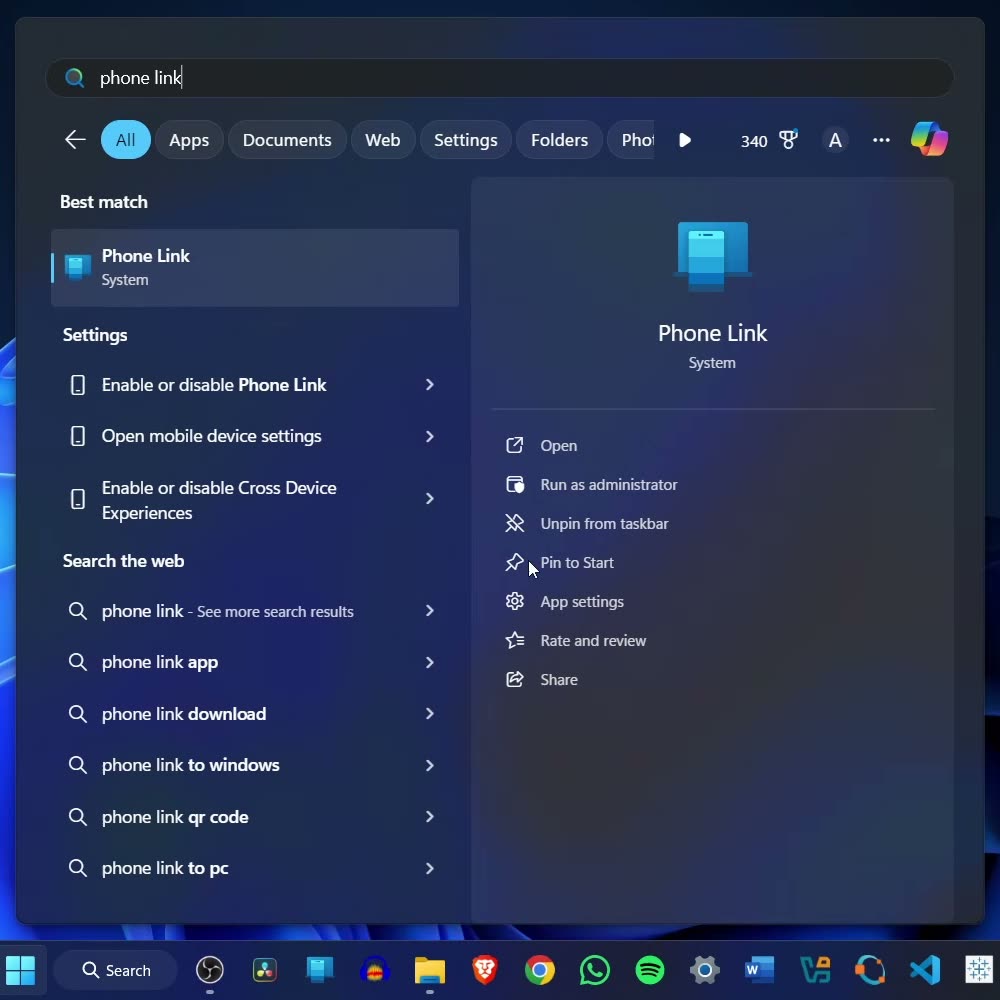
2Add your phone and choose Android
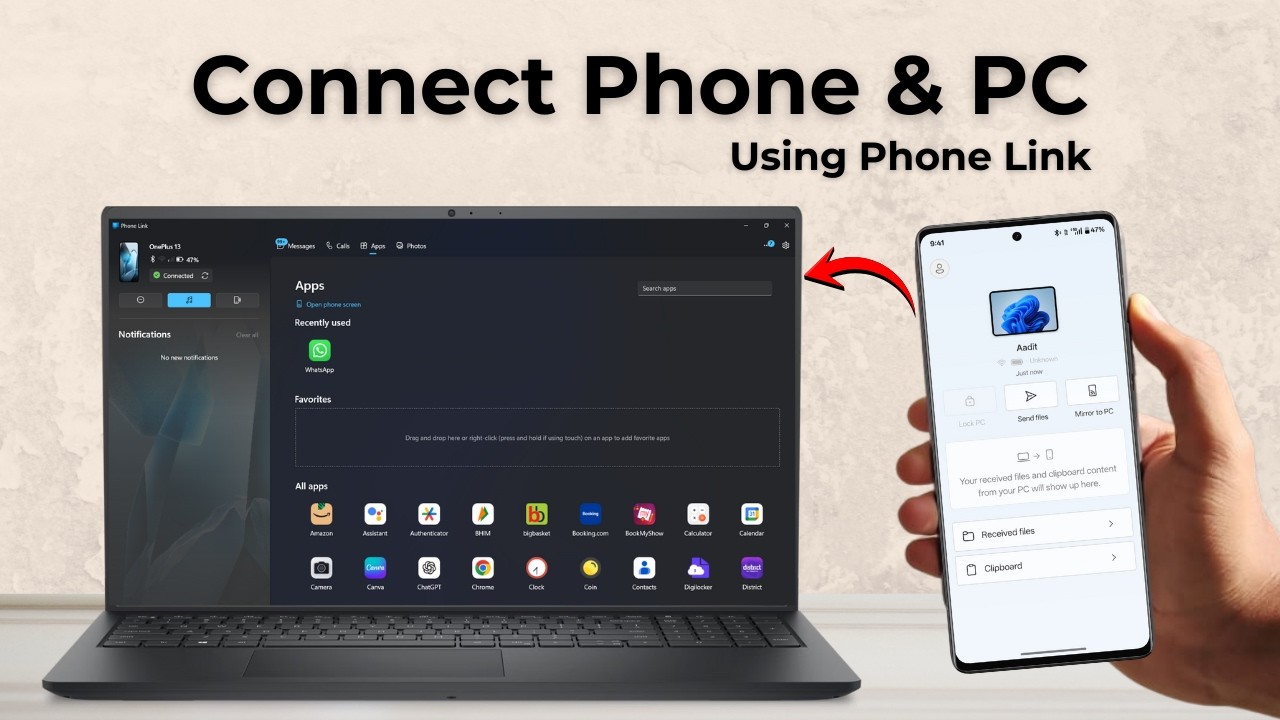
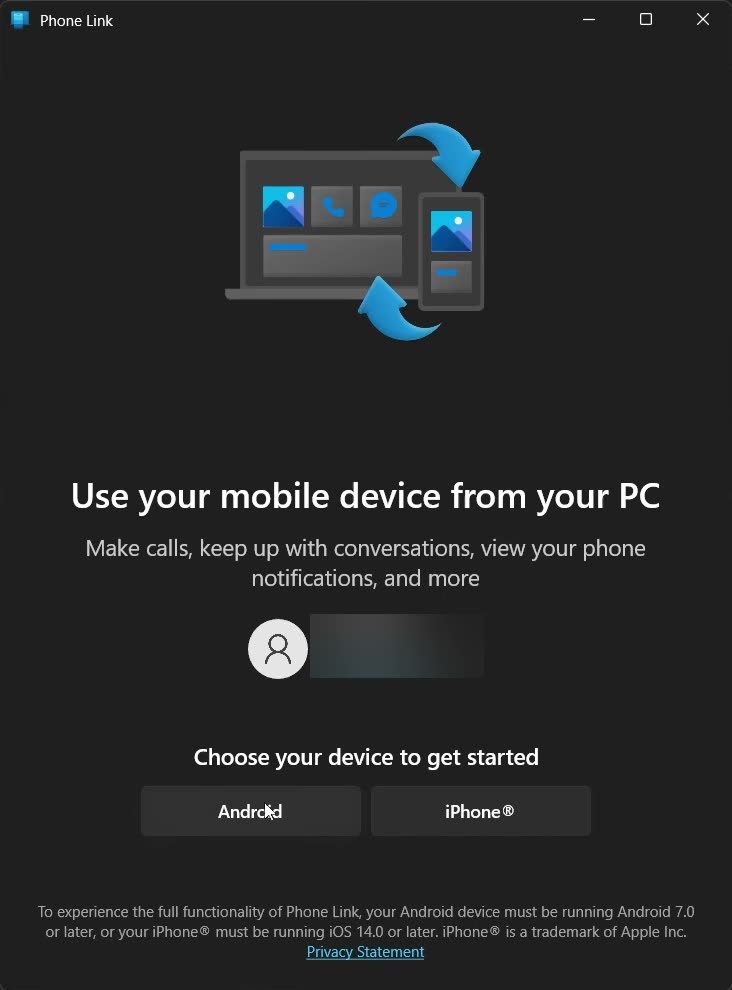
On the Phone Link start screen, pick Android under Choose your device to get started. If you already use Phone Link, you can add a new phone from the settings gear under Devices with Add device. The PC then shows a QR code for linking your phone.
3Install Link to Windows on your phone
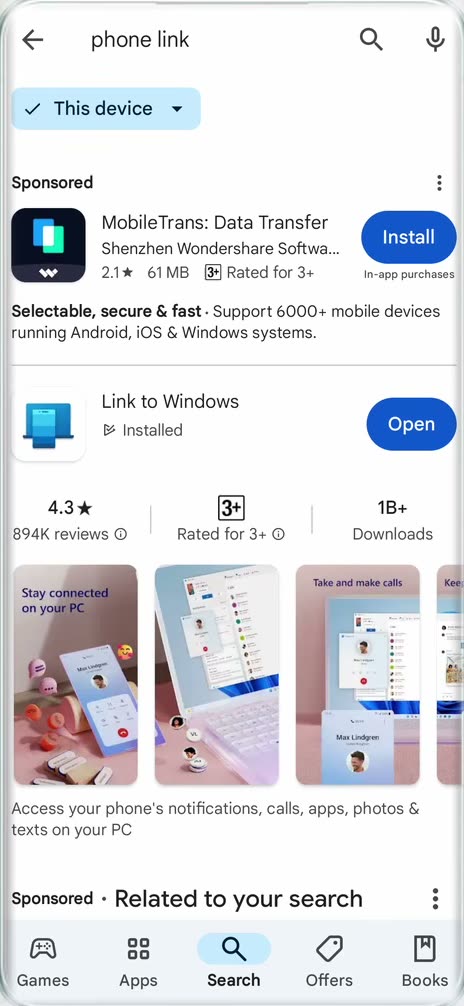
On your phone, open the Play Store and search for Link to Windows (it also shows up if you search "phone link"). Install it, then tap Open.
4Choose to sign in with a QR code
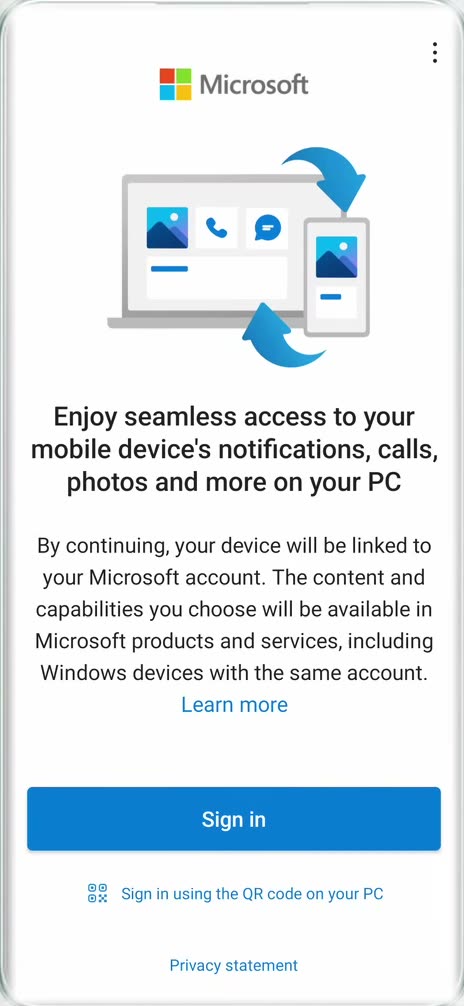
In the Link to Windows app, tap Sign in using the QR code on your PC instead of the regular sign-in button.
5Scan the code and enter the PC code
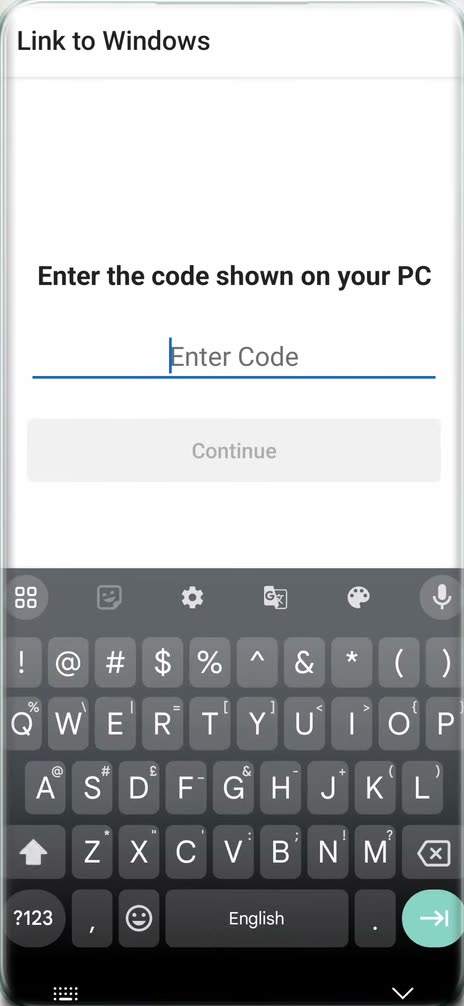
Point your phone's camera at the QR code on your PC screen and tap Continue. The app then asks you to Enter the code shown on your PC. Type it in, tap Continue, and enter your Microsoft account password when asked.
6Finish the setup
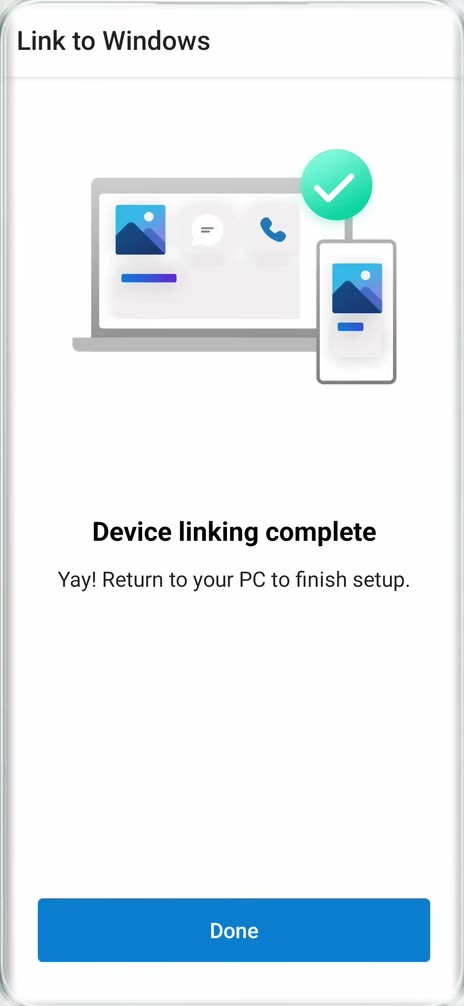
When you see Device linking complete, tap Done. Your phone now shows as connected in Phone Link on the PC.
7Send a file from your PC to your phone
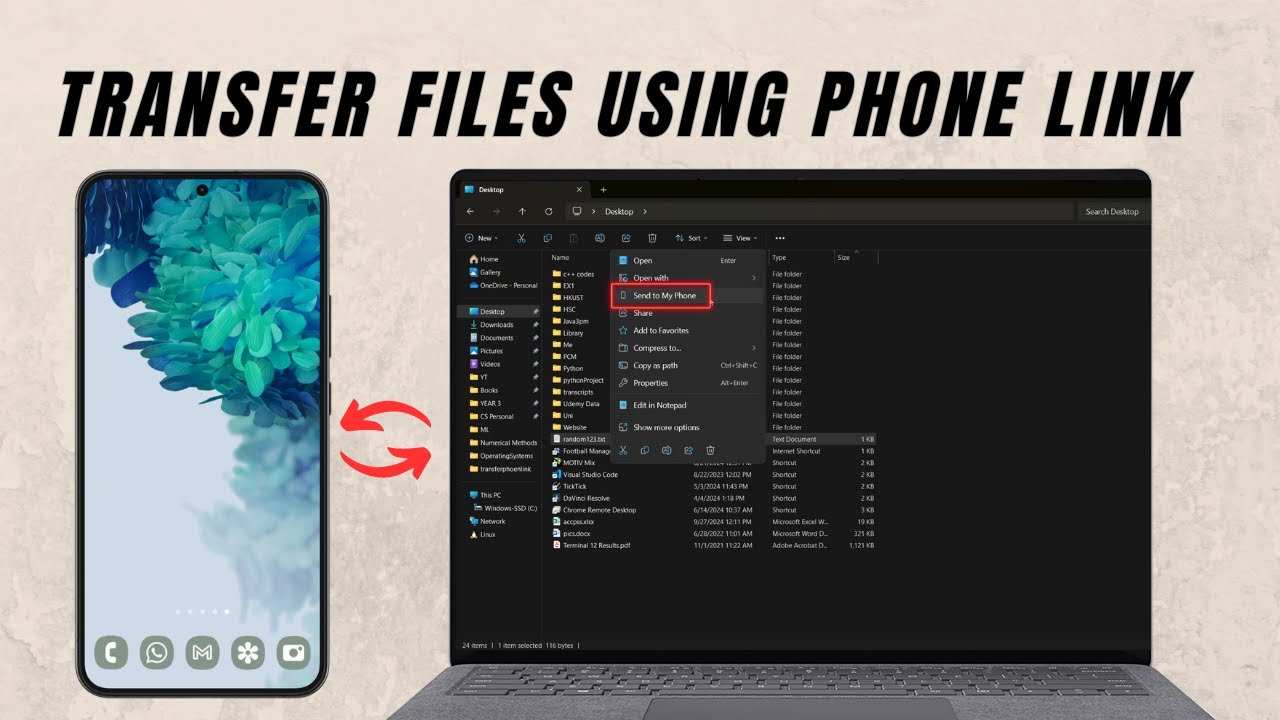
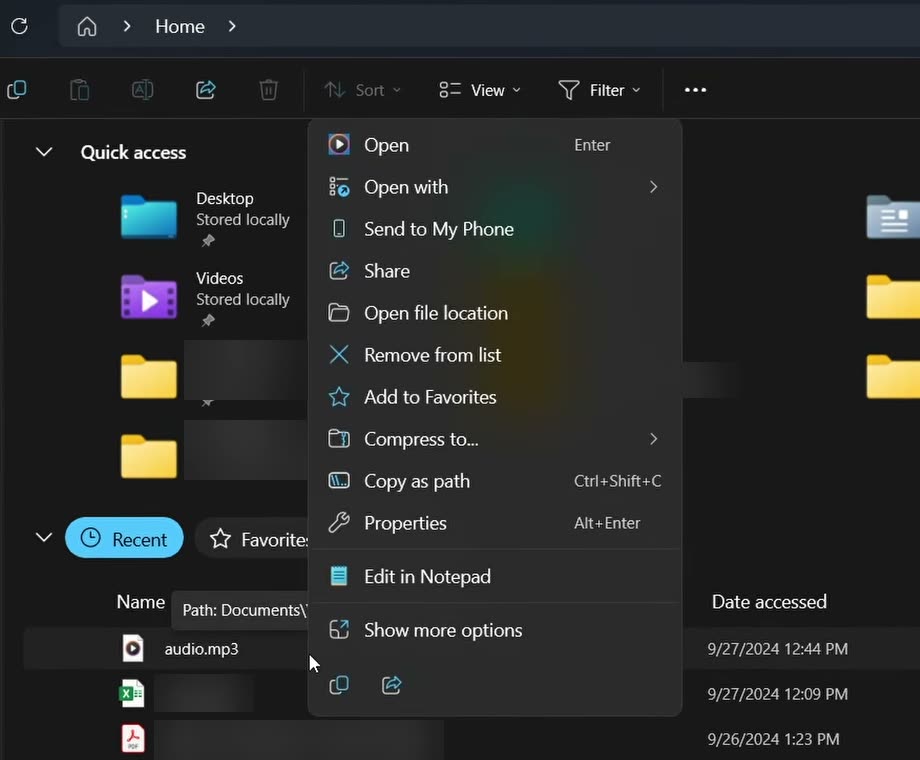
Open File Explorer on your PC and find the file you want to send. Right-click it and choose Send to My Phone, near the top of the menu. A small Phone Link window shows the progress. To send several files at once, select them all first, then right-click and pick Send to My Phone the same way.
8Open the file on your phone
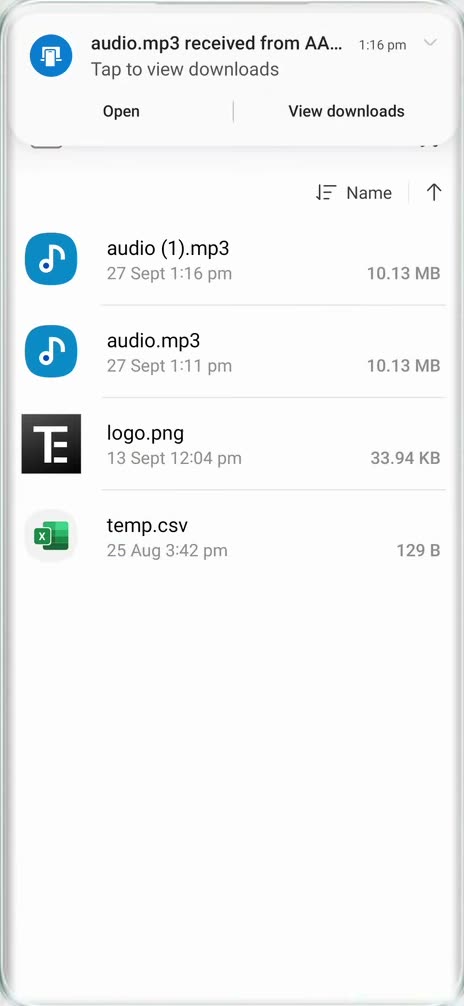
Your phone gets a notification that the file was received. Tap View downloads to see it in your Downloads folder.
9Send a photo from your phone to your PC
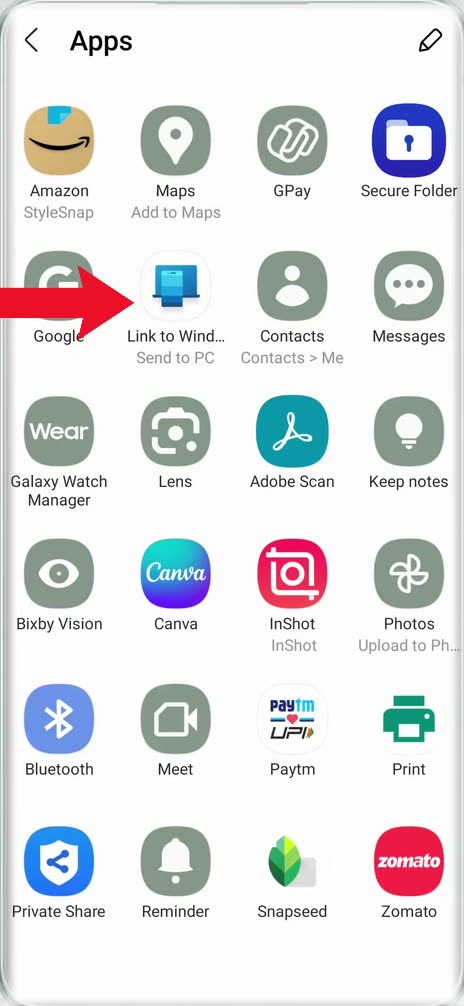
On your phone, open the photo in your gallery and tap Share (bottom center). Scroll the row of apps to the right, tap More, and choose Link to Windows (Send to PC).
10Pick your PC and open the file
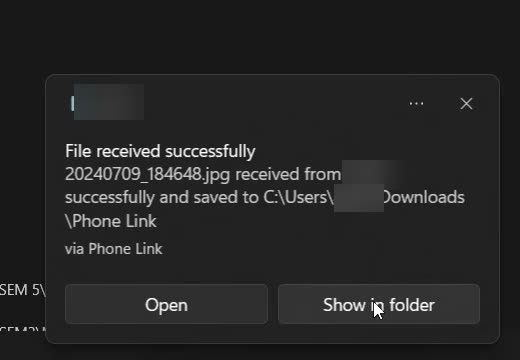
Tap your PC under My devices. Keep the screen open until it's sent and make sure your PC is not locked. A notification pops up on the PC; click Show in folder to open the file. Received files are saved in your Downloads folder, inside a Phone Link folder.
Tips / troubleshooting
- Your PC needs to be on and not locked while a file is being sent from the phone.
- If you don't see Send to My Phone in the right-click menu, check that your phone shows as connected in the Phone Link app.
Related guides: How to Make Calls From PC Using Your Phone (Windows) and How to Control Android Phone From PC Using Phone Link.
FAQ
Can I transfer files from PC to phone without a cable?
Yes. Once your phone and PC are linked through Phone Link, right-click any file in File Explorer and choose Send to My Phone. It goes over the air and lands in your phone's Downloads.
Where do files sent from my phone go on my PC?
They go to your Downloads folder, in a subfolder called Phone Link. Clicking Show in folder on the notification takes you straight there.
Can I send multiple files at once with Phone Link?
Yes. Select all the files in File Explorer, right-click, and pick Send to My Phone. Phone Link sends them together.
What app do I need on my Android phone for Phone Link?
You need Link to Windows, which is free on the Play Store. If the Play Store shows Open instead of Install, it is already on your phone.
Related guides