Tech is Easy
How to Control Android Phone From PC Using Phone Link
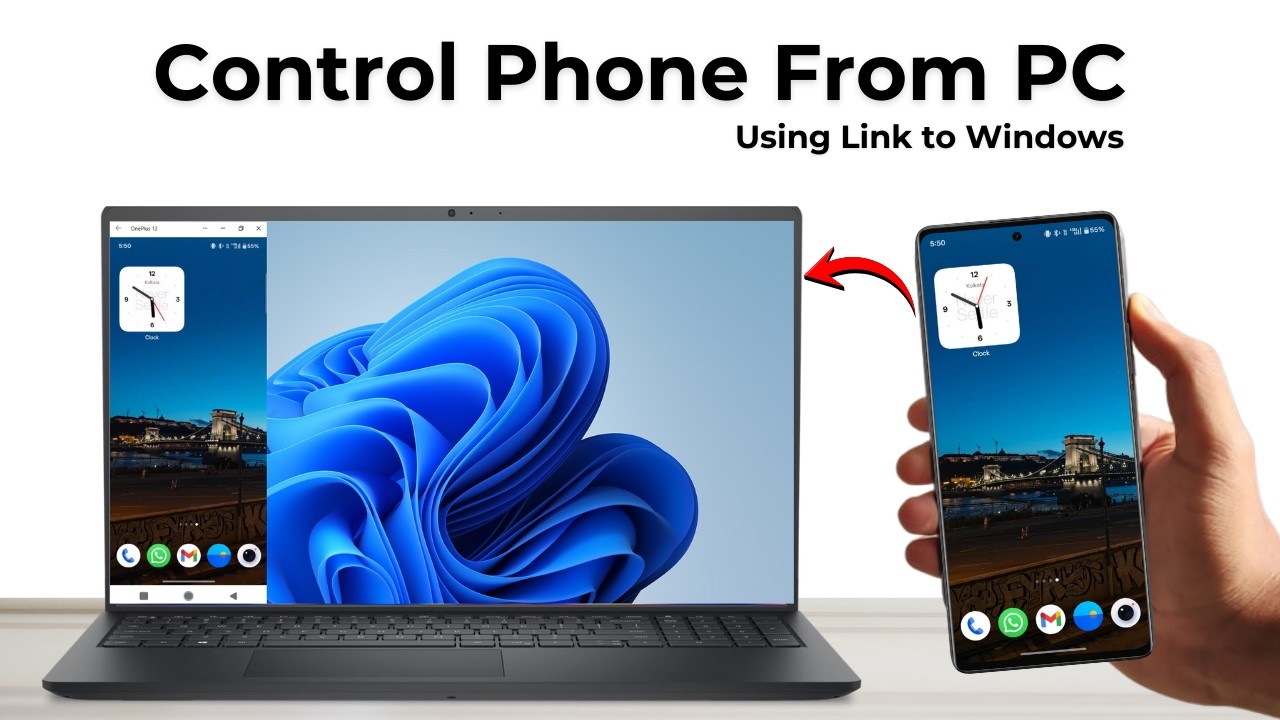
To control your Android phone from your PC, link both devices with Microsoft's Phone Link: open Phone Link on the PC, scan its QR code with the Link to Windows app on your phone, then tap Mirror to PC and Allow. Your phone screen opens in a window on your PC, and you can open and use any app with your mouse. This works wirelessly on Windows 10 and 11 with most Samsung, OnePlus, Honor, Oppo and Xiaomi phones.
What you need
- A PC running Windows 10 or Windows 11
- A compatible Android phone (see Step 1)
- A Microsoft account to sign in with on both devices
1Check that your phone is supported
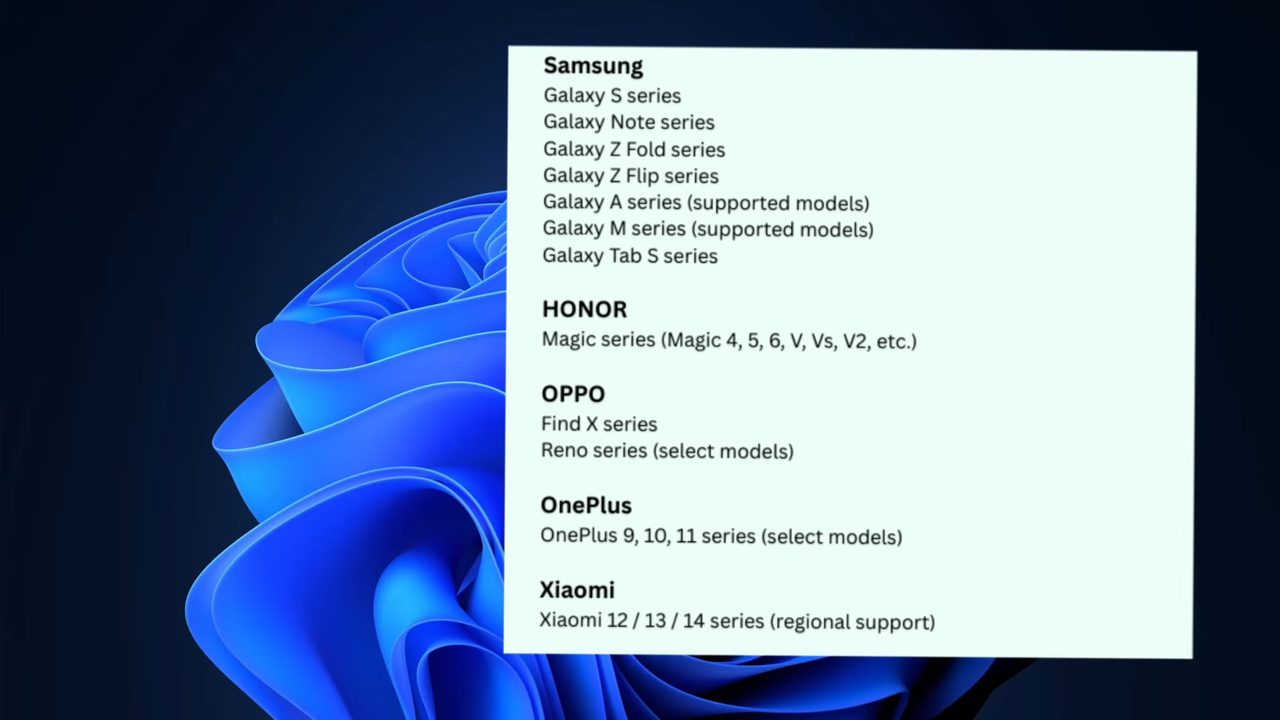
Screen mirroring and control through Phone Link only works on certain phones. Supported models include the Samsung Galaxy S, Note, Z Fold, Z Flip and Tab S series (plus supported A and M models), the Honor Magic series, Oppo Find X and some Reno models, OnePlus 9, 10 and 11 (select models) and the Xiaomi 12, 13 and 14 series in some regions. If your phone is from one of these brands, it will most likely work.
2Install Link to Windows on your phone
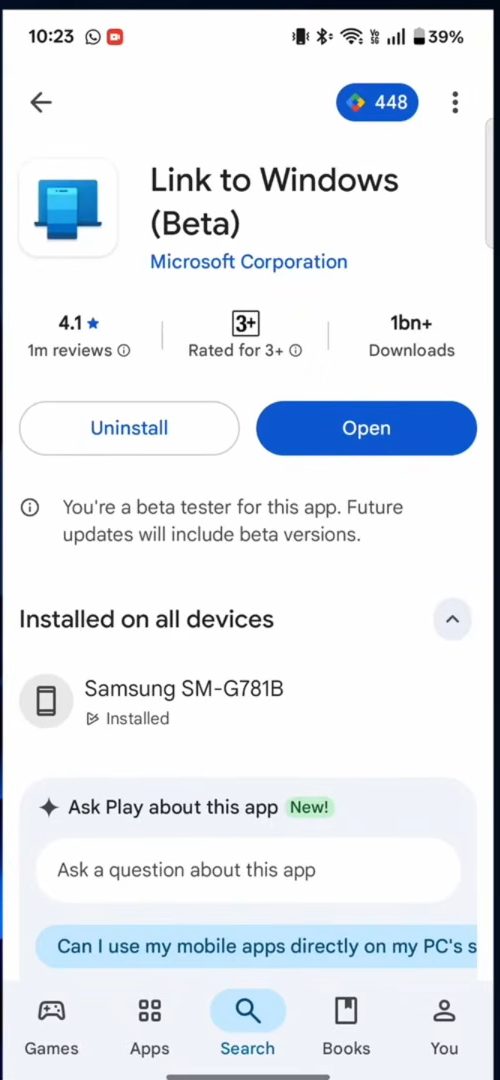
Open the Play Store and search for Link to Windows. The app is made by Microsoft Corporation. Install it if you do not have it yet, then tap Open. Many Samsung phones already have it installed.
3Open Phone Link on your PC
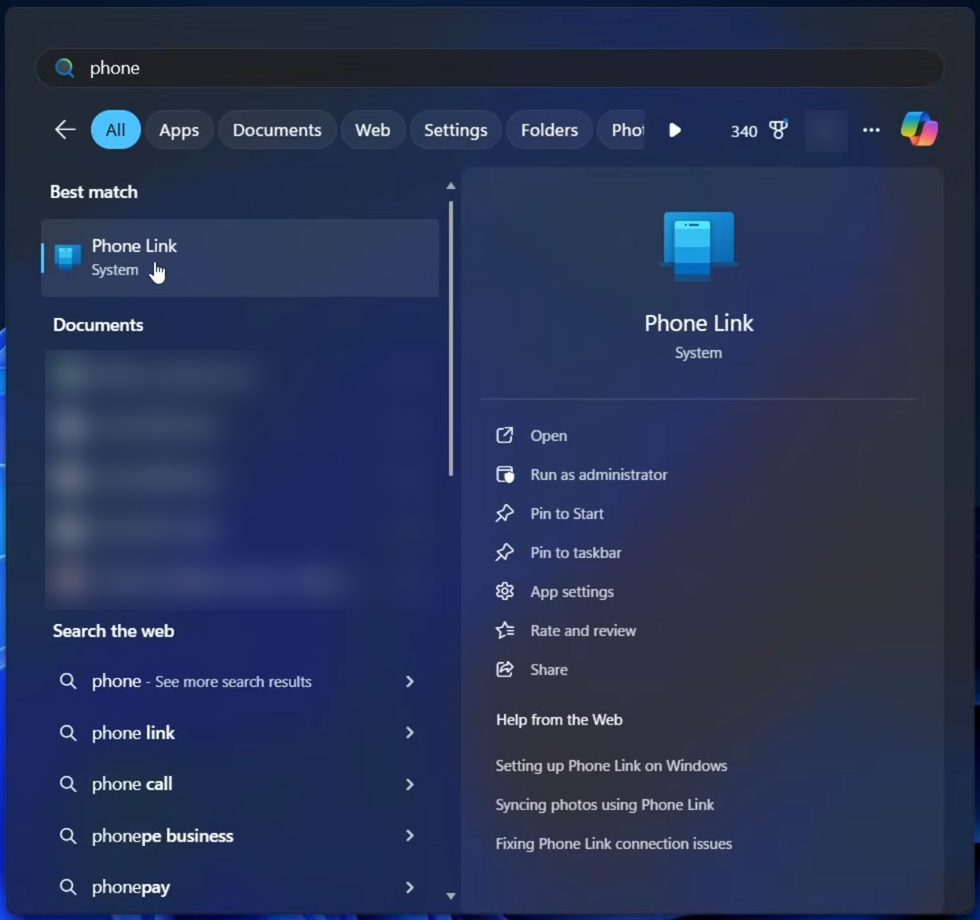
On your PC, open the Start menu, type Phone Link and open the app. It comes built into Windows 10 and 11.
4Sign in and choose Android
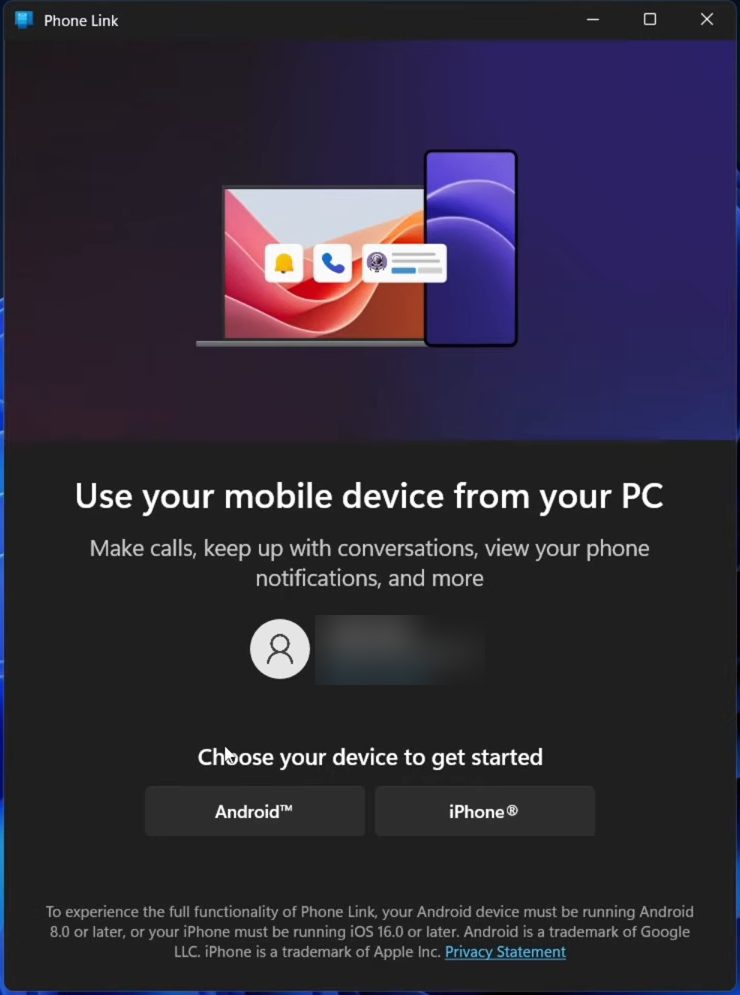
Sign in with your Microsoft account if Phone Link asks you to. On the Use your mobile device from your PC screen, under Choose your device to get started, click Android. Phone Link then shows a QR code.
5Scan the QR code with your phone
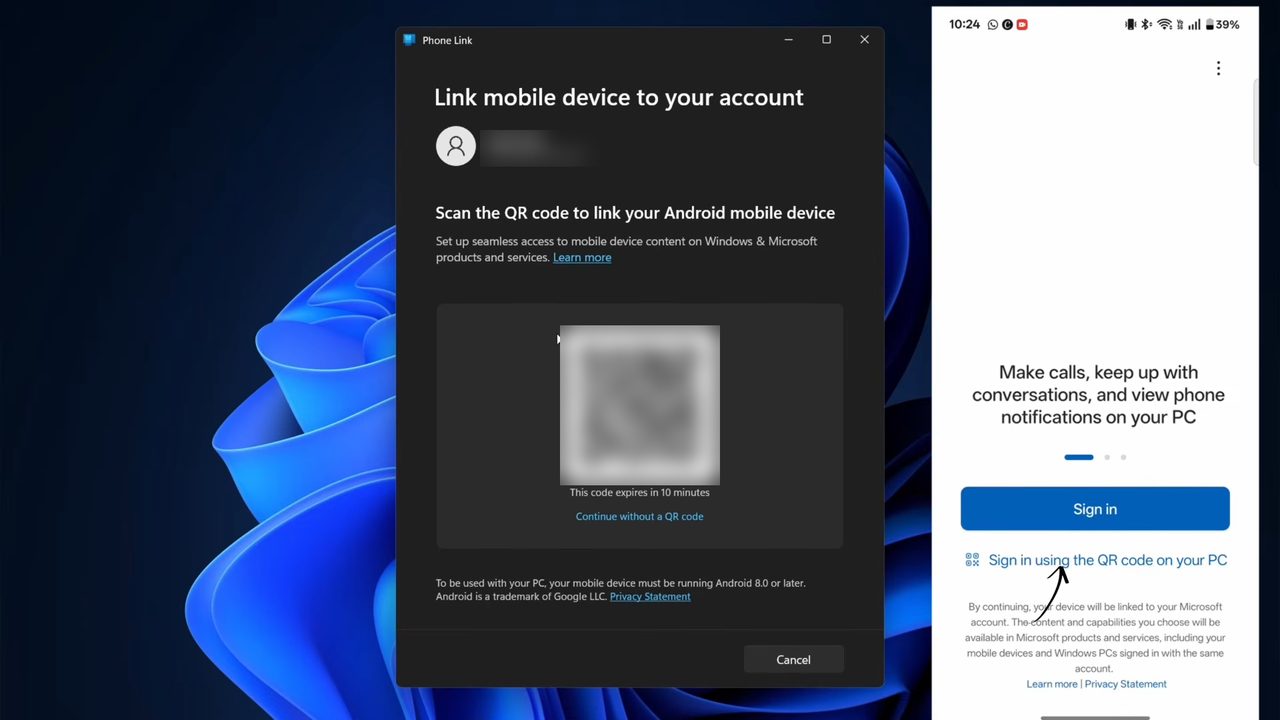
In the Link to Windows app on your phone, tap Sign in using the QR code on your PC and point the camera at the QR code on your PC screen.
6Enter the code and your password
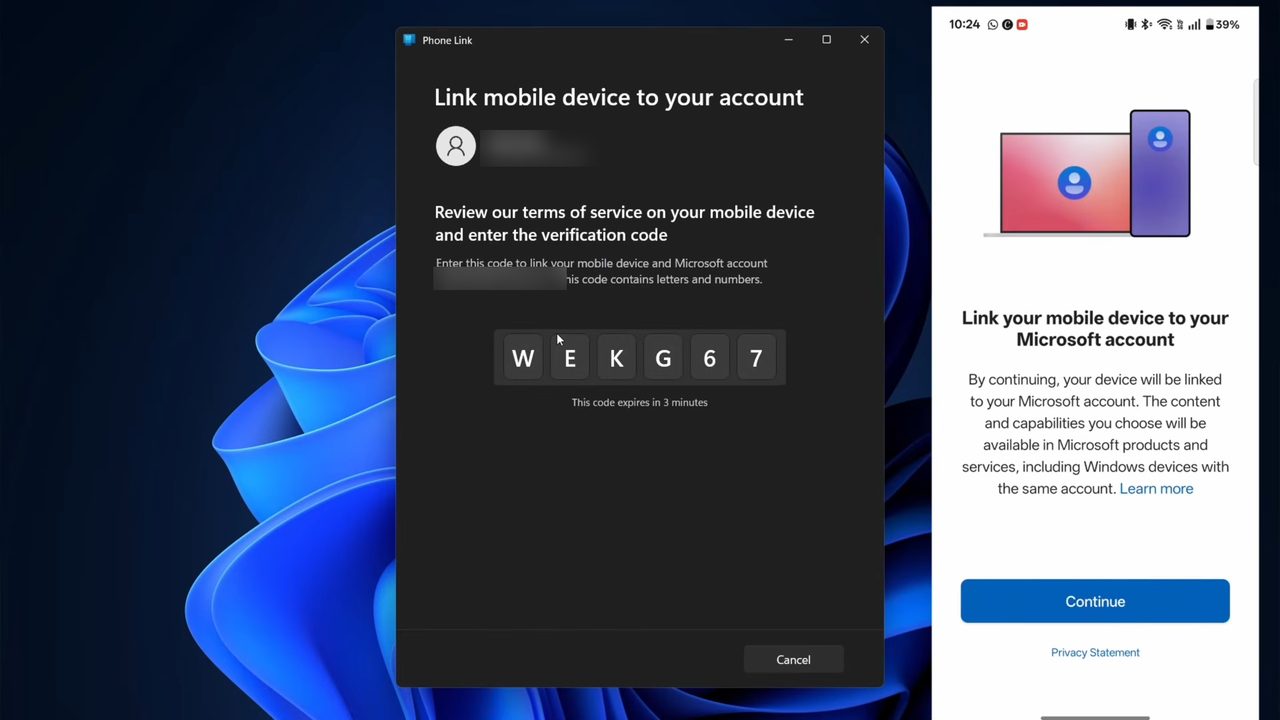
Tap Continue on your phone, then type in the letter and number code that Phone Link shows on your PC. Your phone then asks for your Microsoft account password once. After that, the two devices are linked.
7Tap Mirror to PC
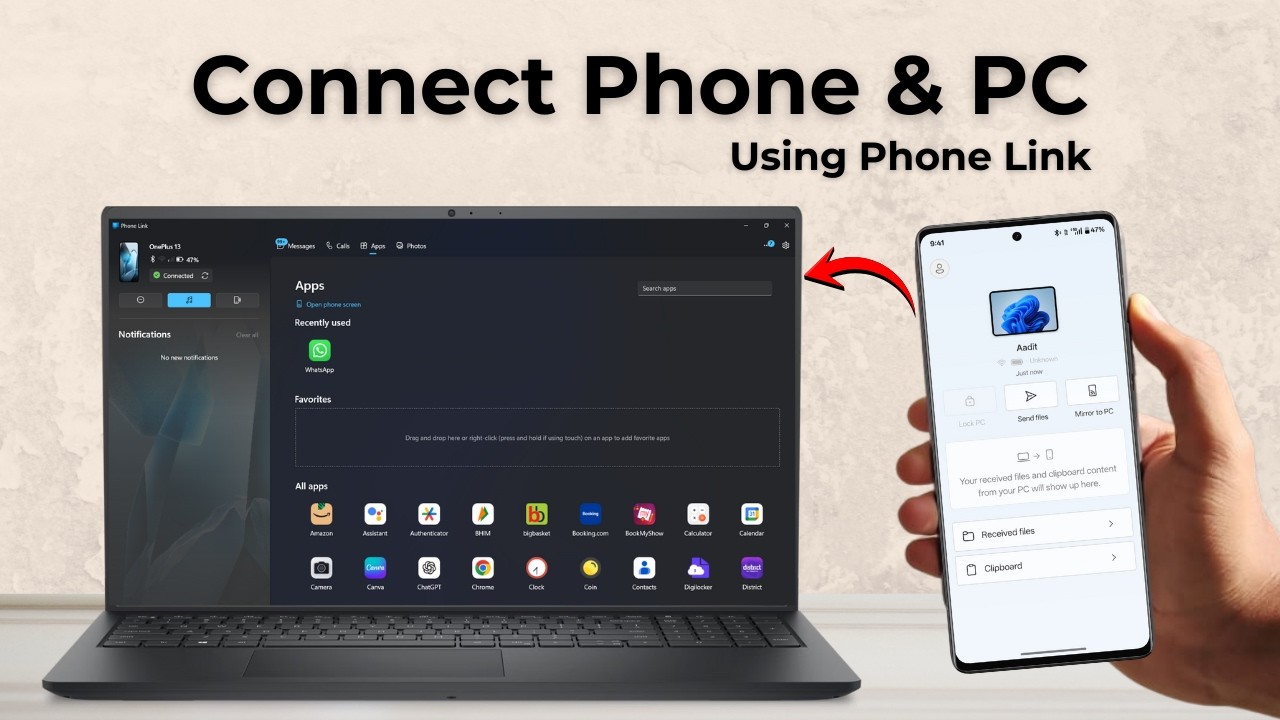
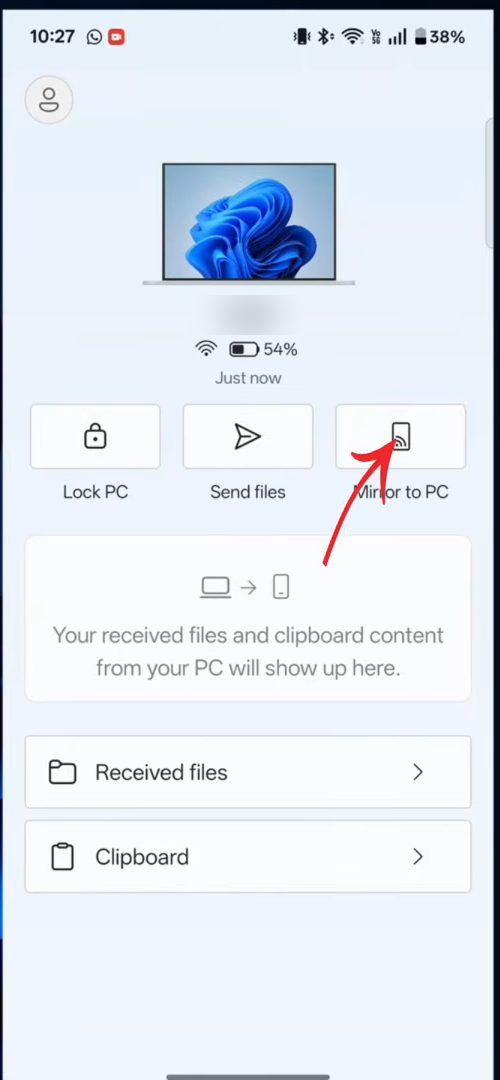
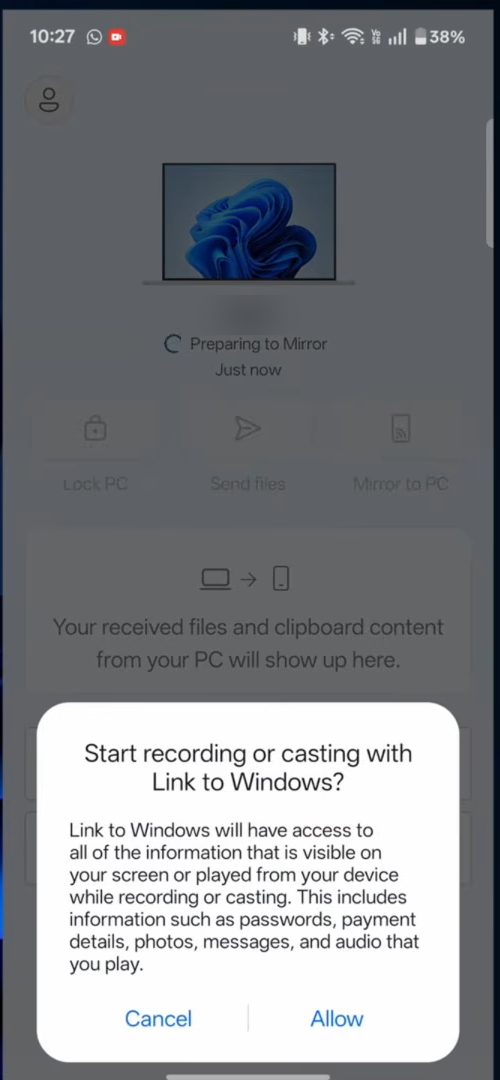
In the Link to Windows app on your phone, tap the Mirror to PC button. It sits next to Lock PC and Send files.
8Allow screen casting
Your phone asks Start recording or casting with Link to Windows? Tap Allow. A Loading mobile screen window opens on your PC.
9Control your phone from the PC
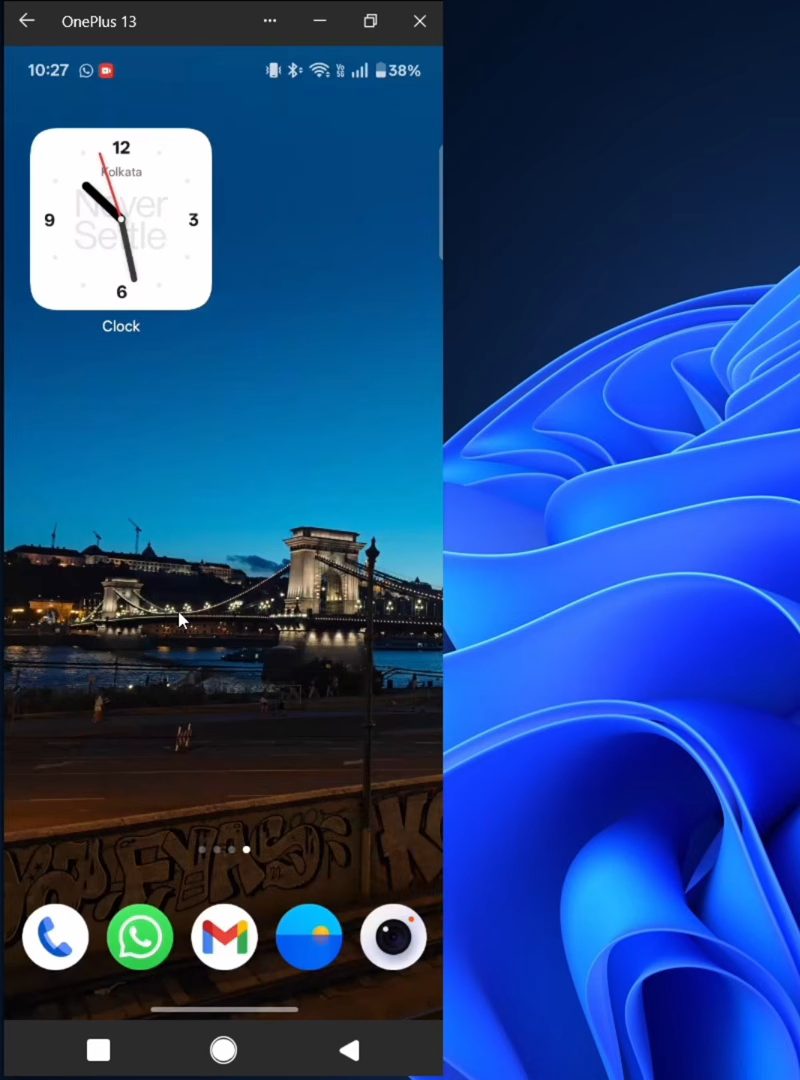
Your phone screen now appears in a window on your PC. Maximize or resize it if you want it larger, then click around just like you would tap on the phone: open the app drawer, launch apps and scroll. When you are done, click the X at the top of the window to stop mirroring. It switches off on both devices.
Tips / troubleshooting
- If you do not see the Mirror to PC option or the mirrored window never loads, check the supported phone list in Step 1. Phones outside it may only get messages, calls, photos and notifications.
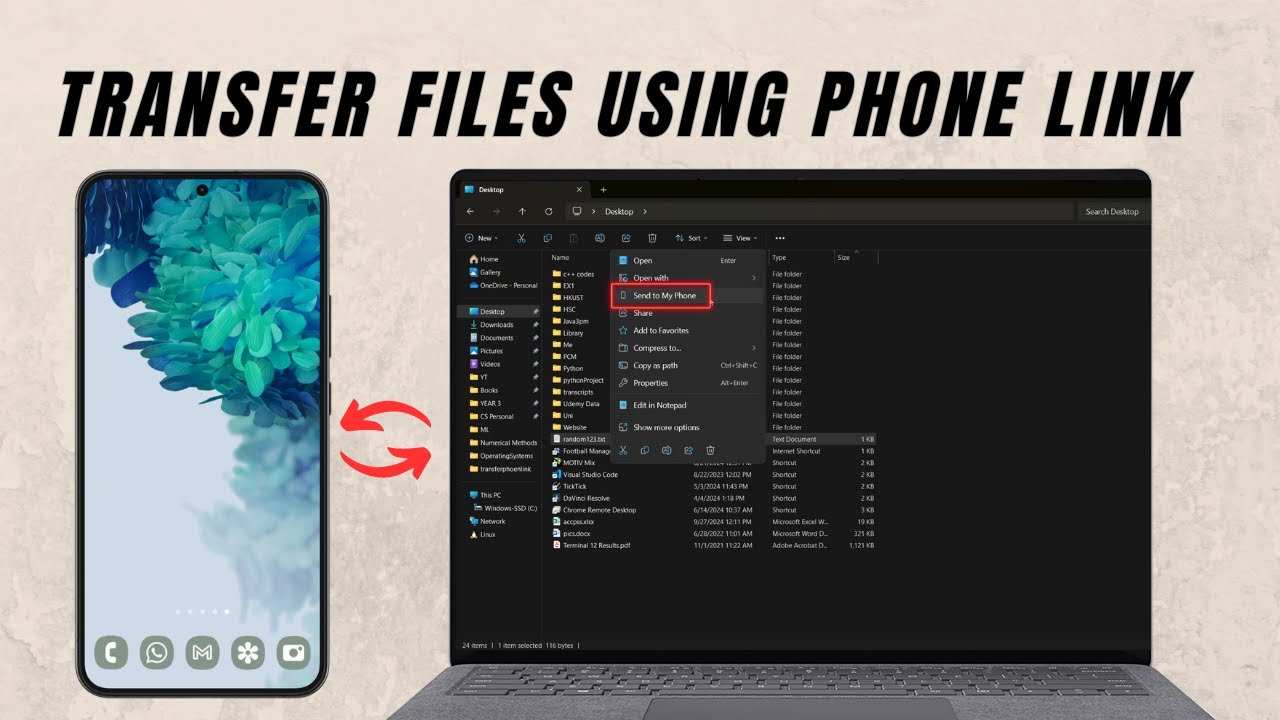
- Once linked, Phone Link can also move files and photos. See how to transfer photos from Android to PC for that.
FAQ
How do I control my Android phone from my PC wirelessly?
Link the phone to Windows with Phone Link on the PC and the Link to Windows app on the phone, then tap Mirror to PC in the phone app and allow casting. The phone screen opens on your PC and you control it with your mouse, with no cable needed.
Does Phone Link screen mirroring work on every Android phone?
No. It works on supported models from Samsung, Honor, Oppo, OnePlus and Xiaomi. Other Android phones can still link to Phone Link, but may not get the mirroring and app control feature.
How do I stop mirroring my phone to my PC?
Click the X at the top of the mirrored phone window on your PC. Mirroring stops on both the PC and the phone.
Can I mirror my phone to my PC without Phone Link?
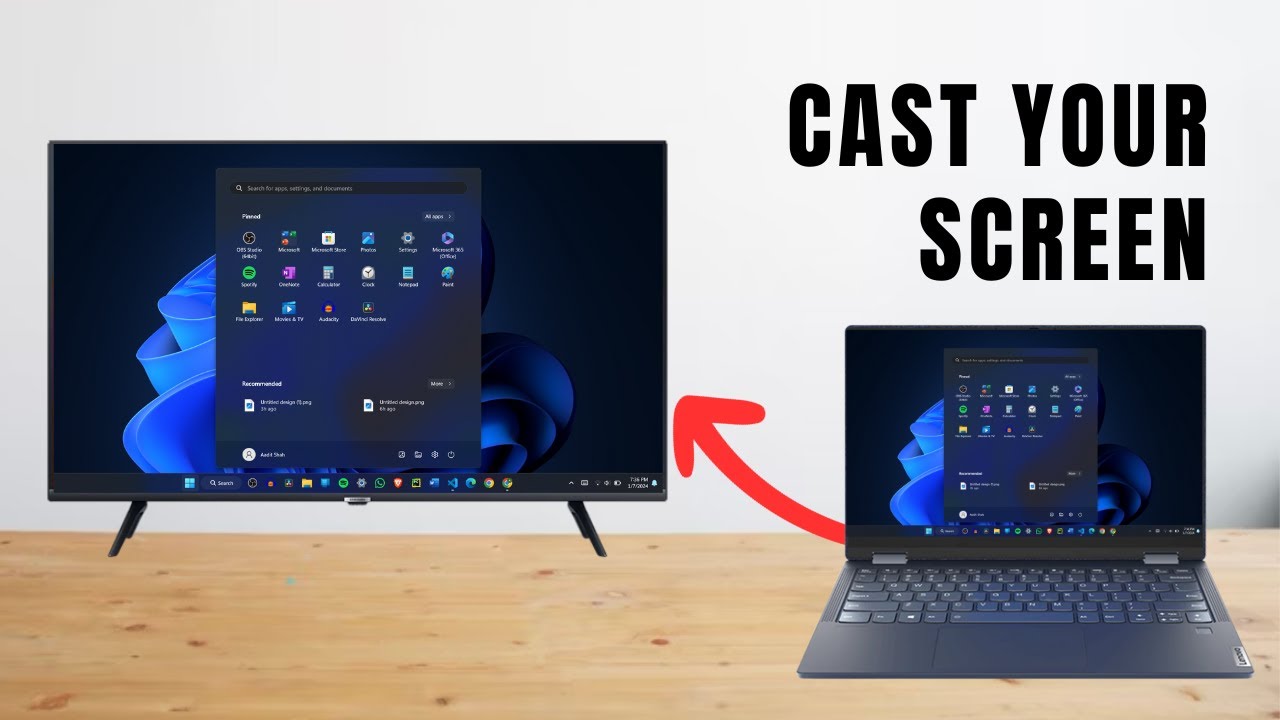
Yes, Windows also has a built-in wireless display option. Our guide on how to cast your Android screen to PC covers that method, though it is not shown in this tutorial.
Related guides